Top WordPress Management Software Every Website Owner Should Know (2026)

Are you searching for the best WordPress management software for 2026? You’re at the right place.
Managing a WordPress website often requires time and attention due to the many maintenance tasks involved.
Website administrators often manage numerous notifications, security updates, and performance issues, which can be overwhelming.
Luckily, there are effective solutions.
You don’t have to handle every task manually. The right WordPress management software can make maintenance easier, reduce mistakes, and save you time.
This guide covers the key WordPress management tools for website owners.
It also highlights a specialized tool that helps protect the login page, often overlooked.
Here’s a list of essential WordPress management tools every website owner should know, including a tool that helps you secure and customize your login pages.
WordPress Management Software (TOC):
Why WordPress Management Tools are Important
Experiencing a plugin update that disrupts an entire website during off-hours highlights the importance of effective website management.
Website owners commonly encounter several management challenges:
- Regular Updates: These involve maintaining current versions of themes and plugins.
- Security: This includes preventing brute-force attacks.
- Backups: This provides a safeguard against system failures.
- Login Management: This involves maintaining both the security and the branding of the website’s login page.
Using dedicated management tools enhances website efficiency and performance.
According to a recent study, WordPress sites are attacked every 28 minutes on average.
Although many prioritize backups, LoginPress addresses an important aspect of WordPress website management by securing the login portal.
Effective website management emphasizes proactive measures to prevent issues, rather than only addressing problems after they occur.
List of Top 6 WordPress Management Tools
Let’s go through some of the top WordPress management tools available and their best use cases for your understanding:
1. LoginPress
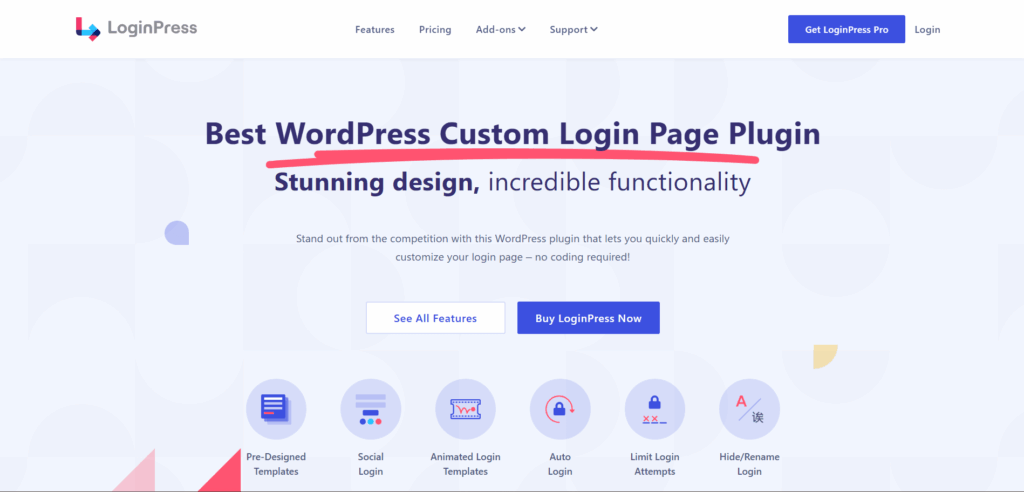
While most WordPress management software focuses on core site functionality, LoginPress prioritizes securing and customizing the login interface.
It’s estimated that more than 24 billion credentials are exposed in data breaches each year. The /wp-admin page is a common target for unauthorized access attempts.
LoginPress provides a specialized layer of defense and transforms a generic login page into a professional, branded interface.
Best For: Agencies managing multiple clients, membership sites, and organizations seeking to mitigate brute-force vulnerabilities.
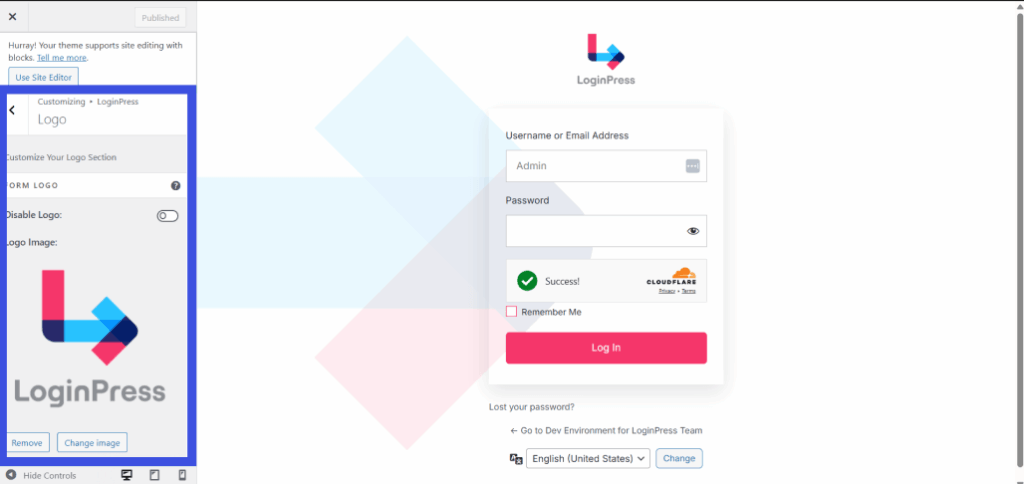
LoginPress uses the WordPress Customizer API to enable real-time visualization of changes without requiring any coding expertise.
Key Customization Features
- Total Brand Integration: In addition to logo placement, the entire layout can be modified.
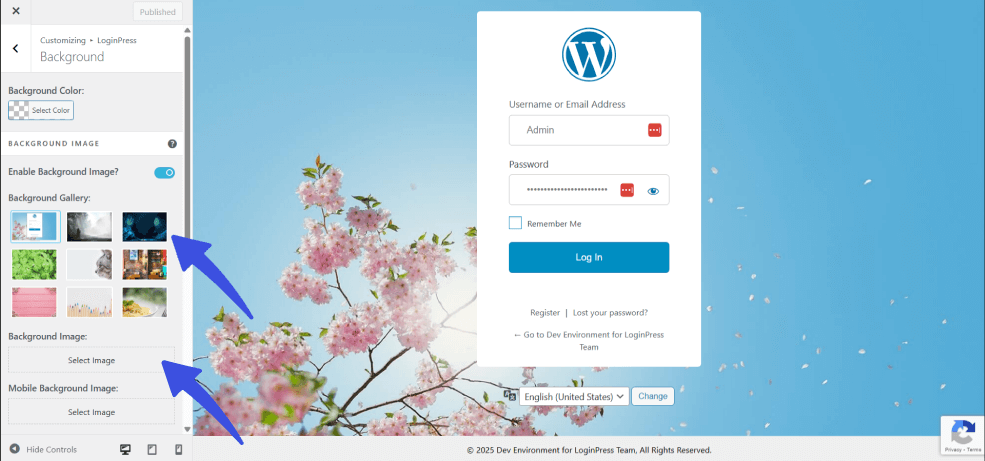
Backgrounds can be set to high-definition images or branded videos; form transparency can be adjusted.
- Custom Error Messages: Default WordPress error messages can inadvertently disclose whether a username exists, posing a security risk.
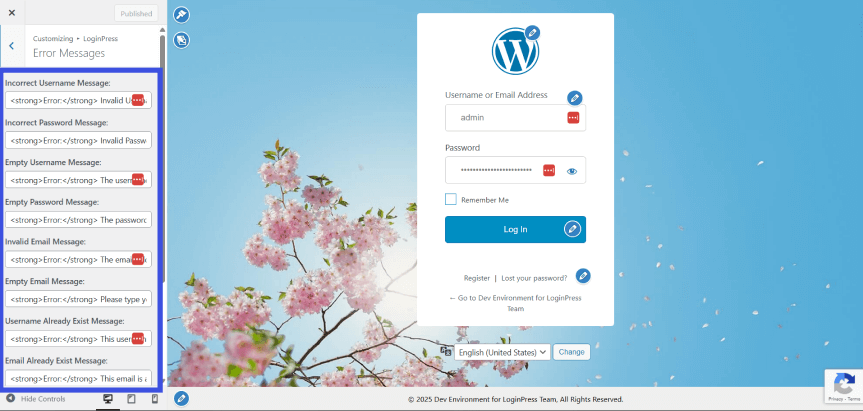
LoginPress enables customization of these messages to enhance the user experience while reducing the information available to automated attacks.
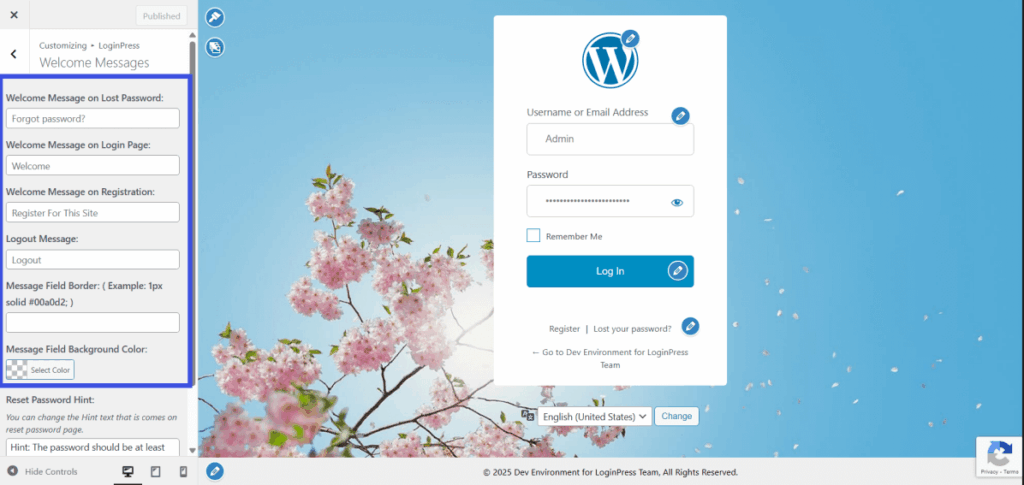
- Custom Welcome Messages: Choose a custom Welcome message to make the login process feel like a native part of your brand.
Advanced Security Features:
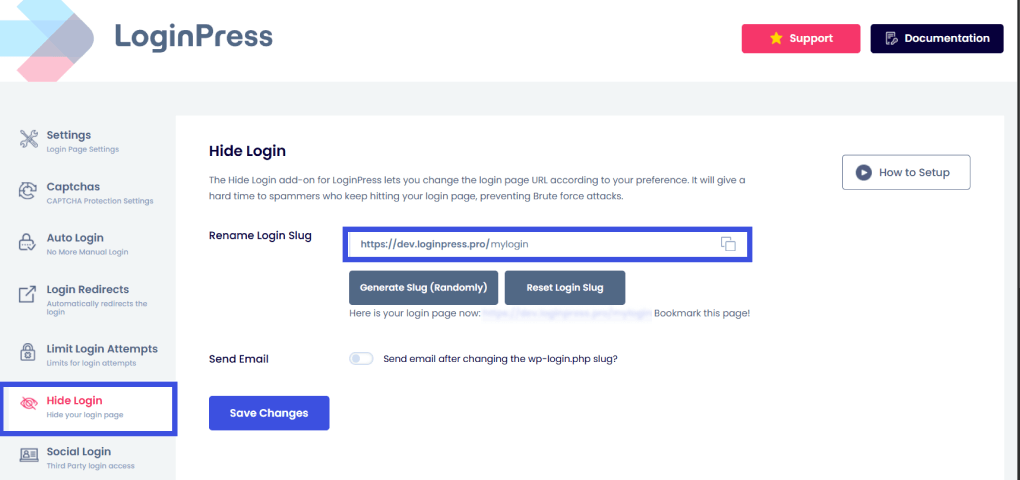
- Hide or Rename the Login URL: Change the login URL to a unique address to significantly reduce the effectiveness of automated bot attacks.
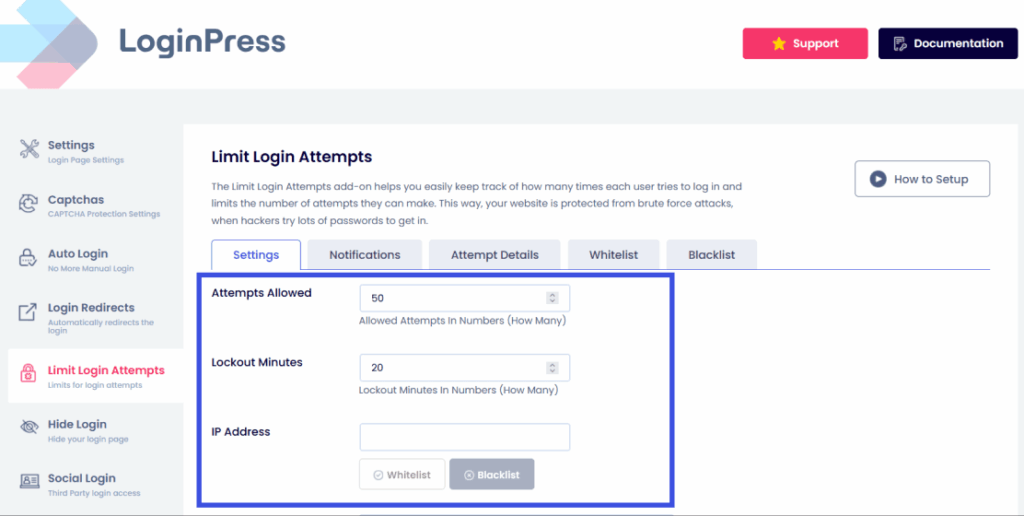
- Limit Login Attempts: The system automatically tracks and blocks IP addresses that attempt to guess passwords. Administrators can configure the number of allowed attempts and the lockout duration from the dashboard.
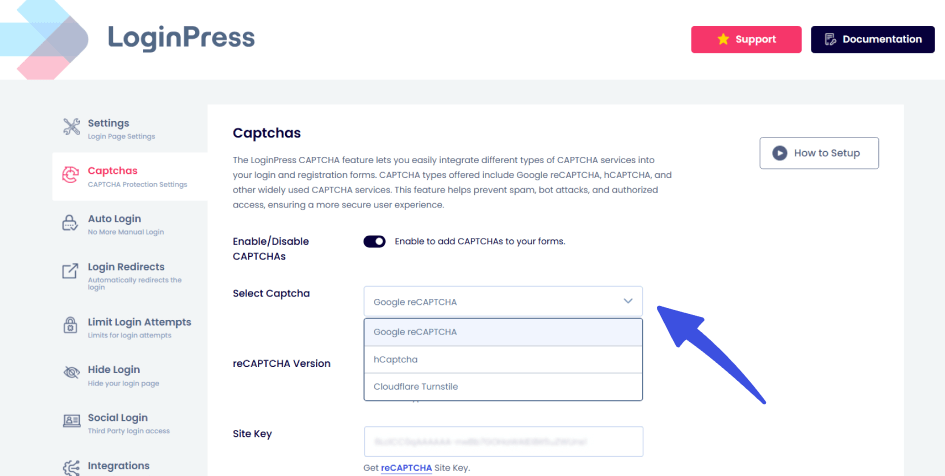
- Smart CAPTCHA and Turnstile: Google reCAPTCHA, hCaptcha, and Cloudflare Turnstile can be integrated to ensure only human users can interact with login forms.
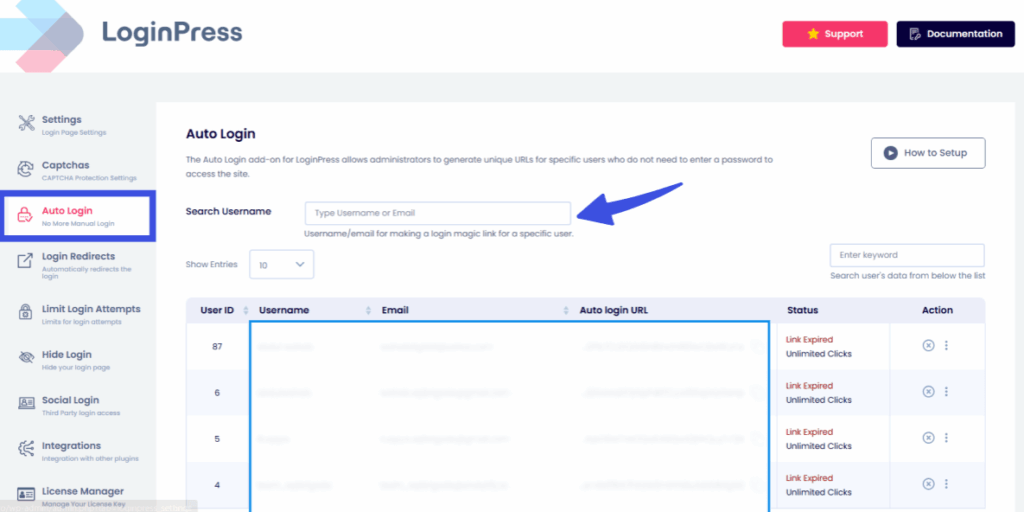
- Auto-Login Links: For agencies, you can generate secure, temporary “Magic Links” that allow specific users to log in without sharing a password.
LoginPress not only enhances the visual appeal of the login page but also strengthens the website’s primary access point.
This fosters a professional environment that communicates trust to users and authority to clients.
That trust, however, extends beyond your login page and dashboard. How users and clients perceive your business across review sites, search results, and third-party directories is just as important as what happens on your own site. Using an online reputation management platform alongside your WordPress tools gives you visibility into that broader perception and helps you respond before small issues affect how potential clients view your brand.
2. ManageWP
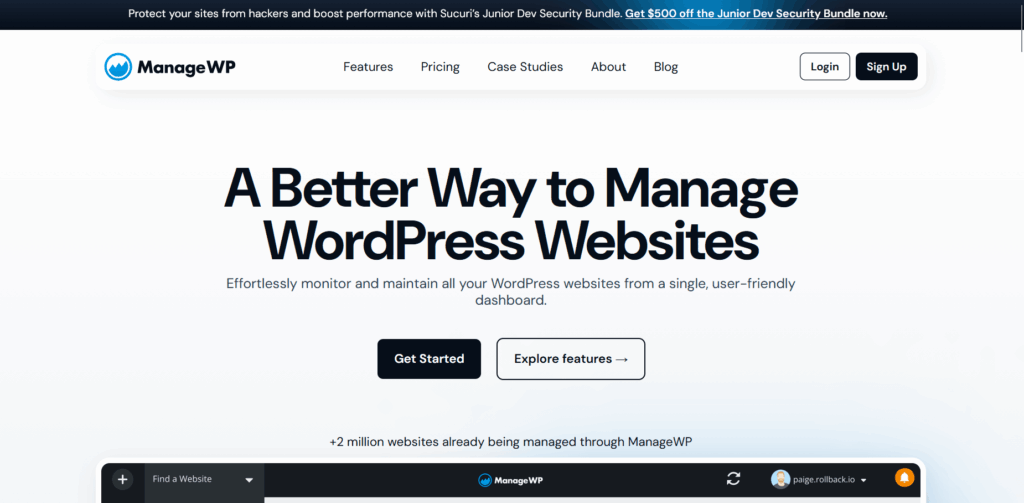
If you need to manage WordPress websites at scale, ManageWP is one of the industry’s best WordPress management tools.
This management tool lets you manage all your sites from a single, centralized dashboard, eliminating the need to switch between different software tools.
- Best for: Agencies or owners with 3+ websites.
- Key Features: One-click updates, automated backups, and monthly client reports.
Expert Tip: Use the Safe Update feature. It’s a good idea to back up your website before updating your plugins, so you can roll back instantly if the update fails.
3. Jetpack
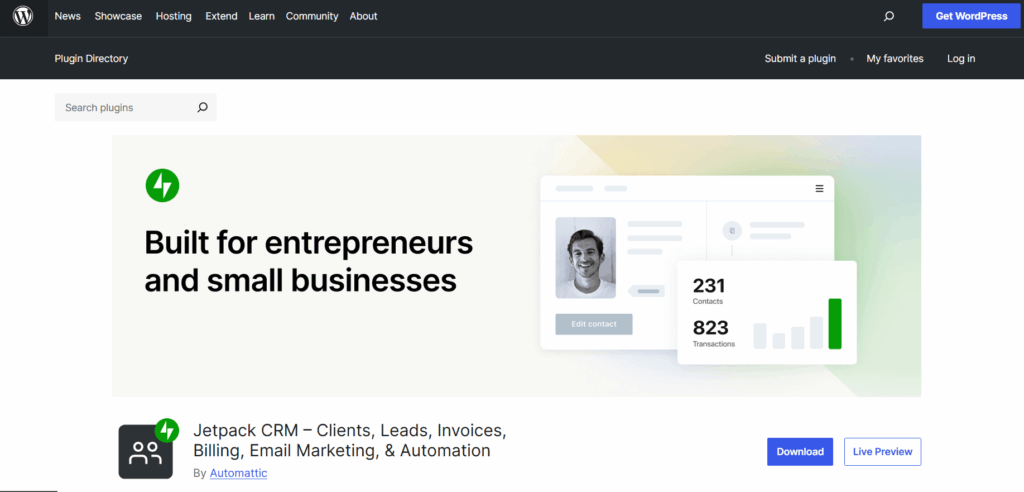
Jetpack is perhaps the most well-known WordPress management tool. Built by the team behind WordPress.com, it handles everything from security to site growth.
- Best for: Beginners who want a set-it-and-forget-it solution.
- Key Features: Real-time backups, malware scanning, and basic site analytics.
By consolidating several functions into one plugin, Jetpack makes WordPress website management significantly less cluttered.
4. WP Rocket (Performance Management)
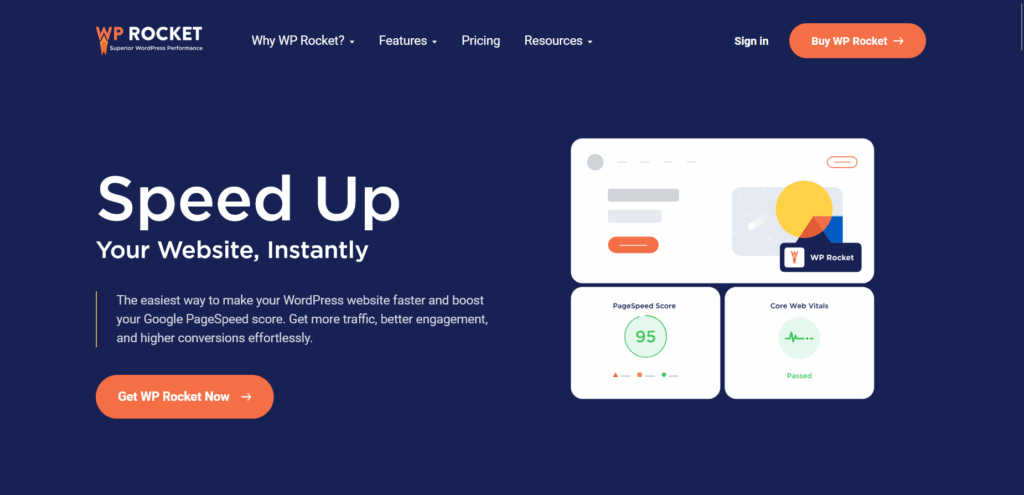
Performance is a core pillar of WordPress site management. If your site is slow, your SEO and conversions will suffer.
WP Rocket is the most powerful caching tool on the market.
- Best for: Improving Core Web Vitals and user experience.
- Key Features: Page caching, GZIP compression, and lazy-loading of images.
How to manage your WordPress website: Don’t just install WP Rocket and walk away. Pair it with a CDN (Content Delivery Network) to ensure your site loads fast globally.
5. UpdraftPlus
Every WordPress site management service includes a backup plan. UpdraftPlus is the world’s most popular scheduled backup plugin for a reason: it’s incredibly reliable.
- Best for: Disaster recovery and site migrations.
- Key Features: Automatic backups to Dropbox, Google Drive, or S3.
It is advisable not to rely exclusively on hosting providers for backups.
Maintaining an independent copy of the site using a tool such as UpdraftPlus is recommended.
6. MainWP: The Self-Hosted Alternative
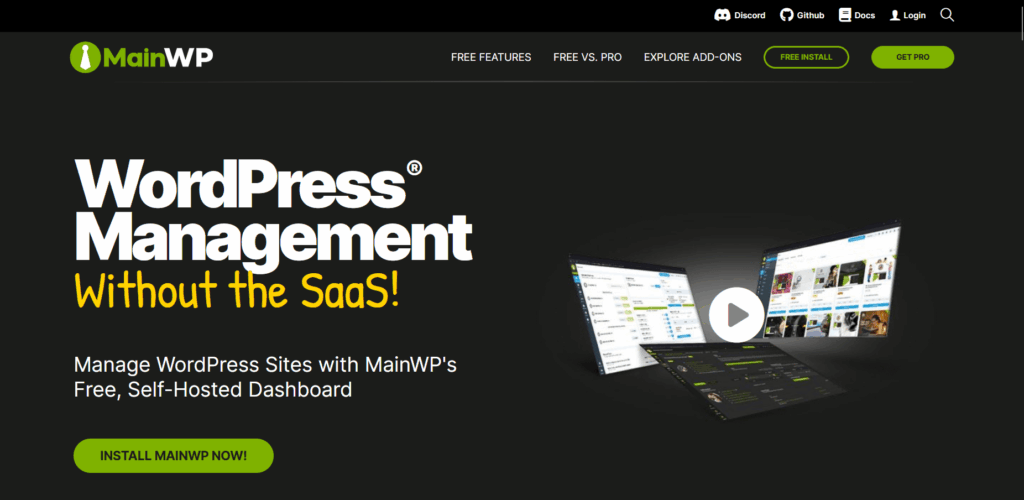
MainWP is a powerful WordPress management software for those who want total control. Unlike ManageWP, MainWP is “self-hosted,” meaning your data stays on your own server.
- Best for: Privacy-conscious developers and power users.
- Key Features: Bulk posting, uptime monitoring, and security fix deployment.
It complements login management tools like LoginPress: while MainWP monitors your sites’ health, LoginPress ensures your entry points are locked down.
How to Use Top WordPress Management Tools Together
A streamlined workflow is more effective than relying on numerous plugins.
The following steps outline how to integrate essential tools into a daily WordPress website management routine:
- Centralize: Employ ManageWP or MainWP to monitor and apply updates across all websites each morning.
- Protect: Configure LoginPress to conceal the login URL and implement reCAPTCHA to prevent automated bot access.
- Optimize: Use WP Rocket to keep website load times below 2 seconds.
- Backup: Schedule UpdraftPlus to perform a complete site backup to cloud storage weekly, or daily for high-traffic websites.
Integrating these WordPress management tools establishes an efficient website management system.
Tips for Choosing the Right WordPress Management Tools
Given the abundance of WordPress management tools available, selecting the most suitable combination can be challenging.
Rather than being distracted by new features, prioritize your specific requirements.
The following four factors should be considered when evaluating WordPress management tools:
- Site Size and Traffic: High-traffic e-commerce platforms require real-time backups and advanced caching solutions. In contrast, small portfolio sites may operate effectively with basic, free versions of WordPress management software.
- Number of Sites: For single-site owners, Jetpack may be sufficient. However, managing multiple WordPress websites often necessitates a centralized dashboard such as ManageWP.
- Budget: Many premium tools offer lite versions. Start for free, but don’t shy away from paid tools for mission-critical features such as automated security scanning.
- Technical Expertise: Certain tools are designed primarily for developers, such as MainWP, whereas others are intended for users with minimal technical experience.
Achieving an effective balance between functionality and usability is essential. The optimal tool should offer robust protection while remaining accessible for regular use.
For example, while comprehensive platforms handle backups, updates, and performance, security-sensitive areas like the login page benefit from dedicated tools.
LoginPress is a specialized WordPress management tool for login security and branding, giving site owners greater control over one of their site’s most vulnerable entry points.
It focuses exclusively on securing and branding the login interface, often outperforming general plugins in this regard.
FAQs on WordPress Management Software
Can I manage multiple WordPress sites from one login?
Absolutely. Tools such as ManageWP and MainWP are designed specifically for this. You log in to a single parent dashboard and can push updates or run backups across 10, 50, or even 100 sites with a single click.
Is LoginPress better than a standard security plugin?
Think of them as partners, not competitors. While a plugin like Wordfence acts as a firewall for your entire server, LoginPress specializes in securing and branding the “front door” of your site. It’s an essential part of how to manage your WordPress website if you want to stop brute-force attacks at the source.
Do these tools slow down my website?
The best WordPress management software (such as WP Rocket) is designed to make your site faster. However, avoid “plugin bloat” by only installing what you need. A focused stack of 5–6 high-quality tools is always better than 20 mediocre ones.
Are automatic updates safe to use?
Generally, yes, but with a caveat. Always use a tool with a Safe Update or Vision Check feature. This ensures that if an update breaks your layout, the system can automatically roll back to a previous version before your visitors notice.
Conclusion: WordPress Management Tools
You can manage your WordPress website effectively by using the right tools. These tools help turn time-consuming manual tasks into a simple, automated process.
It’s best to use a centralized dashboard for managing multiple sites, performance tools to keep your site fast, and LoginPress to improve login security.
This approach helps you manage your website and improve its security. It keeps your site fast, up to date, and protected from unauthorized access.
It’s important to proactively manage your WordPress website.
By setting up key management tools immediately, you can monitor your site more closely and reduce the risk of technical issues or security breaches.
Here are some resource guides you can check out if you are interested in learning more about WordPress:
- WordPress Plugin Compatibility Made Easy (2026 Guide)
- Optimize WordPress Login Redirects for SMBs and Agencies (Detailed Guide)
- How to Build Login Security for Headless WordPress (2026 Guide)
Be honest: Have you customized your WordPress login page yet, or are you still using the default look? I’d love to hear your thoughts below