How to Reduce Login Friction Without Compromising WordPress Security?

You reduce login friction in WordPress by removing the obstacles that stop legitimate users from logging in, such as a generic login page, repeated CAPTCHA loops and hard-to-use password resets, while keeping bot protection in place. A branded, simple login with smart bot filtering improves both conversions and security.
In this post, I will show you how to make logging in easier by treating usability as part of your site’s security.
Login Friction in WordPress (TOC):
What is Login Friction in WordPress?
Login friction in WordPress refers to any obstacle that prevents legitimate users from logging in easily and safely.
Rather than a single issue, it comprises a series of minor obstacles that accumulate over time, contributing to higher abandonment rates.
Common examples of login friction include the following:
- Password Memory Challenges: Requiring users to recall complex passwords that have not been used for extended periods.
- Aggressive Account Lockouts: Denying access to legitimate users after a small number of incorrect password attempts.
- Excessive CAPTCHA Challenges: Requiring users to repeatedly solve image-based puzzles to access their accounts.
- The Unbranded Login Page: A default login page that feels suspicious because it doesn’t look like the rest of your site.
Reducing login friction not only streamlines the user experience but also addresses a primary cause of user abandonment prior to content engagement.
Why Reducing Login Friction Actually Improves Security
Reducing login friction improves security because friction often leads users to insecure workarounds, so usability and security work together.
When you reduce login friction, you make life easier for users and you create a more user-friendly login page.
Avoid Brute-Force Attempts
A smooth login process that uses tools such as Passkeys, Magic Links, or a strong SSO can significantly reduce failed login attempts.
When logging in is difficult, real users often make mistakes and try again, which creates extra “noise” and hides real brute-force attacks.
If most users succeed on the first attempt, security teams can more easily spot and block automated attacks.
Fixing the Password Reset Weak Spot
Password resets are often the weakest part of security. When password rules are overly strict, users forget their passwords and must reset them.
Each reset is a potential entry point for attackers, as it often relies on less secure channels such as email or SMS.
By making WordPress logins easier and more secure, you reduce resets and close these gaps.
Closing Unsafe Shortcuts
Most importantly, satisfied users are more likely to follow security rules.
If logging in is too hard, people start using unsafe shortcuts, such as writing down passwords, reusing simple ones, or leaving their computers logged in on public computers.
When you make UX and security work together, the easiest way for users is also the safest.
What Makes a Secure but User-Friendly Login Page?
A secure but user-friendly login page is one where brand trust meets data protection.
The best login UX practices use smart design to simplify the user journey while still stopping bots. Examples include:
- Consistent Branding and Phishing Defense: A login page with clear branding, including your logo, brand colors, and domain, acts as a psychological anchor.
- Minimalist Forms and Reduced Attack Surfaces: Short forms create a smaller attack surface, reducing the potential for input-based exploits. Implementing social login options lets users authenticate with trusted providers they already use.
- Intuitive Feedback and Adaptive Security: Strategic feedback should guide users without leaking sensitive data, such as confirming whether a specific username exists.
- Frictionless Verification: Smart CAPTCHA technology ensures legitimate users’ flow remains uninterrupted while blocking automated scripts at the perimeter.
Ultimately, a secure WordPress login succeeds when it feels invisible.
By aligning your login UX best practices with these core principles, you create an environment where the most secure path for the user is also the most convenient one.
Where Most WordPress Sites Create Login Friction
Most WordPress sites create login friction through a few common errors:
- The default use of wp-login.php is unbranded and reveals the login portal location, increasing the risk of unauthorized access.
- Implementing an outdated, difficult-to-read CAPTCHA can hinder legitimate user access and reduce overall usability.
- Locking users out after a minimal number of failed attempts, without providing explanations or recovery instructions, can negatively affect the user experience.
- Displaying generic error messages, such as “Invalid Username,” may disclose information that could assist unauthorized users.
- Requiring users to remember complex passwords without providing alternative authentication methods, such as social login, can reduce accessibility.
These issues represent not only usability shortcomings but also missed opportunities to enhance website security.
How LoginPress Reduces Login Friction Without Weakening Security
Yes, a branded login page can make WordPress more secure, and LoginPress helps you bridge usability and security.
It enables you to transform the login process from a technical obstacle into a branded and secure access point.
Here is how you can reduce login friction without compromising login security or UX using LoginPress:
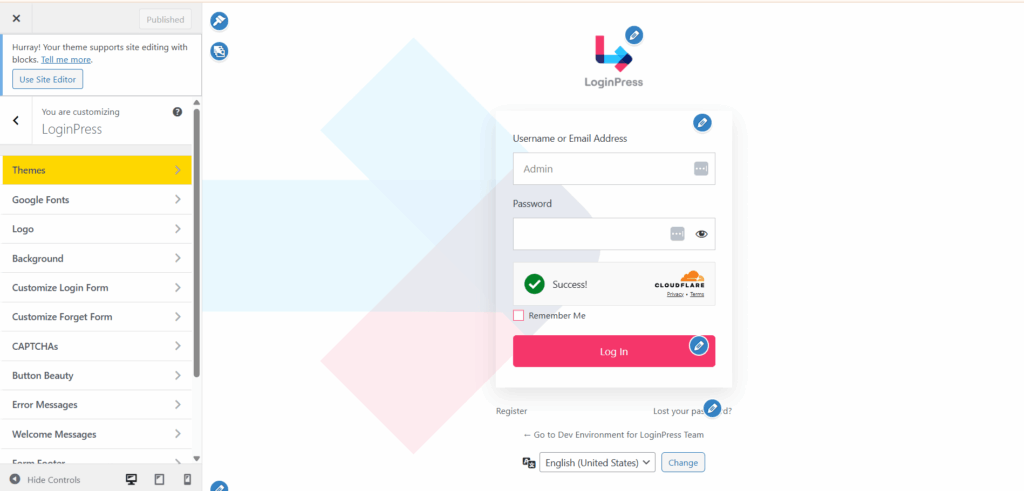
1. Custom Login UI
A branded login page reduces login friction by making it clear where users are, lowering hesitation, and reducing failed attempts.
This approach encourages immediate trust, as users are more likely to feel confident entering their credentials when they recognize your branding.
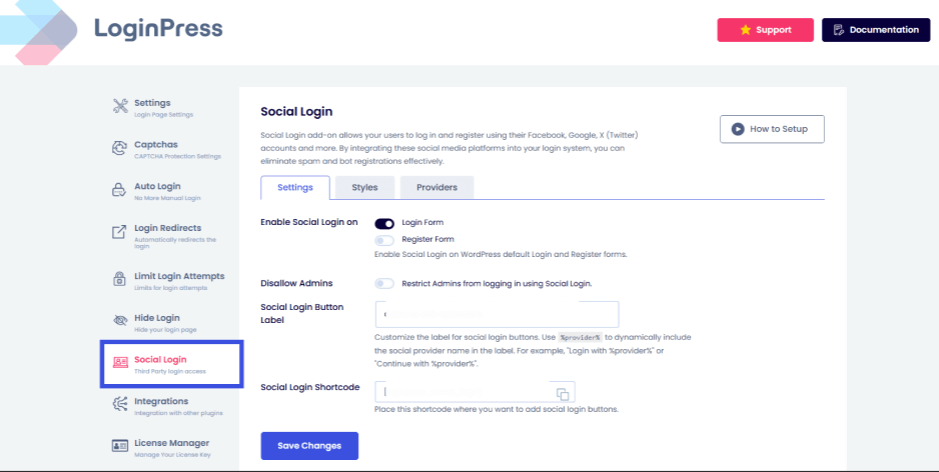
2. Social Login (Google, Facebook, etc.)
Social login options, such as Google or Facebook, significantly reduce login friction.
Recent studies show that 86% of users report being bothered by having to create new accounts on websites.
Allowing users to authenticate via these platforms addresses forgotten password issues. This method is faster for users and more secure for site administrators.
This method also uses the advanced security infrastructure of major technology companies, enhancing credibility. That is why LoginPress’s Social Login Add-On allows users to log in with 15+ different providers.
3. Limit Login Attempts
Phishing remains one of the most expensive initial attack vectors, averaging $4.8 million per breach according to recent reports.
This is why you need a strong defense against these constant hammering brute force attacks, which can be mitigated using LoginPress’s Limit Login Attempts Add-On.
By offering customizable lockout durations and custom error messages, LoginPress ensures that genuine users are not penalized like automated threats. Here are some top-grade features:
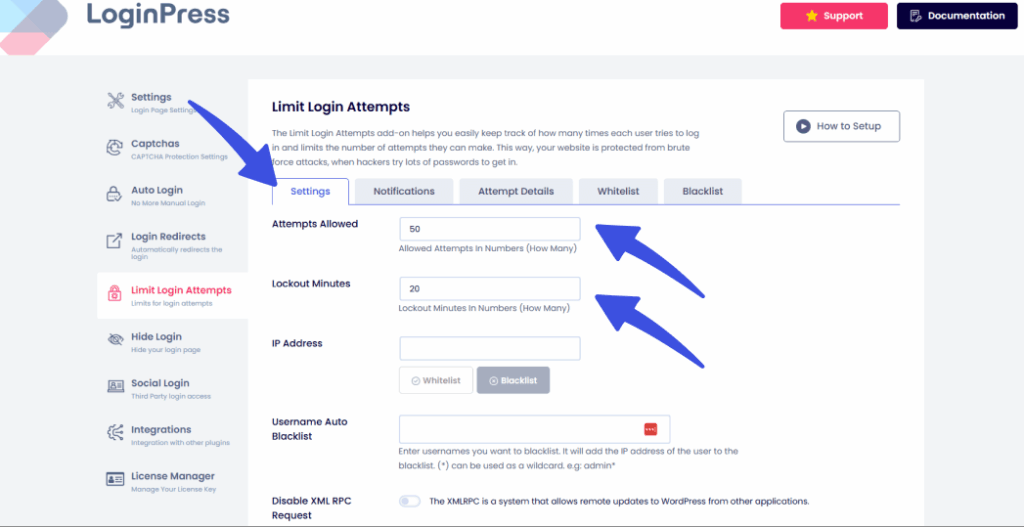
With 5 tabs, each harboring a different group of features necessary for protecting against brute-force attacks. For more details, see How to Limit Login Attempts with LoginPress (Easy).
4. CAPTCHA with Smart Triggers
Invisible reCAPTCHA can be implemented to monitor user behavior, such as mouse movements, in order to verify human interaction.
The LoginPress CAPTCHA option offers multiple CAPTCHA types to integrate for maximum protection.
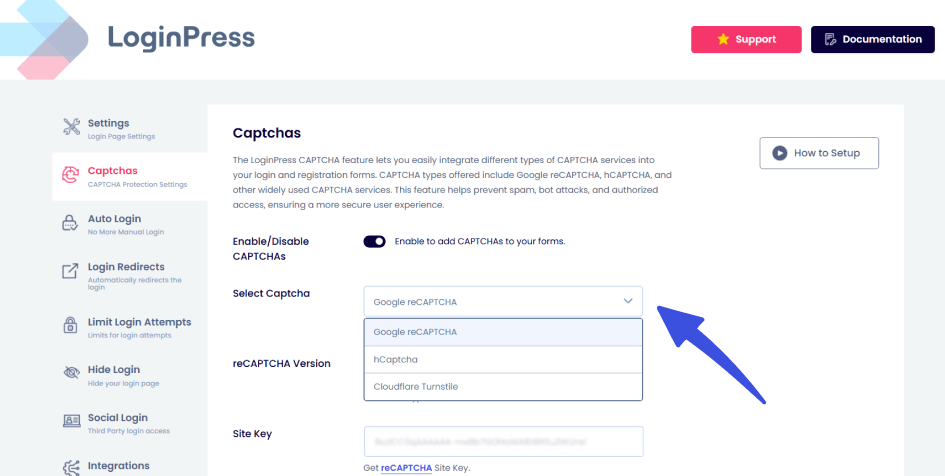
This way, genuine users are not presented with additional challenges, while automated bots are effectively blocked.
5. User-Friendly Error Messages
Smart, user-friendly error messages improve the login experience without compromising security.
Clear guidance helps reduce frustration and increases the chances of a successful login on the next attempt.
Using LoginPress Customizer to customize login forms, you can add preferred error messages:
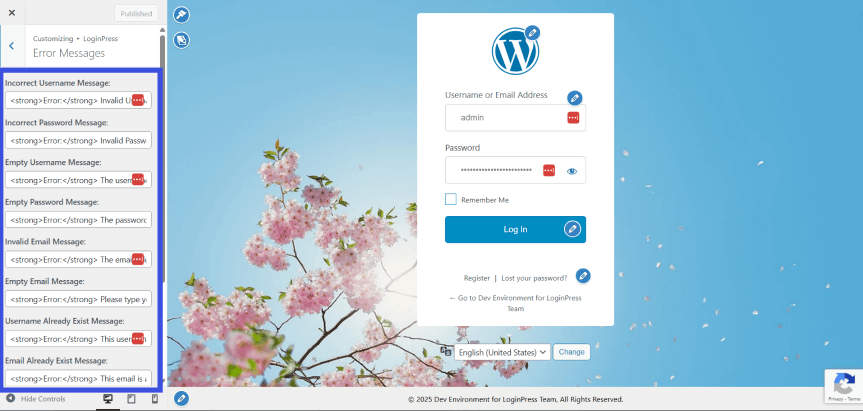
Expert Tip: Don’t just say Invalid Password. Use LoginPress’s Custom Error Messages option to add a link to your password reset page inside the error message. This turns a dead-end into a fast track for your users.
Which Friction-Killer Should You Prioritize?
- For E-commerce sites, prioritize Social Login to speed up checkout.
- Handling a Private Community? Prioritize Invisible reCAPTCHA to block bots without annoying members.
- Starting a New Blog? Prioritize Custom UI to build trust with your first 100 subscribers.
How Login Friction Impacts Membership Sites, Stores, and Communities
Login friction costs stores, courses and forums real money, a “friction tax” that grows with every failed login.
When the login process fails, users typically attribute the issue to the platform rather than to their own memory.
1. Membership Sites
For membership sites, the primary product is access to exclusive content.
If a paying member spends several minutes searching for a login button or resetting a forgotten password, the perceived value of the membership decreases immediately.
The Stake: High friction increases support ticket volume. Instead of using your content, members are emailing your team for password help.
The Result: A frustrated member is 3x more likely to cancel their subscription than a member who can access their dashboard in one click via Social Login.
2. WooCommerce Stores
In e-commerce, the login page frequently represents the final step before a sale is completed.
Example Case Study: A returning customer with a full cart who cannot recall their password may abandon the purchase if required to complete a multi-step reset process or navigate an inefficient default WordPress page. Such customers are likely to purchase from competitors offering a more streamlined checkout experience.
The Result: You lose the immediate sale and the customer’s Lifetime Value (LTV). Reducing login friction here directly correlates to lower cart abandonment rates.
3. Community Platforms
Communities depend on spontaneous interaction.
If a member must first complete a complex CAPTCHA to respond to a trending thread or send a message, engagement momentum is diminished.
The Stake: High-friction login processes convert active contributors into passive observers, who may eventually cease visiting the platform.
The Result: The community becomes inactive. Implementing Invisible reCAPTCHA and a branded user interface maintains accessibility, ensuring that security measures do not hinder active participation.
Streamlined login processes not only assist users but also help retain users.
Facilitating easy access for authorized users increases engagement, spending, and trust in the platform’s security.
Login UX Best Practices for WordPress
Use this checklist as your foundation for a login that keeps security strong and friction low.
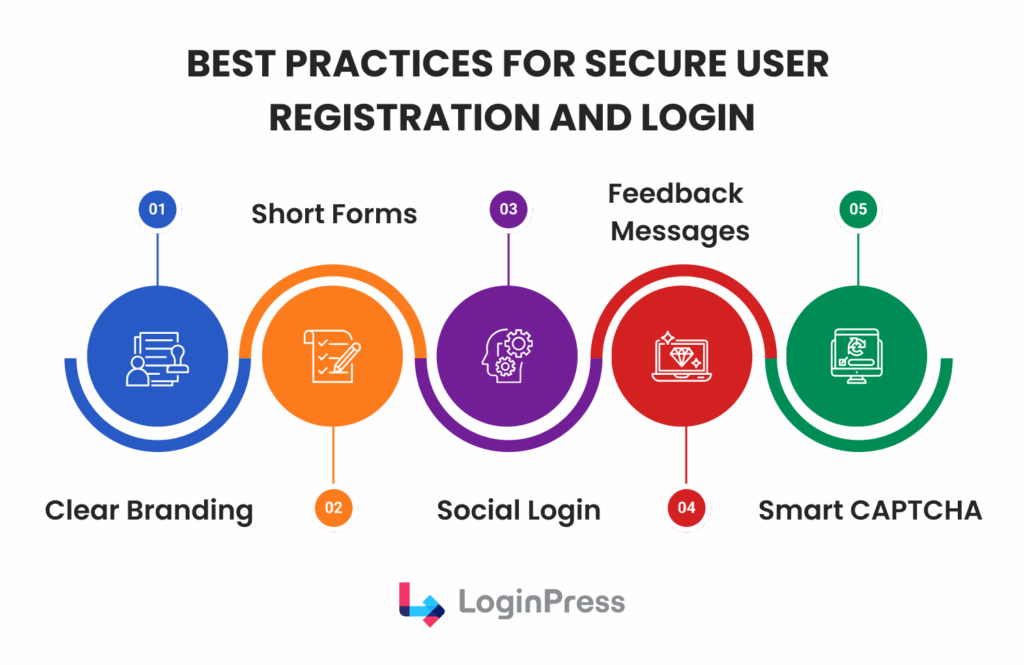
Here is a brief, punchy version of those guidelines, optimized for clarity and flow:
- Visual Identity and Trust: Create a cohesive, user-friendly login page by replacing the WordPress logo with your own and matching CSS styles to your theme. A white-label experience prevents phishing by ensuring users never doubt they are in the right place.
- Authentication and Access: Follow login UX best practices by offering social login via OAuth and enabling “Remember Me” by default. This reduces friction and limits the number of passwords users have to manage (and potentially lose).
- Friction Management: Replace frustrating puzzles with a Smart CAPTCHA that stops bots, not humans. Use helpful feedback messages to guide users through errors and avoid unnecessary login walls to keep the journey fluid.
- Security Hardening: Implement adaptive limits to thwart brute-force attempts while remaining forgiving of human typos. Use custom URLs and real-time log monitoring to shrink your smaller attack surface without impacting the user experience.
FAQs on Secure WordPress Login
How do I reduce login friction on WordPress?
To reduce friction, make it as easy as possible for users to log in. Try adding Social Login so people don’t have to remember passwords. You can also use a tool like LoginPress to brand your login page, helping users feel secure and less likely to abandon the process.
What makes a secure but user-friendly login page?
A good login page keeps users safe while making them feel welcome. Use consistent branding to reduce phishing concerns, display clear error messages to help users, and implement invisible bot protection, such as Cloudflare Turnstile. This way, real users have an easy time, but bots are blocked.
How to improve login UX without weakening security?
You can improve UX by moving toward “Invisible Security.” Instead of an aggressive CAPTCHA that annoys everyone, use behavioral triggers and login attempt limits. By hiding your login URL from the general public, you reduce bot traffic, allowing you to be more lenient and helpful with real users who actually reach your entry point.
What are the best practices for the WordPress login experience?
Here are the top best practices for a great login experience:
Always brand the page to match your site.
Offer alternative login methods, such as Google or Facebook.
Use adaptive throttling so that a single typo doesn’t result in an immediate IP block.
Provide clear “Next Steps” in your error messages to prevent user frustration.
Conclusion: Reduce Login Friction
Security and usability work best together, not as opposing priorities.
Operational friction impedes growth by discouraging membership, reducing sales, and often compelling users to adopt insecure workarounds.
An overly complex login process undermines security objectives. A streamlined, branded login experience safeguards both organizational data and user satisfaction.
LoginPress is designed to bridge the gap between strong security and user-friendly access.
It enables a secure, user-friendly WordPress login experience that prevents unauthorized access without compromising user satisfaction.
There is no need to compromise between stringent security and a welcoming user interface; both can be achieved simultaneously.
Begin using LoginPress Pro today to transform your login page into a strategic asset for your website.