How to Customize WordPress Login Error Messages (2026)

Editorial Team
Is your login screen accidentally helping hackers?
By default, WordPress login error messages act as a roadmap for attackers by confirming exactly which part of a credential, the username or the password, is incorrect.
This security flaw, known as username enumeration, gives bots a massive head start in brute-forcing your site.
To protect your brand and improve user experience, you need to move beyond these too-helpful default alerts.
In this guide, I will show you how to transform your login screen from a vulnerability into a secure, branded entry point using proven methods.
Whether you are a developer looking for a quick snippet or a site owner wanting a professional, quick, secure solution, this article covers everything you need to master WordPress authentication errors.
WordPress Login Error Messages (TOC):
What are WordPress Login Error Messages?
WordPress login error messages are automated notifications from the authentication system when a user provides incorrect credentials.
These alerts appear on the wp-login.php screen and explain why access was denied, whether due to a typo, an expired password, or an unrecognized username.
While these messages help users, the default WordPress setup is often too specific.
By distinguishing between a wrong password and a non-existent username, the system inadvertently confirms if a user account exists on your site.
Common WordPress Authentication Errors
When a login attempt fails, you will typically encounter one of these four scenarios:
- Invalid Username Error: The system reports that the provided username does not exist in the database.
- Incorrect Password Error: WordPress confirms the username is valid, but notifies the user that the password is wrong.
- Empty Fields Error: Triggered when a user clicks Log In without entering any data.
- Too Many Login Attempts: A security-driven error that temporarily blocks an IP address after multiple failures.
For example, a default message might read: “The password you entered for the username Admin is incorrect.”
While helpful for a forgetful owner, it signals to a hacker that Admin is indeed a valid account, allowing them to focus 100% of their efforts on cracking the password rather than guessing the name.
| Error Type | Trigger Scenario | Security Risk |
| Invalid Username | Entering a username not in the database. | Confirms which usernames don’t exist. |
| Incorrect Password | Valid username entered with the wrong password. | High: Confirms a valid account exists to target. |
| Empty Fields | Submitting the login form with blank fields. | Low; mainly a user experience (UX) issue. |
| Too Many Attempts | Multiple failed logins from a single IP. | Critical: Indicates an active brute-force attack. |
Why You Should Customize WordPress Login Error Messages?
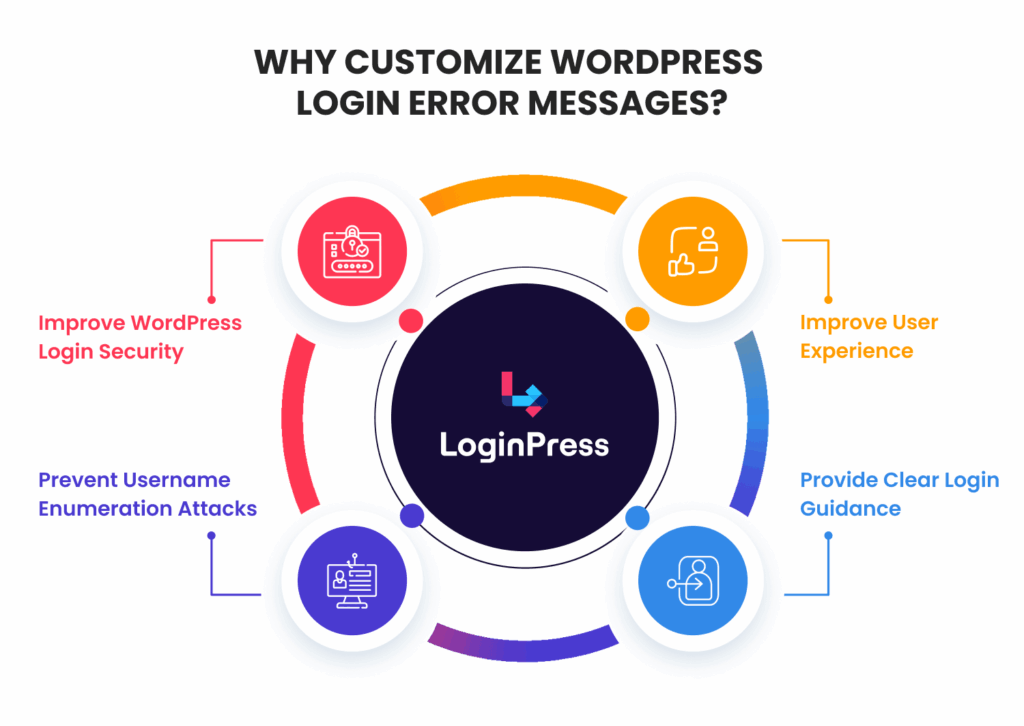
If you are wondering, “Why customize login error messages?”, the answer lies at the intersection of potent security and a polished user experience.
While the default WordPress alerts are functional, they are rarely optimal for a professional or high-traffic website.
1. Improve WordPress Login Security
The primary reason to change WordPress login errors is to protect your site’s front door.
Standard WordPress notifications often provide too much detail, confirming which part of the login credentials, the username, or the password, was typed incorrectly.
By creating secure login messages wordpress can trust, you ensure that your site doesn’t leak sensitive data to unauthorized visitors.
2. Prevent Username Enumeration Attacks
Hackers often use automated bots to test thousands of username and password combinations.
This is known as a Username Enumeration attack. If your login page confirms “The username ‘admin’ is correct, but the password is wrong,” the bot knows it has successfully found a valid account.
Customizing these responses to a single, generic message stops attackers in their tracks by keeping them in the dark about which half of the credentials was wrong.
3. Improve User Experience (UX)
Default warnings can sometimes feel cold or overly technical.
When you customize login warnings, you can adapt the tone to match your brand voice, whether that is professional, friendly, or even humorous.
This reduces user frustration during a failed login attempt by providing a more human touch.
4. Provide Clear Login Guidance
Generic messages don’t have to be unhelpful. You can use this space to guide legitimate users toward a solution without compromising security. For example:
- Remind users of password requirements (e.g., “Must be at least 12 characters”).
- Specify the correct login format (e.g., “Please use your registered email address”).
- Offer a support contact (e.g., “Still having trouble? Contact our support team here”).
Common WordPress Login Errors Explained
When a user tries to access your site, the system runs through a series of checks.
If any check fails, one of several specific WordPress authentication errors is triggered. Understanding these scenarios is the first step toward creating a more secure login experience.
Typical Login Scenarios
- Invalid Username Error: This occurs when a visitor enters a username that isn’t registered in your database. The default WordPress settings explicitly state Invalid username, confirming that the account does not exist.
- Incorrect Password Error: In this case, the username is correct, but the password fails the check. This is a primary target for brute-force attacks.
- Empty Fields Error: If a user clicks the login button without entering data, WordPress prompts them to fill in the required fields.
- Too Many Login Attempts: Usually triggered by security plugins, this error blocks the IP address after a set number of failed login attempts to prevent automated cracking.
Why Categorization Matters
By identifying these WordPress authentication errors, you can decide which ones to keep and which to consolidate.
For instance, combining “Invalid Username” and “Incorrect Password” into a single generic message prevents hackers from discovering valid accounts.
Customizing login warnings in this way avoids user confusion by providing clear, brand-aligned instructions while simultaneously shielding your site from malicious probes.
How to Change WordPress Login Error Messages
If you are ready to change WordPress login errors on your site, you have several options ranging from manual code snippets to automated plugins.
Depending on your technical comfort level and security needs, here are the three most effective ways to custom login error WordPress notifications.
Important Prerequisites
Before adding custom code to your functions.php file, please keep the following safety tips in mind:
- Use a Child Theme: Never add code directly to your parent theme. If the theme updates, your custom login messages will be overwritten and lost.
- Backup Your Site: Always create a full backup of your website before editing core files.
- FTP/File Manager Access: Ensure you have access to your site via FTP or your hosting provider’s File Manager. If a syntax error occurs, you will need to manually remove the code to restore site access.
- PHP Compatibility: This snippet is designed for modern WordPress environments. Ensure your site is running a supported version of PHP (7.4 or higher).
Tip: Looking for a safer way? Using a plugin like LoginPress allows you to make these changes through a visual interface, eliminating the risk of breaking your site’s code.
Customize Login Error Messages Using a Plugin (Recommended)
For the vast majority of users, using a dedicated plugin like LoginPress is the most reliable way to change wordpress login errors.
Not only does it eliminate the risk of breaking your site with code, but it also gives you a visual interface to manage your login page.
LoginPress is the industry leader for login page management because it allows you to:
- Customize login error messages individually for usernames, passwords, and emails.
- Modify login warnings for empty fields or forgotten passwords without touching a single line of code.
- Design branded login pages that align with your site’s identity, enhancing the overall user experience.
- Improve login security by combining custom messages with features like Google reCAPTCHA and Limit Login Attempts.
While manual code is a quick fix, a plugin-based approach ensures your changes remain intact even after theme updates, providing a set-it-and-forget-it solution for your WordPress login security tips.
How to Customize WordPress Login Error Messages with LoginPress (Step-by-Step)
While manual code works, it lacks flexibility and scalability. LoginPress simplifies the process by bringing these settings into the native WordPress Customizer.
This allows you to change wordpress login errors visually and see the results in real-time. Follow these four simple steps to secure and brand your login screen.
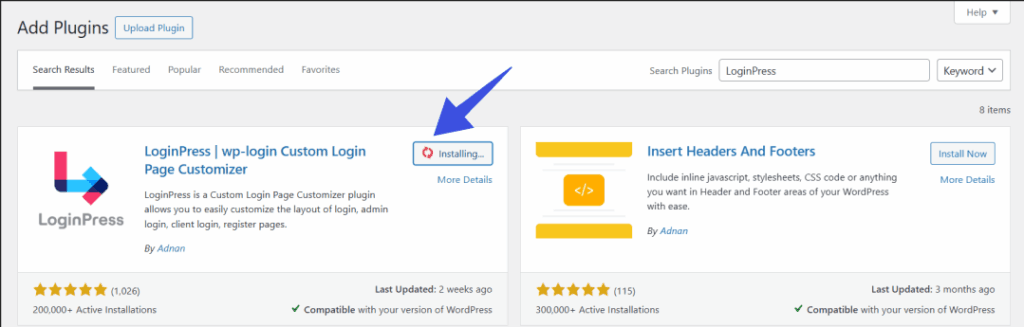
Step 1: Install the LoginPress Plugin
To get started, you need to add the plugin to your site.
Log in to your WordPress Dashboard and navigate to Plugins, and ensure your LoginPress Pro is activated.
Step 2: Open the LoginPress Customizer
Once activated, LoginPress integrates directly with the WordPress Customizer, making it feel like a native part of your site.
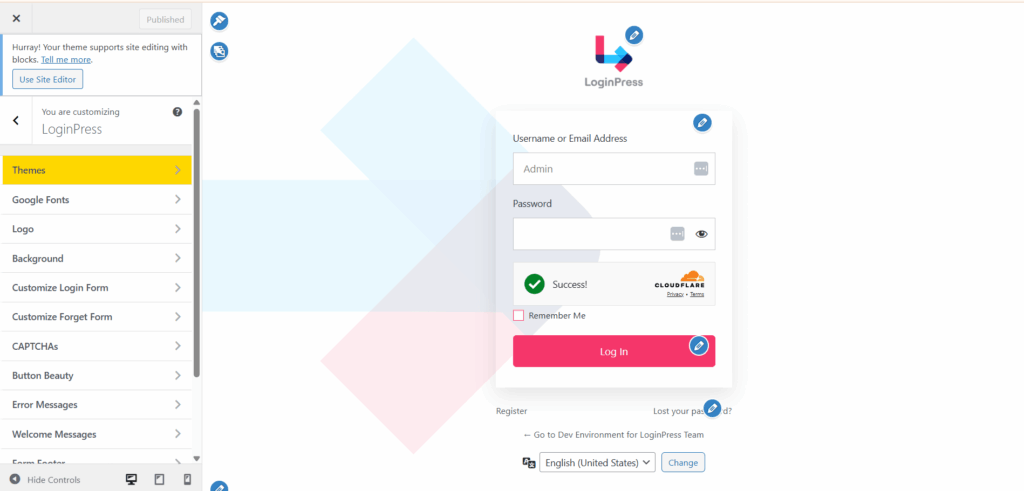
Go to LoginPress >> Customizer in your sidebar. Here you will be redirected to the live preview screen.
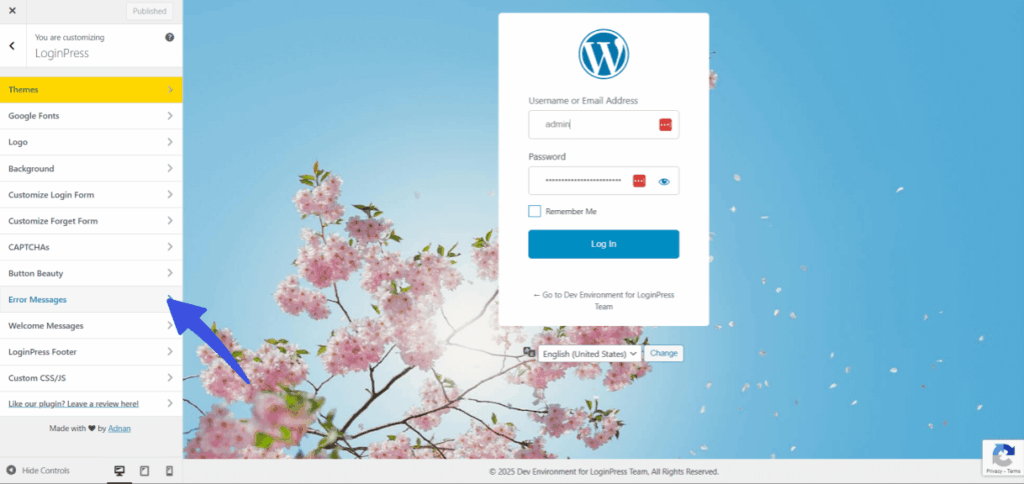
On the left-hand menu, select the Error Messages section.
Step 3: Modify Your Login Error Messages
This is where you can customize login warnings to fit your security needs and brand voice.
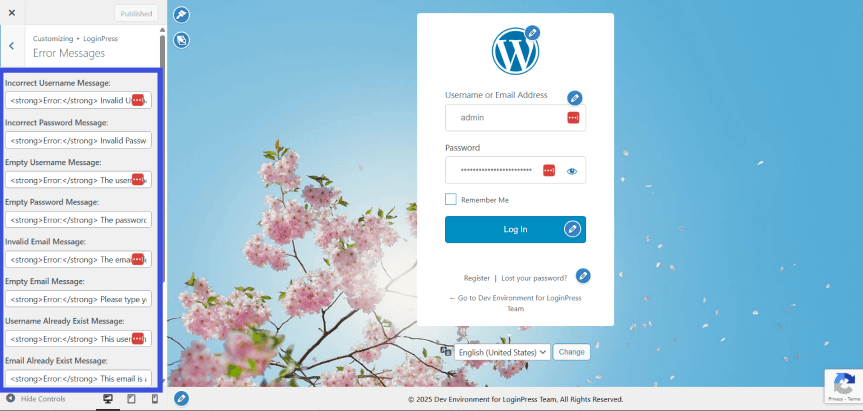
LoginPress gives you granular control over every possible error scenario. You can specifically edit:
- Invalid Username Message: Change the default “Invalid username” to something generic like “Incorrect credentials. Please try again.”
- Invalid Password Message: Ensure the error doesn’t confirm the username is correct.
- Empty Field Warnings: Create a helpful prompt for users who forget to type their details.
- Invalid Email Message: Customize the alert for sites that allow email-based logins.
Step 4: Save and Test Your Login Page
Once you have entered your custom text, click the Publish button at the top of the Customizer. To ensure everything looks perfect:
- Open your login page in an Incognito/Private window.
- Intentionally enter the wrong credentials to trigger your new secure login messages wordpress visitors will now see.
Why Use LoginPress Instead of Manual Code?
Choosing a plugin-driven approach for wordpress login error messages offers several distinct advantages for site owners:
- No Coding Required: You’ll never have to worry about the “White Screen of Death” caused by a misplaced comma in your PHP code.
- Real-Time Previews: See exactly how your error messages look against your background and logo before you hit publish.
- Consistency: Unlike code snippets that can be overwritten during theme updates, LoginPress settings are saved independently, ensuring your WordPress login security tips stay active forever.
- Complete Branded Experience: Beyond just error messages, you can change your logo, background, and button styles to create a professional, cohesive gateway for your users.
Best Practices for Secure WordPress Login Messages
Creating a custom login experience isn’t just about branding; it’s about defense.
To ensure your WordPress login security tips actually protect your data, follow these industry-standard best practices when writing your custom alerts.
1. Use Generic Error Messages
The gold standard for secure login messages, WordPress experts recommend, is ambiguity.
Instead of specifying whether a username or a password was wrong, use a catch-all phrase.
- Bad: The “Admin” password is incorrect.
- Good: “Invalid login credentials. Please try again.”
2. Never Confirm Username Existence
The most common mistake is treating your login page as a directory. Avoid phrases like “Username not found” or “That email is not registered.”
By keeping your WordPress authentication errors vague, you prevent attackers from building a list of valid accounts to target.
3. Provide Helpful but Secure Guidance
You can still be user-friendly without being a security risk. If a user fails to log in, provide a path forward that doesn’t require guessing.
- Example: “Login failed. Please check your credentials and try again. If you’ve forgotten your password, click ‘Lost your password’ below.”
4. Layer Your Login Security
Customizing WordPress login error messages is a great first step, but it shouldn’t be your only defense.
For a truly hardened login page, combine your custom messages with these measures:
- Limit Login Attempts: Automatically block IPs after three failed tries.
- Enable Two-Factor Authentication (2FA): Even if a hacker guesses a password, they won’t be able to get in without the secondary code.
- Enforce Strong Passwords: Use a plugin to require symbols, numbers, and case sensitivity.
- Monitor Activity: Maintain a login audit log to spot suspicious patterns before they escalate into successful breaches.
Common Mistakes When Customizing Login Errors
Even with the best intentions, it is easy to make mistakes when you change WordPress login errors. Avoiding these four common pitfalls will ensure your login page remains both secure and user-friendly.
1. Revealing Too Much Information
The most frequent mistake is being “too helpful.” If your custom message says, “That username is correct, but please check your password,” you have just handed a hacker half of the login credentials.
Always keep your secure login messages generic in WordPress to prevent username enumeration.
2. Using Overly Technical Language
While you want to be secure, avoid using jargon like “Authentication Hook Failure” or “Database Query Mismatch.”
These messages confuse legitimate users. Stick to simple, branded language that explains the situation without the technical overhead.
3. Removing Error Feedback Entirely
In an attempt to be ultra-secure, some site owners remove error messages altogether.
This is a major UX fail. If a user clicks “Log In” and nothing happens, they will assume your site is broken. Always provide a clear, albeit generic, notification.
4. Forgetting to Test Different Scenarios
Don’t just test a “wrong password.” You must check how your WordPress login error messages appear for:
- An empty username field.
- An invalid email address.
- A locked-out account (if using a security plugin)
Pro Tip: Using a plugin like LoginPress lets you preview these changes instantly in the Customizer, significantly reducing the risk of common deployment mistakes.
Frequently Asked Questions
Does changing WordPress login error messages improve security?
Yes. Customizing your login errors improves security by preventing username enumeration. By default, WordPress informs visitors when a username is valid, but the password is wrong. By changing this to a generic message like “Invalid credentials,” you stop hackers and bots from identifying valid user accounts to target with brute-force attacks.
Can I hide WordPress login errors without using a plugin?
Yes, you can hide or change login errors by adding a code snippet to your theme’s functions.php file. Using the add_filter(‘login_errors’, ‘your_function_name’) hook, you can return a custom string of text. However, this method carries a risk of breaking your site if the code contains errors, so using a child theme or a plugin like LoginPress is safer for beginners.
Why does WordPress say “Invalid username” instead of just “Login failed”?
WordPress was originally designed for maximum user-friendliness, helping legitimate users identify exactly where they went wrong. However, in the modern security landscape, this “helpfulness” is considered a vulnerability because it confirms the existence of specific users. Modern best practices recommend overriding this default behavior to provide a more secure, generic response.
Will customizing login error messages affect my site’s SEO?
No, customizing login error messages will not directly affect your SEO rankings. Login pages are typically blocked from search engine crawlers via robots.txt or “noindex” tags. However, providing a branded, clear error message improves the User Experience (UX) for your registered members, which can lead to higher user retention and greater site trust.
WordPress Authentication Errors: Conclusion
Default WordPress login error messages are often too descriptive, inadvertently providing a roadmap for hackers to identify valid accounts through username enumeration.
By taking a few minutes to change WordPress login errors, you can significantly harden your site’s “front door” while creating a more professional, branded experience for your legitimate users.
While manual code snippets offer a free fix, they come with the risk of site-breaking errors and require a child theme for longevity.
For a safer, faster, and more robust solution, LoginPress lets you customize login warnings and authentication errors directly in the WordPress Customizer, with no coding required.
Whether you are aiming for peak security or a better user experience, transforming your login screen is a small change that makes a massive impact.
That is all for this post. For more related posts, check:
- Secure Access Journeys: How to Design End-to-End Login Experiences
- How to Manage Multiple Login Methods in WordPress (Without Confusing Users)
- Modern WordPress Login UX Patterns (What Users Expect in 2026)
Have you ever noticed your WordPress site confirming valid usernames during a failed login attempt, and are you planning to switch to a generic error message for better security?