Invisible WordPress Security: Protection Without Breaking User Experience (2026)

Editorial Team
Which is more critical: Security or User Experience? In the past, you had to choose one.
If you wanted a secure WordPress site, you had to treat your users like suspects with endless CAPTCHA and 2FA prompts.
The password requirements were so complex that no one could remember them. The result of it was that your site was safe. But your bounce rate was through the roof.
In 2026, the game has changed. You can now implement invisible WordPress security that works quietly in the background.
You can think of it like a silent bodyguard working quietly in the background, verifying users as they enjoy a smooth experience.
No friction. No frustration. Just silent login security.
In this guide, I’m going to show you exactly how to scale your site’s defense with LoginPress, step by step.
Invisible WordPress Security (TOC):
What is Invisible Authentication in WordPress?
Invisible authentication in WordPress is a security feature that lets the user bypass security checkpoints on the front while still authenticating in the background.
Instead of stopping a user at the front door, the system verifies them automatically by detecting user patterns.
Mainly, this type of silent login security focuses on three core pillars:
- Background Verification: Checking the IP reputation and device fingerprint before the page even finishes loading.
- Risk-Based Checks: Analyzing behavioral and contextual signals (such as request patterns, device consistency, and interaction timing).
- Session Monitoring: Watching the account activity after the login to ensure the user hasn’t been hijacked mid-stream.
Look at this quick difference between invisible vs visible security:
| Visible | Invisible |
| Repetitive Puzzle for proving you’re not a robot | Silent bot detection |
| 2FA prompts every single time | Risk-based 2FA (only when needed) |
| Access Denied walls | Background rate limiting |
The bottom line is frictionless authentication in WordPress that builds trust. When users feel safe but don’t feel policed, they stay longer.
Benefits of Invisible Security
Implementing invisible WordPress security is a competitive advantage.
Here are the three significant benefits of why top-tier WordPress sites are moving toward an invisible model:
1. Radical Reduction in Login Abandonment
Every extra click you force on a user is an opportunity for them to leave.
It may sound small to you. But for a user who has forgotten their password or is on a slow mobile connection, a single “Select the Crosswalks” puzzle is the point of no return.
When you remove the friction, you can remove the barrier to entry.
This seamless login experience results in higher engagement and fewer abandoned login attempts.
2. Proactive (and Predictive) Protection
Most security plugins are reactive. They wait for someone to enter the wrong password before they act, but invisible security is different.
By analyzing frictionless authentication in WordPress, the system can identify high-risk traffic early in the request lifecycle.
This proactive approach can help stop brute-force attacks and credential stuffing in the shadows.
In the end, your server stays fast, and your database stays safe.
3. Consistent Premium Branding
Security is a part of your brand identity.
If your site feels like a high-security prison, with users feeling like inmates under constant surveillance, they’ll lose trust.
But when your security is invisible, your site feels modern and high-tech, enhancing the user experience.
This demonstrates to your users: “We’ve got you covered, and we won’t get in your way.”
This is where LoginPress provides full-custom branding for your login and registration forms, ensuring a seamless UX and top-grade security with a single plugin.
How LoginPress Provides Invisible WordPress Security
You don’t need to spend hours testing different security plugins and configurations to implement seamless, invisible security.
This is why LoginPress is the most hassle-free, easy-to-use login customizer and security plugin for applying the exact blueprint we use to scale security without friction.
Step 1: Implement Login Monitoring
The best security is the kind your users never see. This is where LoginPress lets you track suspicious activity without interrupting the user journey.
Here’s how it works:
To check your login activity, go to LoginPress >> Limit Login Attempts >> Attempt Details.
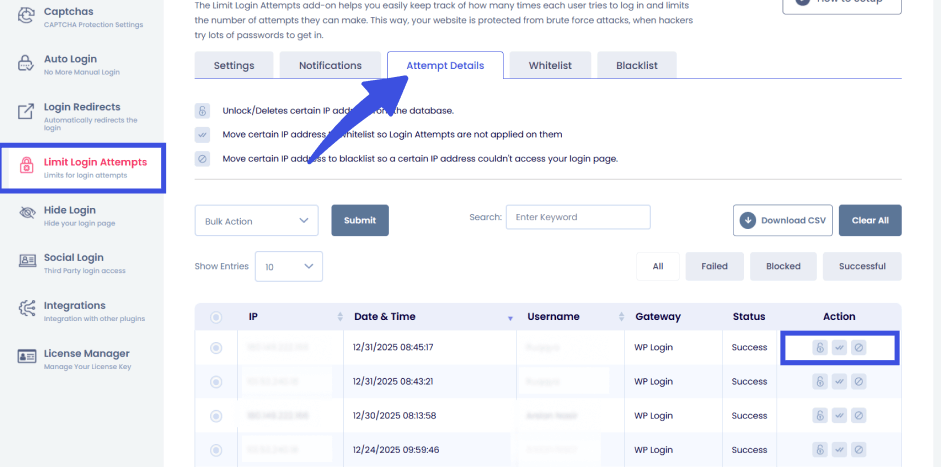
Here, you can see user login behavior, including complete information such as IP Address, Username, Date, and time, in real time.
You can either Unlock, Whitelist, or Blacklist them from the history table.
You can also block users based on their IP address using LoginPress.
To do that, navigate to the Limit Login Attempts >> Settings tab.

This way, the legitimate user has no idea this is happening. They just experience a smooth, lightning-fast login.
Meanwhile, the bad actors are being added to a watchlist before they even type a username.
Step 2: Transition to Risk-Based Authentication
Let’s be honest: Asking for a 2FA code every single day is a UX nightmare. So it’s the fastest way to make your users drop off from your login page.
Instead, you should lean into invisible WordPress login security through conditional verification.
How it works is that a standard user will log in from their usual office in London using Chrome.
No prompt will be asked for, and there will be zero friction.
Friction only occurs when someone attempts to log in from a masked IP address in a different country on a new device.
Then, only a 2FA prompt appears instantly.
This ensures you only intervene when there is a real, calculated risk. It protects the site while rewarding your “good” users with speed.
Step 3: Deploy Silent Session Control
Session hijacking is a significant threat to site owners.
According to reports, around 30% of organizations have experienced session hijacking in recent years.
If a hacker steals a session cookie, they can bypass your login screen entirely. But you don’t need to bug your users to stop this.
LoginPress helps you manage sessions silently in the background.
You can set rules automatically by:
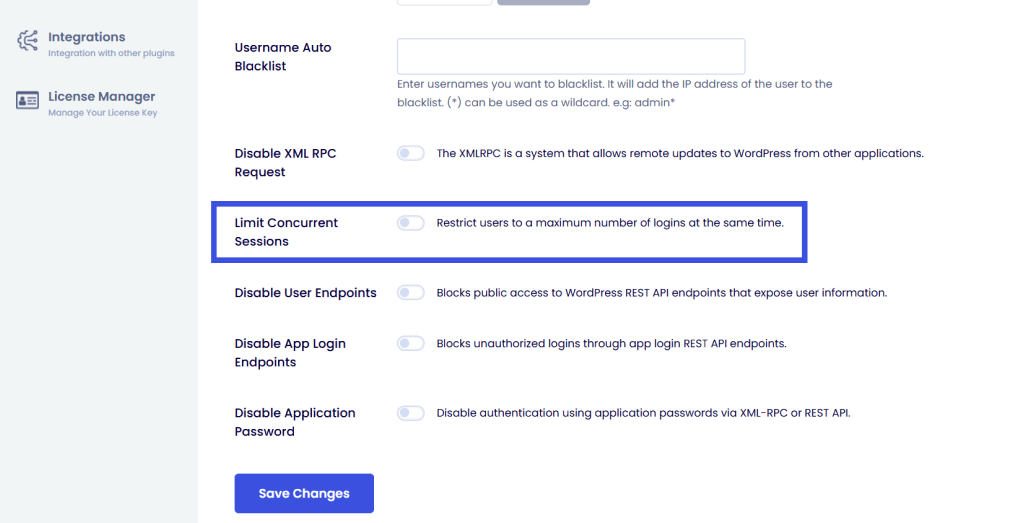
- Terminate the concurrent session altogether.
To do this, navigate to the Limit Login Attempts option and select the Limit Concurrent Sessions option.
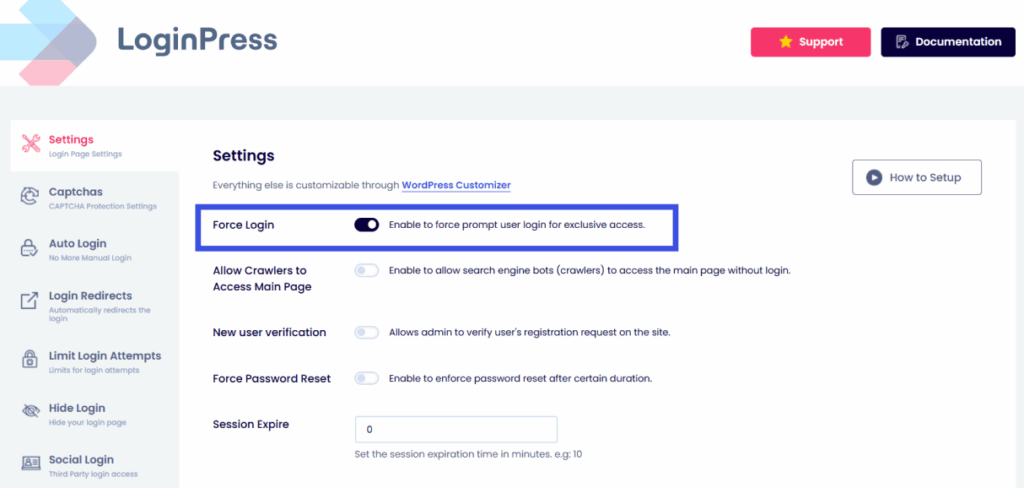
- Force Login for every user to keep your gated content private and behind a secure access wall.
Enable that by selecting the Settings option in LoginPress and prompting every user to log in for exclusive access.
For 99% of your users, these rules are invisible.
But for a hacker trying to exploit an open session, the door slams shut before they can do any damage.
Step 4: Brute-Force Prevention (Without the Friction)
Most security plugins show a big YOU ARE BLOCKED screen after three wrong attempts. Although that is fine for a bot.
But what if a real customer, one who is about to spend money, just forgot their password? That blocked screen feels a little harsh.
This is where LoginPress uses Intelligent Rate Limiting through its Limit Login Attempts add-on.
To check out the settings, go to LoginPress >> Limit Login Attempts.
Here you will find a dashboard with tabs for Settings, Notifications, Attempt Details, Whitelist, and Blacklist.

Instead of a hard block, you can limit the number of attempts from a single IP address by navigating to the Settings tab and adding a suitable number into the Attempts Allowed option.
Then you can add a lockout period that slows a bot’s script down to a crawl as well.
IP address blocking is another feature provided by LoginPress.
Go to the Limit Login Attempts option, then in the Settings tab scroll down to the IP Address option.
The human user stays unaware of the technical throttle, and your “Forgot Password” link remains visible and functional.
Step 5: Trigger CAPTCHA Only When Necessary
We all hate the traffic light puzzles. They are also proven conversion killers.
While risk-based 2FA protects accounts, CAPTCHA focuses on filtering automated traffic before authentication.
Navigate to LoginPress >> CAPTCHA.
Here you can find all settings in relation to adding CAPTCHA to your forms.
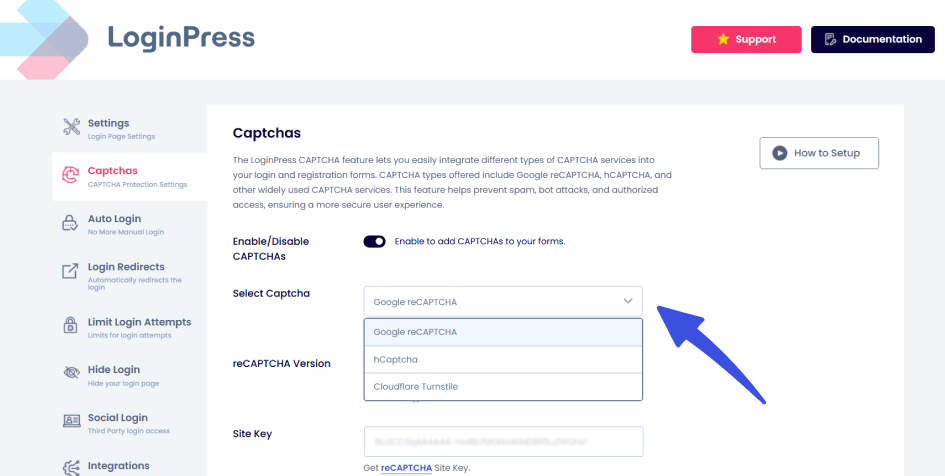
This version of reCAPTCHA doesn’t ask users to click anything. Instead, it assigns a probability score to every visitor:
- High Score (Human): Zero puzzles. The user never even sees a CAPTCHA logo.
- Low Score (Bot): The system challenges the visitor only because it’s almost certain they aren’t human.
You get the secure protection. Your users get the world-class UX.
Best Practices for Implementing Invisible Security
To stay ahead of evolving threats, you can’t just set the security once and forget it.
Even the most advanced invisible WordPress security requires a high-level strategy to stay effective.
Follow these best practices to keep your site both fast and secure:
1. Monitor Your Logs (Weekly Audit)
Just because security is invisible to your users doesn’t mean it should be invisible to you either.
The data hiding in your logs is a goldmine for site health.
Check your logs at least once a week. You want to look out for:
- Spikes in Throttled IPs: Is a specific region suddenly targeting you?
- Failed Login Patterns: Are bots guessing specific usernames (like “admin”)?
- False Positives: Are legitimate power users getting flagged by mistake?
By staying on top of the data, you can fine-tune your invisible settings to be even more accurate.
2. Stay Updated
Updates are your first line of defense.
In 2026, hackers use AI to find vulnerabilities in outdated code faster than ever before.
An invisible system only works if the foundation is solid.
That means:
- WordPress Core: Never ignore those update notifications.
- LoginPress & Add-ons: We constantly release patches to stay ahead of new bot behaviors.
- PHP Version: Ensure your server runs a modern version of PHP for improved performance and security.
If your core software is outdated, you’re leaving the back door wide open while you’re busy locking the front.
3. Implement the Safety Net Rule
The secret to great UX is knowing when to be invisible and when to alarm your user.
Use frictionless authentication in WordPress for 95% of your daily traffic. This keeps the site feeling fast and welcoming.
However, you should save the heavy security measures for high-stakes actions. This includes:
- Changing the administrator email address.
- Modifying site-wide payment settings.
- Deleting large amounts of user data.
By using only visible security during these critical moments, your users won’t find it annoying. This will boost your credibility and ensure a seamless user experience.
FAQs: Invisible WordPress Security
Does invisible authentication actually protect against sophisticated AI bots?
Yes. In fact, it’s often more effective than traditional methods. Old-school security relies on static challenges, like a password or a simple puzzle, that modern AI can solve in milliseconds. Invisible WordPress security uses behavioral signals. By shifting the focus from what the user knows to how the user behaves, you stay one step ahead of even the most advanced scripts.
Will implementing silent login security slow down my WordPress site’s performance?
Surprisingly, no. It usually does the opposite. Traditional security plugins often load heavy assets and external scripts (such as old-school CAPTCHA) on every page load. This increases your time to interact. Silent login security via LoginPress primarily works on the server side or via lightweight API pings (e.g., reCAPTCHA v3)
How do I balance a frictionless UX with strict security compliance requirements?
The key is Risk-Based Authentication (RBA). Regulatory standards (like GDPR or specialized security audits) don’t require you to annoy your users; they require you to protect data. Invisible security fulfills this by using high-level encryption and background monitoring to ensure only authorized users gain access.
What happens if a legitimate human user is accidentally flagged by “invisible” security?
This is known as a False Positive, and it’s why a Safety Net is vital. Even with the best invisible wordpress login security, a human using a high-privacy VPN or a clean browser might look like a bot. Instead of a hard block, LoginPress supports progressive escalation. If the background check fails, the system simply presents a visible challenge (like a 2FA prompt or a standard CAPTCHA). The user isn’t locked out; they are just being asked to complete a manual ID check.
Conclusion: Invisible WordPress Security
The shift toward invisible WordPress security isn’t just a trend; it’s the new standard for the AI-powered web era ahead.
By removing the friction from your login process, you aren’t just making your site easier to use. You’re also making it profitable.
You protect your users and the data by implementing invisible WordPress security practices.
And most importantly, you protect your conversion rate.
If you’re interested, check out these detailed blogs on security practices:
- Session Hijacking in WordPress: How to Detect and Prevent It (2026)
- WordPress Authentication Methods Explained: Pros, Cons & Use Cases (2026)
- Modern WordPress Login UX Patterns (What Users Expect in 2026)
Are you starting with Invisible CAPTCHA or Risk-Based 2FA for invisible WordPress security? Drop a comment below.