How to Temporarily Disable WordPress Login Access (Explained)

Editorial Team
Are you wondering how to temporarily disable WordPress login access? Look no further, as this guide has got you covered.
Managing a secure site means knowing when to close the front door to prevent data loss or security breaches.
Many admins struggle to temporarily disable WordPress login access without accidentally locking themselves out.
In this guide, I will show you the safest ways to pause user activity using simple, using no-code tools. I will also share how to restrict login access in WordPress during maintenance, mitigate brute-force attacks, and regain full WordPress login control instantly.
Disable WordPress Login Access (TOC):
Why Would You Need to Temporarily Disable WordPress Login Access?
By temporarily disabling login in WordPress, you prevent data corruption and ensure your updates are applied in a clean, stable environment.
Most site owners only think about login control after something goes wrong. Here are the three scenarios where acting early protects your site:
1. Safe Maintenance Windows
Conducting major updates while users are active introduces numerous risks. For instance, if a customer places an order during a database update, the site may crash.
E-commerce site owners often block logins temporarily to update checkout systems safely.
Temporarily disabling login in WordPress prevents unnecessary data loss and an undisturbed user experience.
2. Active Security Incidents
Hackers frequently use automated bots to guess passwords, a method known as a brute-force attack.
When thousands of failed login attempts appear in server logs, temporarily limiting login access is recommended.
This stops the ongoing attack and gives you time to block malicious IPs before any damage is done.
3. Administrative Control and Special Audits
In certain use cases, admins need a private environment for internal work. You might be running a site audit or preparing a secret holiday promotion.
For instance, a membership site might block user login access to WordPress while it archives old content or resets member tiers. This ensures that no one sees the “behind-the-scenes” work before it is ready for the public.
Controlling access serves not only to restrict entry but also to safeguard the website’s integrity and protect user data.
How Does WordPress Handle Login and User Access?
By default, the WordPress login process is straightforward. Any user with an account can access the login page and enter their credentials.
Once authenticated, a user’s assigned Role determines what they can access. Administrators have full privileges; Subscribers can only view their own profile.
Although this system is effective for routine operations, it does not provide a mechanism to temporarily suspend user access.
A major limitation is that WordPress lacks a built-in way to block logins. You cannot natively block user login access for everyone at once.
If you have an emergency, you have to manually delete users or change their passwords. This is slow and difficult for large-scale sites.
This is where WordPress login control becomes necessary. It includes several key abilities that the default system lacks:
- Global Locking: The ability to shut down the login page for every user during an update.
- Role-Based Restrictions: Allowing Admins to enter while blocking access for Subscribers or Editors.
- Time-Based Access: Setting specific hours during which users can log in to the dashboard.
- Automated Security: Temporarily restricts access following multiple failed login attempts to mitigate potential security breaches.
Effective login control enables administrators to restrict access during critical situations without permanently removing user accounts.
This approach allows for flexible management of site entry points according to operational requirements.
How Do You Temporarily Disable WordPress Login Access?
Disabling WordPress login access requires a solution that is both precise and secure. Manual code modifications or basic maintenance plugins can result in accidental lockouts.
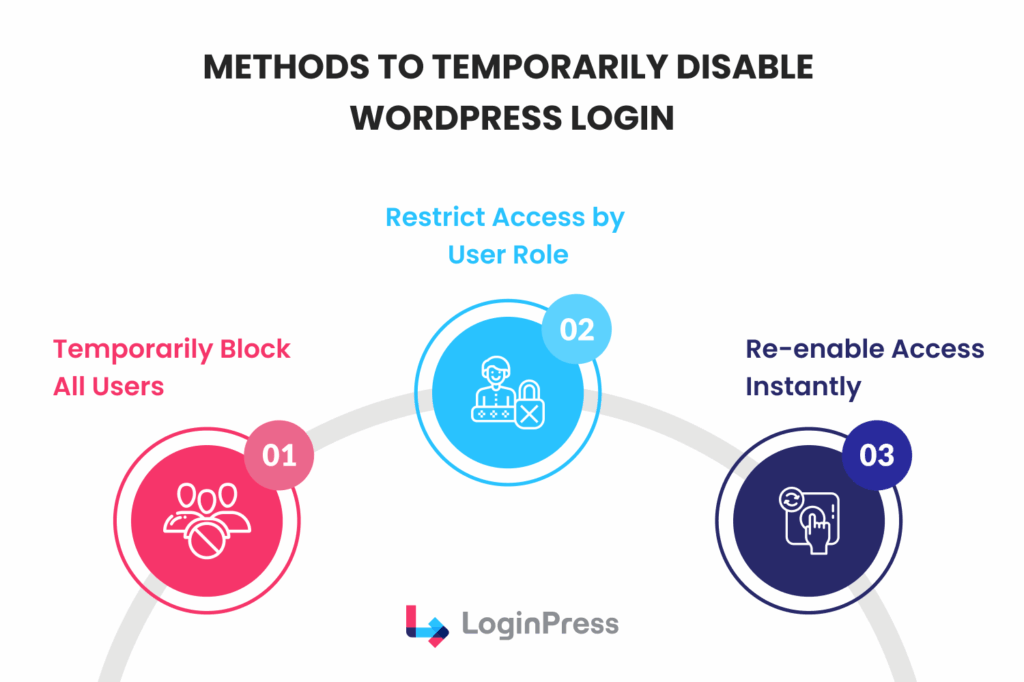
This is where LoginPress offers a professional-grade interface to restrict login access in WordPress while maintaining site stability.
The following outlines how to manage site entry points using login control and customization tools.
Method 1: Temporarily Disable Login Using Tools
While WordPress doesn’t have a built-in pause button, you can temporarily disable login in WordPress by deploying a maintenance gate using a dedicated plugin. This creates a secure, virtual wall between your site files and the public.
Step 01: Activate a Maintenance Gate
Using a dedicated under-construction plugin, such as UCMM, can help you display a maintenance page to all visitors. This ensures that while the public sees a placeholder, only authorized, logged-in users can interact with the site.
Step 02: Schedule Your Window
Plan your maintenance during late-night hours or low-traffic periods. This is the most effective way to limit login access temporarily without disrupting your core audience.
Step 03: Maintain Professionalism
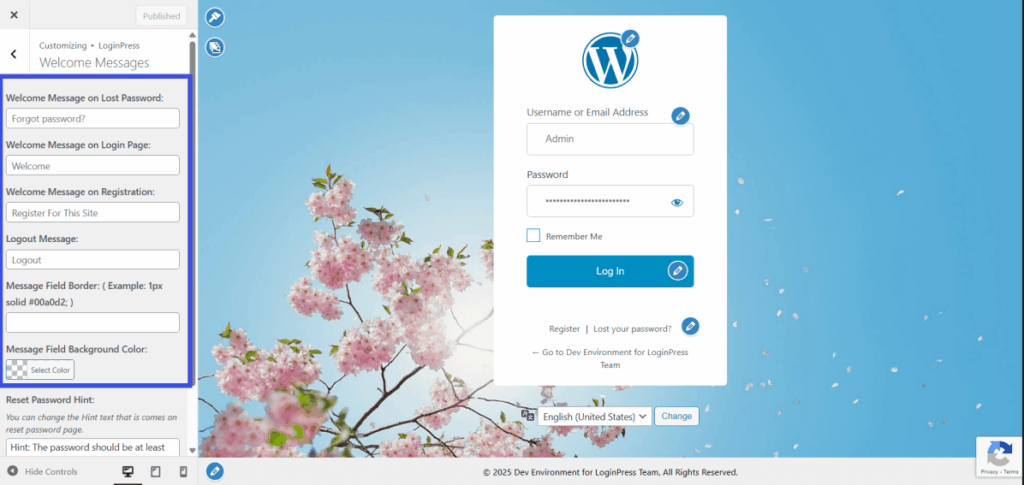
Avoid showing a broken page or a generic server error. Instead, use the LoginPress Customizer to create a branded notice. Explain that the site is undergoing a security audit to keep your users informed and maintain their trust.
Step 04: Safety First
Always ensure you have a “backdoor” for Administrators. This ensures that while you restrict public login access in WordPress, your technical team can still finish their work.
By using a structured approach for WordPress login control, you protect your data and prevent users from seeing a site under construction. Once your updates are finished, you can restore full access with a single click.
Method 2: Add Role-Based Restrictions
It is not always necessary to restrict access for all users. In some cases, temporary login limitations for specific user groups are enough while admin tasks continue. Here is how you can add role-based restrictions using a login customizer plugin, LoginPress:
Step 01: Target Specific Groups
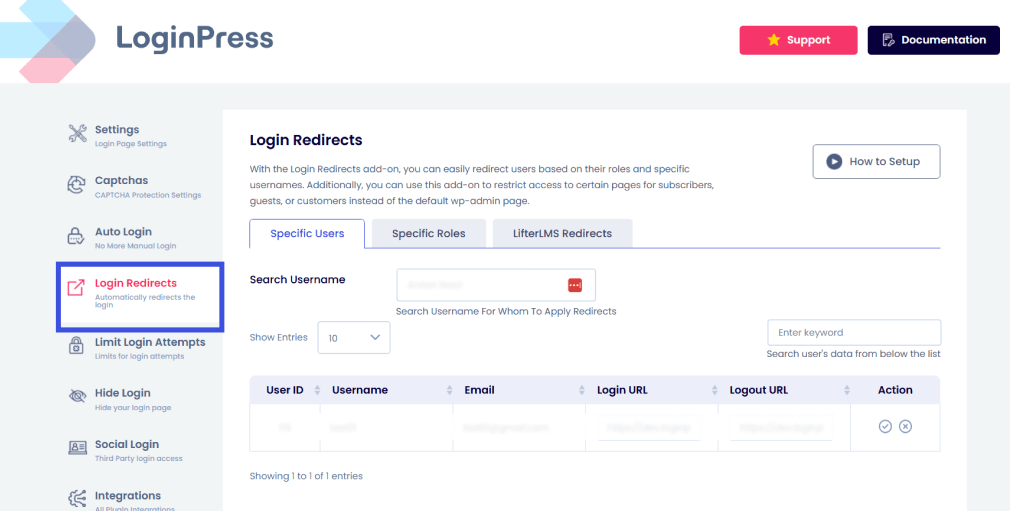
With the LoginPress Login Redirects feature, you can provide a seamless experience by sending users with specific roles (e.g., Subscribers or Customers) to a custom “Coming Soon” page when they try to access the dashboard.
Step 02: Admin Immunity
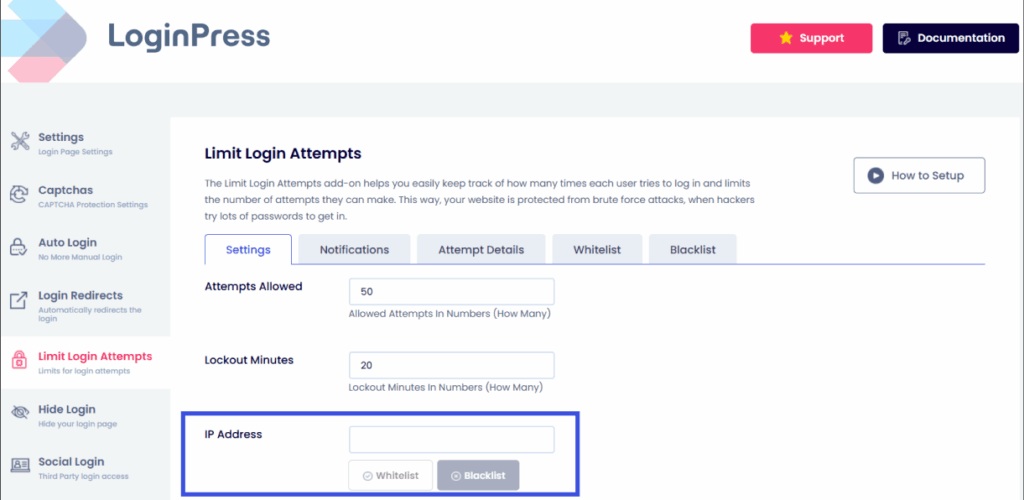
The IP restriction feature ensures that Administrators retain access at all times. This allows for continued site management while other roles are restricted.
- Use Case: Ideal for membership sites that need to pause student access during semester breaks or during content updates.
Method 3: Instant Reactivation and Safety
When you temporarily disable login in WordPress, you need a reliable way to get back in.
Using a dedicated WordPress login control strategy ensures that your emergency door doesn’t become a permanent barrier.
Step 01: One-Click Restore
Once your maintenance or security checks are complete, you can remove all restrictions instantly using a dedicated reset settings plugin such as AIOS. This eliminates the need to manually undo complex changes.
Step 02: No Database Bloat
Unlike heavy membership plugins, a streamlined tool lets you block user login activity in WordPress without adding unnecessary weight to your database.
Why Should You Avoid Manual Methods to Disable WordPress Login?
Although .htaccess rules or custom functions can block user login access in WordPress, these methods are inflexible.
Changes in IP address or coding errors can render the site inaccessible to all users, including administrators.
With LoginPress, you can temporarily limit login access with the confidence that you can always get back in with a few clicks. This helps you protect your data, your time, and your users’ experience.
Disable vs. Restrict vs. Hide: Choosing the Right Security Layer
Before choosing a method, understand what each approach actually does:
| Strategy | Technical Action | Best Use Case |
| Disable | Completely shuts down the authentication hook. | Emergency security breaches or server migrations. |
| Restrict | Filters access based on User Role or IP address. | Managing memberships or stopping specific bad actors. |
| Hide | Changes the entry URL (slug) to a unique value. | Preventing bot-driven brute-force attacks. |
What Are the Best Practices for Restricting WordPress Login Safely?
When you decide to temporarily disable login in WordPress, you must have a clear plan.
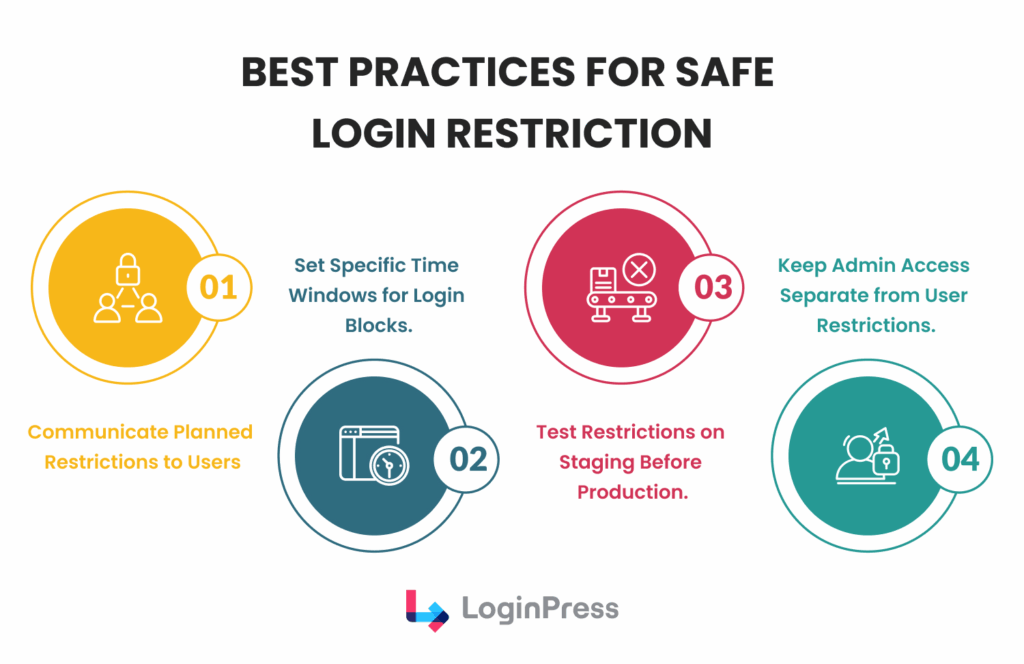
The following section dives deep into a few simple rules that will keep your site running smoothly. It also prevents your users from getting frustrated.
Communicate with Your Users
Never block access without warning. If you plan to restrict login access in WordPress, tell your users first.
You can send an email blast or use a notification bar on your homepage. Explain why the login is down and when it will be back. This builds trust and reduces support tickets.
Set Specific Time Windows
Do not leave your login page open indefinitely. It is best to set a clear start and end time for your maintenance.
Many site owners choose to temporarily limit login access during low-traffic hours, such as after midnight. This minimizes the impact on your active customers and members.
Test on a Staging Site
Before you block user login WordPress access on your live site, test it on a staging site. This allows you to see exactly what a user will experience.
You can check if your custom messages look right. It also ensures that your backdoor for administrators is working correctly.
Keep Admin Access Separate
The most important rule of WordPress login control is to protect your own access.
Your restriction strategy should never apply to the Administrator role.
By keeping admin access separate, you can continue to work on the backend while other users are held back. This ensures you can always fix issues or lift the restrictions when the work is done.
By following these best practices, you can temporarily disable login in WordPress with total confidence.
You will protect your data while maintaining a professional relationship with your audience.
Real-Life Scenarios Where LoginPress Excels
Managing a live website requires quick thinking and the right tools. Here are three common scenarios where this flexibility is necessary:
Scenario 1: Seamless Site Maintenance
Imagine you are updating a major plugin that handles your customer data. You need to temporarily disable WordPress login to prevent new data from being entered during the update.
With LoginPress, you can redirect all non-admin users to a custom Maintenance page.
This helps avoid data corruption while your team stays logged in to finish the work, and customers see a professional notice.
Scenario 2: Responding to a Security Breach
If you notice a sudden spike in failed login attempts, your site might be under attack.
You need to block user login activity in WordPress for the targeted roles. In this scenario, you can use LoginPress to limit login attempts or hide the login URL entirely.
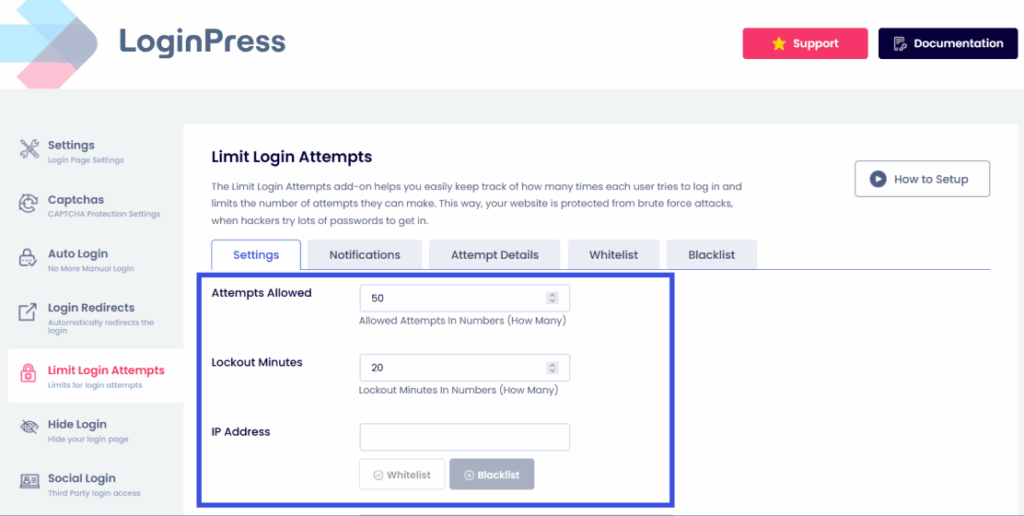
While the bots are hitting a “404 Not Found” page, your Administrators still have access via a secret link. This keeps your site managed even during a crisis.
Scenario 3: Seasonal or Event-Based Restrictions
Many sites run limited-time campaigns or seasonal courses. Once a promotion ends, you may want to limit login access temporarily for those participants.
An online school might block student logins during a summer break to perform a content refresh.
Here, you can simply toggle the access for the “Student” role. This is much faster than deleting hundreds of accounts or changing passwords manually.
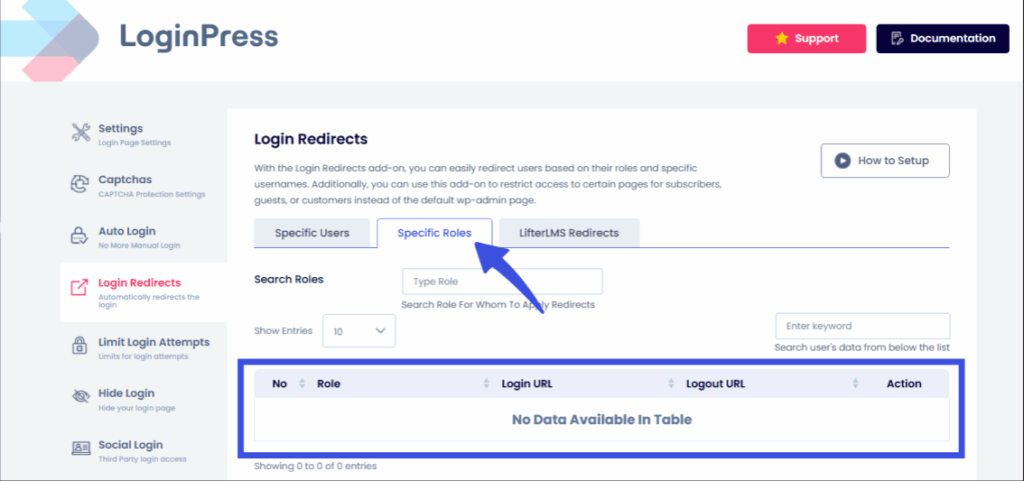
In each case, the LoginPress dashboard provides a clear, easy-to-navigate interface that eliminates the guesswork around login controls.
You don’t have to worry about messy code or accidental lockouts. In each case, LoginPress handles the restriction from one dashboardno code, no guesswork, no lockouts.
FAQs on Disable WordPress Login Access
Can I disable WordPress login access without a plugin?
Yes, you can use custom PHP code in your functions.php file or edit your .htaccess file. However, these methods are risky. A single typo can lock you out of your own site, requiring FTP access to fix the error.
How do I temporarily disable login in WordPress for specific users?
The best way is to restrict login access in WordPress by user role. Using a tool like LoginPress, you can select roles like “Subscriber” or “Customer” and redirect them to a custom maintenance page while keeping the dashboard open for Administrators.
Will blocking login access affect my SEO?
No. As long as you are only blocking the login page and not the entire website, search engines can still crawl your content. If you use a maintenance mode for the whole site, ensure it returns a 503 Service Unavailable status to tell Google the pause is temporary.
What should I do if I accidentally lock myself out?
If you block user login access in WordPress and lose your own entry, you can usually deactivate your security plugin via your hosting file manager. This is why it is vital to use a tool that always grants immunity to the Admin role.
Conclusion: Block User Login WordPress
Learning how to disable WordPress login access is a vital part of professional site management.
Whether you are performing regular maintenance, stopping a security breach, or managing a seasonal membership, having to restrict login access to WordPress keeps your data safe and your users informed.
While manual methods exist, they lack the flexibility and safety that modern websites require. LoginPress stands out as the simplest and safest solution for managing your site’s entry points.
It removes the need for complex coding and gives you a clear, visual dashboard to manage login access with total confidence.
That is all for this post. For more related posts, check:
- Secure Access Journeys: How to Design End-to-End Login Experiences
- WordPress Login Security Automation: Protect Sites Without Manual Monitoring
Ready to secure your website? Upgrade to LoginPress Pro today. Experience the full power of login redirects, limit login attempts, and advanced access management to keep your WordPress site protected and professional.