
How to Build Login Security for Headless WordPress (2026 Guide)

Editorial Team
Today’s development demands both speed and smooth functionality.
Tools like React, Next.js, and Vue are making headless WordPress more popular. This setup gives better performance and scalability, but it also changes login security for headless WordPress.
With headless WordPress, the frontend and backend are separate. This affects how you handle user authentication and access control.
Do not assume headless WordPress is always more secure.
Moving your site can lower some risks, but the main challenge is protecting the WordPress API authentication layer.
That is why, in this guide, I will give you clear, practical steps for setting up login security for headless WordPress.
You will learn about secure methods and how to handle REST API authentication risks. I will also explain how WordPress login plugins like LoginPress help smooth out the security process in these setups. Let’s begin!
Login Security for Headless WordPress (TOC):
What is Headless WordPress Login?
Headless WordPress separates your Content Management System (CMS) into a backend and a frontend.
This way, your content stays in WordPress, but a separate app, often built with frameworks like Next.js or Vue, displays it.
In a traditional configuration, selecting the login option initiates a server-side session through the native WordPress PHP engine and cookies within a unified system.
In a decoupled or headless environment, the authentication process is different.
The following outlines a typical authentication workflow in a headless WordPress implementation:
- The frontend application collects the user’s authentication credentials.
- The frontend sends these credentials via an asynchronous request to the WordPress REST API authentication endpoint.
- WordPress verifies the user and returns an authentication credential, such as a JSON Web Token (JWT), to the frontend application.
This process highlights a key distinction between the standard /wp-login.php page, which grants access to the backend dashboard /wp-admin using secure session cookies, and token-based authentication in headless implementations.
Check out the following table for a quick difference between headless WordPress and the traditional WordPress login method to implement login security for headless WordPress:
| Feature | WordPress Admin Login | User Authentication for Headless Frontend |
| Goal | Grant user access to the WP Admin Dashboard and content editing tools. | Grant user access to protected content and features on the decoupled frontend. |
| URL/Endpoint | Uses the standard /wp-login.php page. | Uses a dedicated REST API or GraphQL endpoint. |
| Authentication Method | Relies on PHP Sessions and Session Cookies (often persistent). | Relies on Stateless Tokens (JWT, OAuth) passed via the Authorization header. |
Why Login Security is a Risk in Headless WordPress
Moving your frontend code away from the WordPress server can improve performance, but it also increases your app’s attack surface.
Security is no longer automatic; you now need to secure independent authentication and API layers rather than a single monolithic site.
The main risks come from exposed authentication routes and the tokens they create.
Because the frontend and backend communicate over the network, REST API endpoints are especially likely targets for exploitation.
Some of the common risks in login security for headless WordPress include:
- Token Leakage: Storing tokens in client-side Local Storage makes them more vulnerable to Cross-Site Scripting (XSS) attacks, allowing attackers to access user accounts without permission.
- Excessive API Exposure (CORS Misconfiguration): While CORS controls how browsers interact with your API from different origins, it is not a server-side authorization tool. However, without strict CORS policies, any third-party website can make requests to your API on behalf of a user. This increases your attack surface, especially if your backend relies on weak role-based permissions or lacks robust authentication.
- Brute-Force Attacks: Even if users log in through the frontend, the primary user database remains behind the WordPress Admin Login (/wp-login.php), which attackers may still target.
Any failure in these areas can have serious consequences in login security for headless WordPress.
If tokens are compromised, attackers can steal user data and hijack sessions.
For SaaS providers and agencies, overlooking this can lead to compromised credentials, unauthorized access, and potential downtime, which makes robust server-side protection essential.
Headless WordPress Login: How Authentication Works
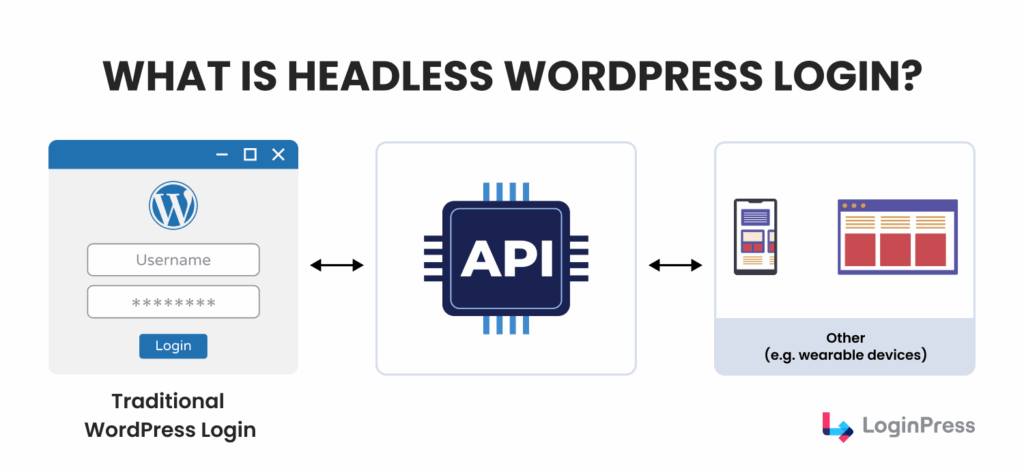
In a decoupled stack, the headless WordPress login process is stateless. Since the frontend and backend run on different servers, they communicate via a request-response bridge.
Understanding this flow is the first step toward secure login for headless WordPress.
Let’s break down how authentication works in a headless WordPress system:
- Custom Frontend Form: The user enters credentials into a custom form built in React, Next.js, or Vue.
- API Request: The frontend sends these credentials to the WordPress backend via a secure REST API endpoint for authentication.
- Validation & Issuance: WordPress validates the credentials against its core database. If successful, it issues a secure token (like a JWT).
- Frontend Storage: The frontend application stores this token securely and includes it in the header of every subsequent authenticated request.
Key Points to Consider
Even with a custom frontend, the heavy lifting of security happens at the server level.
Crucial control points in login security for headless WordPress include:
- Credential Validation: WordPress core still manages the logic for password hashing and user verification.
- Request Filtering: Login attempts must be intercepted and processed before a token is ever generated.
- Admin Isolation: While users use the API, your team still accesses the backend via classic /wp-admin logic, creating two distinct entry points to defend.
Integrating LoginPress for Headless Security
In headless WordPress setups, server-side authentication is essential because the frontend UI is decoupled from the backend.
A common misconception is that security plugins only protect the visual login page, but threats target the authentication layer directly.
LoginPress addresses this by securing /wp-login.php, ensuring both the admin backend and any exposed APIs remain protected in login security for headless WordPress.
Here’s how LoginPress helps secure the WordPress admin login:
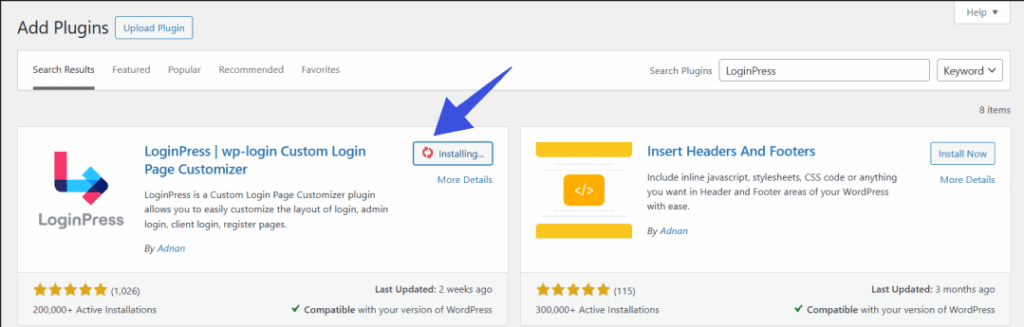
Step 1: Install and Activate LoginPress
From your WordPress plugins dashboard, search for LoginPress.
Then get the pro version and install and activate it.
This plugin ensures a secure, branded admin fallback login even when your headless frontend handles authentication via APIs, helping to reduce bot traffic to /wp-login.php.
Step 2: Enable Hide Login
Hackers often target the default /wp-login.php page.
To tackle this and provide login security for headless WordPress, LoginPress provides the Hide Login Add-On.
This add-on helps admins set a custom login URL instead of the default login URL, which has a higher chance of automated attacks occurring.
This helps protect your site from automated bot attacks.
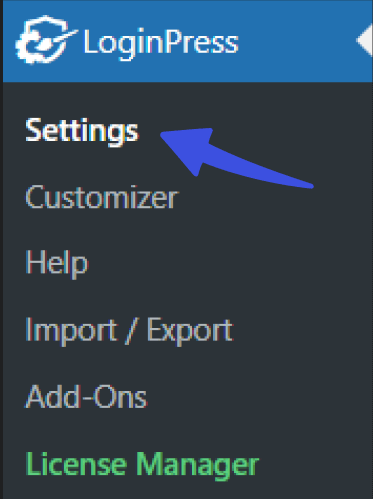
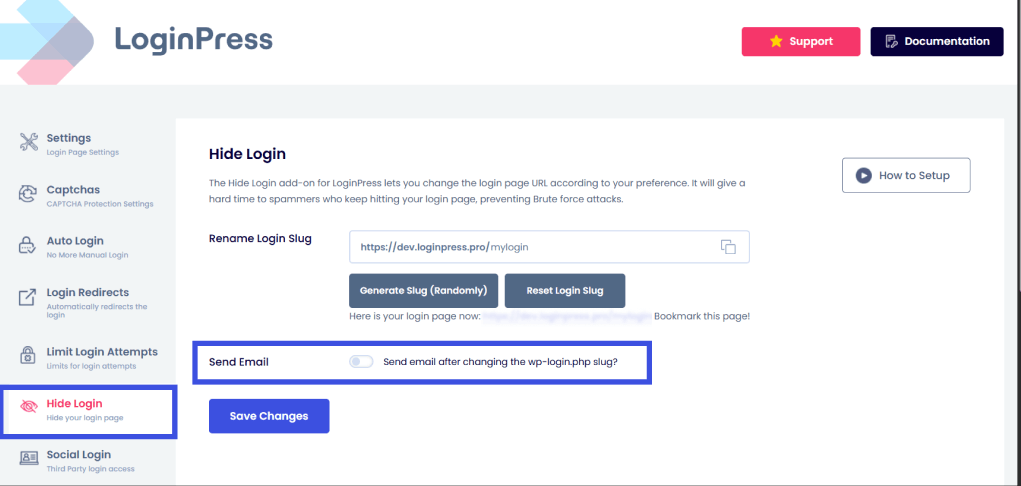
- Navigate to LoginPress >> Settings.
- Go to the Hide Login option.
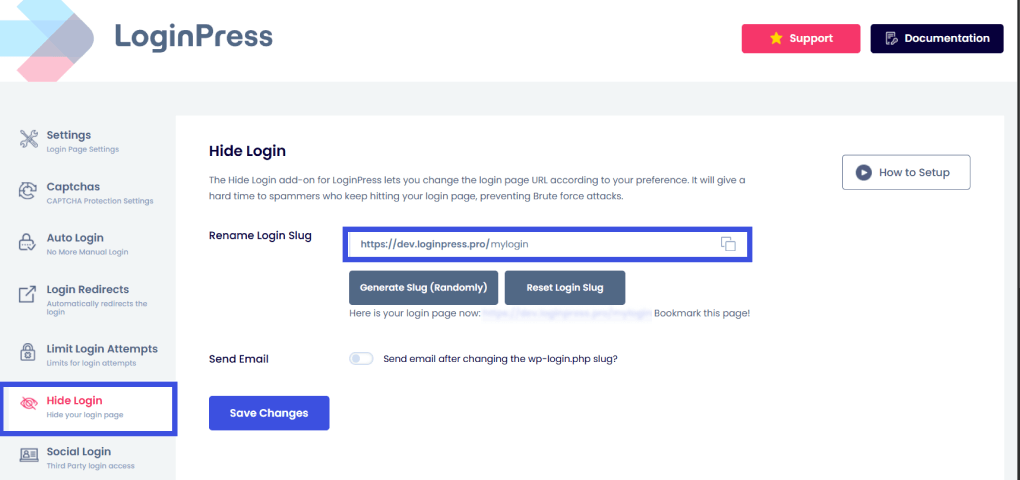
You can now either generate a new login slug or customize your own.
If you also want to save your newly customized login slug, enable the Send Email option in order to implement login security for headless WordPress.
Step 3: Limit Login Attempts
Decoupled websites are more vulnerable to brute-force attacks on the API.
By enabling the limit login attempts feature, you can track failed logins and block IP addresses after a specified number of attempts in login security for headless WordPress.
- To do that, navigate to LoginPress >> Limit Login Attempts option.
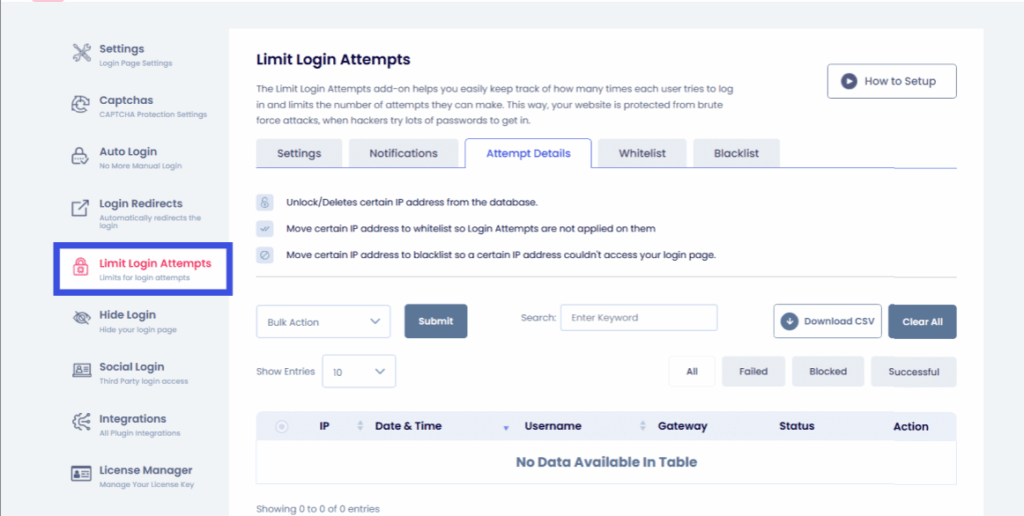
Here, you are provided with multiple categorical-based limitations.
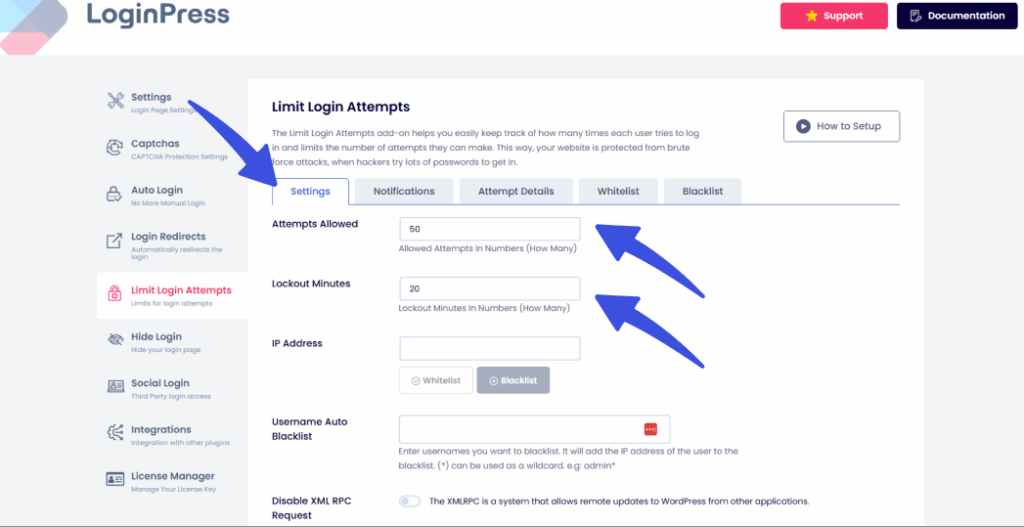
In the Settings tab, add your preferred Allowed Attempts and Lockout Minutes.
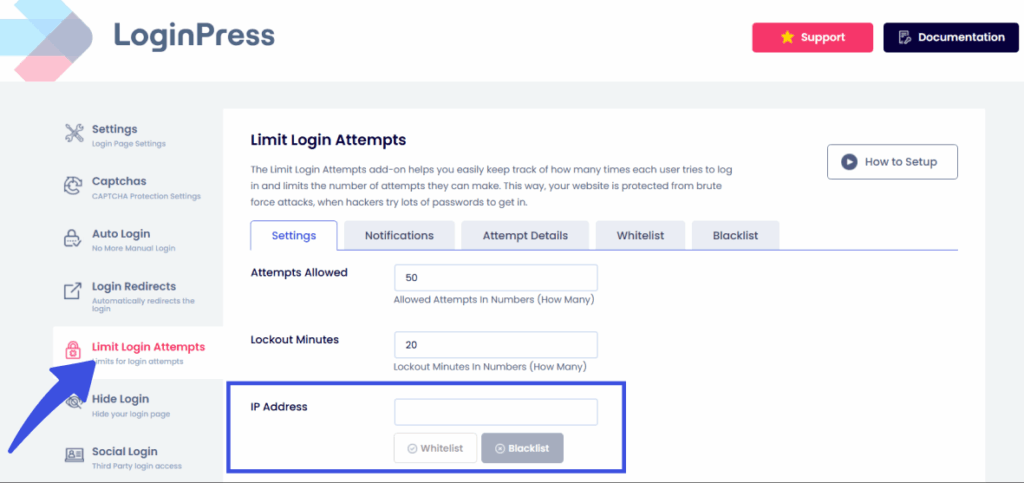
You can also block specific IP addresses using the IP Address option.
Step 4: Enable CAPTCHA
CAPTCHA protects authentication endpoints, not just forms.
Especially relevant when APIs are publicly accessible.
In order to implement login security for headless WordPress, LoginPress supports:
- Google reCAPTCHA
- Cloudflare Turnstile
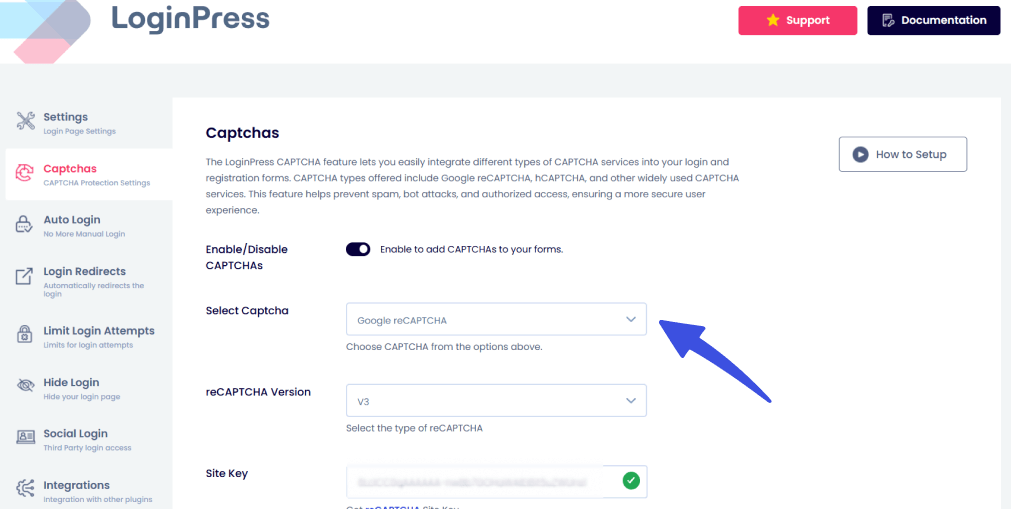
Enable it via LoginPress >> CAPTCHA, then select the CAPTCHA type you want to apply.
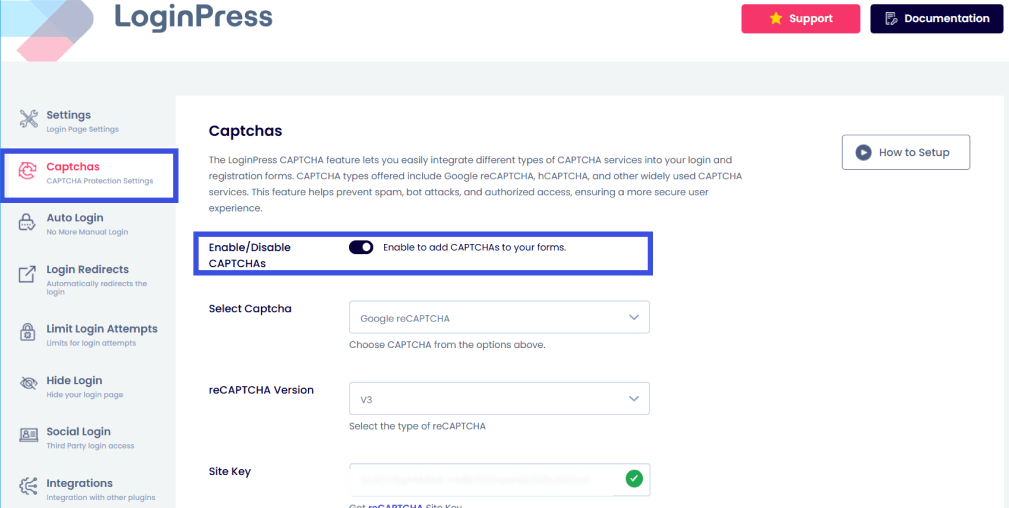
Enable CAPTCHA by toggling the Enable/Disable CAPTCHA option on. You can also select which CAPTCHA you want to add to your forms using the Select CAPTCHA type option:
Step 5: Add Smart Error Messages
Default WordPress error messages reveal whether a username exists, making brute-force attacks easier.
With LoginPress, you can replace them with generic responses such as:
“Invalid credentials. Please try again.”
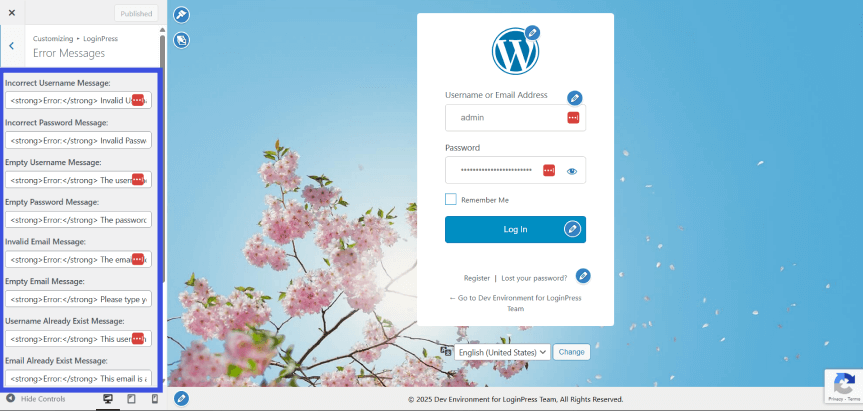
To customize your own error messages, go to LoginPress >> Customizer.
This customizer ensures an easy-click design for your login page without requiring intensive coding for login security for headless WordPress.
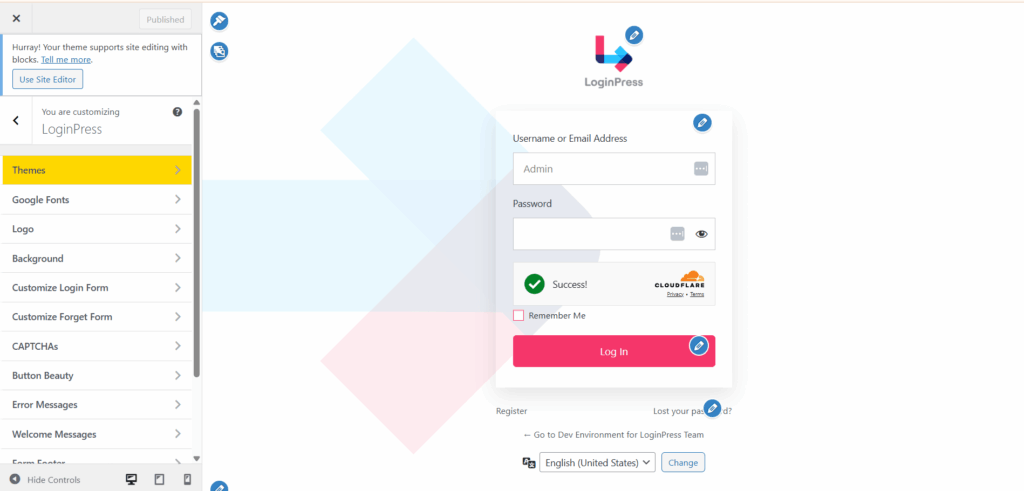
From here, go to the Error Messages option.
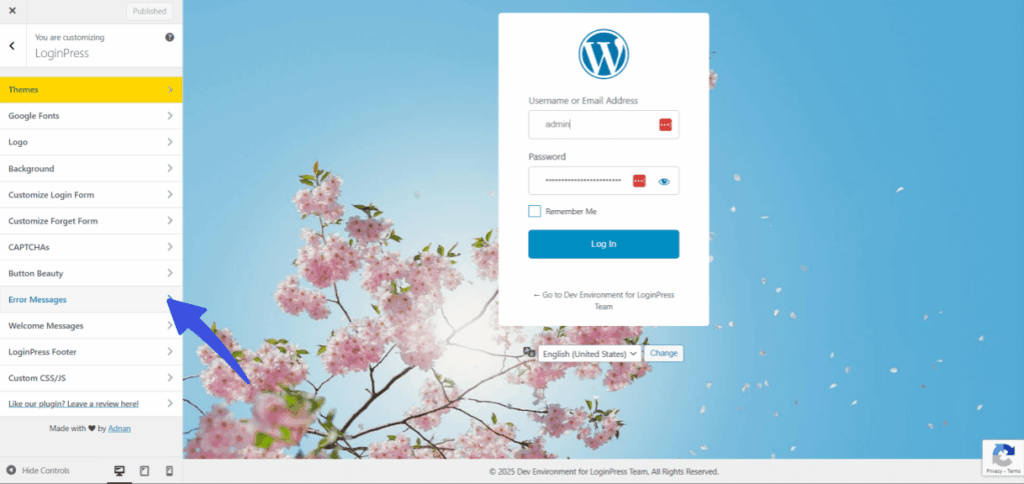
You can customize your login page error messages to improve login security for headless WordPress.
Step 6: Add Login Redirects
In a traditional site, WordPress decides where a user goes after logging in.
For login security for the headless WordPress process, your frontend application must take control of that navigation.
However, you still need to manage the Admin Fallback, as in what happens when a developer or editor accidentally hits the backend login page.
Use the Login Redirects add-on to manage your internal team.
This ensures that when an admin logs in via the backend, they are automatically directed to the specific area they need (such as the Post editor) rather than the generic dashboard.
To enable this, go to the Login Redirects option.
You can redirect users based on Specific Roles, Specific Users only, and even LifterLMS redirects for students and teachers in login security for headless WordPress.
Frontends are highly volatile and change frequently, but authentication stays server-side.
Because REST APIs increase exposure to attacks, you need a server-side sentinel.
LoginPress strengthens the core of your WordPress installation, securing admin access and API-driven logins across multiple frontends simultaneously.
Common Authentication Methods for Headless WordPress
Choosing the correct authentication method is a balancing act between security, developer complexity, and user experience.
In a headless environment, you are moving away from the one-size-fits-all cookie approach to more specialized protocols.
Here is a technical comparison of the primary authentication methods for your login security for a headless WordPress stack:
| Method | How it Works | Security Trade-offs |
| Cookie Auth | Relies on standard WP session cookies | High Risk: Vulnerable to CSRF. Hard to implement if frontend and API are on different domains (CORS issues) |
| Application Passwords | Unique, 24-character strings generated per user/app. | Moderate Risk: Passwords are permanent until revoked. If stolen, they grant full access to that user’s account. |
| JWT (JSON Web Tokens) | A stateless, signed token generated upon login. | Controlled Risk: No database lookup needed (fast). However, hard to revoke before expiration unless you implement a blacklist. |
| OAuth 2.0 / SSO | Delegated auth (e.g., “Login with Google”) using an identity provider. | Low Risk: Highly secure and centralized. Supports fine-grained scopes and instant token revocation. |
Recommended Strategy by Project Type
Headless WordPress security needs vary depending on what you are building.
While a simple blog might prioritize speed, a SaaS platform demands strict session control.
Use the following guide to align your authentication method with your specific business model:
- Public Marketing Sites (JWT Authentication): Best for high-performance sites built with React or Next.js. JWT is fast and stateless, meaning it won’t slow your server down with database lookups on every page load. It’s perfect for sites that need to scale quickly during traffic spikes.
- Private Client Dashboards (OAuth 2.0 / SSO): Ideal for portals where security is the top priority. This method enables centralized identity management (such as “Login with Google”), making it easy to revoke access instantly if a user leaves or a session is compromised.
- SaaS Platforms (Hybrid Auth + LoginPress): The gold standard for complex apps. Use OAuth 2.0 to ensure enterprise-grade security for your customers, while using LoginPress on the backend to harden your WordPress core against brute-force attacks and unauthorized API scans.
- Internal Tools & Microservices (Application Passwords): A simple and practical choice for automated scripts or internal services that need to talk to your WordPress data without the complexity of managing rotating tokens.
Securing WordPress REST API Authentication (Best Practices)
For developers and agencies, securing the API is not optional; it is the basis for professional login security for headless WordPress.
The following steps will provide you with guidance to strengthen REST API authentication and address common security risks when implementing headless WordPress:
1. Enforce HTTPS-Only Authentication
Credentials or tokens should never be transmitted over plain HTTP.
Intercepting a JSON Web Token (JWT) on an unencrypted connection is straightforward for attackers.
- What to Do: Confirm that the SSL certificate is active. Use the .htaccess file or an appropriate plugin to enforce HTTPS connections.
- Technical Tip: Configure the authentication plugin to accept requests only when is_ssl() returns true.
2. Restrict API Access by Role and Endpoint
By default, specific WordPress endpoints, such as /wp/v2/users, may expose data to the public.
- What to Do: Implement a filter in the functions.php file to require authentication for all REST API requests.
3. Rate-Limit Authentication Endpoints
Brute-force attacks on your login API can crash your server or compromise user accounts.
- What to Do: Use a Web Application Firewall (WAF) like Cloudflare or a dedicated WordPress security plugin to limit POST requests to your /token or /login endpoints.
- Tip: Enable the Limit Login Attempts feature to block IPs that fail multiple API-based login attempts.
4. Validate Nonces and Tokens Properly
A token is secure only if its signature and expiration are verified on every request in login security for headless WordPress.
- What to Do: Ensure your frontend sends the token in the Authorization header as Bearer <token>.
- Security Check: If using cookies, always validate the X-WP-Nonce header to prevent Cross-Site Request Forgery (CSRF) attacks.
5. Disable Unused REST Routes
Every active endpoint is a potential entry point for an attacker.
If your frontend doesn’t need to see “Tags” or “Comments,” turn them off.
- What to Do: Use the rest_endpoints filter to unset routes you aren’t using.
- Advantage: This reduces your attack surface and slightly improves API performance by reducing the registration overhead.
6. Monitor and Log Activity
You cannot defend against what you cannot see.
This is why it is necessary to monitor and track the log activity daily to ensure no anomalies are ignored.
- What to Do: Use a logging tool or plugin to track failed authentication attempts and unusual API traffic patterns.
- Tip: Set up alerts for an unusual spike in 401 Unauthorized errors, which often indicates a bot is testing your authentication logic.
Custom Login Considerations in Headless WordPress
Building a custom login in headless WordPress gives you complete design freedom, but it shifts the security burden from WordPress core to your frontend code.
When you bypass the native /wp-login.php user interface, you become responsible for reimplementing security measures that are often overlooked in headless WordPress login security.
How Custom UIs Increase the Attack Surface
In a traditional setup, WordPress handles the negotiation between the user and the server.
In a headless model, your custom login UI acts as a middleman.
Every line of code you write to handle passwords, tokens, and redirects is a potential entry point for attackers if not hardened.
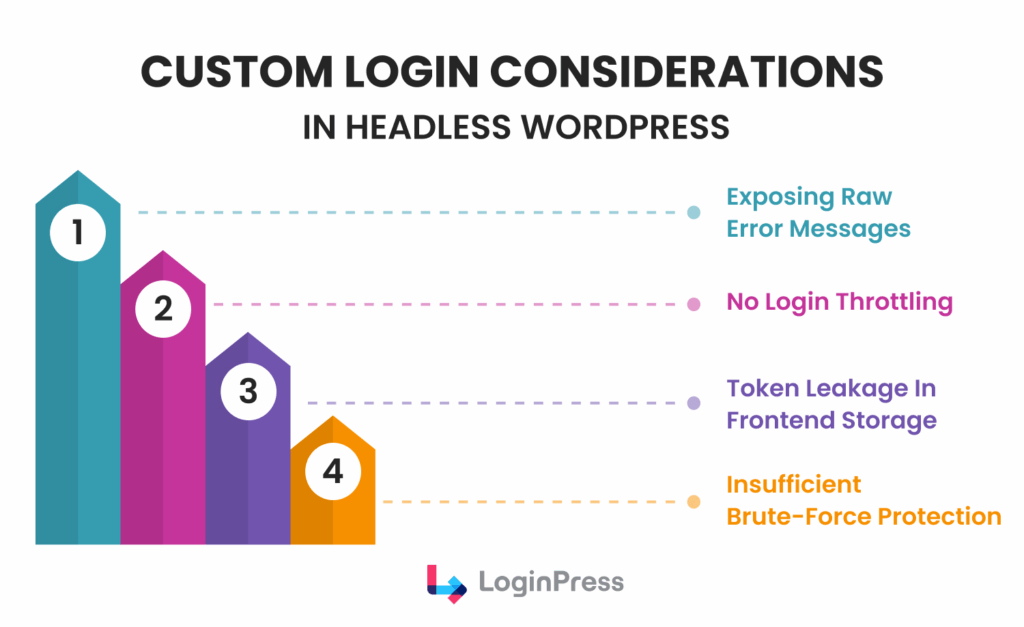
So let’s go through some of the common implementation mistakes you can avoid during the implementation of login security for headless WordPress:
1. Exposed Error Messages
Standard WordPress errors, such as “The password you entered for the username admin is incorrect,” are dangerous.
They confirm valid usernames, aiding brute-force attacks.
Fix: Use generic messages like “Invalid credentials. Please try again.”
2. No Login Throttling
Without the built-in protections of a plugin like LoginPress, your API endpoints are vulnerable to automated bot attacks.
Fix: Use a login security plugin such as LoginPress Pro.
3. Token Leakage
Storing JWTs or session keys in localStorage or sessionStorage makes them accessible to malicious scripts via XSS (Cross-Site Scripting).
Fix: Use HttpOnly cookies to ensure tokens remain invisible to client-side JavaScript.
Multi-Environment Security Considerations
- Single Page Applications (SPAs): For React or Vue apps, focus on Silent Refresh patterns. Never keep a long-lived token in a state that survives a page refresh unless it’s stored in a secure cookie.
- Mobile Apps: Mobile environments often lack the security of browser-based cookies. Use OAuth 2.0 with PKCE (Proof Key for Code Exchange) to secure the handshake between your app and the WordPress API.
- Multi-Frontend Environments: If you have a web app and a mobile app sharing the same backend, ensure your REST and WordPress API authentication logic treats them as distinct origins with unique rate limits and access scopes.
Headless WordPress Login Security Checklist
Use this checklist to audit your headless WordPress login security before going live. Every “Yes” reduces your risk of a breach.
- Secure Auth Method: Have you selected a stateless method, such as JWT or OAuth 2.0, instead of standard session cookies?
- Rate Limiting: Is a system like LoginPress or a WAF (e.g., Cloudflare) active to throttle brute-force attempts against your endpoints?
- Admin Protection: Is your backend /wp-admin hidden or restricted to specific IP addresses?
- Sanitized Errors: Does your API return generic “Invalid credentials” messages instead of identifying specific account hits?
- Token Lifecycle: Are you using short-lived Access Tokens (15-60 min) combined with secure, HttpOnly Refresh Tokens?
- Monitoring & Alerts: Are you logging failed authentication attempts and receiving alerts for unusual API traffic spikes?
Frequently Asked Questions
Is headless WordPress more secure than traditional WordPress?
Not by default. While it hides your backend from the public, it exposes your data via the REST API. You must secure those API endpoints and authentication routes to prevent unauthorized access.
Can I use LoginPress for a headless site?
Absolutely. Even if you build a custom frontend UI, LoginPress secures the underlying authentication logic. It protects the backend login path, limits API login attempts, and monitors for suspicious activity.
Where should I store my API tokens?
Never store tokens in localStorage or sessionStorage, as they are vulnerable to XSS attacks. The industry standard is to store tokens in HttpOnly, Secure, and SameSite cookies, which client-side JavaScript cannot access.
Do I still need an SSL certificate for the backend?
Yes. HTTPS is mandatory. Without it, your tokens and user credentials are transmitted in plain text across the web.
Conclusion: Login Security for Headless WordPress
Transitioning to a headless architecture offers immense performance benefits, but it fundamentally redefines your security perimeter. The headless WordPress login process is no longer a simple form submission; it is a critical exchange of secure tokens that must be guarded at every step.
By shifting your focus to REST API authentication security, implementing short-lived tokens, and hardening your WordPress core with tools like LoginPress, you can build a decoupled stack that is both resilient and fast. Secure the API, protect the backend, and you’ll ensure a safe experience for your users and your data.
For more related posts, check:
- Best WordPress Security Practices for Multiple Client Sites (2026)
- WordPress Login Trust Psychology: What Makes Users Trust Your WordPress Site
Is your headless login a secure bridge or an exposed backdoor? Review your authentication flow and apply the best practices covered in this guide before going live.