How to Manage Multiple Login Methods in WordPress (Without Confusing Users)

Editorial Team
WordPress was built for a single login method: username and password.
When you add social login, magic links, or OTP plugins, they all hook into the same /wp-login.php system.
Without a controller to manage multiple login methods in WordPress, this often results in duplicate users, broken redirects, and confusing login screens.
Ultimately, managing various login options is not just a design problem; it is an authentication flow problem.
This is where LoginPress steps in, bridging advanced login functionality with a seamless, controlled user experience.
If you’ve ever wondered, “How do I offer multiple login methods in WordPress?” without breaking your design or security, this guide will walk you through the optimal setup.
WordPress Login Methods (TOC):
Understanding Types of WordPress Login Methods
Before examining implementation details, it is important to review the primary types of WordPress login methods currently available.
Each method addresses the needs of distinct user groups:
- Traditional Password Login: This conventional method is generally reliable, although it is susceptible to issues such as password fatigue.
- Passwordless Login (Magic Links or One-Time Passwords): In this approach, users provide their email address and receive a single-use link or code. This method eliminates the need to memorize complex passwords, thereby bridging the gap between traditional and passwordless authentication.
- Auto-login Links: These include email invites, magic URLs, and SaaS access links. These are highly effective for specific use cases such as membership sites, online communities, and SaaS onboarding flows where reducing friction is critical.
- WordPress Social Login: This method enables users to authenticate through platforms such as Google, Facebook, or LinkedIn. It is widely regarded as an effective way to minimize registration barriers.
Although providing all three login options enhances inclusivity, it requires careful management to prevent duplicate or orphaned user accounts in the database.
Best Practices for Managing Multiple Login Methods in WordPress
Effective management of a diverse user authentication flow necessitates a clear strategy.
Users should not be confused about their previously selected authentication method.
Here are some best practices for managing multiple login methods in WordPress easily:
- Selecting Appropriate Authentication Methods
Developers frequently inquire whether WordPress social login and password-based authentication can be used concurrently.
While this approach is feasible, authentication methods should be prioritized according to the specific website type and target audience:
- Community or SaaS Sites: These should prioritize social login combined with magic links to ensure rapid access.
- Membership Sites: These are best served by email login links featuring a traditional password fallback to maintain user accessibility.
- Admin-Only Sites: Security is paramount; these should use password authentication with Two-Factor Authentication (2FA).
- Optimizing the Authentication Flow
Simplifying the WordPress authentication flow can be achieved by implementing a clear visual hierarchy.
The most frequently used method, typically email and password, should be positioned prominently, while social login options should be styled as secondary yet easily accessible alternatives.
- Tools for Managing Authentication Methods in WordPress
Relying on multiple plugins for social authentication, magic links, and interface customization for login method management can often cause plugin conflicts. If you are wondering,
“Can I use social login and passwords together?”
LoginPress acts as the control layer above those plugins, handling layout, redirects, and login behavior.
This enables comprehensive customization and security of all entry points. It also ensures a consistent and secure user experience regardless of the chosen authentication method.
How to Design a User-Friendly Login Experience
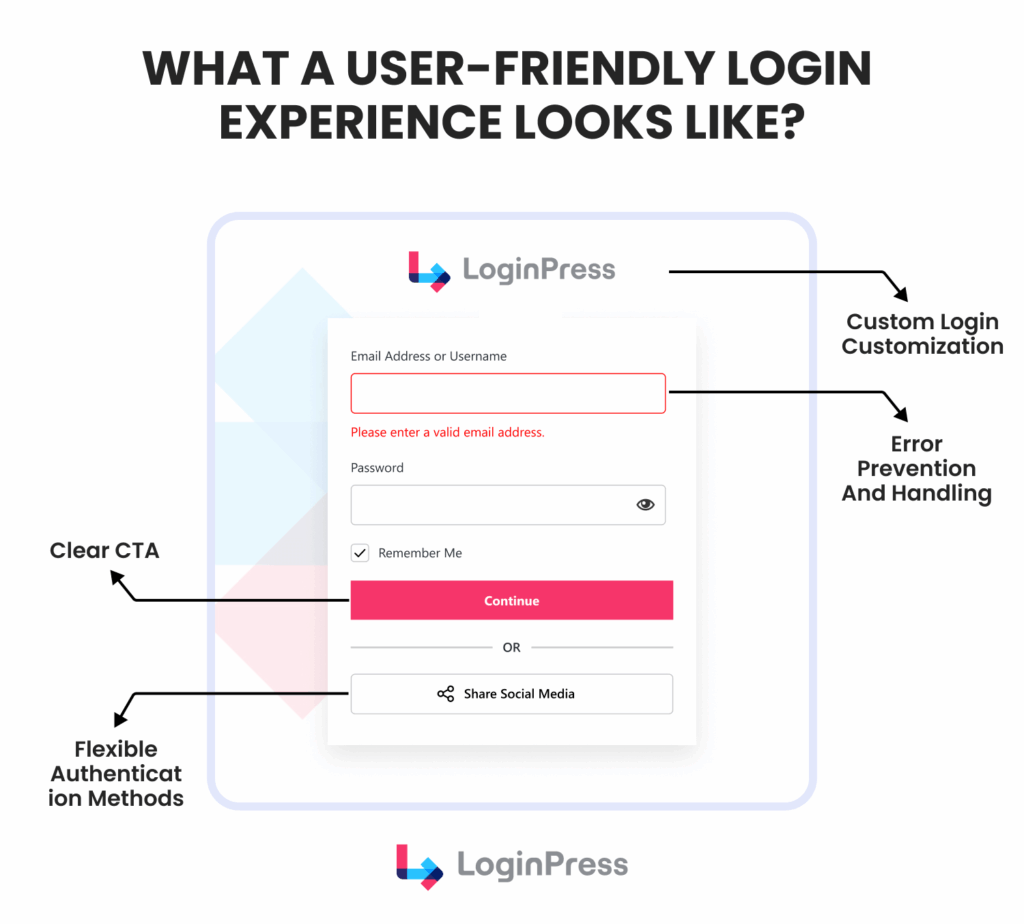
When you introduce multiple login methods in WordPress, the primary risk is “choice paralysis”.
If a user is confronted with too many buttons of equal visual weight, they may hesitate or abandon the page entirely.
Effective login method management relies on guiding visitors to the fastest entry point by controlling exactly which methods appear and where they are placed.
- Placement and Visual Hierarchy
To maintain a clean user authentication flow, you must establish a clear visual hierarchy that prioritizes the most relevant access points.
- Central Focus: Traditionally, the username and password fields should occupy the central space, as they remain the most common WordPress login fields.
- Grouping Social Options: WordPress social login buttons (e.g., Google or Facebook) should be grouped together, typically placed either directly below the “Login” button or at the top as “Quick Login” options.
- Visual Dividers: Using a simple “Or” separator between the manual form and the social icons helps the brain categorize the choices instantly.
- Avoiding Confusion When Offering Multiple Methods
A common question for site owners is: “How to avoid confusing users with multiple login options?”
The key is consistency and strategic labeling:
- Recognizable Branding: Use official brand colors for social buttons to ensure they are instantly recognizable.
- Limit the Number of Choices: While offering five different social providers is possible, sticking to the two or three most relevant to your audience prevents clutter.
- Clear Microcopy: Use text such as “Sign in with…” instead of just an icon to clarify the authentication flow in WordPress for less tech-savvy users.
- How LoginPress Controls the Authentication Flow
LoginPress is a powerful ally that goes beyond simple styling to manage the logic of how and where users enter your site.
It ensures that login method management is concrete and actionable. With LoginPress, you can:
- Toggle Method Visibility: Easily show or hide specific login elements, such as hiding social buttons for admin-only areas, to keep the interface focused on the intended user.
- Strategic Placement: Control where specific buttons appear on the page to ensure that social icons or magic links do not overshadow your primary login form.
- Manage Post-Login Behavior: Define exactly what happens after login, such as redirecting users to specific custom dashboards based on the authentication method used.
By prioritizing these flow-control elements, you ensure that providing variety doesn’t come at the cost of clarity.
How to Implement the Optimal Authentication Flow
Building a great authentication flow in WordPress is about more than just adding features; it is about designing a process that feels effortless.
While WordPress typically redirects all users to /wp-admin/, LoginPress overrides this and routes them appropriately.
By controlling post-login routing, LoginPress ensures that subscribers, customers, and admins land exactly where they need to be, removing barriers that can lower your conversion rates.
Step-by-Step Workflow
To combine passwordless and password login with social options effectively, follow this logical progression:
- Primary Entry: The user arrives at the login page and sees a simple, branded design.
- Method Selection: The user chooses how to log in by entering their credentials, clicking a social login button, or requesting a magic link.
- Background Verification: The system checks if the account exists. If a social login email matches an existing account in the database, the accounts should be linked to avoid duplicates.
- Instant Redirection: After logging in, the user is redirected directly to the appropriate content or dashboard, bypassing the default WordPress admin bar.
Examples of Smooth User Journeys
A high-converting user authentication flow looks different depending on the device:
- On Mobile: The user taps “Sign in with Google” and is instantly logged in. There’s no need to type on a small keyboard or remember a password.
- On Desktop: If a returning user forgets their password, they enter their email and choose “Send Magic Link.” After clicking the link in their inbox, they’re logged in without needing to reset anything.
How LoginPress Ensures Secure, Seamless Authentication
Handling a complex authentication flow in WordPress often leads to technical conflicts when multiple plugins compete for control of the login page.
LoginPress simplifies this by acting as a central controller, ensuring that multiple WordPress login methods work together without breaking the site’s core functionality.
Regardless of how a user chooses to authenticate, via passwordless, password login, or a social provider, LoginPress enforces a unified security and routing logic.
These features work in tandem to maintain a professional and stable environment:
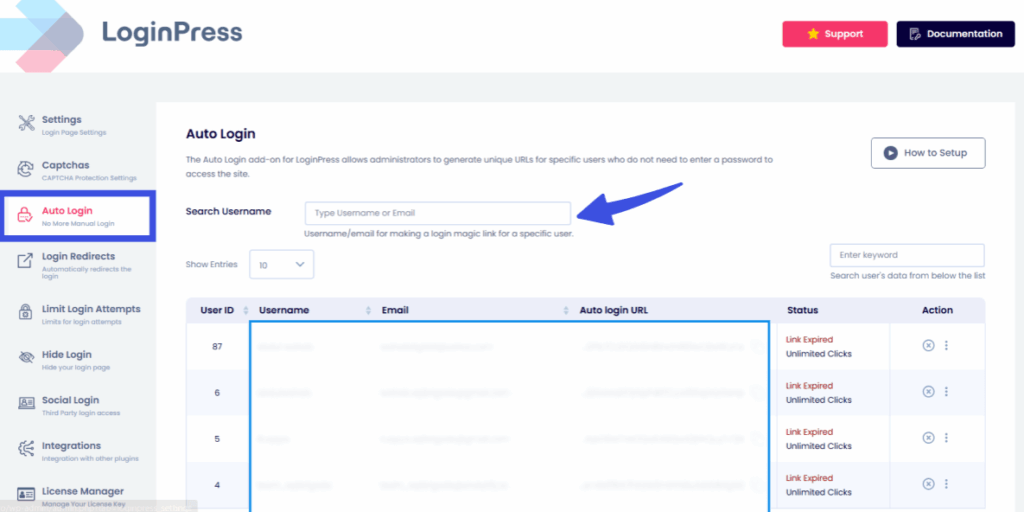
- Auto-Login Links: This feature lets you generate secure, unique URLs for users, providing instant access via email and bypassing traditional password prompts while remaining under the plugin’s security umbrella.
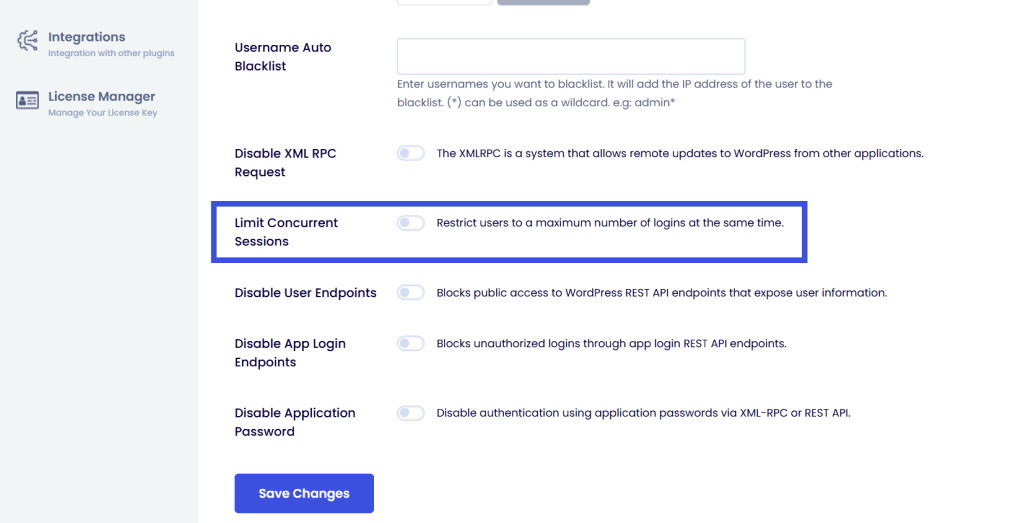
- Session Control: To keep the user authentication flow secure, you can enforce global rules, such as limiting login attempts and managing session durations across all entry points, thereby preventing brute-force attacks on any single method.
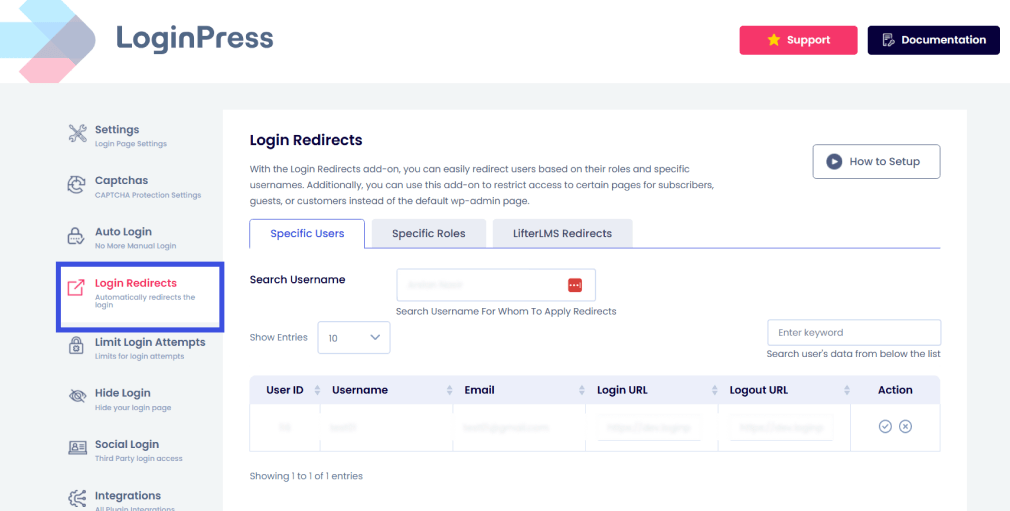
- Custom Login Redirects: While WordPress typically redirects all users to /wp-admin/, LoginPress overrides this behavior. It ensures that whether a user enters via a magic link or a social icon, they are routed to the specific custom dashboard relevant to their role.
By using LoginPress to integrate these WordPress login methods, you create a cohesive ecosystem in which security features and user convenience support each other rather than conflict.
Security Considerations When Offering Multiple Login Methods
Expanding your user authentication flow makes your site more accessible, but it also increases your risk.
Each new login option, such as a social button or a magic link, can be a target for hackers. To manage login methods well, you need to balance ease of use with strong security.
Risks of Multiple Login Methods and Mitigation
Offering more WordPress login methods means you have more to monitor. Here are the main risks:
- Mitigation: Enforce strong password policies and use LoginPress to limit login attempts.
- Credential Stuffing: Attackers use leaked passwords from other sites to “stuff” your login form.
- Account Overlap/Conflicts: A user might create one account via email and another via WordPress social login, leading to data fragmentation.
- Social Provider Vulnerabilities: If a user’s Facebook or Google account is compromised, the hacker can access your site.
- Mitigation: Encourage or require Two-Factor Authentication (2FA) for all administrative roles, regardless of how they log in.
Using LoginPress to Maintain Secure Access
LoginPress does more than improve your login page design. It also strengthens your WordPress security with features that help block automated attacks before they happen:
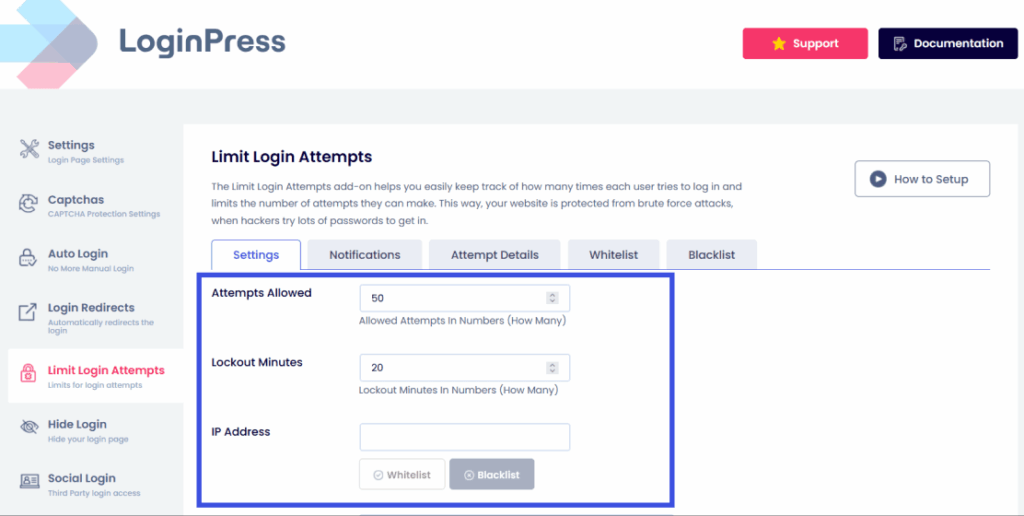
- Limit Login Attempts: By default, WordPress allows infinite guesses. LoginPress stops brute-force bots by locking out IP addresses after a set number of failed tries.
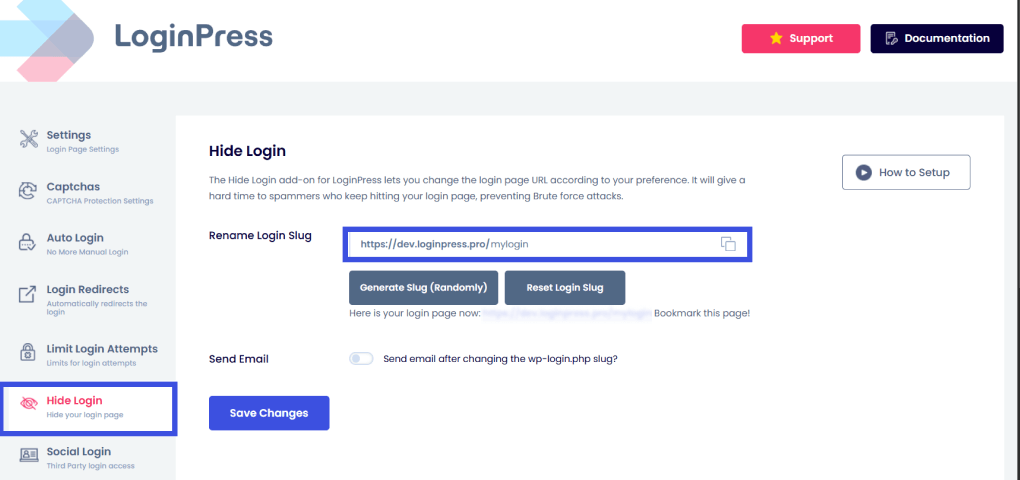
- Hide the Login URL: Change your login slug from /wp-admin to a unique value. This simple move makes your site invisible to most bots that are hard-coded to target the standard entry point.
Tips for Balancing Usability and Security
The goal is to provide frictionless security. You want your users to feel safe without feeling hindered.
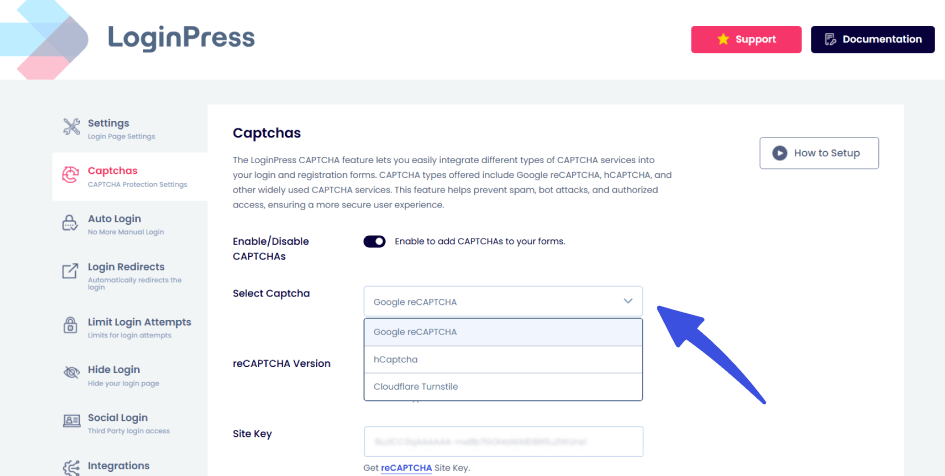
- Use reCAPTCHA Wisely: Add invisible reCAPTCHA with LoginPress. It blocks bots without affecting your real users.
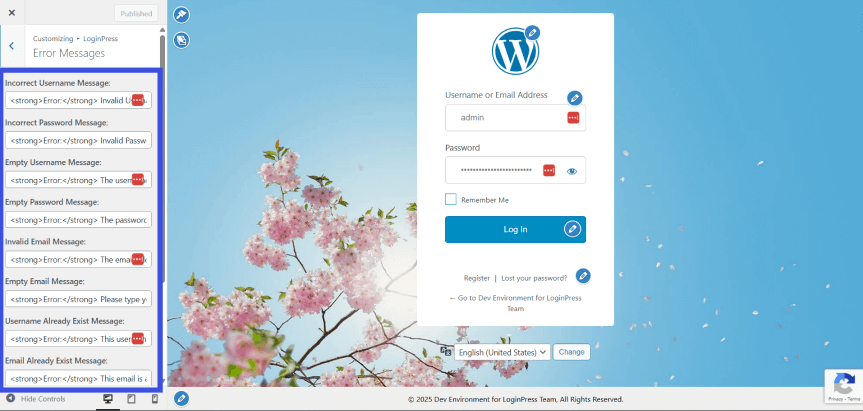
- Custom Error Messages: Default WordPress errors (e.g., “Invalid Username”) give hackers a clue that a specific username exists. Use LoginPress to create generic, non-revealing error messages that keep attackers in the dark.
- Prioritize SSL: Ensure your site is running on HTTPS. This is non-negotiable when handling the data exchange required for multiple login methods in WordPress.
Troubleshooting Common Issues
Even with a solid strategy, managing multiple login methods in WordPress can still cause technical friction.
Here are some common issues with their quick troubleshooting solutions for your convenience:
- Plugin Conflicts: Sometimes a WordPress social login plugin clashes with your theme’s CSS or the native login hooks, causing the form to disappear or fail to load.
- Session and Redirect Loops: A fragmented user authentication flow can lead to “session amnesia,” where a user authenticates but is immediately redirected to the login page instead of their dashboard.
- The LoginPress Advantage: LoginPress serves as a central layer for managing login methods. It resolves CSS conflicts, provides clear error handling, and lets you set global redirect rules that override buggy third-party plugins.
FAQs on Multiple Login Methods in WordPress
Can I offer both social and password-based login?
Absolutely. In fact, providing multiple login methods in WordPress is a best practice for accessibility. Offering a WordPress social login alongside a traditional password field ensures that if a user loses access to their social account (or prefers not to link it), they still have a reliable manual fallback. LoginPress makes this combination seamless by allowing you to style both elements on a single, cohesive page.
What is the best user authentication flow in WordPress?
The best authentication flow for WordPress websites is one that minimizes “time-to-content.” This typically involves placing the most frictionless methods at the top, followed by a clear “OR” separator and the traditional email/password fields. To further optimize the user authentication flow, ensure that once a user is verified, they are redirected to a custom dashboard rather than the generic WordPress back-end.
How can I simplify users’ login options?
To avoid confusion, focus on visual hierarchy and on managing login methods. Group similar WordPress login methods and use distinct branding (e.g., official brand colors for social buttons). LoginPress simplifies this by providing UI customization tools to hide redundant labels and adjust button layouts, ensuring the interface remains clean even when offering four or five entry points.
Are passwordless logins secure?
Yes, often more so than traditional passwords. When you compare passwordless and password-based login, passwordless methods (like Magic Links) rely on the security of the user’s email account, which typically supports multi-factor authentication. This eliminates the risk of “password reuse” and brute-force attacks on your specific site, as there is no static password for a hacker to guess.
How can LoginPress help with managing login methods?
LoginPress serves as a centralized command center for your WordPress authentication flow. It doesn’t just change the look of your page; it also lets you control how different methods interact. It simplifies login method management by providing built-in security features (like limiting login attempts), custom redirect rules for different user roles, and a live customizer to ensure all your login options look professional and trustworthy.
Conclusion: Multiple Login Methods in WordPress
Having several login options in WordPress is now essential for any site that wants to keep users coming back and feel up to date.
By offering both passwordless and password logins, you meet the needs of different users, whether they want a quick social login on their phone or prefer the security of a traditional password.
Effective management of login options is key to success. It’s important to offer choices without making the interface messy or confusing.
When multiple login methods are added without a controller, WordPress authentication becomes fragmented. LoginPress provides that control layer.
Learn more about login authentication methods here:
- Magic Link Login: How It Works and When to Use It in WordPress
- Login Security for Community Websites: Forums, Groups, and Networks
- User Authentication Best Practices for WordPress Websites (2026)
Want to improve your WordPress login experience? A confusing login page can drive visitors away. Try LoginPress to create a secure, easy-to-use entry point your users will appreciate.