2 Easy Ways to Unblock Limit Login Attempts in WordPress: Guide to Unblocking Login Access

To unblock Limit Login Attempts in WordPress, you can either disable the plugin over FTP (by renaming its folder) or clear the lockout records in your database with phpMyAdmin. Both methods get you back into wp-admin within a few minutes.
Lockouts happen because WordPress does not limit login attempts by default, so most sites add a plugin that does. That plugin protects you from bots guessing passwords, but it can also lock you out after a few typos.
In this post, I will show the two methods I’d use to get back in, starting with the quickest one.

QUICK SUMMARY:
Being locked out due to the “Limit Login Attempts” restriction means your IP address has triggered security thresholds from excessive failed attempts, or your site is under a brute-force bot attack.
● The Problem: Real administrators getting locked out of their own backends due to forgotten credentials or aggressive automated security rules.
● The Workarounds: Access your site files via FTP or phpMyAdmin to rename the locking plugin directory, clear the lock tables, or whitelist your specific IP address.
● What You’ll Learn: Clear, fast ways to unblock your account safely and configure smarter lockout settings moving forward.
Take Control of Your WordPress Login Security. LoginPress Pro includes an intelligent Limit Login Attempts feature that protects your site from automated bots while providing administrative paths to safely manage and unlock user accounts with ease.
Table of Content
- What is a Limit Login Attempt?
- When do You Lock Out of Your Own WordPress Site?
- Method 1: Unblock Limit Login Attempts via FTP
- Method 2: Unblock Limit Login Attempts via MySQL
- Final Thoughts
- Frequently Asked Questions
What is a Limit Login Attempt?
A limit login attempt is a rule that blocks a user or IP address after a set number of failed logins. It exists because brute force bots can try hundreds of usernames and passwords a minute, and without a limit they eventually guess correctly.
Since WordPress, by default, doesn’t limit login attempts, it is an easy target for hackers who opt for brute-force attacks against your WordPress websites.
That’s where the Limit Login Attempts plugins come to the rescue. These plugins allow you to set the number of attempts a user has before they are denied access to your website. As a result, brute force attacks fail.
How Do You Lock Out of Your Own WordPress Site?
You lock yourself out when you type the wrong password more times than your limit login attempts plugin allows. It often happens after a recent password change, or when Caps Lock is on.
If you keep trying to log into your website using incorrect credentials (mistakenly), you’ll be denied access after exceeding the login attempts limit.
Note: If you are locked out of your website, you can see a message informing you of too many failed login attempts.
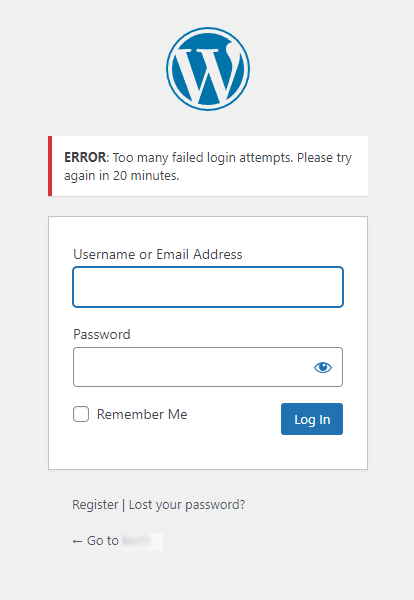
You’ll need to unblock limited login attempts in WordPress to regain access temporarily. We’ll show you two ways:
- Unblocking Limit Login Attempts Using FTP
- Unblocking Limit Login Attempts Using MySQL
Method 1: Unblock Limit Login Attempts via FTP
You can unblock Limit Login Attempts by renaming the plugin’s folder, which deactivates it. Once you are back in, rename the folder to its original name and reactivate the plugin. Renaming is safer than deleting, because your settings stay in place.
You’ll need an FTP client or the file manager in your WordPress hosting control panel.
Once you are in the FTP Client or file manager area, navigate to the /wp-content/plugins/ folder. The plugins folder contains the files for every plugin on your WordPress site.
Find the Limit Login Attempts plugin folder and rename it, for example by adding “-off” to the end. WordPress deactivates the plugin, and you can log in again right away.
Method 2: Unblock Limit Login Attempts via MySQL
The second method for unblocking the Limit Login Attempts on your WordPress is using a MySQL query. This method requires a basic understanding of MySQL and using phpMyAdmin, a tool accessible from your CPanel.
First, log in to your web hosting dashboard. Navigate and click the phpMyAdmin icon right under the Databases section.
A new browser window will open up. From here, select your WordPress database and then click on the SQL tab and paste the following query there:
UPDATE wp_options SET option_value = '' WHERE option_name =
'limit_login_lockouts' LIMIT 1;Note: The above query uses the default ‘wp_’ database prefix. If you’ve changed your database prefix, then update the query with the correct prefix.
Next, click Go, and you’ll get the query confirmation message immediately.
This will reset the lockout, and you’ll get access to your WordPress admin area on login.
If you want stronger protection against unauthorized access, you can extend the lockout period. Learn how to increase lockout time with LoginPress.
Frequently Asked Questions
What is the Account Lockout duration?
Account lockout duration is the time interval during which your account remains locked. The website administrator sets this duration. You can retry logging into your account once the lockout period is over.
Does WordPress limit login attempts by default?
WordPress offers “unlimited” login attempts to all users. However, you need to use a plugin such as LoginPress to limit the number of login attempts available to users.
Final Thoughts
You can unblock Limit Login Attempts in WordPress through FTP or MySQL, and both methods take only a few minutes.
Limiting the number of login attempts for all users is a simple yet effective way of protecting your website against automated brute-force attacks.
Don’t stop yourself thinking about what might happen if you accidentally lock yourself out of your WordPress site with limited login attempts.
Now try this out and tell us how much it helped you! See our detailed guide on Social Login.