How to Secure WordPress Login for Remote Teams and Distributed Users

Editorial Team
Are you looking for the best login setup to secure WordPress login for remote teams?
A distributed WordPress team offers flexibility and access to global talent, but it also introduces security risks from unsecured networks.
Managing a few local users is straightforward, but securing remote team logins across time zones and devices is more complex.
The challenge goes beyond hacking threats and includes the logistical complexities of managing multi-user login security.
Preventing credential sharing and addressing unattended active sessions in public locations are critical concerns for remote team security.
LoginPress has emerged as a leading solution to these security challenges by transforming the standard WordPress login into a branded authentication gateway.
This guide explains how remote teams can securely use remote user authentication in WordPress without frequent lockouts, offering practical strategies and solutions.
Secure WordPress Login for Remote Teams (TOC):
Understanding Security Risks for a Remote Distributed Team in WordPress
In distributed teams, organizations lose control over the hardware and networks utilized by remote employees.
This situation introduces three significant vulnerabilities in remote user authentication:
- Brute Force and Credential Stuffing: Automated bots frequently target the /wp-admin URL using extensive lists of leaked password combinations. The tendency of remote employees to reuse passwords across personal and professional accounts increases the effectiveness of these attacks.
- Unsecured Networks: Public Wi-Fi networks typically lack encryption, making it easier for attackers to intercept login credentials in transit.
- The Shared Account Risk: Remote teams may share a single ‘Editor’ account to streamline workflow. This practice severely undermines login security by preventing effective auditing of individual user actions.
Team Login Security Risks Associated with Multiple Concurrent Logins
If organizational security policies permit multi-user login, a single compromised credential can be used by an attacker while the legitimate employee remains logged in.
In the absence of concurrent login restrictions, multiple individuals can access the same account from various geographic locations without detection.
Best Practices for Secure WordPress Login for Remote Teams
To secure WordPress access, use a Zero Trust approach.
Do not assume a remote user authentication is secure just because the password is correct; always verify the user and session.
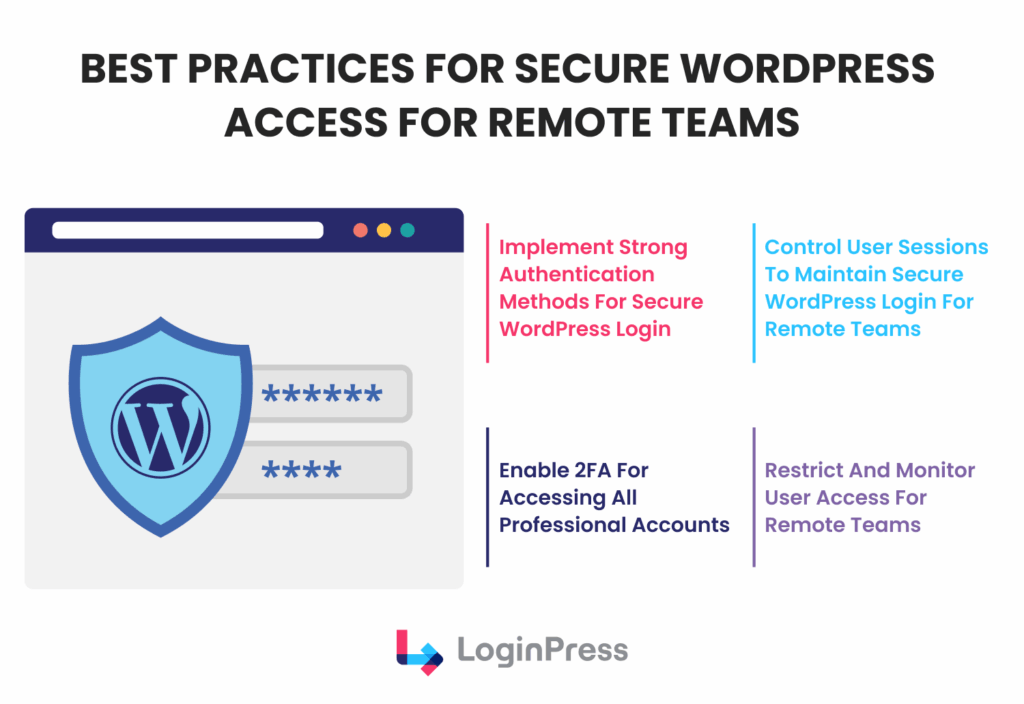
Let’s go through some of the best practices for secure WordPress access:
1. Implement Strong Authentication Methods
For a distributed team in WordPress or remotely working teams, passwords can quickly become a major vulnerability.
For contemporary WordPress authentication, especially in remote work environments, you can implement the following security layers:
- Strict Password Policies: Enforce a minimum of 16 characters, including at least one symbol, using tools such as LoginPress.
- Two-Factor Authentication (2FA): This measure is essential. Using a code from applications such as Authy or Google Authenticator provides effective protection against most bulk attacks.
- Passwordless Magic Links: Enable users to authenticate via a secure, single-use link sent to their verified email address.
2. Control User Sessions
Managing remote team login security means controlling what happens after a user logs in.
- Auto-Logout Idle Users: Configure automatic session termination after 15 minutes of user inactivity using tools such as LoginPress.
- Limit Simultaneous Logins: Prevent an account from being used on more than one device at a time. This stops account sharing.
3. Restrict and Monitor User Access
Enhance security by monitoring login patterns across multiple user accounts.
- Login Logs: Maintain a record of every IP address and location that accesses your site.
- Role-Based Access Control (RBAC): Never give a remote contractor more access than they need. A “Contributor” shouldn’t be able to see “Plugin” settings.
How to Design a Secure WordPress Access for a Distributed Team in WordPress
A secure WordPress access strategy for a distributed remote team is not only about adding security measures.
It should also make it easy for remote team members to log in without hassle.
If your login process is overly complicated or frequently fails, remote employees may resort to risky workarounds.
They might store passwords in unprotected notes or share credentials through Slack to avoid getting locked out.
The goal of a high-performance workflow is to make the secure approach the easiest.
UX vs. Security: The Psychology of Trust
The most effective login setup for distributed WordPress teams uses principles from the Psychology of Security.
When a remote worker clicks a link and sees the plain, grey WordPress login screen, they may briefly question whether they can trust the site.
LoginPress lets you create a custom-branded login page, giving your site a more credible and trustworthy appearance.
A consistent brand experience with your company logo, colors, and professional fonts reassures users that they are on an official company site.
This visual check is a strong defense against phishing. If someone sends a fake login link that looks like the default WordPress screen, employees familiar with your custom login page can quickly notice the difference and report the issue as a red flag.
Combining Security with Convenience (SSO and Magic Links)
To keep your team’s login process secure, try to reduce password fatigue.
According to recent studies, an estimated 80–85% of people reuse passwords across multiple sites, and roughly half of employees admit to reusing credentials at work.
When users have too many passwords to remember, they are more likely to reuse simple or weak ones.
- Social Logins: With LoginPress, you can add Social Logins using Google, Microsoft, or LinkedIn. This lets your remote workers use their existing work credentials to log in to WordPress with one click. For admins, this is a big advantage. If an employee leaves and you disable their work email, their WordPress access is automatically removed.
- Magic Links: For high-security environments, you can bypass passwords entirely. LoginPress supports auto-login, in which one-time, time-sensitive login links are sent to the user’s verified email address. This ensures that only the person with access to that inbox can access it, providing a form of remote user authentication that requires no memorization.
Expert Tip: Use Role-Based Redirects in your WordPress workflow for a distributed team. Instead of sending everyone to the main Dashboard, send remote editors straight to the “Posts” screen. This saves time and helps your team get to work right after logging in.
Implementing LoginPress Features for Remote Team Security
To transform your WordPress site into a fortress, you need to move beyond general advice and into technical implementation.
LoginPress provides remote teams with a controlled access layer to implement the best security features.
Follow these steps to configure a high-performance, secure WordPress access environment:
Step 1: Hide Login (Custom Login URL)
Automated bots target /wp-admin by default. Use the Hide Login add-on to rename your login path to a unique value, such as /team-portal-2026.
This immediately cuts out noise from bot-driven brute-force attempts. To generate your own custom URL, go to LoginPress >> Settings >> Hide Login Add-On.
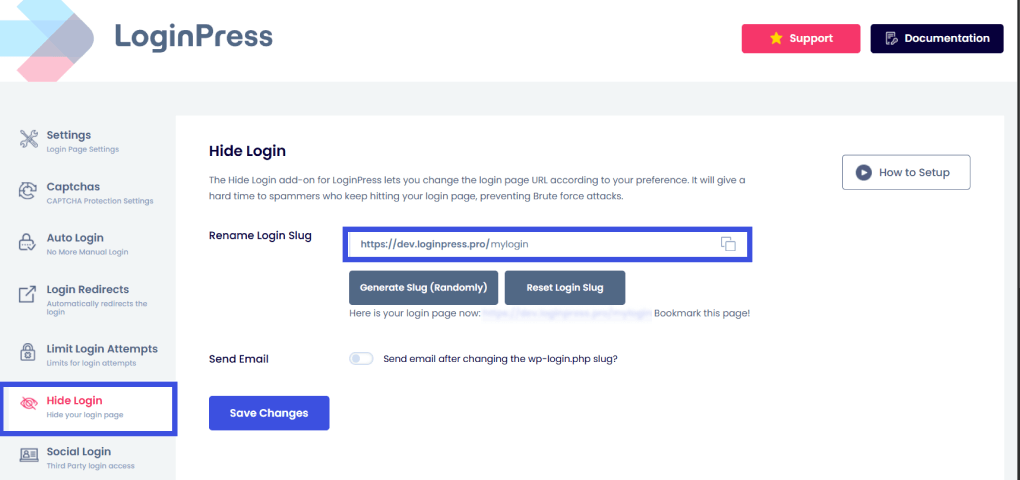
In this feature, you can perform the following actions:
- Rename the Login Slug: Type in a custom word or phrase to create your unique login path.
- Generate a Random Slug: Use the “Generate Slug” button to automatically create a high-security, randomized string.
- Toggle Email Alerts: Enable an option to receive an email notification once the default wp-login.php slug has been successfully changed.
- Reset or Save: Quickly revert to the original settings or finalize your new secure URL.
Think of it as moving your front door to a location that only your distributed team knows about, keeping the uninvited guests guessing.
Step 2: Enforce Two-Factor Authentication (2FA)
For remote teams, this is the single most effective way to ensure team login security.
Require all users with “Administrator” or “Editor” roles to authenticate via a mobile app (like Google Authenticator) or an email-based OTP.
LoginPress is fully compatible with 2FA plugins, enhancing your authentication flow and automatically creating a safer environment for distributed workers.
Step 3: Configure Session Expiration
Remote workers often work in multi-use environments (home offices, cafes). This is why it is crucial for organizations to ensure proper session management for remote teams.
Here is how LoginPress handles session control:
Navigate to LoginPress >> Settings >> Session Expire settings.
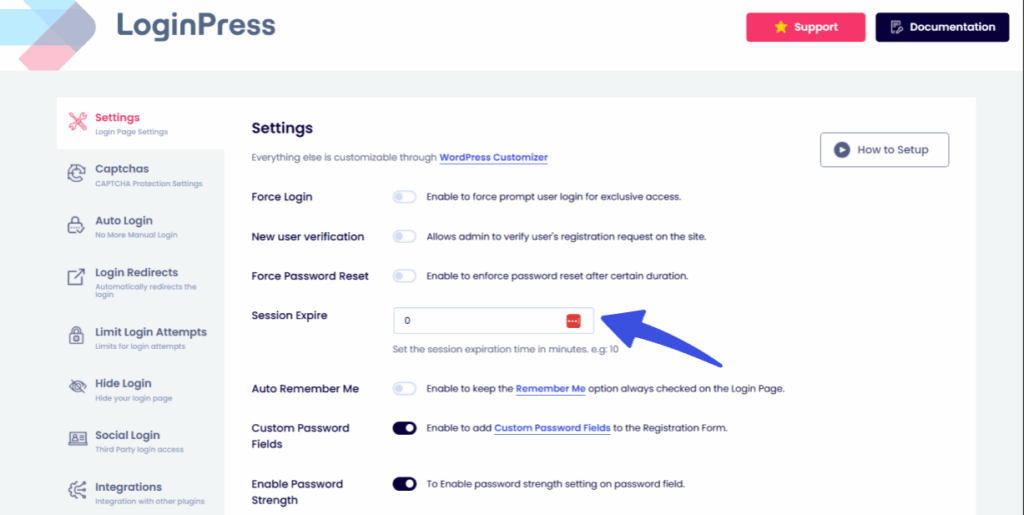
You can then set a limit, such as 120 minutes of inactivity, after which the user is automatically logged out. This prevents unauthorized access if a laptop is left unattended.
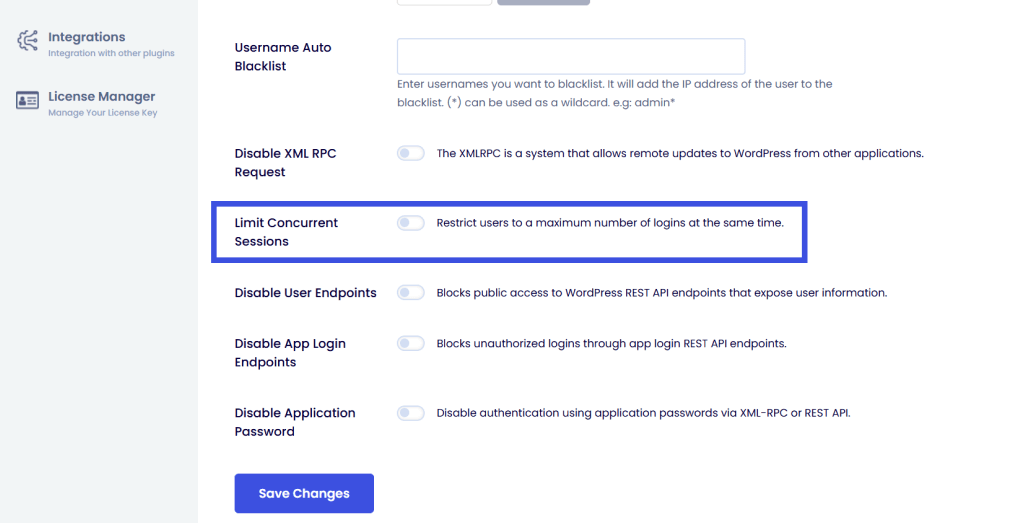
Step 4: Limit Concurrent Logins
For organizations managing global talent, maintaining strict accountability is often the biggest hurdle.
Enabling the Limit Concurrent Logins feature ensures that a unique user identity is tied to a single user at any given time. This feature prevents this risky behavior by ensuring that a set of credentials can be active on only one device at a time.
To enable this, go to LoginPress >> Settings >> Limit Concurrent Sessions.
Step 5: Limit Login Attempts
Organizations with distributed teams are frequent targets for automated credential stuffing attacks, where bots attempt to guess passwords across your user base.
prevents bots from hammering your login page while ensuring that a compromised remote user account cannot be cracked through sheer repetition.
Limit the number of attempts prevents bots from hammering your login page while ensuring that a compromised remote user account cannot be cracked through sheer repetition.
To enable that, go to LoginPress >> Limit Login Attempts Add-On.
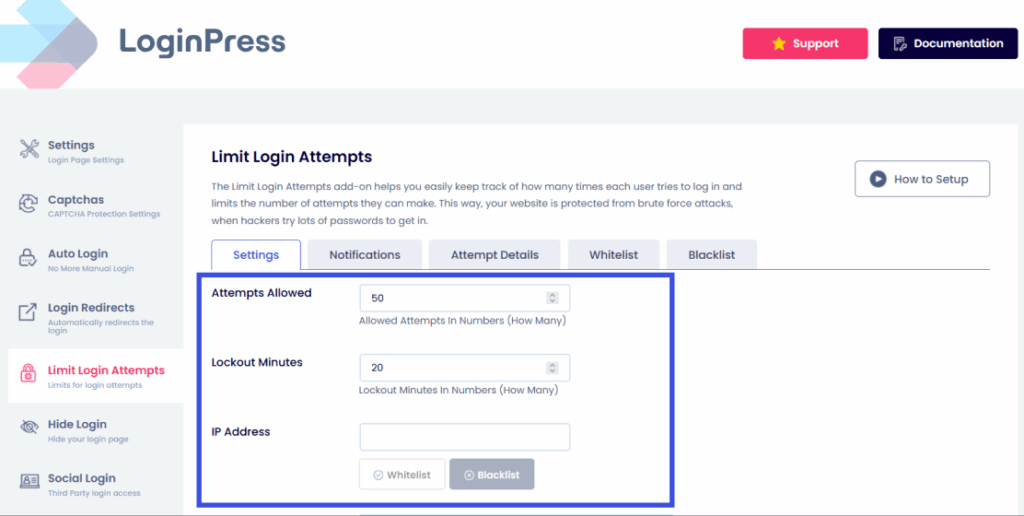
Set the number of Attempts Allowed per user; after that, they will be locked out.
Set a strict lockout policy by adding the Lockout Minutes. For example, if a user fails to log in 3 times within 5 minutes, their IP is banned for 24 hours.
This effectively kills brute-force scripts before they can guess a password.
Using Login Logs to Monitor and Protect Distributed Users
Setting up your defenses is only half the battle; you must also monitor them. Login Logs serve as your flight recorder, providing a transparent audit trail of every login and logout.
- Audit Real-Time Activity: The logs record the Username, IP Address, and timestamp for every login attempt. For a distributed WordPress team, this allows you to verify that a user is logging in from their expected geographic region.
- Identify Suspicious Logins: If the logs show a successful login from London at 10:00 AM and another from Singapore at 10:30 AM using the same account, you have identified a critical breach. This level of suspicion is a primary indicator of compromised credentials.
- Track Failed Attempts: A high volume of failed attempts for a specific username may indicate that a team member is being targeted. You can then proactively contact the user to reset their credentials or whitelist their IP address to ensure WordPress access remains secure and isn’t interrupted by false positives.
- Export and Review: Periodically export your login logs as a CSV for compliance reviews. This is essential for agencies or enterprises that need to demonstrate compliance with strict multi-user login security protocols.
Technical Note: By combining session limits with detailed logging, you create a closed-loop security system where every remote access point is verified, timed, and recorded.
Troubleshooting Common Remote Access Issues for a Distributed Team in WordPress
Remote work environments often result in account lockouts. The following outlines how LoginPress streamlines the resolution process:
- VPN-related Access issues may occur when a user’s VPN IP address is shared with a bot and subsequently blocked. To resolve this, administrators can whitelist the user’s specific IP address within the LoginPress settings.
- When two-factor authentication (2FA) fails, enabling the ‘Backup Codes’ feature ensures that team members who lose access to their mobile devices can regain access to their accounts.
Using these tools helps maintain secure WordPress access as an integrated, low-maintenance component of the workflow for managing remote teams.
Frequently Asked Questions
How do remote teams securely access WordPress?
Remote teams should utilize a layered security approach. This begins by hiding the standard login entryway from spammers and bots by creating a custom login URL. Beyond the URL, teams must use Two-Factor Authentication (2FA) to ensure that a stolen password isn’t enough to gain entry. Finally, all traffic should be routed through an encrypted connection, such as HTTPS or a corporate VPN, to prevent data interception on public Wi-Fi networks.
What is the best login setup for distributed WordPress teams?
The most effective setup uses a centralized security plugin, such as LoginPress, to manage global settings from a single dashboard. This setup should:
Enforce strict password policies to eliminate weak credentials.
Limit login attempts to automatically block IPs after a set number of failures.
Use Role-Based Redirects to direct users to their relevant work area, reducing exposure to the rest of the site’s backend.
How do I securely manage multiple user logins?
Managing a large team requires controlling session behavior. You should disable concurrent logins to prevent a single user account from being accessed by multiple people or devices simultaneously, thereby preventing unauthorized account sharing. Additionally, implementing Session Expiration ensures that if a remote worker leaves their device unattended, the site will automatically log them out after a period of inactivity.
How does LoginPress help with session and login security?
LoginPress provides a suite of specialized add-ons designed for high-level protection:
Hide Login: This feature allows administrators to set a custom login slug or generate a random one, making it significantly harder for brute-force scripts to find the login page.
Session Control: Admins can set the duration for which a user remains logged in.
Login Logs: It maintains a detailed audit trail of every login attempt, including the time and IP address, which is essential for monitoring distributed access.
What are the key security settings for remote WordPress users?
For remote environments, prioritize settings that mitigate human error:
2FA (Two-Factor Authentication): The primary defense against credential theft.
Auto-Logout: Essential for users working in public spaces or shared home offices.
IP Whitelisting: For high-level administrators, restricting access to specific, known IP addresses adds a final, nearly impenetrable layer of security
Conclusion: Multi-User Login Security
In 2026, securing WordPress logins for remote and distributed teams is the single most effective way to prevent unauthorized access.
As your team grows across borders, relying on default settings is a risk you can’t afford.
LoginPress is the essential login solution, allowing you to hide your login slug, enforce 2FA, and manage session timeouts from a single dashboard.
There’s no better time than now to implement these best practices and turn your login page into a secure, branded gateway.
Protecting your digital workspace starts with your first login. Make sure it’s a safe one.
That is all for this post. For more related posts on login security, check:
- Login Security for Community Websites: Forums, Groups, and Networks
- How to Build Login Security for Headless WordPress (2026 Guide)
- WordPress Login Security: 13 Ways to Secure the Login Page
Which of these security features, hiding your login URL or enforcing session timeouts, do you think would provide the most peace of mind for your remote team?
Let us know in the comments below!