User Authentication Best Practices for WordPress Websites (2026)

Editorial Team
WordPress remains the most attacked Content Management System (CMS) globally.
As we move through the ever-evolving landscape, the stakes have never been higher.
The days of simple brute force scripts are over. Today, login attacks are sophisticated, automated, and, most dangerously, UX-aware.
Modern bots mimic human behavior to bypass traditional firewalls and use credential stuffing to exploit passwords leaked from other platforms.
This is why user authentication best practices are no longer an option.
User authentication best practices for WordPress that focus on layered security, passwordless logins, MFA, and invisible protection without hurting user experience.
In this guide, we’ll move past the simple stuff and dive into modern ways to keep your WordPress site safe. I’ll show you how to handle today’s security challenges while building a smooth, hassle-free login experience for your users with LoginPress.
User Authentication Best Practices (TOC):
What Is User Authentication in WordPress?
Before addressing the implementation details of user authentication best practices, it is important to clarify the underlying concepts.
So, what is the distinction between authentication and authorization?
- Authentication refers to the process of verifying a user’s identity, such as confirming whether an individual is an administrator.
- Authorization specifies the actions a user is permitted to perform after authentication, such as editing or viewing content.
Default Authentication Flow in WordPress
By default, WordPress uses a basic username-and-password flow.
Some of the primary limitations of the default WordPress authentication flow are
- Password Dependency: It relies entirely on the user’s ability to create (and remember) a strong password.
- Predictable Endpoints: The login page’s location is well-known, increasing the risk of unauthorized access attempts.
- Static Protection: Default WordPress doesn’t learn from suspicious behavior; it treats a thousand failed attempts the same way it treats a single typo.
Common WordPress Authentication Threats
To better understand these vulnerabilities, let’s look at how these attacks work and what they can do to a WordPress site.
1. Brute Force and Credential Stuffing
Although both are called brute-force attacks, these two methods use different methods to try to get into your site.
- Traditional brute-force attacks use bots to guess one user’s password by trying thousands of possible combinations, such as password123 or admin1234.
- Credential stuffing is a more targeted attack. Because people often reuse passwords, attackers use lists of leaked email and password combinations from other sites to attempt logins.
- By default, WordPress does not limit login attempts. This means a bot can try to log in thousands of times per minute without being stopped
2. Phishing-Based Credential Theft
Phishing has changed over time. Instead of just sending generic ‘Dear Customer’ emails, attackers now use more advanced tricks that target specific sites.
- Look-alike Domains: Attackers register domains such as your-site-secunty.com or wordpress-update-fix.net to send emails claiming that your site has a critical vulnerability.
- The “Proxy” Attack: Advanced phishing kits act as a “Man-in-the-Middle.” When you enter your Multi-Factor Authentication (MFA) code into the fake page, the attacker’s script instantly passes that code to the real WordPress site.
- Attackers may also target authors. Even without admin access, stolen ‘Author’ or ‘Editor’ accounts let them add harmful links to popular blog posts.
3. Account Takeover (ATO)
Account takeover is often the final goal of the previous attacks. In WordPress, the damage depends on which user’s account is taken over.
- If attackers gain access to an Admin account, they often use the Theme Editor or Plugin Upload to install a ‘web shell.’ This tool gives them ongoing access to your server files, even if you change your password later.
- For WooCommerce sites, a Shop Manager’s account is very valuable to attackers. They can export customer lists with addresses and purchase histories to sell on the dark web.
- Attackers might also create thousands of fake pages on your site that rank for illegal keywords. This can get your whole domain blacklisted by Google.
4. Session and Login Abuse
This is a hidden vulnerability that is often missed because it does not involve the usual way of breaking in.
- WordPress keeps users logged in by using browser cookies. If a user’s computer is infected with ‘infostealer’ malware, an attacker can steal this session cookie.
- If an attacker has a stolen session cookie, they do not need a username, password, or MFA code. The server already believes the user is the real user.
- Detection Hurdles: Because WordPress allows unlimited concurrent sessions, an attacker can be logged in from an IP address in another country while the real Admin is also logged in. WordPress does not provide native visibility into active sessions without additional plugins.
Comparison of Attack Impact: User Authentication Best Practices
| Attack Type | Primary Goal | Difficulty to Dedect |
| Brute Force | Total Site Takeover | Easy (High Server Load) |
| Phishing | Bypassing MFA / Identity Theft | Hard (Looks like a valid login) |
| Session Abuse | Long-term “Backdoor” Access | Very Hard (No login event triggered) |
Authentication Methods in WordPress
The shift is moving away from knowledge-based security (what you know) toward possession-based security (what you have) in user authentication best practices.
1. Password-Based Authentication
Standard passwords are now considered the weakest link in the security chain.
To make them viable in a modern WordPress environment, they must be treated as part of a larger strategy.
Modern policies prioritize entropy (randomness) over simple character substitution.
So instead of “P@ssword1!”, systems now encourage long passphrases like “blue-stapler-running-ocean.”
- Breach Checking: Advanced WordPress security suites now cross-reference entered passwords against databases such as Have I Been Pwned in real time. If a user tries to set a password that has appeared in a known leak, the site rejects it immediately.
- The Salting Mechanism: WordPress uses a cryptographic salt (defined in wp-config.php) to scramble passwords before storing them in the database. If this salt is weak or default, the passwords are significantly easier to crack if the database is stolen.
2. Multi-Factor Authentication (MFA)
MFA is no longer an extra feature; it is a foundational requirement for anyone with backend access.
- TOTP (Time-based One-Time Password): Using apps like Google Authenticator or Authy. This is more secure than SMS because it isn’t susceptible to SIM swapping attacks.
- FIDO2/WebAuthn (Biometrics): Some WordPress setups support hardware keys through specialized authentication plugins or enterprise solutions. This is the highest level of security available, as it is virtually unphishable.
- Adaptive MFA: It is typically found in enterprise identity systems rather than in standard WordPress setups.
Learn more about how MFA Improves Security Over Single-Factor Authentication (2026) here.
3. Passwordless Authentication
In WordPress, passwordless authentication is most commonly implemented through email-based magic login links, not passkeys. Passwordless authentication method acknowledges that the best way to prevent password theft is to eliminate passwords entirely.
- Magic Links: When a user enters their email, WordPress sends a cryptographically signed, time-sensitive link. Clicking the link creates a session. This effectively offloads the security responsibility to the user’s email provider.
- OTP via Email/SMS: Similar to magic links, but requires the user to type in a 6-digit code.
- UX Benefits: This is ideal for membership sites or WooCommerce stores where “friction” during the login process leads to abandoned carts. It eliminates the “Incorrect Password” error entirely.
4. Social Login (OAuth 2.0)
Social login utilizes OpenID Connect or OAuth 2.0 to verify identity without the WordPress site ever seeing the user’s external credentials.
- Identity Provisioning: When a user clicks “Login with Google,” Google sends a “token” to WordPress. This token says, “We have verified this person is who they say they are.”
- Data Synchronization: This method can automatically pull the user’s profile picture and verified email address, streamlining the registration process.
- The Single Point of Failure Risk: The trade-off is that if a user’s Facebook or Google account is hacked, the attacker gains access to every site the user used Social Login on. This is why encouraging MFA on the “Parent” account (Google/GitHub) is critical.
If interested, check out our complete guide on Single Sign-On vs Social Login in WordPress: What Should You Use?
User Authentication Best Practices for WordPress
Security used to focus on making passwords complex by mixing uppercase and lowercase letters with symbols.
But people are predictable; we often capitalize the first letter and add a “!” at the end.
Attackers now use rule-based brute force attacks that target these habits.
To move beyond a simple recommendation and into a functional security posture, you must address three specific areas of the user lifecycle:
- Enforce Strong Password Policies
Instead of telling a user that their password is weak after they click Submit, a strong system displays a Strength Meter.
This immediate feedback loop coaches users as they type to create better passwords, reducing frustration and “form abandonment.”
If you are implementing new policies on an existing site, you must consider current users.
This involves:
- Identifying users with legacy passwords (created before the new 12-character rule).
- Flagging those accounts for a mandatory password reset upon their next login.
How LoginPress helps:
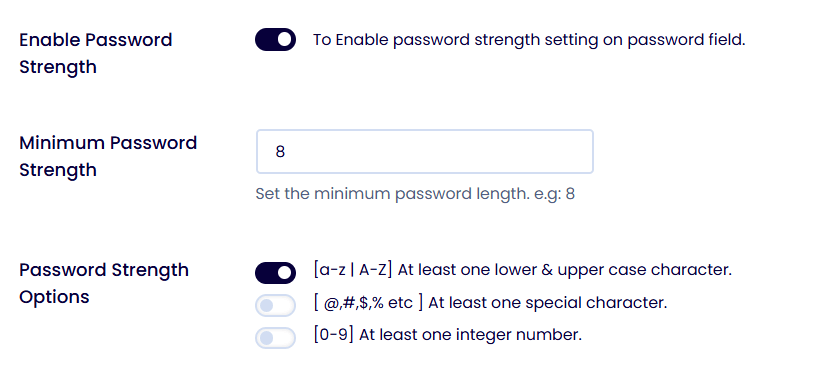
While WordPress core provides a basic strength indicator, it doesn’t “lock the door” against weak choices by default.
LoginPress bridges this gap by turning the strength meter from a suggestion into a requirement.
It allows administrators to enable strong password options, effectively raising the standard across the entire site. To enable these, go to LoginPress >> Settings.
By mandating the Password Strength Meter and Minimum Password Strength, you can ensure that the front line of defense is strong and significantly more resistant to common attacks.
- Enable MFA for High-Risk Roles
In security, this approach is referred to as Privileged Access Management (PAM).
The strongest defenses are concentrated on accounts with the highest levels of access, according to user authentication best practices.
- The Power Gap: Administrators can delete the entire database or modify the site’s DNS settings, whereas Subscribers are limited to managing their own profiles. Requiring multi-factor authentication (MFA) for casual readers may discourage site engagement; however, for administrators, MFA is considered an essential professional standard.
- Preventing Lateral Movement: Attackers frequently compromise lower-level accounts, such as those assigned to Editors, to install backdoors and subsequently escalate privileges. Implementing mandatory MFA for all staff roles disrupts this progression.
LoginPress works alongside dedicated MFA plugins, allowing administrators to combine login controls with multi factor authentication.
- Adopt Passwordless Authentication Where UX Matters
This user authentication best practices approach transfers security responsibility from user memory to verified email access.
- Enable Auto Login: The Magic Link mechanism generates a unique, single-use cryptographic token when a user requests access. This link remains valid for a limited period, typically 10 to 20 minutes.
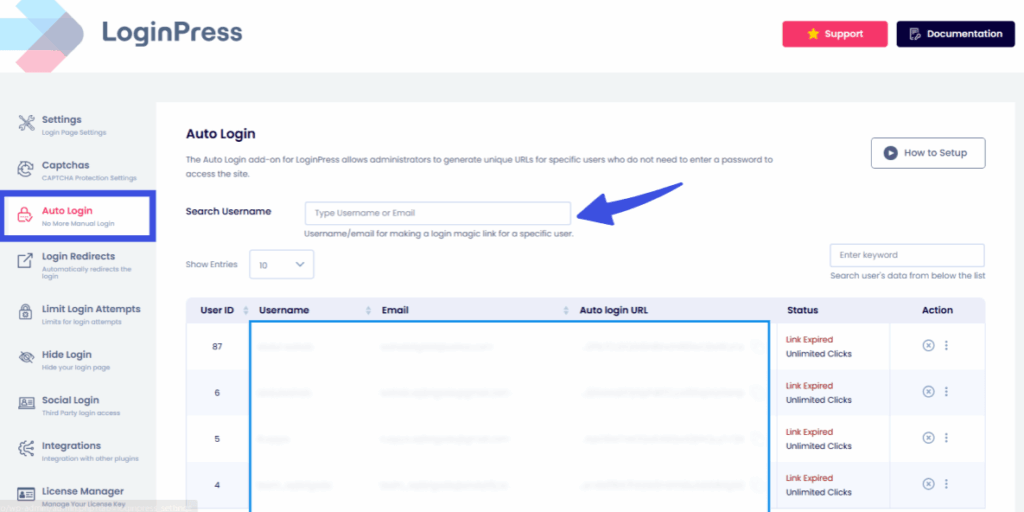
- To address the prevalence of “Forgot Password” requests, passwordless authentication eliminates this issue by using the user’s email inbox as the authentication key.
- Device synchronization: For mobile users, authentication links can be accessed directly in their email app, eliminating the need for password managers or manual entry of complex credentials.
- Protect Login Pages from Bots
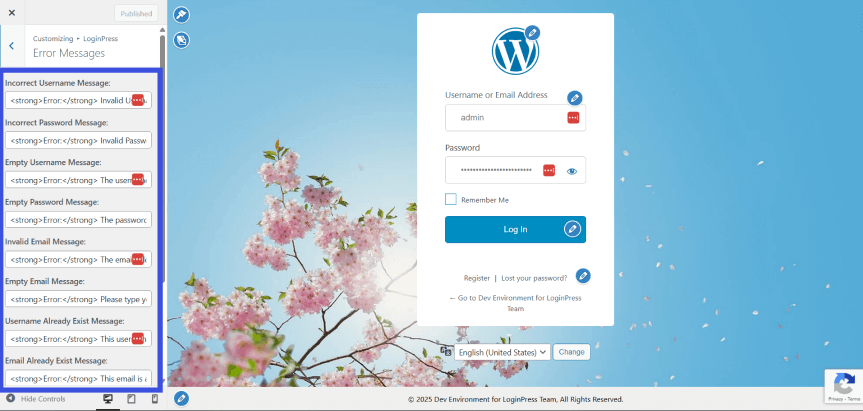
Standard WordPress login errors provide excessive information by indicating whether a username exists, thereby facilitating unauthorized access attempts according to user authentication best practices.
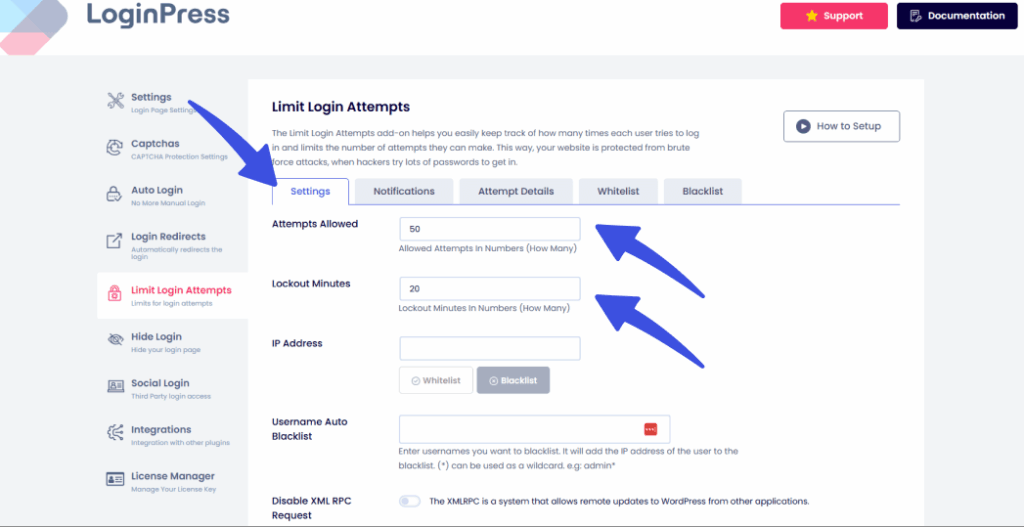
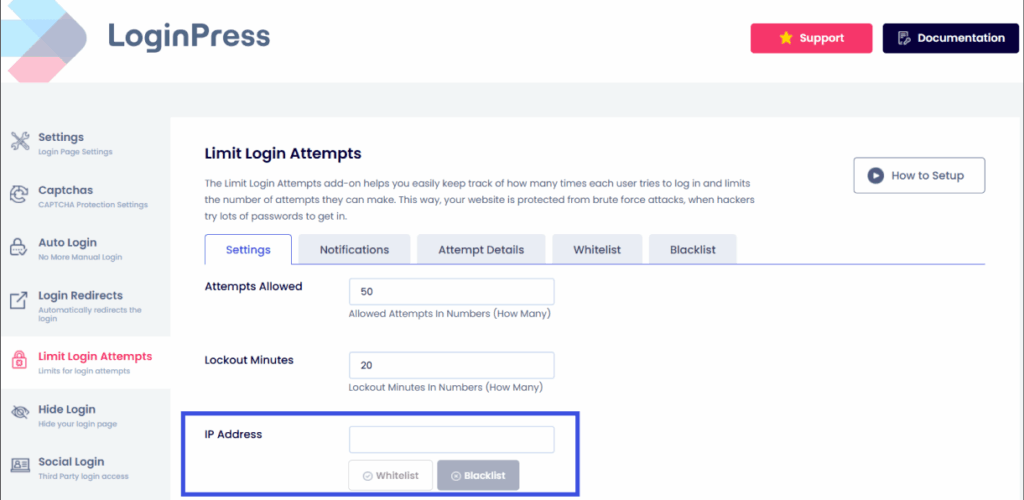
- Progressive Throttling: Rather than implementing a permanent ban, which can be circumvented by changing IP addresses, progressive lockouts (such as 3 minutes, then 20 minutes, then 24 hours) significantly reduce the likelihood of successful automated password attacks within a feasible timeframe.
LoginPress allows administrators to define login attempt limits and lockout durations to reduce automated attacks. The limit login attempts option helps to add suitable Lockout Minutes and Attempts Allowed:
- Username Masking: LoginPress also enables modifying generic error messages, such as replacing “Invalid Username” with a more ambiguous message like “Login details are incorrect.” This approach prevents attackers from confirming the existence of valid accounts using the LoginPress customizer:
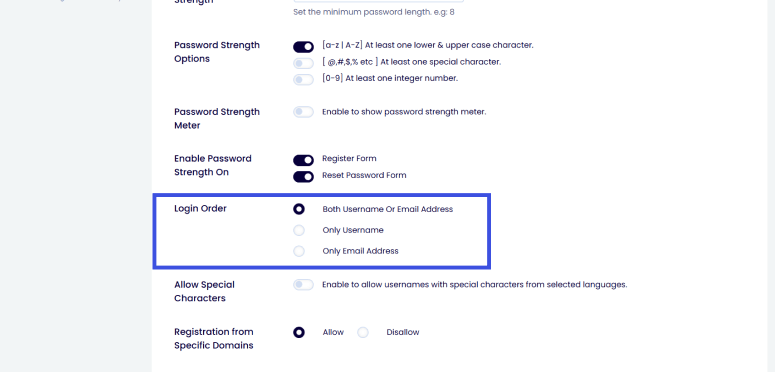
- Login Order: Requiring users to authenticate exclusively with their email address, rather than a display name or username, increases the difficulty for automated bots to obtain valid login credentials from publicly available site data.
- Use Invisible Protection (Say No to CAPTCHA)
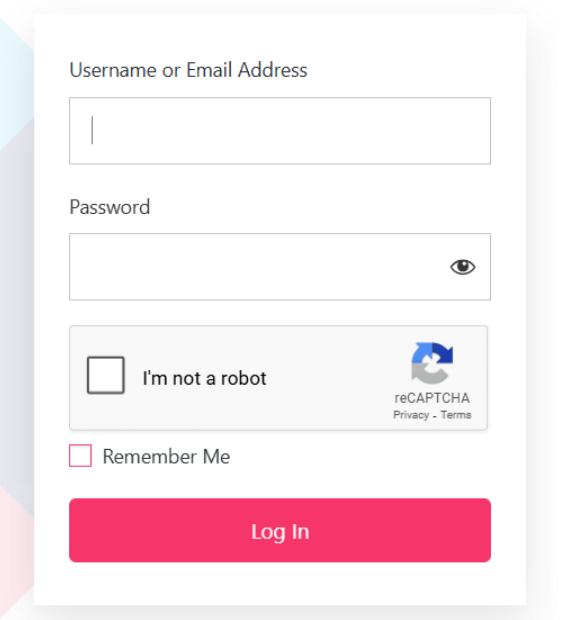
Traditional ‘I am not a robot’ puzzles, such as those that require identifying blurry fire hydrants, significantly reduce conversion rates, particularly on mobile devices.
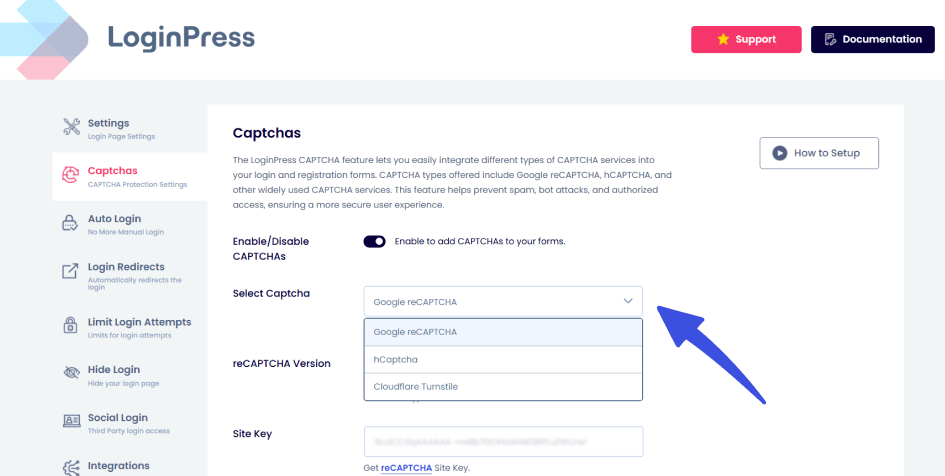
- Behavioral Analysis: Technologies such as reCAPTCHA v3 and Cloudflare Turnstile monitor mouse movements, scroll speed, and browser headers. Bots move in straight lines and instant clicks; humans move with “noise” and pauses.
- Accessibility: Traditional CAPTCHA is often impossible for users with visual impairments. Invisible detection keeps your site inclusive while remaining secure.
LoginPress supports integration with invisible CAPTCHA solutions, such as reCAPTCHA v3, enabling protection without visible challenges in login and registration forms.
These user authentication best practices ensure your protection runs in the background without the user ever knowing it’s there.
- Monitor Activity and Limit Concurrent Logins
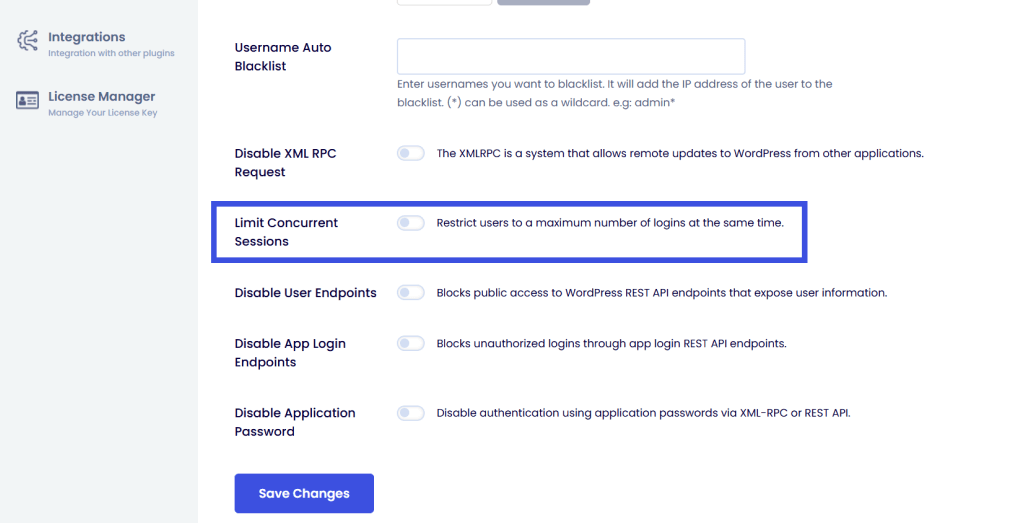
Monitoring user activity and limiting concurrent logins are effective strategies to prevent account sharing and session hijacking.
- LMS and Membership Integrity: For high-value courses, restricting concurrent logins to one per account prevents multiple users from sharing a single login. When a second login occurs, the initial session is terminated.
- Detecting Stolen Cookies: An active session in one geographic location, followed by a new session for the same user from a distant IP address, may indicate unauthorized access. You can block specific suspicious IPs:
LoginPress allows a session management dashboard that displays the User Agent and IP Address for each active user.
Administrators can remotely log out any suspicious session, ensuring user authentication best practices.
Summary Checklist
| Feature | Primary Benefit | Who is it for? |
| Role-Based MFA | Stops Admin Takeovers | Admins, Editors, Shop Managers |
| Magic Links | Boosts Conversion / UX | Customers, Subscribers |
| Login Throttling | Defeats Brute Force | The entire site |
| Invisible Detection | Accessibility and Bot Control | The entire site |
| Session Limits | Prevents Account Sharing | Paid Membership / LMS Users |
Secure WordPress Login Best Practices by Website Type
Not every WordPress site needs the same security “armor.”
A personal blog has different requirements than a multi-million dollar WooCommerce store.
Here is how to tailor your WordPress login security best practices based on your specific site type:
Blogs and Content Websites
For publishers, the biggest threat is an attacker gaining access to an Admin account to inject malicious scripts or “black hat” SEO links into your content.
- MFA for Admins: Since you likely have a few users with high-level access, making multi factor authentication in WordPress mandatory for all Admins and Editors is a non-negotiable step.
- Login Attempt Limits: Bots constantly crawl blogs to find vulnerabilities. Brute force protection is your first line of defense.
- Login URL Protection: Change your default wp-login.php to a custom URL (e.g., /my-secret-entry) to instantly hide from 99% of automated bot scans.
Membership and LMS Websites
On membership sites, your “content” is your product.
If users share accounts, you lose revenue.
Here are user authentication best practices for WordPress that focus on session integrity:
- Passwordless Login: Reduce friction for your students or members. Implementing passwordless authentication WordPress workflows via magic links ensures they spend more time learning and less time resetting passwords.
- Session Controls: Automatically log users out after a period of inactivity to prevent public computers from being left logged in to premium accounts.
- Concurrent Login Limits: Use wordpress authentication plugins like LoginPress to prevent a single set of credentials from being used by five different people at the same time.
WooCommerce Stores
E-commerce sites handle sensitive customer data.
An account takeover (ATO) here doesn’t just damage your reputation; it can lead to legal liability.
- Customer Account Protection: While you want a fast checkout, you must ensure WordPress secure authentication for returning customers to protect their saved addresses and order history.
- Admin and Shop Manager MFA: These roles have access to your revenue data and customer lists. They must be protected by the strictest secure wordpress login methods available.
- Prevent Account Takeover: Use real-time monitoring to flag and block login attempts from suspicious IP addresses or countries where you don’t do business.
SaaS and Dashboard-Based WordPress Sites
If your WordPress site acts as a software dashboard, you are a high-value target for sophisticated hackers.
- Passwordless + MFA: Use a layered approach. Start with a passwordless link for ease of use, followed by a secondary MFA check for high-sensitivity actions.
- Login Behavior Monitoring: Modern authentication methods in WordPress now include “Heuristics.” If a user typically logs in from London but suddenly tries to access the dashboard from Singapore, the system should trigger an extra verification step.
- Device-Based Trust: Allow users to mark their personal devices as “Trusted” so they don’t have to provide an MFA code every single time, balancing high security with a smooth user experience.
How to Implement Secure User Authentication Best Practices
Implementing a robust security framework can be achieved without excessive technical complexity.
Adhering to best practices for WordPress user authentication involves a systematic, step-by-step process.
Whether you are implementing manual code or utilizing a comprehensive solution such as LoginPress, consider the following four-step implementation roadmap:
Step 1: Audit Your Current Authentication Setup
Before introducing new security measures, review existing user access.
Many breaches occur through inactive accounts, such as old developer logins or those of former employees.
- Determine which users have Administrator access by reviewing the Users dashboard. Restrict Administrator privileges to only those who require them, assigning other roles such as Editor or Author as appropriate.
- Verify whether multi-factor authentication (MFA) is enabled for high-level user roles in WordPress. If MFA is not implemented, prioritize its activation.
- Assess whether login attempts are limited by attempting multiple failed logins. If the site does not restrict access after several failed attempts, it remains vulnerable to brute-force attacks.
Step 2: Identify High-Risk Roles and Pages
Effective WordPress user authentication best practices require identifying the most critical entry points.
Security measures should be tailored to the sensitivity of each page.
- WP-admin Gateway: This is the brain of your site. It requires the strictest policies, including mandatory MFA and, if possible, IP whitelisting.
- Checkout and Payment Page: For WooCommerce users, these are frequent targets for credential-stuffing attacks.
- Member Dashboards: Host proprietary content requires secure WordPress login methods to prevent account sharing and data scraping.
Step 3: Add Layered Authentication Controls
A layered security approach is one of user authentication best practices and ensures that if one control fails, subsequent measures can mitigate unauthorized access.
- Strict Password Policies: Use WordPress authentication plugins to force users to create passwords that aren’t easily guessed. This is your first line of defense.
- Layered MFA: Implement MFA specifically for those high-risk roles identified in Step 2.
- Passwordless Where Needed: For general users, implement passwordless authentication in WordPress, such as Magic Links. This approach eliminates password-related vulnerabilities and enhances user experience.
Step 4: Balance Security with User Experience
Absolute security would render a website inaccessible.
The objective is to balance robust protection with user accessibility.
- Avoid Unnecessary Friction: Don’t force a “Subscriber” who just wants to comment on a blog post to go through a 3-step biometric scan. Keep it simple for low-risk users.
- Test Login Flows on Mobile: With over 60% of web traffic originating from mobile devices, ensure that MFA prompts and passwordless authentication links function seamlessly on smartphones to prevent user abandonment.
Utilize the LoginPress Customizer to align the login page design with the overall site branding.
A consistent and familiar interface applies user authentication best practices, reduces user apprehension, and fosters trust.
WordPress Authentication Plugins: What to Look For
Picking a plugin from the WordPress repository can feel overwhelming.
A good plugin should do more than just block IPs; it should help you manage your whole user relationship.
5 Critical Markers to Evaluate:
- MFA and Passwordless Support: Avoid outdated tools. Make sure your plugin supports multi factor authentication in WordPress and passwordless options, such as magic links, to improve speed and security.
- Role-Based Redirects: Security needs to fit different users. Choose plugins that let you set strict rules for Admins but keep things simple for subscribers.
- Login Behavior Controls: Beyond basic “Limit Login Attempts,” the best tools track session duration and concurrent logins to stop account sharing.
- UX Customization: A generic login page can be a phishing risk. Make sure you can change the design to match your brand.
- Deep Integration: Your WordPress authentication plugin should integrate smoothly with WooCommerce, MemberPress, and LMS platforms to ensure a seamless user experience.
Why LoginPress Fits the Standard
Most security plugins are ‘bloatware.’
They try to handle everything, which slows your server.
LoginPress takes a UX focused approach. It focuses on the login and authentication layer, offering features such as Auto Login Links and session expiration without adding extra bulk.
It’s the ‘Lean Security’ choice for anyone who wants a branded entry point without slowing down their site and applying user authentication best practices.
FAQs About User Authentication Best Practices
What are the best user authentication practices for WordPress?
Focus on a “Defense in Depth” strategy: enforce strong passwords, mandate MFA for admins, implement login attempt limits, and use passwordless login for regular users to reduce friction.
How can I secure WordPress user authentication?
Move beyond passwords. Use secure WordPress login methods, such as biometric passkeys or magic links. Additionally, use a custom login URL to hide your entry point from automated botnets.
Best WordPress authentication methods for membership sites?
For membership sites, passwordless authentication and concurrent login limits are essential. This prevents account sharing and reduces support tickets from members who forget their passwords.
How do I protect WordPress login pages from attacks?
Combine invisible CAPTCHA (like reCAPTCHA v3) with login attempt limits and a custom login slug. Monitoring login activity logs is also key to catching a breach before it escalates.
User Authentication Best Practices: Conclusion
Securing a WordPress site requires more than traditional barriers.
It also involves implementing intelligent, user-friendly authentication measures.
Key recommendations include:
- Implement layered security by combining strict password policies with Multi-Factor Authentication (MFA) for users in high-risk roles.
- Prioritize UX by adopting passwordless authentication methods to minimize friction and reduce password fatigue.
- Monitor and restrict access by limiting login attempts and concurrent sessions to prevent automated attacks and account sharing.
- Select WordPress authentication plugins that provide targeted security features without the excess functionality of comprehensive suites.
Transitioning from static passwords to dynamic, behavior-aware authentication methods enhances the protection of organizational revenue, data, and user trust.
Check out more detailed guides on Authentication and security:
- WordPress Authentication Methods Explained: Pros, Cons & Use Cases (2026)
- Is Passwordless Authentication More Secure? (The 2026 Guide)
Is your login page a red carpet for your customers, or an open invitation for a data breach?