WordPress Login Trust Psychology: What Makes Users Trust Your WordPress Site (2026)

Editorial Team
When users land on your login screen, the first thing they ask themselves is simple: “Can I trust this WordPress login page?”
This moment decides everything. Your WordPress login trust affects sign-ins, conversions, first impressions, and how users feel about your brand.
A login form may look small, but it carries enormous weight in user psychology and UX.
If the design looks clean, modern, and safe, users continue without hesitation.
But if the page seems old, broken, or generic, the mind instantly triggers red flags.
With rising scams and phishing attempts, people judge login pages fast. They want visual trust signals, smooth UX, and a design that feels real, familiar, and secure.
This is exactly why LoginPress exists: to help WordPress site owners build login pages that feel trustworthy at first glance.
Other than many benefits of a branded login page, it reduces login abandonment and boosts WordPress login trust.
Let’s now understand the psychology behind login trust and the best ways to design a login experience that users believe in.
WordPress Login Trust (TOC)
Why Login Page Trust Matters
Your login page instantly shapes how users view your site.
A trusted login experience signals professionalism, security, and care for users’ data. A weak login experience can instantly degrade UX.
This is where WordPress login trust becomes vital.
According to UX statistics, it takes less than 500ms, or even just 50ms, to make a good first impression, and if your design looks suspicious or outdated, the brain labels it “unsafe.”
This leads to more login abandonment, lower conversions, and lower retention.
A secure-looking login screen does the opposite. In fact, it encourages users to continue and return. Cognitive shortcuts also play a role.
If the login page feels familiar and safe, they move forward without worry.
Here are some of the standard trust breakers for users:
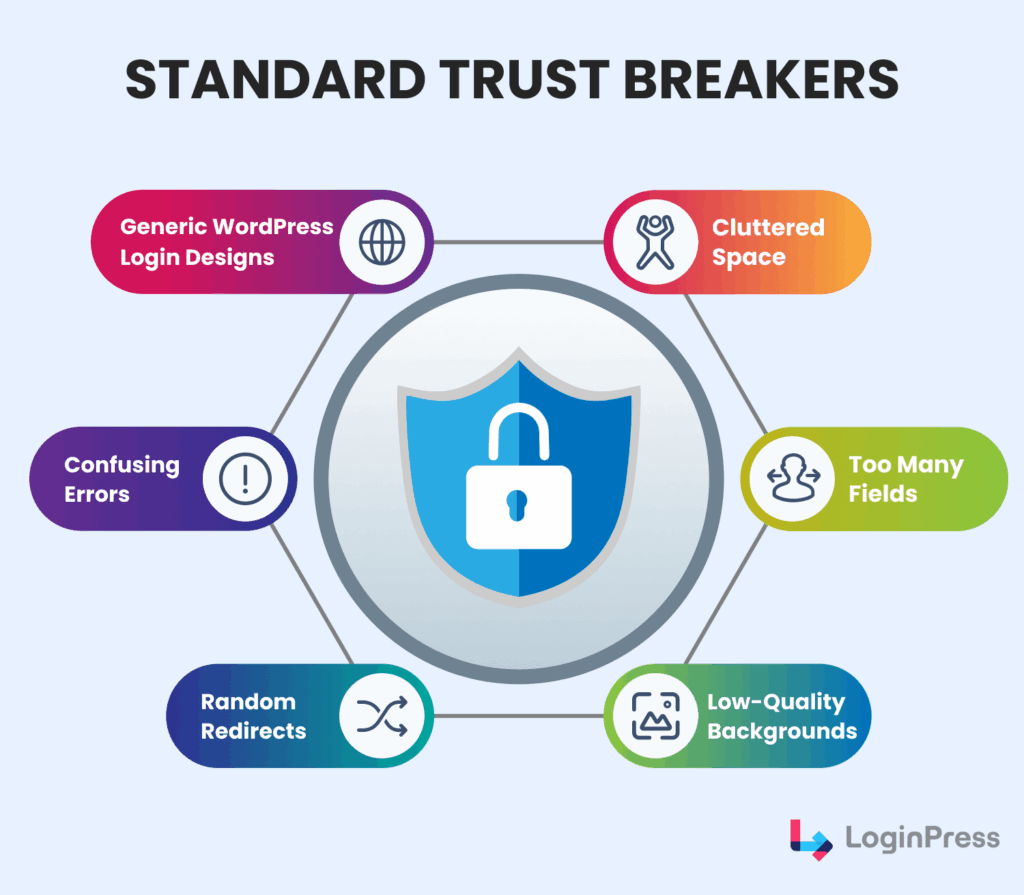
- Generic WordPress login designs
- Old UI styles
- Confusing errors
- Random redirects
- Low-quality backgrounds
A trustworthy login page shows users they are in the right place, their data is safe, and the experience is under control.
The Psychology Behind WordPress Login Trust
To build WordPress login trust, you first need to understand how users perceive login pages.
Studies show that “A 1-second delay in page response can lead to a 7% decrease in conversions.”
Here’s a look at the psychology behind why users trust or distrust login pages:
1. First-Impression Bias
A clean, modern layout gives users an immediate sense of safety.
Messy or outdated designs trigger subconscious warnings.
Simple, engaging visuals enhance this perception of security.
2. Cognitive Fluency
A simple login form with clean spacing, readable text, and clear buttons feels more navigable and easier to use for users.
Complex or cluttered forms feel risky and often frustrating, which leads to form abandonment.
About 88% of users state they will abandon an app if it consistently experiences glitches or technical bugs.
3. Anchoring and Familiarity
Users trust login pages that follow familiar and consistent patterns throughout the site.
Standard field placement, a clear “Log In” button, and consistent branding reduce suspicion.
When users recognize the style, trust automatically increases.
4. Risk Aversion
People avoid anything that feels uncertain or confusing.
Research shows that around 52% of users cite aesthetics as the main reason they won’t return.
Dark patterns, confusing actions, broken icons, or poor color choices can make a page look unsafe.
Even microcopy and error messages can influence trust. Friendly, clear messages calm the user and help reduce fear.
Login psychology shows one thing: people trust what feels predictable and manageable. A strong login design supports this natural behavior.
Core Trust Signals Every WordPress Login Page Needs
Let’s skim through some of the core trust signals that every WordPress login page needs to achieve a trustworthy and credible look for their brand and site:
Visual Trust Signals
Use a clean, modern layout that has proper spacing and clear labels.
Adding high-contrast text so your login form will feel safe, polished, and easy to scan at a glance.
A smooth, uncluttered design helps users trust the page instantly.
Branding Signals
Place your logo near the form with consistent brand colors and a professional background that fits your theme to create a familiar environment.
Strong branding reassures users that they’re on the correct site and reduces any login uncertainty.
Security Signals
Display strong security cues, such as the HTTPS padlock, visible two-factor authentication, and secure messaging.
A familiar URL also indicates to the users that their data is protected. These simple details lower fear and increase trust.
Interaction Signals
Keep interactions smooth with predictable transitions with no surprise redirects.
Clear, friendly error messages and instant validation can also improve your copy and guide users throughout the login flow.
Login Form UX: Best Practices That Build Trust
A great login experience follows proven UX rules and psychological principles to build trust and reduce login friction.
According to the recent study, every $1 invested in UX results in a $100 return.
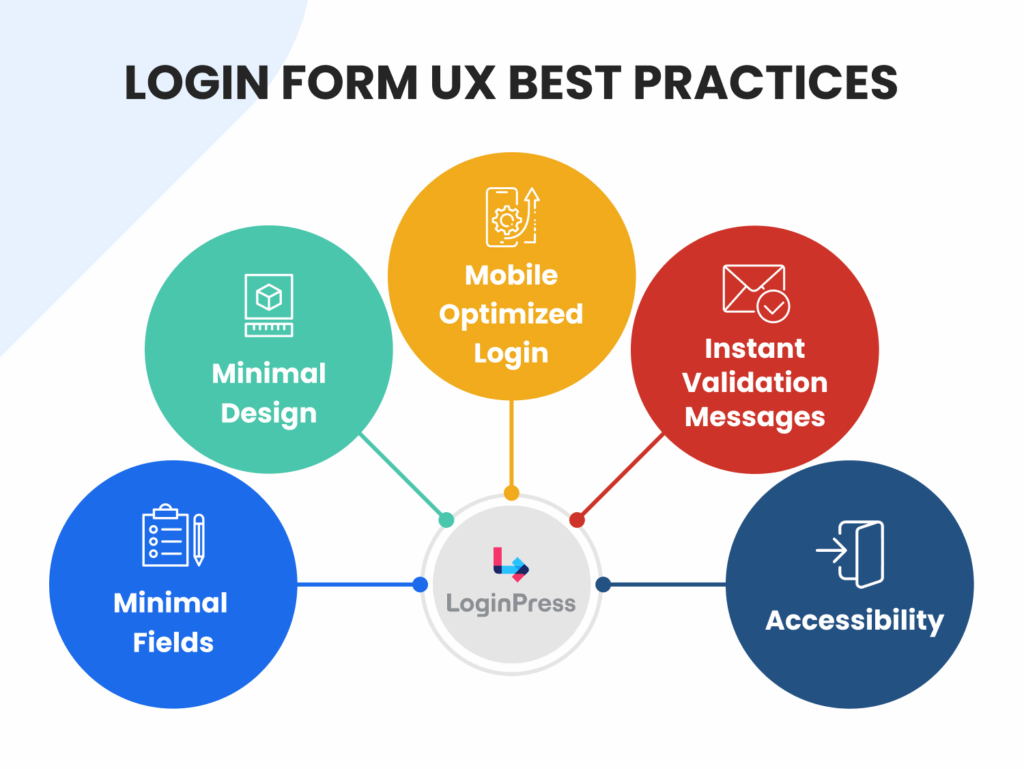
Here are some of the UX best practices you can apply to your login forms:
1. Minimal Fields
Only include the necessary fields, typically username/email and password.
A clean, simple form prevents users from feeling overwhelmed or confused, which leads to quicker completion and higher success rates.
2. Autofocus on First Field
The cursor should automatically be placed in the first input field upon page load.
This instant focus allows users to start typing immediately, removing a redundant click and speeding up the process.
Note: Avoid this on pages often opened in the background to prevent focus stealing.
3. Mobile-Friendly Layout
Ensure the form uses a fully responsive design.
The layout must smoothly adjust to fit any screen size, from a large monitor to the smallest mobile phone.
This would guarantee a smooth, frustration-free experience for all users.
4. Simple and Easy-to-Scan Spacing
Implement clean, generous spacing between all elements (labels, fields, buttons).
This strategic use of whitespace enhances readability and makes the form feel organized.
This structured flow significantly reduces the user’s perceived effort.
5. Accessible Labels
Use explicit, descriptive labels that are clearly associated with their input fields.
This is necessary for accessibility (users relying on screen readers) and ensures every user can instantly understand what information is required.
6. Instant Validation for Errors
Provide instant validation and error messages as soon as an incorrect input is detected (e.g., when a user moves to the next field).
Allowing users to fix errors right away, rather than after hitting “submit,” prevents frustration and re-typing.
7. Safe and Clear “Remember Me” Option
Offer a safe and easy-to-use “Remember Me” option.
This allows returning users to stay logged in securely, reducing friction on repeat visits and demonstrating respect for their time.
A clean, friendly UI built on these principles immediately encourages trust and reduces user hesitation.
This user-centric approach is the core of successful login form design.
How LoginPress Helps Build a Trustworthy Login Experience
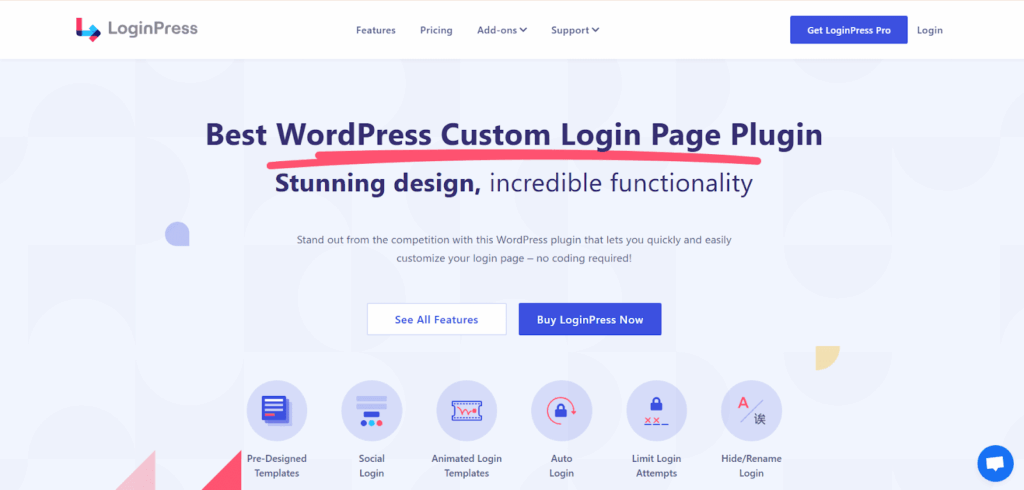
LoginPress is a WordPress login customization tool for transforming the default WordPress authentication page into a professional, secure, and brand-aligned page.
It integrates detailed customization features with built-in security protocols, instantly elevating site credibility and user confidence.
Let’s customize our login page for WordPress login trust and instant credibility using the UX psychology practices we explored earlier:
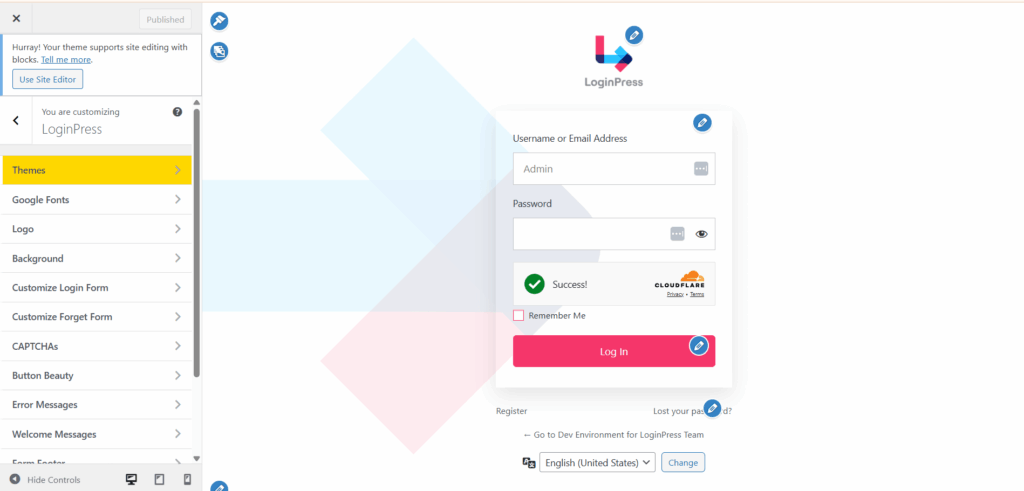
Custom Branding Tools
LoginPress provides user flexibility over visual elements to ensure brand recognition and professionalism.
With the LoginPress customizer, you can:
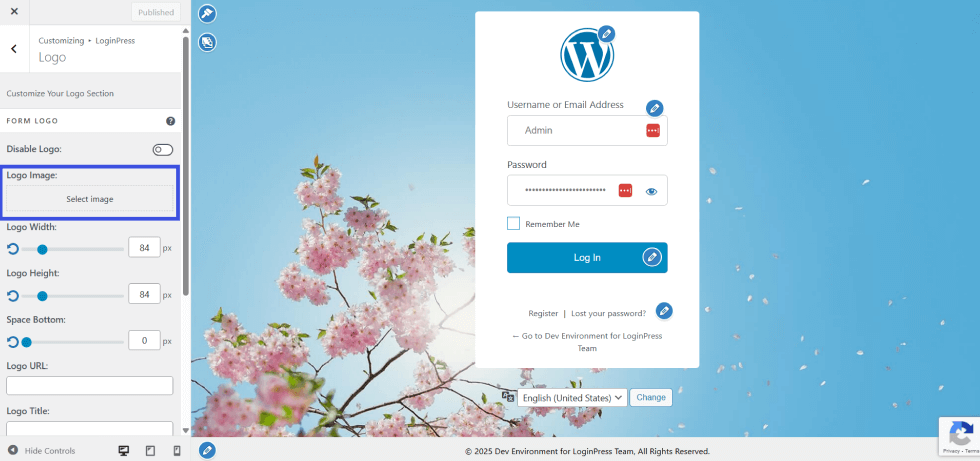
- Add Custom Logos: Instantly replace the default WordPress logo with your own branded image. This step confirms the user is on the correct site and enhances professional credibility.
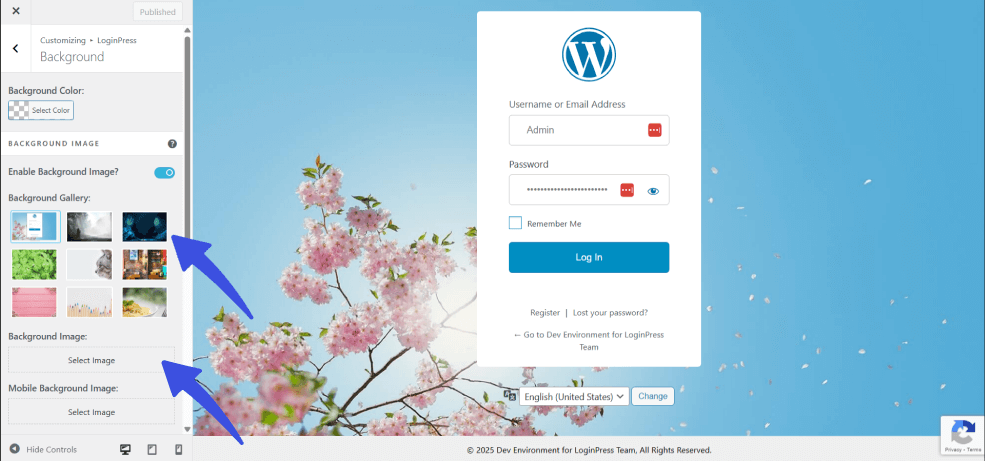
- Add a Custom Background: Apply a high-resolution custom background that seamlessly integrates with your site’s overall aesthetic and brand palette.
Design Customization Features
With LoginPress, you can shape the entire look and feel of your login form using advanced design controls to achieve a clean, modern, and consistent UI.
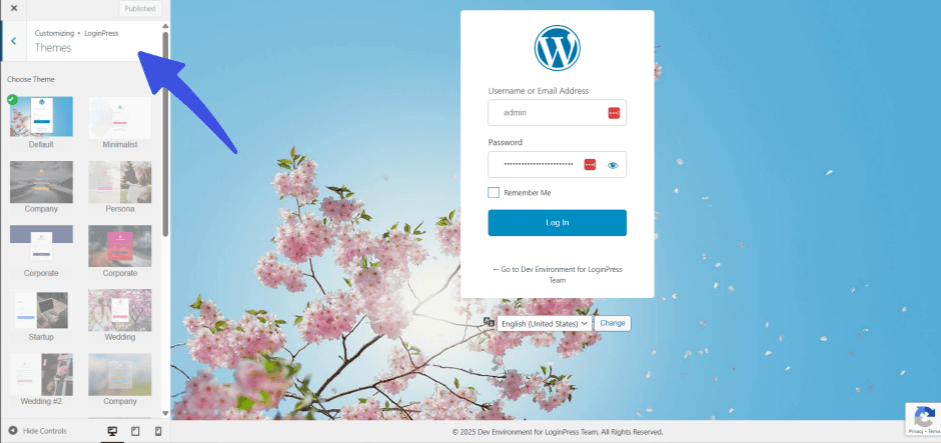
- Choose Themes from Pre-Built Templates: Deploy professional, pre-built templates to instantly establish a modern design tone that aligns with your preference.
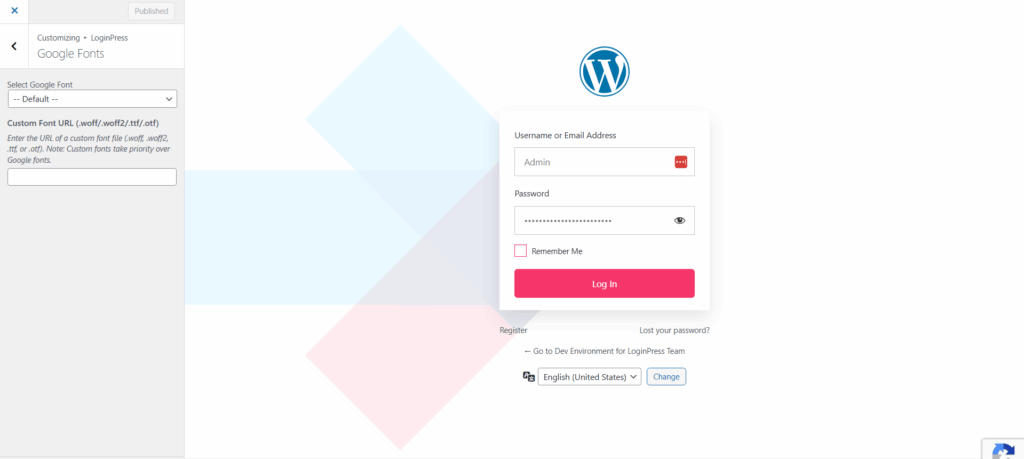
- Adjust the Typography: Fine-tune readability and visual consistency by adjusting font styles, colors, and optimal font sizes throughout the form.
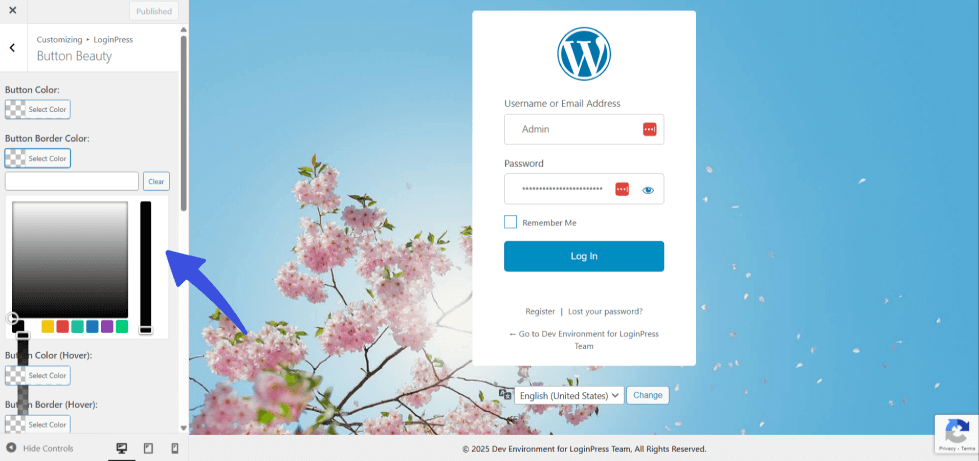
- Change Button Styles: Customize call-to-action (CTA) buttons, including gradients, sizes, and colors, to ensure high contrast for core actions.
Security Features
LoginPress also embeds critical security measures directly into the login flow, which helps to protect the site and visibly reassure the user of a secure environment.
- Add Limited Login Attempts
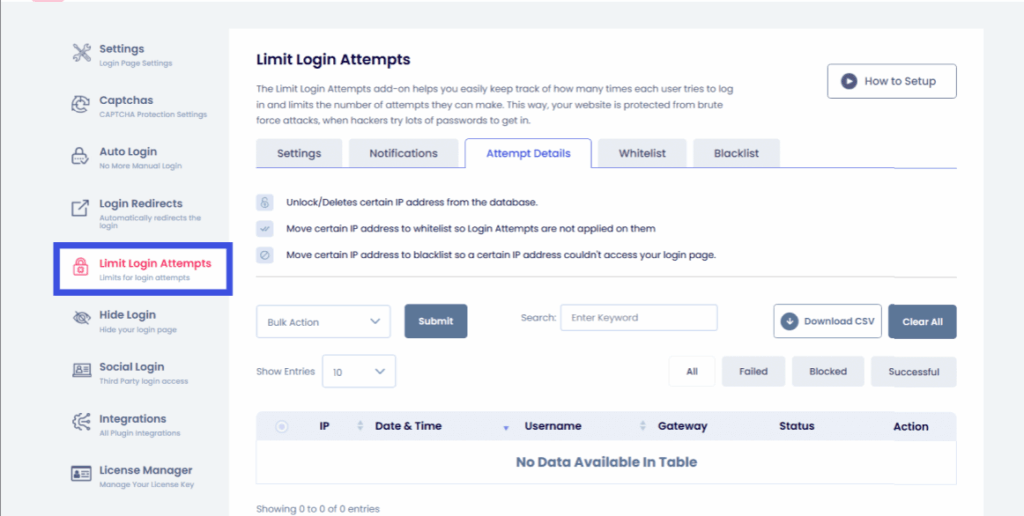
Implement Login Attempt Limits to prevent automated password-guessing attacks.
This system provides administrators with the necessary Attempt Details to blacklist or whitelist certain users.
It also provides an Enable Notification option for successful logins, maintaining security layers.
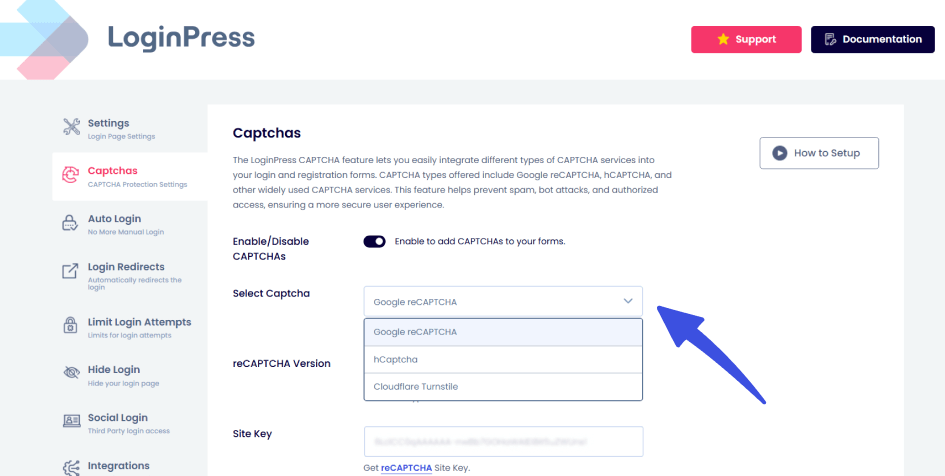
- Enable reCAPTCHA: Integrate reCAPTCHA directly into all authentication forms on your site. This defense layer protects against spam bots, significantly enhancing the user’s integrity.
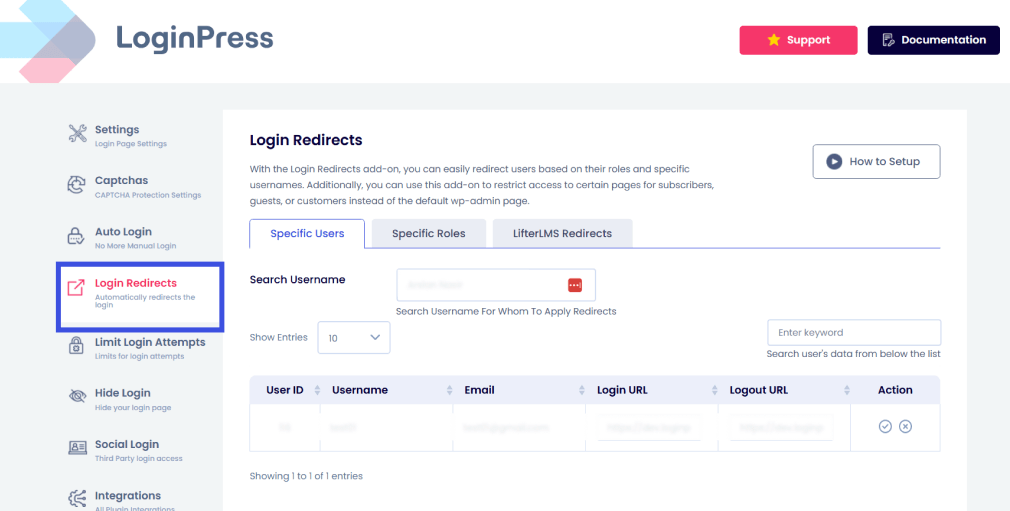
- Add Login Redirects: Enable role-based redirects to immediately send users to the most relevant landing page after successful login. This targeted traffic flow improves user experience, maximizes engagement, and provides specific redirects (e.g., for different student/teacher roles) where necessary.
By combining detailed customization control, visual consistency, and necessary security protocols, LoginPress delivers a professional authentication experience that users can easily recognize and trust.
The Most Common Mistakes that Reduce Login Trust
Even minor errors on a WordPress login page can make users question your site’s credibility and hurt conversions.
Here are the most frequent mistakes that can reduce trust:
- Using the default WordPress login page: Generic layouts make it hard for users to know they’re on the right site.
- Lack of branding: No logo, colors, or theme consistency can confuse users and lower confidence.
- Weak UI design: Cluttered forms, poor spacing, or outdated elements make the page feel unprofessional.
- Confusing error messages: Messages that are unclear or too technical can frustrate users and increase abandonment.
- Inconsistent colors: Mismatched colors across the login page make it feel unreliable.
- Non-secure URLs: A missing HTTPS padlock or unfamiliar URL instantly raises red flags.
- Blurry or random backgrounds: Low-quality images make the page look careless.
- Outdated WordPress styling: Old themes and forms can signal neglect and reduce trust.
Avoiding these mistakes is crucial.
A well-branded, secure, and user-friendly login page immediately reassures users, reduces login abandonment, and strengthens your site’s credibility.
Real Examples: Trustworthy vs. Untrustworthy Login Form Psychology
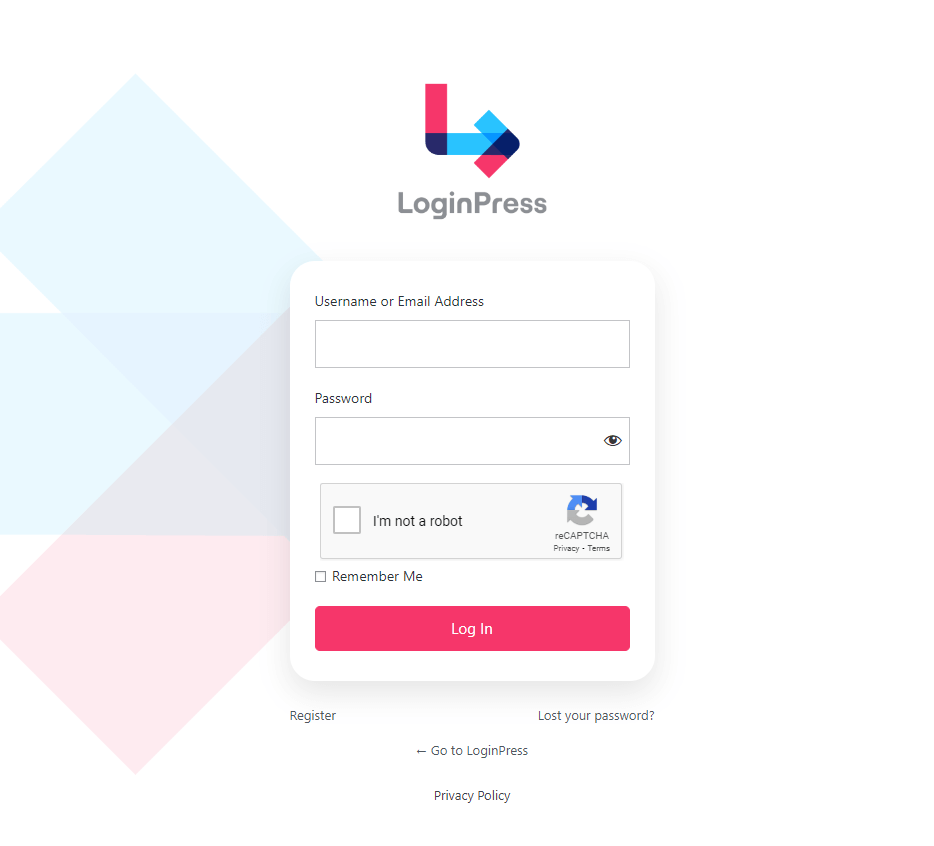
A trustworthy login page immediately communicates security and professionalism.
It features a clean, modern layout with visible branding, including your logo and consistent colors.
The form fields are easy to read, the spacing is balanced, and the URL is secure.
These elements work together to make users feel confident that they are on the right site and their information is safe.
In contrast, an untrustworthy login page often looks outdated, generic, or broken.
Mismatched colors, cluttered or uneven spacing, and unfamiliar URLs trigger hesitation.
Users may question whether the site is legitimate, which increases login abandonment.
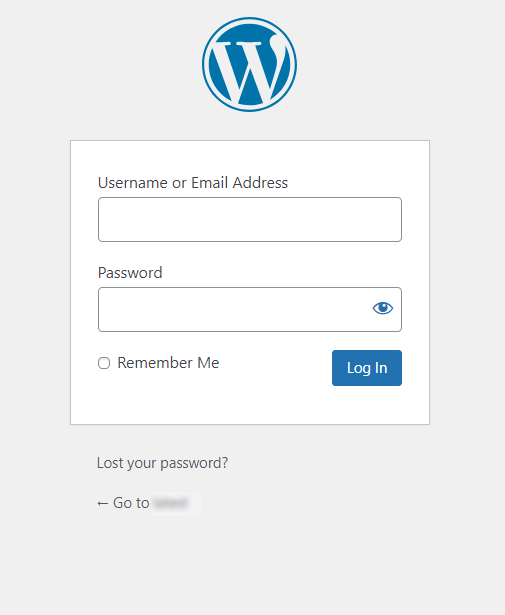
With LoginPress, even small design changes create a significant impact.
You can transform a plain, confusing login page into a polished, credible, and user-friendly experience.
Advanced Trust Psychology Tips for WordPress Login Trust
Understanding user psychology is key to building WordPress login user trust.
Small design and engaging copy choices can make a huge difference.
Here are some of the advanced trust psychology tips you can implement:
- Start with friendly, reassuring text that instantly guides users naturally through the process.
- Next, use progressive disclosure of only the fields users need at each step. This keeps the form simple and prevents overwhelming them.
- Add transparent messages such as “We will never share your information” to convey honesty and safety.
- Make the experience predictable by avoiding sudden redirects or unexpected screens. Users feel safer when they know what will happen next.
- Finally, provide clear post-login instructions, such as “You will be redirected to your dashboard,” to set expectations and reduce uncertainty.
These techniques combine subtle psychology tips and practical design concepts to build deep, lasting trust with your WordPress login page.
Checklist: WordPress Login Trust Audit
Use this quick checklist to review your login page:
- Is the design branded and familiar?
- Is the URL secure (HTTPS)?
- Does the layout feel clean and modern?
- Are error messages friendly and clear?
- Does the page load instantly?
- Are visible security cues present?
- Have LoginPress tools been used to fix trust gaps?
A quick login audit helps you identify gaps and build your login page effectively.
Frequently Asked Questions
Why is WordPress login trust important?
WordPress login trust is crucial because your login page is often the first protected part of your website that users see. A secure and professional-looking login form reassures users that your site is credible, reduces login abandonment, and increases retention. When users feel safe entering their information, they are more likely to complete the login and return in the future.
What makes a WordPress login page look trustworthy?
A trustworthy login page has a clean layout, clear labels, proper spacing, and familiar branding. Security cues such as HTTPS, visible two-factor authentication, and secure URLs also play a significant role. Friendly microcopy, smooth transitions, and predictable interactions help users feel confident and reduce anxiety during login.
How can I improve the trust of my WordPress login page?
You can improve trust by customizing your login page with branding elements, such as your logo, brand colors, and a professional background. Use modern, easy-to-read layouts, clear labels, and secure URLs. Adding instant error validation, helpful microcopy, and visible security features, such as HTTPS or reCAPTCHA, also strengthens user confidence.
What are common mistakes that reduce login trust?
Common mistakes include using the default WordPress login page, poor UI design, inconsistent colors, unclear error messages, outdated styling, low-quality backgrounds, and non-secure URLs. Even small mistakes can make users feel uncertain and increase login abandonment.
Are there psychological tricks to increase login trust?
Yes. Using friendly microcopy, progressive disclosure (showing only the fields needed), transparency messages, predictable flows, and clear next-step instructions all improve trust. These small design and copy decisions help users feel safe, reducing hesitation and anxiety.
Conclusion: Secure Looking Login Pages
A well-crafted login page protects accounts, builds trust, and reduces abandonment. Use LoginPress to customize design, add security, and brand your login page effectively.
Now, run a quick audit of your login page using the checklist above and see what improvements you can make today.
For more related posts, check:
- How To Customize WordPress Login Page For Clients (Detailed Guide)
- WordPress Smart Login Redirects: Personalized UX (Guide)
Which login UX practices will you take today to enhance WordPress login trust?