How to Add Two Factor Authentication in WordPress

You can add two-factor authentication (2FA) to WordPress in a few minutes with a free plugin such as Two Factor or WP 2FA. After entering their password, each user also types a short code from an authenticator app or their email, so a guessed or stolen password is no longer enough to get in.
In this post, I will set up both plugins step by step on a login page customized with LoginPress.
Brute force bots try thousands of username and password pairs against your login page. 2FA stops them at the second step, because the bot never has the code.
Table of Contents
Here are the 2FA methods that Two Factor and WP 2FA support, and when each one fits:
| 2FA method | Where the code comes from | Best for |
|---|---|---|
| Authenticator app (TOTP) | A 6-digit code that changes every 30 seconds in an app like Google Authenticator | Admins, editors and anyone with a smartphone |
| Email code | A one-time code sent to the user’s inbox | Users who won’t install an app |
| Backup codes | Single-use codes you generate and save in advance | Getting back in after losing your phone |
| Passkeys (WP 2FA) | Your device’s fingerprint, face scan or PIN | Passwordless logins on modern devices |
What is WordPress Two Factor Authentication?
WordPress two-factor authentication is an extra login step that asks for a second proof of identity, usually a one-time code, after the correct username and password.
In WordPress, that second proof is usually one of these:
- A time-based code from an authenticator app
- A one-time code sent by email
- A single-use backup code
- A passkey, such as a fingerprint or device PIN (WP 2FA)
Each code expires quickly (app codes change every 30 seconds), so a bot that guesses your password still can’t log in.
What is an Authenticator App?
An authenticator app is a phone or desktop app that generates the time-based one-time passwords (TOTP) that 2FA plugins ask for at login.
These apps enhance the security of online accounts by requiring users to provide a secondary code, in addition to their regular username and password, during the login process.
Most authenticator apps are free. These are the ones I see recommended most often:
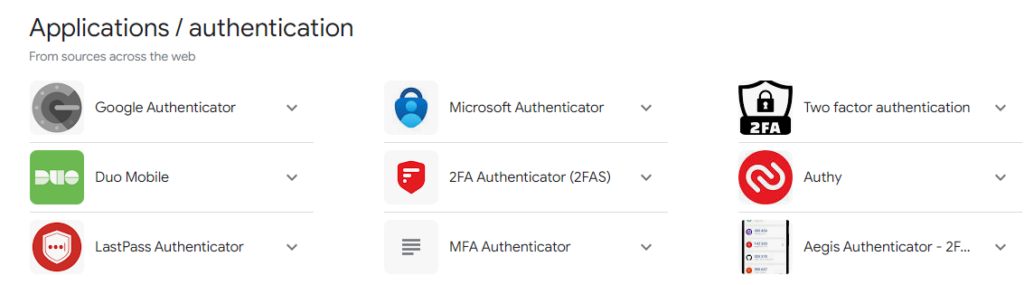
- Google Authenticator: free on Android and iOS, and it can back up your codes to your Google account.
- Microsoft Authenticator: free on Android and iOS, with encrypted cloud backup of your codes.
- 1Password or another password manager: stores TOTP codes next to the matching passwords, so you don’t need a separate app.
Why Do You Need WordPress Two Factor Authentication?
You need two-factor authentication because a password alone can be guessed, phished or leaked, while 2FA blocks the login even when the password is correct.
Here are some key reasons you need 2FA for WordPress:
- Enhanced Security: Username and Passwords alone can be vulnerable to various attacks, like brute-force attacks. So, two-factor authentication adds an additional barrier, making it much harder for unauthorized users to gain access.
- Protection Against Stolen Credentials: Suppose hackers successfully brute force your password; they cannot authenticate themselves from the selected authentication app. As a result, they failed to get access to your site.
- Protecting Multiple Accounts: If you use the same or similar passwords for multiple accounts, 2FA can prevent an attacker who gains access to one account from easily compromising others.
Different Plugins to Add WordPress Two Factor Authentication
The two free plugins I’d start with are Two Factor and WP 2FA. Both are on WordPress.org, both are updated regularly, and both work on a login page customized with LoginPress.
| Plugin | Active installs | WordPress.org rating | 2FA methods | Enforce 2FA by role |
|---|---|---|---|---|
| Two Factor | 100,000+ | 4.8 / 5 | Authenticator app, email, backup codes | No, each user turns it on |
| WP 2FA | 100,000+ | 4.7 / 5 | Authenticator app, email, backup codes, passkeys | Yes, with optional grace periods |
Plugin stats from WordPress.org, checked in October 2026.
Below, I set up each plugin on a login page designed with LoginPress.
Note: Install and activate LoginPress first if you want a branded login page. LoginPress controls how the login form looks, while Two Factor or WP 2FA adds the code step after the password is accepted.
1. Two-Factor
Two Factor is a free 2FA plugin with more than 100,000 active installs and a 4.8 out of 5 rating on WordPress.org. It supports three methods:
- Authenticator app codes (TOTP)
- One-time codes sent by email
- Backup verification codes (single use)
To set up Two Factor, follow these steps:
Step 1. Install and Activate Two-Factor
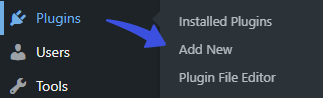
First off, go to the left sidebar of your WordPress admin dashboard. Navigate to Plugins and click the Add New option.
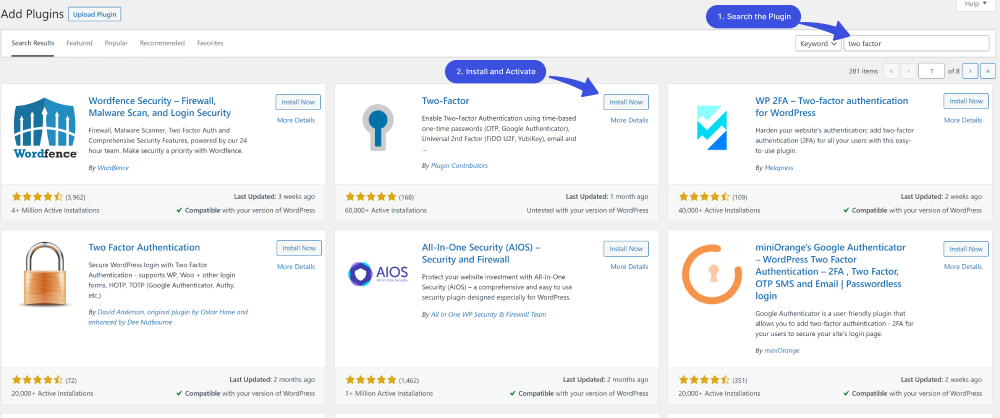
Next, you’ll be on the Add Plugins screen. Search Two-Factor in the search box.
Find the plugin from the list, click the Install Now, and then the Activate button in succession.
Step 2. Configurations
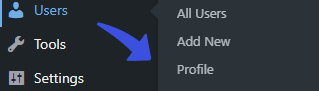
All you need to do is go to the left sidebar of the WordPress admin dashboard, navigate to Users, and click the Profile option.
Now, scroll down a bit and find the Two-Factor Options section.
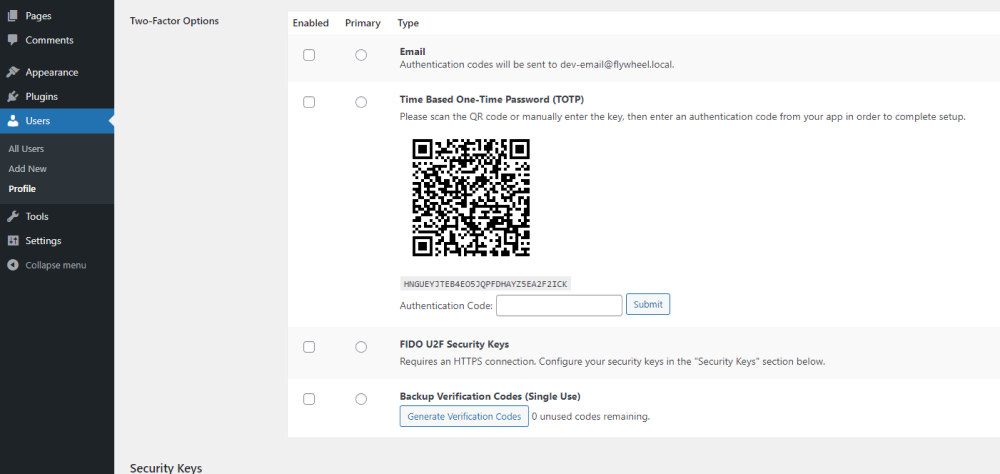
Now, choose an authentication method. It comes with two options, i.e., Email and Time-Based One-Time Password (TOTP).
1. Two-Factor Authentication via Email
If you prefer to enable Two-factor authentication via Email, you’ll need to provide a unique code sent to your added email address for login to your WordPress site.
This ensures only you can access your account, even if someone else has your password.
To set up two-factor authentication via email, checkbox Enabled and select the Primary option.
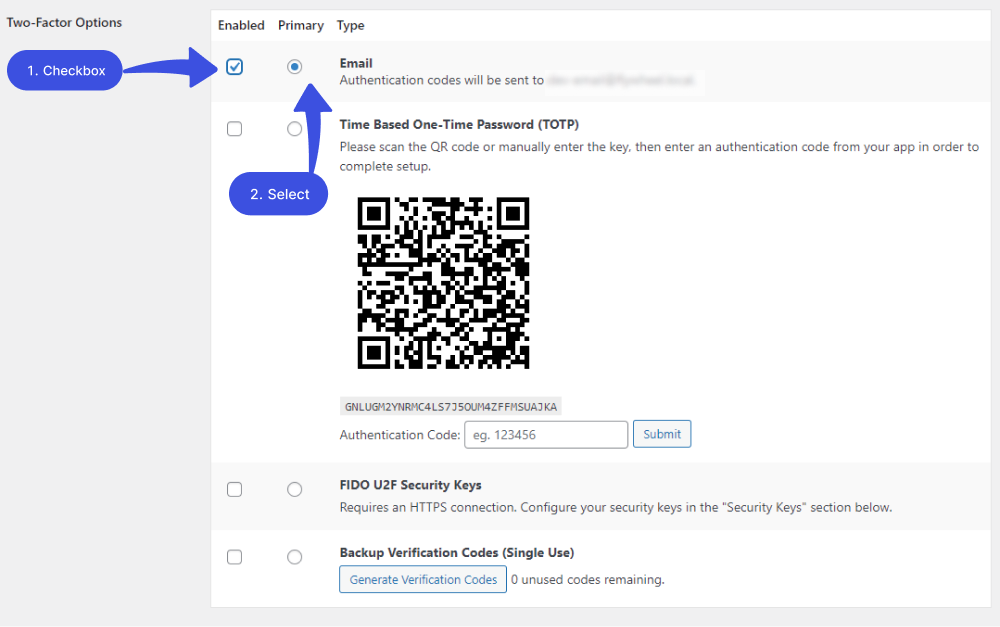
Once enabled, authentication codes will be sent to the associated Email address.
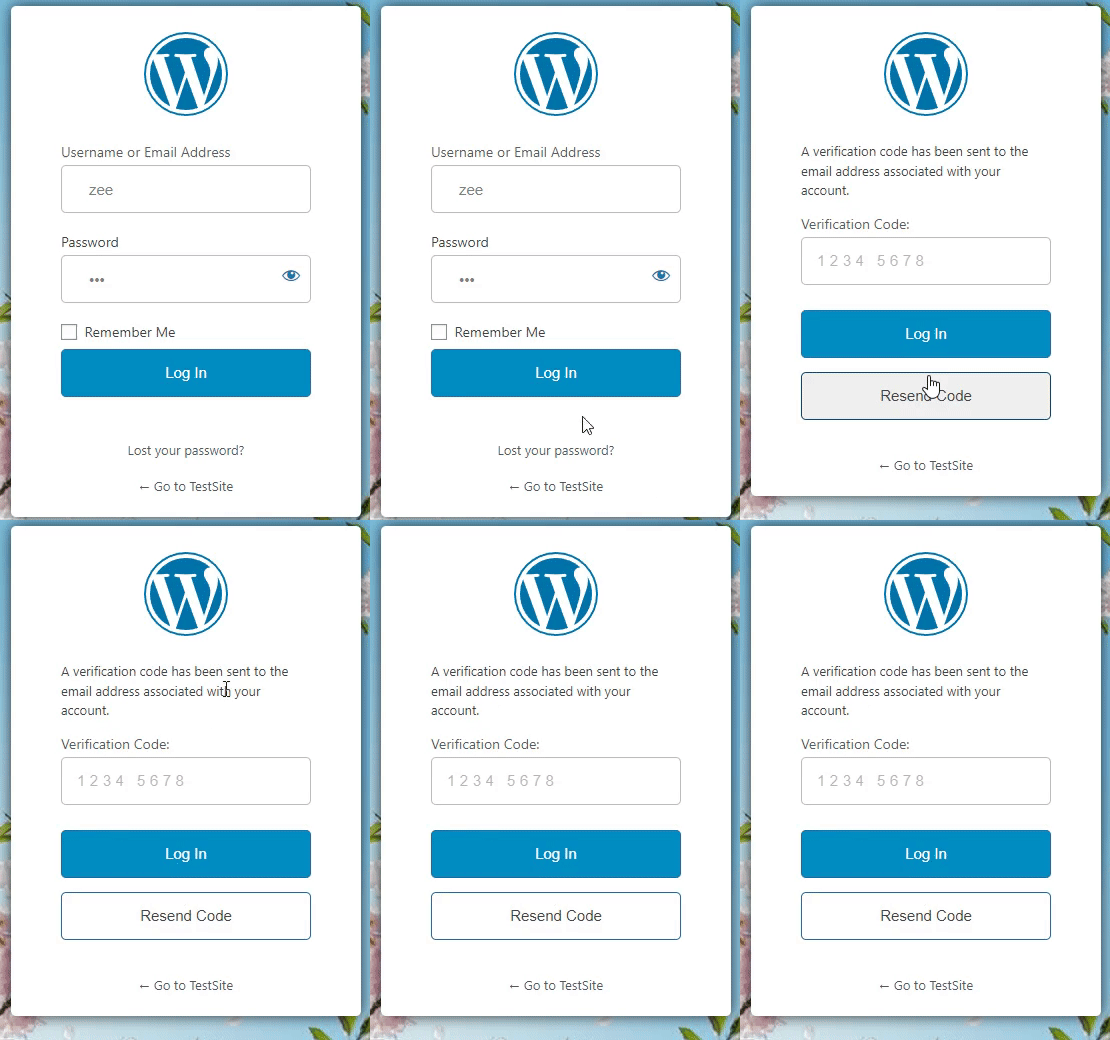
Now, you’ll be prompted to enter a verification code sent to you via the associated email address.
Email codes are only as safe as the inbox they’re sent to. If someone gets into that email account, they can read your login codes too.
So protect that inbox with a strong, unique password, and turn on 2FA for the email account as well.
2. Two-Factor Authentication via Time Based One-Time Password (TOTP)
You can also enable Two-factor authentication via Time Based One-Time Password (TOTP). TOTP is a type of two-factor authentication that generates a unique, time-limited code required to access your account.
To set up two-factor authentication via Time Based One-Time Password (TOTP), check the Enabled and select the Primary option.
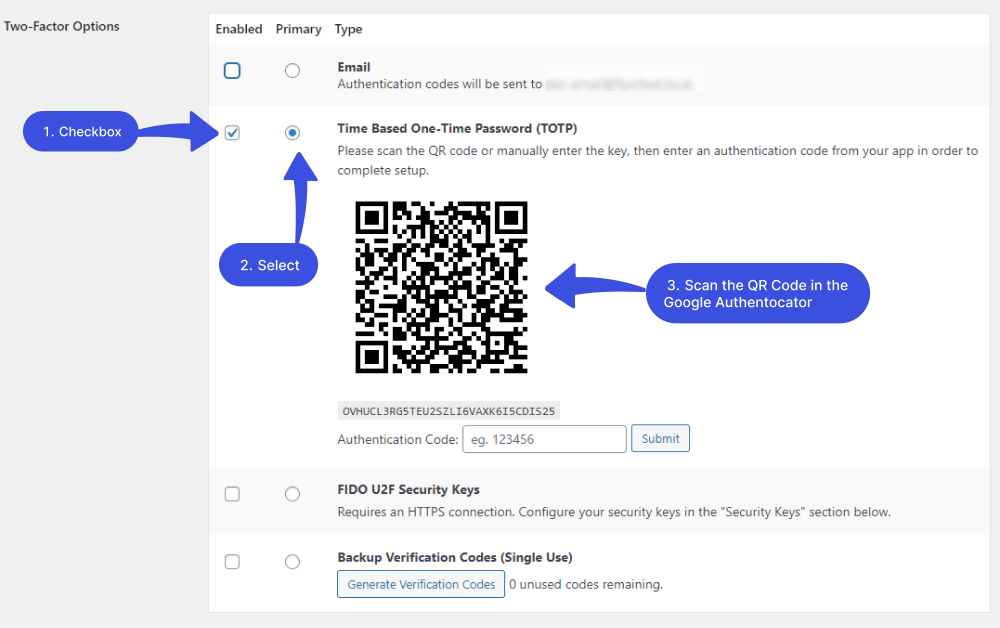
Next, connect your WordPress account to an authenticator app. Install an app such as Google Authenticator on your phone.
Once you’ve installed the app, you’ll see more options. Scan a QR code and Enter a setup key in the Google Authenticator app.
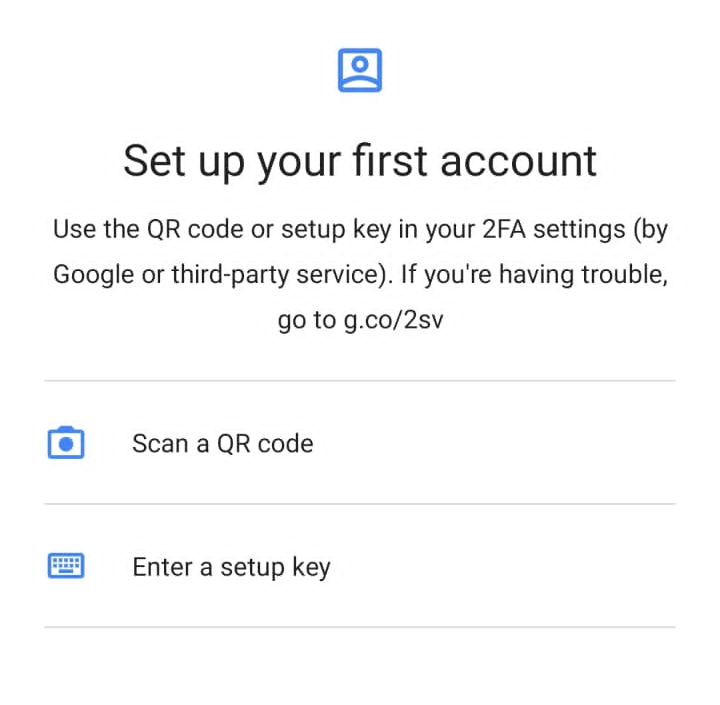
Select Scan a QR code, and the app’s QR code scanner will open. Now, scan the QR code shown in the Two Factor section of your WordPress profile.
Next, you’ll get a notification to ensure the Google Authenticator app has been connected to your site.
After you scan the QR code, you will see a 6-digit OTP code in the Google Authenticator app that is valid for only 30 seconds.
Enter this 6-digit code into the Authentication Code field in Two Factor and click the Submit button.
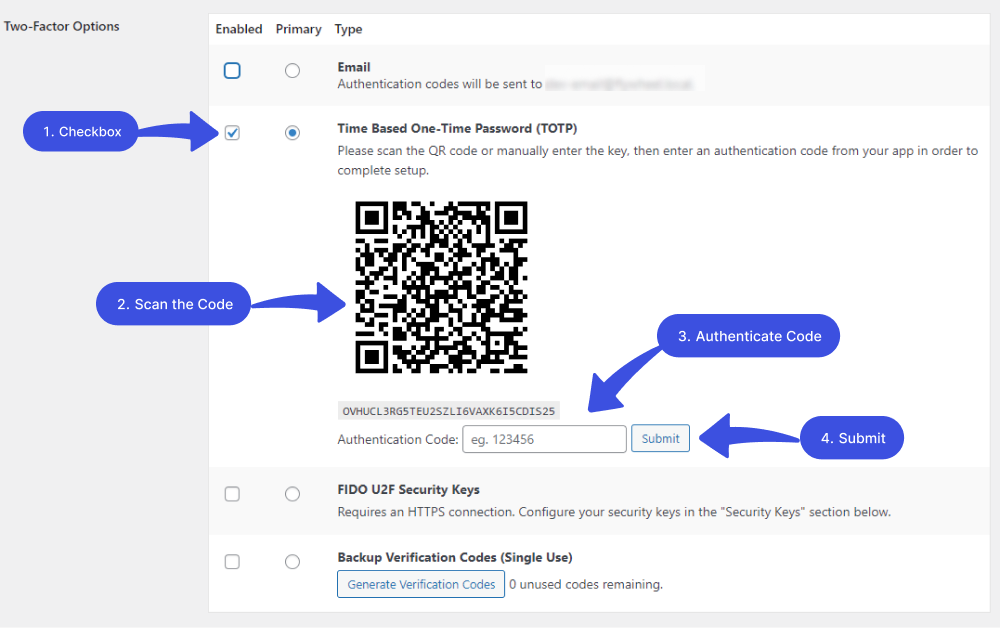
Once you fill in the Authentication Code, you’ll see the notification, i.e., the Secret key is configured and registered, exactly where you saw the QR code.
Tick mark the Enabled and primary check boxes.
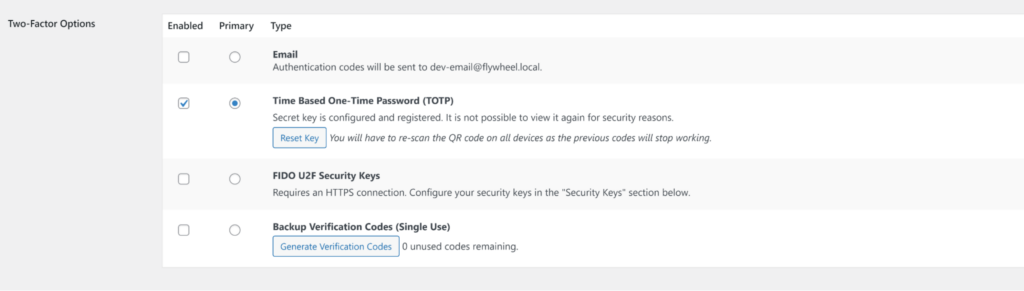
All done; now click on the Update Profile button.

Two Factor is now active on your account. Each time you log in, you enter your password and then the 6-digit code your authenticator app shows at that moment. Without the code, the login stops.
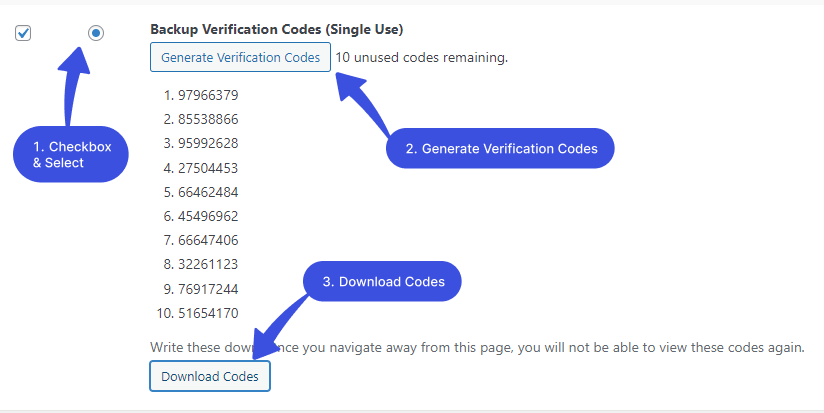
3. Backup Verification Codes (Single Use)
Two Factor can also generate 10 single-use backup codes. Save them somewhere safe, so you can still log in if you lose your phone or can’t reach your email.
2. WP 2FA

WP 2FA is a free plugin by Melapress with more than 100,000 active installs and a 4.7 out of 5 rating on WordPress.org. Its main methods are:
- One-time codes from an authenticator app (TOTP)
- One-time codes sent by email
- Backup codes for recovery
- Passkeys for passwordless logins
To set up WP 2FA, follow these steps:
Step 1. Install and Activate WP 2FA
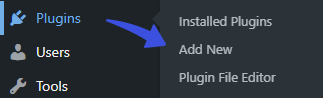
Go to the left sidebar of your WordPress admin dashboard > Plugins > Add New option.
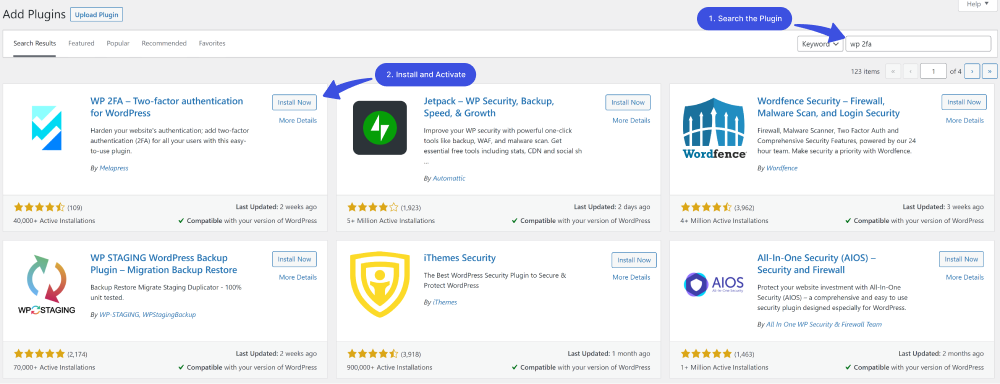
Next, you’ll be on the Add Plugins screen. Search WP 2FA for WordPress in the search box.
Find the plugin from the list, click the Install Now, and then the Activate button in succession.
Step 2. Configuration
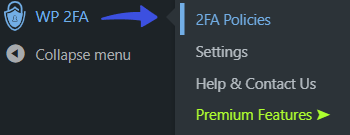
Now, you are ready to get it set for your login. Go to the left sidebar of the WordPress admin dashboard > WP 2FA > 2FA Policies.
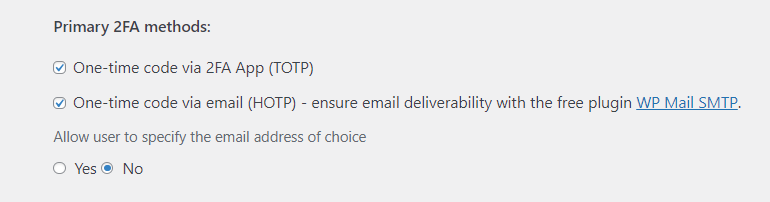
On the next screen, you can see two actions to be selected, including:
- One-time code via 2FA App (TOTP)
- One-time code via email (HOTP)
Note: You can also allow users to specify their email address.
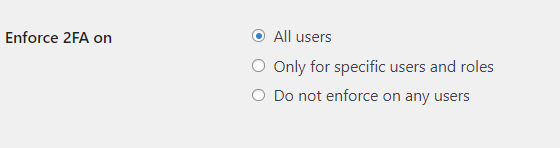
Next, you’re required to set a grace period for configuring 2FA. There are three different options for enforcing 2FA:
- All users
- Only for specific users and roles
- Do not enforce on any users
Note: Here, we are selecting the All users option.
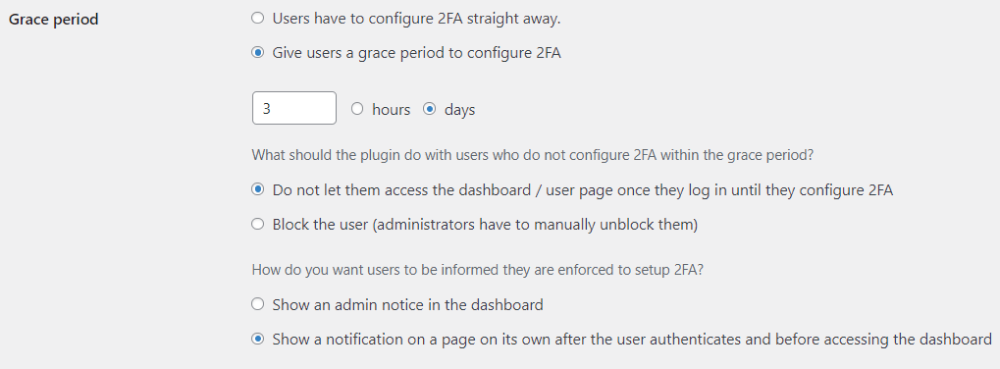
Next, you can add a grace period to configure 2FA for your users. The users must configure 2FA within the set time, or they will be locked.
When you are done, click the Save Changes button.

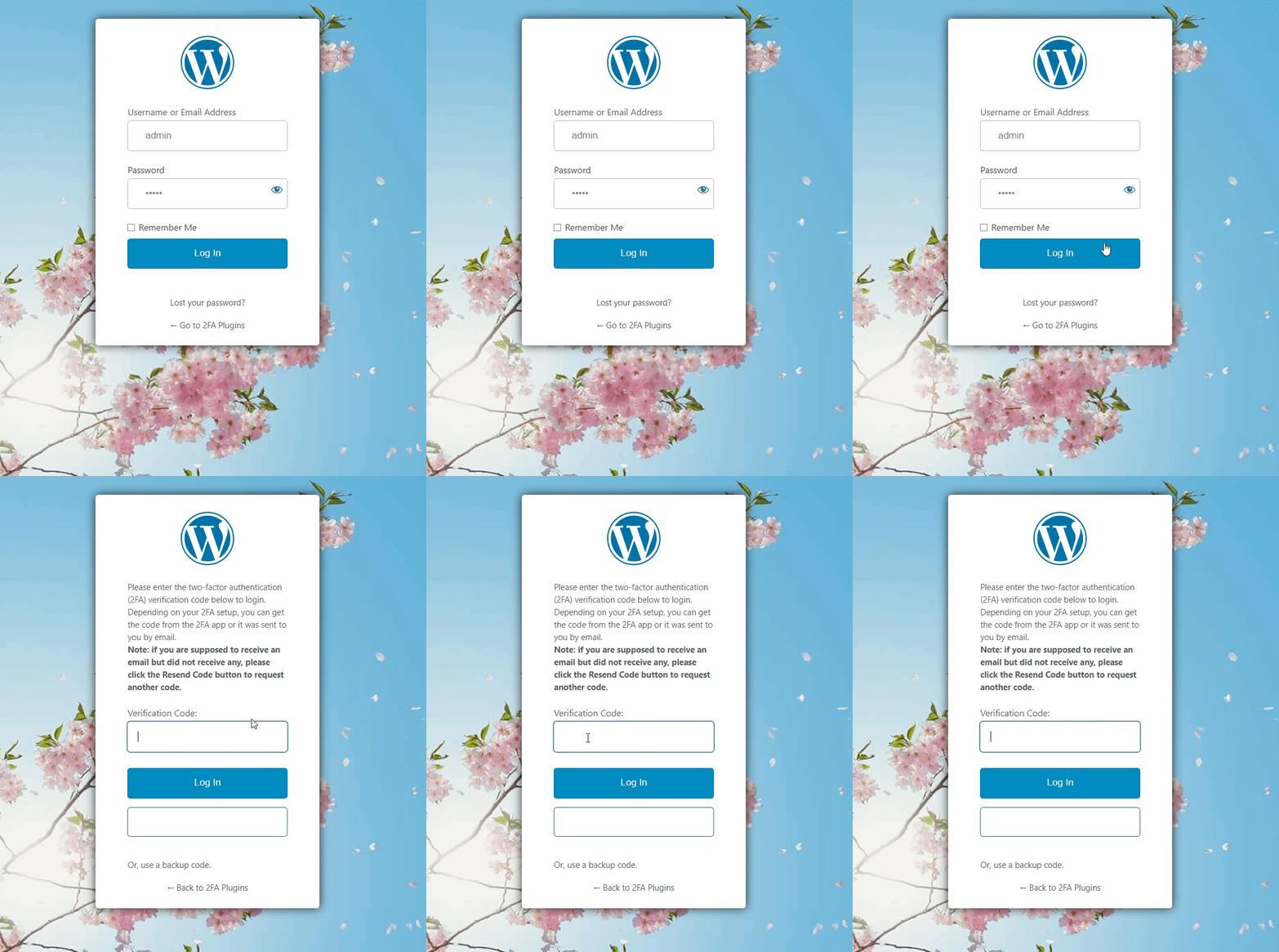
Log out and log back in. After your password, WP 2FA asks for the code on the same LoginPress login page your users already know.
3. Other WordPress 2FA Plugins
You can use other 2FA plugins with LoginPress too. Most of them add the code step after WordPress checks the password, so the code screen appears on top of your custom login design.
To compare more options, see my roundup of the 7 best WordPress 2FA plugins.
How Does 2FA for WordPress Work?
2FA for WordPress works in two steps: WordPress checks the username and password first, then the 2FA plugin asks for a code before it lets the user in.
First, you enter your username or email address and your password on the login page, as usual.
Next, you’ll be required to provide the authentication code provided by the authentication app.
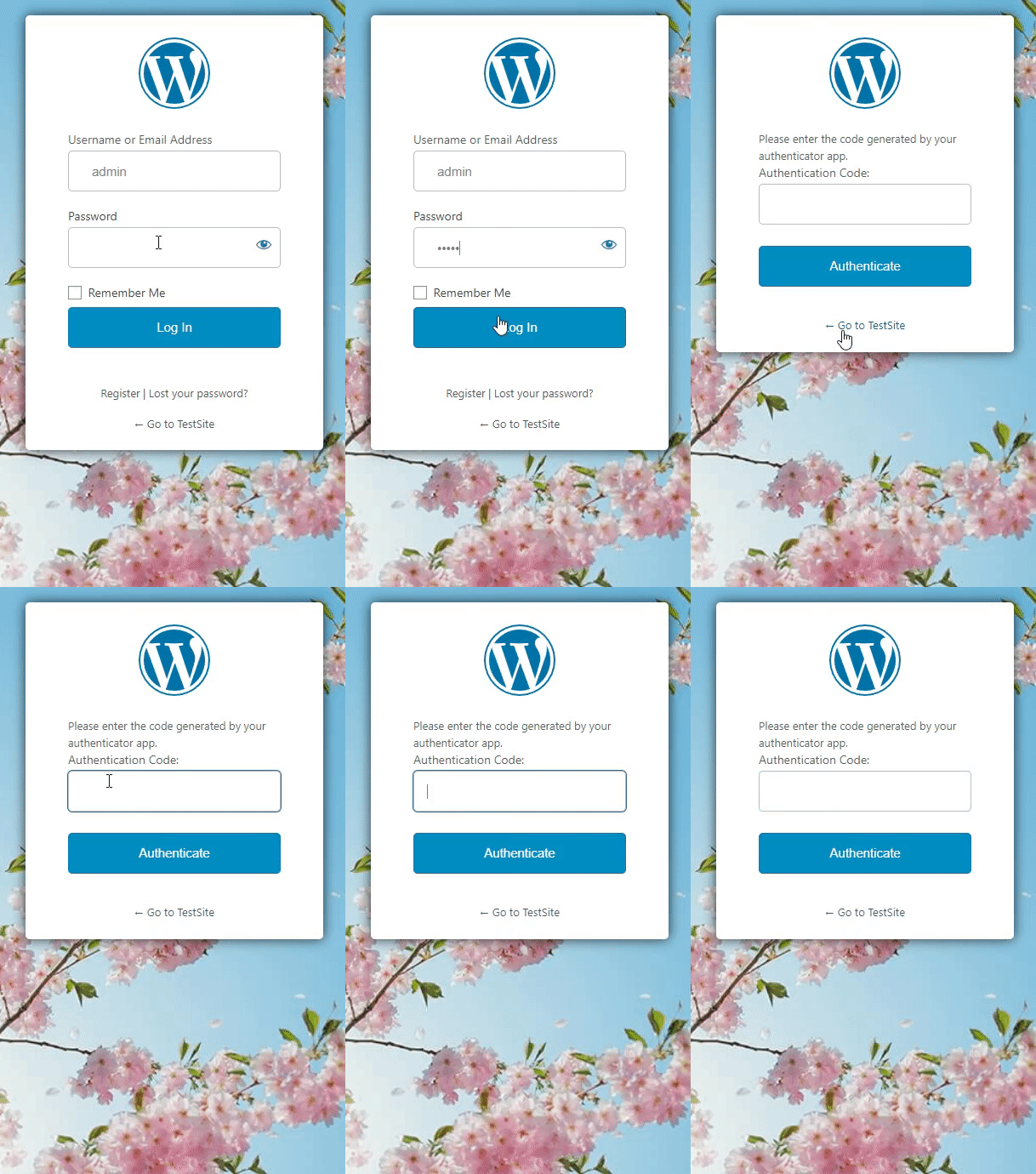
When done, you’ll find yourself logged in.
Two Factor Authentication FAQs
Are there any security risks associated with 2FA?
2FA makes a WordPress login much harder to break, but it isn’t foolproof. If someone gets hold of your second factor, such as your phone or the email inbox that receives your codes, they could still get in. Protect that device and inbox as carefully as the password.
Are there any drawbacks to using Two-Factor Authentication?
One drawback of using Two-Factor Authentication is that it can make it more difficult to log in to your account, especially if you do not have your smartphone. Additionally, some users may find it inconvenient to go through an extra step to access their account.
Is Two-Factor Authentication enough to keep my WordPress site secure?
2FA is one important layer, not the whole plan. Keep WordPress, themes and plugins updated, use strong unique passwords, and limit failed login attempts so bots get locked out before they can keep guessing.
What happens if I lose access to my 2FA device?
If you lose access to your 2FA device, i.e., mobile phone, it’s important to have a backup code. Several WordPress 2FA plugins offer backup code features that you can use to regain access. Otherwise, you can contact your site administrator for assistance.
Why is my WordPress 2FA code not working?
The most common cause is a clock mismatch. Authenticator app codes are based on the current time, so turn on automatic date and time on your phone and check that your server’s time is correct. Also enter the newest code before it changes, and make sure you’re reading the entry for the right site in your app. If you’re still locked out, log in with one of your saved backup codes.
Final Thoughts
Two-factor authentication is the simplest way I know to stop password guessing from turning into a hacked WordPress site.
If I had to choose, I’d use WP 2FA on sites with several users, because it can require 2FA by role, and Two Factor on a small site where only a few admins log in. Pair either one with LoginPress to give users a branded login page, and with its Limit Login Attempts add-on to lock out bots after a few failed tries.
You may also want to check out our other useful articles about:
Stuck on a step? Let me know in the comments below.