How to Indent in WordPress (Multiple Options)
To indent a paragraph in WordPress, use the Classic Editor indent button, a custom CSS rule such as text-indent, or HTML tags. The Gutenberg paragraph block has no built-in indent, so CSS is the usual fix.
In this post, I will show you five methods: the Classic Editor, Gutenberg, HTML tags, first-line indents and hanging indents.

QUICK SUMMARY
Indenting text in WordPress helps structure long-form content, callout quotes, or nested lists, and can be done easily via native blocks or simple CSS formatting.
● Visual Methods: Use the native Block Editor “Indent” button for lists, change text alignment, or implement the built-in Quote/Pullquote blocks.
● Technical Tweaks: Apply inline margins or custom CSS padding classes for precise, site-wide block spacing controls.
● What You’ll Learn: How to master indentation rules across the Gutenberg editor and Classic editor without breaking paragraph typography layouts.
Looking to Deeply Customize Your Key User Portals? LoginPress lets you visually customize every pixel, layout, and text block on your WordPress login forms to match your brand identity flawlessly without writing a single line of CSS.
9 Best WordPress Popup Plugins
Are you looking for the best WordPress popup plugin for your site? If yes, we’ve got you covered.
Engaging and converting your site visitors into leads is important for running a successful online business. You can use popups on your site to achieve this.
Popups get visitor attention, promote special offers, grow email lists, and more.
In this article, we’ll discuss the best WordPress popup plugins to help you select the best option for your site.
How to Hide a Page in WordPress
To hide a page in WordPress, set the page to password protected or private, remove it from the menu, use a plugin such as Rank Math to noindex it, or put the site in maintenance mode. Pick the method that matches who should see the page.
This post covers six methods, from password protection to robots.txt, and when to use each one.
7 Best WordPress Image Optimizer Plugins
Are you looking for the best WordPress image optimizer plugins? If yes, this article is just for you!
Large, unoptimized images can slow down WordPress page loading times and negatively impact your site’s SEO.
This is where WordPress image optimization plugins come into play. They help provide faster loading images for your site.
In this article, we’ll walk you through the 7 best WordPress image optimizer plugins.
How to Change Link Color in WordPress (Explained)
To change the link color in WordPress, use the block editor for a single link, the Customizer or custom CSS for all links, or a page builder such as Elementor. CSS and the Customizer change every link at once.
In this post, I will show you five methods, including how to change the link color on the login page footer with LoginPress.
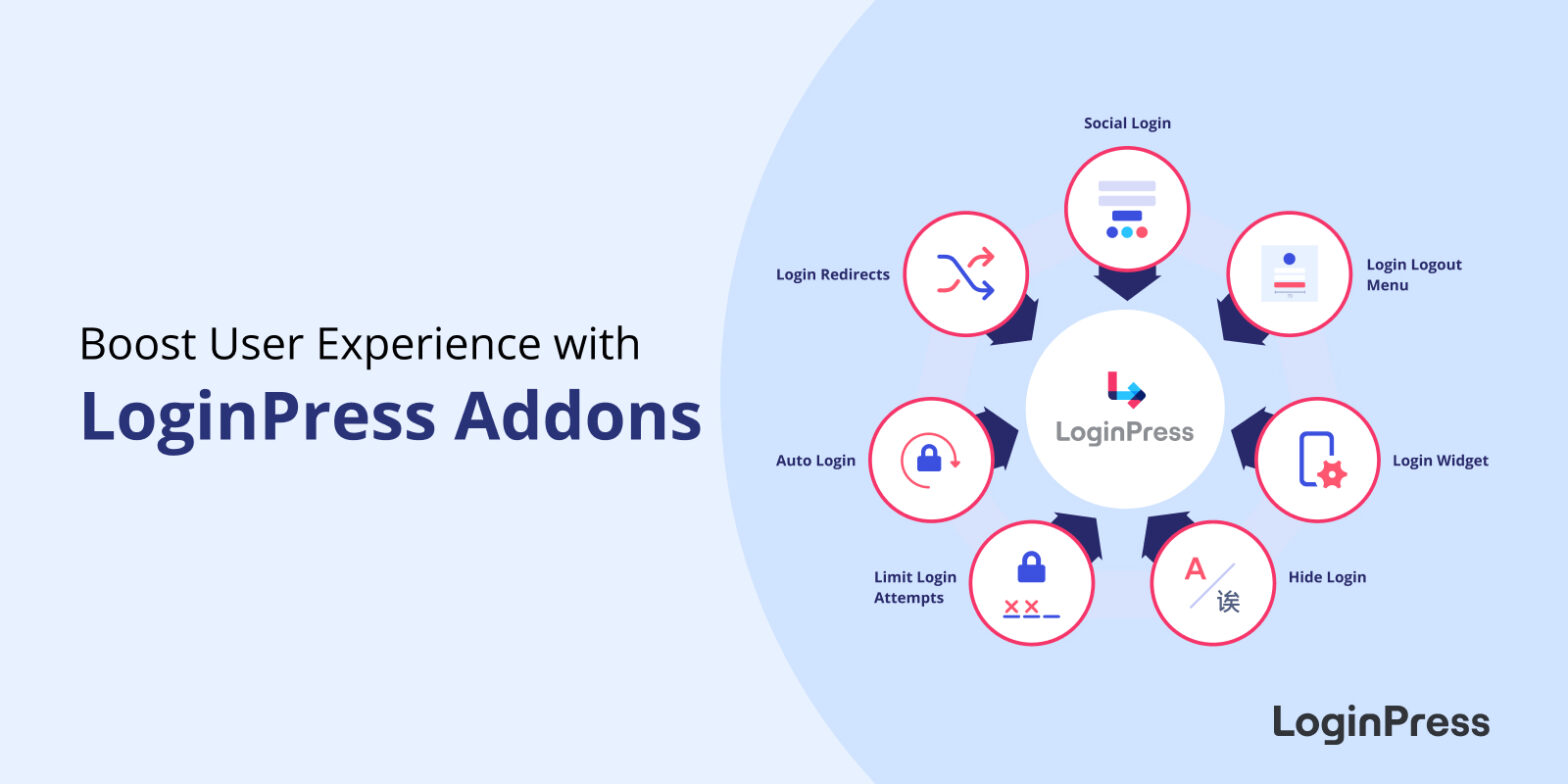
Top LoginPress Addons To Boost Your WordPress Login Experience
The WordPress login page serves as a gateway to your site. A smooth and engaging login experience is necessary for user retention.
This is where LoginPress comes into play. It has advanced add-ons that boost user experience and strengthen your site’s security.
In this article, we’ll walk you through the powerful LoginPress Addons that help you strengthen the default WordPress login page.
11 Best Schema Plugins For WordPress
Are you looking for schema plugins for WordPress? If yes, you’ve landed on the right article.
Schema markup has become essential for enhancing search engine visibility and improving user experience for a WordPress site.
This is where schema plugins for WordPress come into play. These plugins help optimize a site with structured data.
Considering the importance of structured data, we’ve compiled a list of the 11 best schema plugins for WordPress to help search engines understand your content more efficiently.
How to Change Author in WordPress (Explained)
To change the author of a post in WordPress, open the post, go to Post settings, choose a new author from the Author dropdown and click Update. You can also use Quick Edit or a bulk action for many posts.
This guide covers six methods, plus how to add authors, track author stats and hide authors.
How to Create a WordPress Dropdown Menu
To create a WordPress dropdown menu, go to Appearance > Menus, add your pages, and drag each sub-item slightly to the right under its parent item. You can also use the Navigation block, a plugin such as Max Mega Menu, a theme with dropdown support, or custom CSS.
In this post, I will show you five methods and tips for making the menu easy to use.
How to Change Font Color in WordPress (Explained)
To change the font color in WordPress, select the text in the block editor and pick a color in the Text settings. For the whole site, use the Site Editor, the Customizer or custom CSS. LoginPress changes the text color on the login page.
This guide covers six methods, from the block editor to page builders, and when to use each one.