WordPress Guest Login Security Without User Accounts (Explained)

Editorial Team
Are you wondering if WordPress supports temporary logins for guest users?
You are in the right place! This post will help you understand how you can manage guest logins on your site without compromising login security.
Managing access to your site shouldn’t feel too risky and underwhelming.
Whether you’re showcasing a demo to a lead, giving a client a sneak peek at a draft, or bringing in a temporary collaborator, WordPress guest login security is a top priority.
Creating full user accounts for every minor interaction is a maintenance nightmare and a security liability.
The challenge lies in balancing accessibility with protection. Unrestricted guest access can lead to data leaks or site instability, while overly complex barriers frustrate your visitors.
So, how can you securely allow guest login in WordPress?
The answer lies in moving away from traditional passwords and toward controlled, temporary access.
With LoginPress, you can implement refined guest authentication that keeps your site locked down while remaining perfectly welcoming to the right people.
Guest Authentication WordPress (TOC):
What are the Guest Login Security Challenges in WordPress
Allowing outsiders access to your dashboard, even with limited permissions, is known as guest login WordPress and carries inherent risks for your site.
If these risks are not handled correctly, guest access can become an open window for hackers to look for potential vulnerabilities in your system.
Risks of Guest Access Without Accounts
The primary danger of guest authentication in WordPress is the lack of accountability.
Traditional shared accounts are easy targets for brute-force attacks because they often use weak passwords.
Without secure guest access protocols, you risk unauthorized users stumbling into sensitive areas of your backend or exposing private site data to the public web.
Common Pitfalls with Temporary or Shared Logins
Many site owners try to simplify guest login in WordPress by sharing a single set of credentials. This is a recipe for disaster.
Shared logins make it impossible to track who did what, and if one person leaks the password, everyone has access.
Furthermore, links that don’t expire or have uncontrolled permissions allow guests to linger long after their task is finished, increasing your site’s attack surface.
When Should You Use Temporary Login Links?
The timing of deploying a temporary login link is as critical as understanding its implementation.
Temporary login links serve as precise tools for specific, short-term scenarios where both speed and WordPress guest login security are essential.
- Client Previews: Temporary login links give stakeholders a 24-hour window to review new designs or layouts without creating an account.
- QA and Technical Reviews: These links enable developers or QA testers to gain immediate, controlled access to specific pages for troubleshooting bugs or verifying site performance.
- Short-Term Contractors: Temporary login links are suitable for copywriters or SEO specialists requiring access for a limited period to update specific posts.
- NOT for Long-Term Collaborators: For permanent team members or long-term partners, traditional user accounts with Two-Factor Authentication (2FA) remain the standard. Temporary login links are built for speed and transience, not for ongoing project management.
Best Practices for Secure Guest Logins
To achieve seamless site security, it is necessary to move beyond relying solely on traditional password authentication.
Modern WordPress guest login security relies on automated dynamic controls with proper access controls.
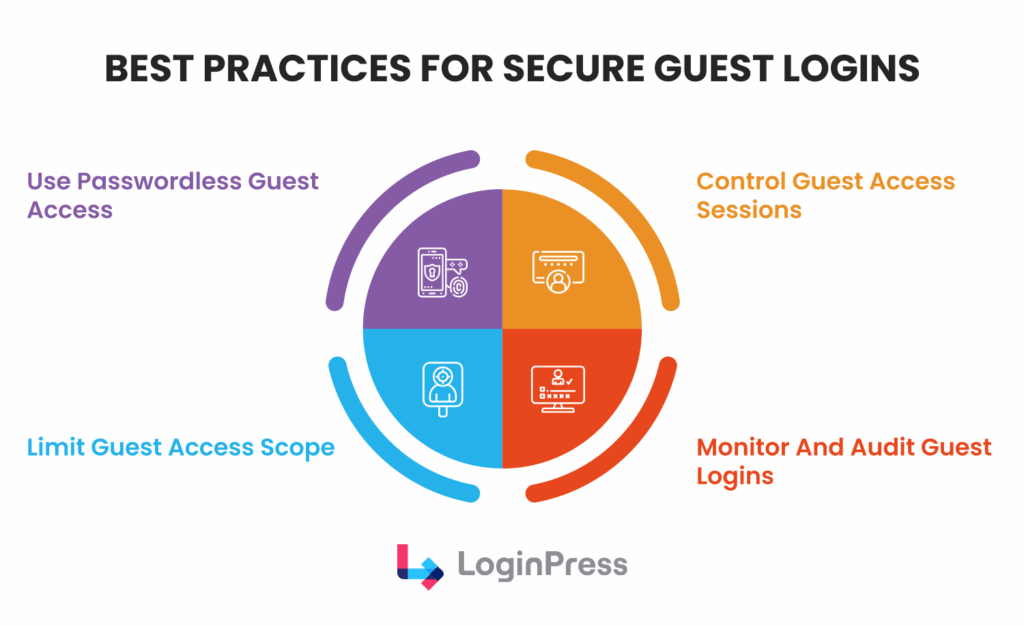
Let’s explore in depth these best practices for securing the guest logins in WordPress:
- Implement Passwordless Guest Access
Eliminating passwords entirely is the most effective method to enhance security.
Passwordless guest access using Magic Links enables users to authenticate by clicking a unique, encrypted URL sent to their verified email address.
This method directly answers the common question: Can WordPress support temporary logins?
WordPress does support temporary logins, and this method is considerably more secure than standard accounts.
Without static passwords stored in the database or written down by guests.
There is no credential for an attacker to compromise through brute-force or other cracking methods.
Temporary login links function as one-time digital keys. Once access is granted or the designated time period expires, the key is rendered invalid.
- Limit Guest Access Scope and Duration
The principle of Least Privilege is the best framework you can implement.
You should never give a guest more power than the specific task requires. Secure guest access should always be gated by three specific parameters:
- Role-Based Restrictions: Avoid assigning guests standard roles such as Subscriber or Contributor. Instead, configure guest authentication in WordPress to assign visitors a custom Guest role with no administrative capabilities, preventing them from accessing plugin lists or site settings.
- Hard Expiration Times: Time is a security factor. Set your temporary login links to expire after a short window, such as 4, 12, or 24 hours. This ensures that even if a link is intercepted later, it’s already useless.
- Usage Limits (One-Time Access): For high-security demonstrations, configure the link to become invalid after a single successful login. This prevents guests from reusing the link later.
- Monitor and Audit Guest Login Activity
Security isn’t a “set it and forget it” task; it requires active monitoring. You must use tools like LoginPress that offer detailed login logs and real-time notifications.
Tracking secure guest authentication methods provides a comprehensive audit trail.
Administrators can identify the IP address that used the link, the timestamp of access, and the specific pages visited.
This transparency enables rapid detection of anomalies, such as logins from unexpected locations.
This allows for immediate session termination to prevent potential security breaches.
- Control Guest Access Sessions
Controlling how long a user stays logged in is vital for maintaining secure guest access, especially if links are accessed from public or shared devices.
To minimize risk, implement these actionable session controls:
- Session Timeouts: Automatically terminate sessions after a period of inactivity to prevent unauthorized takeover of abandoned browser tabs.
- Prevent Concurrent Logins: Restrict a temporary login link to a single active session to stop guests from sharing access with unauthorized parties.
- Force Logout on Expiry: Ensure the system terminates the session exactly when the link’s expiration time is reached, rather than waiting for a manual logout.
- Remote Session Killing: Use guest authentication in WordPress tools that allow admins to instantly revoke an active session from the backend if suspicious behavior is flagged.
Expert Tip: You can strictly manage the session lifecycle, ensuring that guest login in WordPress remains a temporary privilege using the session controls in LoginPress. To learn more about this, check out How to Customize the Session Expire Time in WordPress (Easy).
How to Design a Smooth Guest Login Experience
Security should not create unnecessary difficulties for users. Even the most secure system is ineffective if clients find it frustrating to use.
A streamlined User Experience (UX) increases the likelihood that collaborators will adhere to secure guest access protocols rather than resorting to insecure alternatives, such as sending passwords over unencrypted channels.
In the following section, we will outline strategies for designing a secure, seamless guest user experience that adheres to strict security protocols.
User Experience Considerations for Guest Logins
When users ask “How to give access without creating accounts?”, they are usually looking for a way to skip the tedious registration forms.
A guest’s first impression of your site should be professional, not a technical hurdle.
- Eliminate Password Fatigue: Implementing passwordless guest access removes a common source of user frustration, namely the ‘Forgotten Password’ process. Guests are not required to memorize new credentials or utilize password managers for single-use access.
- Provide Clear Instructions: Replace technical error codes with straightforward, branded messages such as: “A secure access link has been sent to your inbox. Click the link to view your project.” Employ a Frictionless Entry, Firm Boundary approach, ensuring that authorized guests can access resources easily while maintaining strict security for all other areas. Guests should experience efficient access without feeling subjected to excessive scrutiny.
Configuring Secure Guest Access with LoginPress
LoginPress enhances the default WordPress interface by providing a branded and secure gateway.
It enables administrators to implement secure guest login functionality in WordPress via an easy-to-navigate dashboard.
Here are some basic configurations you can implement using LoginPress that can help secure guest access:
1. Generate Unique Temporary Login Links
Instead of creating a persistent ‘Guest’ user in the WordPress database, LoginPress generates single-use, encrypted URLs through the Auto Login Add-On.
To enable this, go to LoginPress >> Settings >> Auto Login. Here, you can manually search for a specific username to generate the auto-login link for.
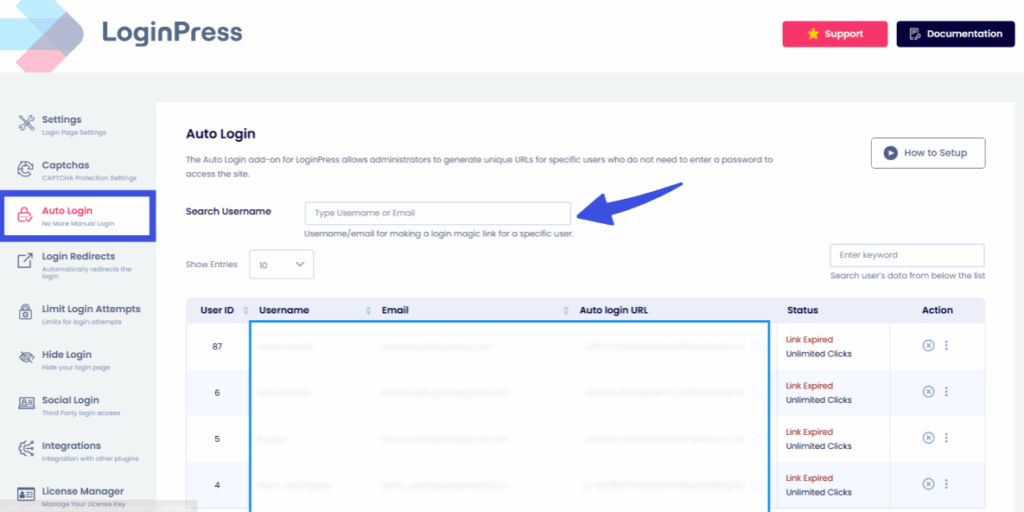
Within LoginPress Auto Login Add-On settings, you can also fine-tune exactly how the temporary login links behave:
- Set Expiration Timers: Specify the duration for which each link remains active, such as 1 hour, 1 day, or 1 week.
- Limit Use Counts: Configure each link to permit a single use. If a guest attempts to share the link, subsequent access attempts will be denied, thereby preserving secure guest access.
This approach facilitates guest login functionality without increasing database clutter or introducing long-term security risks.
2. Define Custom Redirects
One of the biggest UX failures is letting a guest log in and then dropping them onto the generic WordPress Dashboard (the “wp-admin” screen). This is confusing for non-technical clients.
With the LoginPress Login Redirects Add-On, you can define a specific landing page, such as a gallery, pricing table, or draft post, so the guest sees exactly what they need immediately upon entry.
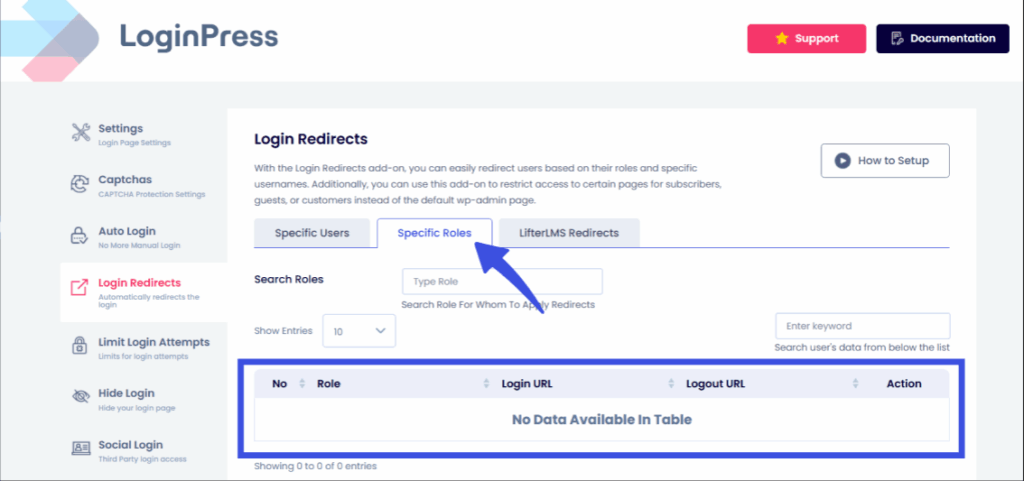
To configure these settings, go to LoginPress >> Settings >> Login Redirects.
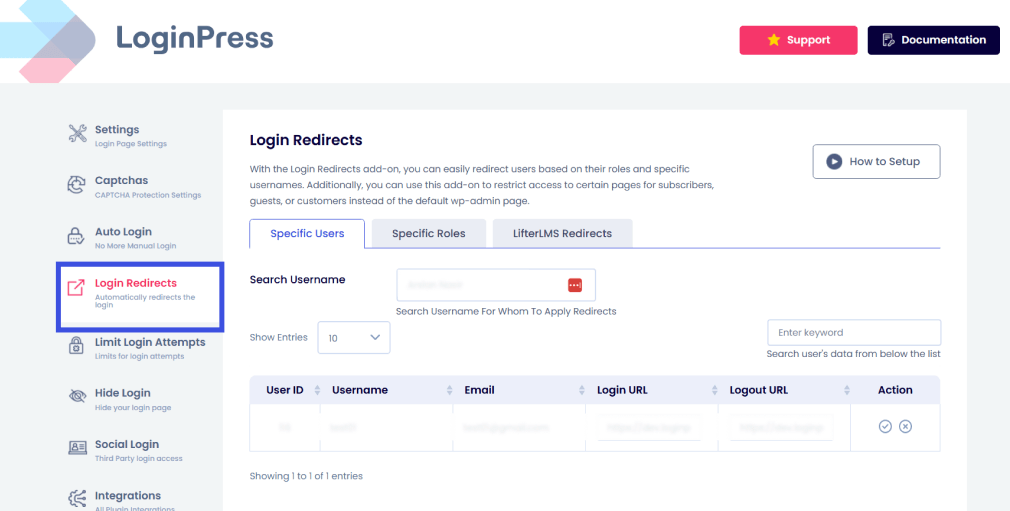
With this feature, admins can enhance secure guest access through:
- Role-Based Redirects: You can automatically redirect users based on their roles, ensuring guests see only relevant front-facing pages.
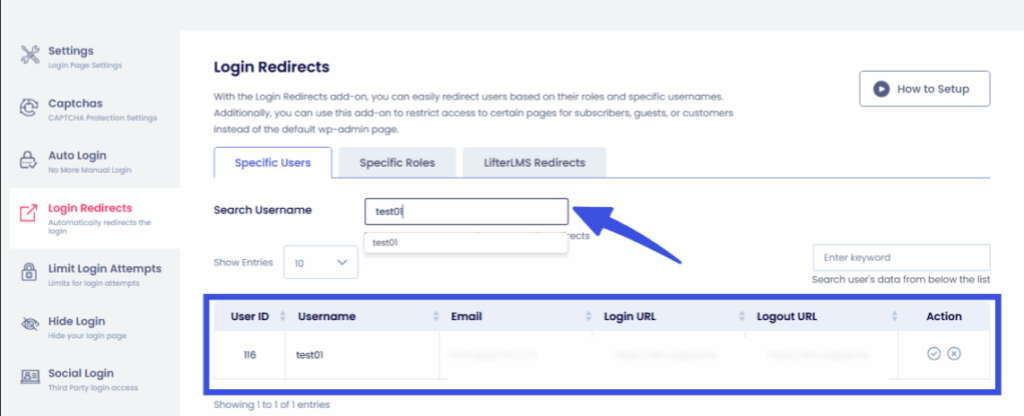
- Username-Specific Redirects: They provide granular control by setting unique redirect rules for each username.
- Restricted Access: You can use this tool to restrict guests, subscribers, or customers from ever seeing the standard wp-admin page.
- Audit Trail Visibility: The interface displays a clear table of User IDs, usernames, and emails, allowing you to manage and verify guest authentication in WordPress at a glance.
3. Audit the Trail with Real-Time Logs
Security is an ongoing process. Use the login logs to monitor guest authentication in WordPress as it happens. You can see:
- Which specific link was used?
- The IP address and browser of the guest.
- The precise login and logout times. If a link is accessed from a suspicious location, administrators can deactivate the specific temporary login link immediately without affecting other users.
4. Resolve Guest Login Friction with Proactive Error Handling
Replace vague system errors with helpful, branded guidance.
If a temporary login link expires, provide a clear message: “This link has expired; please request a new one”. This reduces support tickets and maintains trust.
This is where LoginPress provides custom error message handling, allowing admins to replace the default, vague WordPress errors with their own.
To customize them, go to LoginPress >> Customizer >> Error Messages.
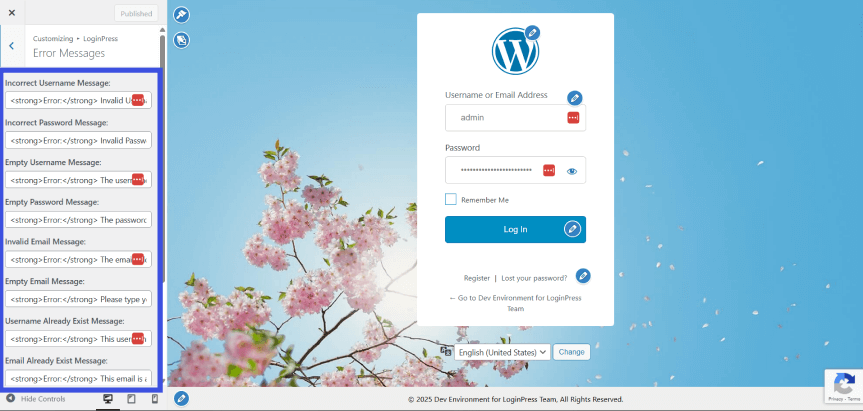
Whether for client previews or temporary collaborators, WordPress guest login security is vital to prevent unauthorized access while maintaining a professional workflow.
5. Safeguard Guest Entry Points by Restricting Login Retries
Even with secure guest access in place, your login page remains a primary target for bad actors.
If a guest link is leaked or an attacker attempts to guess a temporary credential, they often use brute-force methods, repeatedly trying different combinations until they break through.
By restricting login retries, you effectively shut the door on these automated attacks.
The LoginPress Limit Login Attempts add-on is a critical layer for WordPress guest login security.
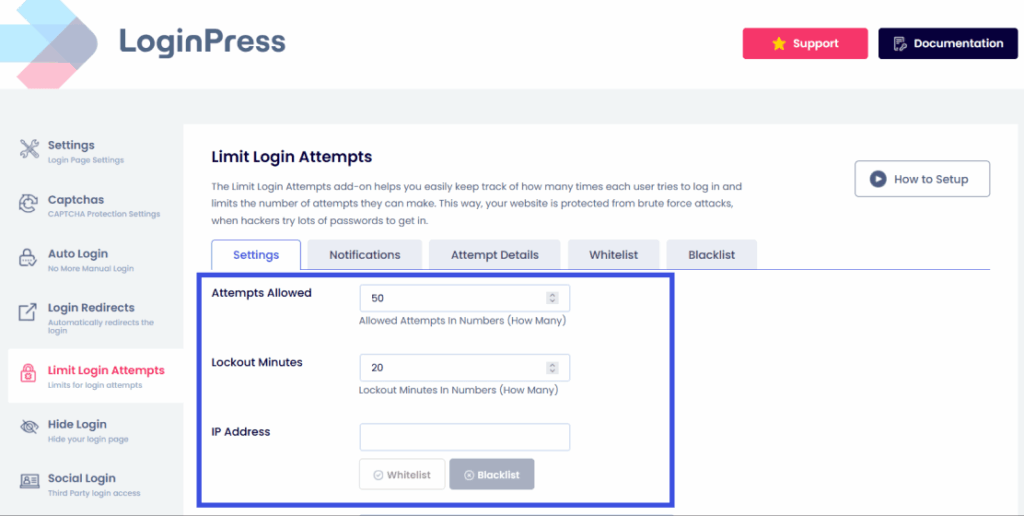
It allows you to:
- Enforce Temporary Lockouts: Automatically block an IP address after a specified number of failed attempts to use a guest login in WordPress.
- Set Custom Thresholds: Define exactly how many retries a guest gets before being locked out, balancing security with user error.
- Track Unauthorized Activity: Monitor detailed logs to see which IPs are attempting to bypass your secure guest authentication methods.
- Brute-Force Prevention: Ensure that even if a guest’s temporary login link is targeted, the system proactively defends itself against high-velocity login attempts.
By throttling access, you ensure your site remains a firm boundary for bots while remaining wide open to legitimate visitors.
Troubleshooting Common Guest Login Issues
Even with a streamlined system, guests may occasionally encounter technical hurdles. The most frequent issues in WordPress guest login security involve:
- Expired links
- Failed authentication
- Duplicate access attempt
For instance, a client might click a temporary login link days after it was issued, only to find the session has timed out for security reasons.
Similarly, if a link is restricted to single-use, a second click, perhaps from a different device, will trigger a failed authentication error.
LoginPress provides the administrative tools to resolve these friction points instantly. Through the centralized dashboard, site owners can monitor guest login in WordPress activity and identify exactly why a login failed.
If a link has expired, you can re-generate a new secure URL with a single click, ensuring your collaborator isn’t left waiting.
To prevent confusion before it starts, LoginPress lets you replace vague WordPress system errors with proactive, branded guidance.
Instead of a generic Access Denied, you can display a message such as, “This secure link has reached its usage limit. Please request a new access key.”
This level of clarity maintains secure guest access without frustrating the user, turning potential troubleshooting headaches into a professional, well-managed experience.
By actively monitoring logs and customizing feedback, you ensure that your WordPress guest login security remains both secure and user-friendly.
Learn more about restricting access here: How to Restrict Access in WordPress by User Role (Easy 2026 Guide).
Frequently Asked Questions
How to allow guest login in WordPress securely?
The most secure way to enable guest logins is to use passwordless guest access via a plugin like LoginPress. Instead of creating a permanent user account with a static password, you generate a unique, encrypted temporary login link. This ensures that access is time-bound and tied to a specific user’s email, preventing brute-force attacks and reducing your site’s attack surface.
Can WordPress support temporary guest logins?
Yes, WordPress can support temporary logins by utilizing the LoginPress “Auto Login” or “Magic Link” features. This allows site owners to create access URLs that automatically expire after a set duration (e.g., 4 hours or 1 day) or after a certain number of uses. This is the ideal secure guest access method for client previews or one-time technical audits.
How to give access to WordPress without creating accounts?
You can grant dashboard access without formal registration by using temporary login links. These links verify the user via a secure URL sent to their inbox, bypassing the standard “username and password” setup. This method provides guest authentication in WordPress without cluttering your database with “ghost” users or requiring guests to remember new credentials.
What are the best secure guest authentication methods?
The best methods for wordpress guest login security include:
Magic Links: Encrypted URLs that provide one-click access.
Role-Based Redirects: Sending guests to specific pages to keep them out of sensitive backend areas.
Expiration Timers: Automatically revoke access after a project deadline.
Activity Logging: Monitoring guest sessions to ensure the link isn’t being used by unauthorized parties.
How does LoginPress manage passwordless guest access?
LoginPress manages passwordless guest access by generating unique, trackable URLs that can be customized with specific permissions. In the LoginPress Add-Ons, such as Auto Login and Login Redirects, you can set expiration dates and even redirect guests to a specific landing page upon arrival, ensuring a seamless, secure guest access experience.
Conclusion: Guest Authentication WordPress
Ensuring WordPress guest login security extends beyond basic access restrictions; it involves establishing a professional, high-trust environment for collaborators.
Transitioning from static passwords to temporary login links improves site workflow while maintaining security and integrity.
LoginPress serves as a complete solution for managing these digital credentials.
Features such as Auto Login, Role-based Redirects, and proactive brute-force protection provide administrators with precise control over site access and duration.
Implementing a controlled, secure guest access system is essential for maintaining site safety.
That is all for this post.
For more related guides, check:
- How to Secure WordPress Login for Remote Teams and Distributed Users
- WordPress Login Hardening Checklist (2026 Guide)
- WordPress Login Optimization for Better User Retention (Explained)
What are the primary challenges encountered when granting clients or temporary staff access to the WordPress dashboard?
Please share your experiences in the comments.