WordPress Plugin Compatibility Made Easy (2026 Guide)

Editorial Team
Imagine beginning your day only to find that your WordPress site has disappeared, replaced by the White Screen of Death. This is because of WordPress plugin compatibility.
Although everything worked correctly before, a routine update has caused a plugin conflict that has halted your business operations.
This scenario is a significant concern for all site owners. A malfunctioning login page may prevent access, while a checkout error can result in substantial financial losses.
Plugin issues extend beyond technical inconvenience and often lead to considerable setbacks.
When multiple plugins attempt to manage the same resources, conflicts occur that can destabilize the website.
In this guide, I will demonstrate how to identify these errors before they disrupt your site and how to ensure that your plugins function cohesively.
Best WordPress Plugins Compatibility (TOC):
What is WordPress Plugin Compatibility (and Why It Matters for SMBs and Agencies)?
Think of WordPress plugins like team members working together on a project.
For your website to run smoothly, each plugin needs to do its job and work well with the others.
Plugin compatibility ensures that all software components operate cohesively, minimizing confusion or functional overlap.
Incompatibility may result in conflicts that disrupt website functionality.
For businesses, plugins that don’t work well together can cause several problems, such as:
- Access Denial: Broken login forms can prevent both administrators and customers from accessing the website.
- Complete Outages: The occurrence of the “White Screen of Death,” in which the website displays a blank page.
- Dead Ends: Failed redirects can send potential customers to a 404 error page.
- Performance Issues: Slow website loading times can frustrate users and hurt your search engine rankings.
Cross-site scripting (XSS) vulnerabilities account for about 50% of plugin vulnerabilities.
For small and medium-sized businesses (SMBs) and agencies, these issues extend beyond technical glitches; they can have significant negative business impacts.
Many plugins are developed in isolation, with developers primarily concerned about the functionality of their own product.
In contrast, the LoginPress team adopts a different approach.
Whether implementing a secure WordPress login integration or a complex multilingual setup with WPML, LoginPress is engineered to integrate seamlessly without disrupting existing site architecture.
What Happens When WordPress Plugins Clash?
Consider the scenario where you have dedicated three hours to perfecting a new landing page.
After publishing, you check the live site and encounter unexpected results.
The page fails to load.
You may see a blank white screen, or the login page may appear severely outdated and dysfunctional.
This issue is not merely a minor glitch; it is often caused by WordPress plugin conflicts.
The Problem: Competing Code in WordPress
WordPress operates as an open ecosystem, which offers significant advantages.
However, this openness also introduces certain challenges.
Since plugin development is accessible to all, not every developer adheres to standardized coding practices.
When two plugins attempt to perform the same function, such as redirecting users or loading specific scripts, they may conflict with one another.
As a result, one or both plugins may malfunction.
The Impact: How Site Instability Affects Businesses
For a blog, a minor layout shift may be inconvenient.
For an SMB or Agency, plugin compatibility issues are a full-blown crisis.
When plugins conflict, a series of cascading failures may occur:
- Login Failures: Users get stuck in a redirect loop and can’t access their dashboard.
- Broken Designs: Your beautiful Elementor login customization suddenly loses all styling because a caching plugin minified the wrong file.
- Support Challenges: Agencies may receive numerous client complaints when WooCommerce stores fail to process payments due to plugin conflicts.
The Solution: Selecting Tools Designed for WordPress Plugin Compatibility
Eliminating plugin usage is not a viable solution.
The fix is to use plugins built with a “Compatibility-First” mindset.
For example, consider LoginPress.
It wasnt built with the intention of just being a login customizer. It was built like an integration engine.
LoginPress is specifically engineered to prevent WordPress plugin conflicts by utilizing unique hooks that do not interfere with security or caching tools.
Common WordPress Plugin Compatibility Conflicts
| Conflict Type | Why It Happens | The Symptom |
| Security vs. Security | Two plugins are fighting to “lock” the same file. | Locked out of your own site (403 Forbidden). |
| Caching vs. Customizers | A caching tool serves an old version of your “customized” login page. | Design changes won’t “stick” or appear live. |
| SEO vs. Page Builders | Overlapping metadata scripts are crashing the editor. | The “Spinning Wheel of Death” in Elementor or Divi. |
How LoginPress Ensures Seamless Compatibility With the WordPress Ecosystem?
Many plugins function effectively in isolation but encounter compatibility issues when integrated within the WordPress ecosystem.
LoginPress distinguishes itself by adhering to established WordPress development standards for ensuring WordPress plugin compatibility.
The following features illustrate how compatibility is ensured to maintain optimal site performance:
1. Leveraging the Native API
Most plugins build their own complex settings pages.
LoginPress uses the WordPress Customizer API.
By using the same tools WordPress uses for themes, LoginPress doesn’t load extra, heavy scripts.
This approach is transformative because your site stays light and doesn’t cause plugin overhead.
As a result, the likelihood of plugin conflicts during site updates decreases.
2. Comprehensive Integration Suite
We do not rely on assumptions regarding compatibility with other plugins.
Instead, we develop dedicated LoginPress integrations for widely used tools for WordPress plugin compatibility.
- WooCommerce: We have identified and mapped custom selectors for each WooCommerce login feature, ensuring consistent styling throughout the shopping and checkout processes.
- BuddyPress: Our logic is built to respect BuddyPress login page redirect rules.
3. Rapid Response to PHP and Core Updates
When a new version of WordPress or PHP is released, most developers respond reactively.
In contrast, we adopt a proactive approach.
We run our WordPress compatibility testing on Beta versions of WordPress core.
This ensures that by the time you see that “Update Now” notification, we’ve already cleared the path.
4. Zero-Code Multilingual Functionality
Enabling multilingual login pages typically involves manual configuration.
LoginPress integrates with WPML and Polylang via custom hooks.
This automatically switches the login form language when a visitor changes the site language.
In the manual, “plugin conflict fix” is not required.
5. Human-Centered Support System
Even with optimal code, the WordPress ecosystem remains unpredictable.
If a conflict arises, our support team doesn’t just point fingers.
We conduct a Conflict Audit for you, identify the source of friction, and provide quick solutions in case of WordPress plugin compatibility.
LoginPress Compatibility for Membership Plugins
Retaining members requires a professional site appearance.
Many membership plugins redirect users to the default WordPress login page.
This can create brand inconsistency, potentially negatively impacting member retention.
Here is how LoginPress bridges that gap for the top platforms for smooth WordPress plugin compatibility:
1. MemberPress
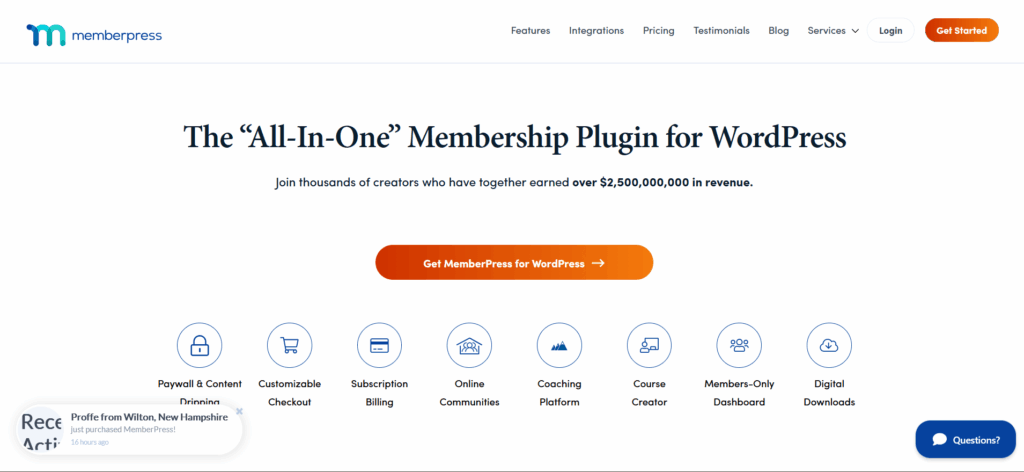
While the MemberPress login page offers robust access control, its default login pages lack customization.
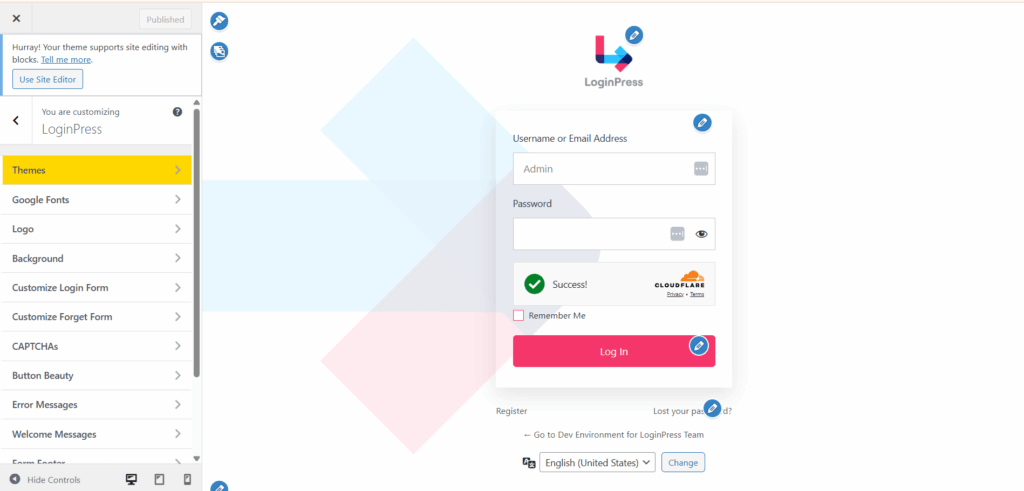
LoginPress enhances the user experience by providing advanced branding options through the Customizer:
- Custom Branding: Swap the WordPress logo for your own. Add professional backgrounds that match your course or community.
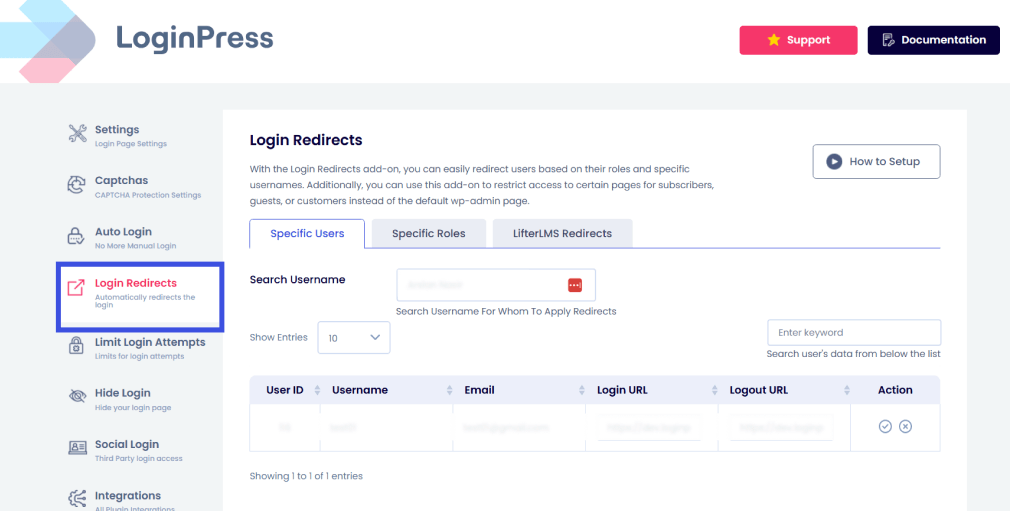
- Seamless Redirects: MemberPress handles who gets in, and LoginPress ensures they land on a beautiful, branded page instead of the messy backend. To do this, LoginPress provides the Login Redirects option for enabling seamless redirects with enhanced WordPress Plugin Compatibility.
2. Restrict Content Pro (RCP)
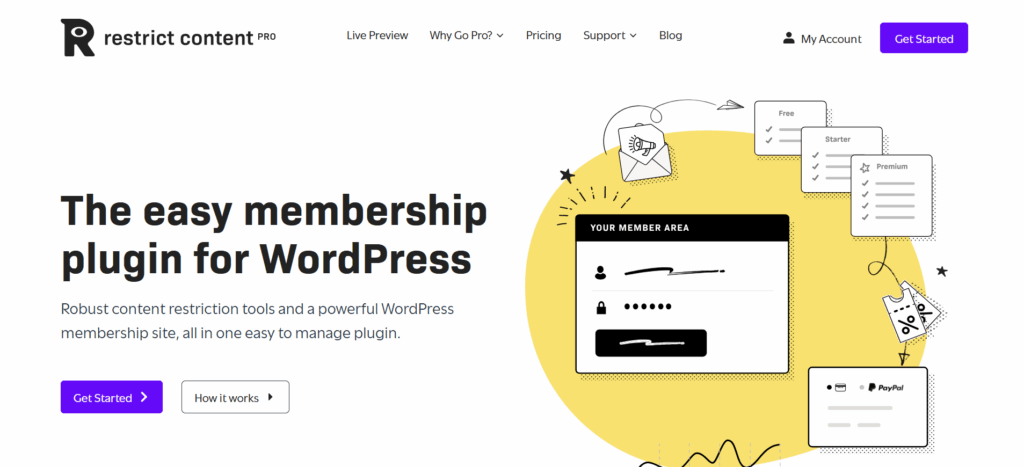
The Restrict Content Pro login setup is known for its lightweight design.
However, a streamlined approach does not equate to limited functionality.
If you use RCP to restrict access to premium articles or downloads, LoginPress enables you to:
- Create Unique Login Messages: Greet “Gold” members differently from “Free” subscribers by utilizing the LoginPress Custom Welcome Messages feature.
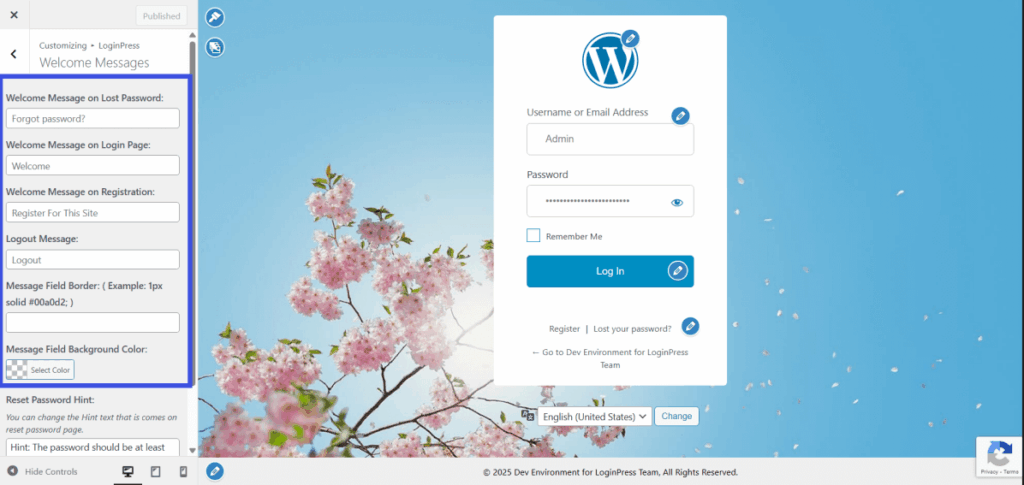
- Maintain Flow: RCP registration forms may occasionally conflict with security plugins. Since LoginPress leverages the native Customizer API, it operates seamlessly with RCP and avoids script conflicts.
3. Paid Memberships Pro (PMP)
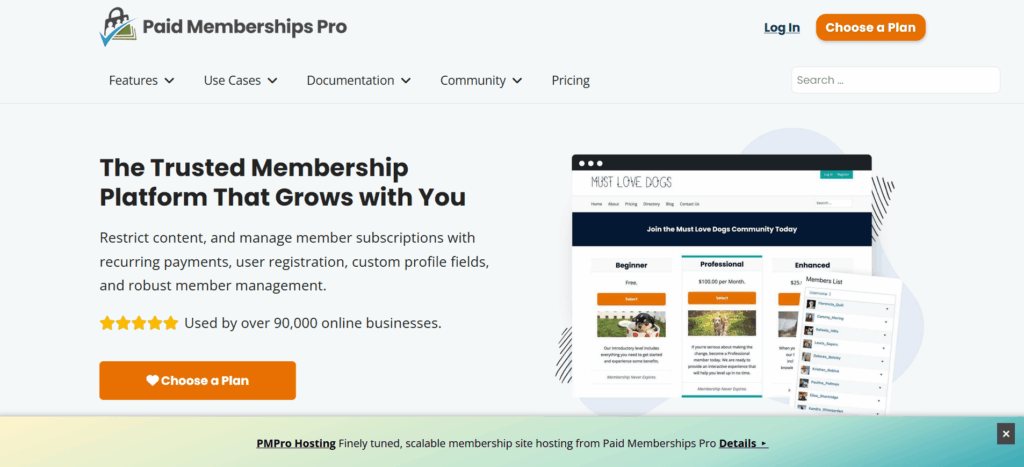
Paid Memberships Pro offers robust functionality, though its frontend login forms may be challenging to style without advanced CSS knowledge.
The LoginPress Advantage: You can use our pre-designed templates to give your PMP site an Enterprise look in seconds.
It ensures your secure WordPress login integration stays intact while giving you total control over the buttons, fonts, and field styling.
Why Membership Sites Need LoginPress
| Feature | Default Membership Login | LoginPress + Membership Plugin |
| User Confidence | Low (Generic Design) | High (Branded Interface) |
| Ease of Use | Confusing Error Messages | Customized Error Guidance |
| Mobile Access | Sometimes Wonky | 100% Responsive Design |
| Onboarding | Generic Redirects | Member-Level Redirects |
WooCommerce Compatibility: How to Improve Customer Login Experience Without Code
In eCommerce, the login page serves as a critical conversion point rather than just an entryway.
If customers encounter login difficulties, they are likely to abandon their shopping carts rather than complete their purchases.
A common issue is that the default WooCommerce My Account login page is frequently unbranded and visually inconsistent with the overall store design.
The following outlines how LoginPress can transform a standard login form into an effective customer portal without requiring any coding expertise.
Most eCommerce customer login pages exhibit three primary deficiencies:
- Design Inconsistency: Customers transition from a visually appealing storefront to a generic, gray WordPress-style login interface.
- Redirect Loops: Users may become trapped between the My Account page and the checkout process, leading to abandonment.
- Administrative Exposure: Inadequate configuration can lead to customers inadvertently accessing the WordPress administrative interface, which can appear unprofessional and undermine trust.
Addressing WooCommerce User Experience Challenges with LoginPress
Implementing LoginPress as the primary WooCommerce login plugin establishes a seamless connection between visitors and their order histories.
This is especially easy with the LoginPress + WooCommerce integrations.

1. Branded Store-First Experience
Stop using the WordPress logo. Use LoginPress Customizer to add your store’s branding, custom background images, and brand colors to the login screen.
This builds trust and ensures the customer knows they are still in your store.
2. Role-Based Redirects for Wholesale and Retail Customers
This feature is particularly advantageous for business-to-business (B2B) stores.
- Retail Customers: Redirect them straight to the “Shop” page or their “Recent Orders.”
- Wholesale Customers: Redirect them to a private “Bulk Order Form” or a “Wholesale Dashboard.” With LoginPress, you can set these rules based on user roles, ensuring every customer sees the content most relevant to them.
3. Consistent My Account Page Styling
Instead of wrestling with complex CSS to make your account page look decent, LoginPress lets you customize fonts, button styles, and layout to match your theme perfectly.
WooCommerce Login Comparison: Standard vs. Optimized
| Feature | Default WooCommerce | LoginPress Optimized |
| Trust Factor | Low (Generic WP Look) | High (Custom Brand Identity) |
| User Logic | One-size-fits-all | Role-Based Precision |
| Security | Standard | Secure WordPress Login Integration |
| Mobile UX | Basic | Touch-Optimized and Responsive |
Your customer’s journey doesn’t start at the checkout; it starts the moment they try to access their account.
By prioritizing WordPress plugin compatibility between your login tool and WooCommerce, you’re protecting your revenue.
How LoginPress Works Seamlessly With Page Builders
For agencies and designers, standardized solutions often hinder creative control and customization.
When building a site with Elementor, Divi, or the Gutenberg editor, designers typically seek complete control over every design element.
A common challenge is that most login plugins are incompatible with page builders.
These plugins often load conflicting CSS or disrupt the layout when global theme styles are applied.
Here is how LoginPress provides the ultimate WordPress page builder login experience without requiring a single line of custom code.
1. Elementor
Customizing login pages with Elementor can be challenging, as the platform’s Global Styles may not consistently apply to the login interface.
The LoginPress Fix: LoginPress acts as the bridge between Elementor for building your site, then use the LoginPress visual customizer to mirror those exact styles, such as fonts, padding, and button border radii, onto the login screen.
This approach eliminates inconsistencies, such as mismatched button shapes between the main site and the login page.
2. Divi
Divi users accustomed to the Visual Builder may find it inefficient to switch to a backend coding interface for tasks such as updating the login logo.
With a Divi login page powered by LoginPress:
- Real-Time Preview: See exactly how your login page looks as you adjust the background overlays and logo sizes.
- Agency-Level Branding: This feature streamlines client handoffs by enabling rapid branding of the login page with client logos, enhancing the perception of a custom-built application.
3. Gutenberg (Block Editor)
Because LoginPress is developed using the native WordPress Customizer API, it maintains full compatibility with the modern Block Editor ecosystem.
Regardless of whether Full Site Editing (FSE) or standard blocks are used, LoginPress ensures that the login page remains lightweight and efficient.
The plugin avoids adding unnecessary JavaScript libraries that could negatively impact PageSpeed Insights scores.
Use Case: The Multi-Client Agency Strategy
Agencies frequently manage more than 20 sites simultaneously.
Manually coding secure WordPress login integrations for each client is highly time-consuming.
The Strategy to Follow for WordPress plugin compatibility:
- Standardize: Use a saved LoginPress “Export” file for your base styling.
- Customize: Swap the logo and primary brand color for each specific client.
- Deploy: In under one minute, a fully branded experience can be delivered, a process that previously required extensive manual CSS adjustments.
Comparison: Why Designers Prefer LoginPress
| Design Hurdle | Traditional Method | LoginPress Method |
| Responsiveness | Manual Media Queries | 100% Mobile-Ready Out of the Box |
| Font Syncing | Copy-pasting Google Font URLs | Direct Selection via Customizer |
| Logo Placement | Trial and Error (FTP/CSS) | Drag-and-Drop Visual Scaling |
| Client Branding | Hours of Development | Seconds of Configuration |
Security Plugin Compatibility: Can LoginPress Work With Wordfence, Sucuri, WebARX, and iThemes?
A frequently asked question among site owners is whether customizing the login page compromises their website’s security and WordPress plugin compatibility.
This concern is valid.
The login page is a primary target for brute-force attacks, and maintaining security should take precedence over aesthetic customization.
WordPress plugin compatibility is a fundamental aspect of our development process.
Here is how LoginPress is compatible with some of the top WordPress security plugins.
1. Wordfence and Sucuri
Both Wordfence and Sucuri use a Web Application Firewall (WAF) to block malicious IPs.
LoginPress utilizes native WordPress login hooks, ensuring that it does not bypass these firewalls.
As a result, it operates alongside them.
When a bot attempts to access a custom-branded login page, WordPress detects the attempt and blocks the IP address as it would on a default page.
If both Wordfence and LoginPress are configured to limit login attempts, you should select only one plugin to manage this feature.
Enabling this function in both plugins may result in unnecessary database growth.
2. Solid Secrity (formerly iThemes)
A widely used feature of Solid Security is the capability to change the /wp-login.php URL to a unique address, such as /secret-entry.
LoginPress is fully compatible with the hide-login feature. Users can customize the appearance of the login page and subsequently use a security plugin to assign a new URL.
LoginPress will automatically adapt to the updated path.
3. Patchstack (WebARX)
Patchstack is highly effective at blocking zero-day exploits.
Because LoginPress is developed with clean, audited code, it does not trigger the false positives common to poorly coded login customizers.
Multi-Language Login Pages: How to Make Login Page Work With WPML, Polylang & TranslatePress
For global businesses, a language barrier on the login page can overall reduce conversion rates.
For example, a customer in Madrid may encounter a fully translated Spanish storefront but face an English login form.
This inconsistency appears unprofessional and may undermine user trust.
Developing a multilingual WordPress login can be straightforward.
LoginPress integrates with leading translation plugins to ensure a seamless experience for global users and enhance WordPress plugin compatibility.
1. WPML: WordPress Multilingual Language
For many agencies, WPML login translation is a non-negotiable requirement.
LoginPress is fully compatible with WPML and its String Translation module.
This means you don’t just translate the Login button, but you can translate every single micro-copy element:
- Custom “Welcome” messages.
- “Forgot Password” prompts.
- Error messages (e.g., “Invalid Username”).
This integration provides a fully localized experience that dynamically adapts to the user’s selected language.
2. Polylang
For those seeking a lightweight solution, LoginPress enables seamless creation of Polylang-compatible login pages.
By adhering to standard WordPress internationalization (i18n) protocols, LoginPress ensures that Polylang recognizes custom text fields immediately.
Administrators can define distinct login designs or messages for each language version without duplicating pages.
3. TranslatePress
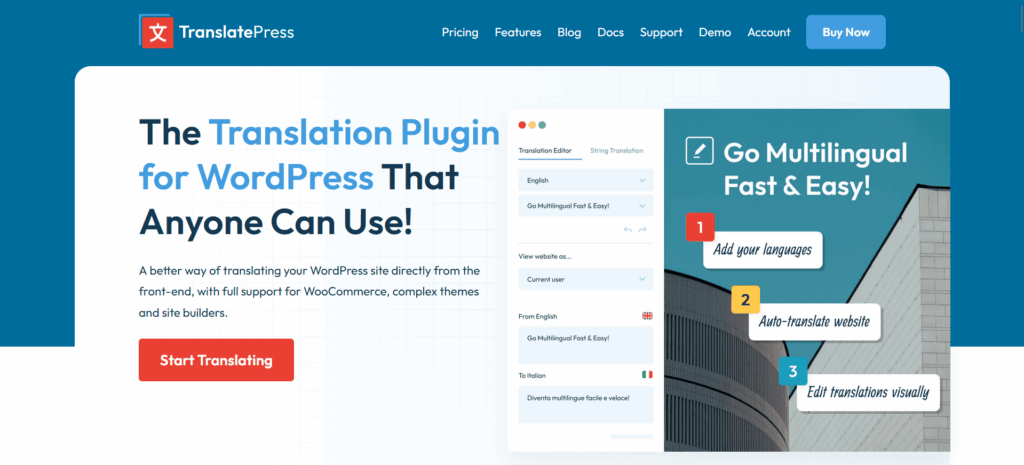
TranslatePress offers a visual translation interface that enables direct front-end translation of LoginPress-designed pages.
This feature allows users to preview how translated text fits within custom button dimensions in real time.
Achieving global reach requires attention to both translation and layout considerations.
Many plugins encounter issues when switched to Right-to-Left (RTL) languages, resulting in misaligned text and misplaced icons.
Agency Use Case: The Global Client Portal
Agencies managing international brands frequently encounter the “Portal Problem,” in which clients across regions need to access the same site in multiple languages.
Strategy:
- Centralized Design: Create one master login design in LoginPress.
- String Translation: Use WPML or Polylang to translate the labels once.
- Automatic Detection: Set the site to detect the user’s browser language.
This approach enables agencies to deliver a highly localized experience for each global stakeholder without the need to create multiple login pages.
Multilingual WordPress Plugin Compatibility Summary
| Feature | WPML | Polylang | TranslatePress |
| Label Translation | Yes (via Strings) | Yes | Yes (Visual) |
| Error Message Localization | Full Support | Full Support | Full Support |
| RTL Layout Support | Native | Native | Native |
| Custom Field Translation | Yes | Yes | Yes |
SEO & Analytics Compatibility: How to Track Logins Without Hurting Rankings
A common oversight among site owners is neglecting the search engine optimization (SEO) status of the login page.
Many may assume that the login form is unimportant for search engine visibility.
However, a poorly optimized login page can lead to crawl errors, dilute link equity, and trigger duplicate content warnings in Google Search Console.
The following guidance outlines how to maintain compatibility between WordPress SEO plugins and preserve the accuracy of analytics data.
- The No-index Rule
It is preferable for customers to discover high-value pages such as the Shop or Blog, rather than the /wp-login.php page.
When you use LoginPress alongside giants like Yoast or Rank Math, the first thing you should do is ensure your login page is set to noindex, nofollow.
This approach instructs Google not to allocate crawl resources to the login page, thereby concentrating SEO value on high-priority landing pages.
- Preventing Duplicate Content Penalties
Utilizing multiple LoginPress integrations, such as separate logins for WooCommerce and membership areas, can inadvertently generate multiple URLs with similar content.
Search engines don’t support this.
This is where LoginPress ensures that, even with multiple branded entry points, the underlying code stays clean and doesn’t create confusion about authorization.
By using a secure WordPress login integration, you maintain a structured site architecture.
- Tracking Login Events
How many users are actually logging in vs. bouncing at the “Forgot Password” screen?
If you use Analytify, you can track these interactions as Events.
This is why login analytics can provide precise data on user drop-off points during the login process.
For conversion optimization, if analytics indicate a high bounce rate on the login page, LoginPress can be used to simplify the design.
For example, by changing the background or increasing the size of the Login button using the LoginPress customizer, you can enhance user flow.
The Business Value of SEO-Friendly Logins
A well-integrated login page improves your User Experience (UX).
Google’s Core Web Vitals now track how users interact with your site.
If your login page loads slowly due to a WordPress plugin conflict, it could negatively impact your overall site “health score.”
By using LoginPress, you ensure your login page is lightweight, fast, and completely invisible to search bots, exactly as it should be.
How Agencies Can Manage Multi-Client Logins Without Plugin Conflicts?
Time represents a critical resource for agencies.
Agencies managing more than 50 client sites cannot allocate extensive hours to custom-coding each entry point.
A white-label login WordPress solution that enables rapid deployment is essential.
The objective is to deliver a premium agency client portal WordPress experience that appears sophisticated yet can be implemented in minutes.
The following blueprint outlines how to manage multi-client logins at scale while minimizing technical debt and maximizing WordPress plugin compatibility.
1. The Template Strategy
The most efficient approach to multi-client login management is to avoid starting each project from scratch.
With LoginPress, you can design one Perfect Agency Template and then use the Import/Export feature to push that design to every new client site.
- Step 1: Develop a clean, responsive layout incorporating standard security settings.
- Step 2: Export the JSON file.
- Step 3: Import the template to the new client site, then update the logo and primary brand color as needed.
Result: This process delivers a fully branded client experience in less than 60 seconds.
2. Multi-Site & Network Management
Running a WordPress Multi-Site (WPMU) network?
Managing plugins across a network is a notorious recipe for WordPress plugin conflicts.
LoginPress is engineered to be Multi-Site Ready.
- Network-Wide Branding: A single login design can be deployed across all sub-sites in the network from the main dashboard.
- Sub-Site Independence: Alternatively, individual site administrators may be granted the ability to customize their own login pages, while core security controls remain centrally managed.
3. Creating a Custom Client Portal
Clients should perceive the platform as a proprietary agency solution rather than a standard WordPress interface.
By combining LoginPress integrations with role-based redirects, you can turn a standard site into a professional portal:
- Automatic Redirects: Send clients straight to a Support Ticket page or a Video Reporting dashboard the moment they log in.
- Footer Removal: White-label settings allow removing the “Powered by WordPress” footer and replacing it with Managed by [Your Agency Name].
Troubleshooting WordPress Plugin Conflicts (and How LoginPress Minimizes Them)
Even premium WordPress sites may occasionally experience technical issues.
For example, your Elementor login customization may stop displaying, or you may encounter a login redirect loop in which the site repeatedly prompts you to sign in.
It is not necessary to be a developer to resolve a WordPress plugin conflict.
The following framework provides a systematic approach to efficiently identify and ensure seamless WordPress plugin compatibility.
Five-Step WordPress Plugin Compatibility Checklist
Before removing any plugins, follow this logical sequence to identify the source of the conflict:
1. Standard Isolation Test
Deactivate all plugins except the one experiencing issues and your login plugin.
If the problem disappears, you have a conflict.
Re-activate plugins one by one until the site breaks again. The last one you activated is the villain.
2. Check for Redundant Functionality
Conflicts frequently occur when multiple plugins attempt to perform the same function.
For example, if both a secure WordPress login integration and a separate Limit Login Attempts plugin are active, they may simultaneously restrict the login field, resulting in a system failure.
Select and use only one solution.
3. Inspect the Console for CSS Overrides
In some cases, a conflict does not result in a system failure but instead leads to undesirable or inconsistent design elements.
Right-click on the login page and select Inspect.
In the Console tab, identify any red text, which typically indicates which script is failing to load.
4. Try Theme Switching
In some instances, the issue may not be related to a plugin.
Switch to a default WordPress theme, such as Twenty Twenty-Four.
If the login page functions correctly after switching themes, it is likely that the theme’s functions.php file is conflicting with the plugin configuration.
5. Verify PHP Version
Running modern plugins on PHP version 7.4 does not meet current software requirements and may result in compatibility issues.
Ensure that the hosting environment uses PHP version 8.1 or higher, as this resolves half of the plugin compatibility issues.
How LoginPress Prevents Conflicts by Design
Recognizing the challenges of the WordPress ecosystem, LoginPress has been designed to be conflict-resistant.
1. Clean Code Standards: LoginPress adheres to wp_enqueue_script and wp_enqueue_style standards, ensuring that code loads only when necessary and does not increase overall site load.
2. High-Priority Hooks: LoginPress utilizes high-priority WordPress hooks to prevent login redirect loops, ensuring its login logic takes precedence over theme redirects that may cause issues.
This approach prevents theme styles from unintentionally affecting the login form, thereby preserving consistent branding.
Quick Fix Reference Table:
| Symptom | Likely Culprit | The Quick Fix |
| White Screen of Death | PHP Memory Limit | Increase memory in wp-config.php |
| Redirect Loop | Caching Plugin | Exclude /wp-login.php from your cache |
| Icons Not Loading | Security Firewall | Whitelist your login URL in Wordfence/Sucuri |
| Broken Layout | Minification Conflict | Disable CSS Minification for the login page |
The Agency Rule: Always perform these tests on a Staging Site first.
Never live-test a plugin conflict fix on a site that is currently generating revenue.
Offering a white-label login experience in WordPress enhances the perceived value of the provided services.
Clients are less likely to discontinue services when they perceive the system as specialized rather than generic.
This approach establishes authority and demonstrates attention to detail.
Our Upcoming Addons: What’s Next for LoginPress Compatibility?
LoginPress continues to advance in parallel with WordPress, providing users with enhanced control while minimizing complexity.
Upcoming Features:
- Restrict Content: Enables precise, role-based login access to gated content.
- Custom Fields: Supports tailored registration workflows to accommodate specific data requirements.
- Gutenberg Block: Provides native block editor support to facilitate contemporary workflows.
- PMP Integration: Ensures seamless login compatibility with Paid Memberships Pro.
Help us grow: Is there a specific integration or feature your clients need? We want to hear from you. Share your ideas using our Contact Us form and help influence the next phase of LoginPress.
FAQs on WordPress Plugin Compatibility
How do I check for WordPress plugin compatibility before installing?
The best way to ensureWordPress plugin compatibility is to check the “Last Updated” date and the “Tested up to” version in the WordPress repository. Additionally, look for “Ecosystem-First” developers who explicitly list LoginPress integrations or compatibility with major tools like WooCommerce and Elementor. Always test new plugins on a staging site before pushing them to your live production environment.
Can having too many plugins cause a login redirect loop?
Yes. A login redirect loop usually happens when two or more plugins (often a security plugin and a caching tool) try to control the login redirect logic simultaneously. To fix this, ensure that only one plugin manages your “Login Redirects” and clear your server-side cache. Using a plugin built on the native WordPress API, such as LoginPress, minimizes this risk by adhering to the core redirect protocol
Does customizing the login page affect site security?
Not if you use a well-coded tool. In fact, a secure WordPress login integration can actually improve security. By using LoginPress, you can add features such as CAPTCHA and “Limit Login Attempts” while maintaining your custom design. It works alongside industry leaders like Wordfence and Sucuri, ensuring your “front door” is both branded and bulletproof.
How do I fix a WordPress plugin conflict without losing data?
The safest WordPress plugin conflict fix is the Isolation Test. Deactivate all plugins except your core essentials. If the site works, reactivate them one by one. Your data is stored in the WordPress database, so deactivating a plugin won’t delete your content. For added safety, always keep a fresh backup via UpdraftPlus or your host’s backup tool before troubleshooting.
Conclusion: WordPress Plugin Compatibility
Building a high-performing WordPress site isn’t about how many plugins you use; it’s about how well those plugins work together.
As we’ve explored, WordPress plugin compatibility is the foundation of a stable business.
When your tools clash, you lose sales and rack up support tickets.
Whether you are managing a global membership community with WPML or a high-traffic WooCommerce store, your login page shouldn’t be an afterthought.
It should be the most reliable part of your stack.
LoginPress was engineered specifically to play nice with the WordPress ecosystem and to ensure WordPress plugin compatibility.
It’s built on native APIs, tested against industry giants, and backed by a team that understands stability is everything.
Stop fighting with your plugins and start building your brand.
Try LoginPress today, the plugin built to work flawlessly with everything your WordPress site depends on.