How to Fix “Too Many Failed Login Attempts” in WordPress

To fix “Too many failed login attempts” in WordPress, wait for the lockout to expire (often 20 minutes), or disable the security plugin over FTP and log back in. The error comes from a security plugin or custom code that limits login attempts, not from WordPress itself.
Once you are back in, the real fix is setting lockout rules that stop bots without blocking real users.
In this guide I’ll cover the fastest recovery steps, how to unlock a specific user, and the lockout thresholds I’d use. I’ll also show how LoginPress lets you manage these limits and customize the lockout message in the WordPress Customizer.
WordPress Too Many Login Attempts Error (TOC):
How Do You Regain Access When Locked Out by “Too Many Failed Login Attempts”?
The fastest way to regain access after too many failed login attempts in WordPress is to wait for the lockout period to expire, which is typically 20 minutes by default.
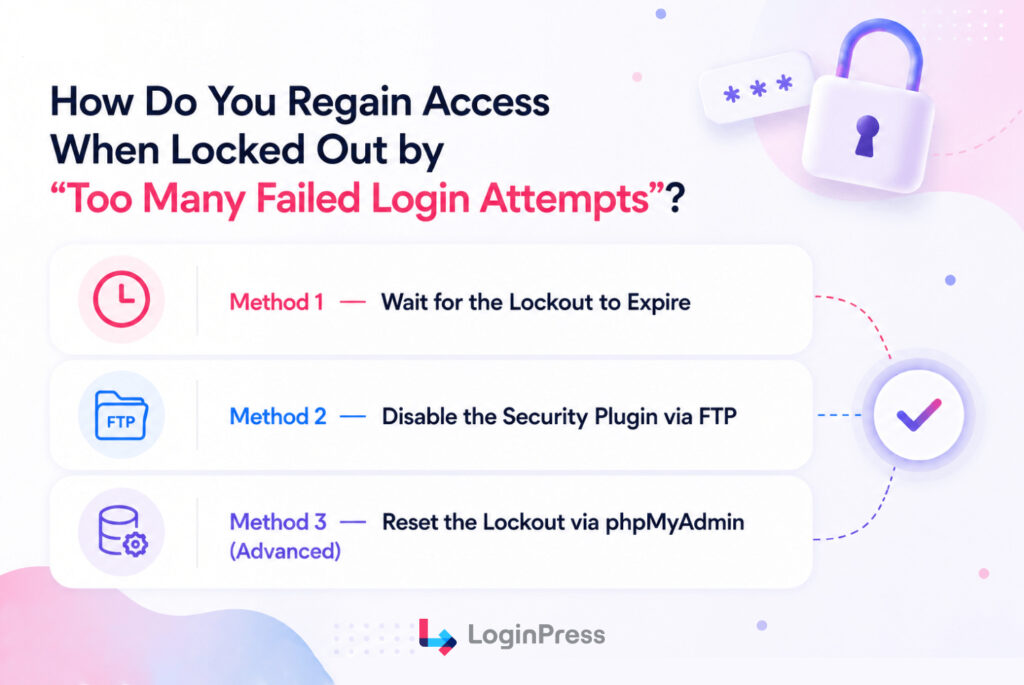
If you cannot wait, you must bypass the blocking mechanism through your server files or database. You can resolve this issue in under five minutes.
Are you completely locked out of WordPress due to login attempts? Use the table below to pick your recovery path after too many failed login attempts in WordPress.
| Recovery Method | Technical Skill Level | Time Required | Risk of Data Loss |
| Temporary Waiting | None | 20 Minutes | Zero Risk |
| FTP Directory Edit | Intermediate | 3 Minutes | Very Low |
| Database SQL Query | Advanced | 5 Minutes | Medium |
Method 1: Wait for the Lockout to Expire
Most security tools apply temporary blocks. If you triggered WordPress failed login attempts by accident, patience is the easiest fix.
Follow these checklist items before trying again after too many failed login attempts in WordPress:
- Note your exact lockout timestamp.
- Leave the login window open.
- Verify your actual password in your password manager.
- Check your administrative email for a manual unlock link.
Method 2: Disable the Security Plugin via FTP
You can bypass aggressive blocks by renaming your security plugin folder. This process requires an FTP client, such as FileZilla or your hosting cPanel File Manager.
Follow these technical steps to clear the too many failed login attempts option:
- Log in to your hosting control panel or open your FTP client.
- Navigate directly to your root directory and open /wp-content/plugins/.
- Locate the specific folder of your active security plugin.
- Rename that folder by appending _disabled to its name.
- Reload your WordPress login page and log in normally.
- Return to your File Manager and restore the original folder name.
- Adjust your plugin configuration limits immediately inside your dashboard.
Altering the folder name disables the restriction without changing your settings. Do not delete the folder entirely, or you will lose your configuration records.
Method 3: Reset the Lockout via phpMyAdmin
Advanced users can clear database restrictions directly. This approach removes specific IP address lockouts from your site database options without disabling your firewall plugin.
Follow these sequential database steps for too many failed login attempts in WordPress:
- Log in to your cPanel or Plesk hosting control panel.
- Open the phpMyAdmin database management application.
- Select your active WordPress database from the sidebar interface.
- Click the top tab labeled SQL to open your query input.
- Construct a standard SQL update query targeting your wp_options table.
- Verify your custom database table prefix matches if you do not use wp_.
- Clear the limit_login_lockouts option value to drop active restrictions instantly.
Safely executing this administrative database update restores your login access. Now you need to discover what triggered the system restriction in the first place.
What Causes the ‘Too Many Failed Login Attempts’ Error in WordPress?
The error in WordPress occurs when a security plugin or custom code enforces a login-attempt limit, and the threshold is reached.
Identifying the exact trigger allows you to choose the best protective response for too many failed login attempts in WordPress.
WordPress core does not include this protection by default. The error is intentional: it prevents automated scripts from rapidly cycling through password combinations.
However, it also activates for legitimate users who have too many failed login attempts in WordPress. Distinguishing between these two causes determines the correct fix.
Many administrators struggle to handle multiple failed login attempts in WordPress. Security policies must follow strict infrastructure standards. The NIST Digital Identity Guidelines recommend rate limiting to stop automated entry.
| Cause | Signal | Right Response |
| Brute Force Bot Attack | Hundreds of entries in minutes. Unfamiliar IPs used. Common usernames targeted. | The restriction works properly. Tighten firewall settings. Integrate a CAPTCHA layer. |
| Legitimate User Locked Out | Trusted user mistypes a password. Low total entry count. Single IP address. | Clear the block manually. Whitelist the user IP. Raise local entry limits. |
| Aggressive Plugin Defaults | Multiple real users are blocked simultaneously. No spike in unknown IPs. | Increase allowed entries. Reduce active blocking duration. Whitelist core team IPs. |
Common triggers for failed login attempts in WordPress include three primary system vectors:
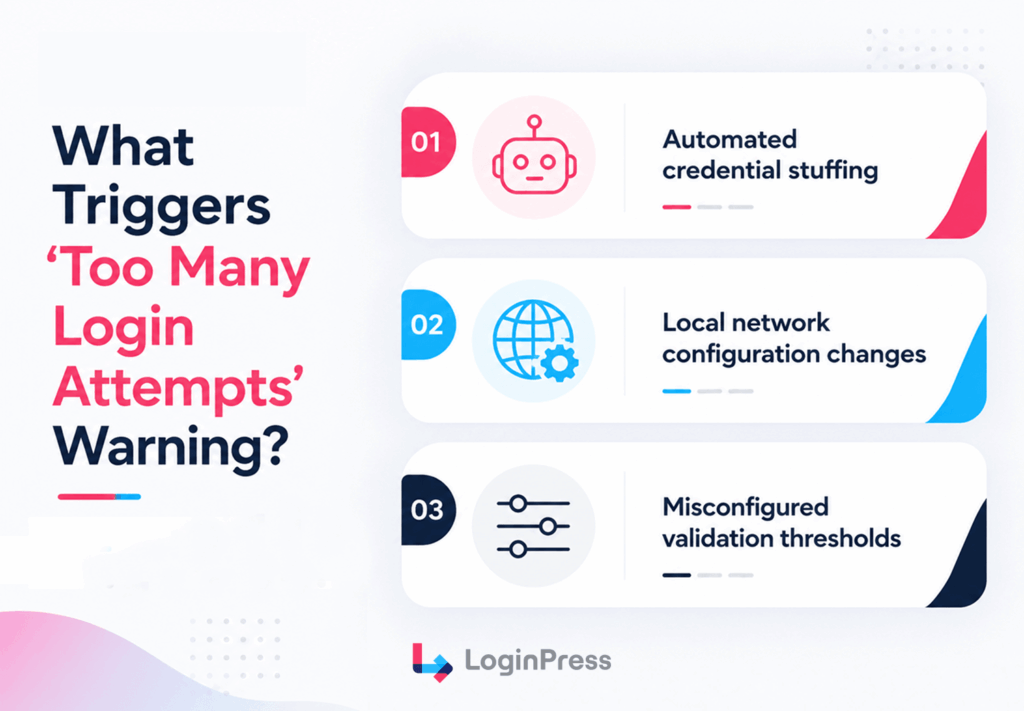
- Automated credential stuffing scripts targeting default files.
- Local network configuration changes are altering user IP signatures.
- Misconfigured validation thresholds inside active site defense suites.
Once you know the structural causes of these blockages, you can deploy a unified solution to handle them.
How Do You Manually Unlock a Specific User in WordPress?
To manually unlock a specific user or IP in WordPress, go to your security plugin’s settings or lockout log and use the Unlock or Whitelist option for that IP address.
This step helps when you can log in, but a team member remains locked out, or when an error about too many failed login attempts in WordPress appears.
LoginPress offers a direct way to solve this issue. The Limit Login Attempts Add-on handles this tracking inside your dashboard. Please note that this tracking feature requires the Pro plan.
Manual Unlock Requirements
What you need before starting:
- Administrator access to the WordPress dashboard.
- The specific username or IP address of the locked user.
- An active login security tool
Unlocking Users With LoginPress
- Log in to WordPress as an admin.
- Navigate to LoginPress >> Settings >> Limit Login Attempts.
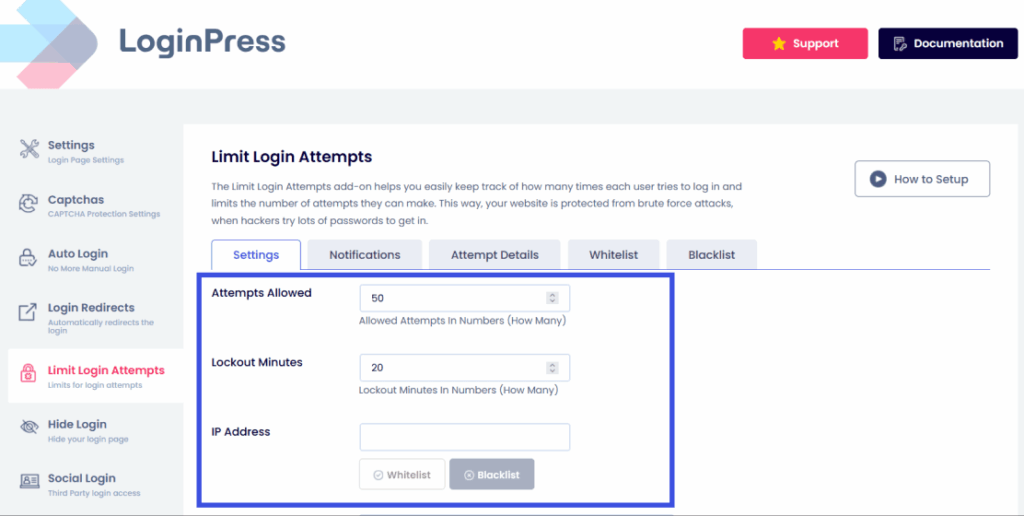
- Click the Attempt Details tab. Then find the user’s IP or username in the log.
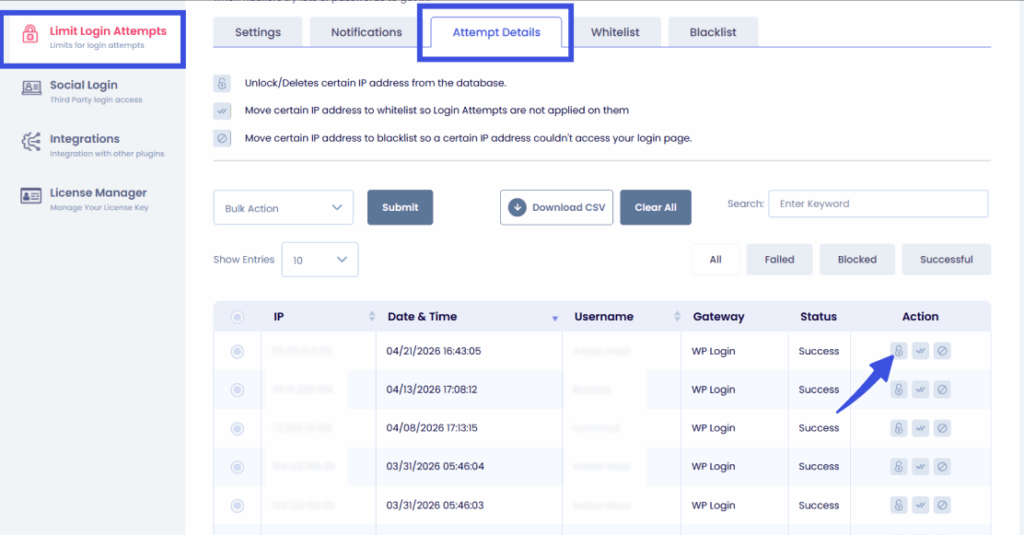
Finally, click Unlock to restore their access immediately due to failed login attempts in WordPress.
Unlocking Users Without LoginPress
- Go to the settings for your active security plugin.
- Find the Lockouts or Failed Attempts log.
- Locate the user’s IP address.
- Click Unlock or Remove from blocklist.
Proper authentication lockout policies protect your site from continuous brute-force attacks. We will now look at automating these security rules.
What Are Safe Lockout Settings That Protect Against Bots Without Locking Out Real Users?
Safe WordPress lockout settings allow 3 to 5 failed attempts before a 20- to 30-minute lockout. That is enough to stop a bot, but unlikely to inconvenience a user who mistyped once.
Choosing static protection levels across different site architectures balances security with user experience.
Finding a permanent WordPress login attempt limit fix means matching security thresholds to your operational model.
You can effectively prevent failed login attempts in WordPress by deploying specialized rules based on traffic intent.
| Site Type | Attempts Allowed | Lockout Duration | Notes |
| Personal Blog | 3 to 5 attempts | 20 to 30 minutes | Whitelist your own IP. Low risk of locking out others. |
| Small Business | 4 to 5 attempts | 20 to 30 minutes | Whitelist office IP ranges. Enable email alerts. |
| WooCommerce Store | 5 attempts | 15 to 20 minutes | High limit prevents customer friction. Short blocks reduce abandoned sessions. |
| High Security Site | 3 attempts | 60 minutes or more | Strict structural limits. Always combine with two-factor validation layers. |
How to Configure Sane Limits with LoginPress
LoginPress Pro provides a complete dashboard configuration panel through its Limit Login Attempts Add-on.
This premium tool helps you deploy safe lockout settings for WordPress login screens within seconds.
Follow these configuration steps:
- Navigate to LoginPress >> Settings >> Limit Login Attempts.
- Enter 4 or 5 in the Attempts Allowed field.
- Input 20 in the Minutes Lockout field.
- Toggle the Email Notification option to active.
- Paste your IP address into the Whitelist tab.
- Check the XML-RPC Protection box to block secondary API paths.
- Click the Save Settings button.
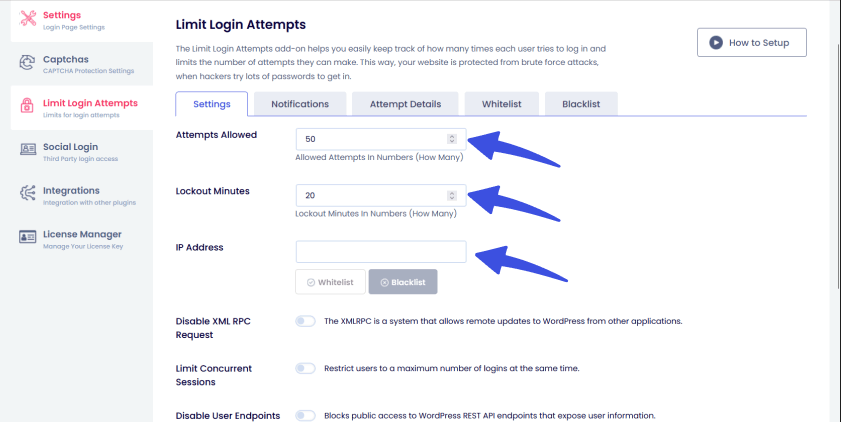
LoginPress Pro includes the Limit Login Attempts Add-on and starts from a single annual plan. See LoginPress Plans.
How to Customize the Lockout Error Message with LoginPress
Standard WordPress error alerts do not show time remaining. They provide zero guidance for real users. The LoginPress Customizer lets you rewrite these text strings directly from your live preview panel.
Follow these visual adjustment steps for failed login attempts in WordPress:
- Open LoginPress >> Customizer from your sidebar menu.
- Select the Error Messages settings group.
- Find the designated lockout message text field.
- Compose a helpful instruction for locked-out individuals.
- Click the Publish button to make the text live.
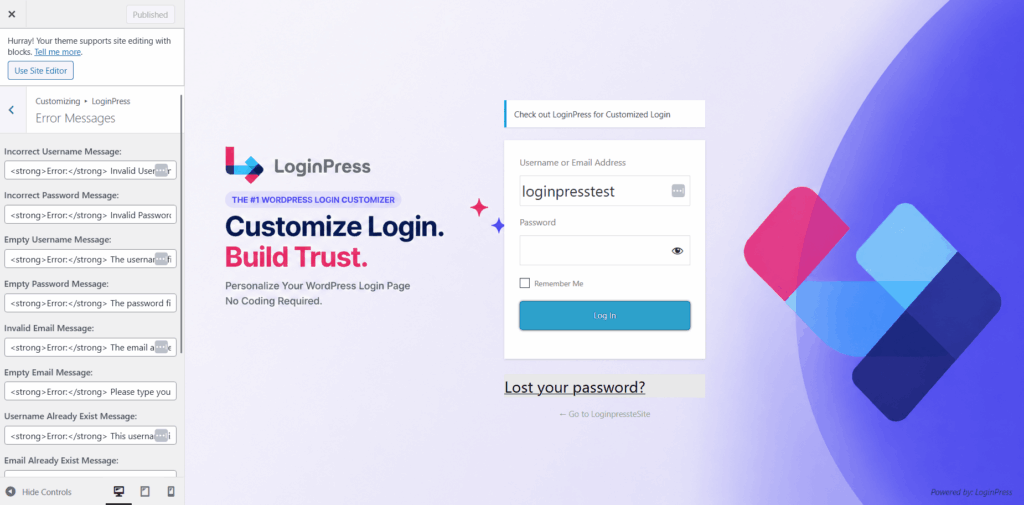
A friendly message turns a broken wall into a smooth user experience. Now you can review extra hardening tactics to stop malicious bot networks early and handle multiple failed login attempts for WordPress.
What else can you do to Prevent Brute Force Login Issues in WordPress?
You can add two-factor authentication and change the default login URL, which removes two of the most common attack vectors bots use before the attempt limit even matters.
LoginPress helps you implement these extra security layers cleanly to combat failed login attempts in WordPress.
- Change the WordPress login URL
WordPress exposes the login page at /wp-login.php by default. Every bot knows this address and targets it directly. LoginPress Pro includes a Hide Login add-on that changes the login URL to a custom path. Bots that cannot find the login page cannot attempt to crack it.
- Add CAPTCHA to the login form
LoginPress supports CAPTCHA on the login page, which blocks automated scripts without requiring users to solve complex puzzles. A simple checkbox CAPTCHA stops most bots before any attempt is even counted. Note that CAPTCHA is a LoginPress Pro feature.
- Enable two-factor authentication (2FA)
Even if a bot guesses the correct password, 2FA requires a second verification step, like a phone app or email code. This makes brute force attacks functionally useless. LoginPress is fully compatible with the WP 2FA plugin for this layer, though it does not build 2FA natively.
Frequently Asked Questions
How Do I Unlock a WordPress User Locked for Too Many Attempts?
To unlock a specific user who has been locked out, log in to WordPress as an admin and go to your security plugin’s lockout log. In LoginPress, go to LoginPress >> Settings >>Limit Login Attempts >> Attempt Details. Find the user’s IP address or username in the log and click Unlock. If you are using a different security plugin, look for a Lockouts, Logs, or Blocked IPs section in its settings. The user will be able to attempt to log in again immediately.
How Long Does the ‘Too Many Failed Login Attempts’ Lockout Last in WordPress?
The lockout duration depends entirely on the settings in your active security plugin. The most common default is 20 minutes. Some plugins use progressive lockouts: the first lockout is 20 minutes, the second is several hours, and a third may result in a permanent block. If you are the admin and know your credentials are correct, either wait for the default lockout to expire or use FTP to temporarily disable the plugin and adjust the settings.
How Do I Safely Limit Login Attempts Without Blocking Legitimate Users?
For most WordPress sites, 3 to 5 failed attempts before a 20- to 30-minute lockout is the right balance. This stops automated bots, which typically attempt hundreds of logins per minute, while allowing a real user to mistype their password once or twice without being blocked. Always whitelist your own IP address and any known team IP addresses before enabling the limit, so you are never accidentally locked out of your own site.
How Can LoginPress Help Prevent and Manage Failed Login Attempts?
LoginPress Pro with the Limit Login Attempts Add-on lets you set the number of allowed attempts, the lockout duration, and manage IP whitelists and blacklists from a single settings screen. The Attempt Details tab shows a real-time log of all lockouts, including IP address, username, and time. LoginPress also lets you customize the lockout error message shown to users, replacing the default vague message with a clear instruction that tells users how long to wait and who to contact.
Which Plugins Cause the ‘Too Many Login Attempts’ Error in WordPress?
Several WordPress security plugins enforce login attempt limits by default. Common ones include Limit Login Attempts Reloaded, Wordfence, iThemes Security, All In One WP Security, and LoginPress with its Limit Login Attempts Add-on. The wording of the error message varies by plugin. WordPress core does not include this restriction: a plugin or custom code must be active for the error to appear. If you are locked out, check which security plugins are installed on your site to identify the source.
Final Thoughts
The “too many failed login attempts” error is a security feature working as intended, but only when the settings are configured correctly.
Over-aggressive defaults cause actual users to hit the lockout, while sane settings stop bots without creating support headaches.
Next Steps: Too Many Failed Login Attempts in WordPress
- If locked out right now, wait 20 minutes or use FTP to rename your security plugin folder.
- If users experience lockouts, check your security log and manually unlock the affected IP address.
- Install LoginPress Pro with the Limit Login Attempts Add-on to manage login limits from a single screen.
Ready to set up Sane login security without too many failed login attempts in WordPress? See LoginPress Plans.
If you also want to see how visitors interact with your WordPress site after they log in, Analytify connects GA4 analytics directly to your WordPress dashboard.
That is all for this post. For more related posts, check:
- Limit Login Attempts in WordPress: Best Practices for Hardening Your Login Security
- 2 Easy Ways to Unblock Limit Login Attempts in WordPress
- How to Restrict User Login Time in WordPress
How do you balance user convenience with tight login security on your WordPress site? Let me know your setup in the comments below!