How to Restrict User Login Time in WordPress

You restrict user login time in WordPress with a session expiry that logs users out after a set number of minutes, or with a PHP snippet that blocks logins outside defined hours. WordPress has no built-in setting for either, and by default a login session can stay active for up to 14 days.
Think of a freelancer you gave editor access two weeks ago and never set an expiry for: their session is still open at 2 AM on a Sunday. In this post, I will cover both methods, which one I’d use when, and what to check before you switch them on.
Table of Contents (TOC):
What Does It Mean to Restrict User Login Time in WordPress?
Restricting user login time in WordPress means limiting when users can access your site, either by capping how long their sessions remain active or by blocking logins outside defined hours.
These are two distinct controls, and confusing them leads to mistakes while trying to restrict login by time in WordPress:
- Session expiry ends an active session after a set number of minutes. The user who logged in at 9 AM is automatically logged out by 1 PM, regardless of the time on the clock.
- Time-window restriction works at the login gate. A user trying to log in at 11 PM on a Saturday gets blocked before they ever reach the dashboard; the credentials don’t matter as this is restrict login by time WordPress.
WordPress handles neither natively. There’s no setting in the core admin to cap session duration or restrict logins by hour.
Both controls require either a plugin or custom code, which is exactly what this guide covers.
Who Needs to Restrict User Login Time?
Any WordPress site with multiple users benefits from login time restrictions: agencies, schools, internal portals, WooCommerce stores, and membership sites all carry risk when access has no defined boundaries.
The common thread across all these use cases is that access that isn’t time-bounded isn’t fully controlled and needs to be limited to certain hours.
A contractor who can log into a client site at midnight, a student who can access an LMS outside school hours, a staff account left active between shifts; each one is an operational gap waiting to become a problem.
| Site Type | Why Restrict Login Time | Recommended Approach |
| Agencies / Freelancers | Restrict contractor access to business hours. | Session expiry + time-window snippet |
| Schools / LMS | Limit student access to school days and hours. | Time-window scheduling |
| Internal Portals | Align logins with work shifts; expire idle sessions. | Session expiry (short) + Role-based limits |
| WooCommerce | Prevent unauthorized after-hours order changes. | Time-window scheduling |
| Membership Sites | Prevent account sharing via session limits. | Concurrent login limits + Session expiry |
The recommended approach maps directly to the two methods this guide covers.
If your use case appears in the table, the implementation is already decided; you just need to configure restricted user login time in WordPress.
Session Expiry vs Time Based Login Restriction (Quick Comparison)
Choosing the right method depends on whether you want to control how long a user stays or when they are allowed to enter.
| Feature | Session Expiry (LoginPress) | Time-Based Restriction (PHP) |
| Primary Goal | Limits the duration of an active session. | Limits access to specific hours/days. |
| Best For | Preventing idle sessions on public computers. | Enforce office hours for staff or contractors. |
| User Impact | Logs users out after $X$ minutes of activity. | Prevents the initial login outside of a window. |
| Setup Effort | Low: Toggle in LoginPress (Free). | Medium: Requires adding a PHP snippet. |
| Admin Control | Global setting for all users. | Can be role-specific (e.g., exempt Admins). |
Quick Recommendation: For the best security coverage, use Session Expiry to handle daily inactivity and a Time-Based Restriction to prevent anyone from entering the site during the weekend or overnight. You can also configure force logins for exclusive access.
Method 1: Set Session Expiry to Auto-Logout Users After a Fixed Duration
LoginPress’s Session Expire feature automatically logs users out after a defined number of minutes, making it the fastest way to limit the duration of a WordPress login session.
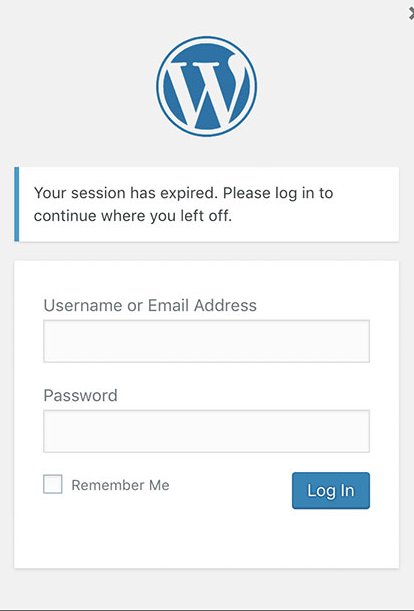
This method controls how long a user remains logged in after gaining access; it does not restrict the specific time of day at which they can log in.
For example, if you set a 4-hour session expiry, a contractor logging in at 9:00 AM will be forced out at 1:00 PM, regardless of their progress.
By default, WordPress is permissive with session lengths. It typically keeps a user logged in for 48 hours, or up to 14 days if they check the “Remember Me” box.
But there is no built-in setting in the WordPress dashboard to change this globally or limit login to certain hours. To modify these durations without writing custom PHP filters, you need a reliable way to override the core behavior.
LoginPress includes a Session Expire feature specifically for this purpose. Unlike many advanced administrative tools, this functionality is available in the plugin’s free version.
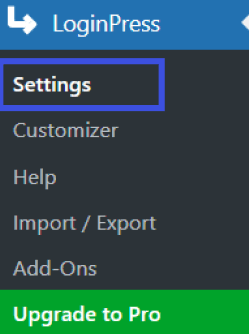
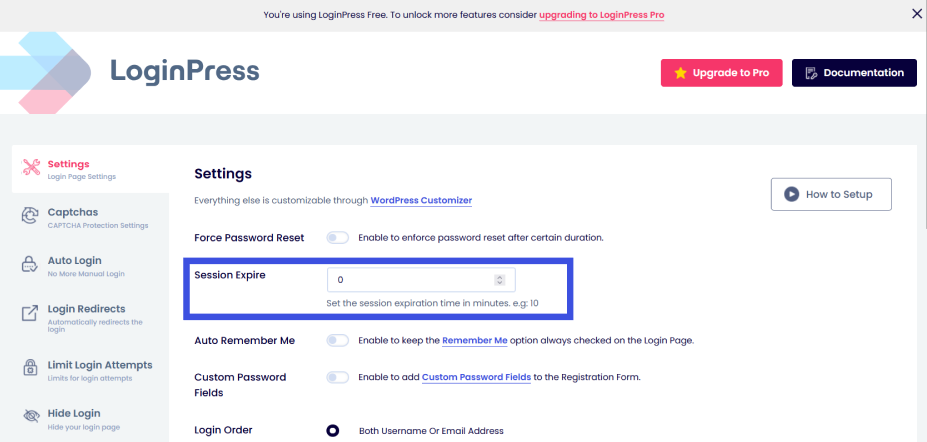
Navigate to LoginPress >> Settings >> Session Expire option to access the session expiry settings.
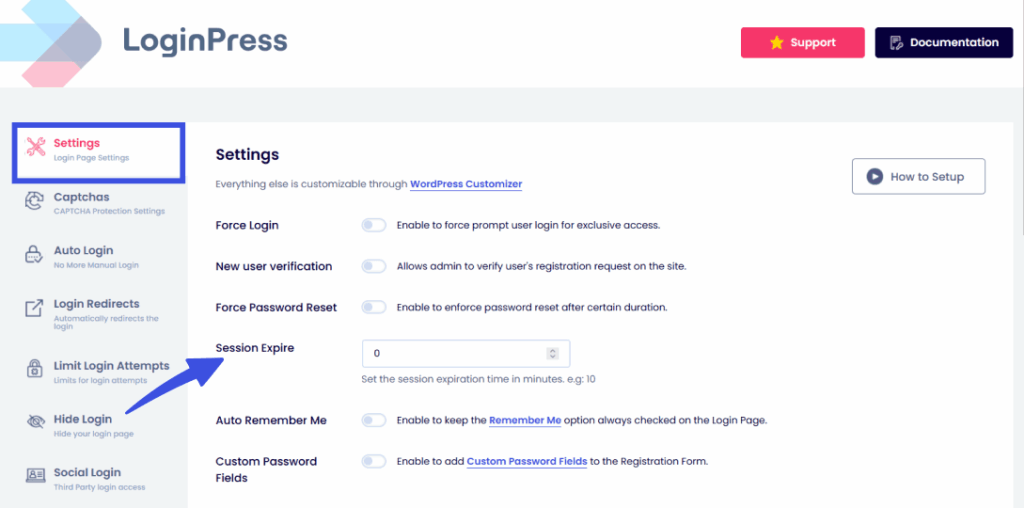
It allows site owners to define a universal expiration limit in minutes. Once that limit is reached, the WordPress authentication cookie expires, and the user must re-authenticate to continue.
When setting a limit, consider the security risks associated with the user roles on your site. While LoginPress applies the settings globally across all users, you should set your expiration time based on your most sensitive active role.
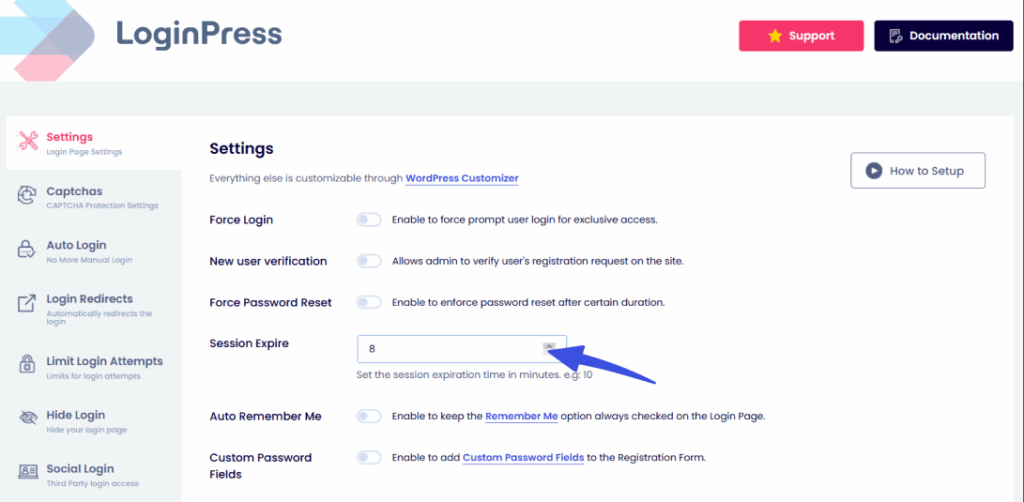
If you are managing an agency site or a student portal, a shorter window prevents “forgotten” tabs from remaining logged in indefinitely on public or unsecured hardware.
Method 2: Restrict Logins Using Code (For Developers)
Blocking logins outside specific hours, no access before 9 AM, none after 6 PM, requires a PHP snippet added to your site’s functions.php file or a site-specific plugin.
This is different from session expiry. Rather than ending an active session, it acts as a gatekeeper at the login form itself, rejecting credentials outside your defined time window entirely.
This method is the right choice when you need hard cutoffs: a contractor who must never reach the dashboard on weekends, or a staff account that should be locked between shifts.
Because this approach requires working directly with server-side code, it is often recommended for advanced developers or those comfortable working with PHP.
If session expiry alone covers your use case, auto-logging users out after a defined period, LoginPress handles that without touching a line of code.
Not sure which method fits your situation? Check this section to help you decide.
How to Customize the Time Window
When using a code-based approach, you control the “lock and key” of your site through specific variables.
These variables act as the parameters for your login gatekeeper. To make this work for your specific schedule, you simply need to adjust the numerical values that represent hours and days.
The logic uses a 24-hour clock and a numerical sequence for the days of the week. This allows for precise control of time‑based login restrictions without needing a complex interface.
Use the table below to understand which values you need to change to match your business hours to restrict user login time in WordPress:
| Variable | What It Controls | Example |
| $allowed_start | The hour when logins are first permitted (0–23). | 8 for 8 AM |
| $allowed_end | The hour when the login form is blocked for the day. | 17 for 5 PM |
| $allowed_days | The specific days of the week access is granted (1=Mon, 7=Sun). | [1,2,3,4,5] for weekdays only |
Beyond setting the schedule, you must consider emergency access while allowing to restrict user login time in WordPress. By including a specific condition in your code that checks for administrator privileges, you ensure that the time restrictions do not apply to you.
This exemption is vital; it allows you to log in at midnight to fix a critical error or update a plugin while your contributors and editors remain restricted until morning.
Deciding between a global session timer and a hard-coded time window depends on your technical comfort level and the specific needs of your project.
The LoginPress Session Expire feature can help you move beyond the default WordPress behavior without touching a single line of code.
While many advanced security features are often locked behind a paywall, LoginPress includes a built-in Session Expire feature that lets you define login duration without writing code.
How to Set Session Expiry with LoginPress (Step-by-Step)
Setting up LoginPress to restrict user login time in WordPress takes less than a minute within your existing LoginPress dashboard.
Step 1: Navigate to the LoginPress Settings
From your WordPress admin sidebar, go to LoginPress >> Settings.
Step 2: Locate the Session Expire Field
Scroll down until you see the Session Expire option. This field is available to all users right out of the box, allowing them to add a time‑based login restriction.
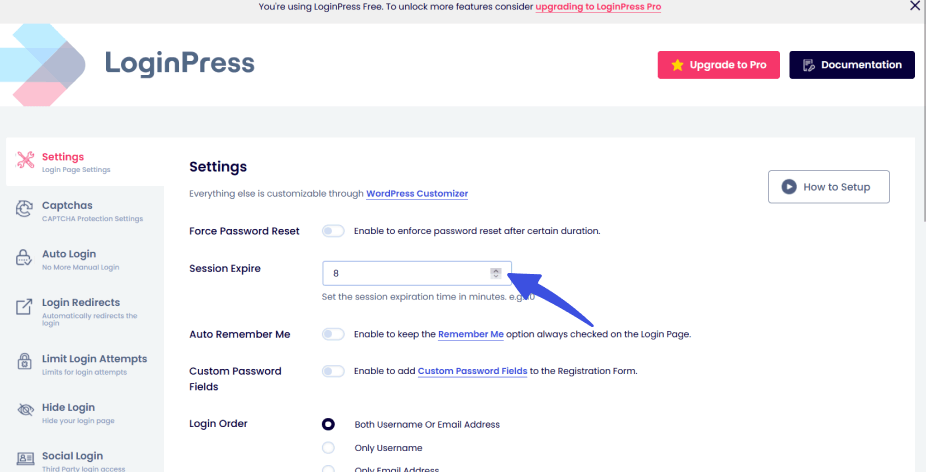
Step 3: Define Your Duration
Enter your desired expiration time in minutes. For a standard two-hour window, you would enter 120.
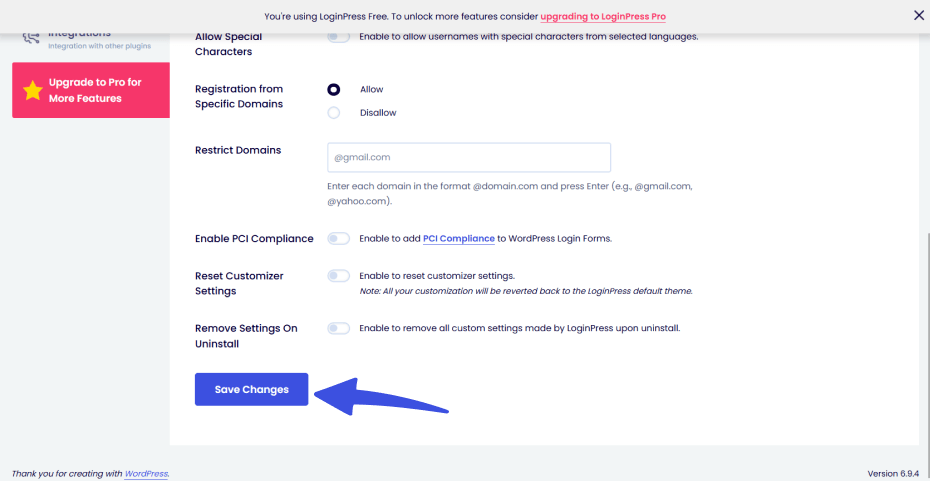
Step 4: Save Your Configuration
Click the Save Changes button at the bottom of the page to apply the limit globally.
Which Method Should You Use?
Use session expiry to auto-expire logins after a set duration; use the time-window snippet to block logins entirely outside defined hours.
The right choice depends on whether you want to prevent a session from holding idle or enforce a strict “closed for business” policy on your WordPress dashboard.
Refer to the table below to determine which approach fits your current project requirements to restrict user login time in WordPress:
| Use Case | Best For |
| Users should be auto-logged out after inactivity | Session Expire (LoginPress) |
| Logins must be blocked before/after business hours | PHP time-window snippet |
| You need both (idle logout + off-hours blocking) | Combine both methods |
| Admin / high-privilege users need lockout controls | Session Expire set to 60–120 min |
| Agency, school, or shift-based team | Time-window snippet + session expiry combined |
It is worth noting that these two methods are not mutually exclusive and actually work best when used together.
While the PHP snippet prevents anyone from logging in at 2:00 AM, the session expiry ensures that someone who logged in at 4:55 PM is still booted off the site shortly after the workday ends.
Combining them creates a complete security perimeter that covers both the point of entry and the duration of stay.
Before you flip the switch on either of these methods to restrict user login time in WordPress, verify a few technical details to avoid accidentally disrupting your site’s workflow.
What to Check Before Enabling Login Time Restrictions
Before you restrict login time in WordPress, confirm your server timezone matches your users’ timezone, mismatches can cause actual users to be blocked during actual work hours.
Failing to properly check these restrictions can result in locked-out team members and frustrated clients.
Follow this checklist to ensure your login time management is both secure and functional:
- Verify Server Timezone: Navigate to Timezone in your WordPress dashboard’s general settings. Since PHP snippets and plugins rely on this value, any discrepancy here will shift your entire restricted login window.
- Test with a Non-Admin Account: Before rolling out changes to the entire organization, test the restriction using a secondary “Subscriber” or “Editor” account to confirm the block triggers exactly when expected.
- Exempt Admin Accounts: If using a manual code method to restrict user login time in WordPress, ensure your logic explicitly excludes administrators. This allows you to resolve emergency site issues regardless of the hour.
- Notify Affected Users: Send a brief internal email before enabling restrictions. Users need to know their new login hours to avoid confusion or unnecessary support tickets when they find the login form disabled after hours.
- Align Session Expiry with Workflow: Choose a duration that matches your site’s natural pace. For instance, do not set a 15-minute expiry on a busy WooCommerce backend where managers may be mid-way through processing complex orders.
Taking these steps ensures that your security measures remain a helpful barrier for unauthorized access rather than a hurdle for your internal team during implementation to restrict user login time in WordPress.
FAQs: Temporary Login Time Window
Can I restrict login time in WordPress without a plugin?
Yes, you can absolutely implement time-of-day restrictions manually by adding a custom PHP snippet to your theme’s functions.php file or a site-specific code snippets plugin. This script hooks into the WordPress authentication process to check the current server time against your predefined allowed hours, automatically blocking access if a user tries to log in outside that window. While this code-based approach works perfectly for restricting new login attempts without a dedicated plugin, utilizing a tool like LoginPress offers a much easier, no-code alternative that also handles global session expirations out of the box.
Does restricting login hours log out users who are already logged in?
No, a standard time-window PHP snippet only serves as a gatekeeper during the initial login process and will not automatically terminate active sessions for users already inside the dashboard. To force-logout users after they have been idle or logged in for a certain duration, you would need to use a session expiry feature like the one provided by LoginPress. If you specifically need to boot all active users off the site at a precise clock time, such as exactly at 6:00 PM, you must write a separate wp-cron scheduled task that actively destroys existing session tokens.
Can I set different login time restrictions for different user roles?
Yes, implementing role-based time restrictions is entirely possible, but it requires adding specific conditional logic to your custom PHP script. By integrating WordPress functions like current_user_can(), you can easily dictate that the time-lock applies only to roles like “Editor” or “Contributor” while leaving “Administrators” exempt. Keep in mind that if you are using LoginPress for its session expiry capabilities, that specific feature applies globally across the entire site, meaning per-role session durations are not natively supported.
What does a user see when they try to log in during restricted hours?
When a user attempts to log in during a restricted period, the standard WordPress login interface remains completely visible, but the submission will fail and display a custom error message. This message is entirely customizable within your PHP snippet, allowing you to show a clear notice such as, “Login is only available Monday to Friday, 9 AM to 6 PM.” Because this is a temporary time-gate rather than an account suspension, no permanent lockout occurs, and the user will easily be able to log back in as soon as the allowed time window reopens.
How do I restrict login time only for WooCommerce staff in WordPress?
To restrict access solely for your WooCommerce staff, you must tailor your PHP snippet using capabilities unique to e-commerce roles, such as checking for current_user_can('manage_woocommerce'). This ensures the time restriction targets Shop Managers and staff members without accidentally locking out your customers who need to access their accounts to make purchases. For a comprehensive shift-management system, pairing this targeted snippet with a session expiry tool ensures staff are auto-logged out when their shifts end while customer shopping experiences remain entirely uninterrupted.
Conclusion: Restrict User Login Time in WordPress
Restricting user login time in WordPress is a two-part control, session expiry limits how long a login stays active, while a PHP snippet blocks access outside your defined hours.
By combining these methods, you create a security layer that ensures your dashboard is only accessible when and for as long as necessary.
To secure your site today and restrict user login time in WordPress, follow these three steps:
- Go to LoginPress >> Settings and set a session expiry time; start with 240 minutes and adjust based on your users’ needs.
- Add the PHP snippet from Method 2 to a staging site and test it with a non-admin account before enabling it site-wide.
- Verify your WordPress timezone in Settings >> General to confirm the restrictions align with your team’s actual location.
Install LoginPress Pro Now!
If you want to track how users engage with your site after logging in, Analytify brings your GA4 analytics data directly into the WordPress dashboard, no separate tab required.
That is all for this post. For more related posts, check: