How to Set Up Multi-Factor Authentication for WordPress

To set up multi-factor authentication (MFA) in WordPress, install an MFA plugin, run its setup wizard, then link an authenticator app such as Google Authenticator and verify the code. After that, every login needs your password plus a one-time code.
MFA matters because a stolen or guessed password is no longer enough to get in. It adds a second check, so an attacker would also need your phone or another factor.
This guide explains what MFA is, the main types, and how to set it up step by step with the miniOrange Google Authenticator plugin.
Table of Contents
What is Multi Factor Authentication (MFA)?
Multi-factor authentication (MFA) is a login method that asks for two or more separate proofs of identity, such as a password plus a code from your phone. In WordPress, it protects the login process even when a password leaks.
Multi-factor authentication increases the security of your WordPress site by requiring the users to provide two or more different forms of identification to access an account.
By requiring multiple identification factors, Multi-factor authentication provides an additional layer of security beyond just a password, making it more difficult for hackers to gain unauthorized access to an account.
Why is Multi-Factor Authentication (MFA) important?
MFA significantly enhances the security of your WordPress site by making it much harder for unauthorized users to gain access. Even if a password is compromised, an attacker would still need a second form of authentication, which they don’t have.
With this in mind, here are several reasons to add Multi-Factor Authentication to the WordPress login page, including:
- Improved Security: Multi-factor authentication provides an additional layer of security to your WordPress site. This makes it more difficult for attackers to gain unauthorized access to your site.
- Protection Against Brute-Force Attacks: Brute-force attacks are common attacks where attackers try to guess passwords by repeatedly trying different combinations.
- Reduces the Risk of Unauthorized Access: Even if a hacker manages to steal or guess a password, they still need the second factor (usually a physical device) to gain access. This significantly reduces the chances of unauthorized access.
- User-Friendly: Many Multi-Factor Authentication methods are easy to use and do not require users to remember complex passwords. For example, some methods use a mobile app that generates a one-time code the user enters in addition to their password.
- Peace of Mind: Knowing that an additional layer of security protects your WordPress site can give you peace of mind and reduce the risk of a security breach.
- Secures Remote Access: With the rise of remote work, securing access to company systems from various locations and devices has become crucial. MFA adds an extra layer of protection, especially for employees logging in from unfamiliar or public networks.
What are the Types of Multi-Factor Authentication
The main types of multi-factor authentication are something you know, something you have, something you are and something you do:
- Something You Know: This is typically a password, passphrase, or PIN code that only the user should know. It is the most common authentication method used in combination with other factors.
- Something You Have: This refers to a physical object only the user possesses, such as a smart card, security token, or mobile device. This factor ensures that only the user with the physical object can access the account.
- Something You Are: This refers to biometric authentication, such as fingerprint, voice, or facial recognition. This factor relies on unique physical characteristics that are specific to the user, making it difficult for an imposter to access the account.
- Somewhere You Are: This refers to location-based authentication, which uses geolocation technology to determine whether the user is in a specific geographic location. It can be used in combination with other factors for added security.
- Something You Do: This refers to behavioral authentication, which analyzes user behavior to determine whether the user is legitimate. This factor uses machine learning algorithms to analyze keystroke dynamics, mouse movements, and other user behavior patterns.
These different factors can be combined to provide a higher level of security than using only one factor alone. For example, a common approach is to combine something you know (a password) and something you have (a security token).
How to Set Up Multi-factor Authentication for WordPress
You set up multi-factor authentication for WordPress with a plugin from the WordPress plugin repository. Several are available, and here I use miniOrange’s Google Authenticator as the example.
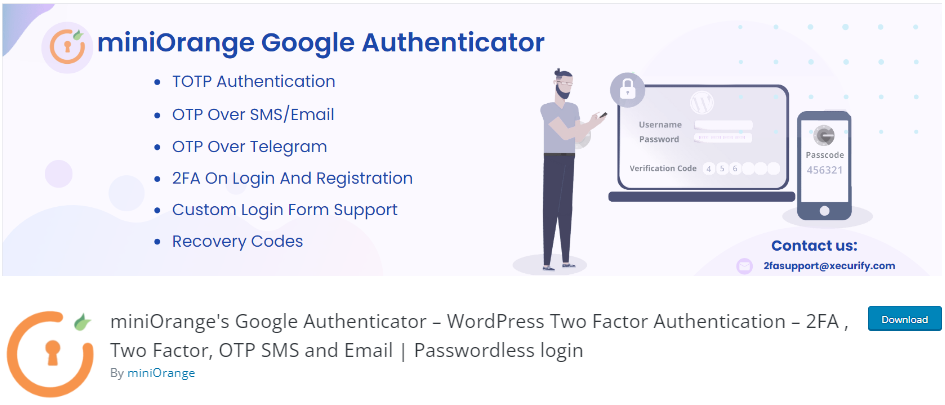
miniOrange’s Google Authenticator is there to help you implement 2FA on your WordPress site. There are 15+ 2FA methods, including Google Authenticator, OTP over multiple methods, and Security Questions. These all can help you protect your site against cyber attacks.
The plugin offers 2FA for custom login pages for WooCommerce, Elementor Pro, BuddyPress, and more.
You can enable OTP for the registration forms. Plus, it offers a recovery code feature that is really helpful when you are accidentally locked out for all Two-Factor Authentication.
To set up a multifactor for your WordPress site’s login page, follow these steps:
Step 1. Install and Activate miniOrange
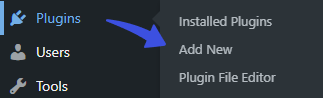
First off, go to the left sidebar of the admin dashboard, navigate to the Plugins, and click the Add New option.
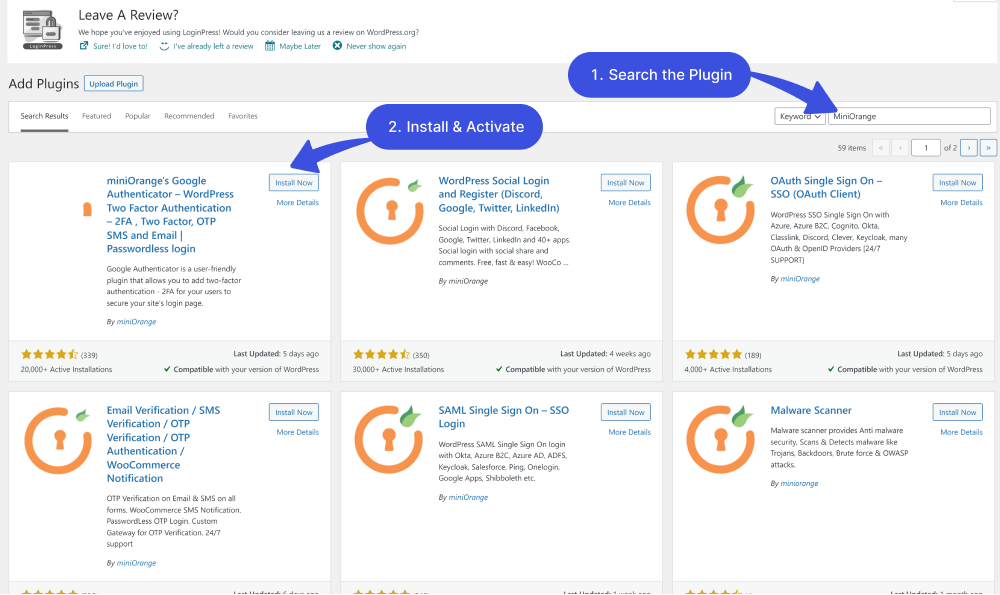
On the Add Plugins screen, search for the MiniOrange plugin in the search field. Next, click the Install Now and then Activate buttons.
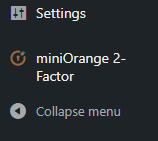
The plugin will be added to the left sidebar of the WordPress menu. Click on that menu item to enter the configuration section for the plugin.
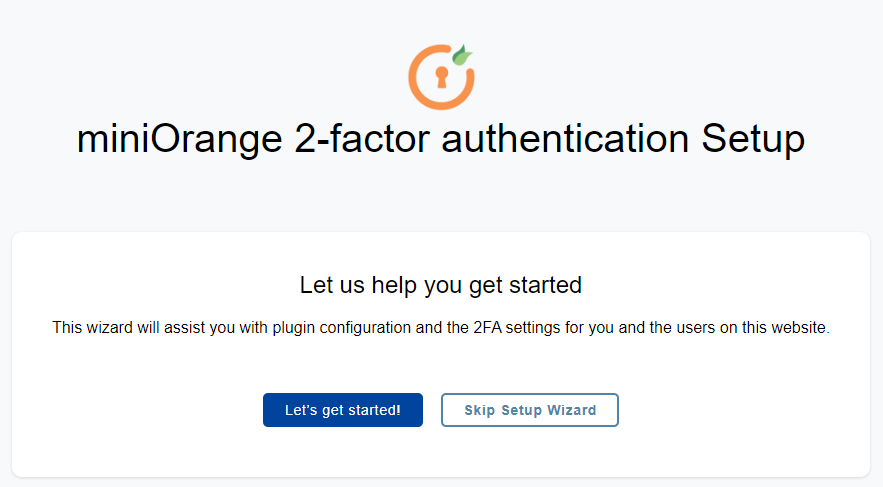
Step 2. Complete miniOrange Setup Wizard
Next, the setup wizard will open up.
Step 3. Setup Two Factor:
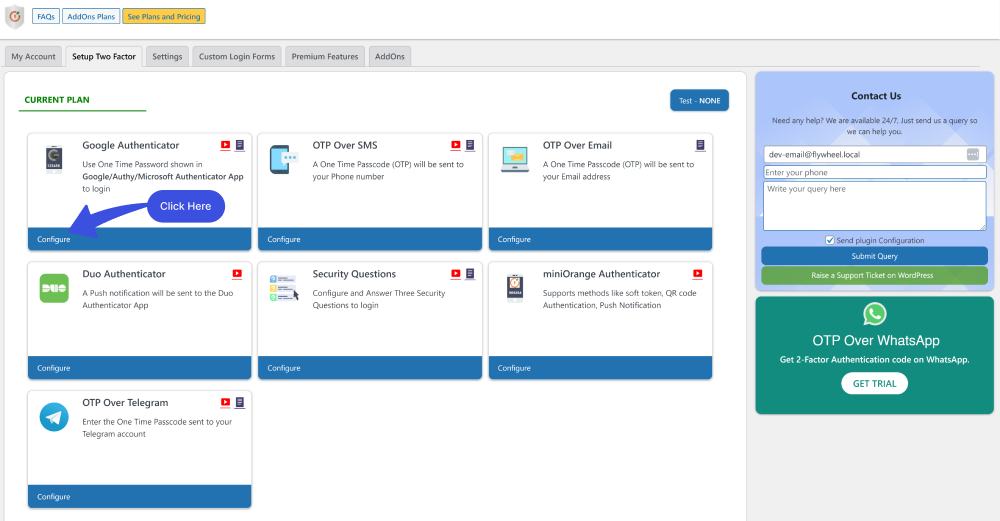
Once you’ve completed it, you’ll be on the Setup Two Factor screen. You can select any Two Factor available option.
Note: Here, we’ve selected Google Authenticator.
3.1. Google/Authy/Microsoft Authenticator
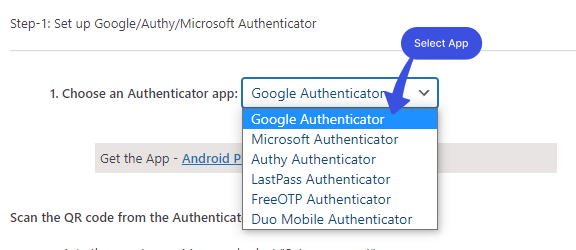
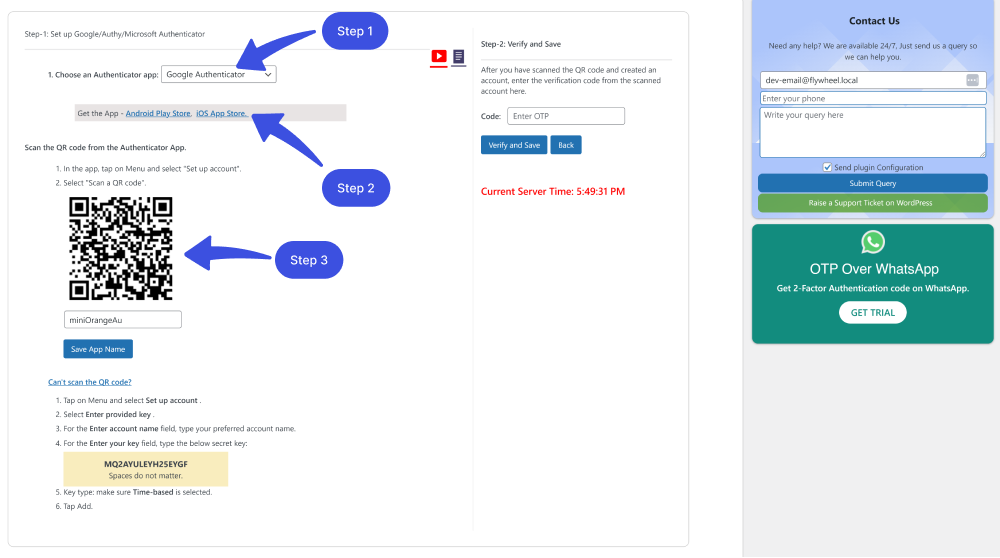
On the next screen, you’ll be required to select any Authenticator App from the drop-down menu.
Note: Here, we’ve selected Google Authenticator.
3.3. Install Google Authenticator on Your Smartphone
Next, add the Google Authenticator app on your smartphone from Google Play.
Once you’ve installed the app, you’ll see more options. Scan a QR code and Enter a setup key. Simply select Scan a QR code.
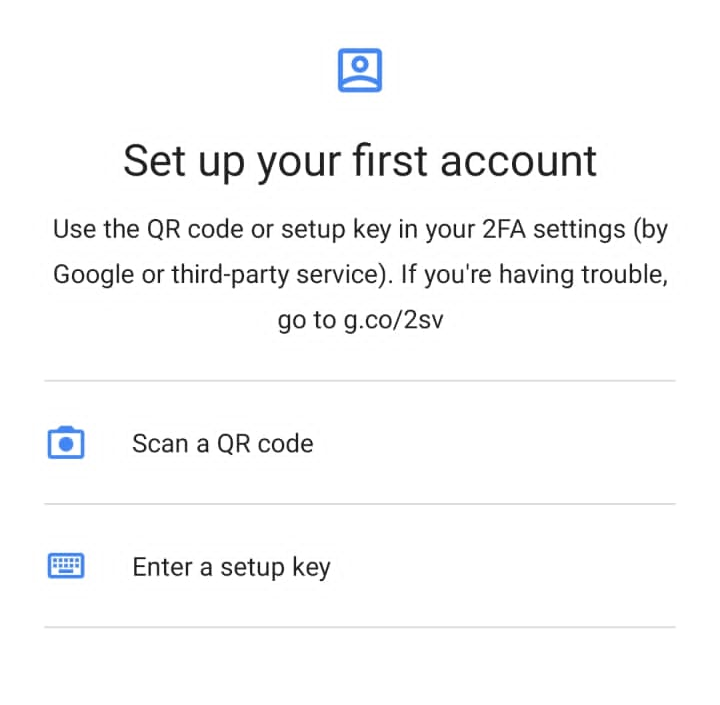
Google Authenticator QR code scanner will open up. Now, scan the QR code you see in the miniOrange WordPress interface.
3.4. Verify and Save.
You are almost done!
After you scan the QR code, you will see a 6-digit code in the Google Authenticator app that is valid for only 30 seconds.
Enter this 6-digit code into the Code field and click the Verify and Save button.
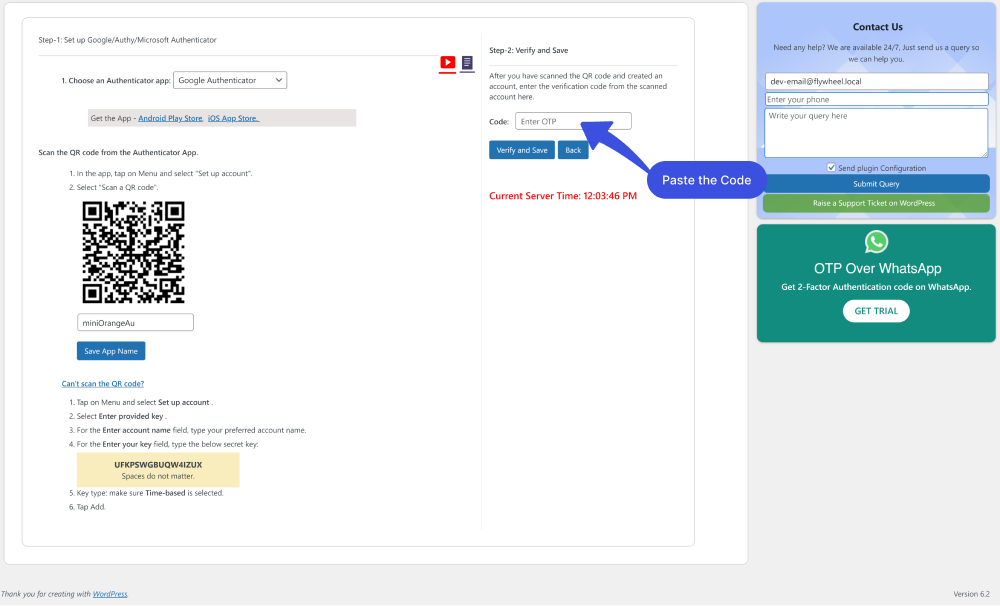
Multi-Factor Authentication has successfully integrated with your WordPress site.
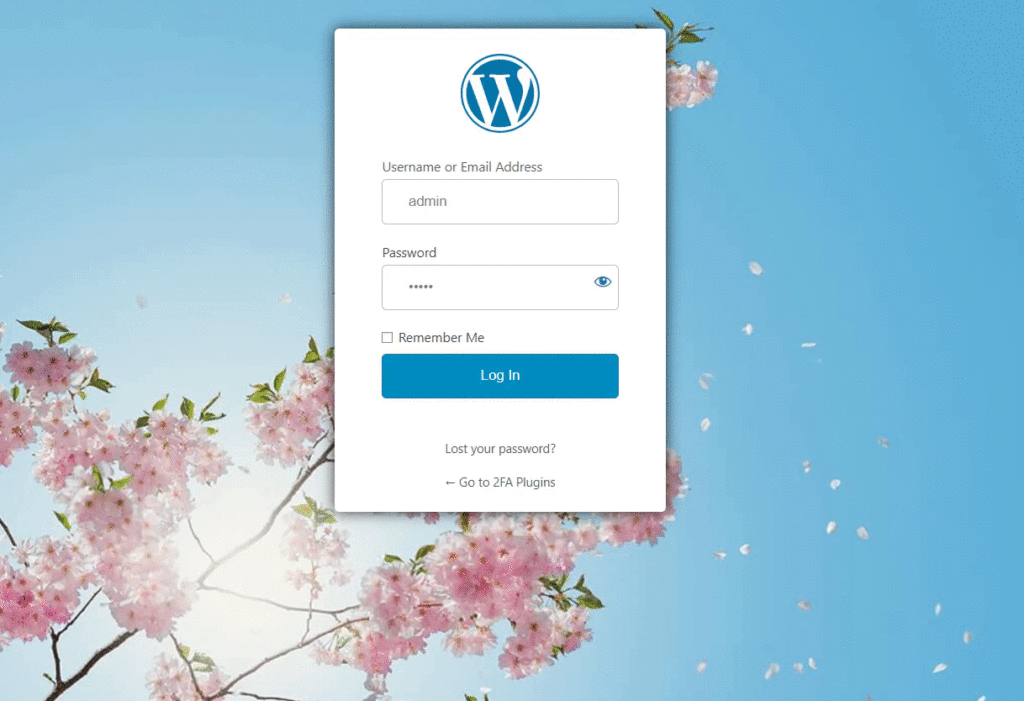
Note: You can upgrade to miniOrange Pro if you are looking for other authenticators for your WordPress site, i.e., OTP over Whatsapp, Authy Authenticator, Hardware Token, etc.
WordPress Multi-factor FAQs
Why is multi-factor authentication important for WordPress security?
Multi-factor authentication significantly reduces the risk of data breaches, identity theft, and other forms of cybercrime. Users must provide additional authentication factors beyond just a username and password.
Which multi-factor authentication plugins are recommended for WordPress?
Several multi-factor authentication plugins are available for WordPress, and the best one for your site will depend on your specific needs and preferences. Here are some popular options: miniOrange, Google Authenticator, and Two-Factor.
Can I use a mobile app as my second factor for authentication?
Yes, many multi-factor authentication plugins for WordPress support mobile apps as a second authentication factor.
Can I use a mobile app for Multi-factor Authentication with WordPress?
Yes, many WordPress multi-factor (MFA) plugins for support using a mobile app. After enabling the plugin, users can set up their preferred authentication app, like Google Authenticator or Auth, to generate codes.
Is Multi-factor Authentication a replacement for a strong password?
Yes, many WordPress multi-factor (MFA) plugins for support using a mobile app. After enabling the plugin, users can set up their preferred authentication app, like Google Authenticator or Auth, to generate codes.
Conclusion
In a nutshell, Multi-Factor Authentication (MFA) is a very important security measure that provides an additional layer of protection for accounts and systems, making it significantly more difficult for unauthorized users to gain access.
No doubt, setting up multi-factor authentication for your WordPress website is a good way to enhance your site’s protection against unauthorized access and hacking attempts.
Ultimately, by taking proactive steps to safeguard your WordPress site with multi-factor authentication, you can help ensure the safety and privacy of your users’ data and maintain the integrity of your online presence.
Here are the key takeaways:
- What is Multi-Factor Authentication (MFA)?
- Why is Multi-Factor Authentication (MFA) important?
- What are the Types of Multi-Factor Authentication
- How to Set Up Multi-factor Authentication for WordPress
Thank you for reading this article. You may also want to check out our guides on:
- How to Add WordPress Two Factor Authentication
- How to Add Custom Fields in WordPress User Registration Form
- 2 Easy Ways to Unblock Limit Login Attempts in WordPress.
How far have we helped you implement Multi-factor on your WordPress site?
Let us know by leaving a comment below!