WordPress Phishing Login Attacks: How to Spot and Block Them

You spot a fake WordPress login page by checking the URL, the page behavior and any unexpected prompts to log in, and you block phishing login attacks with layered defenses: a custom login URL, CAPTCHA, a password manager and two-factor authentication. A fake login page is a spoofed copy of your real login screen that steals your username and password.
This post shows you how to spot fake WordPress login pages, how to block phishing attacks before they compromise your site, and what to do if you have already entered your details.
WordPress Phishing Login (TOC):
What are Fake WordPress Login Pages?
A fake WordPress login page is a spoofed version of your site’s real login screen, built to harvest login credentials.
Attackers create a page that looks identical to yours. When you enter your details, the login button doesn’t log you in.
It sends your credentials to a private server under the attacker’s control.
Let’s understand how WordPress phishing login attacks spread:
- AI-Generated Phishing Emails: Emails that mimic official WordPress or hosting notifications with perfect grammar.
- Malicious Redirects: If a site has a minor vulnerability, a script might redirect users to a fake login page when they try to access /wp-admin.
- Lookalike Domains: Using typosquatting (e.g., yourwebslte.com instead of yourwebsite.com).
These attacks succeed because of user trust and predictable URLs. If your login page looks like everyone else’s, it’s easier to replicate.
Pro tip: Customize your login pages with LoginPress to match your brand tone and aesthetic, and embed security features, instead of reusing the default WP-Login form.
Signs Your WordPress Login Page May Be Targeted
How do you know if you have been phished or are under a WordPress phishing attack?
The truth is, phishing attacks are often silent. You won’t know you’ve been hit until your admin rights are revoked.
Here is how to detect fake WordPress login pages and spot potential targeting before it’s too late:
1. The Refresh Loop
This is the most common red flag. You enter your correct username and password, hit enter, and the page simply blinks and clears the fields.
- What’s happening: The fake page has just sent your data to a hacker’s script.
- The Giveaway: Instead of logging you in, the script redirects you back to the real login page. You think you just made a typo, but the damage is already done.
2. URL Typosquatting
Attackers use lookalike characters (Homograph attacks).
The address bar might say yourdonnain.com (with two ‘n’s instead of an ‘m’) or yourwebsite.co instead of .com.
Pro Tip: Always look for the wp-login.php?redirect_to= string. If that string points to an external, unfamiliar IP address or a different domain entirely, close the tab immediately.
3. Analyzing Your Logs
Your login logs are your early warning system. You should look for two specific patterns:
- The Username Harvest: A sudden spike in failed attempts using admin from a single IP. This means a bot is trying to determine whether your login page is vulnerable to brute-force injection.
- Geographic Anomalies: If your team is based in New York but your logs show 50 failed attempts from an IP address in a country where you have no employees, your login page is being tested as a potential phishing entry point.
4. SSL Certificate Mismatches
The SSL certificate may be valid, but it’s usually issued to a different domain or organization.
Click the padlock icon in your browser for WordPress phishing login.
If the certificate is issued to a weird name you don’t recognize, or if the browser warns you that the “connection is not private”, you are likely looking at a phishing login page.
How to Prevent Phishing Login Attacks on WordPress
You prevent phishing login attacks on WordPress with a defense-in-depth strategy, not just by being careful.
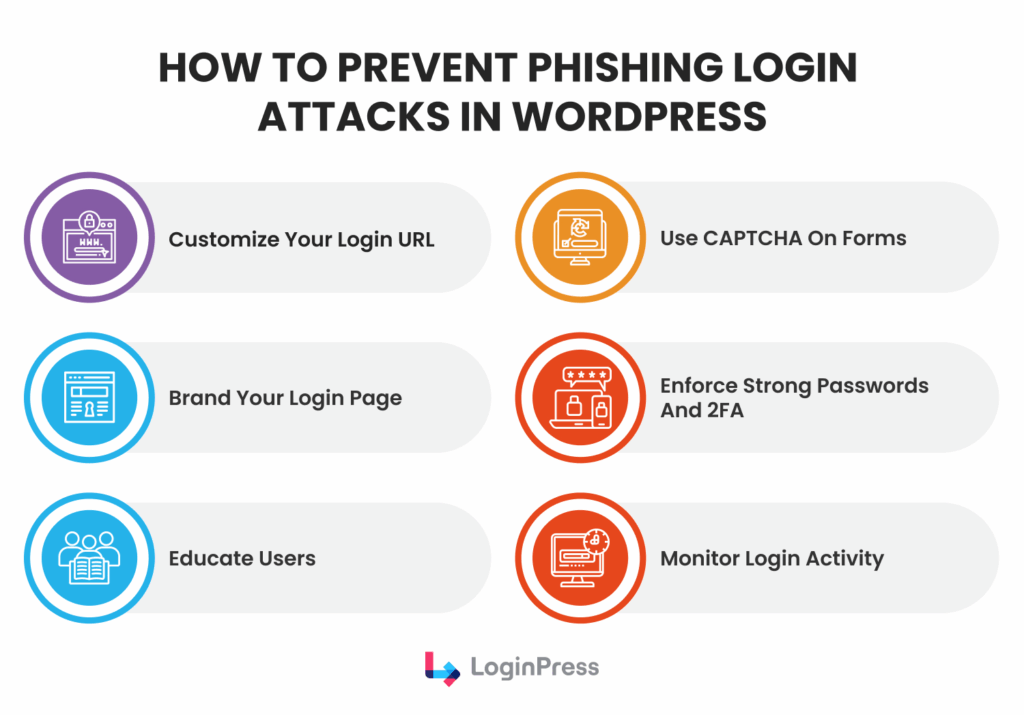
This is the step-by-step blueprint:
1. Hide the Predictable Login URL
Unlike generic security plugins, LoginPress focuses specifically on the login layer, where phishing attacks on WordPress actually happen.
Using the LoginPress Hide Login feature effectively moves your front door to a secret location.
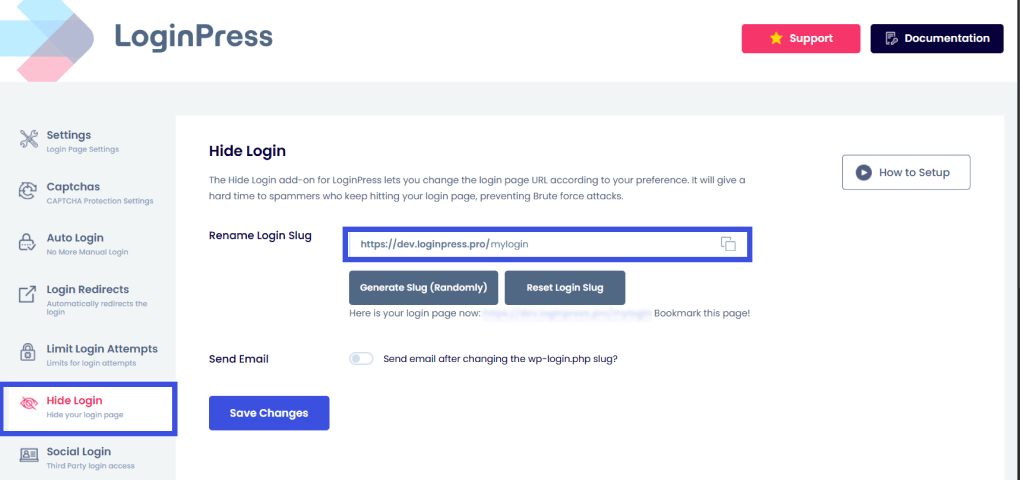
- Why it works: If a hacker sends a victim to a spoofed version of your login page, but the URL doesn’t match your secret slug (e.g., /my-secure-entry), the victim is much more likely to notice something is wrong.
- The Result: You stop 99% of automated bot-driven phishing kits instantly.
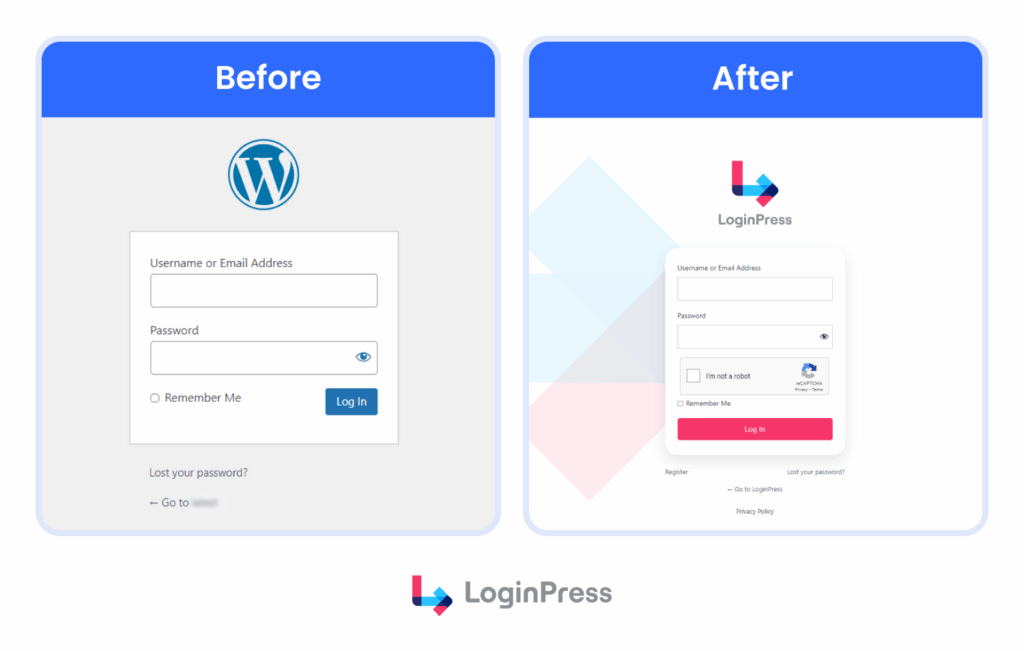
2. Implement Branding
Standard WordPress login pages are easy to spoof because they all look the same.
Use LoginPress to create unique visuals for your site that align with your brand palette.
LoginPress provides complete custom login page branding tools needed for:
- Custom Logo: Replace the WordPress logo with your high-resolution brand logo.
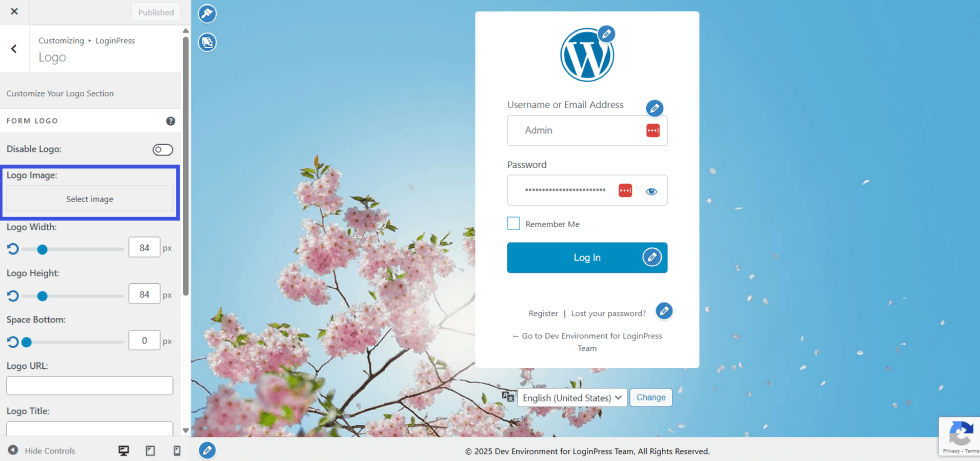
- Custom Backgrounds: Use a specific brand image or texture that your users recognize.

- Custom Error Messages: Replace the generic “invalid password” message with a message specific to your team.
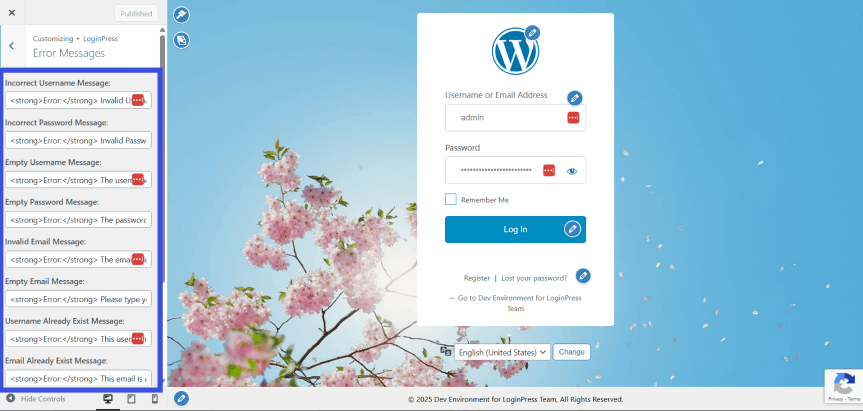
The Logic: If your team is used to seeing a branded, professional login page, and they suddenly land on a generic WordPress screen, the mental alarm goes off immediately.
3. Add a Mandatory CAPTCHA Layer
Phishing isn’t always about stealing your password; sometimes it’s about using bots to verify if a stolen password works.
Adding Google reCAPTCHA or Turnstile via LoginPress creates a barrier that most phishing scripts can’t bypass.
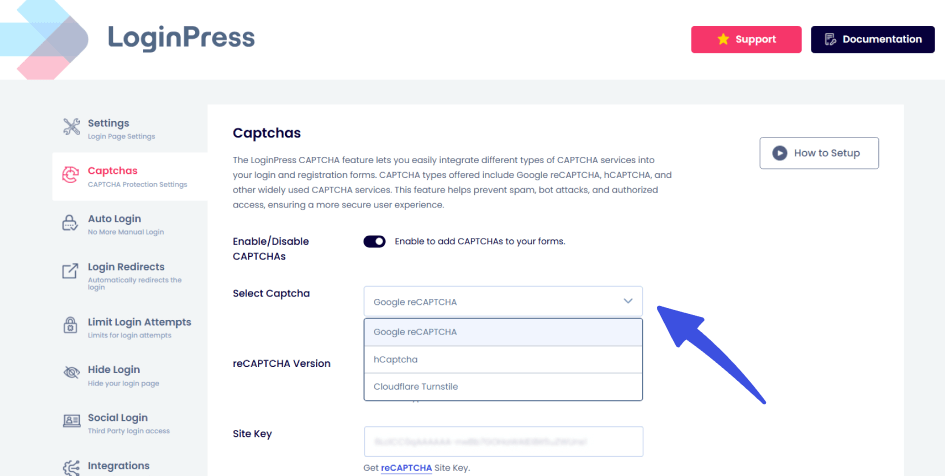
Even if a hacker gets your password, their automated scripts will get stuck at the CAPTCHA, preventing them from accessing your dashboard.
4. Force Session Control and 2FA
Passwords alone are a liability in the era of AI-powered web.
More and more users are switching to passwordless authentication methods for a smoother login experience.
- Two-Factor Authentication (2FA): One of the most effective phishing defenses. Even if a user enters their credentials into a fake page, the hacker still doesn’t have the physical device needed to generate the 2FA code.
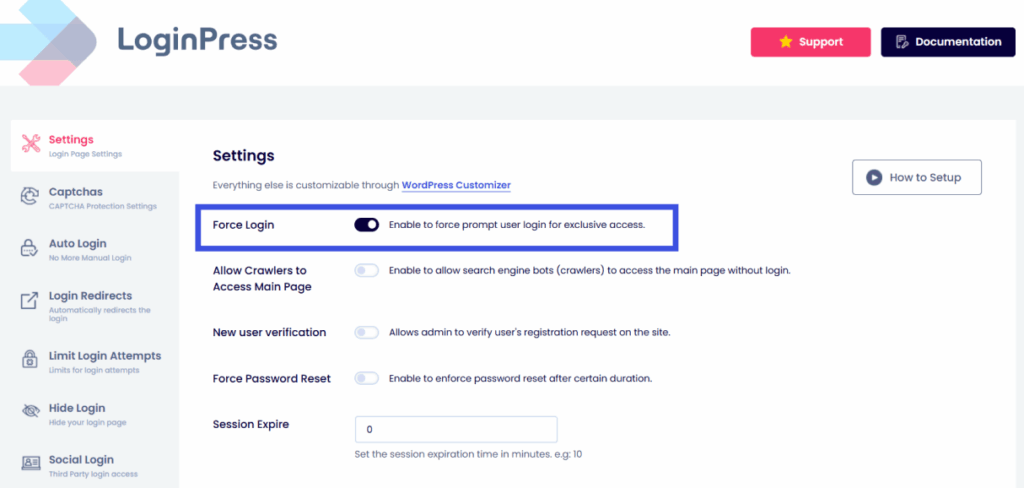
- Force Login: Use LoginPress settings to force session expiration and require users to reauthenticate to access content. This ensures that even if a session cookie is hijacked, it has a very short shelf life.
5. Limit Login Attempts Policy
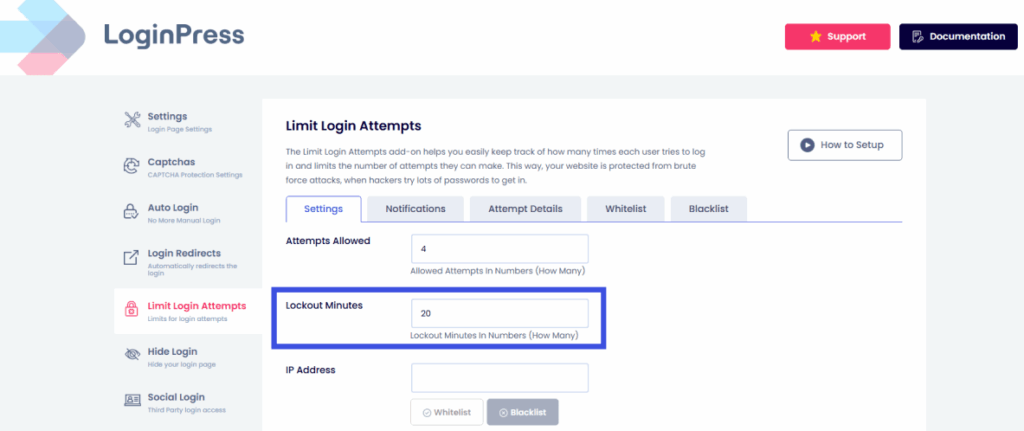
Limit the number of login attempts. With LoginPress, you can limit login attempts per user to help keep your account secure from constant brute-force attacks.
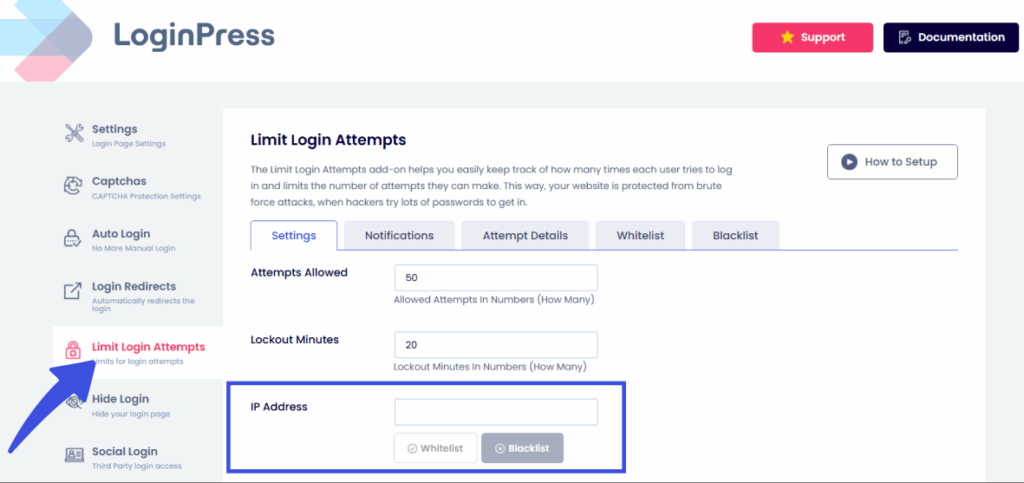
Many WordPress phishing login attacks use credential stuffing (testing lists of stolen emails).
Lockdown features prevent these attackers from systematically testing your site’s defenses.
6. User Education
No tool can replace a smart user. Train your team on the Hover and Verify rule:
- Hover over any link in an email.
- Look at the bottom left of your browser to see the actual destination.
- Verify that it matches your custom LoginPress URL.
How to Respond to a Phishing Incident
You respond to a phishing incident by acting fast, because once an attacker has your credentials they can take over a site in minutes.
If you suspect you entered your details into a fake page, follow this emergency checklist:
1. Reset Your Password Immediately
The moment you realize you’ve been “phished,” you need to change your password. But how you do it matters just as much as when you do it.
- Avoid the Back Button: Do not use any links provided in the suspicious email or the page you were just on.
- The Known Path: Open a new browser tab and manually enter your URL, or use a trusted bookmark.
- Unique Credentials: Ensure the new password is unique and not identical to the compromised one. Use a password manager to generate a 20+ character string.
2. Force Logout All Sessions
Changing your password doesn’t always kick out an active hacker.
If they have already used your credentials to log in, they have an active session cookie.
You need to kill every active connection to your site before a WordPress phishing login attack spreads.
- The LoginPress Solution: Use LoginPress to Force Logout All Users. This invalidates every active session site-wide.
- Why this is vital: It forces everyone, including the attacker, to re-authenticate. Since you’ve already changed your password, the attacker is locked out for good.
3. Notify Your Users
If you run a membership site, a WooCommerce store, or have a multi-author blog, you have a responsibility to your users.
- Send a Security Alert: Inform them that a phishing login attempt was detected.
- Direct Action: Do not include a login link in the email (it looks like a phishing attempt!). Instead, instruct them to visit the site directly and update their security settings.
- Pro Tip: If the breach is significant, use LoginPress to force a password reset for all user roles on their next login.
4. Audit for Backdoors
Hackers who gain even 60 seconds of access will often try to maintain it during a WordPress phishing login attack. Check your site for:
- New Admin Users: Look for accounts you didn’t create.
- Modified Files: Check your functions.php or .htaccess for code injections.
- Plugin Installs: Look for File Manager plugins that you didn’t install; these are often used to maintain access after a password change.
Best Practices for WordPress Login Security
The best practice against WordPress phishing login attacks is to be proactive with layered security.
Follow this security hardening checklist:
- Zero-Trust Password Policy: Never reuse passwords across different platforms. Use a dedicated password manager to generate 20+ character strings for every admin user.
- The Rule of Least Privilege: Grant Admin roles only to people who absolutely need them. For everyone else, Editor or Author roles are safer because they have limited access to site-wide settings.
- Automatic Logouts: Most people forget to click Logout. Automatically terminate sessions after 15–30 minutes of inactivity. This prevents session hijacking if a device is left unattended.
- Real-Time Monitoring: Keep an eye on your login logs. If you see 50 failed attempts in 5 minutes from a single IP, your firewall is doing its job, but it’s also a sign to double-check your custom login URL.
- Keep the Core Clean: Delete unused plugins and themes. Every line of code you aren’t using is a potential “backdoor” for a phishing redirect script.
Frequently Asked Questions
How can I tell if a WordPress security email is real or a phishing attempt?
In 2026, AI makes fake emails look perfect. To verify, never click the link in the email. Instead, open a new tab and log in to your WordPress dashboard directly. If there is a critical vulnerability, WordPress will display a notification banner in your dashboard. Legitimate security alerts from WordPress.org will always come from @wordpress.org or @wordpress.net; anything else is a red flag.
Does changing my login URL really stop hackers?
Yes. It stops 99% of automated phishing kits and botnets that are hard-coded to target /wp-login.php. While a determined human hacker could still find your page, moving the URL makes your site a low-value target. Hackers usually move on to easier, more obvious sites rather than waste time hunting for your specific entrance.
What should I do if I accidentally entered my password on a fake page?
Speed is everything. Go to your real login page and reset your password immediately. Once done, use the Force Logout feature in LoginPress to kick out any unauthorized users who may have already used your stolen credentials. Finally, scan your site for any new Admin accounts you don’t recognize.
Can a phishing attack happen even if I have an SSL certificate (HTTPS)?
Absolutely. An SSL certificate (the green padlock) only means the connection is encrypted, not that the person on the other end is honest. A hacker can easily obtain a free SSL certificate for a fake domain such as secure-wordpress-login.com. Always verify the domain name itself, not just the padlock.
Wrapping Up: WordPress Phishing Login
WordPress phishing login attacks will not go away, but you can reduce your risk.
Customizing your login URL, adding a CAPTCHA and branding your login page with LoginPress takes about 10 minutes and removes common phishing entry points.
For more login security information, check:
- Modern WordPress Login UX Patterns (What Users Expect in 2026)
- Optimize WordPress Login Redirects for SMBs and Agencies (Detailed Guide)
Ready to build a more secure site? Explore LoginPress Advanced Security Features and take control of your login page today.