How to Add Math CAPTCHA to WordPress (No API Keys Required)

Math CAPTCHA in WordPress adds a simple arithmetic question to your login page that blocks automated bots from attempting brute-force attacks.
Unlike Google reCAPTCHA, it requires no API keys, no third-party services, and no external scripts.
This guide shows you how to enable Math CAPTCHA in LoginPress Pro, where to place it, and how it compares with reCAPTCHA and Turnstile.
Math CAPTCHA (TOC):
What Is Math CAPTCHA and How Does It Work in WordPress?
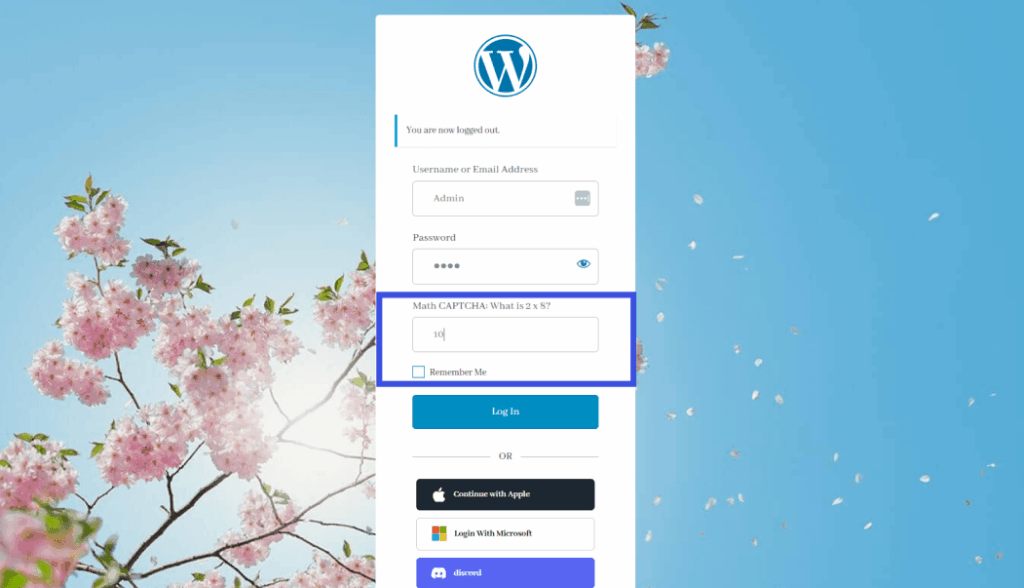
Math CAPTCHA is a bot-blocking method that displays a simple arithmetic problem on your login form; users must solve it correctly before they can log in.
This security layer presents human-readable questions, such as “4 + 7 = ?”, to verify the user.
Most automated brute-force bots fail this check because they are designed to submit login requests automatically without processing arithmetic challenges.
Learning how to use CAPTCHA in WordPress offers an advantage over traditional image-based systems. Unlike standard CAPTCHAs that rely on distorted text or traffic light identification, math challenges require no visual recognition or external library calls.
This streamlined approach keeps the user experience clean and avoids the accessibility issues that can arise from blurry images.
Most importantly, this verification method works entirely on the server. While it won’t stop a human attacker, it remains highly effective against most automated login bots.
You can protect WordPress login with a CAPTCHA to reduce the risk of brute-force attacks without sacrificing site performance or user privacy.
By shifting the verification to a local arithmetic check, you remove the dependencies on third-party tracking cookies or external scripts.
Why Should You Add Math CAPTCHA to Your WordPress Login Page?
Adding Math CAPTCHA to your WordPress login page blocks automated bots from attempting thousands of username and password combinations in minutes.
Traditional CAPTCHA tests with manual interaction can reduce a website’s conversion rate by up to 3.2%.
This is why this type of arithmetic CAPTCHA is a highly effective, lightweight barrier that stops the majority of automated brute-force attacks without slowing down your server.
- Defeats Brute-Force Bots Instantly: It stops automated scripts from guessing credentials by requiring a logic-based answer that basic bots cannot generate.
- Requires Zero External Setup: You can protect your site immediately because this method requires no Google account, complex API keys, or third-party integrations.
- Ensures Low Human Friction: Solving a simple addition or subtraction problem takes a human user roughly one second, making it far less frustrating than identifying grainy storefronts or traffic lights.
- Creates Layered Security: It integrates easily with other LoginPress Pro features, such as ‘Limit Login Attempts’ and ‘Hide Login,’ forming a multi-layered defense against intruders.
- Guarantees GDPR Compliance: Since the math problems are generated and validated locally on your server, no user data ever leaves your server and travels to third-party tracking services.
Here’s where it matters for your specific site type: WooCommerce stores and membership sites benefit most as they are frequent targets for account takeover attempts.
Multi-user blogs also find this helpful for keeping contributor accounts secure without complicating the daily login process for writers.
Now that you understand the strategic advantages, we can move on to the actual configuration steps to protect WordPress login with math CAPTCHA.
How to Use Math CAPTCHA in WordPress Login Page
To add this arithmetic captcha to the WordPress login page, navigate to LoginPress >> Settings >> Captchas, enable the CAPTCHA toggle, and select Math CAPTCHA from the Select Captcha dropdown.
Before you begin, ensure LoginPress Pro is installed and activated on your site.
This specific functionality is part of the Pro suite, providing advanced security tools that run directly on your server without external API dependencies.
Follow these steps to protect your login, registration, and forgot password forms:
How to Add LoginPress to Enable Math CAPTCHA
Step 1: Access the LoginPress Settings
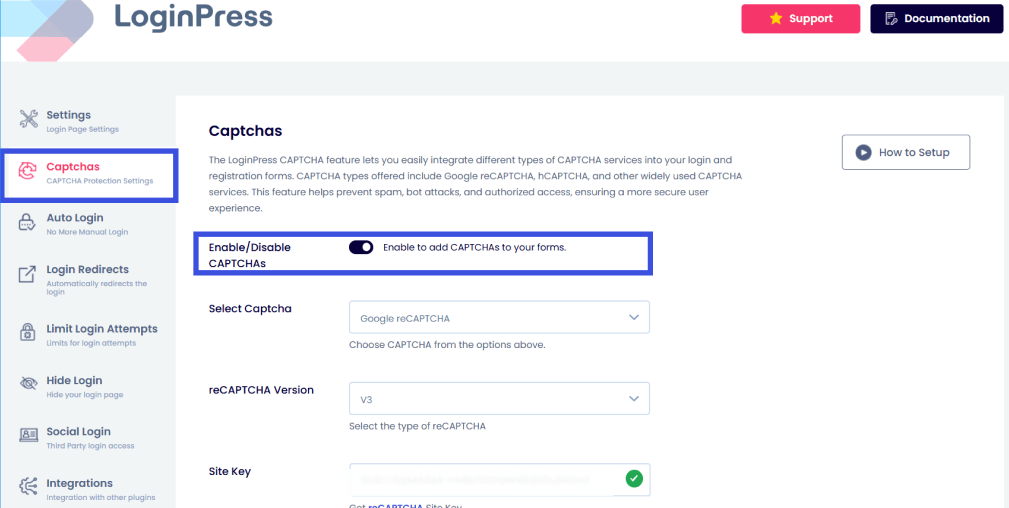
Log in to your WordPress admin dashboard. In the left-hand sidebar, find the LoginPress menu and click on Settings.
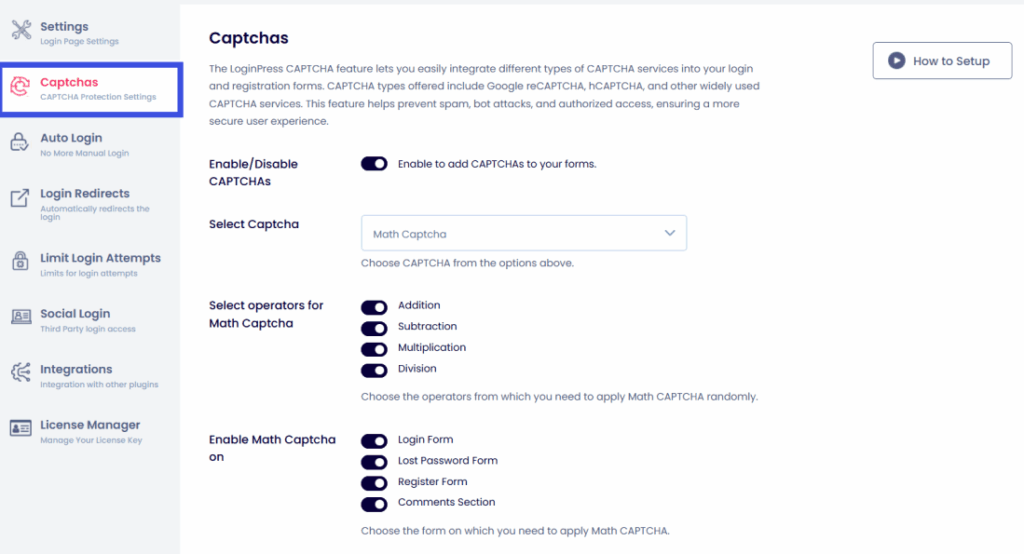
Open the Captchas Tab. Once inside the Settings area, locate the horizontal navigation bar at the top of the panel. Click the Captchas tab to view your security options.
Step 2: Activate the CAPTCHA Feature
Look for the main toggle switch labeled Enable/Disable CAPTCHAs. Flip this switch to the ON position. After you enable this, the configuration fields will automatically appear below.
Step 3: Choose Math CAPTCHA
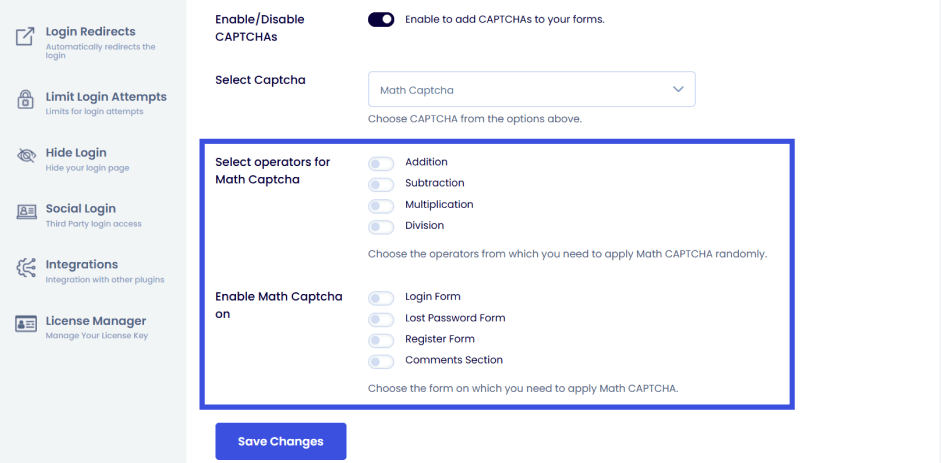
Find the setting titled Select CAPTCHA Type. Open the dropdown menu and select Math CAPTCHA. This tells the plugin to generate arithmetic problems rather than rely on external services like Google reCAPTCHA.
Step 4: Configure Form Placement
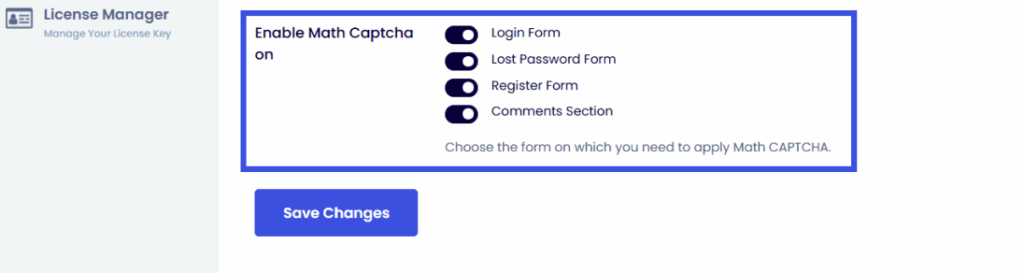
Under the Choose Form section, select exactly where the math challenge should appear. You can enable it for the Login Form, Registration Form, and Forgot Password Form to ensure full coverage against bots.
Step 5: Save Your Changes
Scroll to the bottom of the page and click the Save Settings button. You must perform this action to push the security update live to your site.
Open your site in a private or incognito browser window and visit your login page. You should see a simple math question (e.g., “5 + 2 = ?”) appearing just above the login button.
By completing these steps, you have successfully added a vital security layer that blocks automated scripts from brute-forcing your credentials.
While this method excels at keeping things simple, you might wonder how it stacks up against more complex tools like Google reCAPTCHA or Cloudflare Turnstile.
Math CAPTCHA vs Regular CAPTCHA Types: Which Should You Use?
Traditional CAPTCHA systems usually rely on image recognition, checkbox verification, or behavioral analysis. This CAPTCHA uses a simpler arithmetic challenge instead.
The main difference is that this CAPTCHA runs locally on your server and avoids external tracking scripts or API requests.
| Feature | Math CAPTCHA | reCAPTCHA v2 | hCAPTCHA | Cloudflare Turnstile |
| API Keys Required | No | Yes | Yes | Yes |
| External Service | None | Intuition Machines | Cloudflare | |
| GDPR-Friendly | Yes | Requires config | Yes | Yes |
| Setup Time | Under 2 min | 5-10 min | 5-10 min | 5-10 min |
| Visible to User | Yes (math problem) | Checkbox/Images | Checkbox/Images | Invisible |
| Bot Detection Level | Good | Excellent | Excellent | Excellent |
| Available in LoginPress Pro | Yes | Yes | Yes | Yes |
Math CAPTCHA is the best option for WordPress login protection when you want zero configuration, no API keys, and no third-party dependency.
reCAPTCHA and hCAPTCHA offer stronger bot detection but require external service accounts. While more advanced systems use behavioral analysis, they often introduce privacy concerns and complex setup steps that many site owners prefer to avoid.
What Should You Do After Enabling Math CAPTCHA in LoginPress?
After enabling arithmetic CAPTCHA, test the login page yourself, then combine it with LoginPress’s Limit Login Attempts feature for layered protection.
Security works best when you verify your settings and stack multiple defenses to exhaust automated scripts.
Follow these immediate action items to ensure your new security layer functions as expected:
- Verify the Live Display: Log out of your WordPress dashboard or open an incognito window to visit your login URL. Confirm the math problem appears correctly and aligns with your login form design.
- Audit the Error Handling: Enter an incorrect sum to trigger the validation. Ensure the plugin displays a clear error message that prevents access, and confirm that the math check actually blocks invalid entries.
- Activate Limit Login Attempts: Head to the LoginPress settings and enable the “Limit Login Attempts” feature. This creates a secondary barrier by temporarily banning IP addresses that fail the math challenge or password check too many times.
- Mask Your Login URL: Use the LoginPress Hide Login add-on to change your default wp-login.php path. Moving your login door makes it significantly harder for bots to find the form where the CAPTCHA lives.
Add math captcha to WordPress login and transform a single security check into a comprehensive defense strategy.
Frequently Asked Questions
Is Math CAPTCHA effective against bots?
Math CAPTCHA is effective against automated bots and brute-force login scripts because they cannot solve arithmetic problems without human logic. It will not stop a human attacker or a highly sophisticated AI solver, but it blocks the vast majority of automated login attacks. For most WordPress sites, Math CAPTCHA provides strong protection without requiring any external service.
Does WordPress have a built-in CAPTCHA for the login page?
WordPress does not include a built-in CAPTCHA on its default login page. You need a plugin to add CAPTCHA protection. LoginPress Pro lets you enable CAPTCHA, Google reCAPTCHA, hCAPTCHA, or Cloudflare Turnstile directly from the plugin’s settings panel without any coding.
Do I need a Google account to use Math CAPTCHA?
No. The Math CAPTCHA does not require a Google account, API keys, or any third-party services. It runs entirely on your server and generates the arithmetic problem locally. This makes it the fastest CAPTCHA option to set up in LoginPress, and it does not send any user data to external servers.
Will Math CAPTCHA slow down my WordPress login page?
This CAPTCHA adds no measurable loading time to the login page because it requires no external network calls. Unlike reCAPTCHA or hCAPTCHA, which load JavaScript from third-party servers, CAPTCHA generates the arithmetic challenge server-side. Real users experience a one-second delay at most when reading and answering the problem.
Why is Math CAPTCHA not showing on my WordPress login page?
If this CAPTCHA is not showing, check three things: (1) Confirm you are using LoginPress Pro v6.2.0 or later, CAPTCHA was added in this version, (2) Verify the Enable/Disable CAPTCHAs toggle is switched on in LoginPress >> Settings >> Captchas, and (3) Confirm ‘Math CAPTCHA’ is selected in the Select Captcha dropdown and settings are saved.
Final Thoughts on Math Captcha in WordPress
Math CAPTCHA is the fastest, simplest way to protect a WordPress login page from automated bots, with no API keys, no Google account, and no code required.
LoginPress Pro enables it in under five minutes from a single settings panel, providing an immediate shield against brute-force attacks.
By removing the technical hurdles of traditional security methods, you can finally secure your site without the usual configuration headaches. Follow these steps to finalize your setup:
- Enable the Feature: Navigate to LoginPress >> Settings >> Captchas and activate Math CAPTCHA on your login page today.
- Verify Performance: Test your login page in a private browser window to confirm the math problem appears and functions correctly for your users.
- Layer Your Defense: Combine arithmetic CAPTCHA with the Limit Login Attempts feature in LoginPress to create a comprehensive security barrier.
Upgrade to LoginPress Pro to enable Math CAPTCHA
For more related posts, check:
- How to Restrict User Login Time in WordPress
- How to Use Your WordPress Login Page as a Marketing Funnel
Which part of CAPTCHA setup usually stops you from adding it to your site: the technical API keys or the fear of a clunky user experience? Let me know in the comments below!