WordPress Login UX Mistakes That Hurt Trust (And How to Fix Them)

The most common WordPress login UX mistakes are showing the default WordPress logo, revealing usernames in error messages, giving no welcome context, omitting a security reassurance near the submit button and sending users to an unbranded dashboard. You can fix each of them in minutes, without code, with the LoginPress visual customizer.
This post covers eight specific mistakes and how to fix each one to protect your brand’s trust and keep your portal secure.
Table of Contents:
What Are the Most Common WordPress Login UX Mistakes?
The most common WordPress login UX mistakes are:
- Displaying the WordPress logo instead of the brand logo.
- Showing error messages that reveal the username.
- Providing no welcome context above the form.
- Omitting a security reassurance near the submit button.
- Using confusing microcopy on the password reset link.
- Missing a help link for locked-out users.
- Redirecting users to the wp-admin after login without explanation.
- Showing no branded background that confirms the user is in the right place.
These mistakes do not cause users to immediately leave. They create micro-moments of doubt in which users ask whether they are in the right place. Over time, that friction erodes the trust your site has built.
| WordPress Login UX Mistakes | Trust Impact | LoginPress Fix |
| WordPress logo instead of the brand logo | Signals generic software, not your brand | Replace the logo in the Customizer |
| Error message exposes username | Security risk and user discomfort | Custom error messages |
| No welcome context above form | User is unsure they are in the right place | Welcome message feature |
| No security reassurance near the button | Hesitation at the trust-sensitive moment | Custom form footer text |
| Vague ‘Lost your password?’ CTA | Users miss the reset link option | Custom microcopy on labels |
| No help link for locked-out users | Support tickets and abandoned accounts | Footer custom link |
| Post-login redirect to wp-admin | Confusion for non-admin member users | Custom redirect destination |
| No branded background or color | The page looks disconnected from the site | Background image or color template |
How Do Each WordPress Login UX Mistake Hurt User Trust?
All WordPress login UX mistakes create a specific trust failure: some expose private data, some remove brand context, and some leave users with no path forward when something goes wrong.
Why Is There a WordPress Logo on My Login Page?
The default WordPress entry form displays the core logo at the top. This graphic disrupts your custom user onboarding journey.
For a membership site, WooCommerce store, or client portal, this default branding feels completely disorienting. Replacing the default WordPress logo with your brand logo reassures users they’re on the correct login page and strengthens brand trust.
This is why you must replace the core graphic with your custom logo. You can adjust the size, link target, and alignment to match your style guide.
According to third-party data from Authgear, an overwhelming 88% of users won’t return to a site after a bad UX encounter, and a “bad login experience” is a top culprit.
LoginPress allows users to customize their logo to match their brand palette using the custom logo option in the login customizer.
For more visual design ideas for your login page, see our guide to Custom Login Page WordPress Design Ideas.
Why Does WordPress Show Username in Error Message?
The core system handles access failures poorly. It uses unambiguous alerts that expose user accounts, which is one of the WordPress login UX mistakes.
| Default WordPress Error Message | LoginPress Pro Plan Error Messages feature |
| ERROR: The password you entered for the username admin is incorrect. | That password does not match. Please try again or reset your credentials. |
| ERROR: The username admin is not registered on this site. | We cannot find an account with those details. Please try again. |
| ERROR: The username field is empty. | Please enter your username or email address to continue. |
The default feedback path makes three major WordPress login UX mistakes:
- It shows the ERROR in capital letters, creating an alarming tone.
- It reveals exact usernames to anyone looking at the screen.
- It provides zero helpful context for fixing confusing WordPress login messages.
Username exposure compromises basic digital privacy. It signals that your business did not prioritize user interface layout flaws or protection.
For users in public spaces, seeing their private ID displayed on a screen causes immediate discomfort. This is why custom alerts and error messages are necessary to prevent WordPress login UX mistakes.
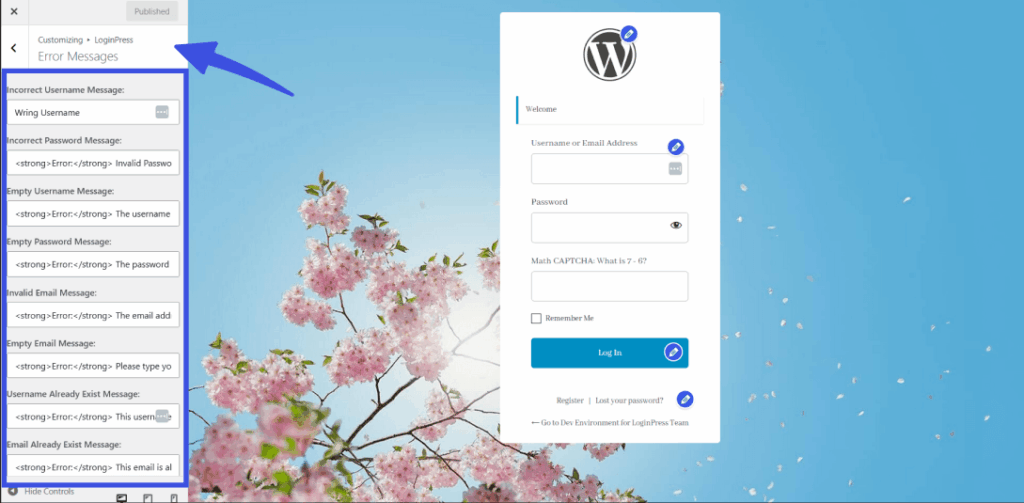
LoginPress handles this through custom error message handling. Start by acknowledging the WordPress login UX mistakes without revealing specific database names or using hostile language.
How to Add a Welcome Message to the WordPress Login Page?
The core system drops users into blank forms with zero greeting. For a premium subscription site, this layout is non-professional. People encounter an abrupt entry barrier when there is no proper brand context.
They often pause to ensure they are using a customer portal rather than an administrative entry point.
A brief greeting serves as an important visual anchor. It validates the user, names the platform, and establishes design continuity.
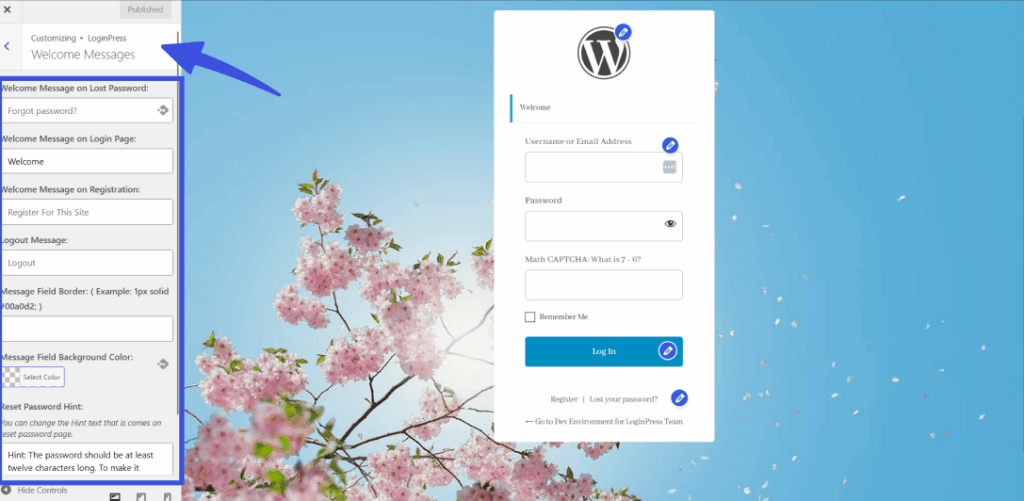
You can add a headline right above your form boxes. Try helpful phrases like:
- Welcome back to our member community.
- Sign in to access your custom dashboard.
- Log in to your premium account.
LoginPress Pro includes a custom Welcome Message. Activate the feature inside the Customizer view. Type your text, select your brand colors, and update the layout instantly.
What Trust Signals Should Be on a WordPress Login Page?
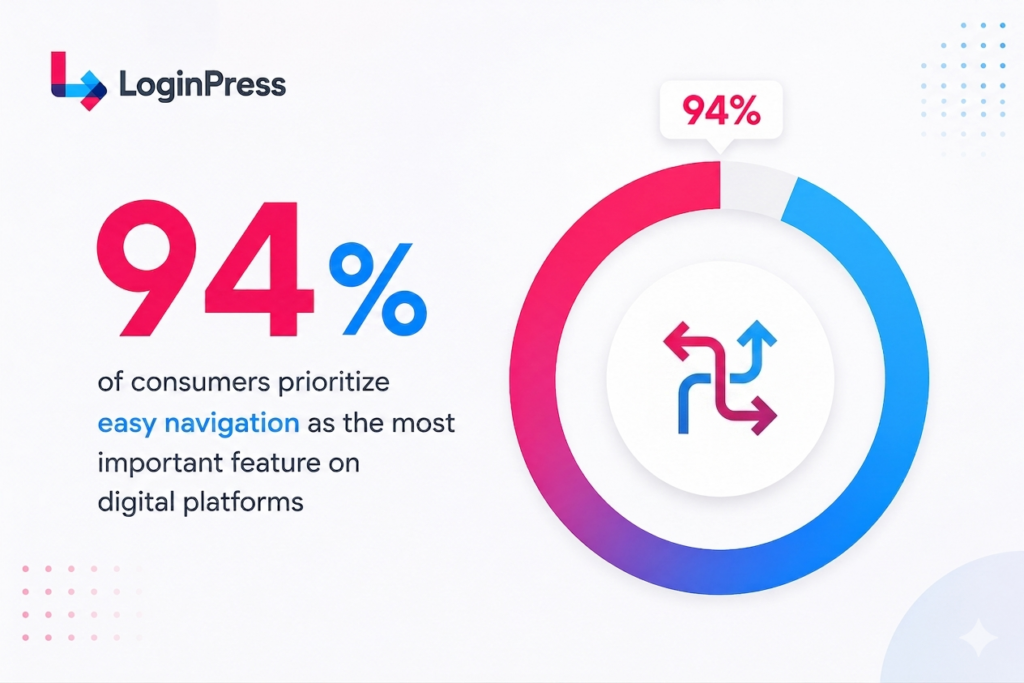
One of the WordPress login UX mistakes is that it offers no immediate proof of encryption or security tracking. According to recent UX statistics, 94% of consumers prioritize easy navigation as the most important feature on digital platforms.
Placing protective statements near the action button reduces user anxiety at the precise second of highest friction.
The moment before submitting credentials feels risky to cautious clients. Adding a single sentence resolves this psychological barrier. Clear assurance confirms that you protect their sensitive data.
You should place a brief trust statement directly beneath your submit button. Keep the microcopy strictly factual:
- Your connection remains fully encrypted.
- We never share your account data.
- Review our official privacy statement.
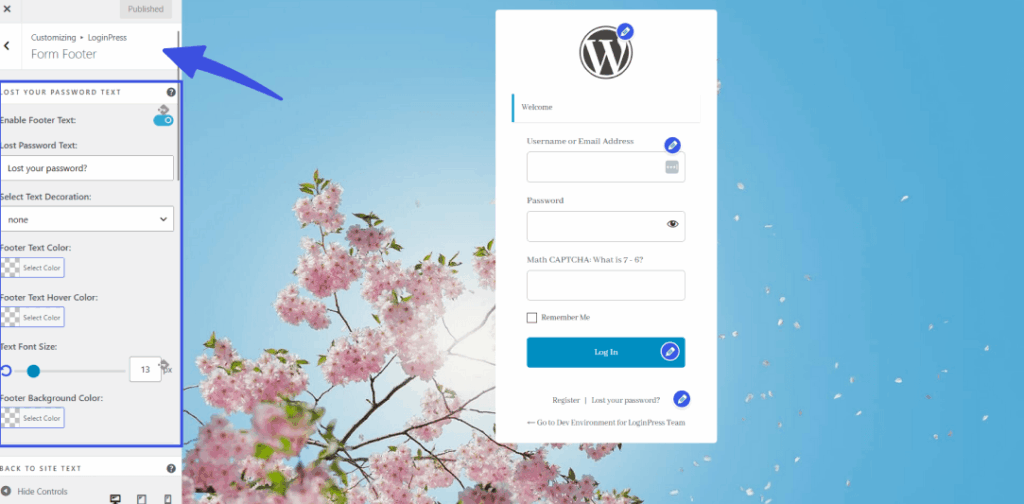
You can insert this text using the Form Footer feature inside the Customizer interface. Type your privacy text and add a link to your documentation to reassure every user.
How to Customize the “Lost Your Password” Text in the WordPress Login Page?
The phrase ‘Lost your password?’ remains the core standard for account recovery. The specific word ‘lost’ implies user carelessness. The question mark also sounds surprisingly hesitant.
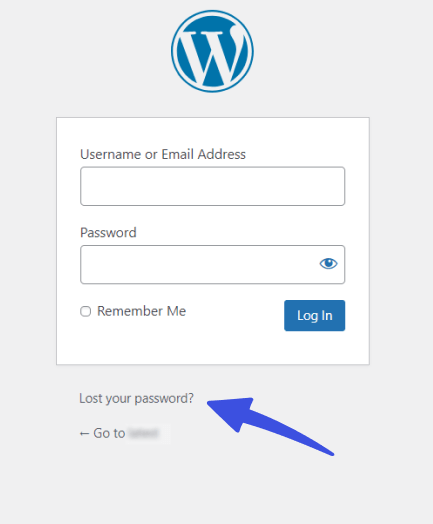
Non-technical users often fail to realize that this line serves as a clickable functional link. They read it as a question rather than a helpful action step.
Vague copy during a moment of login failure amplifies user frustration. When locked-out people miss the recovery link, they abandon their carts or swamp your support desk. Both paths damage your professional reputation.
Replace this phrase with action-oriented words. To fix the WordPress login UX mistakes, use clear terms like:
- Forgot your password? Reset it here.
- Request a new password link.
- Can’t log in? Recover your account.
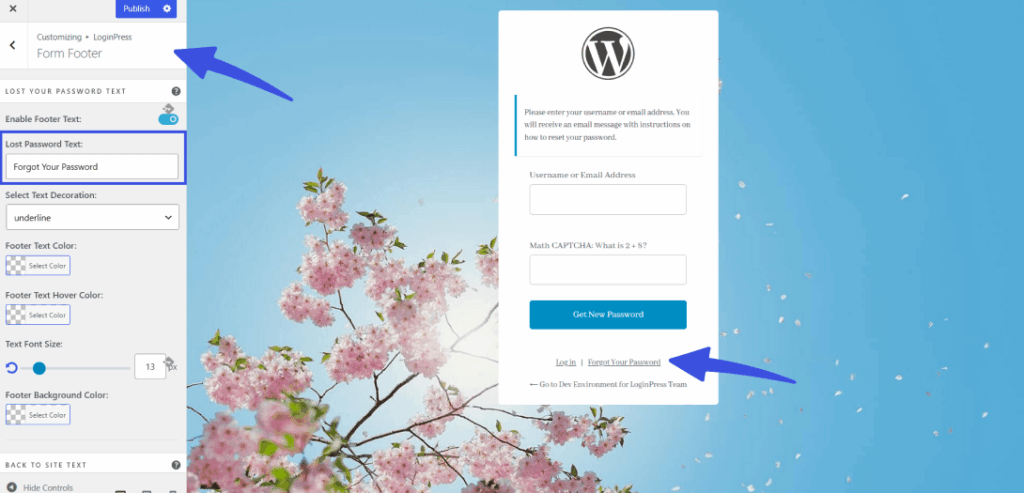
Fix this issue using the Form Footer’s Lost Password Text field inside the Customizer. Type your clear text directly over the core default labels.
How to Help Locked-Out WordPress Users?
When a customer fails to log in multiple times, the core page leaves them trapped. If a firewall blocks their IP or their email fails, they face a dead end. The page displays no alternative contact options or documentation links.
A broken user access journey causes frustration and user abandonment. Customers who cannot find a resolution assume your business ignores their needs. A clear rescue link prevents account abandonment.
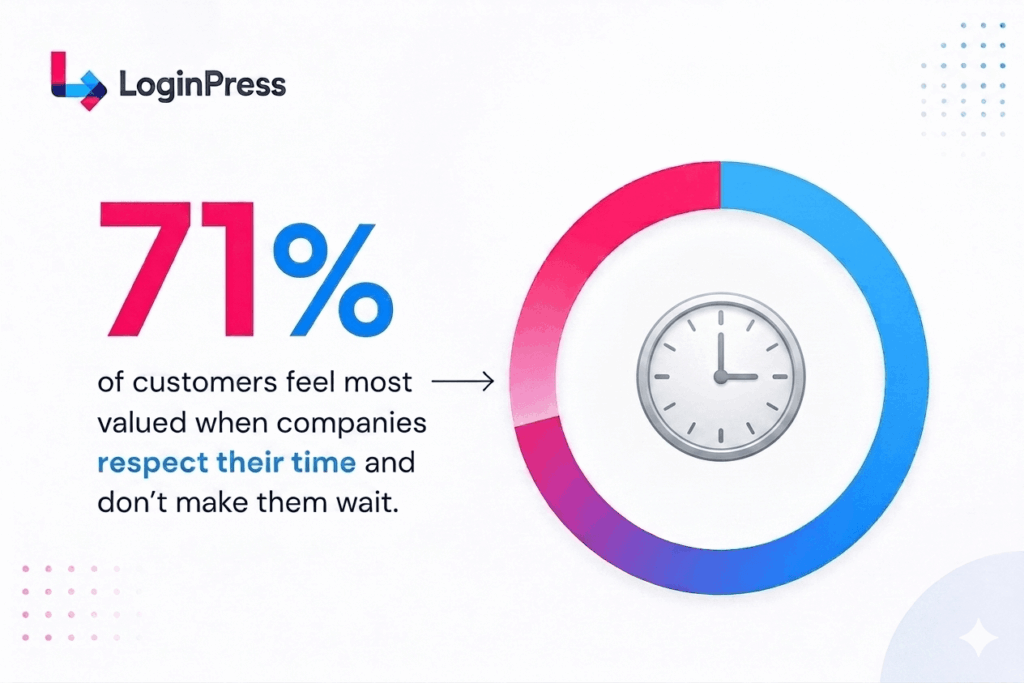
According to the statistics, 71% of customers feel most valued when companies respect their time and don’t make them wait.
You should add a support option directly into the layout footer. Route this element to a helper page, an active support desk, or a business email. Add your target help link and descriptive anchor text in seconds.
How to Redirect Users After Login in WordPress Without Going to wp-admin?
WordPress automatically redirects subscribers to the standard backend profile screen, which is a WordPress login UX mistake. This destination looks completely broken for premium students, buyers, and clients.
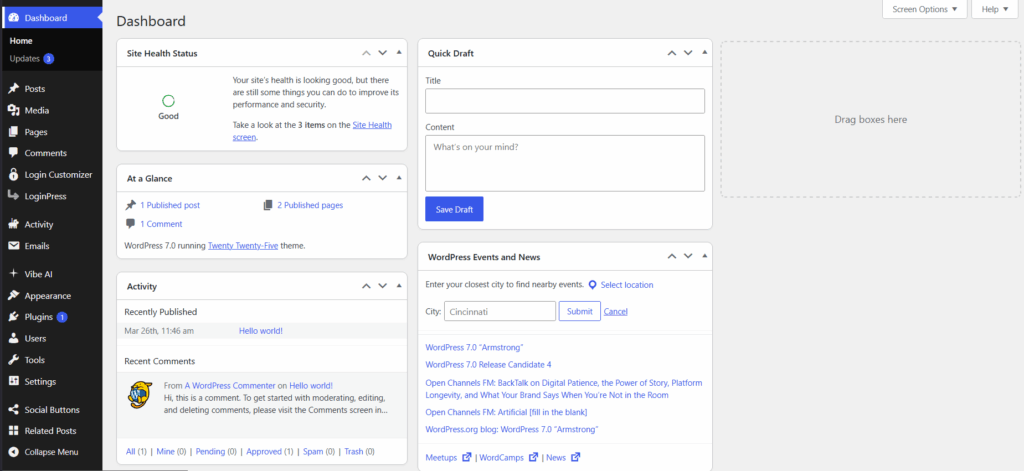
Your users are not site administrators. Arriving at a backend screen fractures their flow and looks highly unprofessional.
Sending general site visitors to a backend URL proves that you overlooked WordPress user flow optimization. The interface undercuts the quality of your main website pages.
You must establish custom redirect targets based on clear role-based redirects:
- Send administrators to the main dashboard.
- Route customers directly to their purchase history page.
- Direct students straight to their active course library.
- Guide basic subscribers to a welcome landing page.
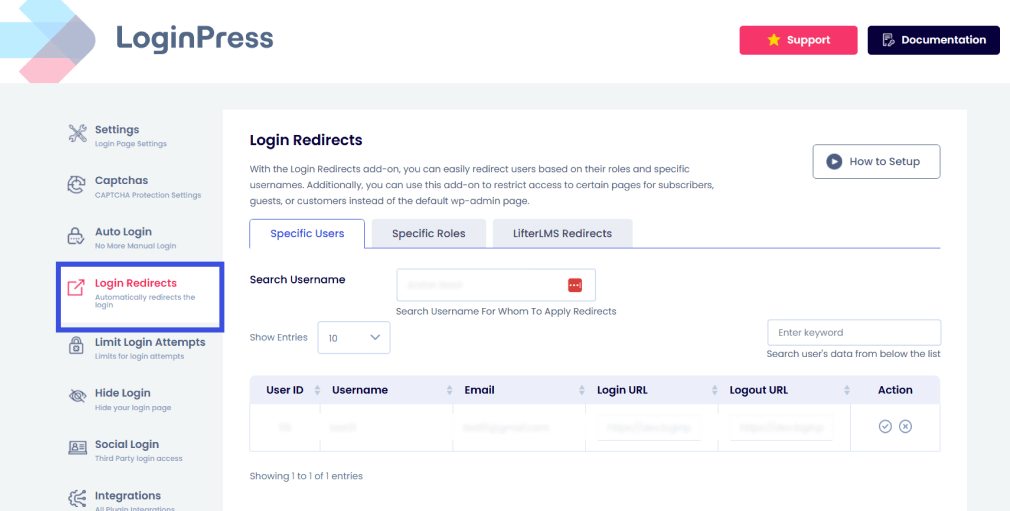
LoginPress Pro manages these paths through an independent Login Redirect add-on. Open the plugin settings panel and specify unique landing links for every user role on your site.
Why Does My WordPress Login Page Look Different From My Website?
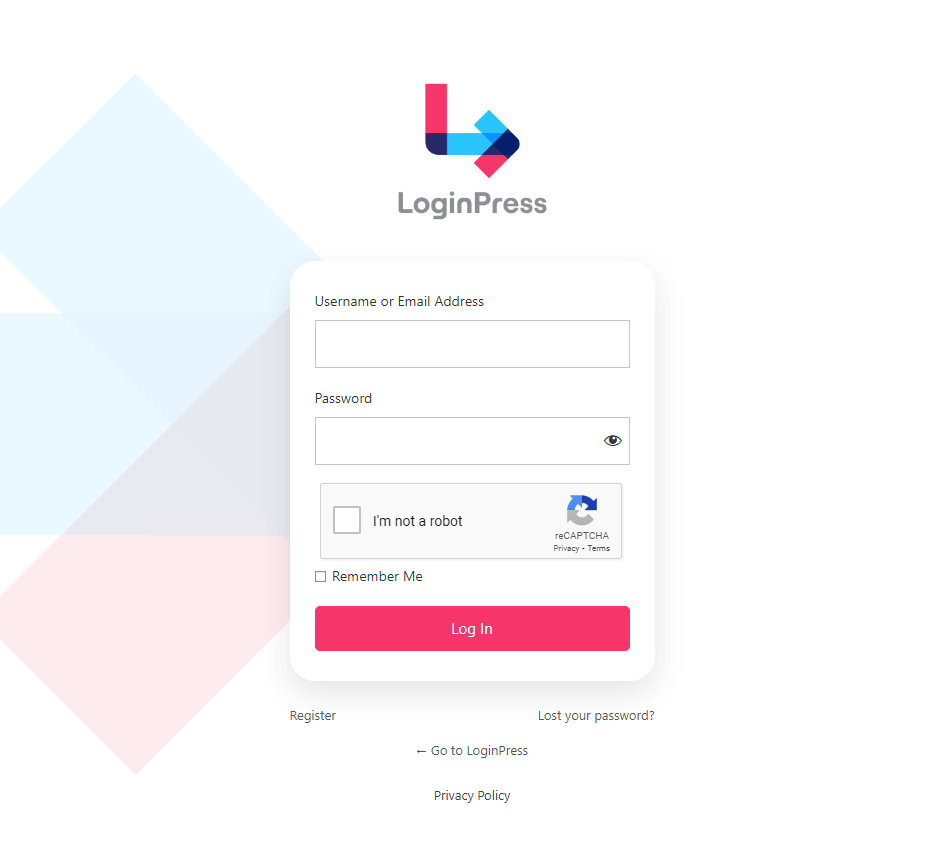
The default entry page uses a stark white background that feels entirely isolated from your brand layout. Users move from a personalized homepage straight into a generic utility form. This extreme visual break sparks security questions about whether the login box is authentic.
Branding consistency eliminates this subtle doubt. Your audience carries their visual memory of your brand style guide directly into the portal.
A more cohesive backdrop connects the form to your actual business identity.
If you are ready to go beyond fixing mistakes and design a fully custom login page, you can easily fix WordPress login design and messaging consistency.
A recent UX study shows that it takes about 50 milliseconds (that’s 0.05 seconds) for users to form an opinion on your website, including whether they like your site or not, and whether they’ll stay or leave
Upgrading to the Pro version of LoginPress provides access to a complete library of pre-designed templates and advanced mobile layout controls.
Next, let’s analyze how these WordPress login UX mistakes are affecting your search engine visibility.
Which Trust Signals Should You Add to Your WordPress Login Page?
The trust signals every WordPress login page should include are: the site’s brand logo, a short welcome headline, a security reassurance statement below the submit button, a help link for locked-out users, a privacy policy link in the footer, and optionally a social login option that lets users authenticate via Google or another trusted provider.
By adding these trust signals smartly, you can prevent the basic WordPress login UX mistakes that cost you your audience.
| Trust Signal | What It Communicates | Page Position | LoginPress Feature |
| Brand logo | You are in the right place | Top of form | Custom Logo |
| Welcome headline | This page was designed for you | Above form | Custom Welcome Messages |
| Branded background | Visual continuity with the site | Full page | Custom Background |
| Custom error messages | The site will help you fix mistakes | Inside form fields | Custom Error Messages |
| Security statement | Your credentials are protected here | Below the submit button | Custom Footer Text |
| Help and support link | There is a path forward if stuck | Form footer | Custom Footer Text |
| Privacy policy link | Transparent data handling practices | Form footer | Custom Footer Text |
| Social login | Trusted third-party authentication | Bottom of form | Custom Buttons |
These trust signals on the login page forms influence user psychology. They function as peripheral design cues, preventing WordPress login UX mistakes. Your visitors register these subtle details without consciously reading them.
Strategic placement matters just as much as presence. You must position your security statement near the main action button.
Put the technical help link at the bottom of the layout. Keep your corporate logo right at the top. This structured arrangement ensures maximum psychological impact.
Let us now review the automated steps for implementing solutions for these WordPress login UX mistakes.
How Do You Improve WordPress Login Form Usability in Under an Hour?
You can improve WordPress login form usability in under an hour by preventing these eight WordPress login UX mistakes: replace the WordPress logo, customize error messages, add a welcome headline, write a security statement in the footer, add a help link, set a role-based post-login redirect, update the ‘Lost your password?’ microcopy, and add a branded background, all without editing WordPress files.
What Steps Optimize Your Login Form Experience?
Here are 6 simple steps to optimize your login form experience with LoginPress.
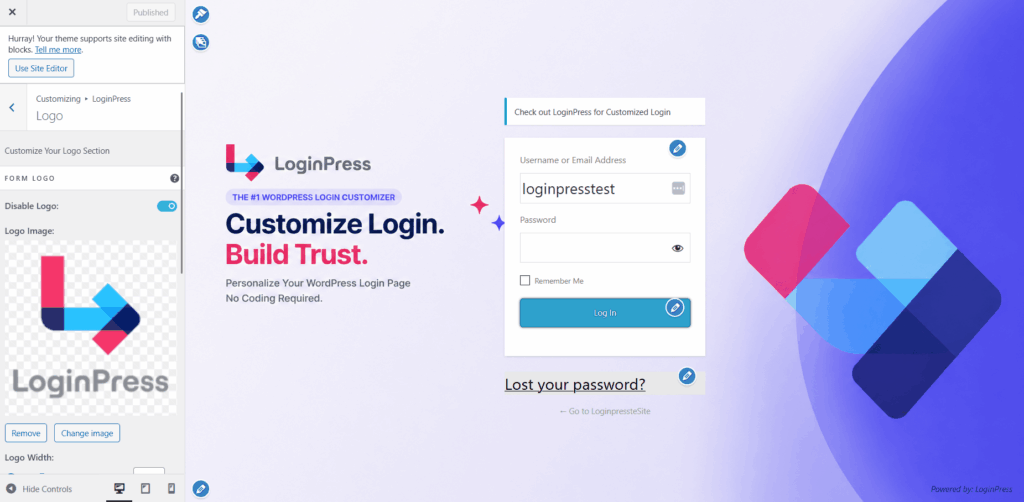
Step 01: Upload your custom corporate logo to replace the generic core graphic.
Go to Customizer >> Logo, select a high-resolution PNG or SVG for your customized logo, and upload it.
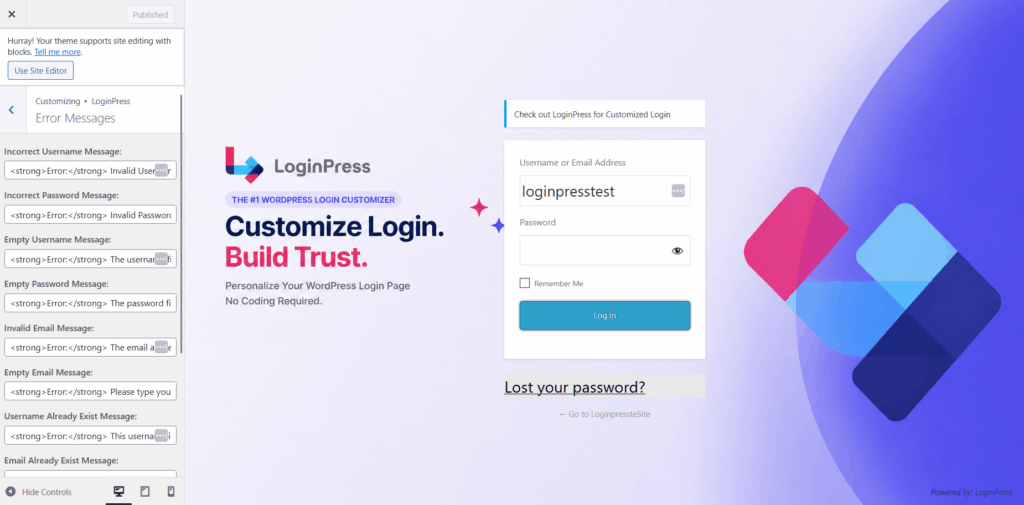
Step 02: Rewrite default system alerts to mask specific account database usernames.
Next, to edit the default error messages of the core WordPress system, go to Customizer >> Error Messages. Add your brand tone to error messages to customize the alert system.
Step 03: Insert a welcoming headline message directly above the credential inputs.
Then add a custom welcome headline message to further optimize your user access journey by navigating to Customizer >> Welcome Messages.
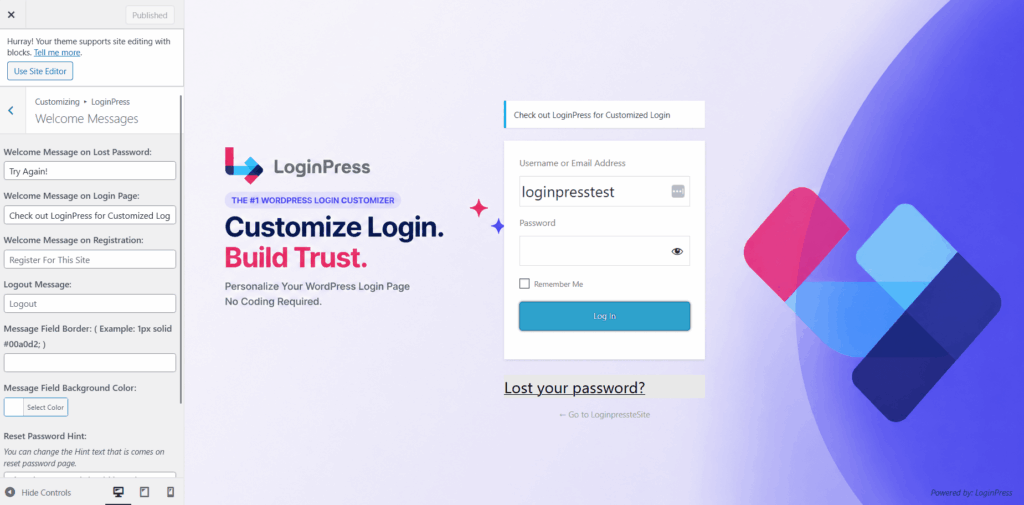
Step 04: Add customizations inside the form footer.
To add a security statement inside the footer form, go to Customizer >> Form Footer option. You can also provide a direct support communication link for locked-out site visitors using the form footer option.
Step 05: Configure automated landing page destinations based on unique account roles.
Using the LoginPress top-notch security feature for preventing bad user journeys, add smart role-based login redirects to help users land on relevant pages.
Step 06: Apply a cohesive brand background color or custom design graphic.
Add aesthetic, branded custom backgrounds to your login forms by navigating to Customizer >> Background.
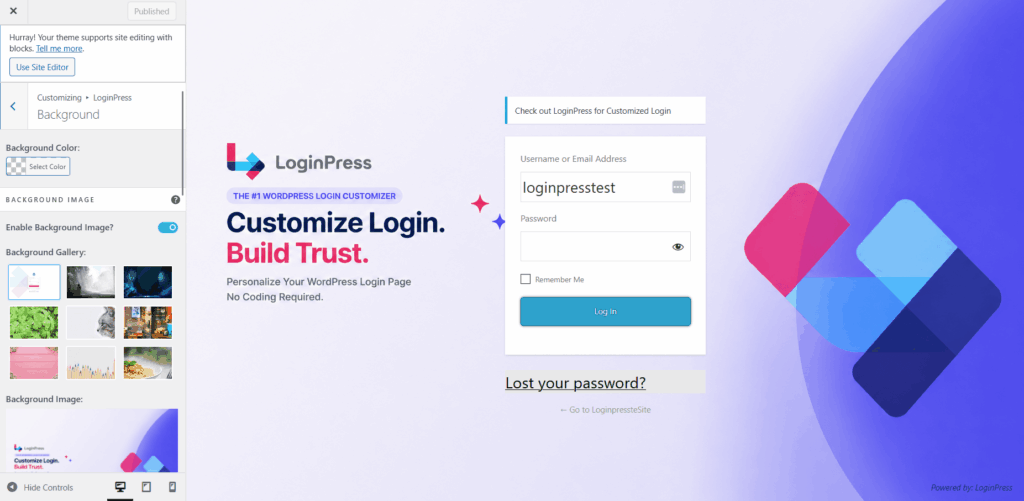
LoginPress handles your graphics, error phrasing, and background adjustments, advanced welcoming alerts, and pre-made style templates. This simple approach lets you deploy WordPress login UX best practices from a single visual menu in just a few clicks.
Frequently Asked Questions
What are common WordPress login UX mistakes?
The most common WordPress login UX mistakes are: showing the WordPress logo instead of the site’s brand logo, displaying error messages that reveal the username, providing no welcome context above the form, missing a security reassurance near the submit button, using vague ‘Lost your password?’ microcopy, omitting a help link for locked-out users, redirecting members to wp-admin after login, and leaving the login page visually disconnected from the site’s design. Each mistake creates a moment of doubt or friction that erodes user confidence in the login experience.
How do you design a trustworthy WordPress login page?
You design a trustworthy WordPress login page by adding your brand logo, a welcome headline that confirms where the user is, a security statement below the submit button, custom error messages that guide rather than alarm, a help link for locked-out users, and a branded background that visually connects the login page to the rest of the site. LoginPress enables all of these changes without editing WordPress files. The goal is to eliminate every moment of doubt a user might experience between arriving at the page and completing login.
How do you improve the WordPress login form user experience?
You improve the WordPress login form user experience by fixing the eight most common UX mistakes: replacing the WordPress logo, customizing error messages, adding a welcome message, writing a security statement, updating vague microcopy, adding a help link, setting the correct post-login redirect, and applying a branded background or template. LoginPress handles all eight through its live customizer. The free version covers logo, error messages, and background. Pro adds welcome messages, form footer, redirects, and templates.
Which trust signals should I add to my WordPress login page?
The trust signals to add to a WordPress login page are: your brand logo (confirms the user is in the right place), a welcome headline (reduces disorientation), a security statement near the submit button (addresses credential anxiety), custom error messages (guide without alarming), a help link in the footer (provides a path for locked-out users), and a privacy policy link (demonstrates transparency). LoginPress Pro lets you add all of these without code, directly in the WordPress customizer.
Why does WordPress show my username in error messages?
WordPress shows the username in error messages by default because its core error messages are designed to be specific about the failure. The message ‘The password you entered for the username [name] is incorrect’ clearly identifies the issue. The problem is that this specificity reveals the username to anyone viewing the screen, which raises security and privacy concerns. You can replace this message with a custom version that acknowledges the error without disclosing the username, using a plugin like LoginPress, which allows full customization of all login error messages without code.
What happens if I don’t customize my WordPress login page?
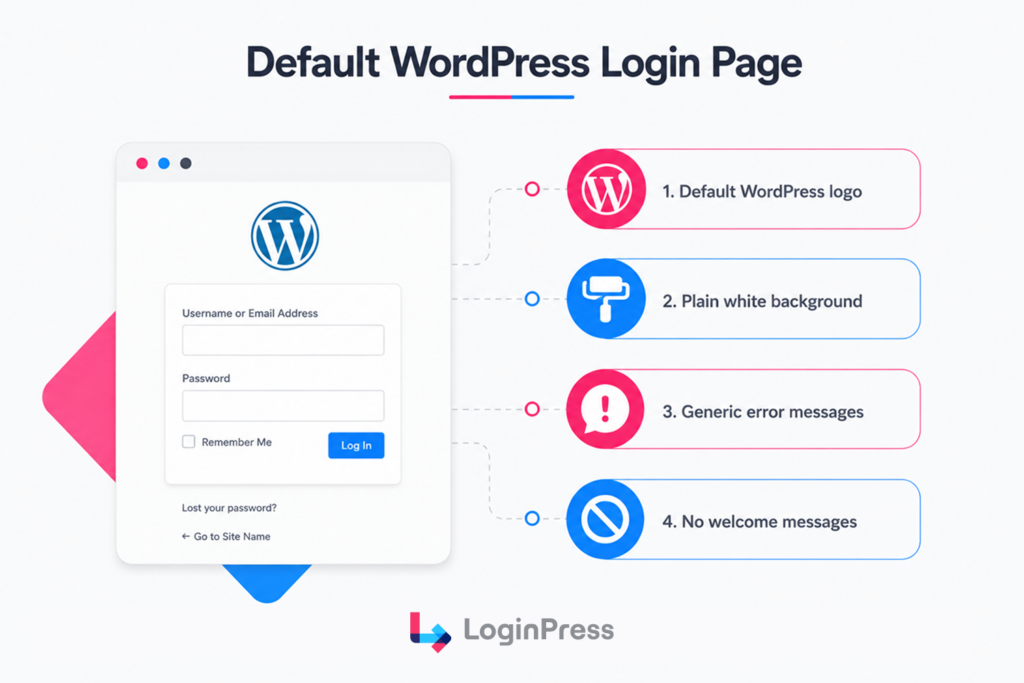
If you don’t customize your WordPress login page, users see a generic form with the WordPress logo, a white background, default error messages that expose usernames, and no visual connection to your site’s brand. For sites with returning members, customers, or clients, this creates a recurring moment of visual disconnect and mild trust erosion. The login page is one of the most frequently seen pages on any site with registered users, so leaving it at the default is a missed opportunity to reinforce trust at a high-frequency touchpoint.
Conclusion: WordPress Login UX Mistakes
The default WordPress login page makes eight UX mistakes that quietly damage your user experience. Each design flaw can be fixed in minutes without code with LoginPress.
What Are Your Next Action Steps?
- Run an immediate audit by visiting your portal URL as a logged-out visitor.
- Fix your logo, error text, and background layout using the free tool versions.
- Upgrade your plugin setup to resolve advanced footer fields and redirection paths.
That is all for this post. For more related posts, check:
- Reduce Login Related Support Tickets By Fixing Login UX
- Modern WordPress Login UX Patterns (What Users Expect in 2026)
- Enhancing User Trust with Secure Login UX in WordPress (2026 Guide)
Which of these login page mistakes did you discover on your own website, and how do you plan on fixing them?