How to Redirect Login Page by User Role in WordPress (Explained)

You redirect the login page by user role in WordPress with either the login_redirect filter in code or the LoginPress redirect settings, which need no code. Either way, each role lands on the page that fits it, such as the dashboard for admins and a client portal for customers.
Sending a subscriber or client to the default /wp-admin dashboard confuses them and creates a poor first impression.
In this post, I will show both methods and which one I’d pick as your site grows.
Redirect Login Page by User Role (TOC):
What Are WordPress User Roles and How Do Redirects Work?
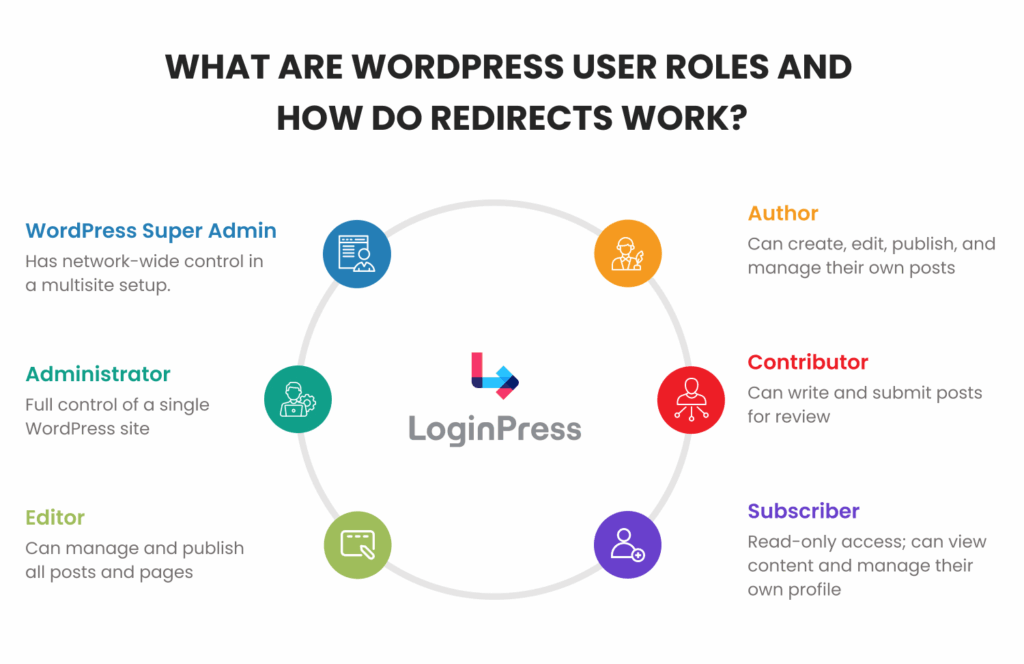
WordPress user roles are Administrator, Editor, Author, Contributor and Subscriber, plus Customer when WooCommerce is installed. A role-based redirect checks the role at login and sends the user to the matching page.
Each role has its own permissions, but by default, all users usually land in the backend dashboard after logging in.
If you want to set up a professional front-end login redirect, start by focusing on the roles that use your site the most:
- Administrator: Needs full access to the /wp-admin/ dashboard to manage the site.
- Editor: Should have a direct link to the post-editing screen or the “All Posts” page.
- Subscriber: Typically used for member-only login redirects to send users to a private library or profile page.
- Customer: On WooCommerce sites, customers are usually sent straight to their “My Account” area.
WordPress manages these redirects using the login_redirect filter hook. This tool checks the user’s role during login and decides where to send them next.
Why Does Role-Based Login Redirect Matter?
Role-based redirects matter because they send each user straight to the page they need after logging in.
When you skip the default WordPress dashboard, users avoid extra clicks, and your site feels more professional right from the start.
The standard login flow is rarely ideal for specialized sites. Consider how these common setups benefit:
- Agencies and Client Portals: Clients can go straight to their project dashboard or a welcome page, bypassing the confusing backend.
- Membership Sites: Members arrive at protected content or a main Member Area, not just a blank profile page.
- WooCommerce Stores: Improve the shopping experience by directing customers to their “My Account” or “Order History” page immediately.
- Multi-author Blogs: Contributors and editors can go straight to the post-creation screen, speeding up their workflow.
How to Redirect Users After Login by Role Using Code
You redirect users by role with code by adding a login_redirect filter to your functions.php file or a code snippet plugin.
This method uses the login_redirect hook to intercept the login process, identify the user’s assigned role, and point them to a specific URL.
Follow these steps to implement the redirect:
- Access your site’s logic: Open your child theme’s functions.php file via Appearance >> Theme File Editor, or use a snippet manager plugin.
- Insert the PHP logic: You will need to write a function that checks the $user->roles array for specific values like ‘administrator’, ‘editor’, or ‘subscriber’.
- Define the destination URLs: For each role, return a specific path, such as admin_url() for the dashboard or home_url(‘/custom-page/’) for a client portal login redirect.
- Save and test: Log out and log back in as different users to confirm the logic triggers correctly.
Note: Always use a child theme or a snippet plugin. Modifying a parent theme directly is risky because your custom redirects will be wiped out during the next theme update.
This works, but there’s a catch.
Managing redirects through code is purely manual. As your site grows, the file becomes cluttered and difficult to maintain.
Without a visual interface, you have to dig into the backend code every time you want to change a URL.
Furthermore, one minor syntax error can break your login page entirely, leaving you and your users locked out.
What Are the Most Common Role-Based Redirect Setups?
The most common role-based redirect setups send admins to the dashboard, customers to their account page and subscribers to a members area:
| Site Type | User Role | Redirect Destination |
| Agency / Client Portal | Subscriber or Custom Client | /client-portal/ |
| Membership Site | Member | /members-area/ |
| WooCommerce | Customer | /my-account/ |
| All Sites | Administrator | /wp-admin/ |
| All Sites | Editor | /wp-admin/edit.php |
Using these standard destinations ensures that users land exactly where they have the permissions to act, reducing the likelihood of them encountering Access Denied errors.
This approach is the most efficient way to manage a dashboard redirect for specific roles without complicating your site’s architecture.
Why Code-Based Redirects Become Hard to Manage?
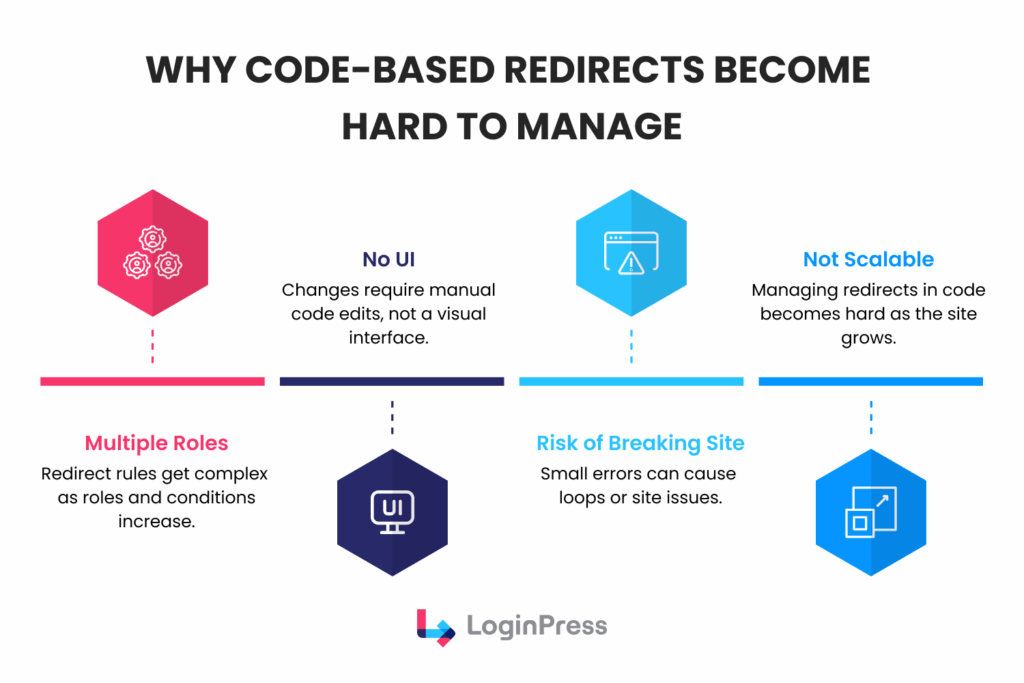
Code-based redirects become hard to manage as your site grows because they bring a few key problems:
- Logic Bloat: Managing multiple user roles can lead to a stack of complex if-then statements. This can quickly turn your code into a tangled mess that is hard to read or review.
- Lack of Visibility: Without a user interface, there is no single place to see all your active rules. This makes it tough for team members who do not code to handle changes.
- High Risk: One small mistake in an important file like functions.php can cause a major error and even take your whole site down.
- Poor Scalability: Adding more roles or custom landing pages means more manual work. This slows down updates and makes it harder for your site to grow.
How to Redirect Login Pages by User Role with LoginPress
LoginPress sets role-based redirects from a visual settings panel, with no code required.
Follow these steps to redirect your login pages by user role using LoginPress Login Redirects add-on:
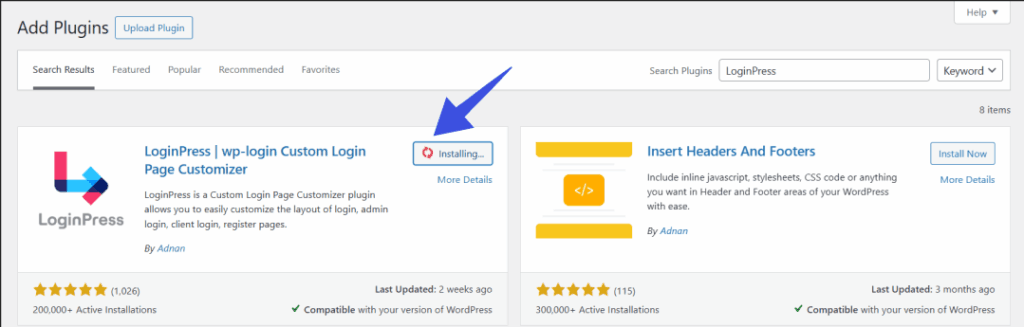
Step 1: Install LoginPress
Search for LoginPress in the WordPress plugin repository, then install and activate it.
Step 2: Access the Add-on
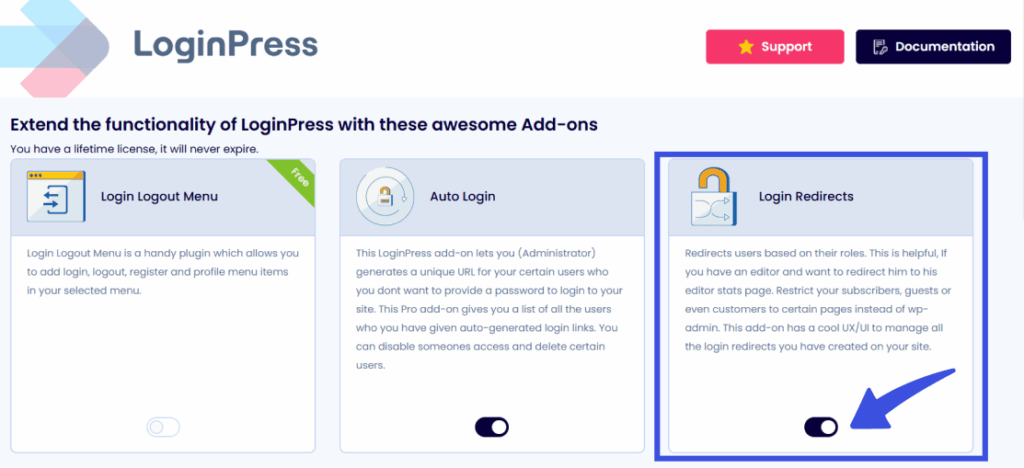
Once the core plugin is active, go to LoginPress >> Add-Ons from your sidebar menu. Look for the Login Redirects card. Toggle the switch to On. This module enables handling dashboard redirects for specific roles.
Step 3: Navigate to Settings
With the add-on active, navigate to LoginPress >> Settings. At the top of the settings page, you will see several tabs. Click on the Login Redirects tab to open the role-management interface.
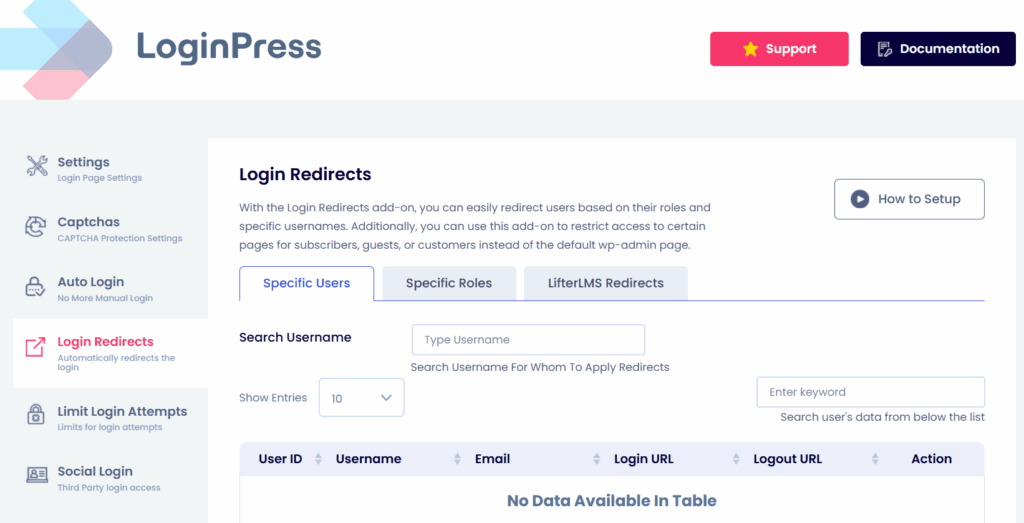
Step 4: Configure Role Redirects
On this screen, you will see a clean list of every user role currently active on your site, including custom roles from other plugins. Scroll to the specific role you want to target, such as Editor or Customer for WooCommerce, to redirect the login page by user role.
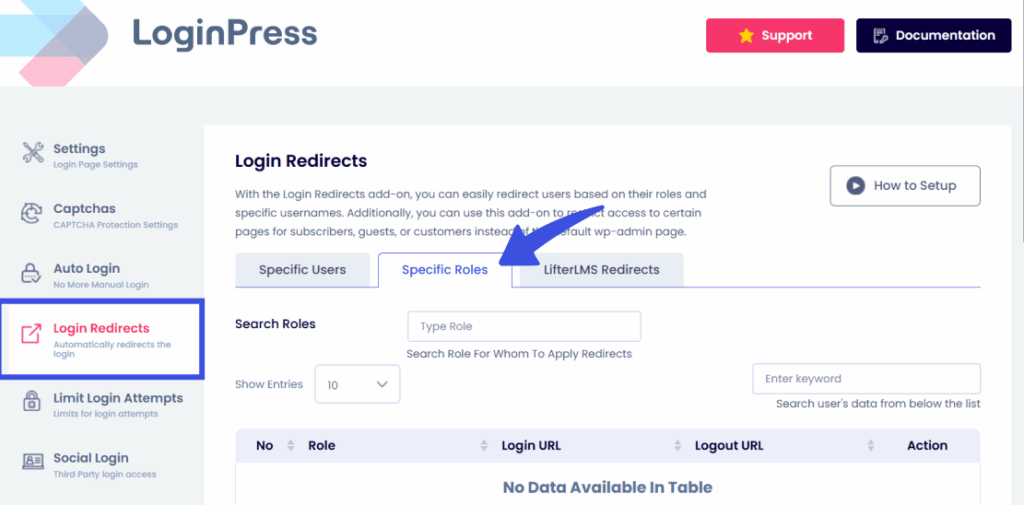
Step 5: Enter the Destination
In the Login URL field next to your chosen role, enter the full URL (e.g., https://yoursite.com/client-portal/) where you want that user to land.
You can also set Logout Redirects here to control where users are redirected after they log out.
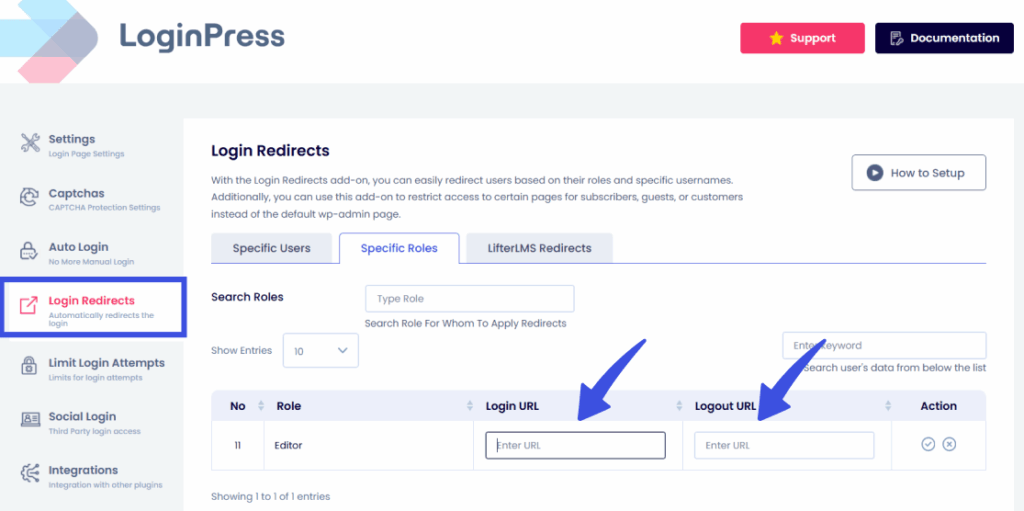
The result? Each user lands exactly where they need to be.
Whether you are setting up a front-end login redirect for a simple blog or a complex member-only login redirect for a subscription site, LoginPress handles the logic in the background.
To redirect the login page by user role is the most reliable way to manage client-portal login redirects because you can update destination URLs in seconds without ever touching a PHP file.
This front-end login redirect scalability ensures that as your business grows and you add new custom roles, your login UX remains smooth and professional.
How Do You Test Role-Based Redirects in WordPress?
To test role-based redirects in WordPress, use a dedicated User Switching plugin or a private browser window to log in as each role and confirm the redirect functions as expected.
Testing is a necessary final step to ensure your logic is sound and that no users are accidentally locked out or sent to the wrong destination.
Follow this testing checklist to verify your setup to redirect login page by user role:
- Install User Switching: This free plugin allows you to swap between user accounts instantly from the dashboard without re-entering passwords. It is the fastest way to verify multiple roles in a single session.
- Switch to Subscriber: Confirm the user lands on your designated member-only page. If they reach the wrong page, check that the LoginPress redirect URL is saved and correctly formatted.
- Switch to Admin: Ensure you still have unrestricted access to the standard WordPress dashboard. It is vital to confirm that your global redirect logic hasn’t accidentally captured administrative accounts.
- Test Custom Roles: If you are running a client-portal login redirect, log in as a test client. Check that the specific URL path is active and that any role-specific greeting or content loads correctly.
If the redirect fails or loops, clear your browser cache and deactivate any caching plugins temporarily to ensure you are seeing live results.
Once verified across all roles, your automated method to redirect the login page by user role is ready for live users.
Frequently Asked Questions
How do I redirect subscribers to a custom page after login in WordPress?
You can redirect subscribers by using the login_redirect filter in your theme’s code or by selecting the “Subscriber” role in the LoginPress settings. Simply enter the URL of your custom landing page, and the system will bypass the dashboard automatically.
Can I redirect different roles to different pages without a plugin?
Yes, you can achieve this by adding a custom PHP function to your child theme’s functions.php file. This method requires using conditional logic to check user roles and return specific destination URLs, though it lacks a visual management interface.
Does LoginPress support custom user roles for redirects?
LoginPress automatically detects all custom roles created by third-party plugins like Members or User Role Editor. Once a custom role is added to your site, it will appear as an option in the LoginPress Redirects settings for easy configuration.
How do I send WooCommerce customers to My Account after login?
To send customers to their account page, set the redirect URL for the “Customer” role to your site’s /my-account/ path. This ensures shoppers can immediately access their order history and downloads instead of seeing the WordPress backend.
Will role-based redirects work with social login or two-factor authentication?
Yes, role-based redirects generally work alongside social login and 2FA, as these plugins still trigger the standard WordPress login hooks. However, you should always test your specific plugin combination to ensure the redirect logic fires after the second factor is verified.
Conclusion: Client-Portal Login Redirect
The method to redirect the login page by user role is one of the fastest ways to improve user experience, bolster site security, and maintain a professional brand image.
While manual code remains an option for developers who prefer a hands-on approach, using LoginPress provides a secure, scalable, and visual way to manage your login flow without the long-term risk of maintenance debt or site-wide syntax errors.
By automating these paths, you ensure that every user is greeted with the specific tools and content they need the moment they authenticate.
This not only reduces support tickets related to dashboard confusion but also creates a smooth, high-end feel for your WordPress site.
That is all for this blog. For more related posts, check: