WordPress Login Page Customization Best Practices (Updated)

The WordPress login page customization best practices that matter most are: use your own logo and brand background, start from a template, customize error messages, add CAPTCHA, limit login attempts, change the login URL and redirect users by role. Together they turn the default grey screen into a secure, branded part of your site.
When clients or members log in and see the default WordPress logo, it breaks the professional tone of an otherwise polished site.
In this guide, I explain why the default setup falls short, walk through eight design and security standards, and show how LoginPress applies them without code.
Custom Login Page For WordPress (TOC):
Why the Default WordPress Login Page Is a Problem
The default WordPress login page exposes the wp-login.php URL to bots, displays the WordPress logo instead of your brand, and provides users with no visual signal that they are in the right place.
Leaving these settings active creates a generic experience that ignores your site’s identity. The standard grey background and WordPress branding offer zero connection to your business.
This lack of customization comes across as unpolished to clients and fails to reinforce your brand at a critical touchpoint.
Security is an even larger concern because hackers target the well-known wp-login.php path with automated brute-force attacks.
Moving or masking this entry point is essential to protect your site from predictable threats.
When members or team members see a generic form, they lose the confidence that they are accessing a secure, professional portal.
Trust relies on a cohesive experience across the WordPress custom login page. Never edit the core wp-login.php file directly to fix these issues.
WordPress overwrites core file changes during every update, so you must use a plugin to ensure your customizations remain permanent and secure.
Tip: Always preview the login page on mobile. Most users access login pages from smaller screens.
Let’s look at the specific steps you can take to move beyond these defaults for WordPress login page customization.
Comparison Table: WordPress Customization Practices
Before applying these WordPress login page design best practices, here’s the difference between a default and optimized login page:
| Element | Default Login Page | Optimized Login Page |
| Branding | Standard WordPress logo | Your custom brand identity |
| URL | Static wp-login.php | Obscured custom login URL |
| Security | Minimal protection | CAPTCHA + session limits |
| UX | Standard admin dashboard | Role-based custom redirects |
8 WordPress Login Page Customization Best Practices
These eight best practices for WordPress login page customization cover the four areas that matter for professional login page branding in WordPress, including design, security, and user experience.
1. Replace the WordPress Logo with Your Brand Logo
Start by swapping out the WordPress logo on your login page for your own. This helps users quickly see they’re in the right place.
If clients or members see the default WordPress logo, it can cause confusion. They might feel unsure or think they’re on a generic page instead of your official site.
For agencies, leaving the default logo active can inadvertently reveal the site’s underlying platform to clients who expect a fully bespoke solution.
Replacing the logo is the fastest way to anchor the login experience to your brand identity, and it takes less than a minute with the right tools.
LoginPress Implementation:
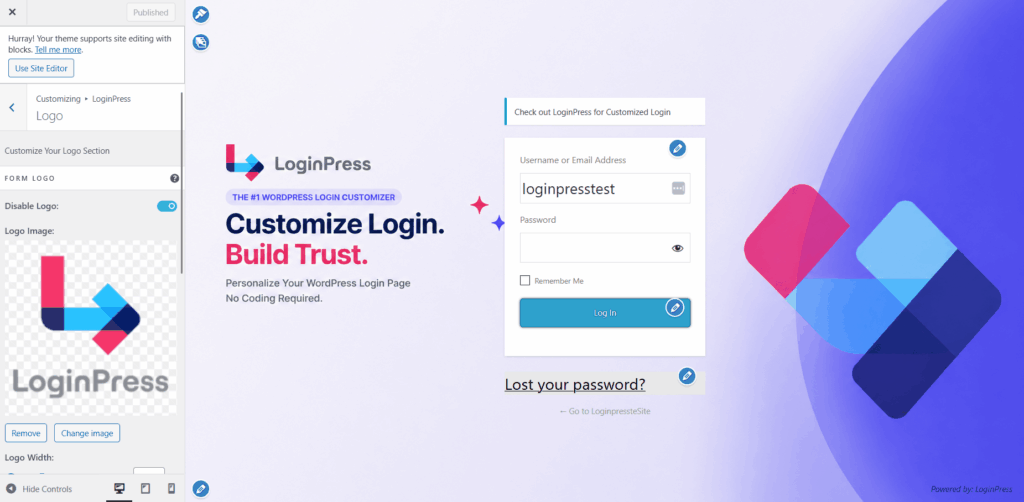
In LoginPress, navigate to LoginPress >> Customizer >> Logo.
Upload your logo file; we recommend a PNG with a transparent background for the cleanest look.
Within this same panel, set the Logo URL to redirect users to your homepage and fill in the Logo Title to maintain accessibility standards.
You can preview these changes live before hitting publish for WordPress login page customization.
2. Use a Background That Matches Your Brand Identity
The login page background should use your brand color, a brand-consistent image, or a brand video to create immediate visual recognition before the user even types a character.
A plain white or grey background is wasted digital real estate. For corporate sites, a solid brand color provides a clean, fast-loading professional look.
Creative or lifestyle brands often benefit from high-quality background images that evoke a specific mood. If you are managing a premium membership site, a background video can provide a high-end feel that justifies a subscription price.
Always ensure high contrast for WordPress login page customization: use light-colored text on dark backgrounds and dark-colored text on light backgrounds to keep the fields legible.
LoginPress Implementation:
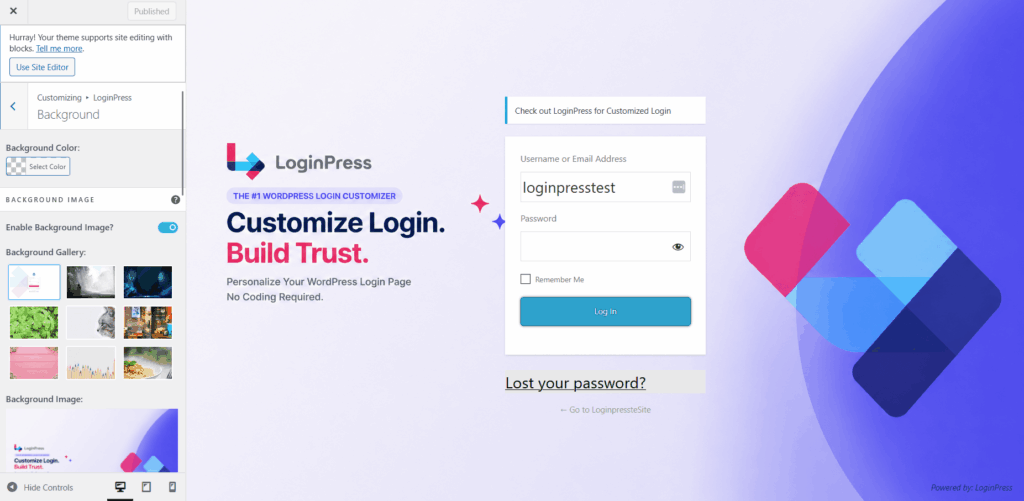
Go to LoginPress >> Customizer >> Background and select your preferred format: Solid Color, Image, or Video. Upload your media or enter your brand’s hex code.
The live customizer lets you immediately verify that your background doesn’t interfere with the login form’s readability.
Note that background videos load only on the login page, so they won’t affect your sitewide performance.
3. Start from a Pre-Built Template, Not a Blank Page
Using a pre-built login page template gives you a professional starting point in seconds and avoids common layout mistakes that occur when designing from scratch.
Many site owners struggle with proportions, often resulting in misaligned forms or logos that feel out of scale. Templates solve about 80% of the design work by instantly establishing correct margins and padding.
Most login page issues stem from starting with a blank layout rather than using structured templates.
According to McKinsey research, standardized, reusable structures can help them reclaim up to 40% of their time by offloading manual, repetitive tasks.
This allows you to focus on fine-tuning your brand colors rather than fighting with CSS alignment for WordPress login page customization.
LoginPress Implementation
LoginPress free users can access the Default and Minimalist themes. If you use LoginPress Pro, you unlock a full library of premium pre-designed templates, including the popular two-column split layout, where the form sits on one side and brand imagery on the other.
Navigate to LoginPress >> Customizer >> Theme, select a template, and preview how it handles your existing logo and colors.

4. Customize Error Messages to Protect Security and Reduce Friction
Generic WordPress error messages tell attackers whether a username exists on the site, which is a security risk. Custom error messages remove that signal and can be written to help real users, not attackers.
By default, WordPress might say, “The username ‘Admin’ is not registered,” which confirms to a hacker that they should try a different name. A better, more secure approach is to use a vague but helpful message like “Incorrect username or password.
Please check your details and try again.” This protects your user database while keeping the tone helpful for legitimate visitors who simply made a typo.
LoginPress Implementation
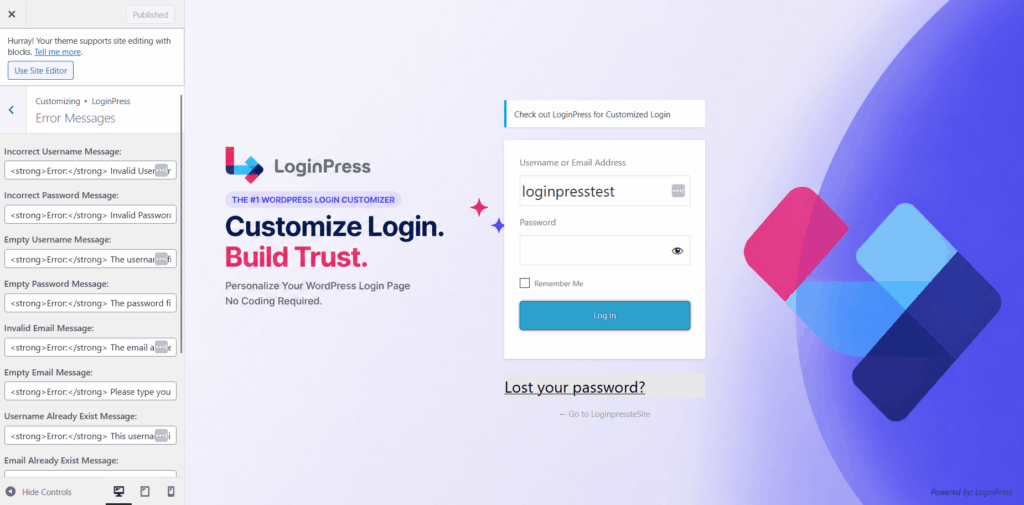
Inside LoginPress >> Customizer >> Error Messages, you can overwrite the default text for every error type, including incorrect passwords and empty fields.
Write these in your brand’s specific voice to make the experience feel less like a system failure and more like a helpful prompt.
5. Add CAPTCHA to Block Automated Login Attacks
Adding Google reCAPTCHA to the WordPress login page blocks automated bot attacks without adding friction for real users who pass the CAPTCHA automatically.
Brute-force attacks are a constant threat, with bots attempting thousands of password combinations per minute.
Implementing reCAPTCHA v3 enables the system to silently score user behavior; legitimate users rarely even see a challenge, while suspicious bots are blocked immediately.
It is vital to apply this protection not just to the login form, but also to your registration and “lost password” forms to close all potential entry points.
LoginPress Implementation
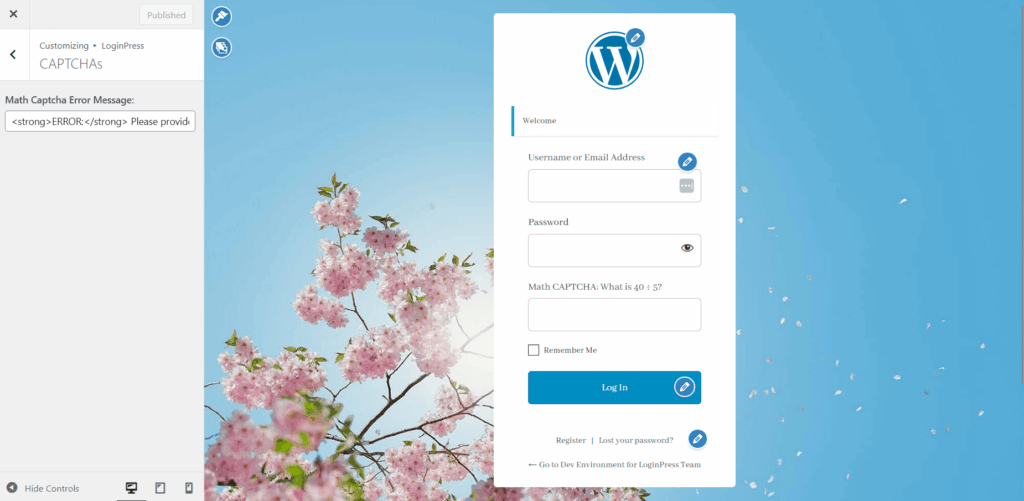
LoginPress Pro supports both reCAPTCHA v2 (the checkbox) and v3 (invisible). First, obtain your API keys from your Google account and enter them in LoginPress >> Settings >> reCAPTCHA.
Once saved, use the LoginPress >> Customizer >> reCAPTCHA menu to enable the protection across all your site’s forms with a single click.
CAPTCHA should not be your only line of defense. Combine it with login attempt limits to fully protect your login page.
6. Limit Login Attempts to Stop Brute-Force Attacks
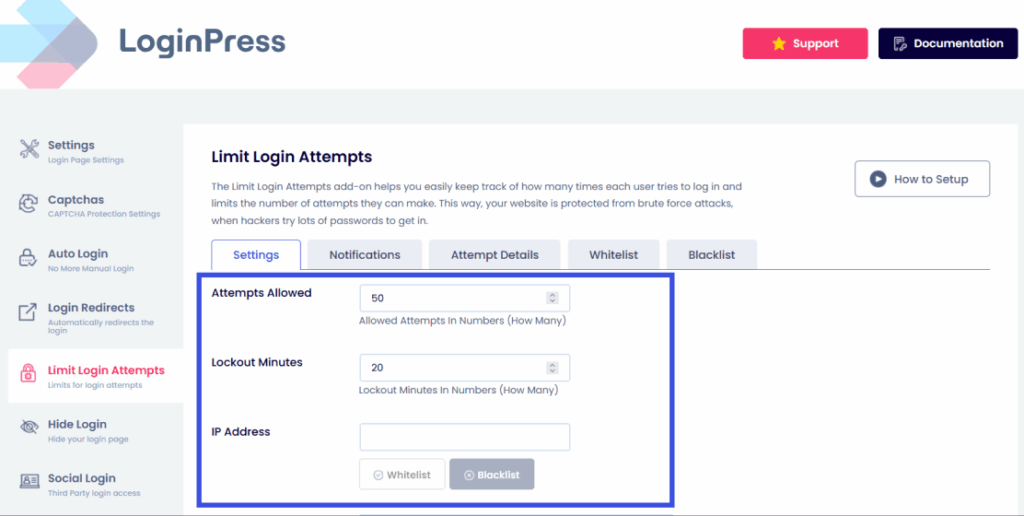
Limiting login attempts locks out IP addresses after a set number of failed attempts, which stops brute-force attacks even if an attacker bypasses CAPTCHA.
While CAPTCHA filters out bots, limiting login attempts stops any persistent attacker, human or machine, from making repeated guesses.
We recommend a strict policy: three failed attempts should trigger a 20-minute temporary lockout.
This creates a time barrier for attackers without permanently banning a user who simply forgot their password.
LoginPress Implementation
This security layer is available via the Limit Login Attempts add-on. Once activated, go to LoginPress >> Settings >> Limit Login Attempts to define your lockout rules. You can also monitor the Attempt Details table to see which IP addresses are frequently hitting your login page and failing to log in.
7. Change the Default Login URL
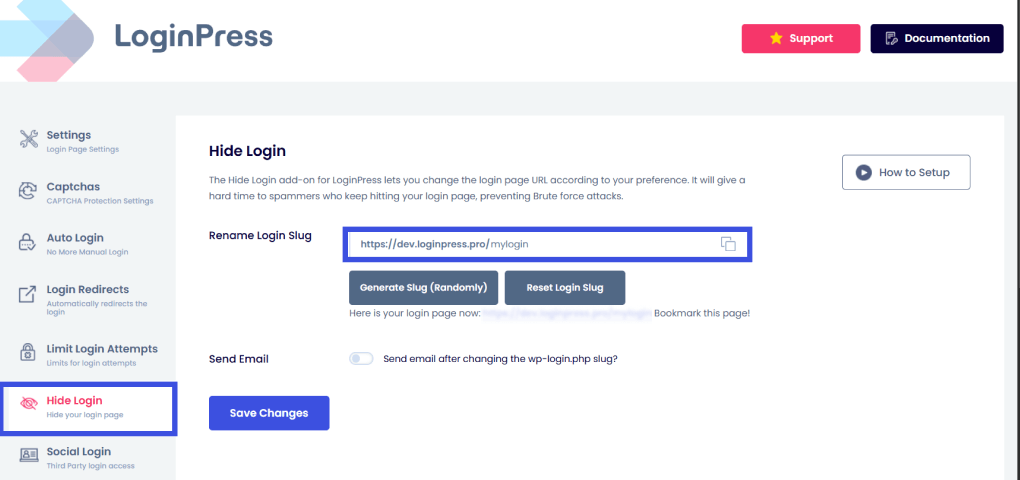
Changing the login URL from the default wp-login.php to a custom path removes the most targeted WordPress attack endpoint from public exposure.
Most automated scripts are programmed to look for the default path. By moving your login to something like /portal or /team-access, the bots simply find a 404 page and move on.
While this is “security through obscurity,” it effectively eliminates the noise of high-volume automated probing. Just remember to save your new URL in a password manager so you don’t lock yourself out.
LoginPress Implementation
Using the LoginPress Hide Login add-on, go to LoginPress >> Settings >> Hide Login. Enter your desired new path and save.
The plugin handles the redirection automatically, making the old URL inaccessible to the public. If you ever lose the URL, you can still recover access via FTP or your database.
8. Redirect Users to the Right Page After Login Based on Their Role
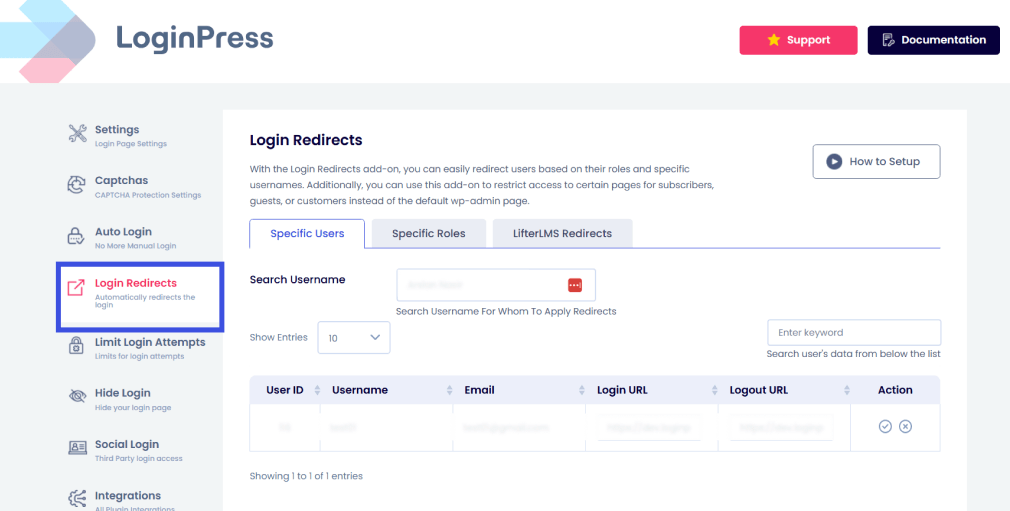
Redirecting users to a role-specific page after login prevents confusion when they land on the WordPress admin dashboard, since they only need access to a membership area or an account page.
Sending a “Subscriber” to the back-end dashboard is unnecessary. A better user experience involves sending customers straight to their “My Account” page and editors directly to the “Posts” screen. This reduces the number of clicks required for your users to start their work.
LoginPress Implementation
The LoginPress Pro Login Redirects add-on allows you to manage these rules in LoginPress >> Settings >> Login Redirects.
You can assign a specific URL for every user role on your site. This ensures administrators still reach the dashboard while every other user type lands exactly where they belong.
While these WordPress login page customization practices set a high standard for your site, there are several common pitfalls to watch out for during setup.
What to Avoid When Customizing Your WordPress Login Page
Most WordPress login pages fail because site owners focus on design and ignore security basics during WordPress login page customization.
If you avoid these mistakes, your WordPress login page customization will stay functional, secure, and consistent, even when WordPress updates.
To customize your login page effectively, you need to balance its appearance with its stability and reliability.
Use the table below to identify common errors and the professional standards for WordPress login page customization that should replace them.
| Mistake | Why It Fails | What to Do Instead |
| Editing wp-login.php directly | WordPress overwrites this core file during every update, which erases your custom code. | Use a plugin like LoginPress to safely store settings in the database. |
| Designing without contrast checks | Poor contrast makes logos invisible and forms difficult to navigate, especially on mobile. | Use a live preview to verify legibility and test your design on multiple screen sizes. |
| Skipping security settings | A visually stunning page remains vulnerable to brute-force attacks without backend protection. | Pair your design with reCAPTCHA and login attempt limits before going live. |
| Over-designing the form | Excessive colors and heavy imagery slow down page loads and distract users from the task. | Stick to a single background and a single brand color to keep the focus on the login fields. |
| Revealing the platform | Default URLs and error messages confirm you are using WordPress, aiding bot-driven scans. | Mask your platform by customizing error text and changing the default login URL. |
By keeping these guidelines in mind, you can ensure your branding does not harm your site’s performance or security for WordPress login page customization.
After you know these boundaries, you can choose the right tools to build a complete solution quickly and effectively.
How to Apply All Login Page Customization Best Practices with LoginPress
LoginPress implements all eight WordPress login page customization best practices from a single plugin, without requiring any code, CSS, or design expertise.
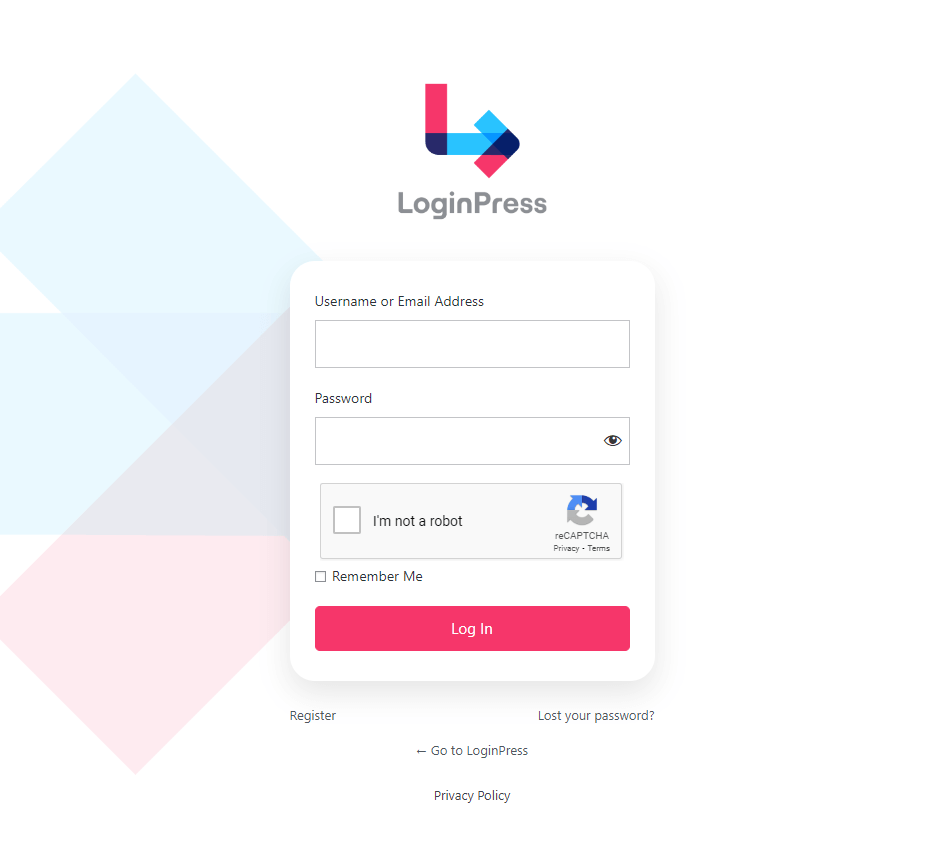
It transforms the default login screen by providing a central interface to manage both aesthetic branding and critical security layers for WordPress login page customization.
The following table summarizes how the LoginPress Free and Pro versions align with these industry standards of WordPress login page customization.
| Best Practice | LoginPress Free | LoginPress Pro |
| Replace logo | ✓ Logo upload, URL, and title | ✓ Same plus Google Fonts for typography |
| Brand background | ✓ Solid color, image, or video background | ✓ Same |
| Pre-built templates | ✓ Default + limited themes | ✓ Full premium template library |
| Custom error messages | ✓ Fully customizable | ✓ Same |
| reCAPTCHA | ✕ Not available | ✓ v2 and v3, on all forms |
| Limit Login Attempts | ✕ Not available | ✓ IP lockout, attempt tracking, custom messages |
| Hide Login (change URL) | ✕ Not available | ✓ Hide Login add-on |
| Role-based redirects | ✕ Not available | ✓ Login Redirects add-on |
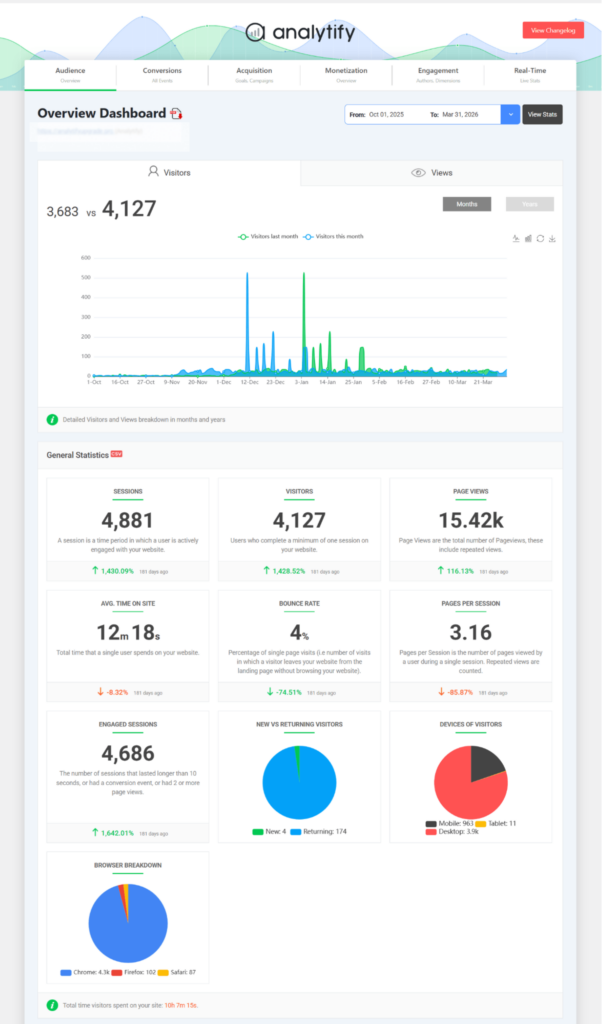
If you also want to understand where your visitors come from and which pages drive the most engagement, Analytify displays your GA4 analytics directly in WordPress, without opening Google Analytics.
Frequently Asked Questions
How do I customize the WordPress login page without coding?
Install a login page plugin, such as LoginPress. Once activated, go to LoginPress >> Customizer in your WordPress admin. You can change the logo, background, form style, button design, and error messages using live preview controls with no code required. Changes are stored in the WordPress database and persist across WordPress updates.
What happens to my login page customization if I update WordPress?
If you used a plugin to customize the login page, your customizations are stored in the WordPress database, not in WordPress core files. They persist through all WordPress updates. If you edited wp-login.php directly, your changes will be overwritten by every core update. This is the main reason plugin-based customization is the correct approach.
Is it safe to change the WordPress login URL?
Yes. Changing the login URL with a plugin like LoginPress Pro’s Hide Login add-on is safe and recommended. The old wp-login.php returns a 404, which stops bots that probe default WordPress paths. Save your new login URL in a secure location. If you lose it, you can recover access via the WordPress database or FTP.
What is the best WordPress login page customization plugin?
LoginPress is a dedicated WordPress login page customizer that handles design, security, and UX without code. The free version covers logo replacement, background customization, form styling, and error messages. The Pro version adds reCAPTCHA, login attempt limits, a custom login URL, role-based redirects, and a premium template library. It has 200,000+ active installs and a 5-star rating on WordPress.org.
Can I add a two-column layout to my WordPress login page?
Yes. A two-column layout, with the login form on one side and brand content on the other, is a Pro feature in LoginPress. It is not available in the free version. The layout places your branding, messaging, or imagery in the left column and the login form on the right, similar to the layout of many SaaS platforms and membership sites.
Conclusion: WordPress Login Page Templates
Customizing your WordPress login page is more than a design choice; it is a critical decision for branding, security, and user experience.
While the default page fails to meet these standards, the eight practices we’ve covered provide a clear framework for improvement.
To get started on WordPress login page customization, follow these three steps:
- Install LoginPress: Apply the core design best practices, including logo replacement, background customization, and error message styling, in under 15 minutes.
- Upgrade for Security: If your site handles user registrations or client logins, use LoginPress Pro to activate reCAPTCHA, Login Attempt Limits, and Role-Based Redirects.
- Audit Mobile Usability: Always test your login page on a mobile device to ensure button tap targets and form contrast remain functional on smaller screens.
Explore LoginPress Pro for WordPress login page customization, without coding.
That is all for this post. For more related posts, check:
- How to Use Your WordPress Login Page as a Marketing Funnel (2026)
- How to Redirect Login Page by User Role in WordPress (Explained)
- How to Temporarily Disable WordPress Login Access (Explained)
So, which WordPress login page customization best practices are you going to apply? Let us know in the comments below!