How to Redirect Users to the Referrer Page After Login [Referrer Page Navigation Guide]

To redirect users to the referrer page after login in WordPress, use the LoginPress Login Widget (Pro). After logging in, users return to the page they were reading instead of landing on the admin dashboard.
That keeps readers in your content without interruption, which matters most on membership sites and blogs where people register accounts.
In this post, I will show how to set it up with the Login Widget, step by step.
Table of Contents
What is the Referrer Page?
The referrer page is the page a user was viewing before they logged in. By default, WordPress sends users to the admin dashboard instead.
This is particularly useful in membership sites or blogs where users sign up/Register accounts.
Redirect Users to the Referrer Page After Login with the Login Widget
You redirect users to the referrer page with the LoginPress Login Widget. LoginPress Pro must be installed and activated first.
Note: For more details, check our guide on How To Install And Activate LoginPress PRO Version?
Step 1: Activate Login Widget Add-on
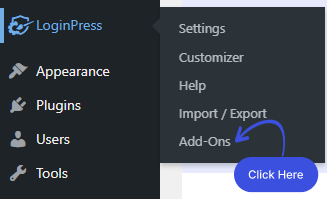
First, go to the left sidebar of the WordPress admin dashboard. Navigate to LoginPress and click Add-Ons.
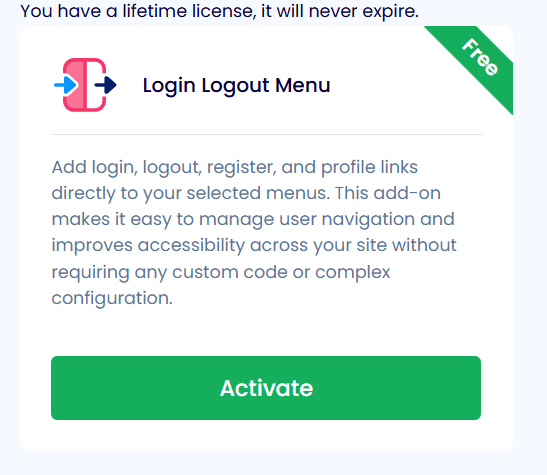
Next, you need to see the Login Widget Add-On and enable the toggle button to activate it.
Step 2: Go to Login Widgets
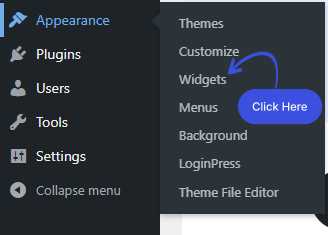
Go to the left sidebar of the admin dashboard. Navigate to Appearance and click Widgets.
Step 3: Get Started with the Login Widget Add-on.
Note: The Login Widget add-on isn’t compatible with block themes. So, if you’re planning to use it, you need a non-block theme such as Twenty Twenty-One.
A new screen will open up. Here you can see the Widget with a “+” sign in the top-left corner of the screen.
Click on the “+” button.
Once you click on the +, you can search for the Login Widget and drag and drop it where you want to display it.
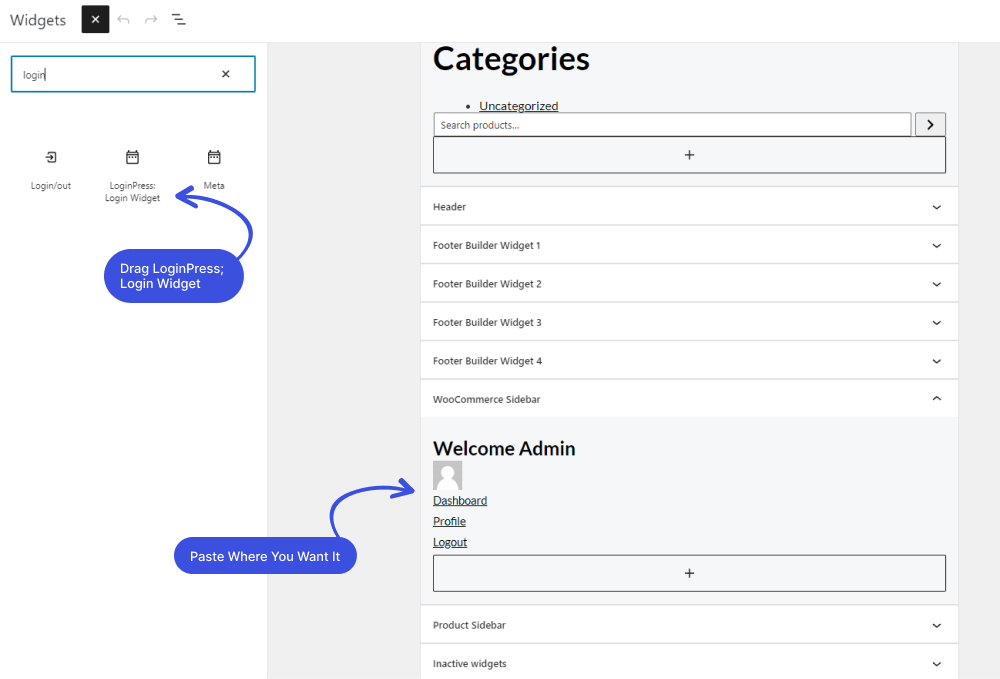
When you click on the login widget block, you’ll see that the Login Redirect URL is set to the Current page URL by default.
Note: You can also add a custom URL to redirect to after login.
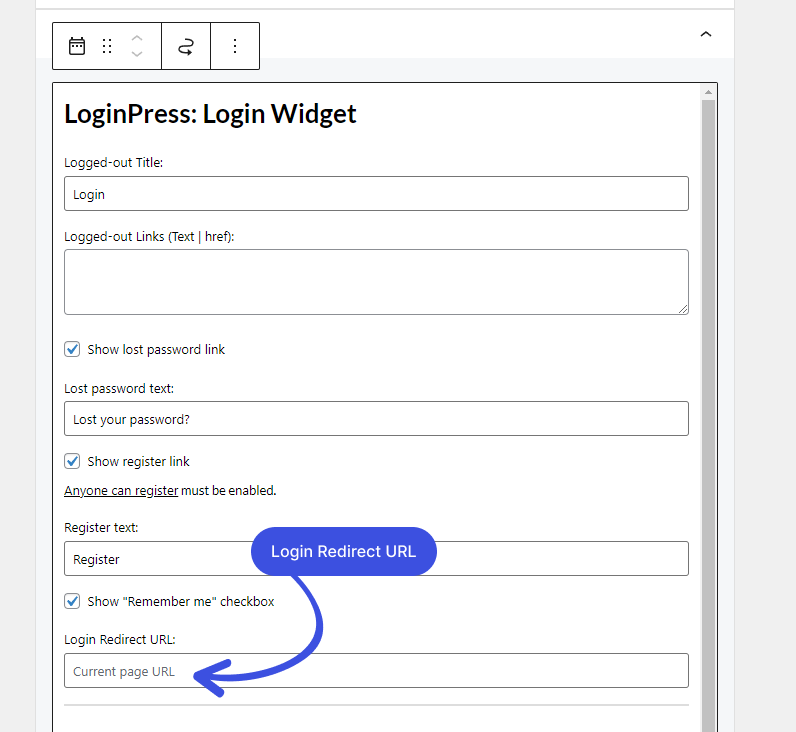
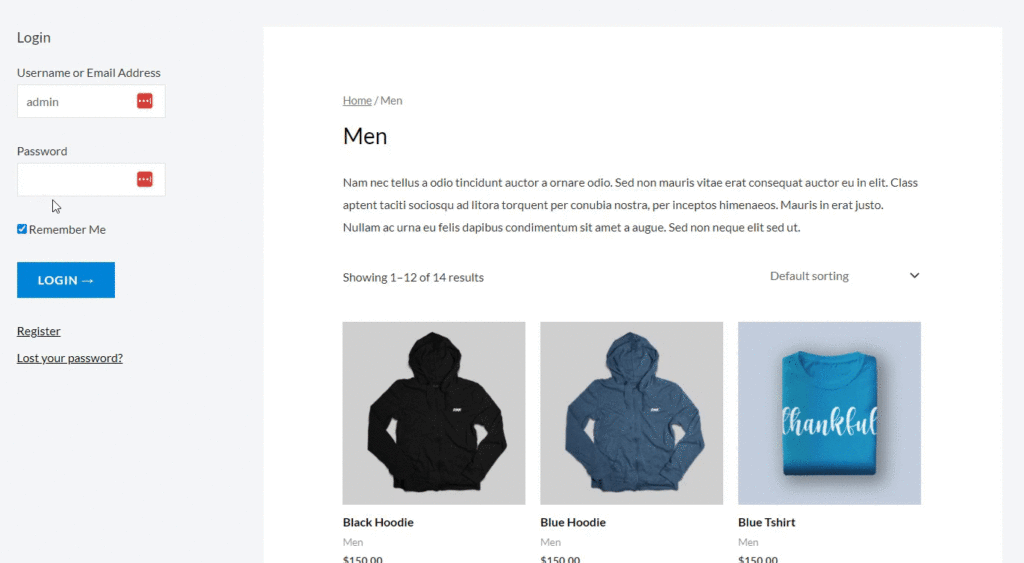
Now, whenever the user tries to log in to your site while reading your content or viewing your products, the user will be automatically redirected to the Current page URL.
Let’s try to log in to see if the Login Widget works perfectly to redirect the user to the Referrer/Current page.
Final Thoughts
The LoginPress Login Widget is a simple way to send users back to the page they came from after login.
In case you find it difficult to add a Login Widget to the sidebar of your WordPress site, see our detailed guide on How to Add Login Widget with LoginPress.
Frequently Asked Questions
What is a login widget?
The Login widget is a short login form that you can add to the sidebar or footer of the website. By default, it simply asks for a username and password. However, you can customize the default widget.
What is a login redirect?
Login redirects allow redirecting users and visitors, i.e., customers or editors, to specific pages when they try to log in to your site.
That’s all we helped you with.
You may also want to check out How To Embed Video on WordPress and How To Redirect Woocommerce Users after login.