How to Redirect WooCommerce Users After Login

To redirect WooCommerce users after login, use the LoginPress Login Redirects add-on or add a code snippet to your child theme’s functions.php file. WordPress has no built-in way to do this, and the add-on lets you set redirects per user or per role without code.
By default, WooCommerce users land on the WordPress dashboard after login. Customers should go to a shop or account page, and admins to the dashboard.
This post explains why it matters and shows both methods, starting with the add-on.
Table of Contents
What is Login Redirect?
A login redirect sends users to a chosen page right after they log in, instead of the default admin dashboard or profile screen. Where users land can affect the experience more than you might expect.
Suppose you are running a WooCommerce site and want to redirect the users to the preferred pages after logging in. You may even want to redirect users to different pages based on their roles, including the homepage, admin to the dashboard, and so on.
Here login redirect will help you send the users to the desired destination after login.
Why Do You Need to Redirect WooCommerce Users After Login?
You need to redirect WooCommerce users after login to give customers a clearer, more personal shopping experience.
- Have comprehensive control of your pages: Redirections help you fully control the pages visitors will see after they log in to your WooCommerce site.
- Encourage visitors to enter a particular page: Redirections help redirect your users to a specific page.
- Improved User Experience: As you can imagine, redirecting users to website pages positively impacts the user experience. For instance, if you sell products on your website, you can redirect new users to a page that presents specific new members’ discounts.
- Protect Your Admin Dashboard: By default, every user lands on the same page when they login to the WordPress admin dashboard. However, you might want only some users to access the website dashboard for security reasons.
By redirecting the users to any desired website area, you add a layer of security to your website. This way, only users with the appropriate role(s) can access the WordPress dashboard.
Redirect WooCommerce Users After Login
WordPress does not offer login redirects by default, so you fill the gap with a plugin or with code.
1. Redirect WooCommerce Users After Login via LoginPress Login Redirects Add-on
Although there are many plugins available to redirect specific users after login based on the user’s role. Here are some of the plugins you should consider for redirecting specific users after login based on the user’s role:
LoginPress Login Redirect Add-on is a less risky way to redirect specific users after login.
So, here we’ll show you how to redirect specific users after login based on the user’s role using LoginPress’s Login Redirects Add-on.
Step 1: Install and Activate LoginPress Pro
Note: We assume you’ve already installed and activated the LoginPress plugin.
Login Redirects is a premium Add-on. To redirect WooCommerce users after login, the first thing you’ll need to do is get the LoginPress premium version.
You can see our detailed guide on How To Install And Activate LoginPress PRO Version?
Step 2: Activate Login Redirects Add-on
Once you’ve downloaded and activated LoginPress pro, you’ll need to activate the Login Redirects Add-on.
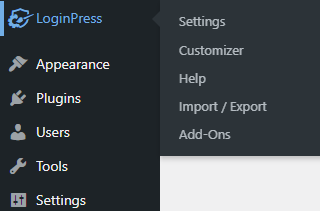
For this, go to the left of the WordPress admin dashboard and navigate to LoginPress > Add-Ons.
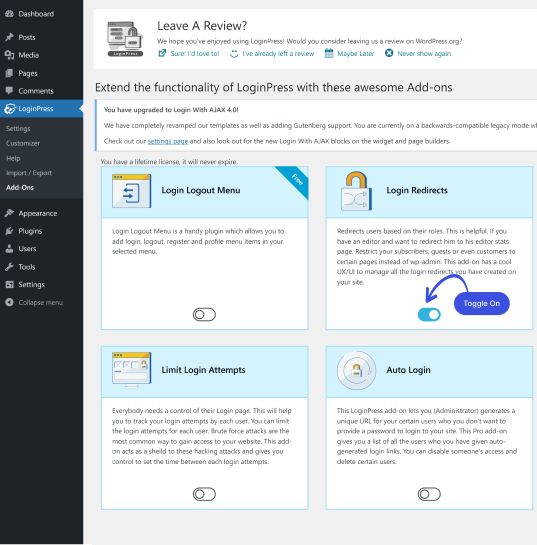
Next, you need to find the Login Redirects Add-On and Toggle On the button to activate the Login Redirects Add-on.
Step 3: Get Started with Login Redirects Add-on
Now all done! You are ready to get started with LoginPress’s Login Redirects Add-on.
For this purpose, go to the left sidebar of your admin dashboard. Navigate to LoginPress and select Settings.
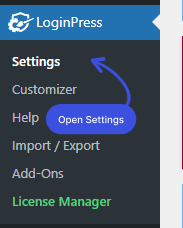
Once you are on the Settings tab, you’ll find the Login Redirects tab next to it. Open the LoginRedirects tab.
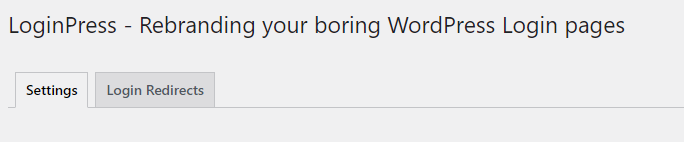
Here, under the Login Redirects tab, you’ll find two more tabs:
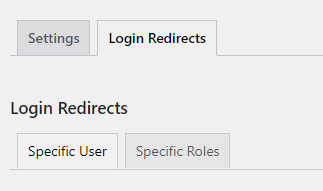
As you can see, Login Redirects is allowing you to redirect users onthe basis of Specific Users and Specific Roles.
1. Login Redirects for Specific Users
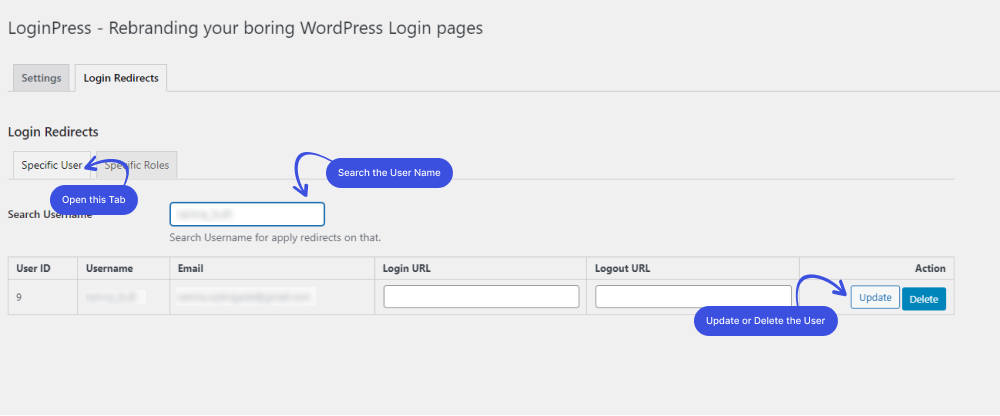
Redirecting specific users is very easy. Go to the Specific User tab and search for the user’s name in the Search Username box.
If the user exists, you’ll see their details, including their User ID, username, and registered email address. You get two fields labeled Login URL and Logout URL. You can set the URLs you want to redirect that user to at the login and log out.
Once you have set the URLs, go to the next column and choose the appropriate action (Update or Delete).
2.Login Redirects According to User Roles
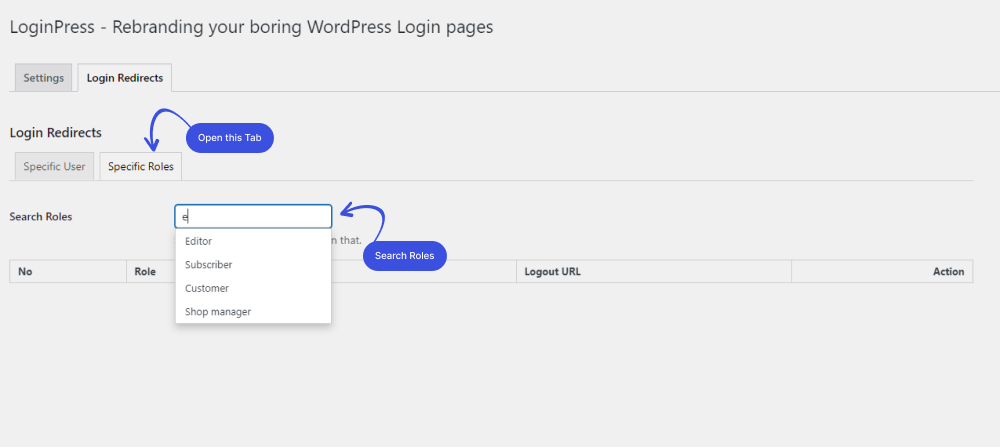
Redirecting users according to their assigned roles is very easy. Go to the Specific Roles tab and search for a role in the Search Roles box.
Once you find the role, you can set the login and logout URLs. Remember to Update the settings to save the URL changes.
Step 4: Add the Snippet in the Child Theme’s functions.php File.
Once you’ve placed the login redirect URL to redirect WooCommerce user, you’ll need to paste the following snippet in the child theme’s functions.php file. This code will ensure that the user has been redirected to the desired path in place of the my-account page.
add_action( 'woocommerce_login_form_end', 'loginpress_woocommerce_actual_referrer' );

 /**

  * @snippet       Redirect to Referrer @ WooCommerce My Account Login

  */

function loginpress_woocommerce_actual_referrer() {

echo '<input type="hidden" name="redirect" value="' . esc_url( site_url() ) . '" />';

}
3. Redirect WooCommerce Users After Login via Code Snippet
Although a plugin is the most secure way to redirect a user to some specific pages, in case you don’t want to, you can manually redirect them using a code.
To redirect WooCommerce users, after login, to a specific page add the following code snippet in your child theme’s functions.php file:
add_action( 'woocommerce_login_form_end', 'loginpress_woocommerce_actual_referrer' );

 /**

  * @snippet       Redirect to Referrer @ WooCommerce My Account Login

  */

function loginpress_woocommerce_actual_referrer() {

echo '<input type="hidden" name="redirect" value="' . esc_url( site_url() ) . '" />';

}
The following code snippet will redirect WooCommerce users to the homepage when they log in.
In case you want to redirect the user to any other page:
add_action( 'woocommerce_login_form_end', 'loginpress_woocommerce_actual_referrer' );

/**

  * @snippet Redirect to Referrer @ WooCommerce My Account Login

  */

function loginpress_woocommerce_actual_referrer() {

  $redirect_to = 'Your Custom URL'; // Change this to wherever you want to redirect the user.

  echo '<input type="hidden" name="redirect" value="' . esc_url( $redirect_to ) . '" />';

}
Final Thoughts
Redirecting WooCommerce users after login enforces user roles and improves the user experience.
The LoginPress Login Redirects add-on sets login and logout redirects for specific users or entire user roles. You can also add a code snippet to the child theme’s functions.php file.
That’s all we helped you with How To Redirect Woocommerce Users after login, You may also want to check out How To Embed Video on WordPress and How To Customize WordPress Login Page.
Frequently Asked Questions
What is a login redirect URI?
A redirect URI also called a reply URL, is what the authorization server sends the user when the app gets authorized.
Are redirects bad for SEO?
Redirects hurt your SEO efforts only when they’re implemented incorrectly. If you pay attention to the type of redirect and how you implement them, redirects have little impact on your SEO efforts.