How to Add WordPress Login Widget to the Sidebar (Easy Guide)

To add a login widget to your WordPress sidebar, download and activate the LoginPress Login Widget add-on, then add the widget under Appearance > Widgets.
In this post, I will show you each step.
Table of Contents
Why Do You Need a Custom Login Widget On WordPress?
Add a login widget to your sidebar because sidebar widgets are highly visible, even on smaller screens, and they encourage visitors to sign up for an account.
The idea is to show the visitors that they can sign up for an account to avail of additional services and options.
WordPress provides a simple login widget that you can add to the sidebar. However, it’s very simple and leaves a lot to be desired.
Adding Login Widget to WordPress Site Using LoginPress
The LoginPress Login Widget is an add-on that admins can place in the sidebar to give users a second way to log in.
Since it uses AJAX to log the visitor in, the page doesn’t refresh when visitors click the widget.
Perhaps the best thing about the add-on is the option to customize it using a simple HTML/CSS combination.
This allows you to fit the widget within your website’s design.
Note that the Login Widget add-on isn’t compatible with block themes.
So, if you’re planning to use it, you need a non-block theme such as Twenty Twenty One.
Note: The following steps assume that you already have the LoginPress WordPress login plugin installed and activated on your WordPress website. For more information, you can check our blog post How To Install And Activate LoginPress (Premium).
Let’s see how you can add a login widget to your WordPress sidebar using the LoginPress Login Widget add-on.
Step 1: Download Login Widget Add-on
The first thing you need to do is download the Login Widget add-on.
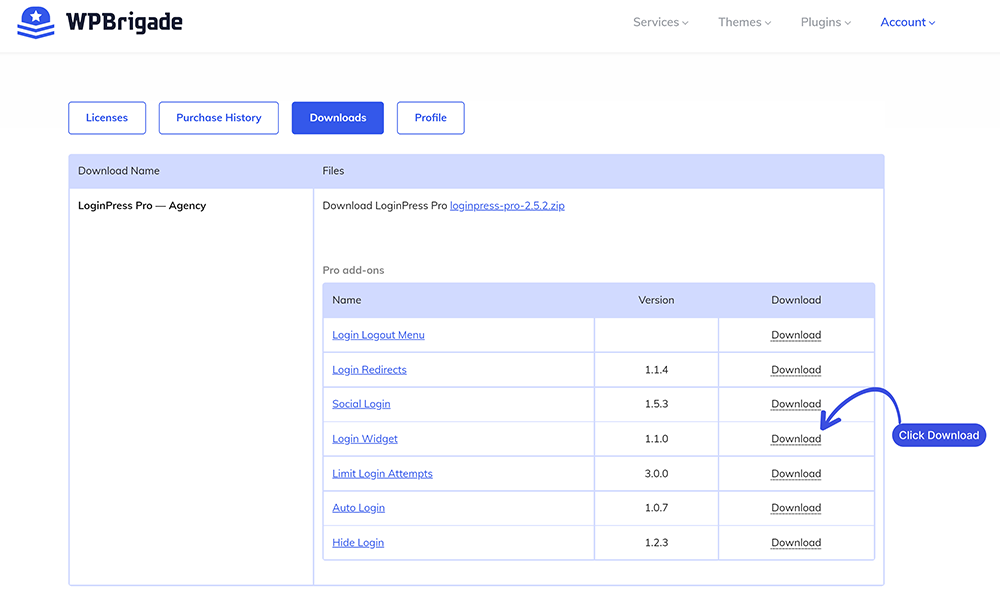
Start by logging in to your WPBrigade account and going to the Downloads page.
Once you’re there, look for the Login Widget add-on and click Download.
Step 2: Install and Activate the Plugin
After you have downloaded the plugin, you need to install and activate it.
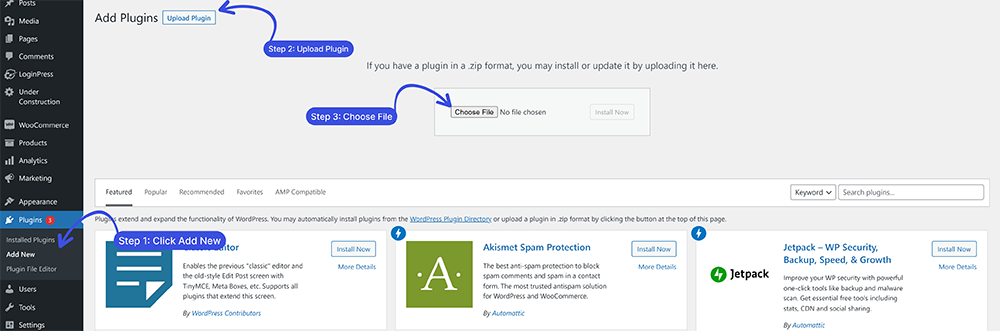
For this, go to your WordPress Dashboard and then to the Plugins Page.
Once you’re there, click the Add New button. You’ll be taken to the Add Plugins screen, where you can upload the downloaded file.
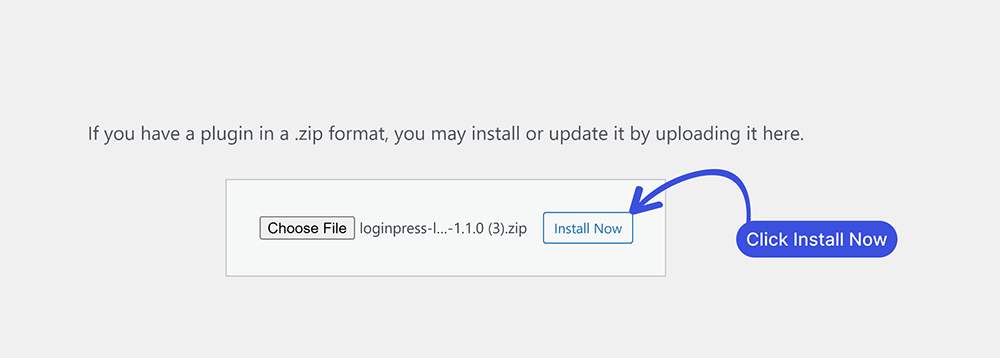
After you have uploaded the plugin, click Install Now, and then Activate.
At this point, the add-on is ready for use on your website.
Step 3: Add the Login Widget
To add the login widget to the sidebar, go to the WordPress Dashboard >> Appearance >> Widgets.
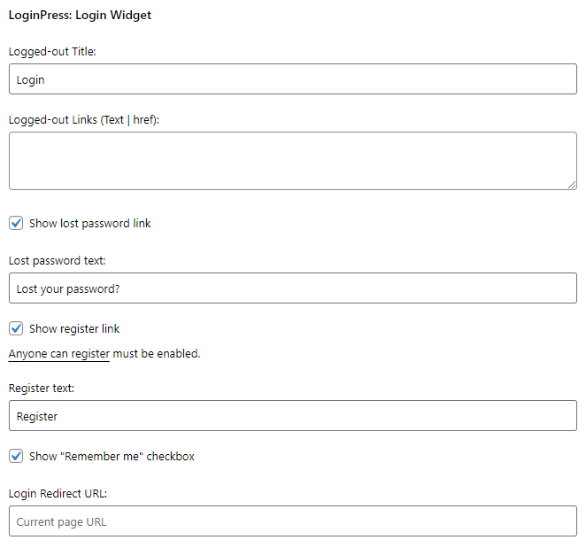
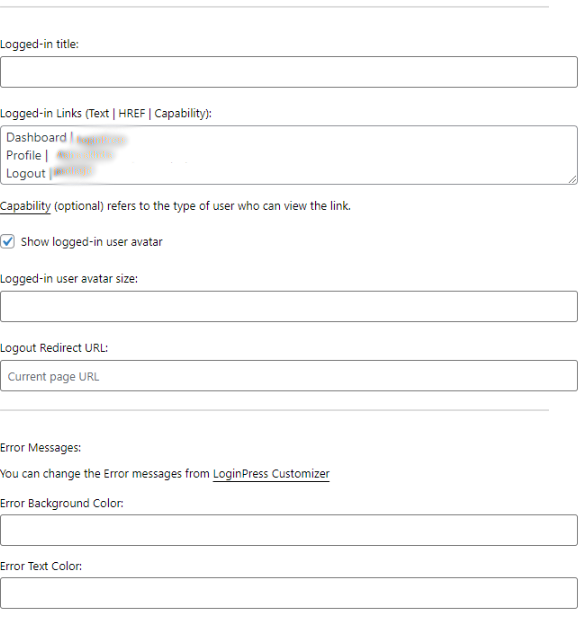
You can configure the Login Widget add-on. Click on the Widgets, and then you’ll be able to configure the add-on.
The LoginPress Login Widget add-on enables you to add additional options to the default login widget.
In particular, the add-on introduces the following options to the login widget:
- Add an avatar.
- Enable/disable the Show lost password link.
- Customize the Lost Password text.
- Show the registration link, with customizable text.
- Show the Remember me checkbox.
- Add a Login Redirect URL
The Login Widget add-on also allows you to customize error messages to convey additional information to users.
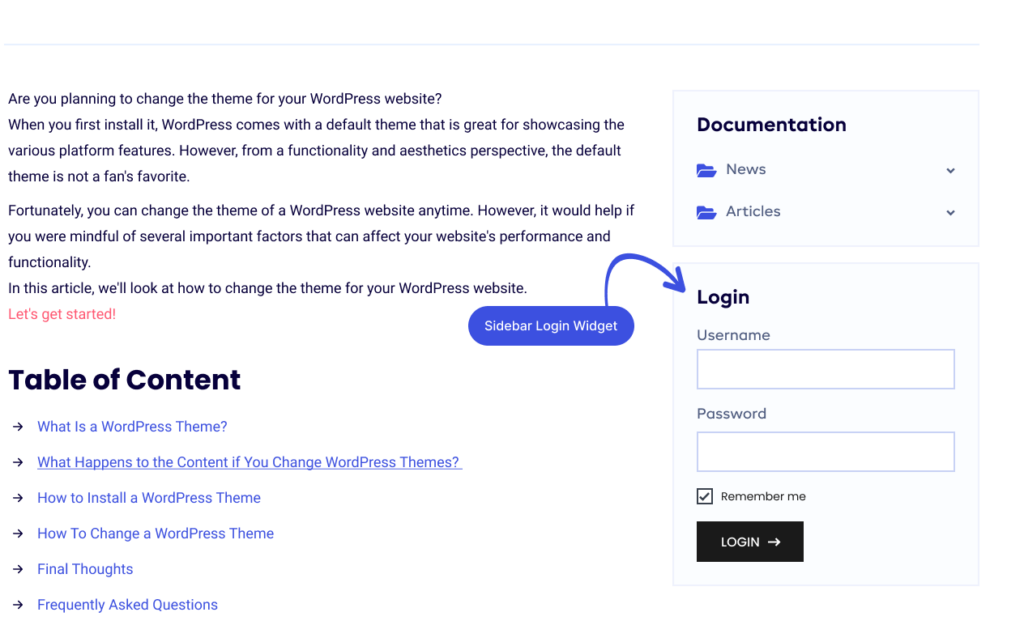
Here is what the final appearance would be like:
Conclusion: WordPress Login Widget
A sidebar login form gives your users an additional way to log in to your WordPress website.
For example, users landing on your blog or landing pages can log in to their accounts directly without an extra step.
The LoginPress Login Widget add-on adds more options to the default WordPress login widget and lets you customize its appearance to better blend with your website design.
Let us know if you tried the Login Widget add-on for your website sidebar.
Frequently Asked Questions
What is a login widget?
The Login widget is a short login form that you can add to the sidebar or footer of the website. By default, it simply asks for a username and password. However, you can customize the default widget with plugins.
Is the WordPress login widget secure?
The WordPress login widget uses the same security checks as the website’s login page.
That’s all! You can also check out How To Add Google Fonts With LoginPress and How To Change The Theme for Your WordPress Website.
Not using LoginPress yet? What are you waiting for?