How to Hide WordPress Login URL for Better Security (Guide)

You hide the WordPress login URL by replacing the default /wp-login.php and /wp-admin addresses with a custom URL only you know. With LoginPress, that takes a few clicks in the Hide Login settings, and bots hitting the old URL get nothing.
The default login URL is the first place automated bots look. They hit it all day, trying thousands of username and password combinations, which wastes server resources and puts your site at risk.
This post shows you how to set a new login URL with LoginPress, the security habits to add on top, and how to fix the two problems people run into afterwards.
Hide WordPress Login URL (TOC):
Why You Should Hide the WordPress Login URL
You should hide the WordPress login URL because the default address is predictable, and bots target it constantly. Moving the login page to a custom URL removes it from automated attacks before any password guessing starts.
Let’s examine some of the reasons why you should hide WordPress login URL:
- To Block Brute Force Attacks
Brute-force attacks are persistent. These attacks involve bots trying to guess your login credentials. Since WordPress allows unlimited login attempts, this leaves the door open for automated brute-force attacks.
The minute you hide the WordPress login url, you break the loop. Automated attacks fail instantly because the bot cannot find the target. This simplest form of protection is available in LoginPress through the Limit Login Attempts Add-On, which allows you to limit the number of attempts a user can make on your site.
- To Improve Site Performance
Security of your WordPress site should be a layered approach. Hiding your login page adds a necessary layer of defense by forcing potential human attackers to know your custom URL.
The default URL informs everyone that this is a WordPress site and provides the login location.
Whilst a custom URL, like yourdomain.com/secret-admin-area/, changes everything. Only those with the specific address URL can attempt to log in.
This significantly reduces login burden and makes automated attacks harder. LoginPress offers the Hide Login Add-On, which enables you to create a custom URL for effective to secure WordPress login page.
How to Hide the WordPress Login URL Using LoginPress
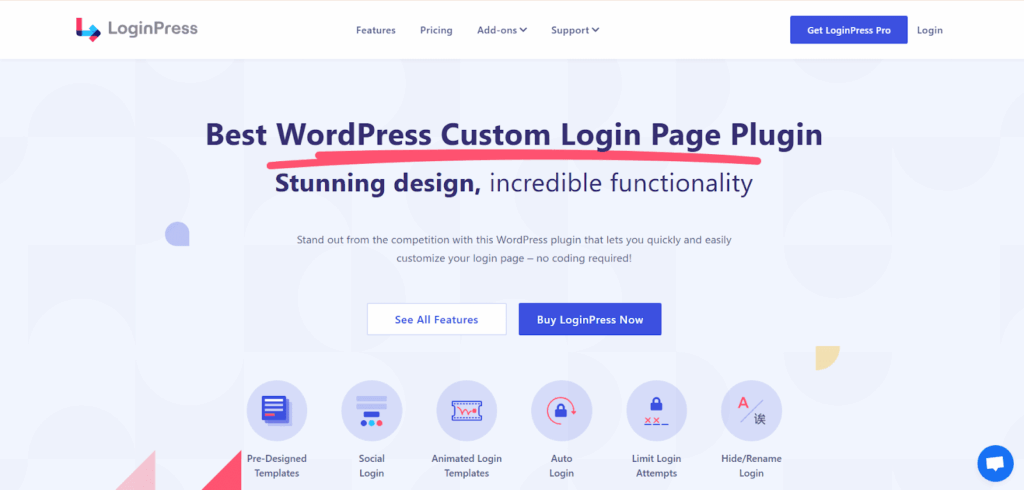
You hide the WordPress login URL with LoginPress by turning on the Hide Login add-on and entering a new login slug. No code is needed, and the four steps below cover setup and testing.
Step 1: Install and Activate LoginPress
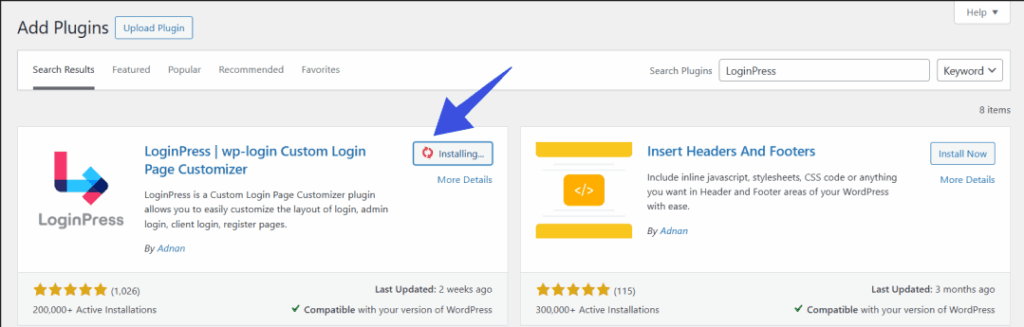
Activate and install LoginPress from the WordPress plugins section. For more details, see this step-by-step guide on How to Install And Activate LoginPress (Free) and How To Install And Activate the LoginPress PRO Version.
Step 2: Access the Hide Login Settings in LoginPress
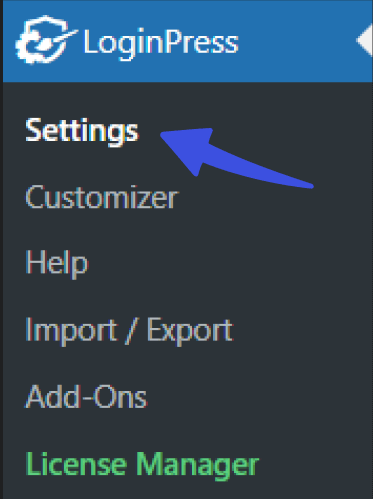
Go to LoginPress >> Settings and access the main configuration panel.
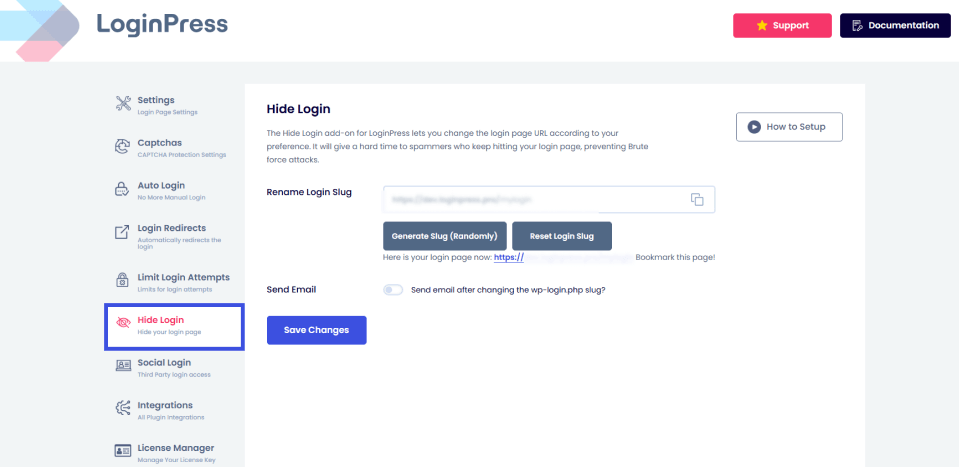
Then look for the Hide Login option.
Step 3: Define Your New, Secret Login URL
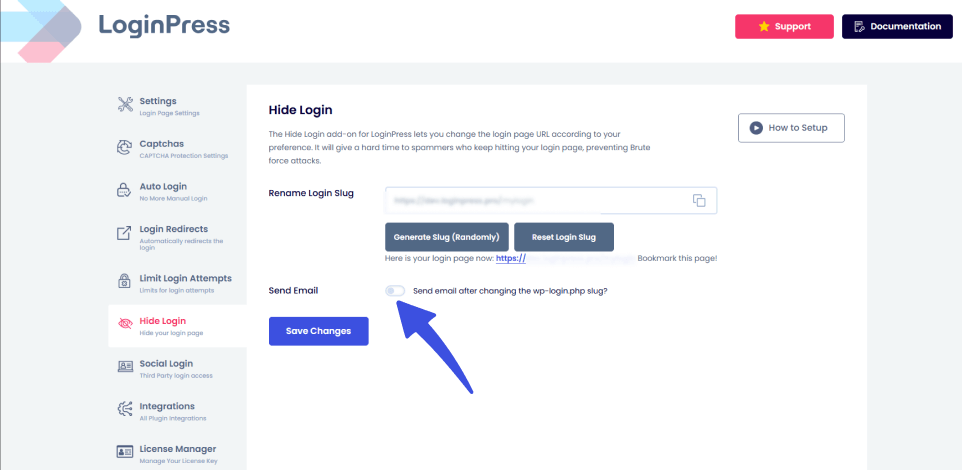
Inside the Hide Login settings, you will see a field labeled Rename Login Slug. This is where you type in your new URL path. Choose something unique and hard to guess, but easy for you to remember.
- Bad Example: my-login
- Good Example: portal-secure-entry-2025
Type your chosen slug into the field. LoginPress also offers to generate a random slug for you.
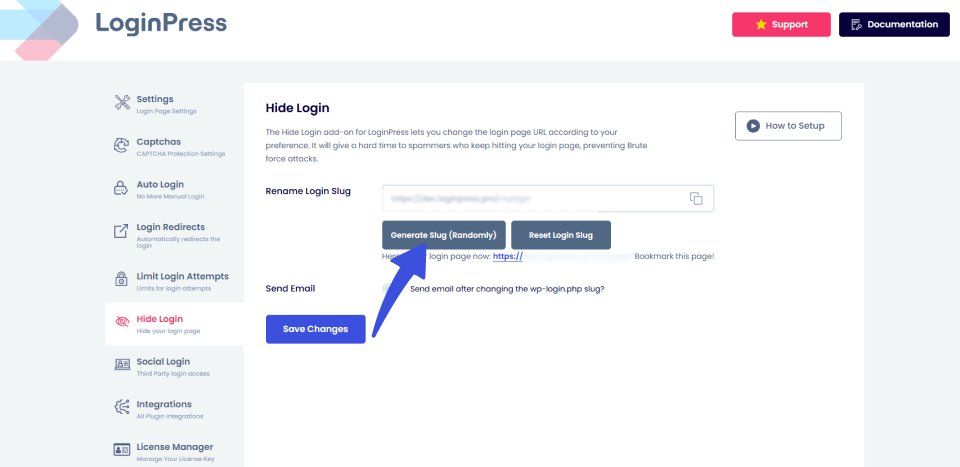
Not only that, but LoginPress also provides an email notification option so the newly generated slug is sent to your personal email for safekeeping.
Step 4: Save and Test
Click the Save Changes button. LoginPress instantly updates your site’s permalinks and routing rules.
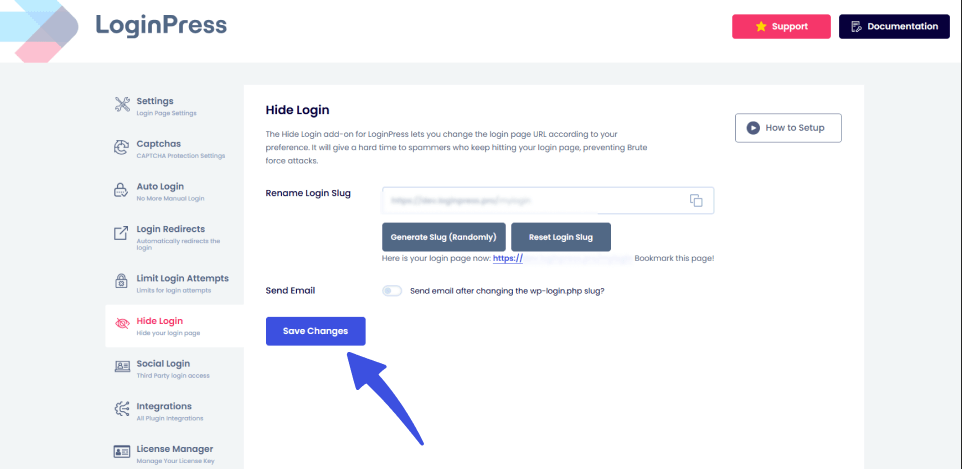
You have successfully used the best WordPress hide login page Add-On by LoginPress to create a hidden, secure access point for your users and hide WordPress login URL. This step will achieve a layer of WordPress brute force protection with just five simple clicks.
Advanced WordPress Login Security Best Practices
Hiding the login URL is a strong first step, but login security works best in layers. Combine it with the practices below to secure the WordPress login page properly.
Limit Login Attempts
Even after you hide the WordPress login URL, a targeted human attacker could still find your new custom path. If they do, you need a mechanism to prevent them from consistent attacks.
This is where the limiting login attempts add-on by LoginPress becomes necessary to hide WordPress login URL.
With the limit login attempts feature, you can set a threshold for the number of allowed attempts, lock out users after a specified number of attempts, and receive an email notification when a lockout is implemented.
Changing the Default Admin Username
This is an often-overlooked step. When attacks occur, bots automatically assume the username is an admin. If your site still uses this default, the attacker is already halfway to guessing your credentials.
You must never use admin as a username. You can change the default username in WordPress by creating a new Administrator account with a unique, non-obvious username. This simple change significantly reduces the chance of a successful compromise. Now, the attacker must guess both the hidden URL and a unique username.
Using Strong Passwords
Even the most advanced security features are useless if your password is weak. A strong password is the basis for all the other security features to start working. Secure passwords must meet three criteria:
- Length: It should be at least 12 characters long or more.
- Complexity: It must contain a mix of uppercase letters, lowercase letters, numbers, and symbols.
- Uniqueness: It must be used only for this single website.
You can also use a dedicated password manager, such as LastPass or 1Password, which encrypts and stores your passwords securely.
By combining a secure Hide WordPress Login URL Add-On with high-strength encryption and other advanced security tips, you have built a secure defense for your credentials.
Troubleshooting Login Issues After Hiding the Login URL
The two most common problems after hiding the login URL are forgetting the new address and conflicts with other plugins. Both are quick to fix.
Problem 1: Forgetting the Login URL
One of the most common issues users face after changing their WordPress login URL is forgetting or losing the new custom URL. When this happens, you can get locked out of your own admin dashboard, unable to access the login page.
To prevent that, you can try this quick solution:
- Rename the Plugin Folder via FTP or File Manager: This action temporarily deactivates the hide login feature, allowing you to log in using the original wp-login.php path. Once logged in, simply rename the folder back, reactivate LoginPress, and retrieve your custom URL from the settings.
This is why LoginPress offers to send you the renamed slug to your email, allowing you to save and bookmark it for future logins.
Problem 2: Conflicts with Other Plugins
Sometimes, security plugins, caching plugins, or firewall services conflict with the URL rewriting performed by LoginPress. This can lead to redirect loops or 404 errors even on your new URL. To troubleshoot this issue, you can try the following solutions:
- Clear Caching: If you use a caching plugin, then immediately clear all site caches and browser cache after changing the URL. Caching may be incorrectly serving the old routing rules.
- Re-save Permalinks: Go to Settings >> Permalinks and click Save Changes (no need to change any settings). This forces WordPress to flush and rebuild its URL routing rules, resolving most conflicts.
- Plugin Deactivation Test: If the issue persists, temporarily deactivate all other security/caching plugins. If the login works, reactivate them one by one until you find the conflict. Then, look for a compatibility setting in the conflicting plugin.
FAQs on Hide WordPress Login URL
How does LoginPress differ from simply hiding the login page with code?
LoginPress is superior because it offers a safe, non-code interface for changing the WordPress wp-login URL. When you use code, you risk breaking your site’s core files or losing your custom URL every time your theme updates. LoginPress is a WordPress hide login page plugin that updates safely and maintains your settings, offering a reliable, professional solution backed by dedicated support.
Does hiding the login URL affect my site’s SEO?
No, hiding your login URL has no impact on your site’s Search Engine Optimization (SEO). The login page is irrelevant to search engines, as it does not contain public content. In fact, by eliminating bot traffic and reducing server strain, you often contribute to a faster site, which is excellent for SEO.
Is hiding the URL enough for total security?
Hiding the URL is a highly effective first step against automated attacks; it is the best defense against basic WordPress brute force protection. However, total security requires layers. To achieve true peace of mind, you must combine LoginPress’s hidden URL with strong, unique passwords, limit login attempts, and use a strong overall security plugin.
Hide WordPress Login URL: Recap
Hiding the WordPress login URL is one of the quickest ways to cut brute force traffic. The default address is a known target for bots, so moving it protects the main entry point to your site.
By choosing LoginPress, you gain the power to instantly hide the WordPress login url, making your site invisible to the majority of automated threats. Do not leave your site vulnerable for longer. Take control today and enforce the ultimate security layer with the LoginPress Hide Login feature.
That is all for this article. For more related posts, check out:
Are you ready to stop brute-force attacks and take complete control of your site’s security today?