The Ultimate Guide to BuddyBoss Login Customization for a High-Fidelity Community Experience

You customize the BuddyBoss login page by using the LoginPress BuddyBoss integration to brand the login and registration pages, add social login and CAPTCHA, and preview the design in real time, with no code. A branded login page shapes first impressions, trust and member engagement in your community.
In this post, I will walk through the setup step by step.
BuddyBoss Custom Login Page (TOC):
What Makes BuddyBoss Login Customization So Important
BuddyBoss login customization matters because every login and registration reminds members of your community’s brand and trustworthiness.
Here’s why BuddyBoss login customization is worth your attention:
- First Impressions Count: A generic WordPress login screen sends the wrong signal. A branded login page immediately feels professional and trustworthy.
- Boosts Member Retention: A smooth, branded BuddyBoss registration login experience reduces frustration and encourages members to return.
- Reinforces Brand Identity: When your login matches your site’s color scheme, tone, and style, it strengthens brand recognition.
- Improves Security: A custom login page with features like CAPTCHA and reCAPTCHA helps prevent spam and bot attacks.
Common pain points that site owners face include:
- The default WordPress login form doesn’t align with BuddyBoss branding.
- Limited customization without code.
- Weak security setup and no spam protection.
- Confusing or disconnected registration flow.
This is why BuddyBoss login customization isn’t just about looks; it’s about creating a secure, smooth, and inviting login experience for your members.
Why Choose LoginPress for BuddyBoss
You should choose LoginPress for BuddyBoss because the integration lets you brand, secure and streamline your login and registration pages without coding.
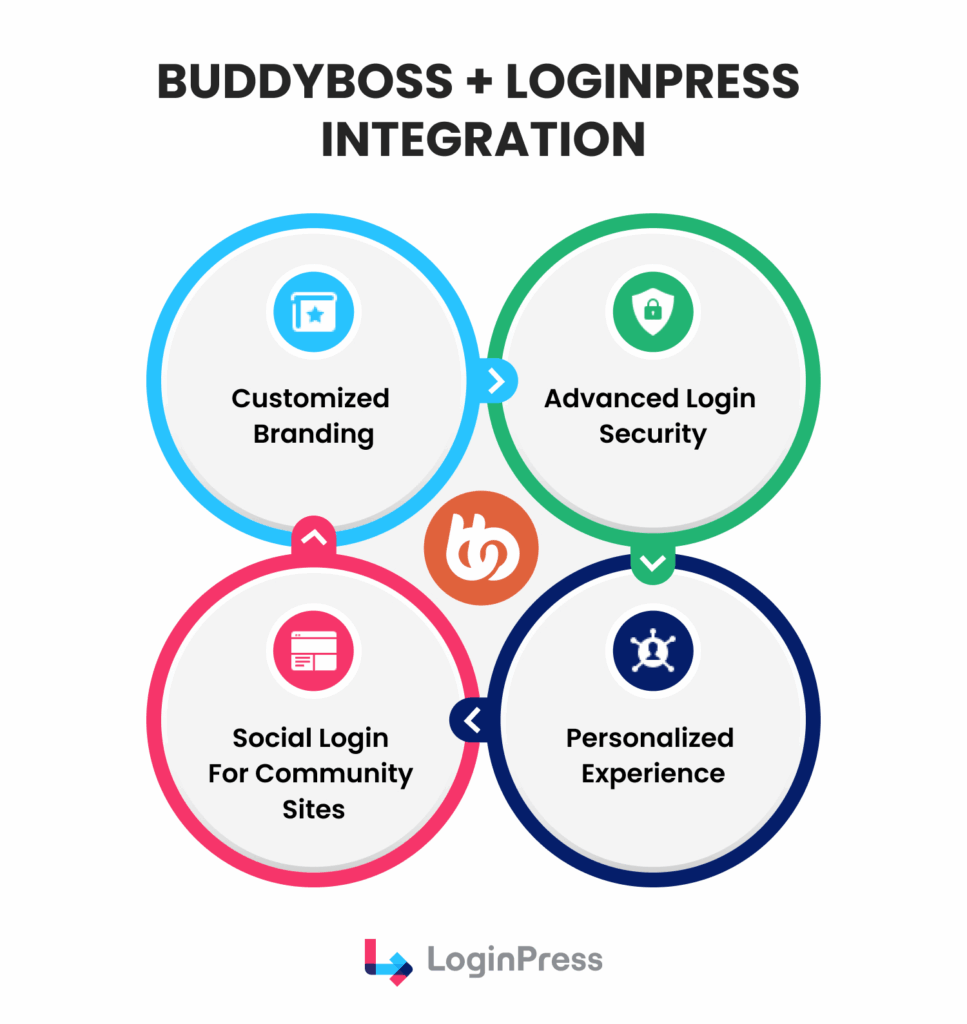
LoginPress BuddyBoss Integration is designed to make community site login setups in WordPress both beautiful and functional.
Here’s what makes LoginPress stand out:
- BuddyBoss-Compatible Login & Registration Styling: Match your login forms with your community’s brand identity with no technical expertise required.
- CAPTCHA/hCaptcha/Turnstile Protection: Add an extra layer of defense to prevent spam, bots, and fake registrations.
- Social Login Support: Enable BuddyBoss social login through Google, Facebook, LinkedIn, or other major networks. This makes it easier for users to access their accounts instantly.
- Login Redirects: Redirect members after login or logout to specific pages (like dashboards, profiles, or courses).
- Real-Time Customization: Design and preview your changes instantly using the WordPress Customizer.
- No Coding Needed: Everything is managed through an intuitive interface, which is perfect for admins, not developers.
How to Customize Your BuddyBoss Login Page Using LoginPress
You can customize your BuddyBoss login and registration pages with LoginPress using the steps below.
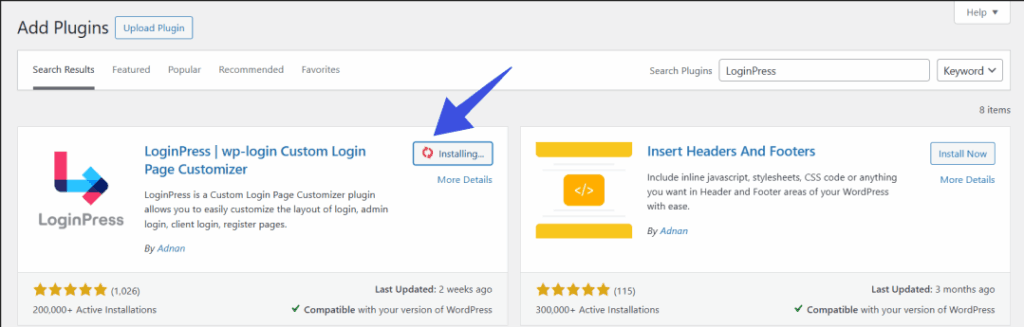
Step 1: Install and Activate the LoginPress Plugin
In the plugins directory, search for LoginPress free version, then install and activate the pro plugin.
Step 2: Connect LoginPress with BuddyBoss
To start working with BuddyBoss, first activate the BuddyBoss + LoginPress integration.
To enable that, navigate to LoginPress >> Integrations.
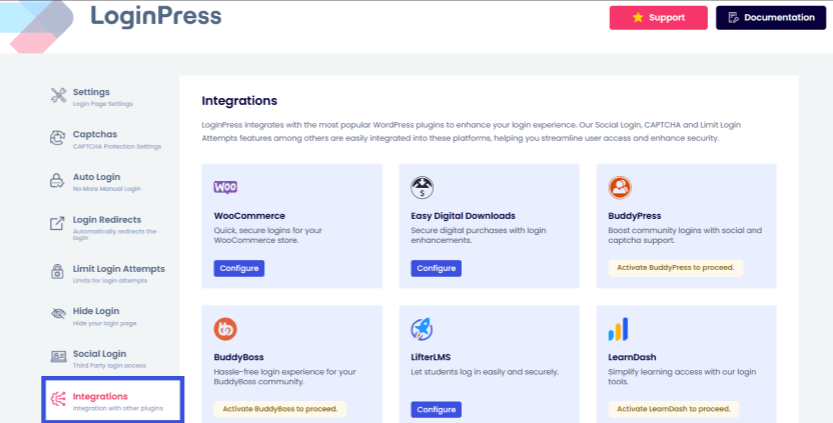
Make sure the BuddyBoss plugin is installed and activated first.
Then, find the BuddyBoss Integration and click on the Configure button to initiate the configuration.
This instantly connects LoginPress with your BuddyBoss login and registration pages.
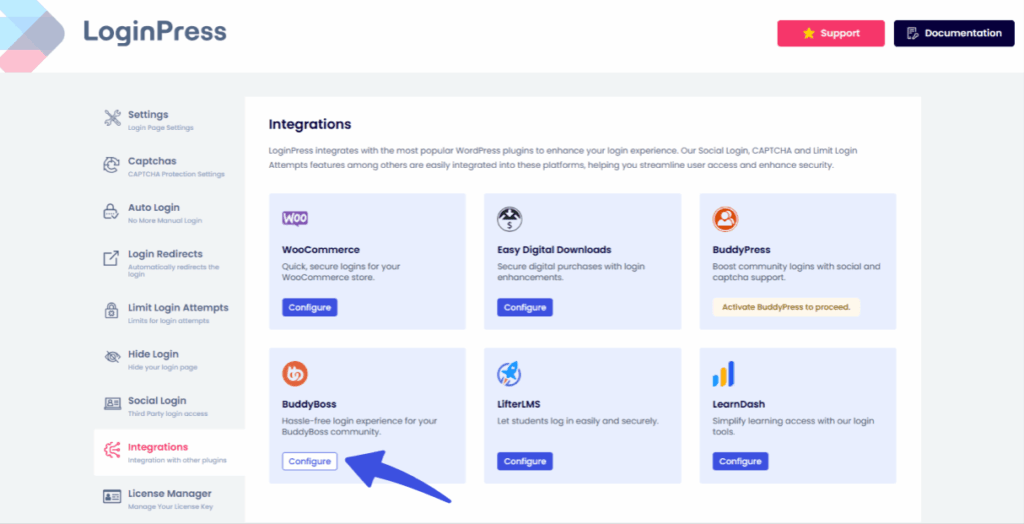
LoginPress automatically connects with BuddyBoss, allowing all your community login pages to inherit your custom login design.
After the configuration, you will be redirected to the BuddyBoss Integration dashboard.
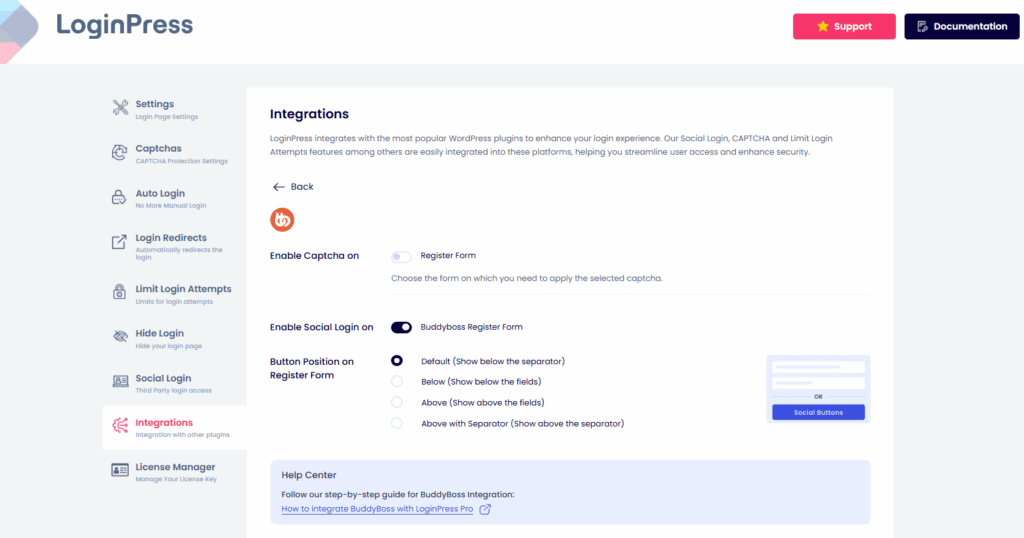
For further customization, you can:
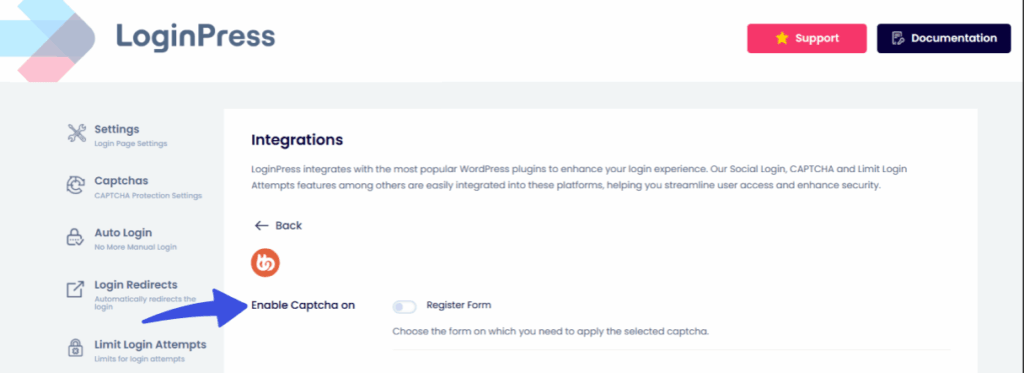
- Enable CAPTCHA on the community platform’s registration form. This ensures your site is protected from spam bots and brute-force attacks.
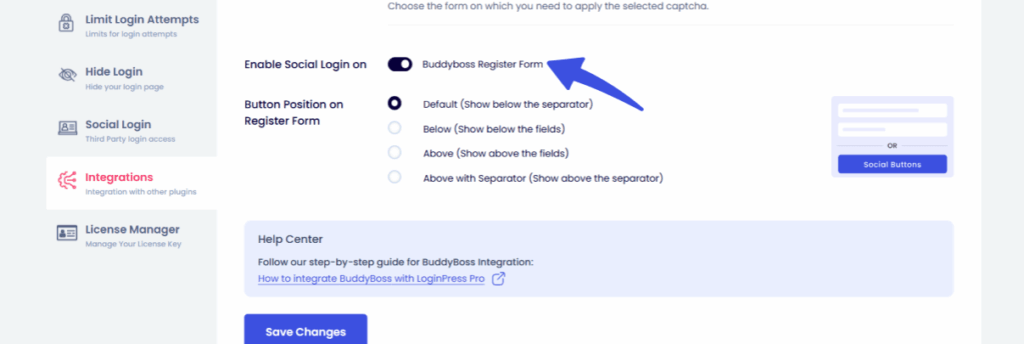
- Enable Social login on the BuddyBoss register form. This ensures your community members can easily register without any friction.
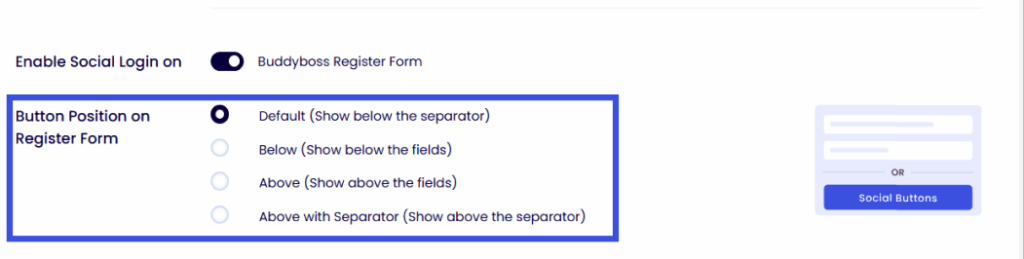
- Change button position on BuddyBoss login and register pages to Default, Below, Above, or Above the Separator.
Step 3: Customize Your Login Page Design
This is where you design your login page, and it works like editing a theme. Navigate to LoginPress >> Customizer.
The WordPress Customizer will open, showing a live preview of your login page with customization options on the left.
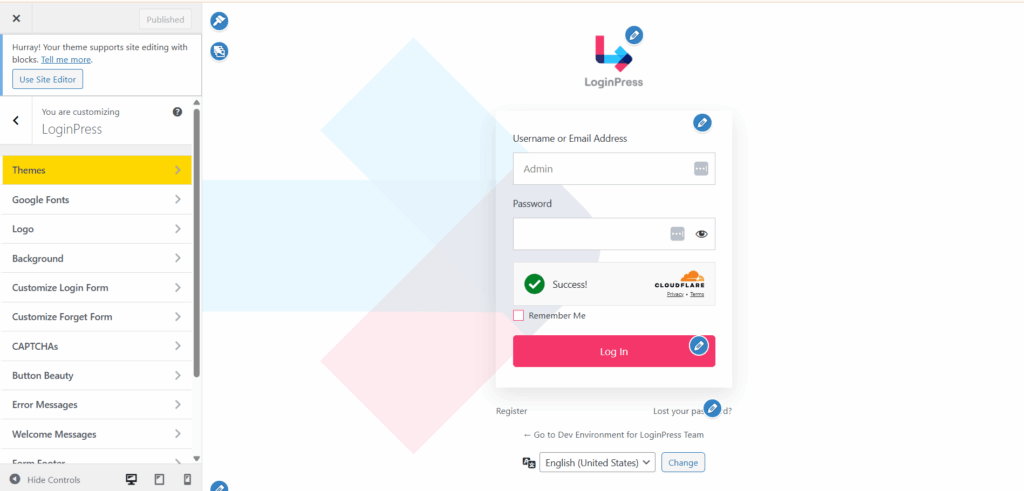
Now you’re ready to style your BuddyBoss login screen using LoginPress customizer, which automatically syncs your parent login form designs onto the BuddyBoss register forms as well. With the LoginPress customizer:
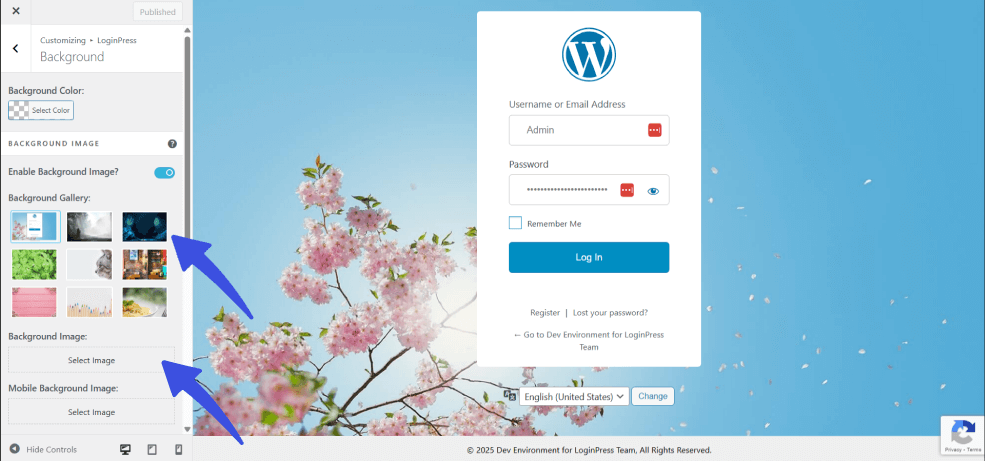
- Select the Background option.
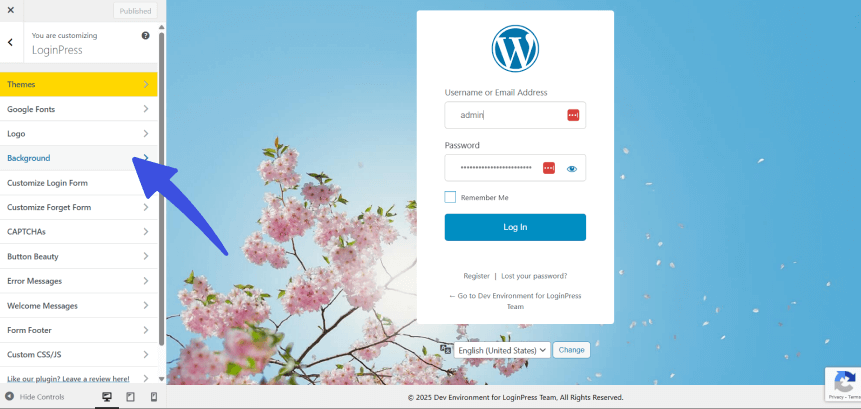
Choose from LoginPress’s collection of designed, pre-built background images or upload your own custom image to match your brand or course theme.
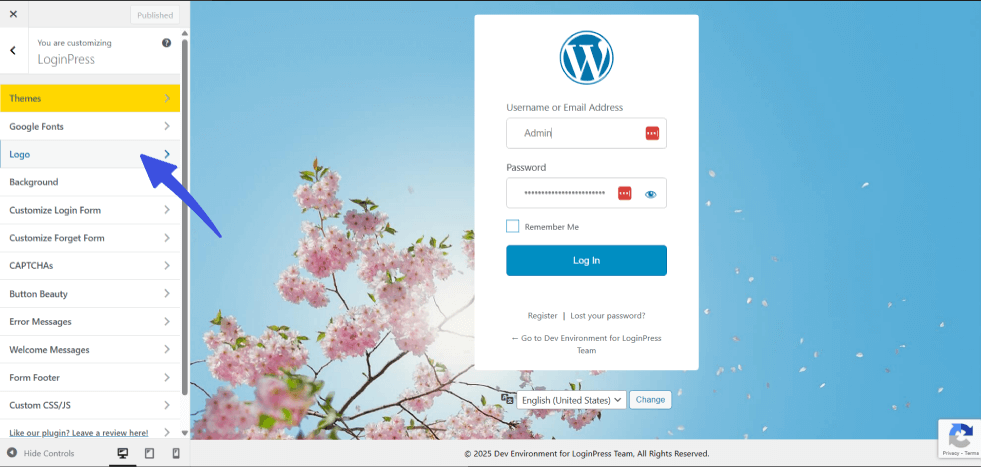
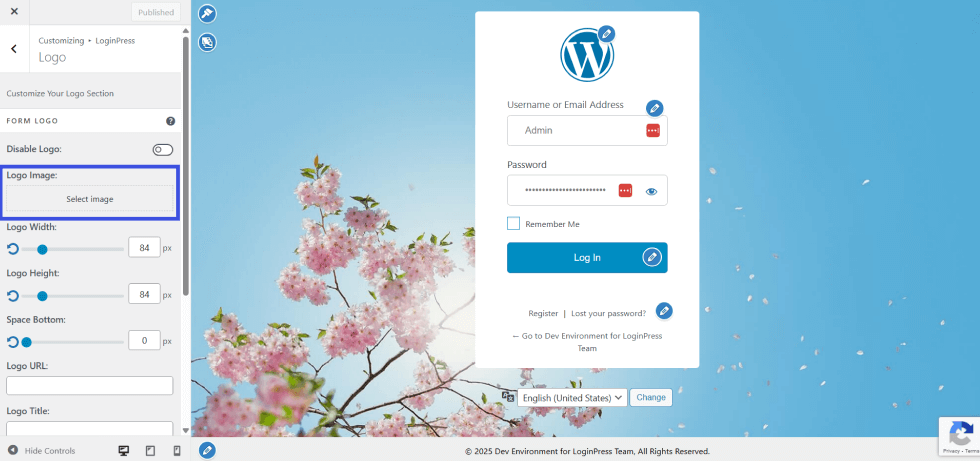
- Make your platform feel truly on brand by adding your custom logo. To do that, go to the Logo option.
Upload your own logo by selecting the Select Image option to personalize your login experience.
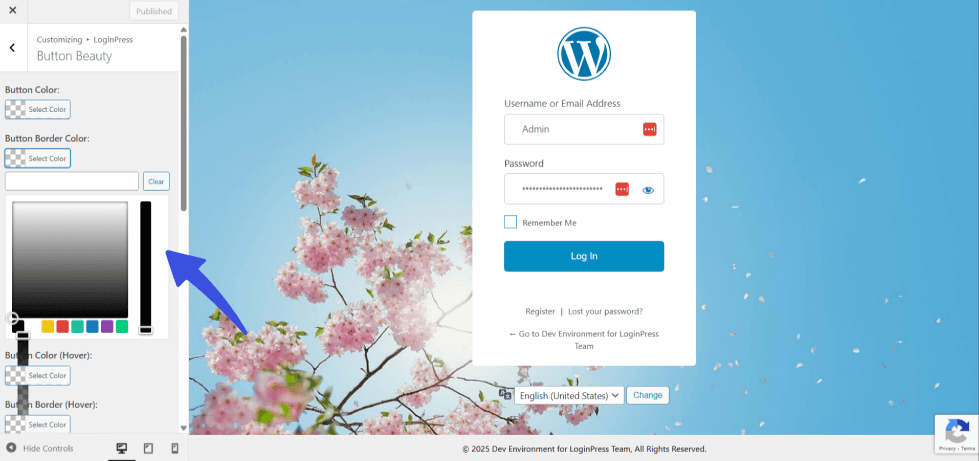
- Next, customize button color and styles under the Button Beauty section.
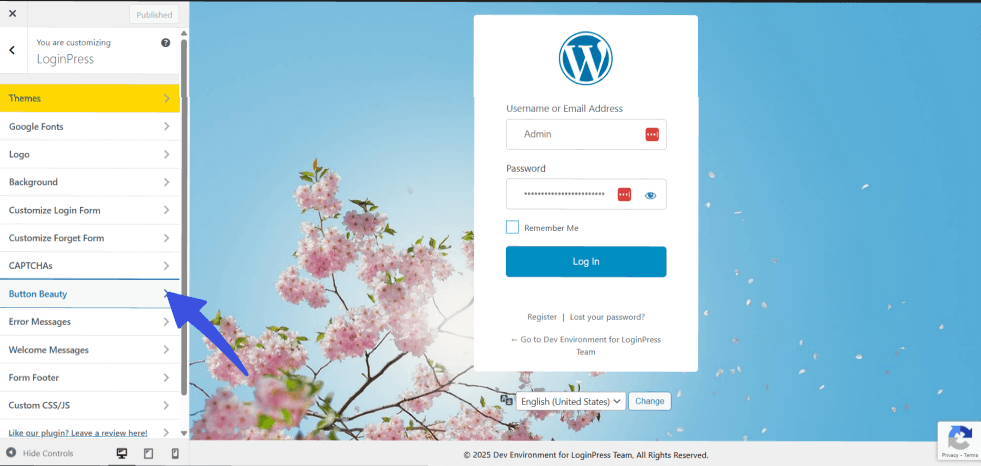
Easily change your login button’s color, shape, and hover effects. Match it with your brand palette to create consistent branding.
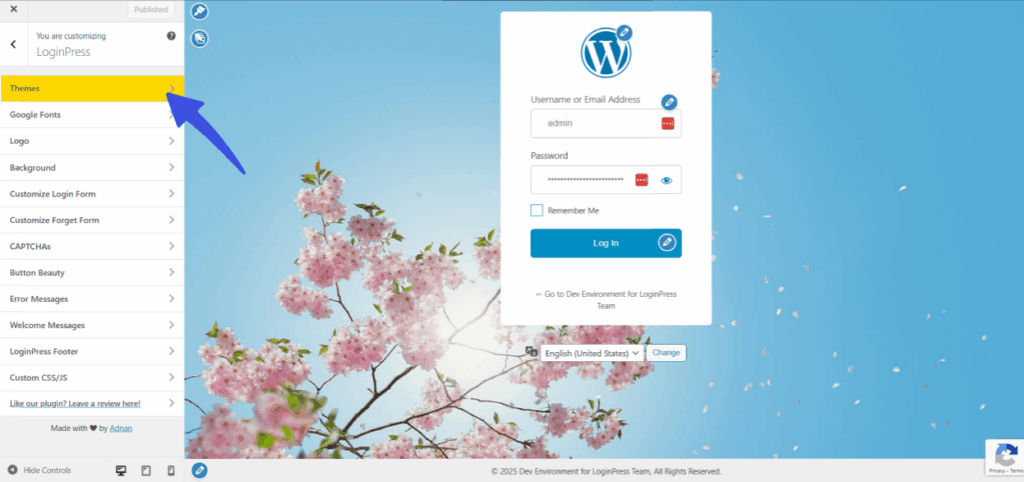
- To change the theme of your login page, navigate to the Themes option.
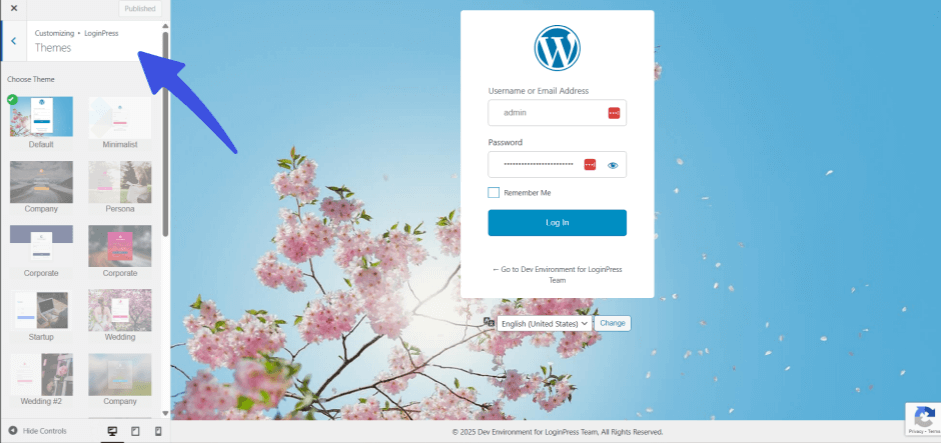
LoginPress provides a variety of pre-built themes, from sleek, minimalist designs to vibrant, colorful layouts.
Just pick a theme that fits your course style and adjust it to your preference.
- To preview every change instantly, select the device icons underneath the customization settings. This lets you preview your design and check for device optimization.
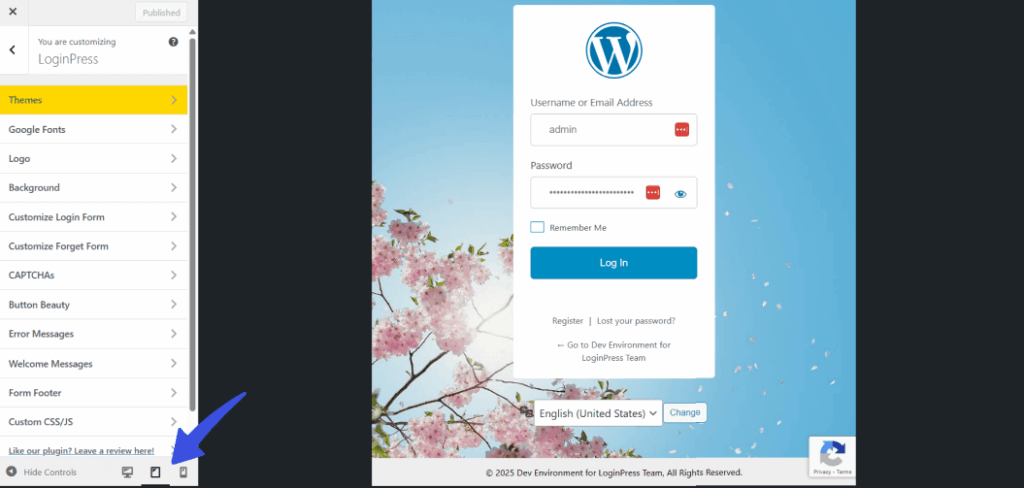
This customization helps to create a consistent look that reassures learners they’re in the right place.
Bonus: Advanced Customization of BuddyBoss Registration Page
You can secure your BuddyBoss registration page with CAPTCHA, social logins and magic links through the LoginPress and BuddyBoss integration.
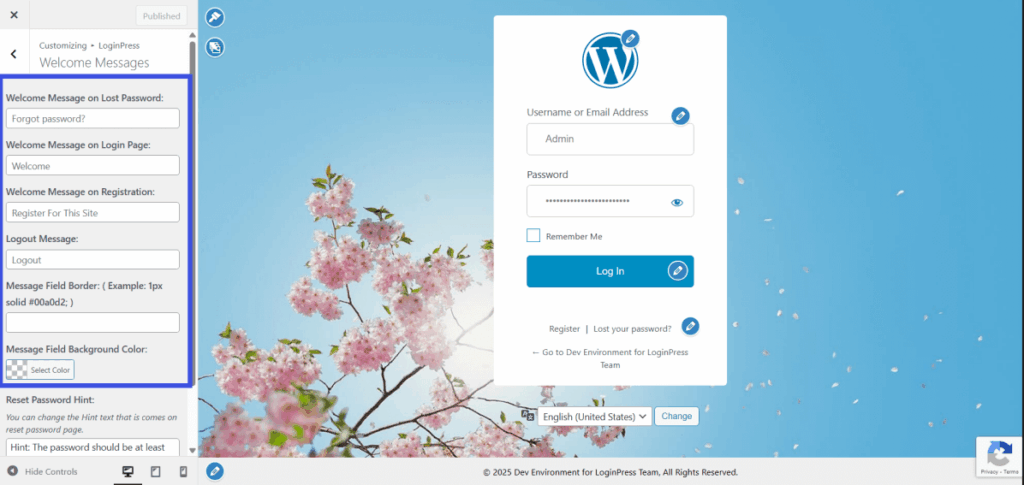
- Add Custom Welcome Messages
To do that, select the Custom Welcome Messages option.
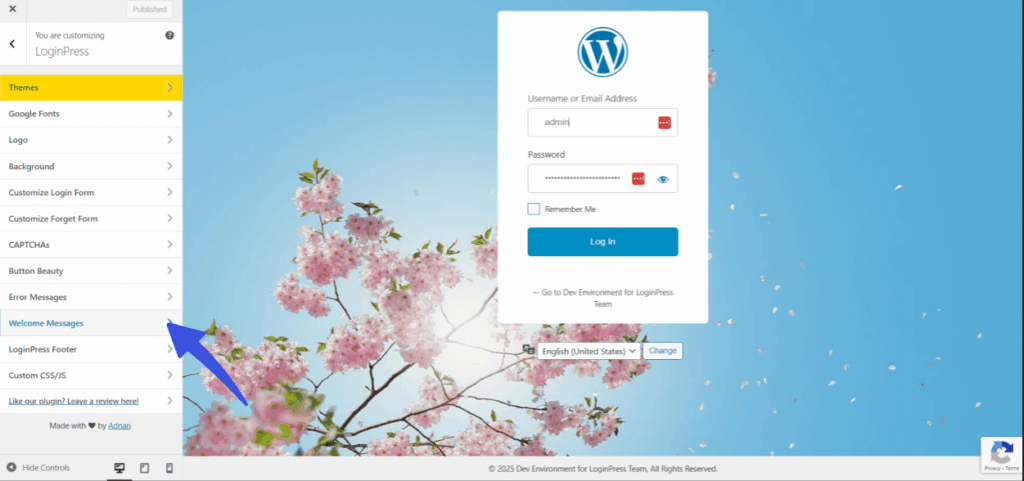
Add personalized messages such as “Welcome, ready to meet the community?” to make new members feel included.
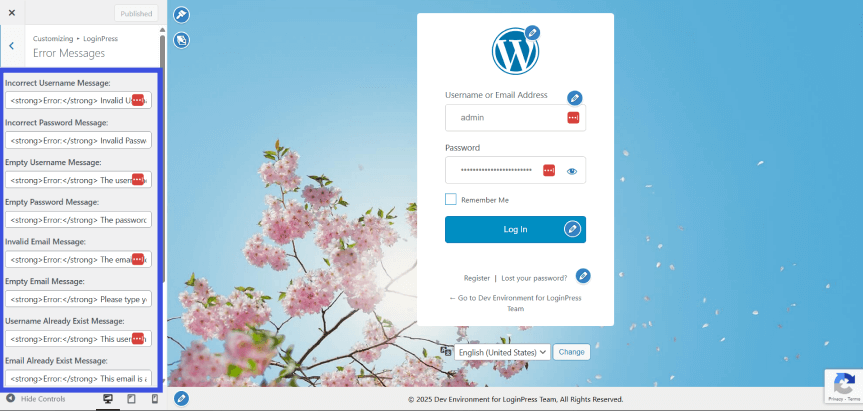
- Add Custom Error Messages
To add custom error messages, navigate to the Error Messages option in the customizer.
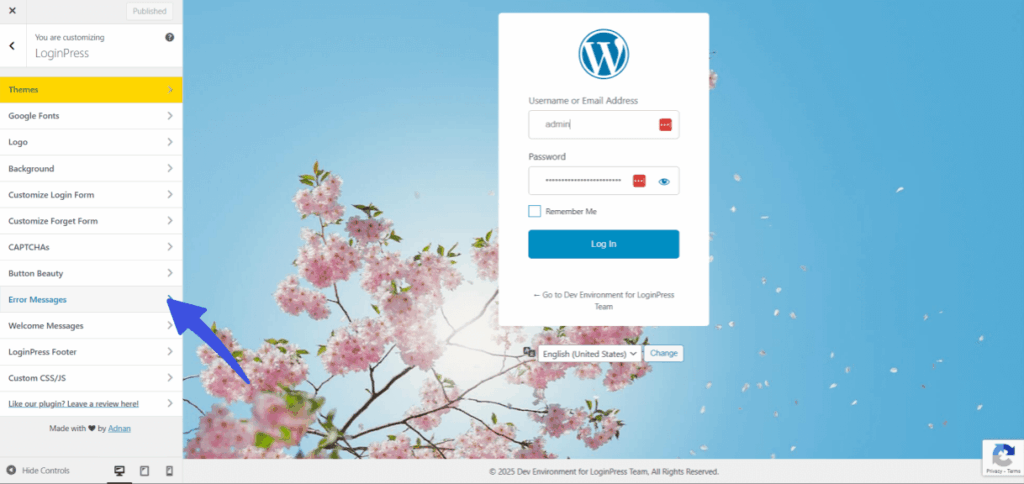
Replace generic error texts like “Invalid Username or Password” with friendly, branded alternatives.
- Multilingual Login Support: If your community caters to a global audience, you can localize your login page to support multiple languages.
- Add Social Login for Instant Access
Social logins improve the user login flow and eliminate the complications of forgotten password requests.
To enable Social login, navigate to LoginPress >> Social Login. Make sure the social login add-on is activated.
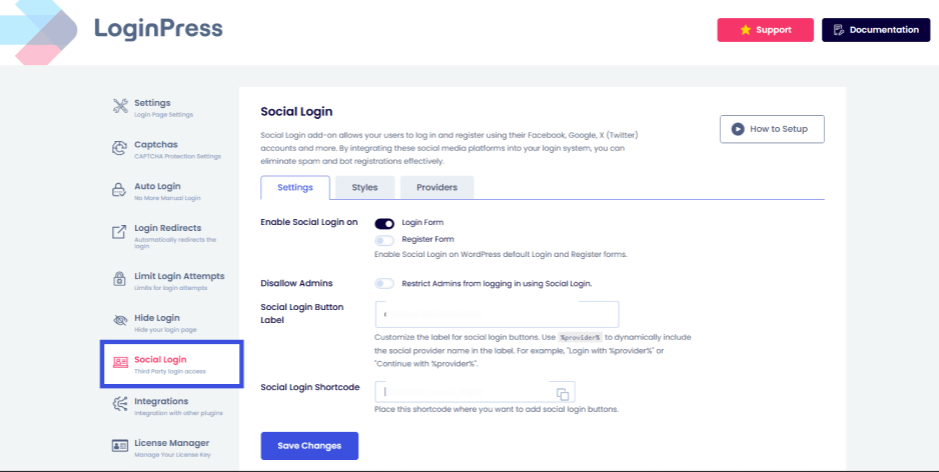
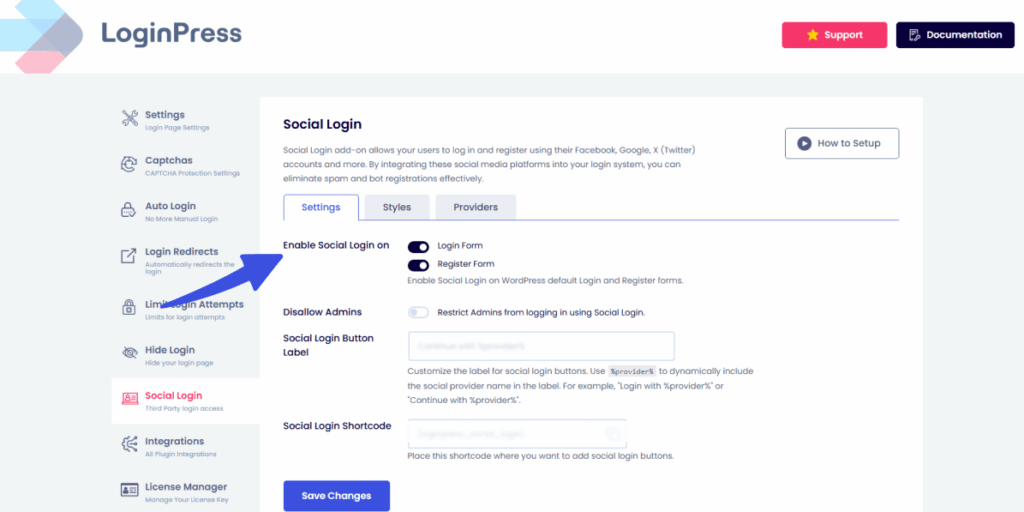
Then toggle Enable Social Login on for the forms where you want social login buttons to appear. The options given are the Login and Register forms.
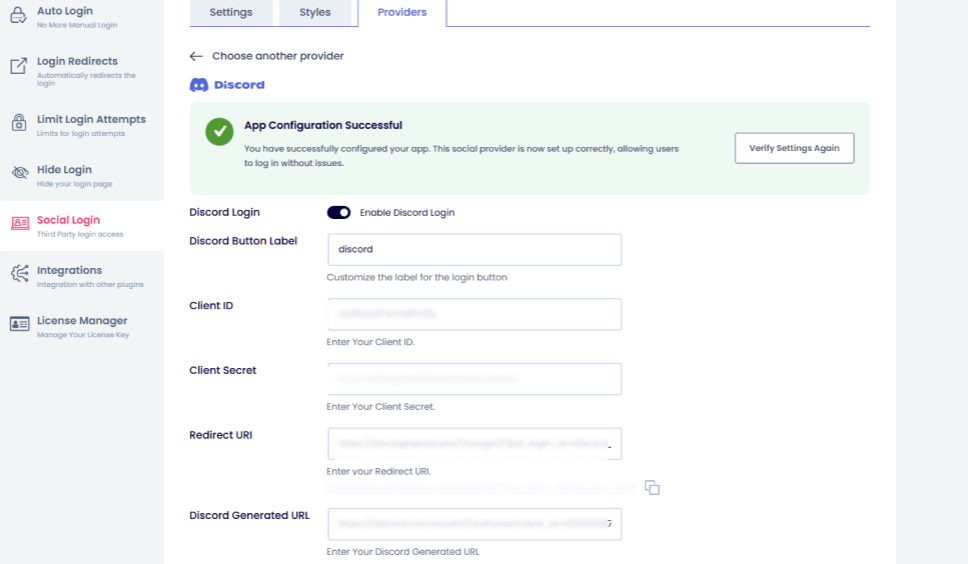
Once social login is enabled, you can choose which networks to add to the login form. This can be done by navigating to the Providers tab.
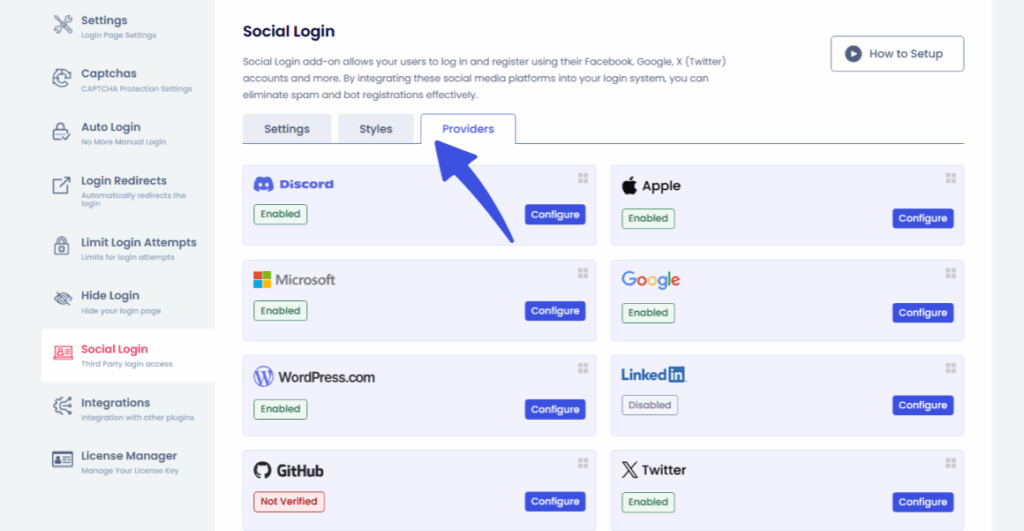
For each selected social platform, enter your Client ID and Client Secret Key, which are provided by the developer account.
You can generate these by following the detailed documentation we provide for each social network.
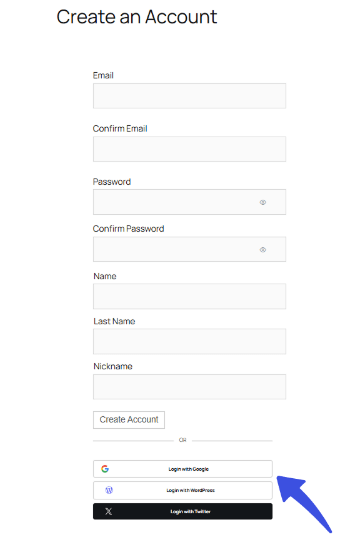
Once connected, your learners will see the familiar Google Login or Facebook Login buttons directly on the BuddyBoss register and login page.
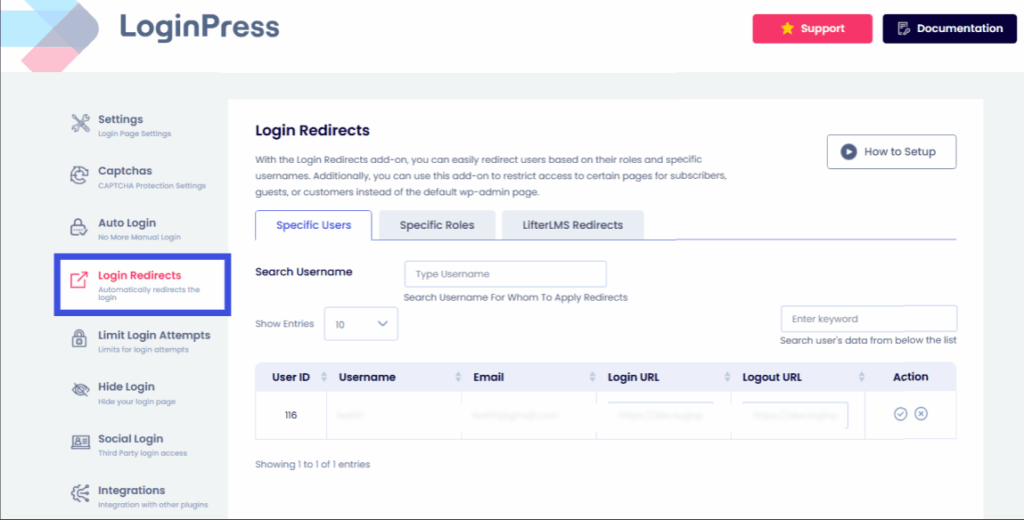
- Enable Login Redirects: By enabling login redirects, you redirect specific users to relevant pages. For guest members, the redirection can be towards the registration page.
Security and User Experience Tips for BuddyBoss Login Page
Security is a top priority for any WordPress community platform, and LoginPress adds anti-spam and protection tools to your BuddyBoss login.
- Add CAPTCHA Protection:
Go to LoginPress >> CAPTCHA and toggle the Enable Captcha option.

LoginPress provides all types of CAPTCHA from reCAPTCHA, hCaptcha, and Cloudflare Turnstile to secure your login form.
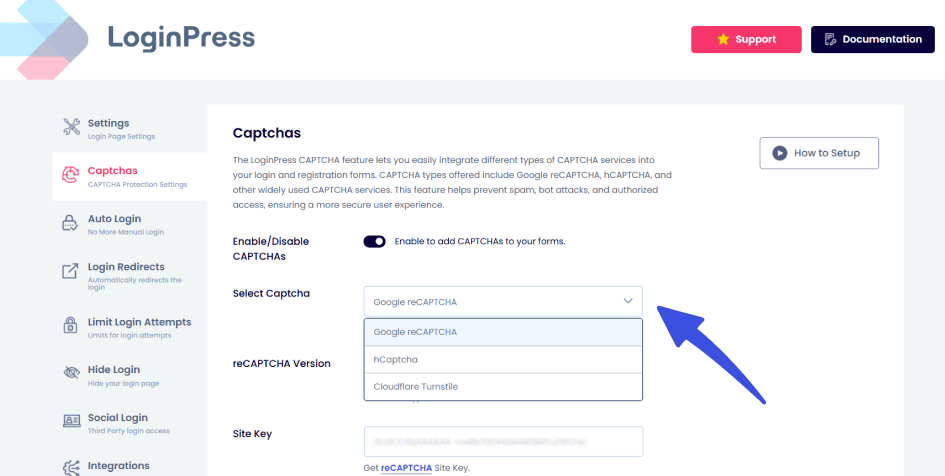
This prevents bots or brute-force attacks from gaining unauthorized access to your members’ data.
- Enable Auto Login for smooth login flow and less login friction. To do that, navigate to LoginPress >> Auto Login.
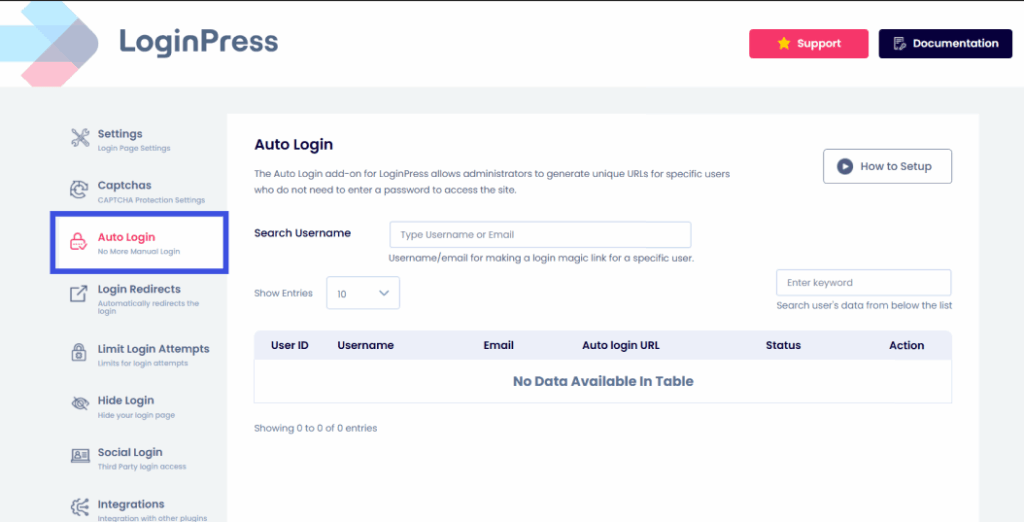
Once enabled, you can generate magic links for specific usernames, which are monitored in the table below:
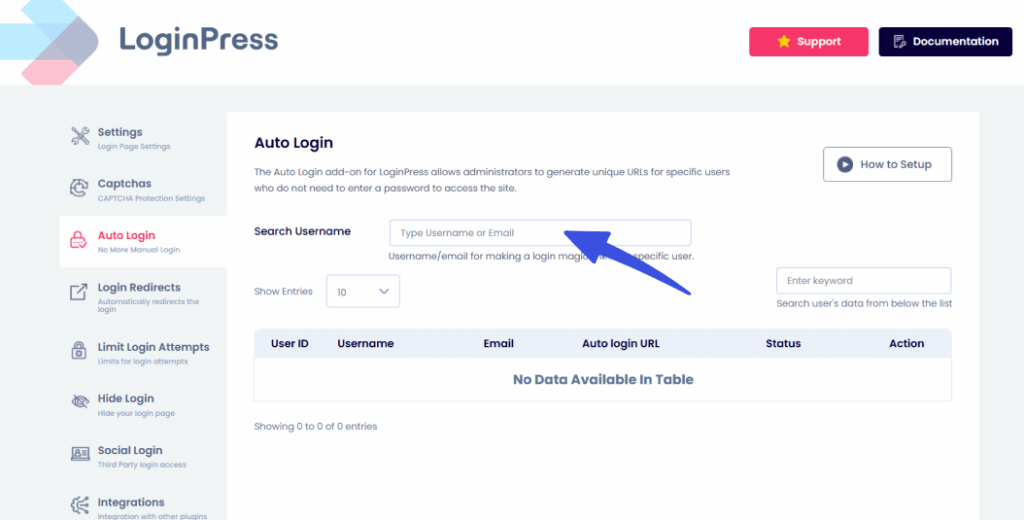
Magic links are optional security measures that enhance the overall user experience and provide an additional layer of protection.
Some of the other security measures you can take are:
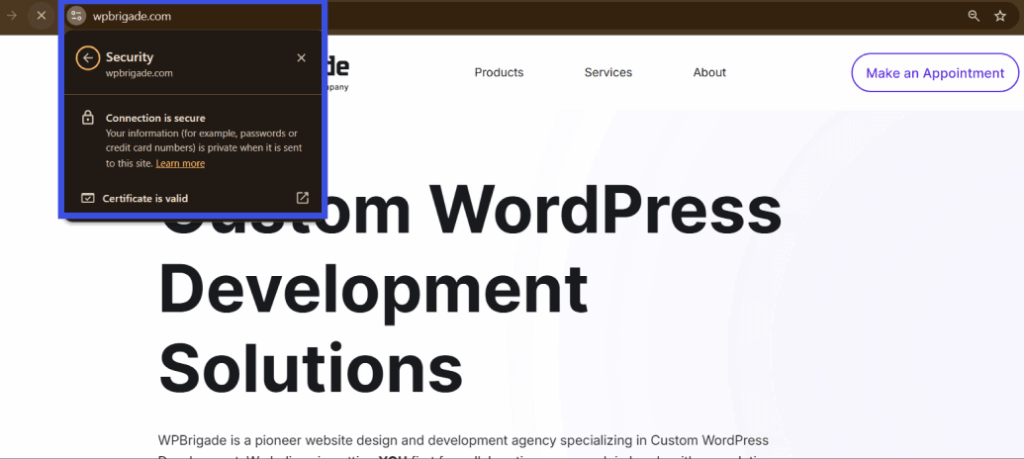
- Use SSL (HTTPS): Encrypt login data for complete security by adding SSL certificates.
- Test Mobile Responsiveness: BuddyBoss is mobile-first, so ensure the login looks perfect on all devices.
- Avoid Clutter: Keep forms simple since adding too many fields can overwhelm users.
- Update Regularly: Keep both BuddyBoss and LoginPress up to date to avoid compatibility issues.
BuddyBoss Login Page Common Issues and Fixes
These quick fixes resolve common BuddyBoss login page issues:
| Issue | Cause | Quick Fix |
| Login page not updating | Cache not cleared | Clear your cache or temporarily disable caching plugins |
| Social Login is not showing | Missing API keys | Double-check API configurations |
| CAPTCHA error | Invalid or expired site key | Regenerate keys from your CAPTCHA provider and update them |
| Redirect not working | Conflict with BuddyBoss settings | Reconfigure login redirects |
FAQs on BuddyBoss Login Customization
Can I customize the BuddyBoss login page without coding?
Yes! The LoginPress BuddyBoss integration lets you design a fully branded login page visually using the WordPress Customizer with no coding required.
Does LoginPress work with BuddyBoss registration forms also?
Absolutely. You can apply the same branding, backgrounds, and custom messages to your BuddyBoss registration login form for a consistent experience.
Can I add social login options for my BuddyBoss members?
Yes, LoginPress supports BuddyBoss social login via Google, Facebook, LinkedIn, and more for quick, secure access.
How can I make my BuddyBoss login page more secure?
Enable CAPTCHA, hCaptcha, or Turnstile; use HTTPS; and limit login attempts to build a secure BuddyBoss login environment.
Do LoginPress and BuddyBoss work with all WordPress themes?
Yes, both are designed to integrate smoothly with most modern themes and plugins for community site login in WordPress environments.
Conclusion: BuddyBoss Login Customization
A branded, secure BuddyBoss login and registration page shapes how new and returning members feel about your community.
LoginPress covers custom designs, personalized messaging, social login and spam protection for BuddyBoss communities.
That is all for this article. For more related posts, check:
- Boost Your eLearning Site with LifterLMS Login Customization using LoginPress
- Customize Your Easy Digital Downloads Login Page with LoginPress
- Enhance Your WooCommerce Login Experience with LoginPress
So, what’s the one feature you’d love to add to your BuddyBoss login page: design, social login, or extra security? Let us know in the comments below!