How to Monitor and Analyze WordPress User Login Activity

To monitor user login activity in WordPress, install an activity log plugin such as WP Activity Log, Simple History or Activity Log. WordPress core doesn’t keep a login history, but these free plugins record every login, logout and failed attempt, plus who changed what on your site.
In this guide, I compare three activity log plugins and set each one up step by step.
A login history shows you who signed in, when and from which IP address. It’s often the first place a brute force attack or a compromised account shows up.
Below, I set up three free plugins and show where each one keeps its log.
WordPress User Login Activity (TOC):
Here’s how the three plugins compare:
| Plugin | Active installs | WordPress.org rating | Logs failed logins | Setup | Best for |
|---|---|---|---|---|---|
| WP Activity Log | 300,000+ | 4.7 / 5 | Yes | Setup wizard | Detailed audits, multisite and busy sites |
| Simple History | 300,000+ | 4.9 / 5 | Yes | None needed | A readable timeline on small sites |
| Activity Log | 200,000+ | 4.3 / 5 | Yes, with the failed login option | None needed | Seeing changes made through the REST API and WP-CLI |
Plugin stats from WordPress.org, checked in October 2026.
What Is a WordPress Activity Log?
A WordPress activity log is a record of what happens on your site: who logged in, who edited what, and which plugins or settings changed.
A WordPress activity log gives site administrators an idea of what’s happening on their site, who is accessing it, and what changes are being made.
The activity log records various types of events, including:
- User logins and logouts
- Failed login attempts
- Changes to posts, pages and comments
- Plugin and theme installs, updates and activations
- User role changes
- Changes to site settings
- 404 errors (in some plugins)
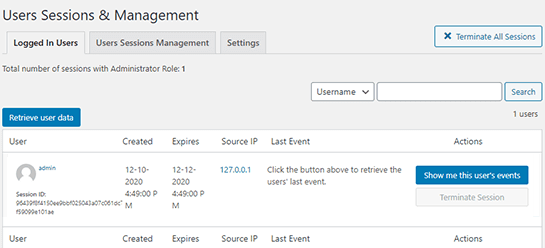
Here is an example of a WordPress User Activity Log:
Why Track User Login Activity in WordPress?
You should track user login activity in WordPress because it reveals security threats, account problems and compliance gaps that you’d otherwise miss.
Here’s what a login log helps with:
- Security: User login activity tracking helps detect and prevent unauthorized access to your WordPress site. You can detect suspicious login patterns or brute-force attacks by monitoring login attempts.
- User Management: User login activity tracking helps you manage user accounts more effectively. By analyzing login activity, you can determine if users regularly access their accounts or last logged in a while ago. It can help you identify inactive users, remove unnecessary accounts, and free up server resources.
- Compliance: Some industries must keep login records. HIPAA’s Security Rule, for example, requires audit controls and login monitoring on systems that handle patient data.
- Diagnosis: If you keep track of the user activity in WordPress, you can quickly troubleshoot and resolve the login issues of the users well on time.
- Alerts: Some WordPress plugins allow you to track user login activity via alerts or notifications in real time. So you can respond quickly to any suspicious activity.
What Can You Track in a WordPress Activity Log?
You can track logins, content changes and setting changes in a WordPress activity log. These are the events I’d watch first:
- Login Attempts Checker: Check for successful and failed login attempts to identify unauthorized access attempts or potential security threats.
- Content Changes: If you still allow edit access to published posts, monitoring activity can help you ensure no one goes back and edits it later.
- User Activity: Look for user activity, such as posts, pages, or media uploads, to identify suspicious or unauthorized user activity.
- User Role Changes: Monitor any changes to user roles, which can indicate a potential security threat or unauthorized access.
- Database Changes: Check for any changes to the WordPress database, as this can indicate malicious activity or unauthorized access.
- Broken Links: Look for 404 errors and broken links to identify any issues with your site’s functionality or potential security threats.
How to Monitor WordPress User Activity
You can monitor WordPress user activity with a free activity log plugin. These are the three I’d pick:
- Activity Log
- WP Activity Log
- Simple History
Note: If failed logins are your main worry, the LoginPress Limit Login Attempts add-on also keeps a record of failed login attempts and locks out an IP address once it reaches the limit you set.
1. Activity Log
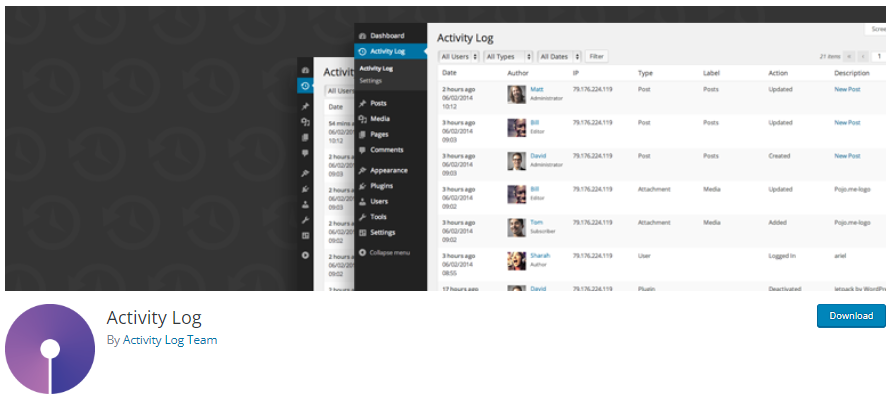
Activity Log is a free plugin with more than 200,000 active installs and a 4.3 out of 5 rating on WordPress.org. It records changes made in the WordPress admin, and also through the REST API, WP-CLI and WP-Cron, so you can see where each change came from.
It starts logging as soon as you activate it and stores the log in its own database table.
Here’s how to set up Activity Log:
Step 1: Install and Activate the Activity Log Plugin
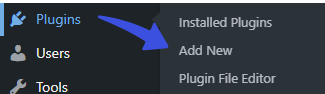
First off, go to the left sidebar of your WordPress admin dashboard. Navigate to Plugins and click the Add New option.
Next, you’ll be on the Add Plugins screen. Search Activity Log in the search box.
Find the plugin from the list, click the Install Now, and then the Activate button in succession.
Step 2: Configure the Plugin
You can easily configure the plugin. All you need to do is go to the left sidebar of the WordPress admin dashboard > Activity Log > Settings.
On the next screen, define how many days to store your log for, i.e., 30 days.
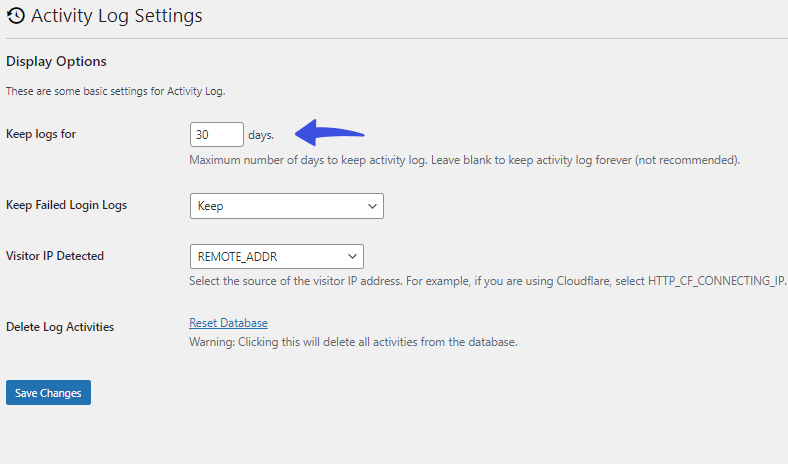
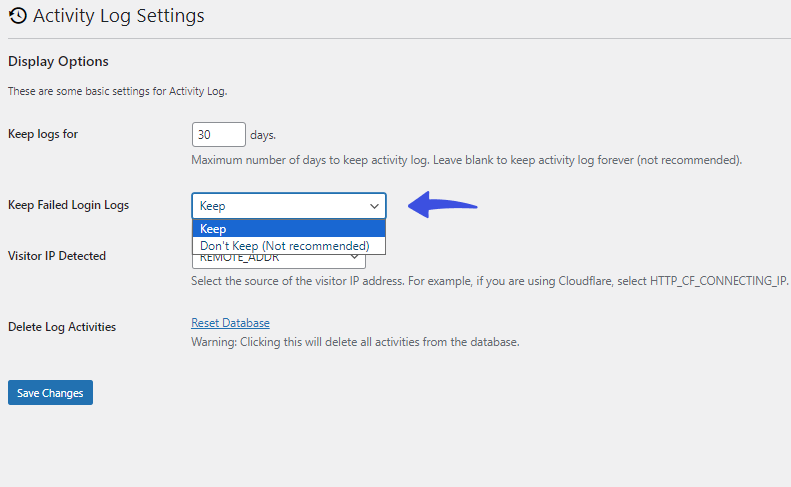
Do you want to keep the failed login logs? No problem! Simply click the drop-down menu against the Keep Failed Login Logs option and click the Keep button.
Your failed login attempts are now kept for 30 days.
Step 3: View Your Activity Log
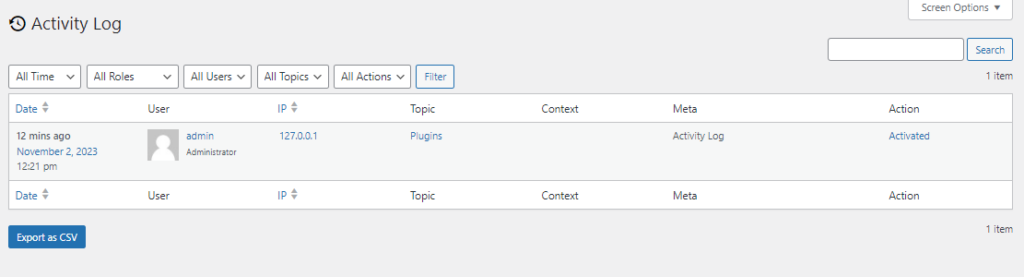
All set! Now, you can see your site activity log.
Go to the left sidebar of the WordPress admin dashboard, Activity Log > Activity Log.
On the next screen, you can see your site’s activity log.
See the image below:
2. WP Activity Log
WP Activity Log by Melapress is a free plugin with more than 300,000 active installs and a 4.7 out of 5 rating. It logs logins and logouts, failed login attempts, and changes to posts, pages, users, plugins and settings.
I’d pick it when you need the most detail, such as on a multisite network or a site with many editors.
To set up WP Activity Log, follow these steps:
Step 1: Install and Activate the WP Activity Log Plugin
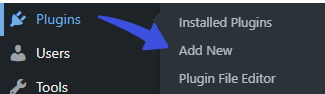
Go to the left sidebar of the WordPress admin dashboard > navigate to Plugins > Add New option.
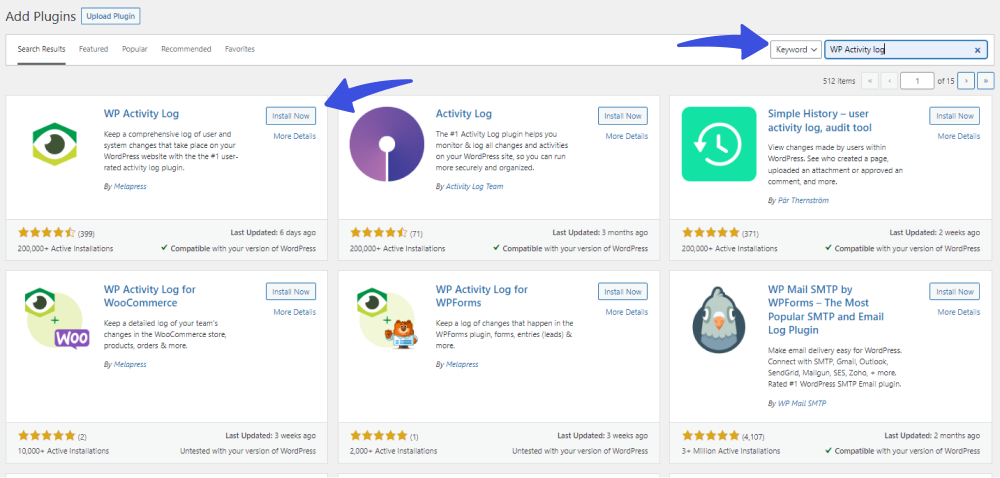
Next, you’re required to search for the WP Activity Log in the search box.
Find the plugin from the list, click the Install Now, and then the Activate button in succession.
Step 2: Configure the Wizard
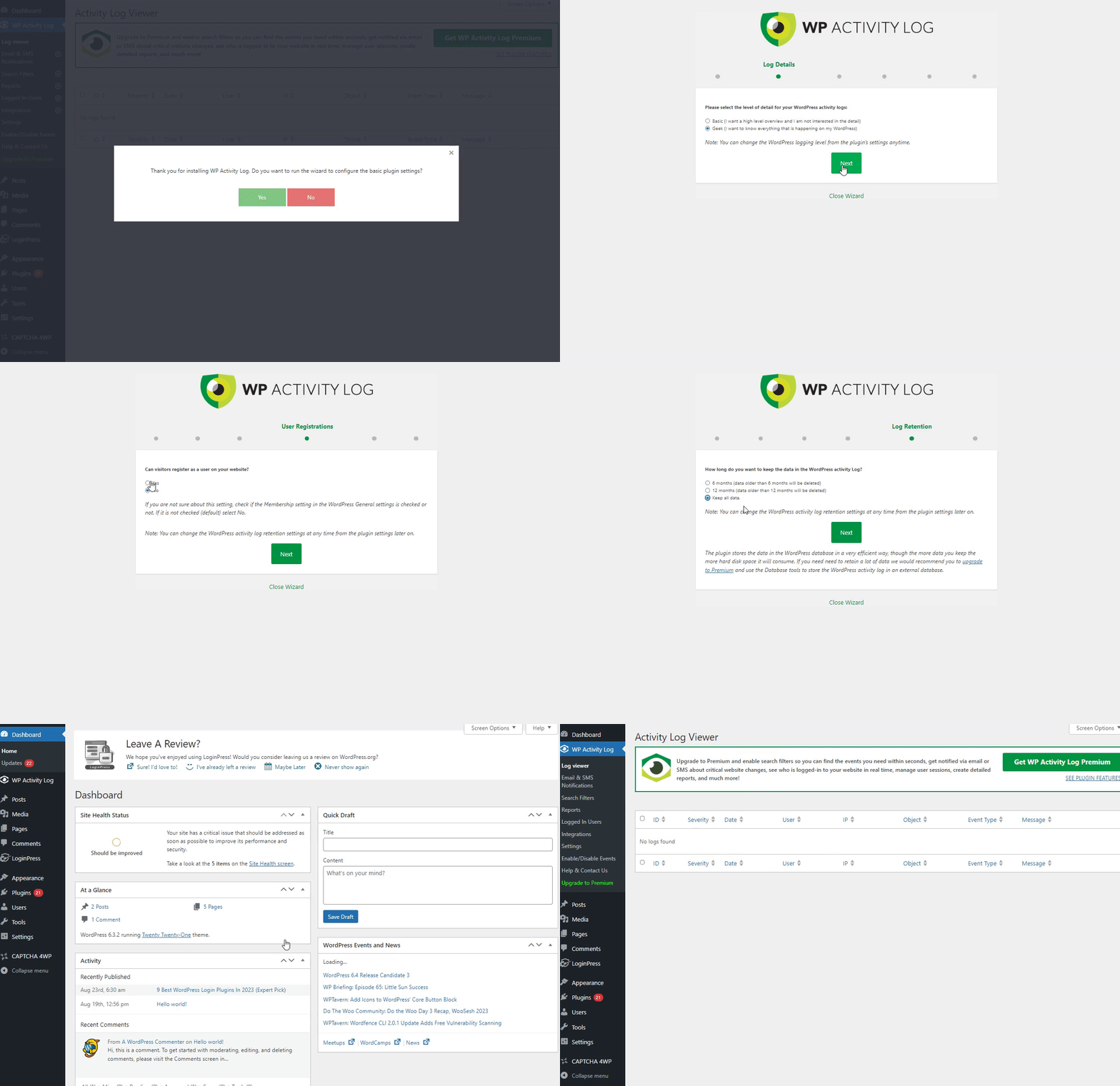
When you’ve installed the plugin, you’re ready to configure the wizard first to get started with the activity log.
To do so, go to the left sidebar of the WordPress admin dashboard > navigate to WP Activity log > Log Viewer.
A popup will appear on the screen. Simply configure all the settings. When finished, you are ready to see user activity on your site.
Step 3: View Login Activity
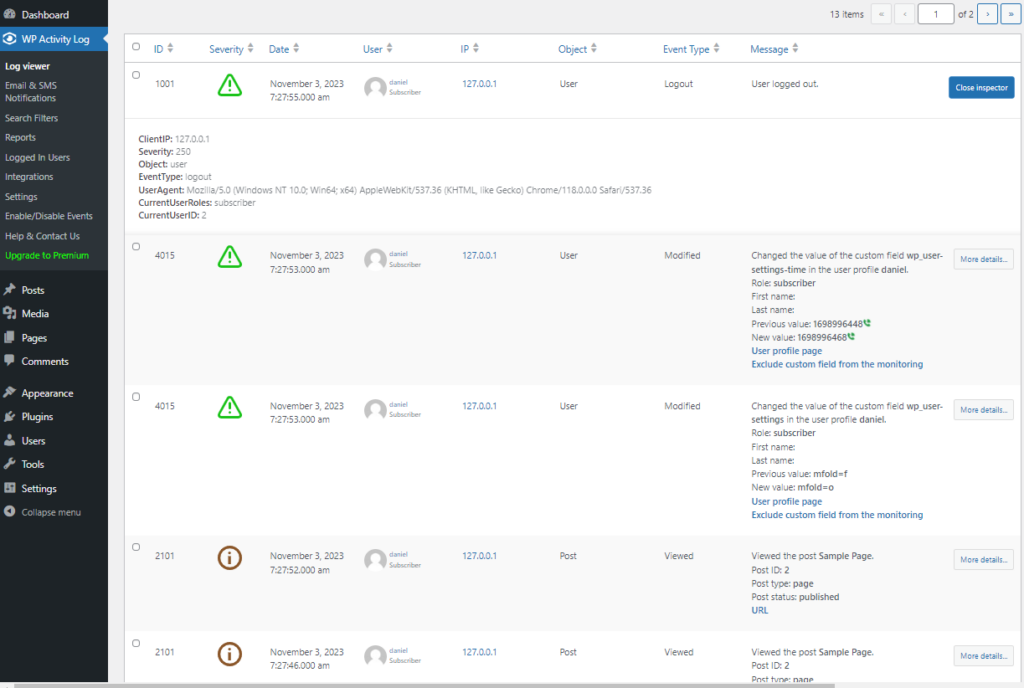
Whenever a user logs in to your site, you’ll get a detailed list of the activities they perform on your site.
3. Simple History
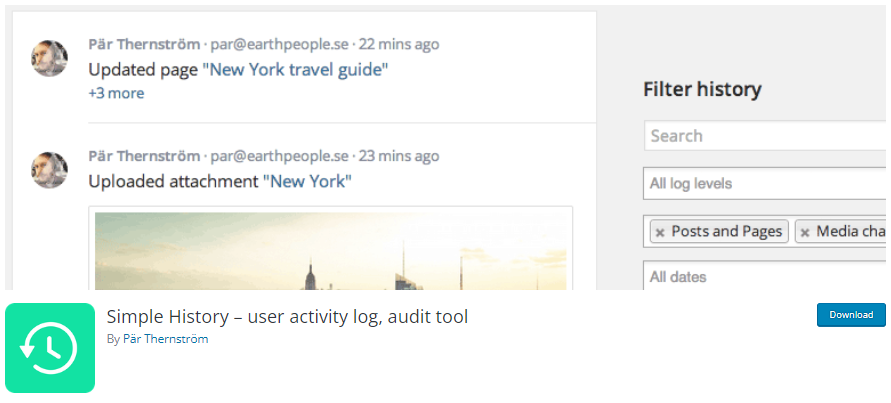
Simple History is a free plugin with more than 300,000 active installs and a 4.9 out of 5 rating on WordPress.org. It needs no configuration and writes each event in plain language, such as who updated which page.
Here’s how to monitor login activity with Simple History:
Step 1: Install and Activate the Simple History Plugin
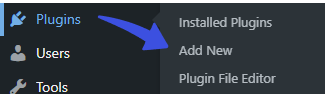
First off, go to the left sidebar of your WordPress admin dashboard. Navigate to Plugins and click the Add New option.
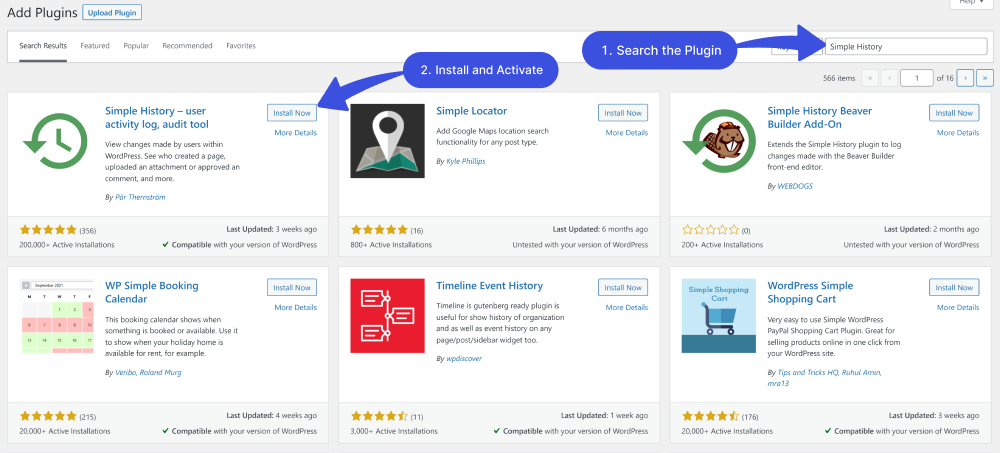
Next, you’ll be on the Add Plugins screen. Search Simple History in the search box.
Find the plugin from the list, click the Install Now, and then the Activate button in succession.
Step 2: Configure Activity Log
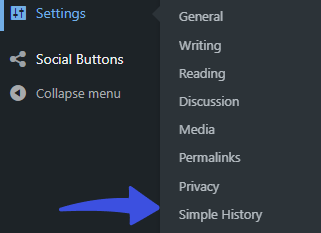
Upon activation, go to the left sidebar of the WordPress admin dashboard, navigate to Settings, and click the Simple History option.
On the Settings tab, you’ll find options to get started with the plugin, including:
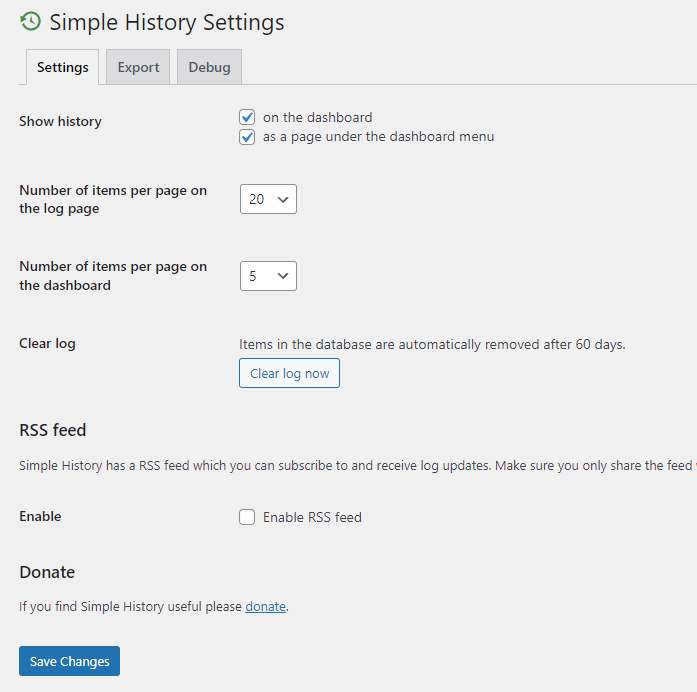
- Show History: From here, you can select if you want to see the history on the dashboard or as a page under the dashboard menu.
- Number of items per page on the log page: You can also select the number of items per page on the log page. You can choose 5 to 100 items from the drop-down menu.
- Clear log: It’s worth noting that, by default, the Items in the database are automatically removed after 60 days. However, you can click the Clear Log Now button to remove it right away.
Now that you know your options, select where you want the activity log to appear, i.e., on the dashboard, on a separate page, or both. Then, decide how many items appear on the Dashboard and the log page.
Note: You can check the Enable RSS feed option to monitor the history with the help of a secret RSS feed.
When done, click on the Save Changes button.
Step 3: View Your Activity Log
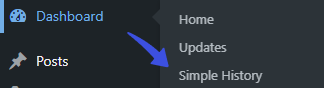
To see the user activity log, navigate to Dashboard and click the Simple History option.
Note: You can also view them on the Dashboard. It depends on how you have configured the settings of this plugin.
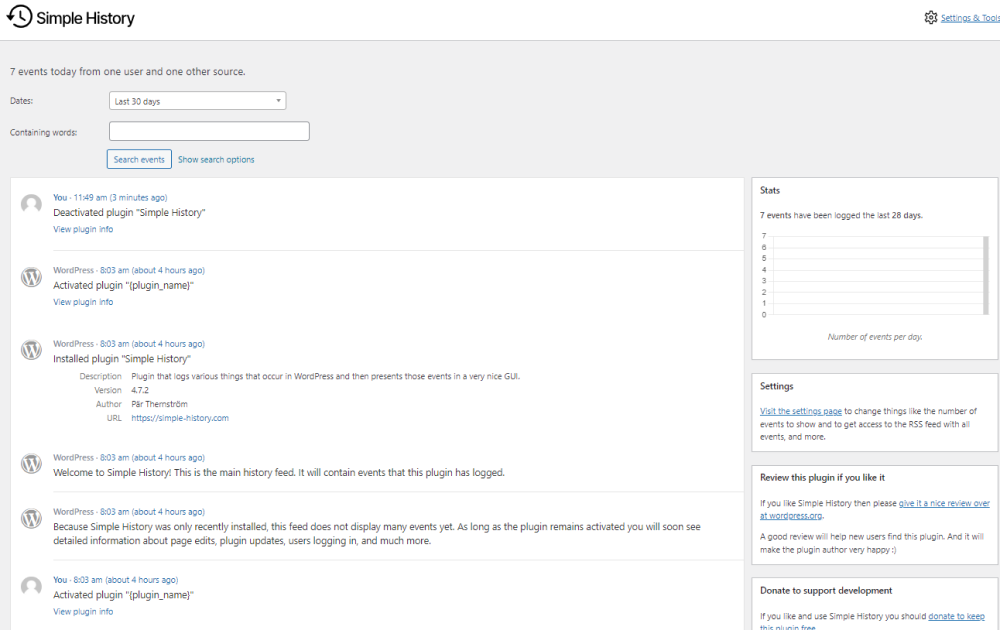
On the Simple History screen, you can see the history.
WordPress User Login Activity FAQs
How do I see user login history in WordPress?
Install a free activity log plugin such as WP Activity Log or Simple History. Both record successful and failed logins, along with the user, the time and the IP address.
What are the benefits of user activity monitoring?
User activity is worth monitoring for several reasons, including you can identify suspicious logins on your site. It best helps secure your site against security breaches.
What kind of WordPress Activity Log should be tracked?
Monitoring these basic activities helps identify unauthorized access to your site, including Logins and logouts, changes to content, plugins, themes, settings, etc.
Is there any activity log in WordPress?
No. WordPress core doesn’t include an activity log. It stores when a post was published or last modified, but not who logged in or which settings changed, so you need a plugin for a full log.
What should I do if I notice suspicious login activity on my WordPress site?
Act quickly. Reset the affected user’s password, end their active sessions, and check the log for any changes made from that account. Then add more protection to the login page, such as CAPTCHA, two-factor authentication and a limit on failed login attempts.
What are some best practices for securing user logins on WordPress?
There are numerous best practices for securing user login, such as implementing strong passwords, regularly updating plugins and themes, and monitoring login activity.
Why is my activity log not showing failed logins?
Check the plugin settings first. Activity Log has a separate option for keeping failed login logs, and other plugins let you hide some event types. Also check whether a firewall or security plugin blocks login requests before WordPress loads, because a login attempt the activity log never sees can’t be recorded.
Conclusion
If I had to pick one, I’d install Simple History on a small site for its readable timeline, and WP Activity Log on a busy or multisite network where you need more detail.
Whichever you choose, check the failed login entries every week. A run of failures from one IP address is your cue to tighten login security, and the LoginPress Limit Login Attempts add-on can lock that IP out automatically.
You may also want to check out our guides:
- How To Find Your WordPress Login URL [The Easy Way]
- How to Create a Mobile Friendly Login Page Using LoginPress
- How to Set up a Language Selector on the Login Page
- How to Customize and Secure a WordPress Login Page
Have a question about tracking logins? Ask in the comments below.