Reduce Login Related Support Tickets By Fixing Login UX

You reduce login-related support tickets by fixing the login friction behind them: confusing error messages, missing login links, wrong redirects, abandoned password resets and unclear social login flows. Most of these tickets are UX problems, not security problems.
This post shows how to prevent each ticket type and which LoginPress features help.
Reduce Login Related Support Tickets (TOC):
What Are the Most Common Login-Related Support Tickets on WordPress Sites?
The five most common login related support tickets are:
1. Confusing login error messages
2. Missing login links
3. Wrong post-login redirects
4. Abandoned password reset attempts
5. Social login confusion
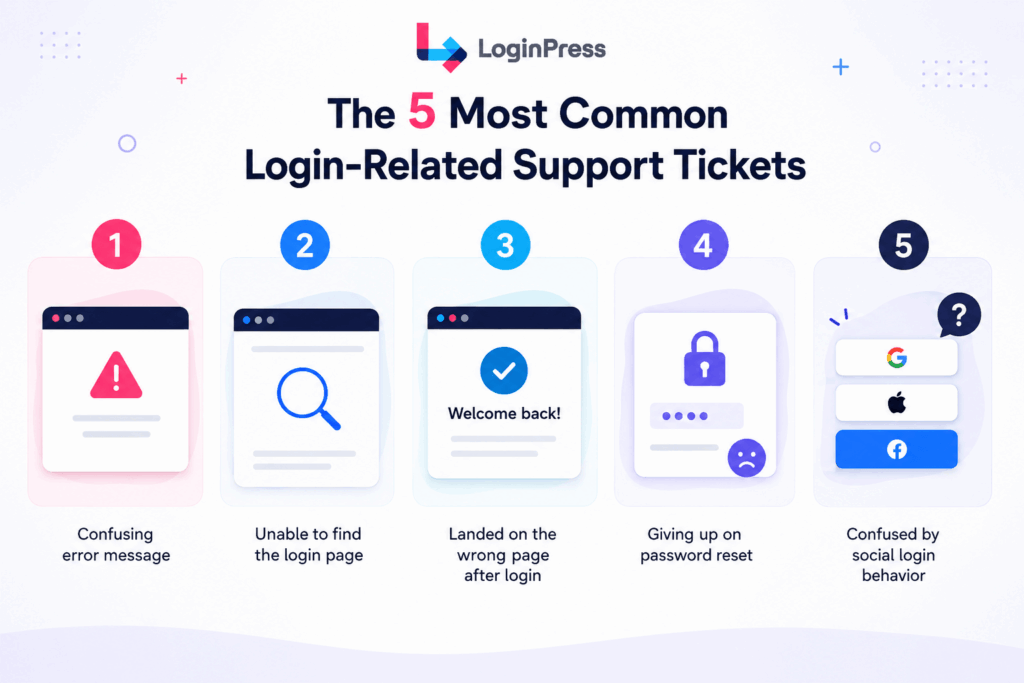
When users can’t log in to WordPress sites, it’s often due to predictable friction points rather than server-side errors.
- The Confusing Error Ticket: “I know my password is right, but the site keeps saying it’s wrong.” This happens because generic WordPress error messages lack clarity, failing to guide the user to the specific field that needs correction.
- The Missing Link Ticket: “Where do I actually sign in?” This ticket is triggered when the login link is buried or non-existent in the primary navigation, forcing users to guess the URL or email support for help.
- The Redirection Ticket: “I logged in, but now I’m looking at a dashboard I don’t recognize.” This UX failure confuses users because they land somewhere unexpected after signing in. Many users assume something is broken and contact support for help.
- The Reset Abandonment Ticket: “I tried to reset my password, but the email never came, and the form is too complicated.” Users often give up when the recovery process feels like a technical hurdle rather than a simple path back to their account.
- The Social Friction Ticket: “I usually use Google to sign in, but I don’t see that option here.” When social login behavior is inconsistent or absent, users who rely on these quick-access methods become frustrated and reach out for assistance.
What these tickets have in common is that none of them required a technical fix. They required a UX fix. By addressing these upstream, you reduce login related support tickets.
| Ticket Type | User Frustration | UX Fix |
| Confusing Error | “I’m sure my password is right.” | Use login error clarity to provide specific next steps without compromising security. |
| Missing Link | “Where do I actually sign in?” | Place a visible Login/Logout link in the primary navigation menu. |
| Wrong Redirect | “Why am I in the WordPress admin?” | Implement role-based redirects to direct users to the appropriate front-end dashboard. |
| Reset Abandonment | “The recovery form is too complex.” | Simplify the “Lost Password” flow with clear instructions and branded recovery pages. |
| Social Friction | “I forgot which account I used.” | Enable Social Login (Google, Facebook) to remove the password hurdle entirely. |
Properly identifying these patterns is the first step toward a more efficient site that can reduce login related support tickets.
Why Does WordPress’s Default Error Message Create More Support Tickets?
WordPress’s default error messages reveal sensitive information and provide no clear next steps, leading users to create support tickets.
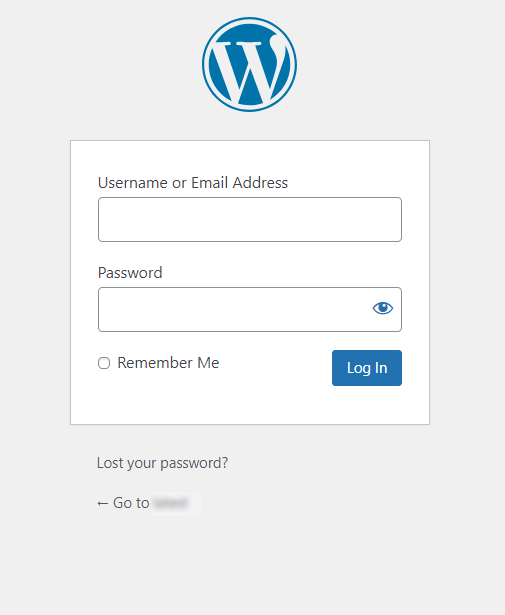
This type of feedback helps stop brute-force attacks, but it can leave your real users stuck. When you try to balance clear login errors with security, the default setup often falls short for both admins and users.
The challenge with login error messages is finding the right balance between clarity and security. If the message is too specific, it can help attackers by confirming that a username is valid.
On the other hand, a generic “Invalid credentials” message is more secure but creates high conversion friction, as users struggle to identify which field they mistyped.
A better approach is to use a clear message that does not reveal security details, to reduce login-related support tickets.
For example, you can say: “We couldn’t verify your credentials. Please try again or reset your password below.”
This way, users know what to do next without having to learn which part of their login was wrong. It also helps reduce login related support tickets and lower support requests by giving users a clear next step.
LoginPress custom error messages help balance login error clarity vs security by giving users a clear next step without exposing sensitive login details.
You can swap out every default prompt with helpful, branded text to ensure users don’t feel abandoned at the login gate.
LoginPress includes FREE custom error message fields to reduce login related support tickets:
- Incorrect Username Error: Mask the confirmation of existing accounts.
- Incorrect Password Error: Provide a helpful link to the recovery form.
- Empty Username and Password Errors: Remind users that both fields are mandatory.
- Forgot Password Form Errors: Guide users through the reset process when things go wrong.
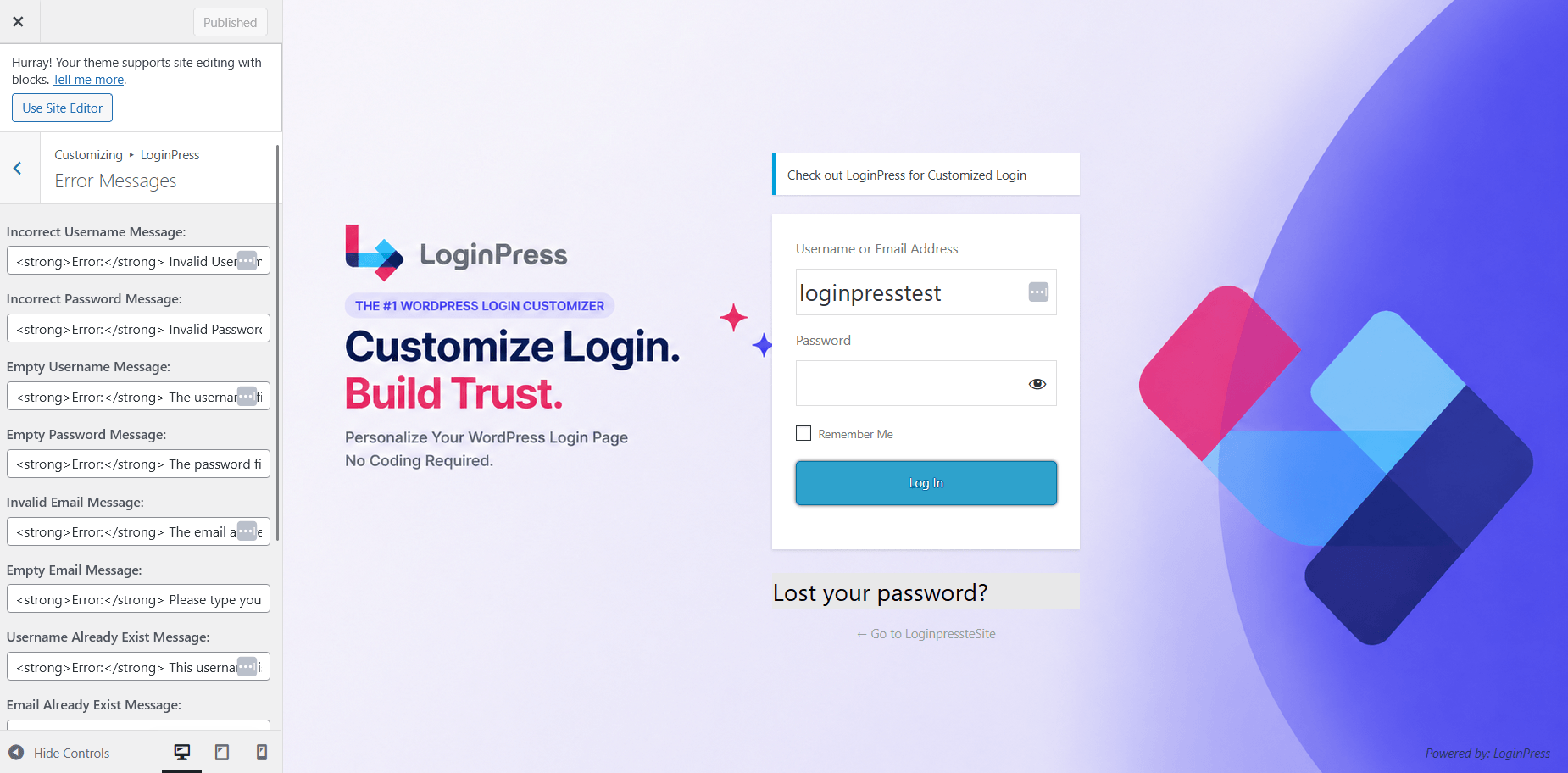
By customizing these touchpoints, you stop the influx of “Why can’t I get in?” emails and reduce login related support tickets.
Why Can’t Users Find the Login Page, and How Do You Fix It?
Users who can’t find the login link in your site’s navigation send a support ticket instead of finding it themselves.
Most WordPress themes do not include a dynamic login link by default, leaving users to hunt for a URL or guess a path.
This frustration often leads to a high exit rate because they couldn’t find the path back to their account.
The Login Logout Menu add-on is completely FREE and also works as a standalone plugin without requiring a paid LoginPress plan.
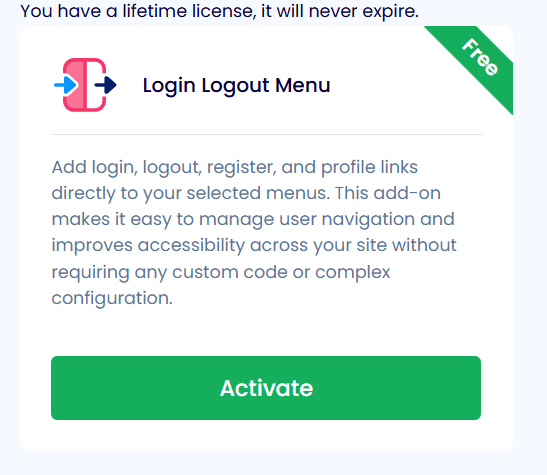
Its primary strength lies in its visibility logic. When a user is logged out, the menu displays “Login” and “Register.”
Once authenticated, those links automatically switch to “Logout” and “Profile,” ensuring users always know their current session state without contacting your team.
To reduce login related support tickets and improve your site’s accessibility, follow these three steps:
- Activate the Add-on: Open the add-ons tab to activate the Login logout menu add-on, or install the standalone version.
- Configure Menu Items: Navigate to Appearance >> Menus and look for the new “Login Logout” section in the left-hand column.
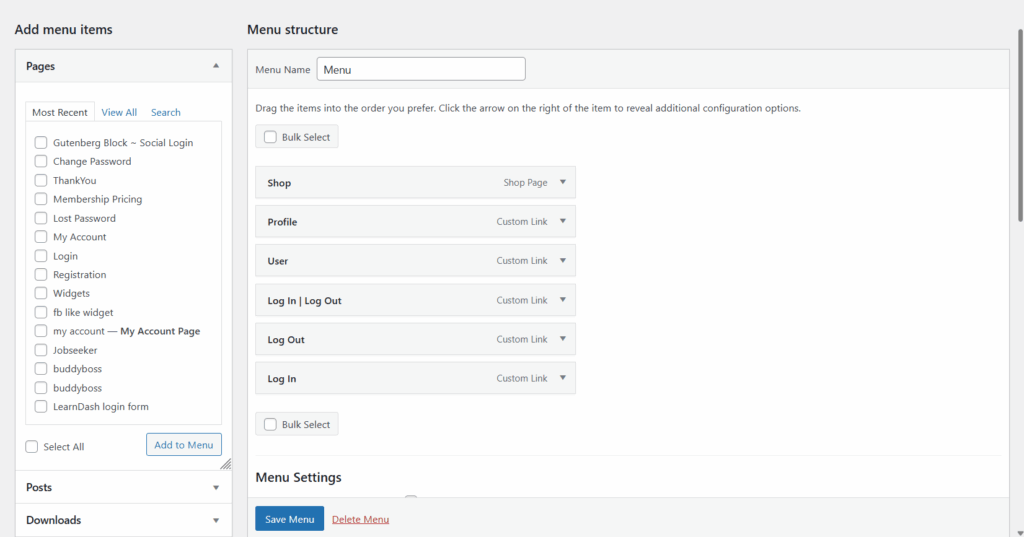
- Deploy Dynamically: Select the items you want to include (Login, Logout, Register, Profile) and add them to your primary navigation menu.
Providing a clear entry point is necessary for navigation, but the user’s journey doesn’t end at the click; where they land afterward determines whether they stay or open a ticket.
What Happens When Login Redirects Send Users to the Wrong Page?
When every user lands on the same page after logging in, regardless of their role, users who belong elsewhere send a ticket asking where to go.
By default, WordPress forces all user types into the admin dashboard. For a student expecting a lesson or a customer looking for an invoice, landing on a cluttered WordPress dashboard creates immediate friction.
Many users leave immediately because the dashboard fails to meet their expectations.
The fix is to implement role-based redirects to ensure the destination matches the user’s intended purpose. To reduce login related support tickets, you need to automate the journey from the login form to the relevant content.
For example, a WooCommerce store where subscribers land on their Orders page after login instead of the WordPress dashboard results in zero “where am I?” tickets.
The LoginPress Login Redirects add-on, available in LoginPress Pro, handles this logic with role-based and username-based redirects.
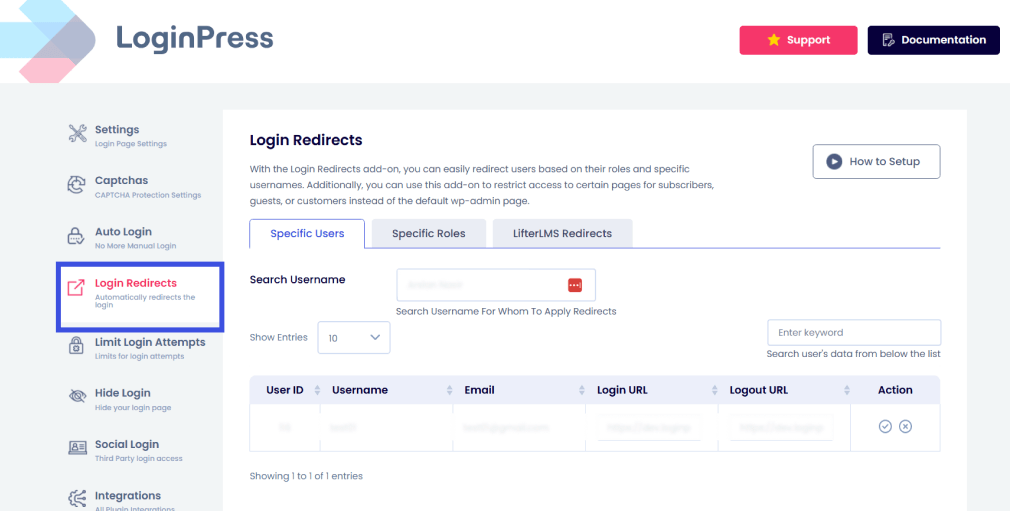
It also provides deep integration for LMS platforms, including specific redirect options for LifterLMS and LearnDash.
| User Role | Logical Redirect Destination | Support Benefit |
| Customer | /my-account/orders/ | Eliminates confusion on how to track purchases. |
| Student | /courses/dashboard/ | Places learners directly into their curriculum. |
| Editor | /wp-admin/edit.php | Saves time by bypassing the main dashboard. |
| Subscriber | /welcome-hub/ | Keeps users in the front-end “safe” zone. |
How Does Social Login Reduce Login Related Support Tickets?
Social login removes the need for a password entirely for users who choose it; no password means no ‘forgot password’ ticket for that user, ever.
Many abandoned password reset attempts eventually become support tickets, so removing the password for users who choose social login removes those tickets.
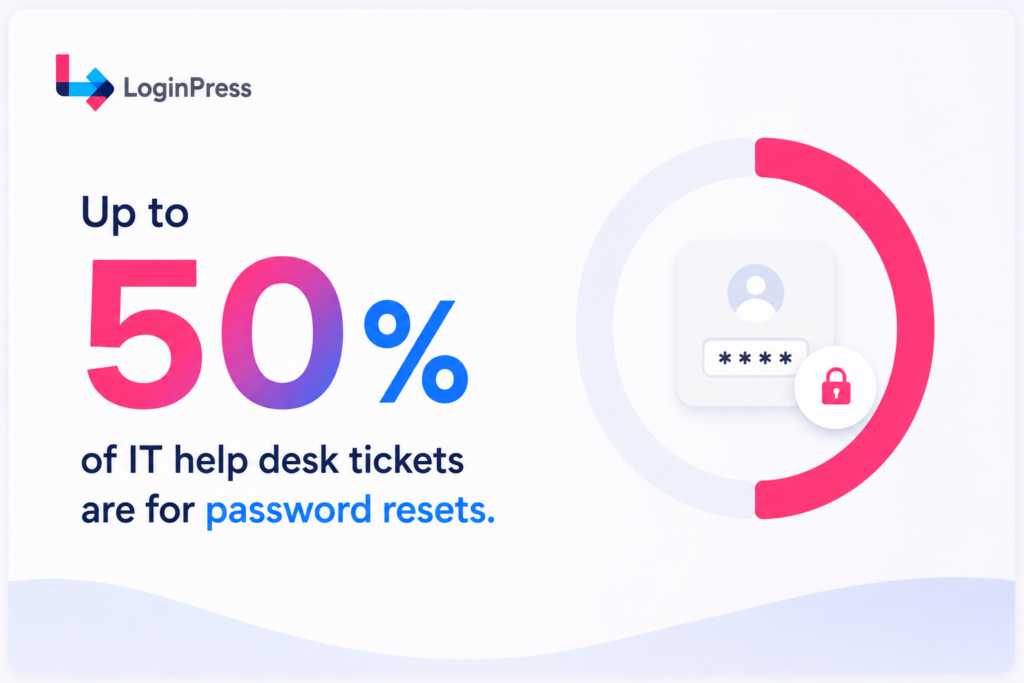
This failure to complete the process leads to a spike in abandonment rate, which inevitably forces those users to contact your help desk.
By removing the traditional password from the equation, social login bypasses this friction point for users who opt in and helps to reduce the login related support tickets.
The LoginPress Social Login add-on enables this by allowing users to authenticate via established platforms like Google or Facebook.
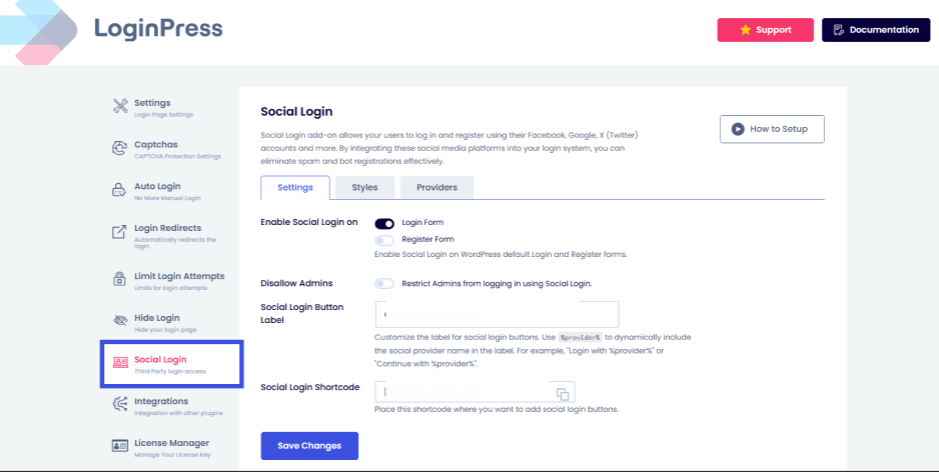
Implementing this can reduce login related support tickets because the authentication burden shifts from your database to a platform the user already trusts and uses daily.
However, more options aren’t always better. A study shows that 86% of users dislike creating new accounts on websites. That is why social login works best when you keep the experience simple to reduce login related support tickets.
Showing more than 3 social login options causes choice paralysis and increases friction rather than reducing it. By sticking to a few key platforms like Google and LinkedIn, you provide a faster path to entry and reduce login related support tickets.
Which LoginPress Features Reduce Login Support Tickets?
Five LoginPress features that reduce tickets and map directly to the five most common login ticket types, and provide practical login UX improvements to cut support requests.
By aligning your site’s interface with user intent, you reduce the number of events that would otherwise trigger a manual help request.
The following table summarizes how specific features address the friction points that reduce the login related support tickets.
Mapping Support Tickets to LoginPress Solutions
| Ticket Type | Root Cause | LoginPress Fix |
| Confusing error message | Vague default WordPress error | Custom error messages |
| Can’t find the login page | No login link in navigation | Login Logout Menu add-on |
| Wrong page after login | No role-based redirect | Login Redirects add-on |
| Forgot password ticket storm | Password reset flow abandoned | Social Login add-on |
| “Where am I?” after reset | Confusing forgot password UX | Custom welcome messages |
These features alone remove two of the five most common ticket types. The Pro features handle the remaining three, providing a strategy to reduce the login related support tickets in the support queue.
Implementing these fixes ensures your users spend less time stuck at the gate and more time engaging with your content.
FAQs: Reduce Login Related Support Tickets
Why do users keep sending ‘I can’t log in’ tickets even when their credentials are correct?
Many users submit login tickets even when their credentials are correct because the login form does not explain what went wrong or what to do next. Clearer login guidance reduces confusion and prevents unnecessary support requests.
Should I show users which credential is incorrect, the username or the password?
From a security standpoint, WordPress defaults to vague messages to prevent “username enumeration” (attackers guessing valid usernames). However, for membership sites, you can use LoginPress to balance this by providing helpful hints that reduce user frustration without exposing sensitive data to bots.
Is adding social login to WordPress safe for membership sites?
Yes. Social login uses OAuth, a secure protocol that allows users to authenticate via trusted providers like Google or Facebook without sharing their actual social passwords with your site. This reduces the risk of credential stuffing attacks while simplifying the user journey.
How do I stop users from landing on the WordPress admin dashboard after login?
You can use role-based redirects to send users to specific front-end pages. For example, customers can go to an account dashboard while students land on a course page, keeping them away from the confusing backend environment.
Can I reduce login support tickets without upgrading to a paid plan?
Yes. Two of the five most impactful fixes are available free with LoginPress: custom error messages on the login, registration, and forgot password forms, and the Login Logout Menu add-on, which adds a visible link to your site navigation. Together, these address three of the five most common ticket types. The remaining fixes, role-based redirects, and social login require LoginPress Pro.
Final Thoughts
Most login support tickets are not technical problems; they are UX problems. Fix the five failure points in your login experience, and most of those tickets stop arriving before you ever have to answer them.
By addressing these friction points, you reduce login-related support tickets and create a smoother login experience for your users.
Ready to reclaim your time and clean up your support queue? Follow these three steps to reduce login related support tickets:
- Start with the login UX fixes today. Add a login/logout link to your navigation menu using the free Login Logout Menu add-on, and customize your error messages in the LoginPress Customizer. Both take under 10 minutes and require no code.
- Audit your post-login redirect. Log out of your site, log back in as a subscriber or customer, and note where you land. If it’s the admin dashboard, set up role-based redirects with LoginPress Pro’s Login Redirects add-on.
- Add social login for your highest-friction user segment. If your site has members who repeatedly contact support about forgotten passwords, enabling Google login for that audience eliminates the need for a password from their flow entirely.
See LoginPress Plans to reduce login related support tickets.
That is all for this post. For more related information, check:
- Modern WordPress Login UX Patterns (What Users Expect in 2026)
- Enhancing User Trust with Secure Login UX in WordPress (2026 Guide)
Which part of your login process currently generates the most support tickets for your team? Let us know in the comments below!