Stuck on a “Sign In to Confirm You’re Not a Bot” Screen? Here is the Fix

To fix the “sign in to confirm you’re not a bot” message, disable your VPN, clear your browser cookies and sign in to the platform showing it. The message means a website detected behavior, an IP address or an account status that looks automated and wants you to prove you are human.
In this post, I will cover what triggers this error and how to fix it as a user. If you run a WordPress site, I also explain how to protect your forms with CAPTCHA without driving visitors away.

QUICK SUMMARY
The “Sign In to Confirm You’re Not a Bot” loop occurs when a website’s firewall flags your automated network behavior, often caused by automated scripts, VPNs, or corrupt
browser files.
● The Triggers: Sharing public IP addresses via VPNs, aggressive ad-blocker extensions, or corrupted local site cookies.
● The Quick Fixes: Toggle off your VPN, clear your browser cache/cookies, or swap to an authenticated user session.
Protecting Your Own Site? If you run a WordPress site, you can stop bad bots without frustrating your actual human visitors. LoginPress Pro lets you easily add frictionless CAPTCHA verification tools on your login pages.
Table of Contents
What Does ‘Sign In to Confirm You’re Not a Bot’ Mean and Why It Happens?
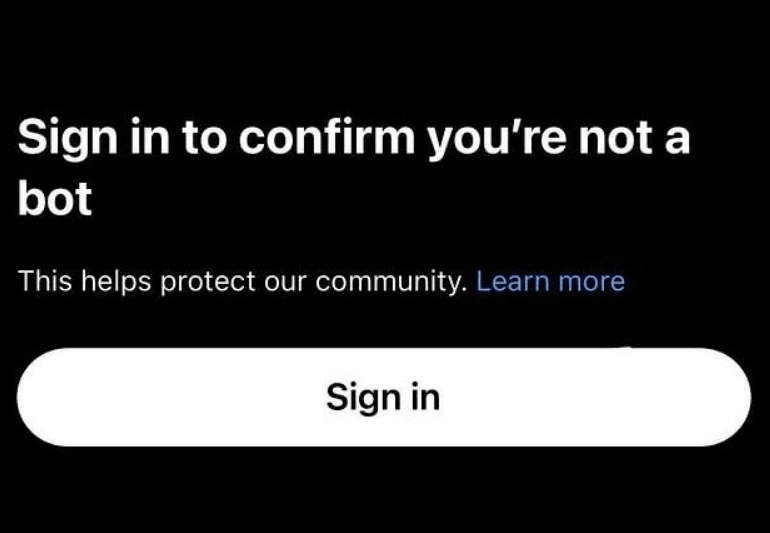
The “sign in to confirm you’re not a bot” error means a website has detected unusual behavior and is asking you to prove you are human before it will let you continue.
Such firewalls are there to protect systems from automated scripts, data scraping off the web, and suspicious network overloads.
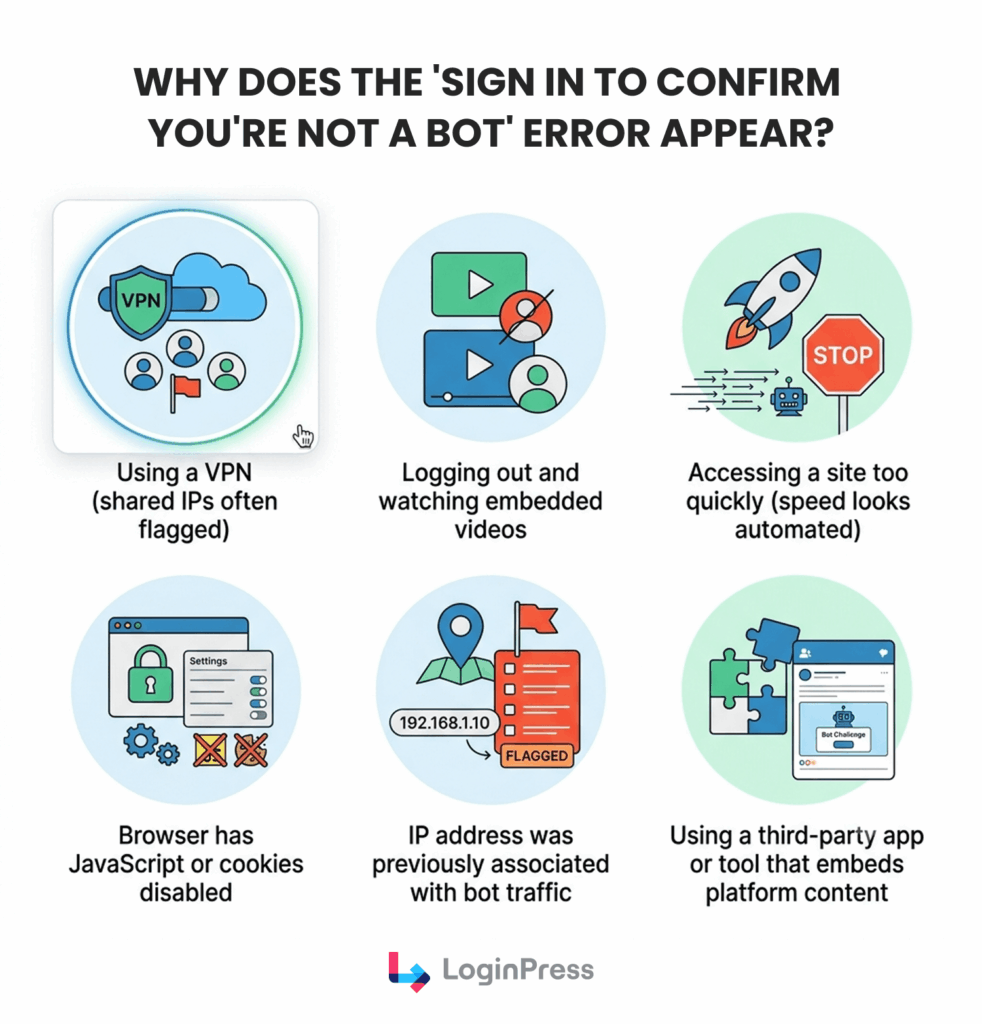
Security filters automatically flag these actions based on the common triggers listed in the table below.
Quick Summary: What Triggers the “Sign In to Confirm You’re Not a Bot” Message?
| What is the Trigger? | Why Does It Look Suspicious? | How Common Is This Trigger? |
| Using a public VPN network | Hundreds of users share the same IP address simultaneously. | Very common for privacy users |
| Watching logged-out embedded videos | Platforms cannot verify an established user session history. | Extremely common on third-party blogs |
| Accessing site pages too quickly | Human fingers cannot load links at server speeds. | Moderately common during heavy research |
| Disabling JavaScript or cookies | Modern security tools require these elements to verify real browsers. | Less common among general users |
| Inheriting a dirty IP address | A hacker previously used that network node for malicious traffic. | Common on public Wi-Fi networks |
| Using third-party platform scrapers | External software bypasses the official user interface layouts. | Common for advanced developers |
None of these triggers means you’re actually a bot, and all of them can be resolved.
How Do You Fix “Sign In to Confirm You’re Not a Bot” as a User?
To fix the “Sign In to Confirm You’re Not a Bot” error as a regular user, start by disabling your VPN, clearing your browser cookies, and signing in to your account on the platform displaying the message.
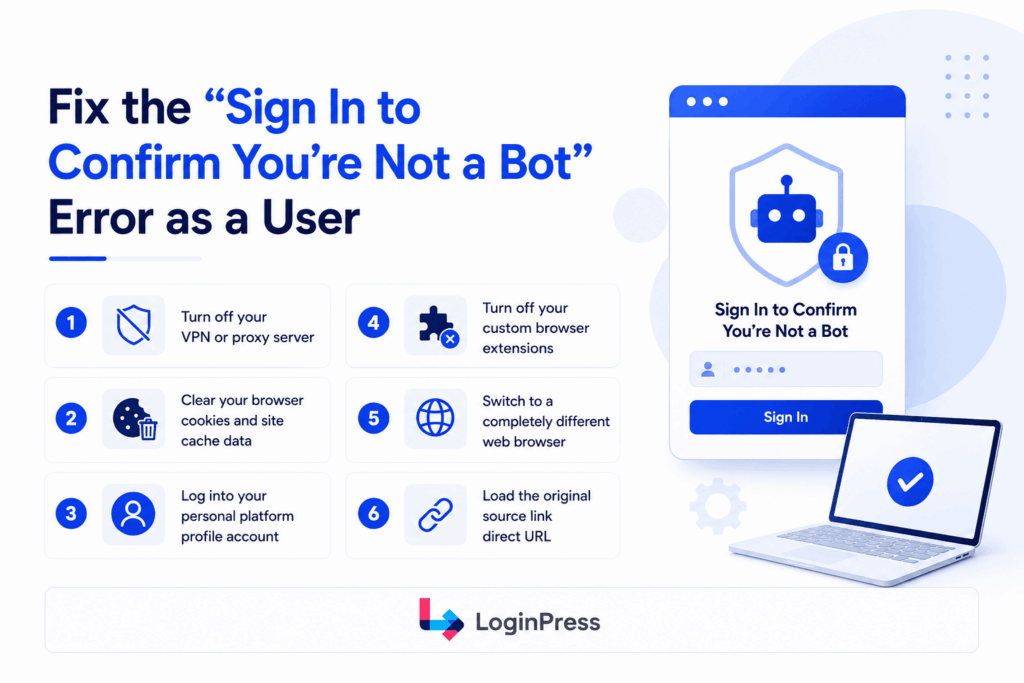
When a site detects spam behaviors for a user, it will ask you to prove you are human. To bypass and reset your connection profile immediately, follow these steps:
Step 01: Turn off your VPN or proxy server
First off, disable your privacy tunnel, which stops your browser from sharing a public IP address.
Step 02: Clear your browser cookies and site cache data
Most of the time, removing old tracking files clears corrupted session data that may have triggered a security alert.
Step 03: Log in to your personal platform profile account
Usually, logging in to your personal platform account helps bypass these triggers because the account history proves human identity.
If signing in does not work, the culprit is usually in your browser setup.
Here is where to look to clear away such alerts:
Step 04: Turn off your custom browser extensions
Disable your ad blockers and script managers one by one. These security tools often interfere with background verification files.
Step 05: Switch to a completely different web browser
Open the page in a clean browser like Firefox or Edge. This test isolates local rendering bugs.
Step 06: Load the original source link, direct URL
Open embedded videos or frames on the official main website instead of third-party platforms.
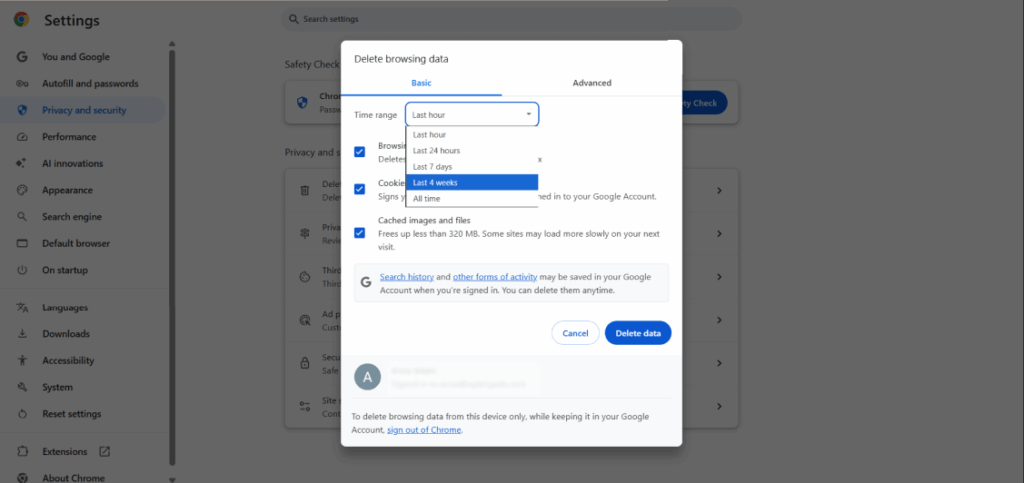
Note: If none of these work, the issue is likely on the platform’s end or your IP is on a temporary blocklist, which usually resolves within a few hours
Website owners face the exact same configuration issues in their own setups.
Why Do WordPress Sites Trigger This Message for Their Own Users?
WordPress sites trigger the “Sign In to Confirm You’re Not a Bot” verification messages because the default WordPress login page has no built-in protection against automated login attempts, brute-force attacks, or credential stuffing. Understanding the different WordPress authentication methods available can help you close these security gaps before attackers exploit them.
The core software leaves your login architecture open to global scripts through some vulnerabilities. Attackers build software that finds these gaps easily. Here are some of the risks that you can face:
- Public page access: Every standard core installation exposes the backend dashboard at the exact same public path.
- Zero entry restrictions: The system allows infinite failed credentials out of the box without flagging malicious activity.
- Missing identity checks: Core login forms lack any visual puzzle tests or network behavior filters to confirm human users.
According to WordPress security statistics, in 2025, over 11,000 new vulnerabilities were discovered in the WordPress ecosystem.
Bots are aware of these gaps, so they run automated scripts that try thousands of username and password combinations.
With 92% of breaches via plugins, your server gets hammered, actual users may get locked out or see bot-related errors, and your site is vulnerable.
High server load can also degrade your entire page-speed experience. The good news is that adding proper bot protection to your WordPress login takes about 10 minutes and requires no code.
You can implement WordPress login security bot protection configurations to stop “Sign In to Confirm You’re Not a Bot” errors instantly.
How Does CAPTCHA Protection Help Secure Your WordPress Login?
To add CAPTCHA and bot protection to your WordPress login, install a login security plugin that supports Google reCAPTCHA, hCaptcha, or Cloudflare Turnstile and apply it to your login, registration, and lost password forms.
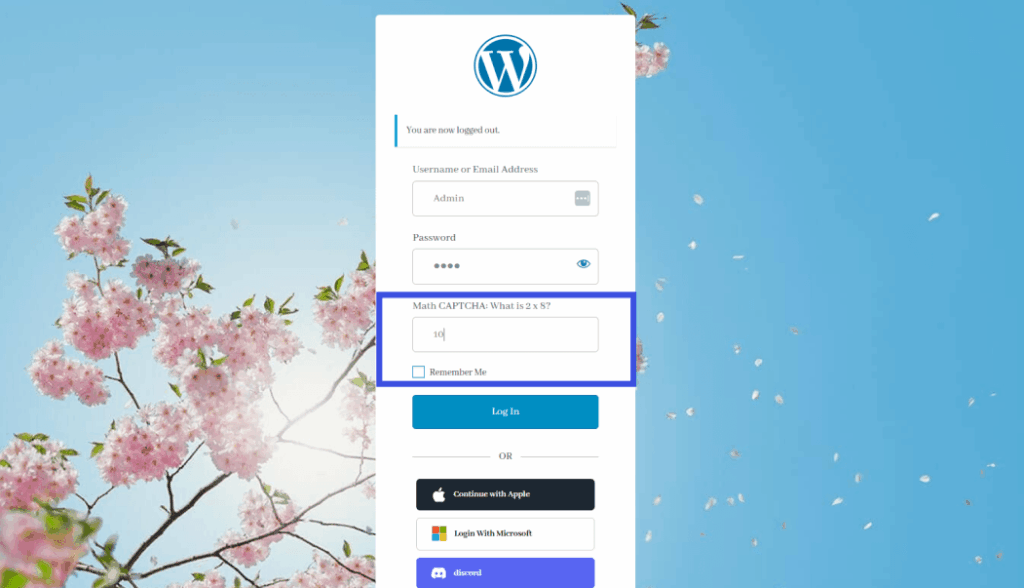
CAPTCHA for WordPress login security helps block script requests before they can execute. They validate human actions without consuming your valuable server memory resources.
Which CAPTCHA Verification Method Keeps Logins Most Secure?
Cloudflare Turnstile and reCAPTCHA v3 offer the most secure defense because they use invisible, real-time cryptographic challenges instead of static visual puzzles that modern bots can easily solve.
| CAPTCHA Type | How It Works | Privacy Level | User Experience | Best For |
| Google reCAPTCHA v2 | Users click a familiar checkbox to confirm identity. | Standard data tracking | Moderate interactive friction | General audience websites |
| Google reCAPTCHA v3 | Systems monitor real-time background browsing behavior scores. | Heavy data tracking | Fully invisible execution | Smooth conversion pages |
| hCaptcha | Forms display privacy-centric puzzle checks to visitors. | High consumer privacy | High interactive friction | Compliance-focused brands |
| Cloudflare Turnstile | Browsers complete silent cryptographic challenges automatically. | Excellent GDPR security | Zero-friction performance | Modern business blogs |
| Math CAPTCHA | Users solve basic arithmetic equations manually. | Complete local privacy | Minimal manual effort | Light script protection |
Deploying these verification tools directly inside your WordPress site dashboard takes very little effort and helps troubleshoot the “Sign In to Confirm You’re Not a Bot” error.
Step-by-Step LoginPress Setup Guide
You can secure your forms against malicious scripts by configuring LoginPress settings in the Settings dashboard.
- Install LoginPress from WordPress.org: Search for the free core tool inside your plugin directory and click activate.
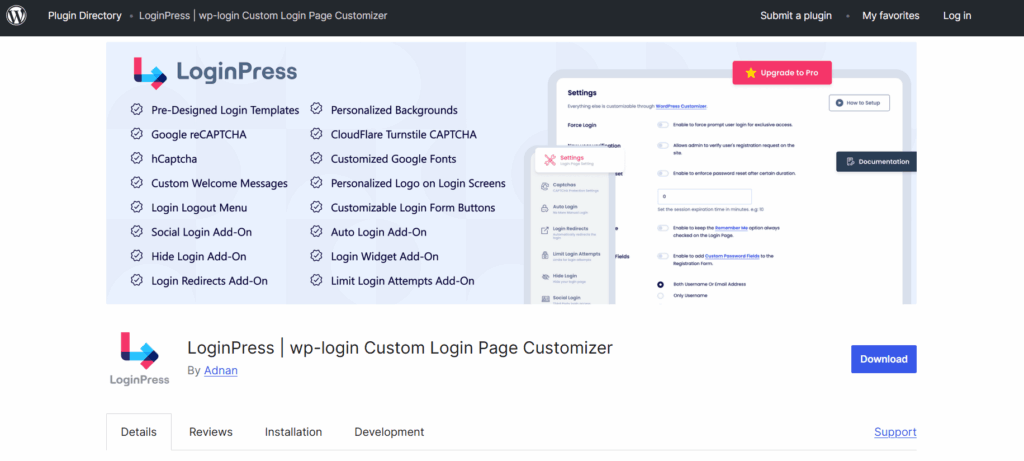
- Upgrade to Pro for CAPTCHA: Purchase a premium license key to gain access to advanced anti-bot verification integrations.
- Go to LoginPress >> Settings >> CAPTCHA: Navigate directly to the security configuration panel from your main WordPress administration sidebar.
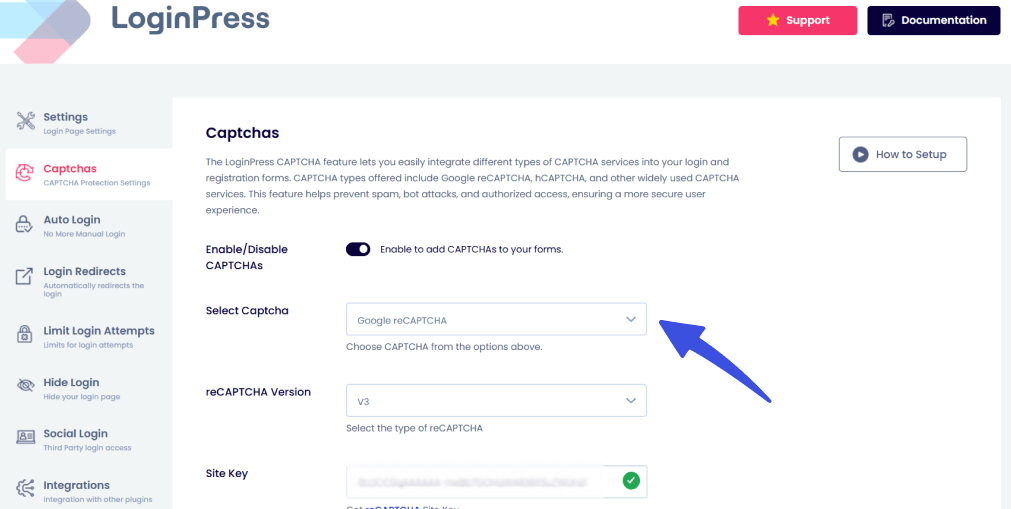
- Choose your preferred CAPTCHA type: Toggle between active styles like Cloudflare Turnstile or Google reCAPTCHA V2/V3 modules or math CAPTCHA.
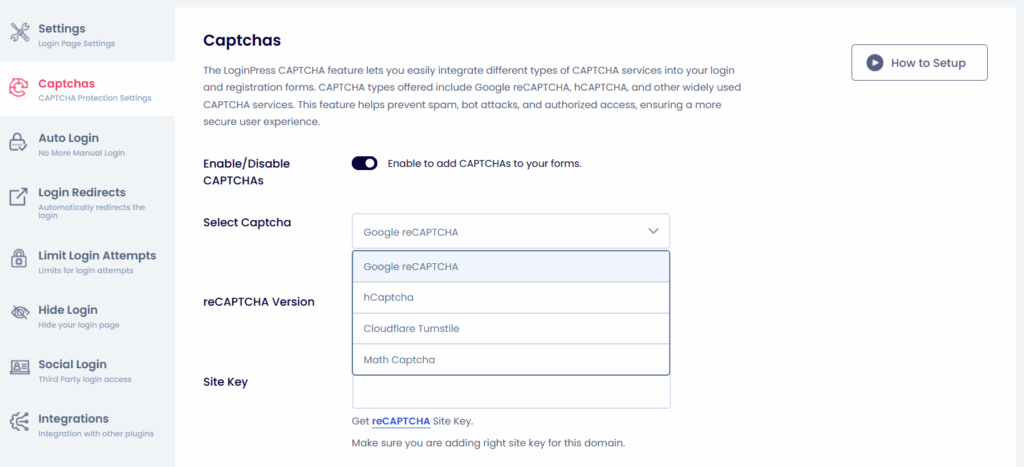
- Add your third-party API keys: Generate the matching site keys and secret keys from your provider account to establish a secure link.
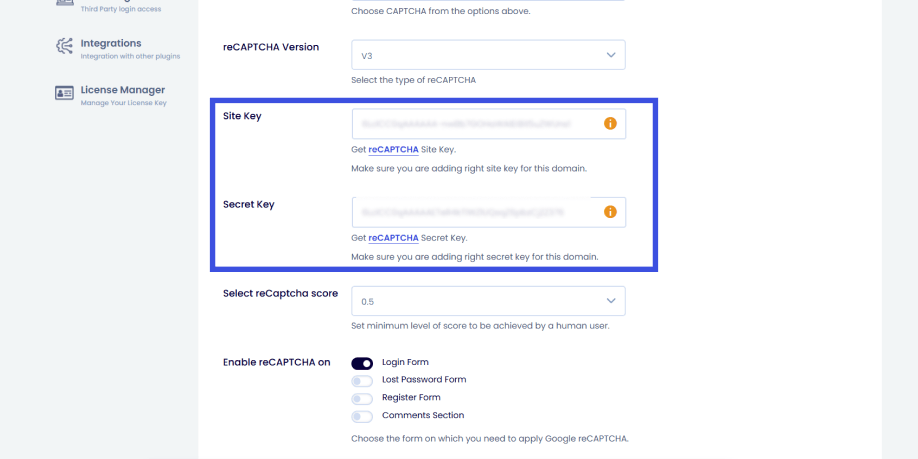
- Enable on all critical public forms: Check the boxes to activate the system on your login, registration, and lost password layouts.
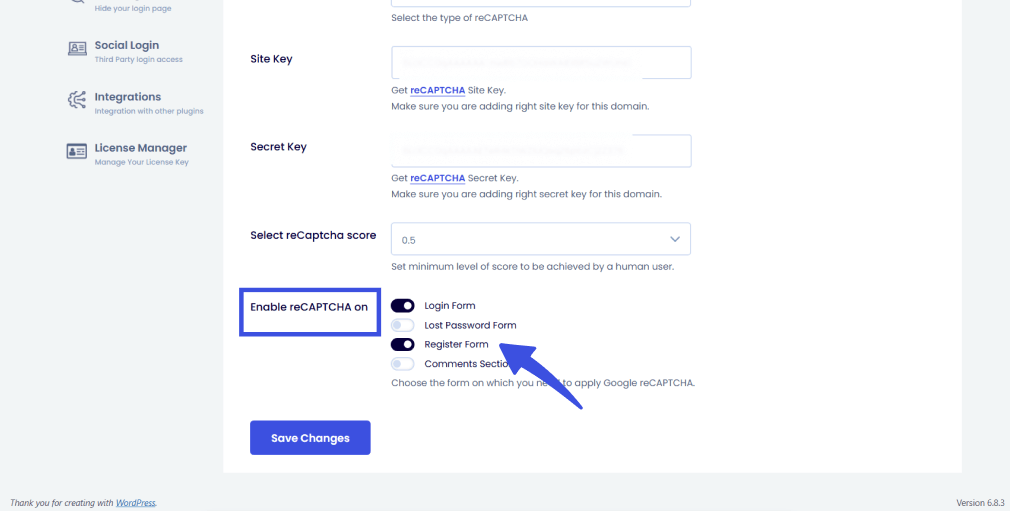
- Save changes and test execution: Click the update button, then log out to review your newly active validation challenge shield.
If additional security is required to combat brute-force attacks, LoginPress also lets you limit failed login attempts and hide your default login URL, adding two more layers of protection. This approach keeps automated scripts from ever touching your core database assets.
What Is the Difference Between a User Fix and a Site-Owner Fix?
A user fix clears the signals that trigger the bot check on their device; a site-owner fix prevents the site from triggering the message in the first place by protecting its login forms with CAPTCHA and security rules.
The best way is to know your role, which helps you save valuable time. Below is a quick summary table to help you understand.
Which Troubleshooting Path Applies to You?
| Resolution Path | Who It Helps | What It Does | Time to Implement | Tools Needed |
| User Fix | Individual web browsers | Cleans local browser data profiles. | Under two minutes | Settings panel access |
| Site-Owner Fix | Webmasters and developers | Deploys active global login gates. | About ten minutes | LoginPress Pro plugin |
This clear separation helps you target the correct asset to confirm you are not a bot login error. Local browser fixes cannot fix a broken server validation script.
Frequently Asked Questions
What does it mean when a site says ‘sign in to confirm you’re not a bot’?
It means the site has detected something in your browser behavior, IP address, or session state that resembles automated or bot-like activity, and it is asking you to verify you are human before granting access. Common causes include using a VPN, being logged out, having cookies or JavaScript disabled, or sharing an IP address with other users who triggered the detection system. This message does not mean you are actually a bot or have done anything wrong.
Why does this message appear on YouTube?
YouTube shows this message when it cannot confirm that a request is coming from a human user rather than an automated script or bot. This most often happens when you are logged out, when you are using a VPN, or when your IP address is flagged due to nearby activity from other users on the same network. Signing into a Google account and disabling your VPN resolves the issue in most cases.
How do I get rid of the ‘confirm you’re not a bot’ message?
The quickest fixes are: disable your VPN, clear your browser cookies and cache, and sign in to your account on the platform. If those do not work, try disabling browser extensions such as ad blockers or opening the content in a different browser. In most cases, one of these steps resolves the issue within a few minutes.
Can CAPTCHA and login security features prevent this message on a WordPress site?
Yes. Adding a CAPTCHA to your WordPress login page prevents bots from submitting automated login requests, reducing the risk that your site triggers bot-detection messages for real users or creates server load from brute-force attacks. Modern CAPTCHA options like Cloudflare Turnstile verify users invisibly in the background without any puzzles or checkboxes, so legitimate users experience no friction.
What plugins help protect WordPress login from bots and spam?
LoginPress Pro includes Google reCAPTCHA (v2 and v3), hCaptcha, Cloudflare Turnstile, and Math CAPTCHA for the WordPress login, registration, and lost password forms. It also includes login attempt limiting and the ability to hide the default wp-login.php URL. These features cover the main attack vectors bots use against WordPress login pages, with no code required to set up.
Is it safe to disable my VPN just to fix this error?
Disabling your VPN briefly to resolve a bot-detection error is safe in most cases. The bot check is not related to your VPN’s security function; it is triggered because many VPN services route traffic through shared IPs that have been flagged by bot-detection systems. Once you have accessed the site or video, you can re-enable your VPN without issue.
Conclusion: WordPress Login Bot Check
The “sign in to confirm you’re not a bot” message is a security check, not an accusation. For users, a few quick browser fixes almost always resolve it.
For WordPress site owners, adding CAPTCHA and login protection prevents the problem from reaching your users in the first place. Taking immediate action preserves your site’s reputation.
Immediate Action Items for Your Website: CAPTCHA For Your WordPress Login Security
- If you are a user who encountered this message, try the three quickest fixes first: disable your VPN, clear cookies, and sign in to your account on the platform.
- If you run a WordPress site, review your login page today. If there is no CAPTCHA or login attempt limit, your site is accepting unlimited automated login requests.
- Add CAPTCHA to your WordPress login using a plugin that supports Cloudflare Turnstile or Google reCAPTCHA. This takes under 15 minutes and requires no code.
LoginPress Pro adds Google reCAPTCHA, hCaptcha, Cloudflare Turnstile, and Math CAPTCHA to your WordPress login page with no code required, so you won’t face the “Sign in to confirm you’re not a bot” error.
That is all for this post. For more related posts, check:
- How to Stop Bot Traffic on WordPress (Complete Guide)
- 8 Best WordPress Captcha Plugins to Stop Bot Attacks and Spam
- Reduce Login-Related Support Tickets By Fixing Login UX
Which of these bot verification steps helped you regain access to your favorite platform today, or are you a site owner looking to secure your own WordPress login forms?