15 Best Jetpack Alternatives for WordPress Websites to Optimize Site Performance
Do you want the best Jetpack alternatives for WordPress site?
Jetpack is an amazing multi-functional WordPress plugin. Once you install this plugin, you’ll get over 20 different functions and modules, including WordPress security, backups, performance optimization, marketing tools, analytics, SEO, and more.
How to Remove “Proudly powered by WordPress” Text From the Footer
To remove “Proudly powered by WordPress” from your footer, add custom CSS in the Customizer, use a plugin, or delete the text in the footer.php file.
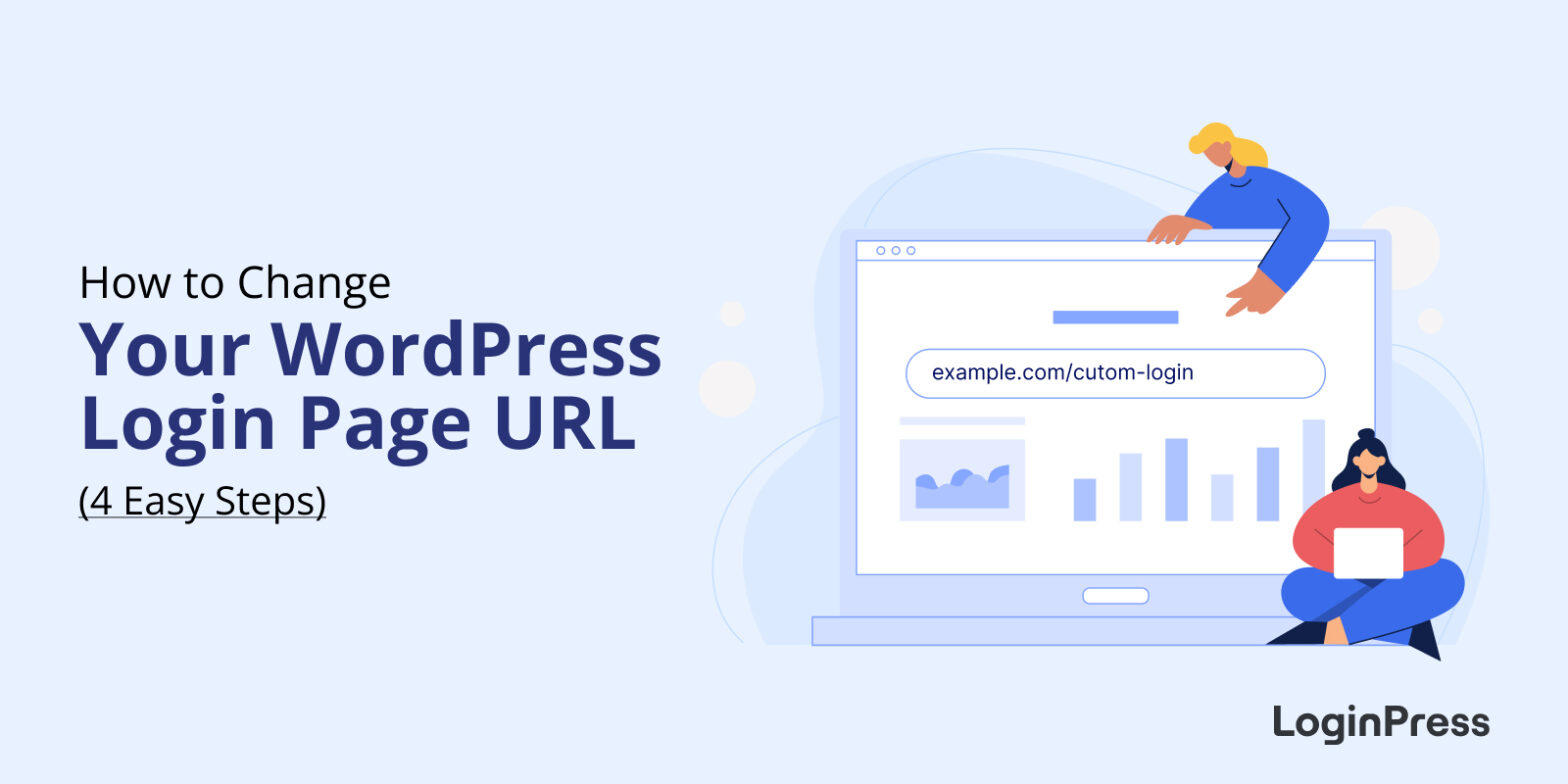
How to Change WordPress Login URL (4 Easy Steps)
To change your WordPress login URL, install LoginPress Pro, turn on the Hide Login add-on, type a new login slug (for example, yoursite.com/team-login) and save. The default wp-admin and wp-login.php addresses then stop showing the login form, so bots can’t find it.
Every WordPress site starts with the same login addresses, and attackers know them too. This post shares the four steps to change yours, and how to switch back if you need to.
10 Most Common WordPress Login Issues (How to Fix Them)
The most common WordPress login issues are a forgotten password, cache and cookies, plugin or theme interference, a corrupted login file, a wrong site URL, a corrupted .htaccess file, brute-force attacks and revoked access. Each one has a fix below.
![How to Redirect Users to the Referrer Page After Login [Referrer Page Navigation Guide]](https://loginpress.pro/wp-content/uploads/2023/01/redirect-users-to-the-referrer-page-1568x784.jpg "How to Redirect Users to the Referrer Page After Login [Referrer Page Navigation Guide]")
How to Redirect Users to the Referrer Page After Login [Referrer Page Navigation Guide]
To redirect users to the referrer page after login in WordPress, use the LoginPress Login Widget (Pro). After logging in, users return to the page they were reading instead of landing on the admin dashboard.
That keeps readers in your content without interruption, which matters most on membership sites and blogs where people register accounts.
How to Redirect WooCommerce Users After Login
To redirect WooCommerce users after login, use the LoginPress Login Redirects add-on or add a code snippet to your child theme’s functions.php file. WordPress has no built-in way to do this, and the add-on lets you set redirects per user or per role without code.
By default, WooCommerce users land on the WordPress dashboard after login. Customers should go to a shop or account page, and admins to the dashboard.
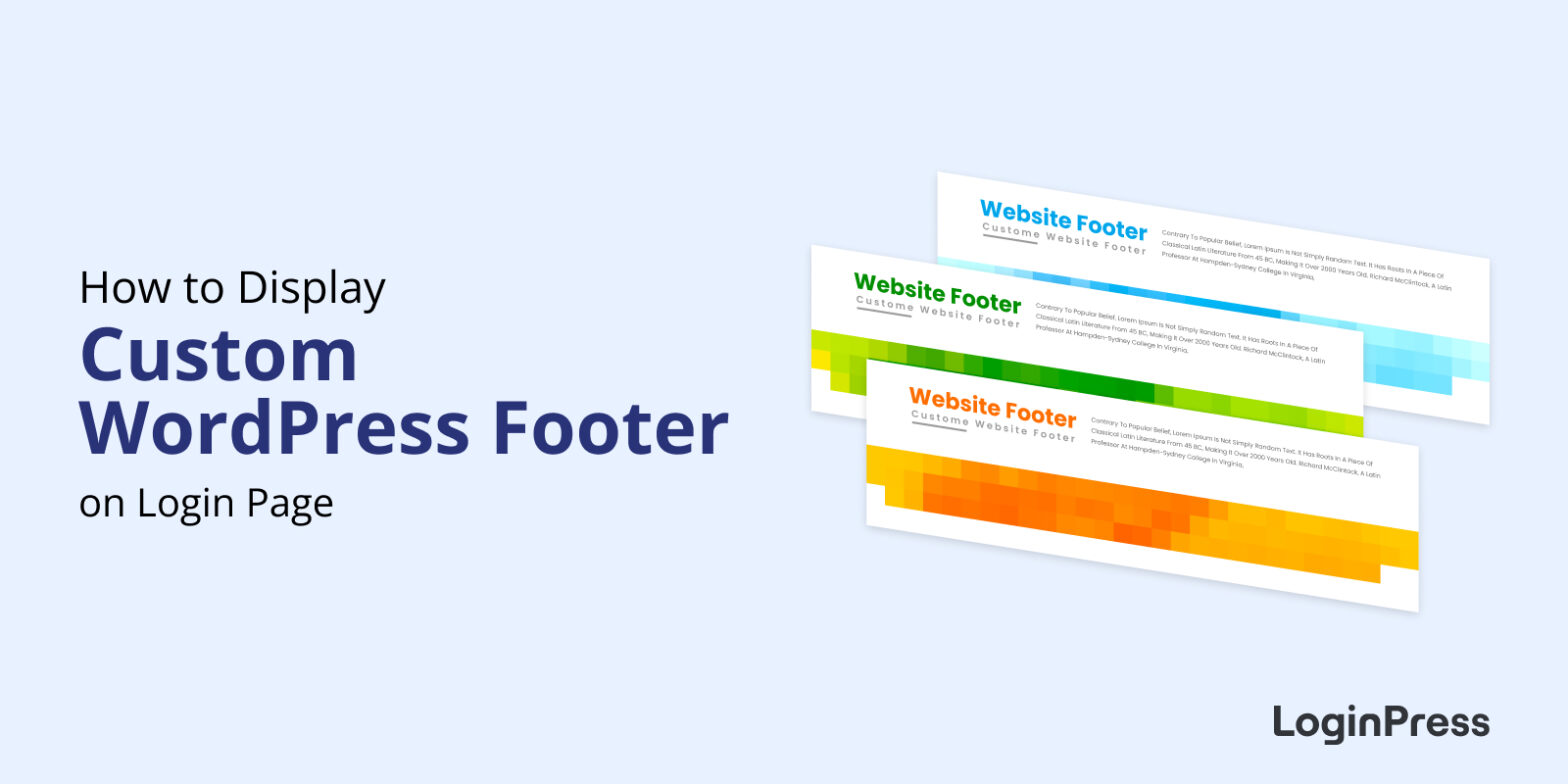
How to Display Custom WordPress Footer on Login Page
To display a custom footer on the WordPress login page, use the LoginPress Customizer to set your footer text and links, or add code to the footer with a header and footer plugin.

13 Best Login Page Examples to Inspire Your Own Design
The best WordPress login page designs keep the form simple, show the brand clearly and make the next step obvious, whether that’s logging in, registering or resetting a password. Below are 13 login page examples worth borrowing ideas from.
As you look through them, notice how each one handles the form, the branding and the next step.
How to Create Front-End Login Page and Widget in WordPress
To create a front-end login page in WordPress, install LoginPress, add a login page to your site with its Customizer, and add the Login Widget add-on for a login form in your widget areas.
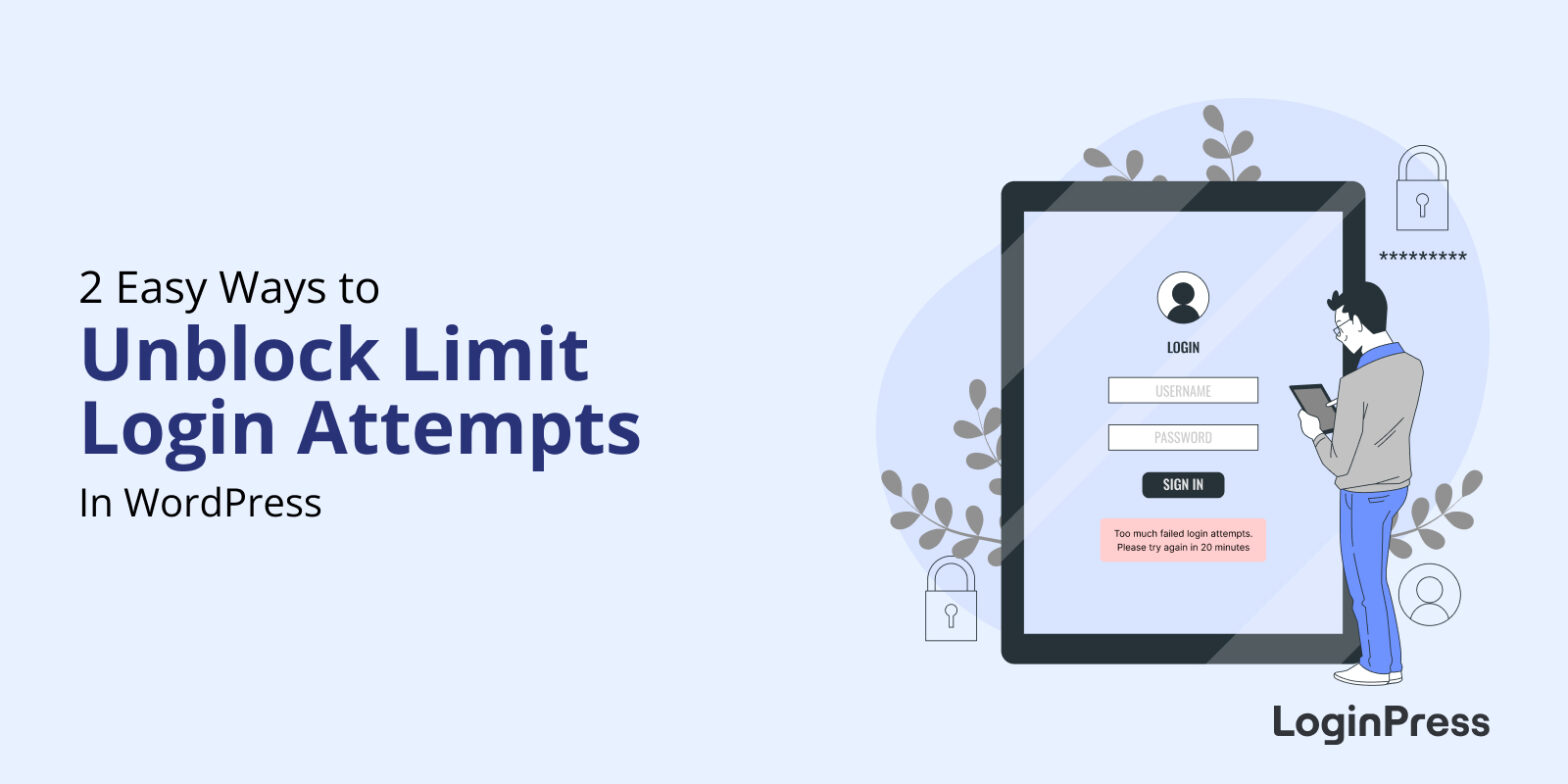
2 Easy Ways to Unblock Limit Login Attempts in WordPress: Guide to Unblocking Login Access
To unblock Limit Login Attempts in WordPress, you can either disable the plugin over FTP (by renaming its folder) or clear the lockout records in your database with phpMyAdmin. Both methods get you back into wp-admin within a few minutes.
Lockouts happen because WordPress does not limit login attempts by default, so most sites add a plugin that does. That plugin protects you from bots guessing passwords, but it can also lock you out after a few typos.