Cloudflare Turnstile for WordPress: The Modern CAPTCHA Alternative

Cloudflare Turnstile is worth it for WordPress if you want bot protection without image puzzles. It checks visitors silently in the background, respects privacy, and works on login, registration and comment forms through LoginPress.
Login spam and bot attacks keep getting smarter, and traditional CAPTCHAs are less effective than they used to be.
Google is also moving reCAPTCHA to Google Cloud, where free use is limited to 10,000 assessments, with fees after that. That is pushing more site owners to look at alternatives.
This guide explains how Turnstile works, how it compares with reCAPTCHA, and how to turn it on with LoginPress, which supports Turnstile, hCaptcha and Google reCAPTCHA.
Cloudflare Turnstile WordPress Login (TOC):
What is Cloudflare Turnstile and How It Works
Cloudflare Turnstile is a privacy-focused CAPTCHA alternative from Cloudflare that verifies visitors automatically, with no puzzles or checkboxes to solve.
Turnstile uses non-intrusive behavioral signals and browser environment checks to determine if a visitor is human or a bot. It runs silently, meaning there’s no image challenge, no user interaction, and no slowdown on your login or comment forms.

Cloudflare Turnstile offers:
- Privacy-friendly: Turnstile doesn’t rely on tracking or fingerprinting and doesn’t connect to Google’s ecosystem.
- GDPR-compliant: It respects user privacy by processing data responsibly.
- Zero friction: Users won’t even notice it’s there, making it perfect for maintaining a smooth UX.
- Flexible site modes: Offers Managed, Non-interactive, and Invisible modes for different user scenarios.
Cloudflare created Turnstile to make web security faster, smarter, and more private. A big step forward from old CAPTCHA systems that often prioritize spam prevention over user experience.
Why Choose Cloudflare Turnstile for WordPress Over Traditional reCAPTCHA
Choose Cloudflare Turnstile over reCAPTCHA if you want less friction for visitors, better privacy and no image puzzles. reCAPTCHA has long been the standard, but Turnstile stops users from getting frustrated.

Instead of forcing people to solve image puzzles or click “I’m not a robot” boxes, Turnstile works invisibly in the background to differentiate between humans and bots. The result is a smooth user experience and stronger defense for your WordPress site.
Here’s a quick comparison of how Cloudflare Turnstile for WordPress competes against traditional reCAPTCHA:
| Feature | reCAPTCHA v2/v3 | Cloudflare Turnstile |
| User Interaction | Requires a checkbox or image challenges | Entirely invisible; no puzzles or clicks |
| Privacy | Tied to Google’s data and tracking systems | Privacy-first, no Google dependency |
| Speed and Performance | Can slow down page load | Lightweight and optimized for speed |
| GDPR Compliance | Limited; relies on Google servers | Fully GDPR-compliant and self-contained |
| Ease of Setup | Needs a Google account and API integration | Simple Cloudflare key setup |
| Availability (2025) | Moving to a paid Google Cloud service | Free and independent through Cloudflare |
In 2025, Google announced a significant reCAPTCHA migration to Google Cloud, introducing usage-based pricing for over 10,000 assessments and stricter integration requirements. This change has prompted many WordPress users to explore free, privacy-centric alternatives like Turnstile.
LoginPress can help make this transition to Cloudflare Turnstile for WordPress effortless. You can easily enable Cloudflare Turnstile right inside your LoginPress settings or continue using Google reCAPTCHA or hCaptcha if you prefer. This flexibility ensures that every site owner can choose the CAPTCHA solution that best matches their security and privacy needs, all from a single plugin.
How to Enable Cloudflare Turnstile in WordPress (Step-by-Step)
You enable Cloudflare Turnstile in WordPress by creating a free Cloudflare site key, installing LoginPress and pasting the keys into its CAPTCHA settings. It takes four steps.
You don’t need coding knowledge or complex configurations. You can follow these steps to add Cloudflare Turnstile for WordPress CAPTCHA to your login, registration, and password reset forms in minutes.
Step 1: Create a Free Cloudflare Account
If you don’t already have one, head to Cloudflare and sign up for a free account. You don’t need to host your website on Cloudflare. The Turnstile CAPTCHA works independently of their CDN or DNS services. Once your account is ready, you can proceed to set up the Turnstile widget.
Step 2: Register Your Site for Cloudflare Turnstile (Updated Interface)
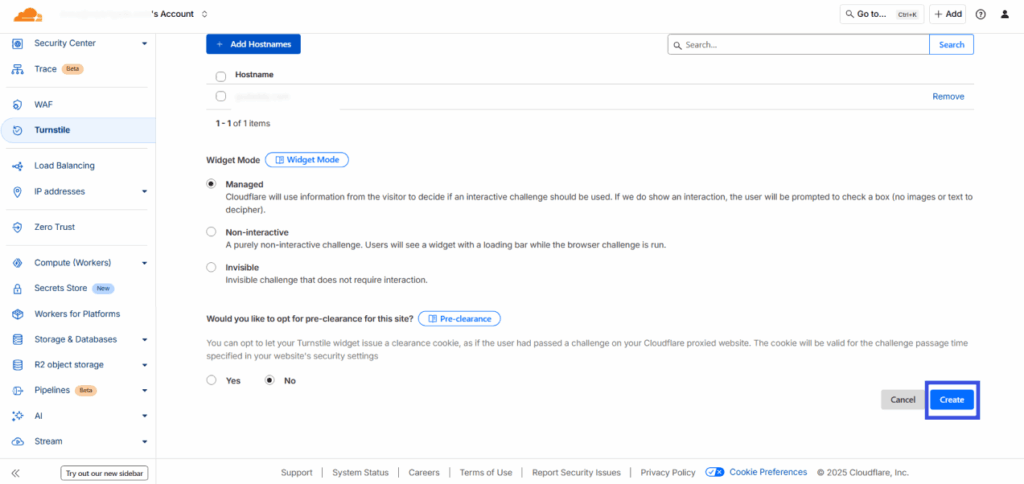
In your Cloudflare dashboard, open the Turnstile section from the left-hand menu.
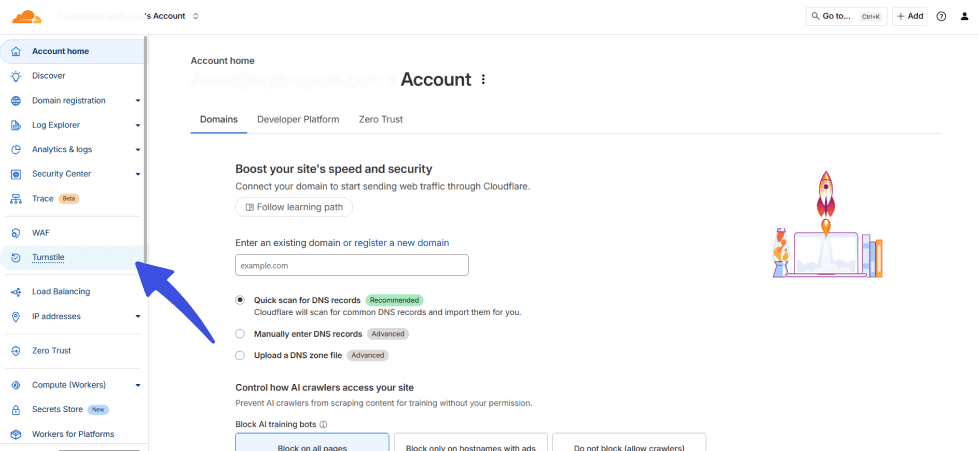
Click Add widget to create a new Turnstile setup.
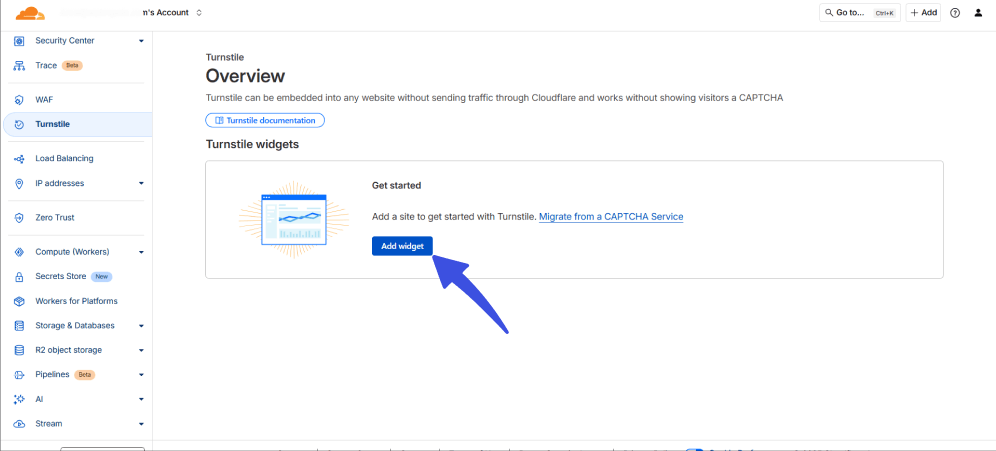
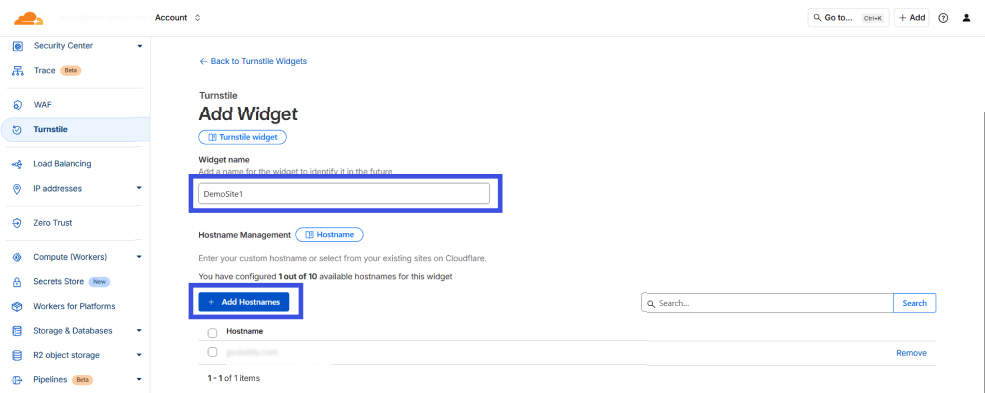
Fill in the required details:
Widget name: Enter a descriptive label to easily identify it later.
Hostname management: Specify the domains where this widget will be active.
Choose Widget mode:
- Managed: Cloudflare automatically handles verification.
- Non-Interactive: Displays a small badge but no puzzles.
- Invisible: Runs silently in the background with no visible element.
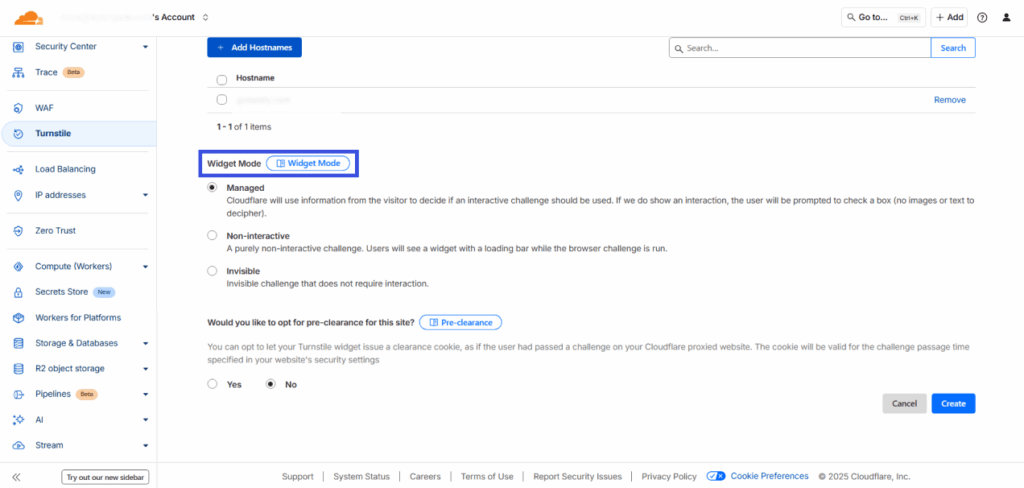
Click Create to generate your new widget.
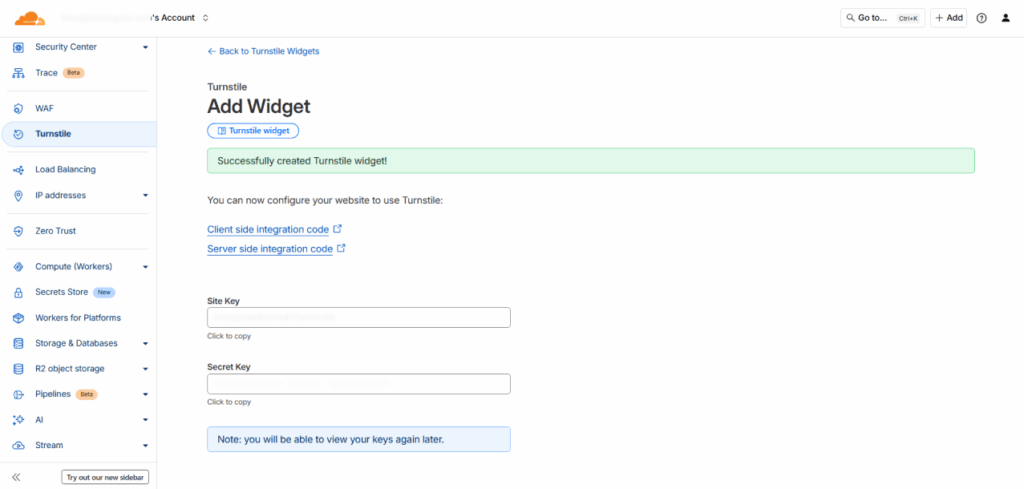
Copy your Site Key and Secret Key. Keep the secret key safe. You’ll paste both into your WordPress LoginPress CAPTCHA settings in the next step.
Step 3: Install and Activate LoginPress
Next, log in to your WordPress dashboard and install the LoginPress plugin. You can learn about installation and activation in this detailed guide: How to Install and Activate LoginPress Pro in WordPress?
LoginPress adds powerful login customization and security features, such as CAPTCHA protection, directly into your WordPress admin area.
Step 4: Enable Cloudflare Turnstile for WordPress CAPTCHA in LoginPress
Here’s how you can add Cloudflare CAPTCHA using LoginPress in easy steps:
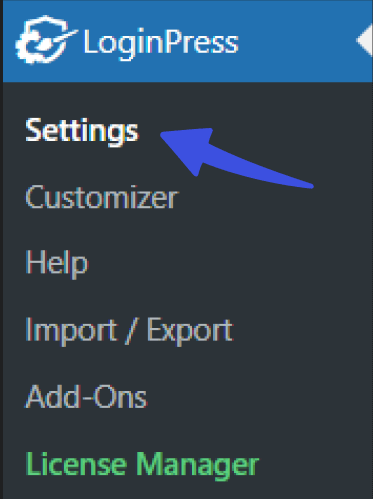
From your WordPress dashboard, go to LoginPress >> Settings.
Select the CAPTCHA settings.
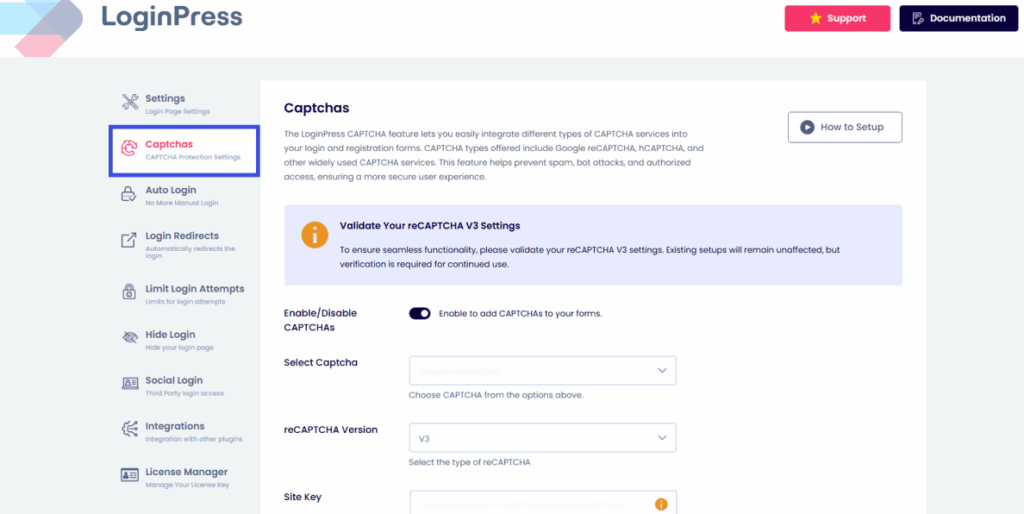
Navigate to the Enable CAPTCHA option and enable the CAPTCHA to be added to your forms.
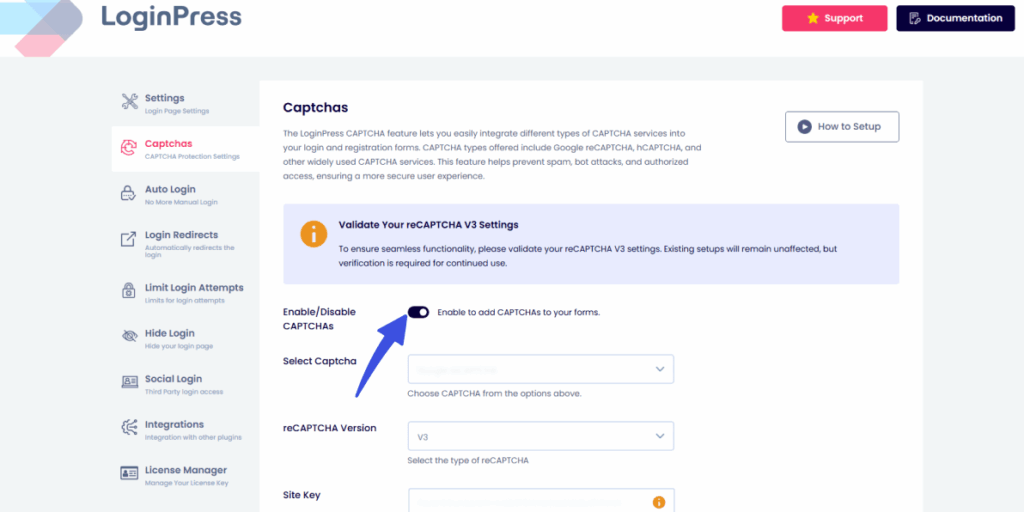
Now that CAPTCHA is enabled, LoginPress provides a variety of CAPTCHAs, including reCAPTCHA, hCAPTCHA, and Cloudflare Turnstile, for you to choose from.
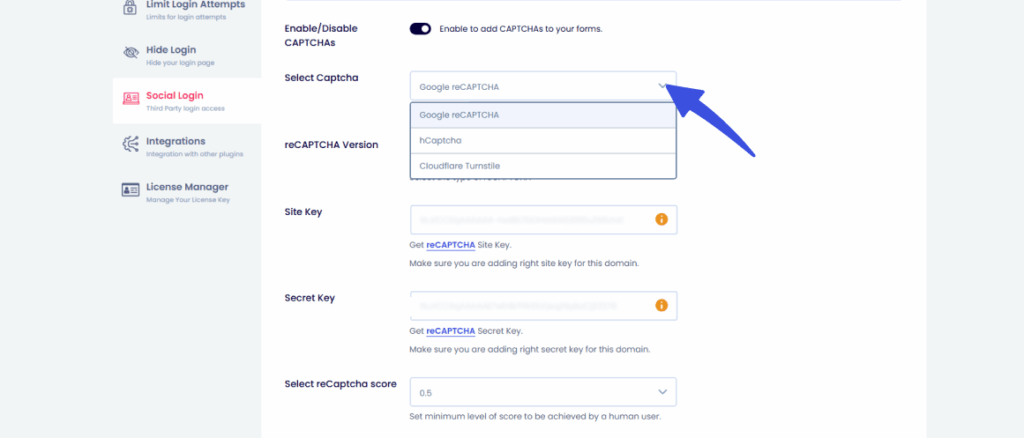
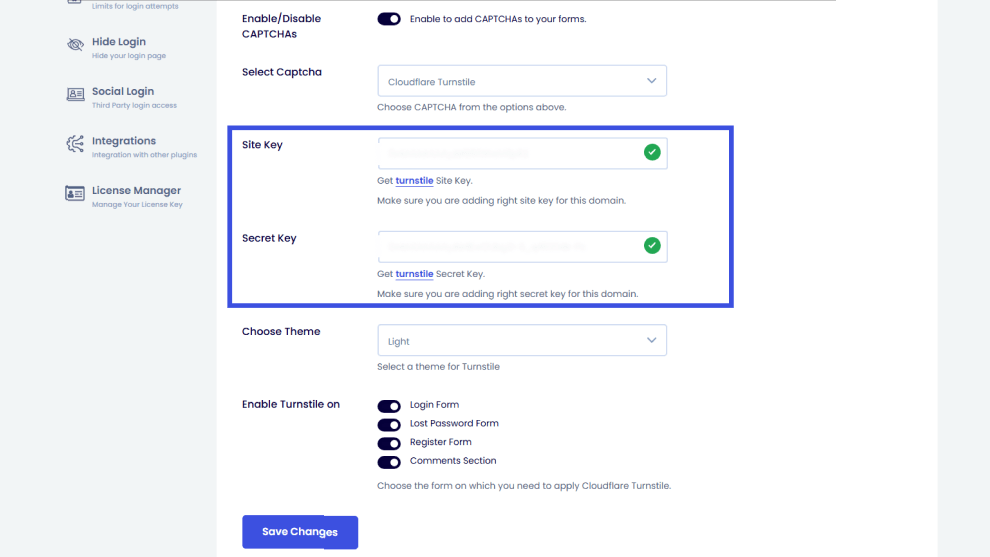
Next, you can choose the Cloudflare Turnstile CAPTCHA and then paste your Site Key and Secret Key you copied from Cloudflare.
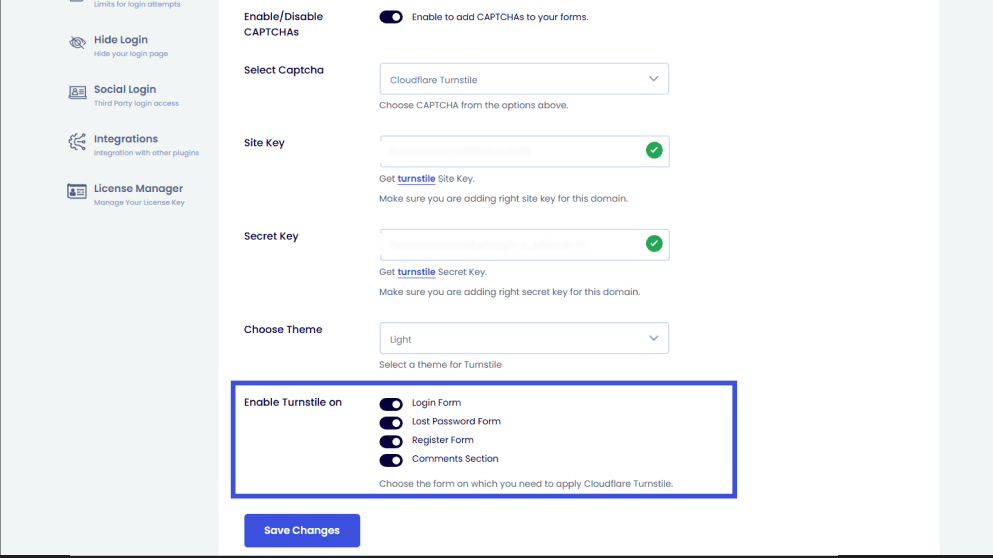
LoginPress also allows users to choose where they want to display the CAPTCHA:
Finally, click on Save Changes.

That’s it! You’ve successfully learned how to add Cloudflare Turnstile CAPTCHA in WordPress using LoginPress.
From now on, every time someone accesses your login or registration form, Turnstile will automatically verify them, with no clicks or puzzles required.
Advanced Settings and Troubleshooting Tips
You fine-tune Turnstile through its behavior settings, logs and caching checks. These tips keep it working smoothly with your plugins.
1. Fine-Tune Cloudflare Turnstile for WordPress Behavior
Cloudflare offers three widget modes: Managed, Non-Interactive, and Invisible. Here is what they mean individually:
- Managed mode is ideal for most sites since it automatically adjusts verification difficulty based on visitor behavior.
- Non-Interactive mode keeps a small badge visible but eliminates manual user input.
- Invisible mode runs in the background without showing any widget, perfect for login or checkout pages where you want zero friction.
You can easily switch modes at any time from the Cloudflare Turnstile dashboard without regenerating your keys.
2. Enable Logs for Debugging
You can enable debugging directly from your WordPress settings to track any Turnstile or plugin-related issues. It helps you identify errors, such as invalid keys or conflicts, without additional tools. Once done, disable it again to keep your site optimized.
3. Check Browser and Caching Compatibility
Sometimes, caching plugins can prevent Turnstile scripts from loading correctly. To fix this:
- Exclude Turnstile-related JavaScript from minification or deferral.
- Clear your cache after adding new keys or changing widget mode.
- Test on multiple browsers and devices to confirm visibility and function.
By keeping your Cloudflare and LoginPress configurations aligned, you ensure Turnstile runs smoothly in the background, protecting your login, register, and comment forms without breaking the user experience.
Bonus: Which CAPTCHA Should You Use?
Use Cloudflare Turnstile for the least friction, hCaptcha for privacy and reCAPTCHA for familiarity. LoginPress supports all three, so you can switch without changing plugins.
Here’s a quick comparison of all three options now available in LoginPress:
| CAPTCHA Type | Ideal For | Key Benefit |
| Cloudflare Turnstile | Bloggers, business sites, and membership platforms | Privacy-first and frictionless. No puzzles or user clicks |
| hCAPTCHA | eCommerce and community sites | Offers visual verification while maintaining data privacy |
| Google reCAPTCHA | Established or legacy WordPress sites | Widely used, but now shifting to a paid model |
FAQs on Cloudflare Turnstile for WordPress
What is Cloudflare Turnstile, and how does it differ from reCAPTCHA?
Cloudflare Turnstile is a modern, privacy-first CAPTCHA alternative that verifies users without any interactive puzzles or personal tracking. Unlike Google’s reCAPTCHA, which often asks users to click images or monitor their browsing behavior, Turnstile works silently in the background. Cloudflare uses simple browser checks to confirm legality. It provides the same level of protection with zero user friction and aligns better with GDPR and privacy regulations.
Do I need a Cloudflare account to use Turnstile in WordPress?
Yes, a free Cloudflare account is required to set up Turnstile. Inside your Cloudflare dashboard, you can create a widget to generate your Site Key and Secret Key, which are then added to your WordPress site via LoginPress. This connection ensures that your CAPTCHA is authenticated and fully functional. The entire process takes just a few minutes, and once it’s done, you won’t need to touch it again unless you want to update or switch keys.
Can I switch between reCAPTCHA, hCaptcha, and Turnstile at any time?
Definitely! LoginPress gives you the flexibility to choose or switch between all three CAPTCHA providers, such as Google reCAPTCHA, hCaptcha, and Cloudflare Turnstile, directly from your WordPress dashboard. You can experiment with each option to find what works best for your audience. For instance, Turnstile is best for speed and privacy, hCaptcha offers visual verification, and reCAPTCHA is still widely recognized. No extra setup or plugin changes are needed.
Why is reCAPTCHA becoming a paid service now?
n 2025, Google announced a major policy shift for reCAPTCHA, transitioning specific advanced usage tiers into paid plans. This move is aimed at businesses that require high-volume or commercial-level CAPTCHA checks. For smaller site owners, this change means reCAPTCHA may soon become less cost-effective, prompting many to switch to free alternatives like Turnstile, which offer similar or better protection without data collection concerns.
Conclusion: Cloudflare Turnstile for WordPress
Cloudflare Turnstile marks a new era of CAPTCHA usage. It’s secure, user-friendly, and privacy-first. Instead of slowing visitors down with image puzzles, it quietly verifies them in the background, improving both protection and the experience.
With LoginPress, you can enable Cloudflare Turnstile for a WordPress site in just a few clicks. There is no code, no hassle, and complete control over your login security. Whether you run a blog, an eCommerce store, or a membership site, this upgrade makes your login process smoother and more visually appealing. Try Cloudflare Turnstile with LoginPress today and see how effortless strong security can be!
That’s all for this article. For more related articles, check:
- 8 Best WordPress Captcha Plugins (Comparison)
- hCaptcha vs ReCAPTCHA: Which One is Better?
- 7 Best reCAPTCHA Alternatives for WordPress
So, are you ready to modernize your WordPress login experience? Let us know what your experience was in the comments below!