How to Customize WooCommerce Login and Registration Forms (Guide)

You customize WooCommerce login and registration forms in two ways: with a plugin such as LoginPress, or with custom code using hooks and template overrides. A plugin is faster and needs no code, while code gives you full control.
This post covers both methods, best practices and common fixes.
Customize WooCommerce Login Forms (TOC)
What are the Default WooCommerce Login and Registration Forms
The default WooCommerce login and registration forms are simple forms that appear on the My Account page and at checkout.
- The My Account page, where users can log in, register, or manage their profile.
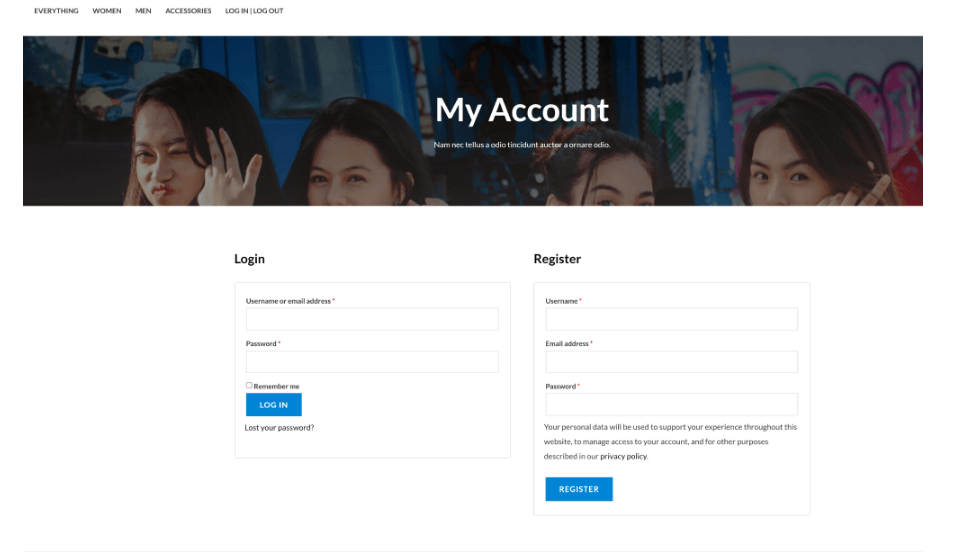
- The Checkout page, where customers can either sign in or create an account during the purchase process.
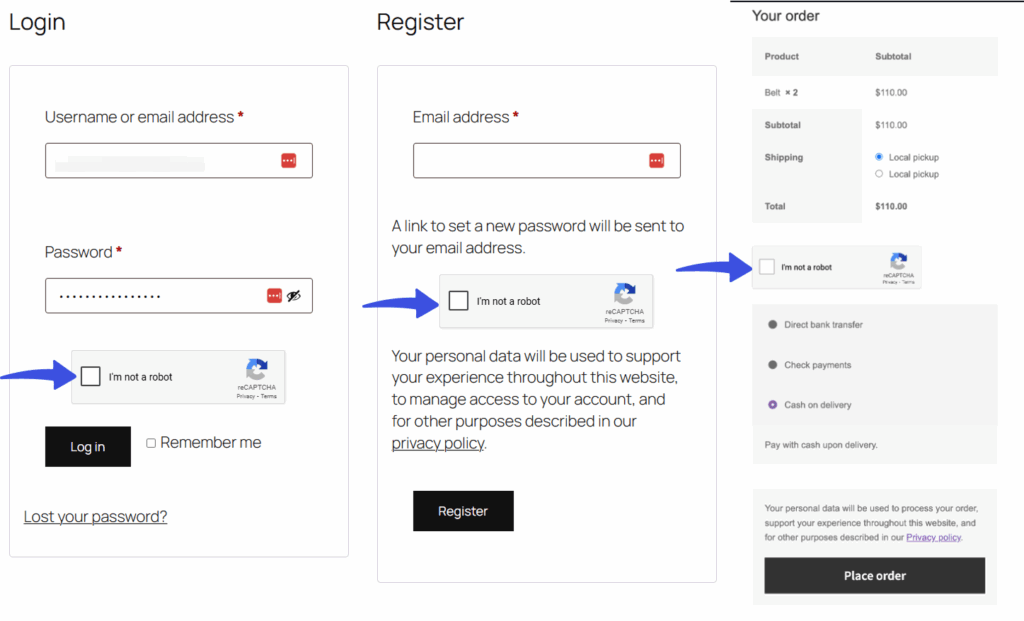
The default design is basic, with typically just text fields with minimal styling. While functional, it lacks the visual appeal many eCommerce brands need. This is why you need to customize WooCommerce login form.
Limitations of the Default WooCommerce Forms
Some of the top limitations of the default WooCommerce forms vs customize WooCommerce login form are:
- Generic design: They rarely align with your store’s branding, which can make your site appear unprofessional.
- Limited customization: Without extra tools, you can’t easily change fonts, colors, or layouts.
- User experience issues: The forms may not be optimized for mobile devices or may be challenging to use for new visitors.
- Lack of advanced security options: Features like CAPTCHA, social login, or two-factor authentication aren’t built in.
In short, the default WooCommerce login and registration forms work, but they don’t help your brand stand out or help your users feel at ease.
Why Customize WooCommerce Login and Registration Forms?
You should customize WooCommerce login and registration forms because they are often the first customer touchpoint and affect your store’s success, not just its looks.
- Stronger branding: A WooCommerce branded login form that reflects your logo, colors, and style makes customers feel confident they’re interacting with your store, not a generic system.
- Better user experience: Clean, user-friendly forms reduce friction, helping customers sign in or register faster. This can directly increase conversions.
- Mobile-first experience: In 2025, it is expected that most online shopping will occur on mobile devices. A properly customized form ensures mobile responsiveness.
- Enhanced security: By customizing forms with security tools, you reduce the risks of spam registrations or hacked accounts.
- Competitive edge: Many stores ignore their login page. Customizing your store makes it feel more professional and trustworthy.
Your custom WooCommerce registration form is the digital “front desk” of your store. If it looks confusing or outdated, customers may hesitate to continue. To build a smooth user experience and credibility, customization enables you to create an effortless, branded entry point that aligns with your entire store experience.
Best Methods for Customizing WooCommerce Login Page Design
The two main ways to customize WooCommerce login and registration forms are plugins and custom code.
1. Plugins-Based Method
The simplest way to customize WooCommerce login forms is by using a reliable plugin. These tools make it easy to adjust layouts, apply personalized branding, and choose from pre-designed templates, all without writing a single line of code.
- LoginPress: Customize WooCommerce in Easy Steps
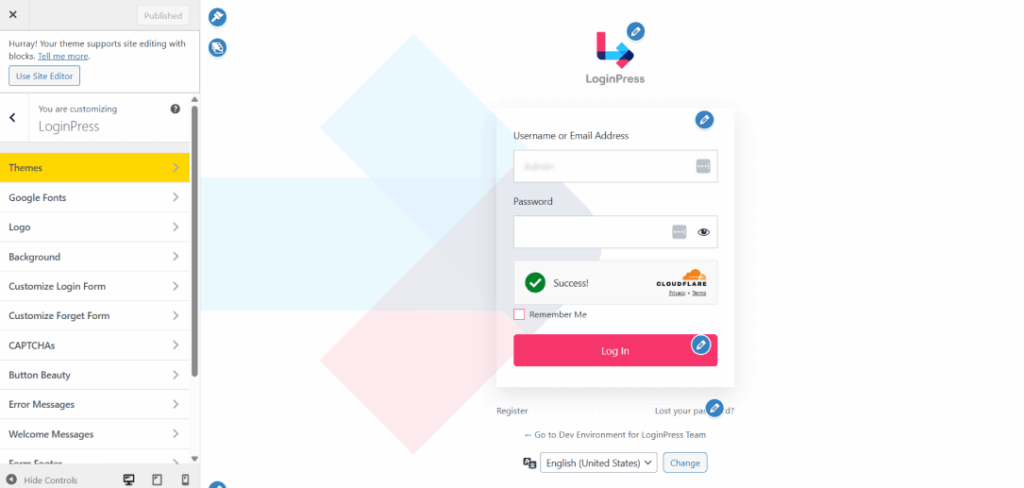
Among the many options available, LoginPress is one of the most effective and user-friendly solutions.
LoginPress stands out from generic login customizer plugins by combining aesthetics with security. It integrates effectively with WooCommerce, enabling you to design login and registration forms without requiring any coding. The customization options, such as colors, fonts, and backgrounds, also help save time compared to manual coding or alternative plugins.
- Theme My Login: Custom Login Pages Builder
Theme My Login allows you to customize the WordPress login, registration, and password reset pages to match your site’s theme, rather than using the default WordPress login screen.
- Temporary Login Without Password: Login Made Secure
This plugin is less about the design of login/registration forms and more about creating access in a secure, temporary, password-less way.
2. Shortcodes-Based Method
Beyond plugins, another way to customize WooCommerce login forms is by using custom code.
By providing developers with maximum control and allowing them to redesign the default WooCommerce login and registration pages completely.
It is recommended that this method is best suited for developers, as it requires coding expertise to work with hooks, filters, and template overrides. This demands technical skills and ongoing maintenance during every update.
How You Can Customize WooCommerce Login And Registration Forms Using LoginPress
LoginPress is a practical way to customize WooCommerce login and registration forms, because its interface lets anyone without a technical background match the pages to their branding.
This is because LoginPress offers excellent control over your design elements with pre-designed templates and deep WooCommerce integration.
So let’s explore how you can also customize your WooCommerce login and registration forms using LoginPress:
Step 1: Install and Activate LoginPress
After activation, you’ll see a LoginPress menu added to your WordPress dashboard. This is where you’ll control all login page customizations. To learn more about the activation and installation process, refer to the guide ‘How to Install and Activate LoginPress Pro in WordPress.’
Pro Tip: If you’re running a WooCommerce store, make sure WooCommerce is already installed and active before configuring LoginPress.
Step 2: Access the LoginPress Customizer
LoginPress combines directly with the WordPress Customizer, so you can see real-time changes as you build your ideal login form.
- First, navigate to LoginPress >> Customizer from your dashboard.
- A live preview of your WordPress/WooCommerce login page will open.
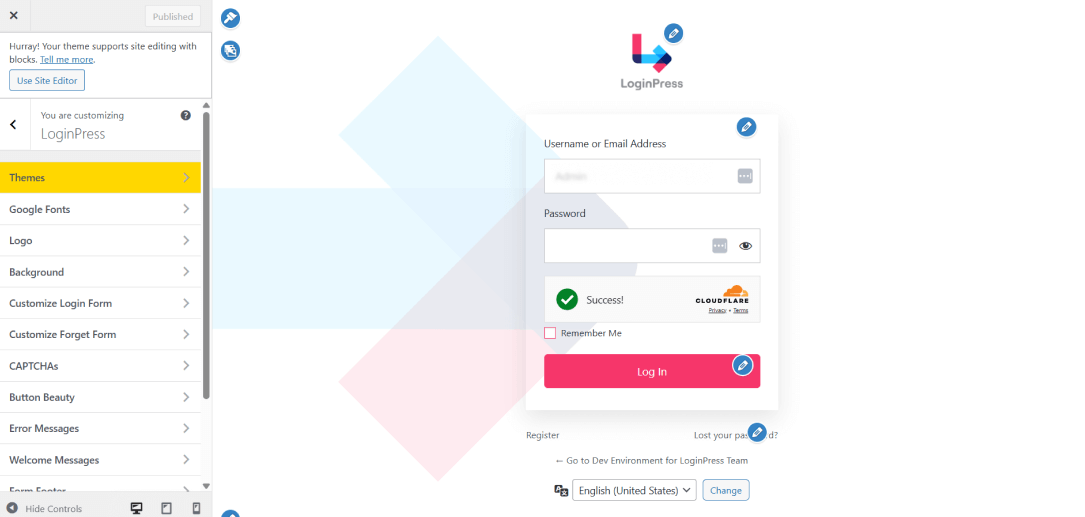
This visual approach means you don’t have to touch code, and you can click, edit, and instantly preview how your WooCommerce login page design will look.
Step 3: Choose a Pre-Designed Template
If you want to get started quickly, LoginPress includes a library of ready-made templates that can help transform your default WooCommerce login form in seconds.
- Select Themes from the LoginPress customizer panel.
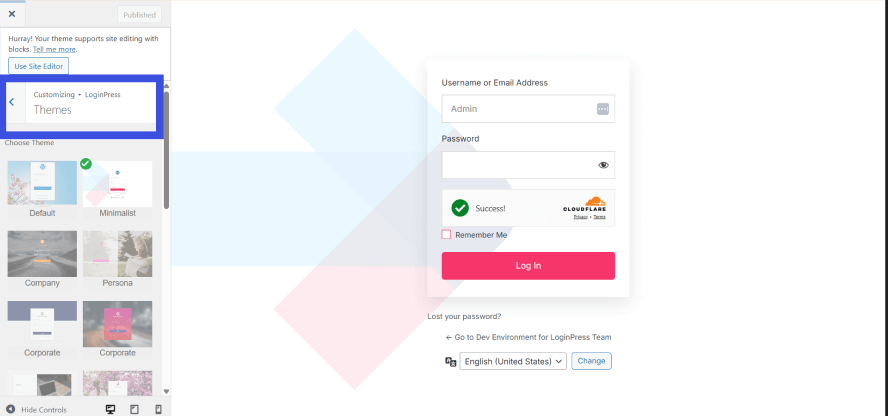
- Apply the template, and your login form instantly changes.
From here, you can still fine-tune every element to ensure perfect alignment with your store’s branding.
Step 4: Add Your Branding (Logo, Colors, Fonts)
A WooCommerce-branded login form gives your store a more professional and trustworthy appearance. LoginPress gives you complete control over design elements:
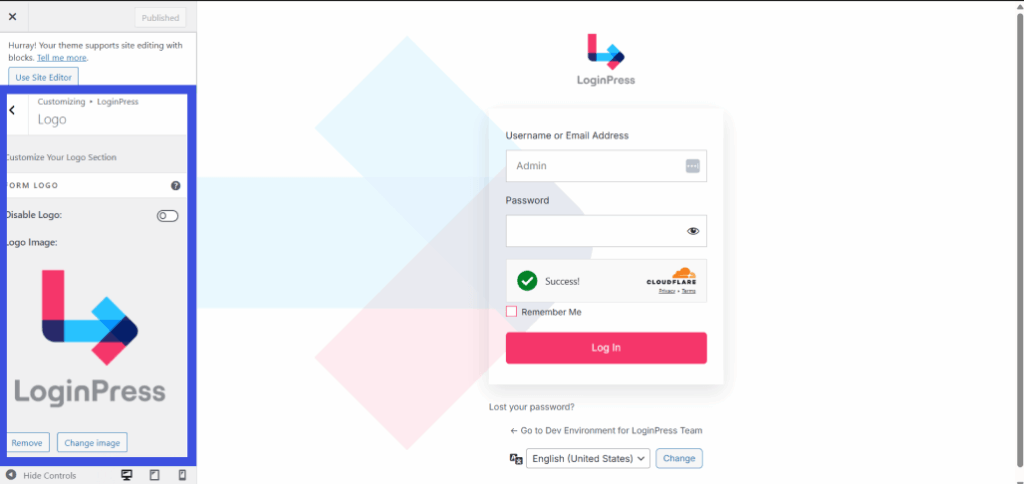
- Logo: Upload your store or company logo to replace the WordPress default.
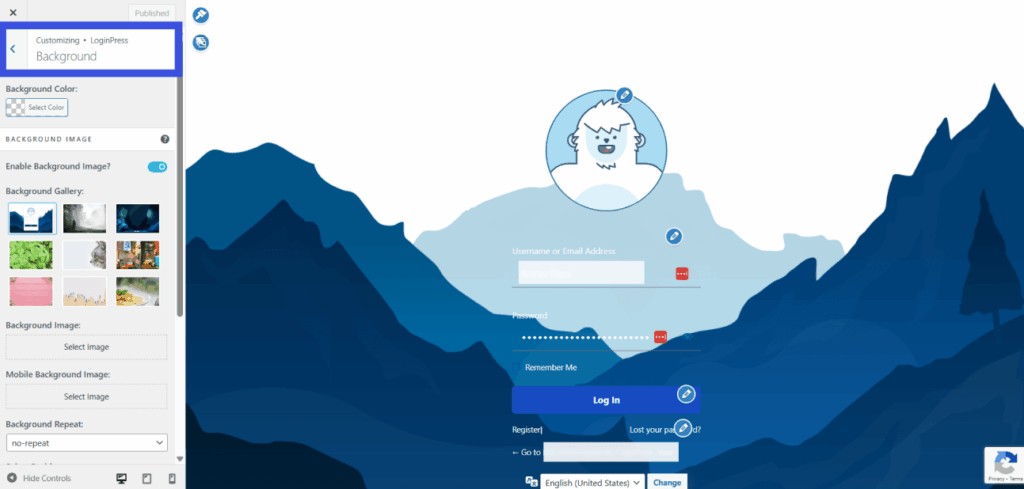
- Backgrounds: Use solid colors, gradients, images, or even videos.
- Fonts and Text: Adjust typography and fonts for your page.
- Form Styling: Customize input fields, borders, and login buttons for a polished look.
This ensures your login and registration pages blend easily with the rest of your WooCommerce storefront.
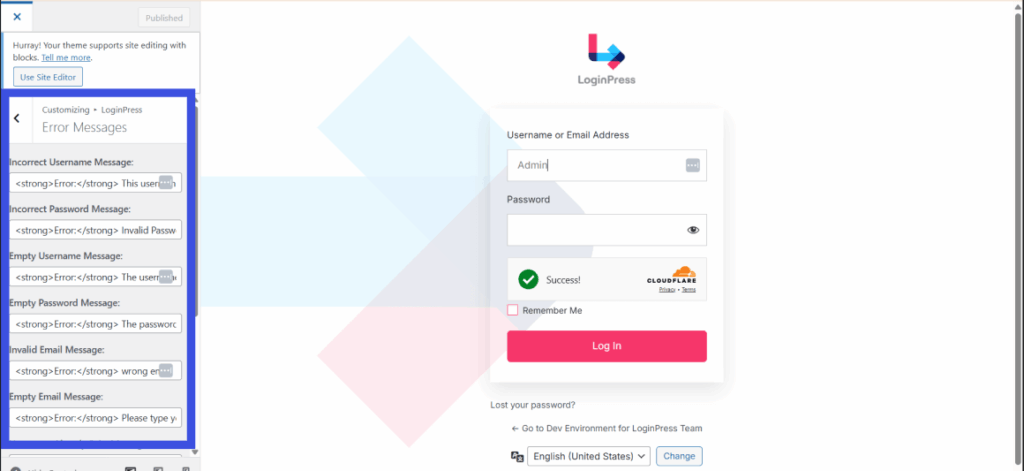
- Custom Error Messages: Replace generic errors with clear, branded messages that guide users.
Step 5: Enable WooCommerce Integration
LoginPress is built to work with WooCommerce out of the box. That means your login, registration, and “My Account” forms will automatically adapt to the custom design you’ve created.
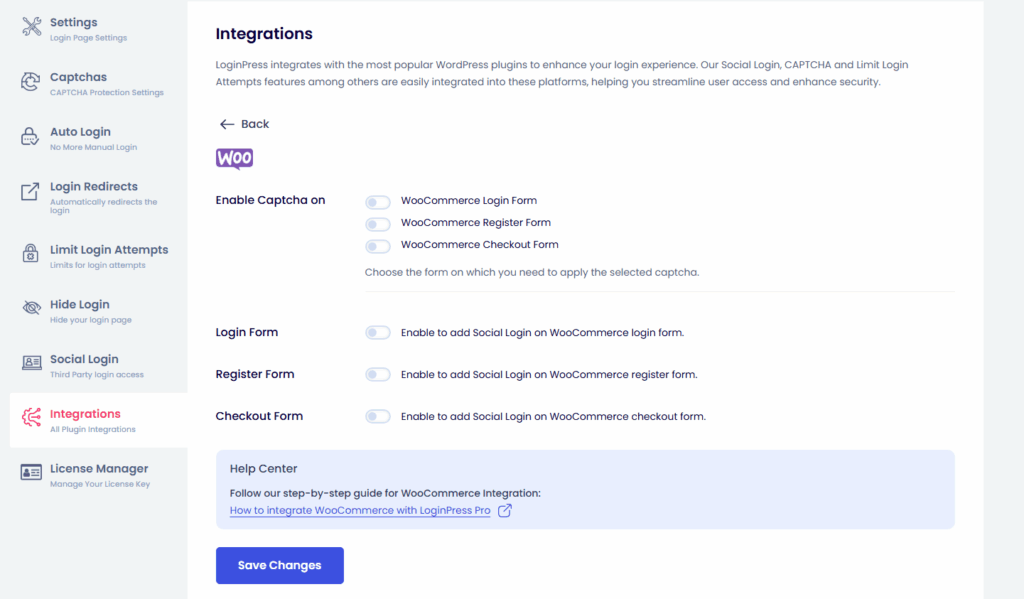
Whether customers log in on the checkout page, please register a new account, or use the My Account area, they’ll see the same branded login design. This consistency strengthens your store’s credibility and provides a smoother shopping experience.
Step 6: Enhance Security Features
Beyond design, login forms must be secure. LoginPress adds several vital options to protect your WooCommerce store:
- CAPTCHA Integration: Stop bots and spam registrations with Google reCAPTCHA.
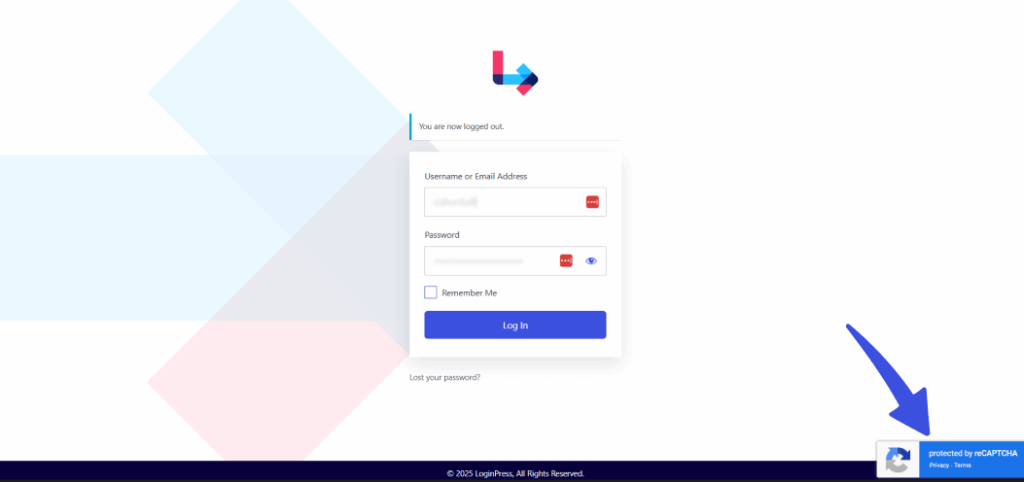
By combining WooCommerce login page design with advanced security, you protect your customers while offering a smooth login process.
And there you go! Once you’re satisfied with the design and security settings, publish your login form so it becomes live on your WooCommerce site.
Best Practices for WooCommerce Login and Registration Forms
Follow these best practices when customizing your WooCommerce login and registration forms:
- Simplicity: Keep forms clean with only necessary fields. Since overloading users with too many fields increases the likelihood of abandonment.
- Mobile optimization: Ensure the design looks great on all screen sizes. Best of all, LoginPress templates are responsive by default.
- Security features: Implement CAPTCHA, two-factor authentication, or passwordless login to enhance customer account protection.
- Consistent branding: Match the login form with your store’s colors, logo, and typography to establish trust and maintain a consistent look throughout your site.
- Testing: Always test your login and registration forms across devices, browsers, and user accounts to ensure smooth functionality.
Following these principles ensures your forms aren’t just attractive but also practical and secure.
Common Issues and Troubleshooting
Customization plugins and code changes can conflict with themes, other plugins or WooCommerce updates, and you can fix most issues quickly. LoginPress is lightweight and built to avoid conflicts with existing plugins.
These issues don’t mean you did something wrong; they’re just part of working with a flexible platform like WordPress. By understanding the most common problems ahead of time, you’ll be better prepared to keep your login and registration pages running smoothly.
Problem: Plugin Conflicts
Sometimes, two plugins attempt to override the same WooCommerce login or registration form, resulting in design glitches or even preventing the form from loading properly. This often occurs when you use multiple login customizers or security plugins simultaneously.
Solution: Disable Plugins One by One
The easiest way to find the culprit is to deactivate your plugins one at a time and test the login form after each step. Once you identify the conflicting plugin, you can either keep it disabled or look for an alternative.
Tip: To avoid repeated conflicts, consider using a stable, all-in-one solution like LoginPress. It handles design, customization, and security without needing multiple overlapping plugins.
Problem: Theme Compatibility
WooCommerce themes often come with their own login form styling or template overrides. This can lead to layout issues, such as misaligned buttons, overlapping text fields, or colors that do not match your store’s branding.
Solution: Adjust CSS or Use a Child Theme
You can usually fix this by adding a few lines of custom CSS in your WordPress Customizer. For more complex issues, overriding theme styles through a child theme ensures your changes won’t be lost during theme updates.
Problem: User Errors
Customers often make simple mistakes, such as typing the wrong username, using outdated passwords, or confusing email addresses. These errors can lead to frustration or even cart abandonment.
Solution: Add More Clear Messaging
Enhance the login process by adding a “show password” toggle and utilizing clear error messages (e.g., “Email not found, please register”). You can also direct users back to the registration page when necessary. A smoother experience reduces login-related drop-offs and improves customer satisfaction.
Frequently Asked Questions
Can I add social login options to my WooCommerce login form?
Yes, you can. Plugins like LoginPress make it easy to add social login buttons for platforms such as Facebook, Google, or Apple. This is helpful because many customers prefer to log in with an account they already use, rather than creating yet another username and password. It not only saves them time but also reduces the chance of forgotten login details, which means fewer abandoned carts for your store.
Do I need coding skills to customize my WooCommerce login form?
No coding is required if you use a plugin such as LoginPress. The plugin features a user-friendly interface that allows you to change colors, upload logos, adjust layouts, and add extra features with just a few clicks. While developers can still look at hooks and template overrides for advanced changes, most store owners will find that a plugin handles everything without requiring them to touch a single line of code.
Can I use custom backgrounds or videos on my WooCommerce login page?
Absolutely. With LoginPress, you can set solid colors, image backgrounds, patterns, or even short background videos. For example, add a high-quality photo of your product line or a subtle animation to give your login page a branded, professional feel. This kind of visual customization makes your store stand out and helps reinforce brand identity from the moment users sign in.
Will customizing the login form slow down my site?
In most cases, no. A lightweight plugin like LoginPress is designed to be fast and optimized for performance. As long as you don’t overload your login page with heavy images or videos, your site speed won’t be affected. It’s a good practice to test after making changes and try loading the page on desktop and mobile to ensure everything works smoothly. If you notice any slowdown, try compressing large images or disabling non-essential effects.
Customize WooCommerce Login Form: Final Thoughts
Customizing your WooCommerce login and registration forms turns plain, generic pages into branded, user-friendly and secure entry points for your store.
A dedicated login form customization plugin such as LoginPress balances design and security features for a custom WooCommerce registration form.
Even for those who want to tackle hooks and template overrides for complete control, the top goal is the same: to improve the customer journey, build trust, and create a smooth shopping experience.
In 2025, with eCommerce competition at an all-time high, your login page is more than just a form; it’s a digital front door to your store. Optimizing your login page customizer for eCommerce can lead to improved conversions and more satisfied customers. That is all for this post. For more WooCommerce-related content:
- WooCommerce Spam Orders: Best Ways to Prevent Them
- WooCommerce SEO: Complete Guide With Advanced Strategies
- 10 Best Free WooCommerce Themes
So, how will you customize your WooCommerce login form to make your store stand out?