 How To Build a WordPress Website [The Modern Way]
How To Build a WordPress Website [The Modern Way]
To build a WordPress website, buy a domain, choose web hosting, install WordPress, pick a theme, customize your site, add pages and posts, and install plugins. You can finish all seven steps in less than an hour without coding.
 4 Best Social Login Plugins for WordPress (Free and Paid)
4 Best Social Login Plugins for WordPress (Free and Paid)
The best social login plugins for WordPress let visitors register and log in with accounts they already have, such as Google, Facebook or LinkedIn. My pick is the LoginPress Social Login add-on if you also want a branded login page, and Nextend Social Login if you only need free social buttons.
This post lists four social login plugins, free and premium.
 6 Best WordPress Limit Login Attempts Plugins
6 Best WordPress Limit Login Attempts Plugins
The best WordPress limit login attempts plugins lock out an IP address after a set number of failed logins, which stops brute force bots from guessing passwords. My pick is the LoginPress Limit Login Attempts add-on if you already use LoginPress, and Limit Login Attempts Reloaded or Loginizer if you want a free standalone plugin.
WordPress allows unlimited login attempts by default, so one of these plugins belongs on almost every site.
 LoginPress VS Colorlib Login Customizer: Which is Best?
LoginPress VS Colorlib Login Customizer: Which is Best?
LoginPress is the better choice if you want a full login page customizer with security features, while Colorlib Login Customizer is a free option for basic design changes.
 How to Monetize Your WordPress Blog (Top 7 Tips)
How to Monetize Your WordPress Blog (Top 7 Tips)
You can monetize a WordPress blog with seven methods: Google ads, affiliate links, sponsored posts, digital products, merchandise, an ecommerce store and sponsored placements.
 How to Disable Comments in WordPress With or Without Plugin
How to Disable Comments in WordPress With or Without Plugin
To disable comments in WordPress, go to Settings > Discussion and untick “Allow people to submit comments on new posts”, or use a plugin to turn comments off for posts, pages and media at once.
This guide shows you four ways to disable comments without a plugin, five plugins that do it for you, and what to check if comments still show.
 How to Reset WordPress Site With or Without Plugins
How to Reset WordPress Site With or Without Plugins
To reset a WordPress site, install a reset plugin such as WP Reset and run its reset tool, or reset manually by deleting the database and files in cPanel. Back up your site first, because a reset deletes all content, settings, themes and plugins.
In this guide, I will show you both methods step by step.
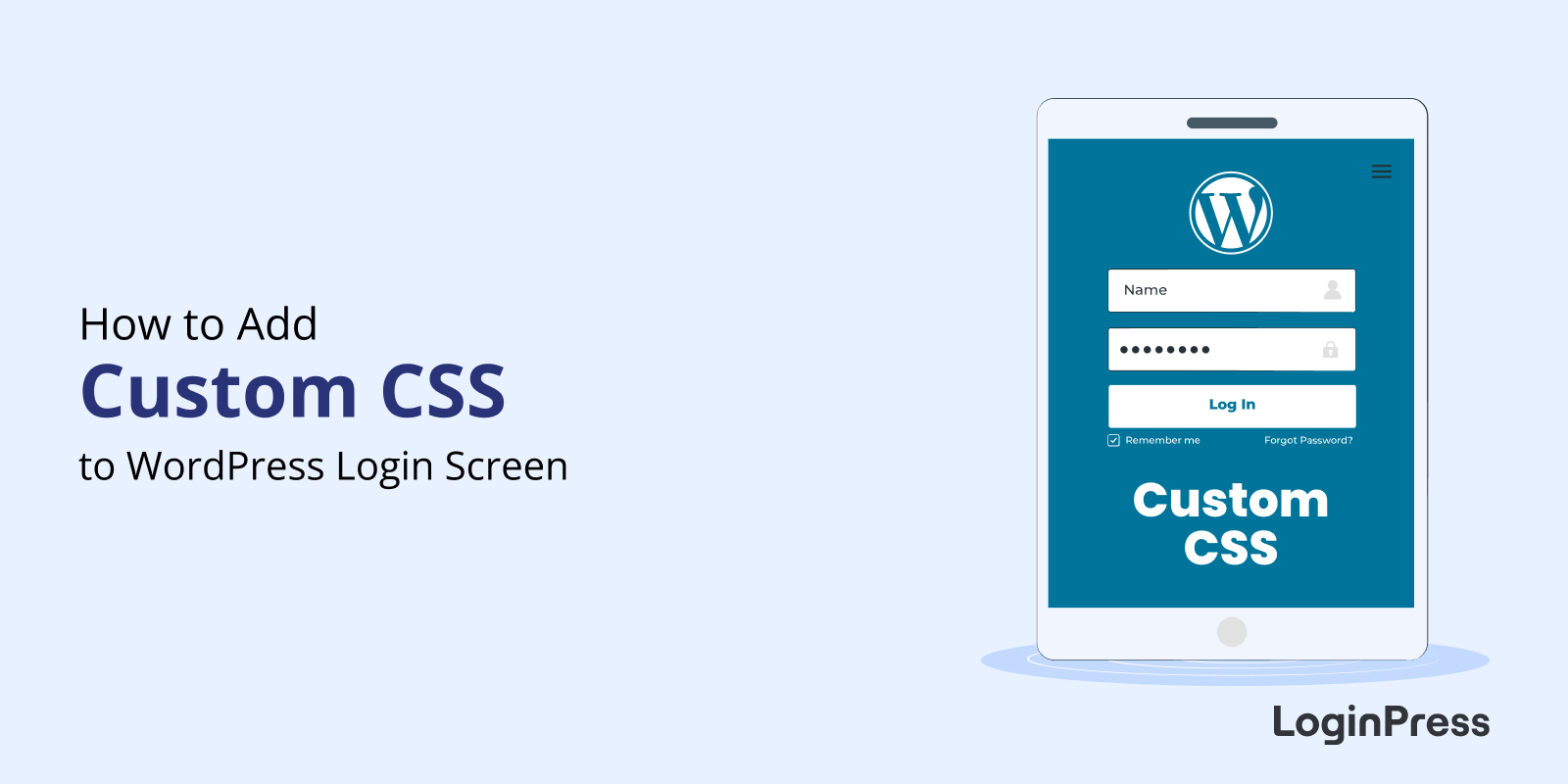 How to Add Custom CSS to WordPress Login Screen
How to Add Custom CSS to WordPress Login Screen
To add custom CSS to the WordPress login screen, open the LoginPress Custom CSS/JS section in the WordPress Customizer, paste your CSS and publish. Your styles load only on the login page, so you can change anything the regular LoginPress settings don’t cover without touching your theme files.
In this post, I will explain what custom CSS is and show the exact steps to add it.
 7 Best Practices to Limit WordPress Failed Login Attempts
7 Best Practices to Limit WordPress Failed Login Attempts
The best way to limit WordPress failed login attempts is to cap the number of tries per user or IP, then back that up with strong credentials, two-factor authentication and regular updates. Together these stop brute force bots and cut down lockouts for real users.
Failed login attempts are worth watching. A few are just typos, but a sudden spike usually means a bot is trying to guess its way in. Tracking them tells you what is causing the failures, so you can respond before an attack succeeds.
 How to Add WooCommerce Social Login to Your WordPress Site
How to Add WooCommerce Social Login to Your WordPress Site
You add WooCommerce social login by using the LoginPress Social Login Add-On to show social login buttons on the login, registration, checkout and cart forms, either through the form settings or with shortcodes. You can also add the buttons to your sidebar with the LoginPress Login Widget Add-On.
LoginPress is a login page customizer that is fully compatible with WooCommerce, and in this post I will show all three methods step by step.