How to Add WooCommerce Social Login to Your WordPress Site

Are you looking for a way to add social login to different areas of your WordPress site?
LoginPress is a WordPress login page customizer plugin that enables you to customize each element on your site’s login page. It predominantly focuses on rebranding your login page with just a few clicks without touching a single line of code.
It has several powerful Add-Ons that let you uplift the functionality. LoginPress is fully compatible with WooCommerce. You can easily add social logins to your WooCommerce website with LoginPress.
This article will show you how to add social logins to your WooCommerce with LoginPress Social Login and Login Widget Add-Ons and via shortcodes.
Let’s get started!
Table of Content
What is WooCommerce Social Login?
Social login is about bringing ease for the users to register to your site using their social media accounts, such as Facebook, Twitter, and Google, to name a few examples. So, the users do not need to create a brand new user account for your site.
With WooCommerce social login, you can display social login button to different areas of your WopCommerce site to help the users register or log in during checkout, cart form, proceeding to the order form, and more.
What are the Benefits of WooCommerce Social Login?
There are many benefits of adding social login to the WooCommerce site. Let’s see:
- Social Login Quickens Signups for WooCommerce: Social login quickens the registration and login process. It lowers the registration time from around 2 minutes to about 2 seconds.
- Social Login Reduces Incomplete WooCommerce Login Forms: Users often need help filling out long registration forms to access websites. Instead of filling out the complete forms, they leave most fields blank.
- Less WooCommerce Failed Registration Forms: It assures that all the information you want is open to access without taking the risk of losing a user who doesn’t want to fill out another registration form.
- Social Logins Create Better-Personalized Experiences for WooCommerce Users: Social login creates better-personalized user that brings you more engaged users. When you offer them their favorite products/services, they will spend more time wandering around your website regularly.
- Makes a Smoother Shopping Experience: WooCommerce social login helps to create a smoother shopping experience where users can have a friction-free checkout or more.
Method 1. Adding WooCommerce Social Login on the Login Form with LoginPress
The default WooCommerce my-account page looks like this:
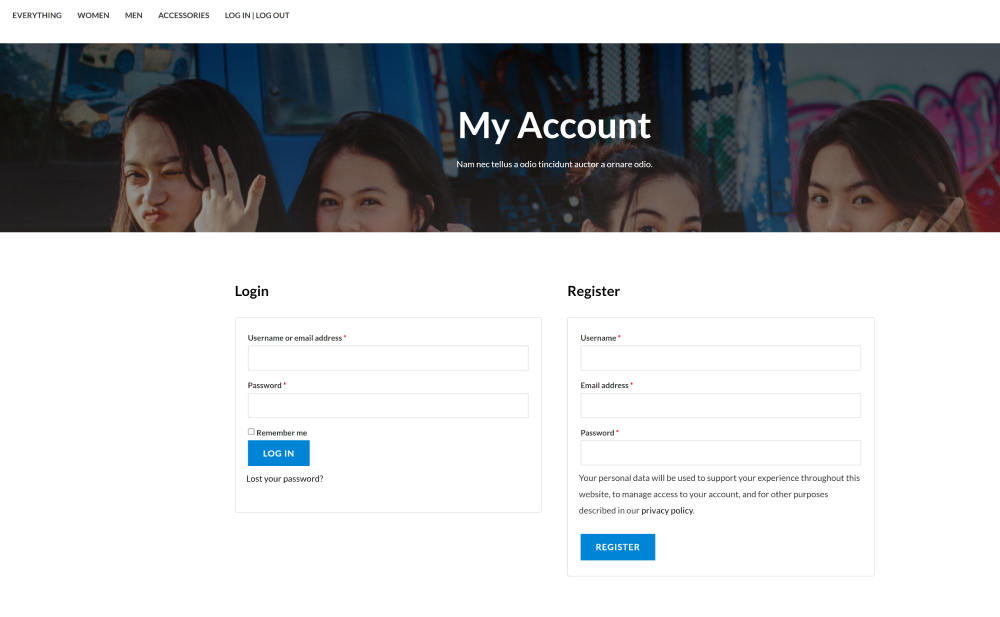
Since LoginPress is fully compatible with WooCommerce, you can restyle the my-account page exactly the way you want.
Note: We assume you’ve already installed and activated LoginPress. For more details, see this step-by-step guide on How to Install And Activate LoginPress (Free).
Generally, upon installation, the default LoginPress theme overrides the default login page. But you’ll require to paste the following code in the child theme’s functions.php file to override WooCommerce my-account page:
function loginpress_woo_login() {
 if ( function_exists( 'is_account_page' ) ) {
   if ( ! is_user_logged_in() && is_account_page() ) {
     wp_redirect(wp_login_url());
     exit;
   }
 }
}

add_action( 'wp', 'loginpress_woo_login' );
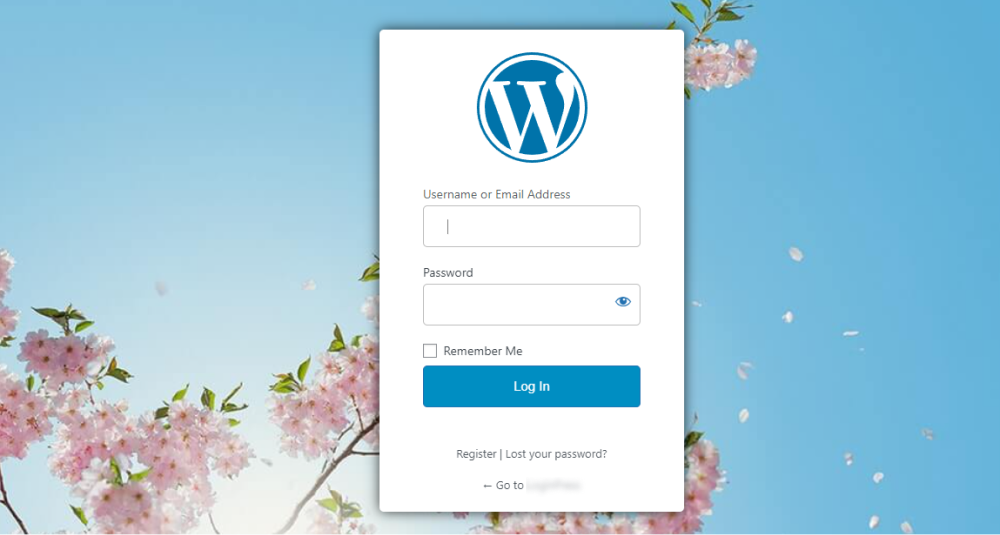
Once you are done, you’ll see the default WooCommerce my-account page is reverted to the default LoginPress theme:
Step 1: Upgrade to LoginPress (Premium)
Since you want social logins on the login page, upgrade to the LoginPress premium version. See our step-by-step guide on How To Install And Activate LoginPress PRO Version?
Step 2: Activate Social Login Add-on
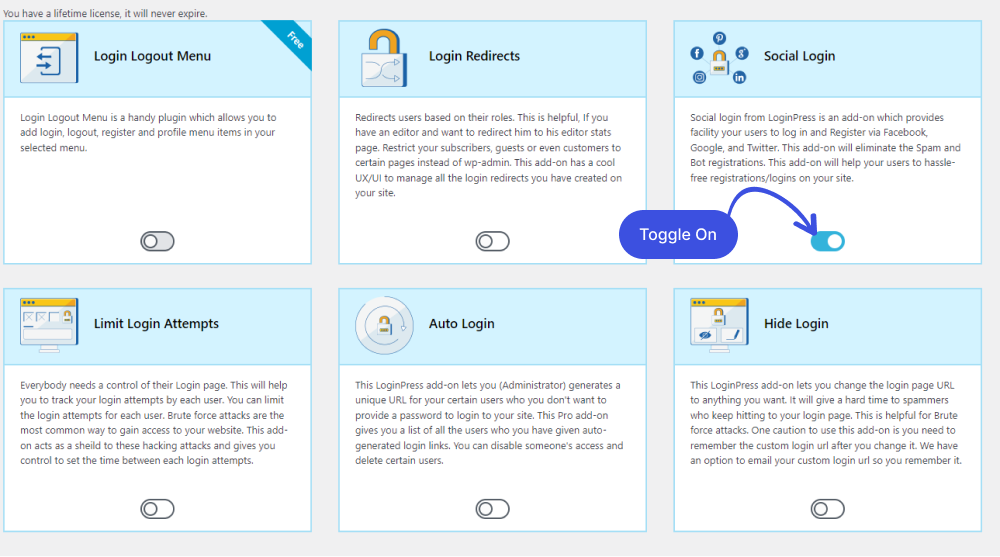
Next, you’ll need to activate Social Login Add-on. For this, go to the left sidebar of the WordPress admin dashboard, navigate to LoginPress, and click the Add-Ons option.
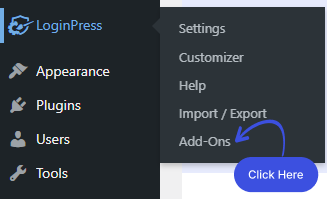
Navigate to Social Login and enable it.
Step 3: Integrate Social Logins
Now that you have activated Social Login Add-on, you’ll need to integrate social logins into your WordPress site.
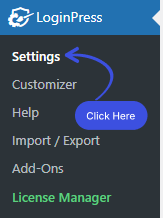
For this purpose, go to the left sidebar of the admin dashboard, navigate to LoginPress click Settings options.
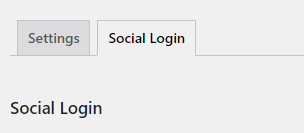
When you click on it, you’ll find the Social Login tab next to the Settings tab.
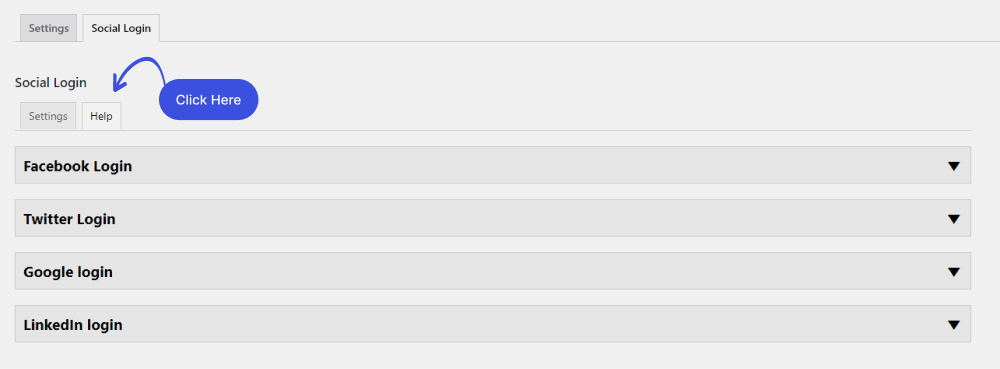
Here resides the main functionality of the LoginPress Social Login Add-on. It has two main tabs; Settings and Help.
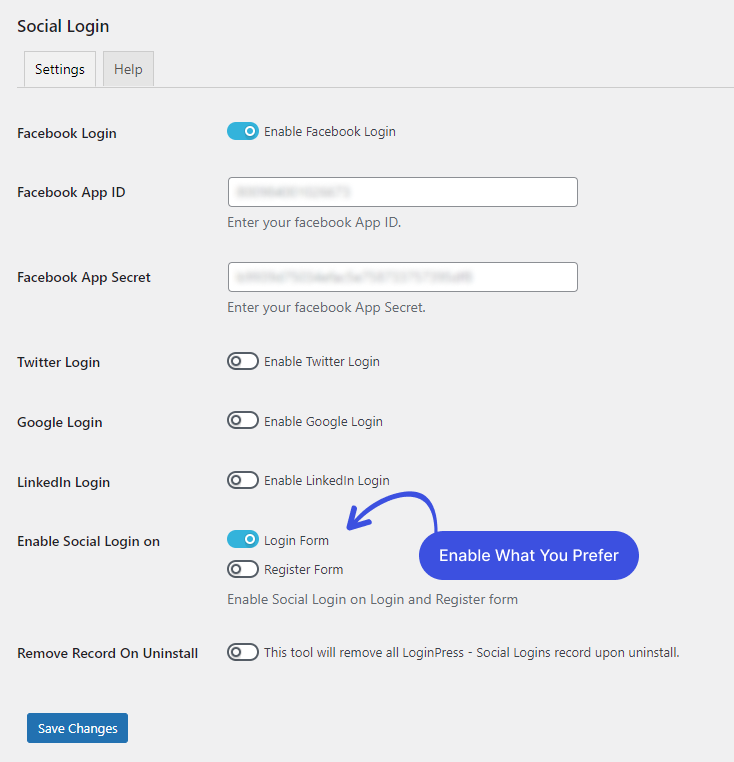
In the Settings tab, you’ll find Facebook Login, Twitter Login, Google Login, and LinkedIn Login. Toggle on the button against the social login you want on the login or registration form.
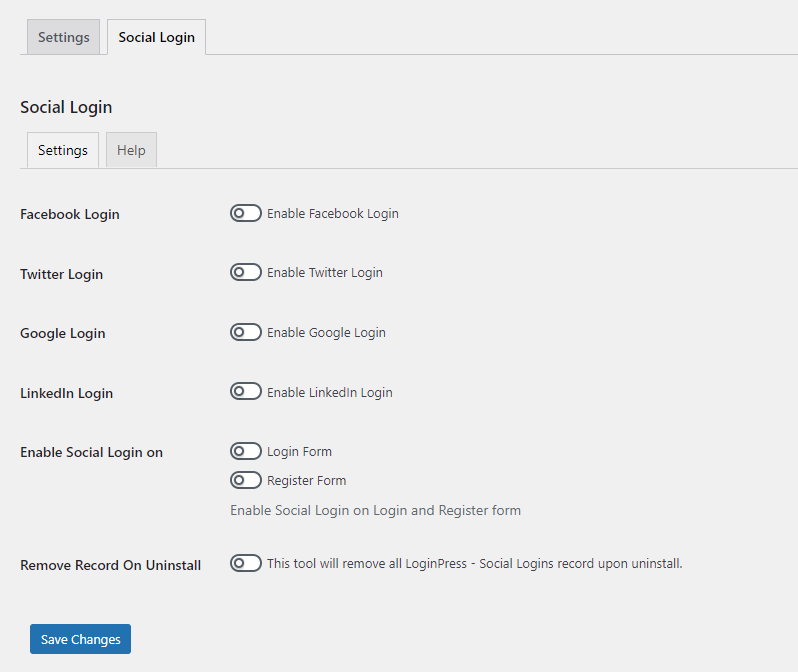
Once you toggle on Facebook, Twitter, Google, or LinkedIn Social Logins, other fields will open up. You’ll need to fill in these fields to integrate social login to your WordPress site.
This is where the Help tab comes to the rescue. Suppose you want to integrate Facebook into your WordPress account; go to the Help tab and click on the Facebook Login drop-down menu. Follow each step, one by one, to integrate it successfully.
Note: In case you find any difficulty, see our detailed guide on Introduction to LoginPress Social Login Add-on.
When you are done, enable it either on the login or registration forms and click on the Save Changes button.
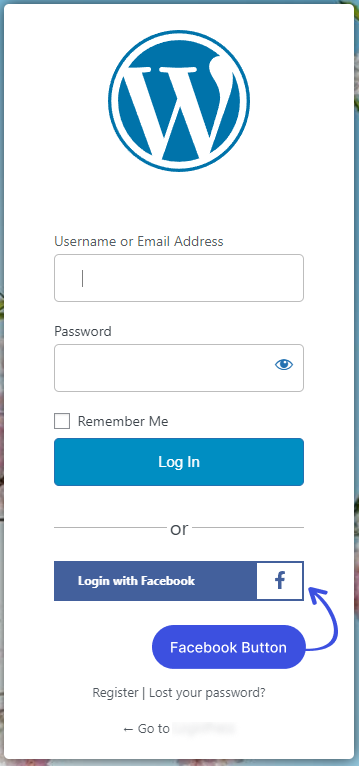
Step 4: Preview the Login Form
All done! Now Log out from WordPress and check the login page to see the Facebook Login effect.
Method 2: How to Add Social Login in WooCommerce with Shortcodes
You can easily add social login in WooCommerce Login, Registration, Checkout Form, and Cart Form and proceed to the order form with shortcodes.
1. Social Login on the WooCommerce on the Registration Form
The Social Login shortcode for the WooCommerce Registration form is used to add the social login buttons on your WooCommerce Registration form.
All you need to do for this is add the following shortcode to your child theme’s function.php file.
function wc_register_form_add_social_login() {
echo do_shortcode('[loginpress_social_login]');
}
add_action( 'woocommerce_register_form', 'wc_register_form_add_social_login', 10, 0 );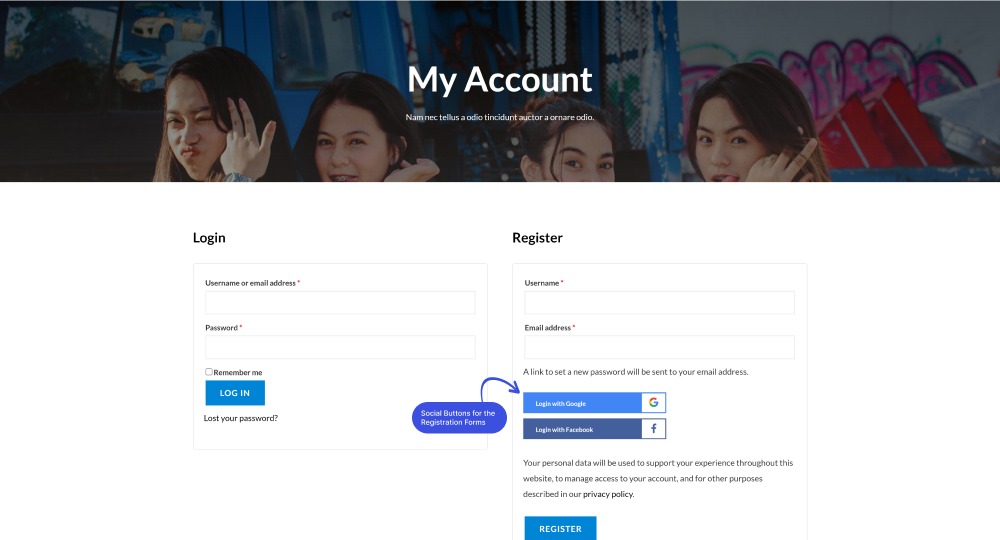
2. Social Login on the WooCommerce Login Form
The following Social Login shortcode lets you add social login button to your WooCommerce Login form. Simply you need to add this shortcode in your child theme’s function.php file.
function wc_login_form_add_social_login() {
echo do_shortcode('[loginpress_social_login]');
}
add_action( 'woocommerce_login_form', 'wc_login_form_add_social_login', 10, 0 );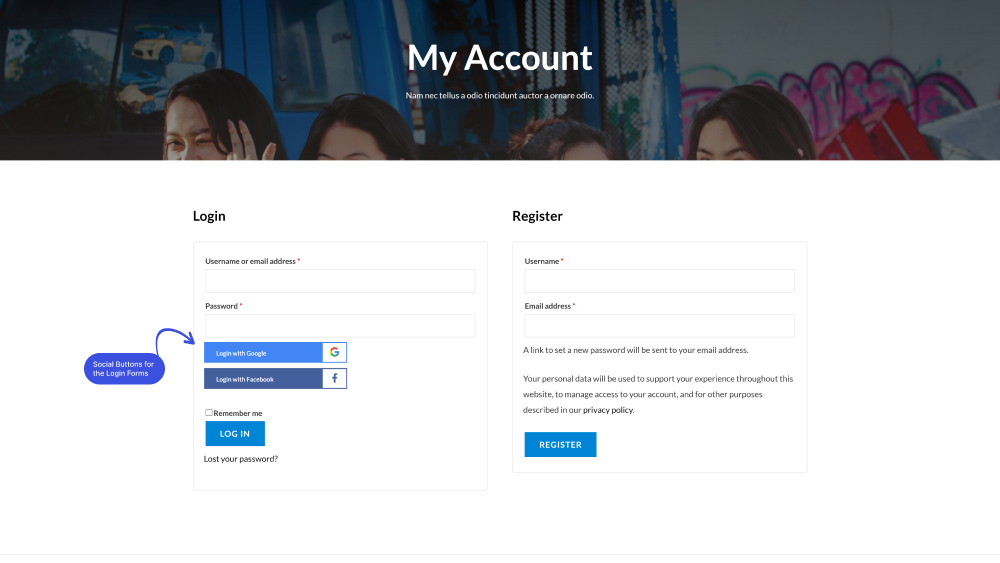
3. Social Login on the WooCommerce Checkout Form
Social Login Shortcode for Checkout Form ( Before Proceed to Cart Button) is used for adding Social login button on your WooCommerce Checkout Form.
Simply add this shortcode to your child theme’s function.php file.
function wc_checkout_proceed_add_social_login() {
echo do_shortcode('[loginpress_social_login]');
}
add_action( 'woocommerce_proceed_to_checkout', 'wc_checkout_proceed_add_social_login', 10, 0 );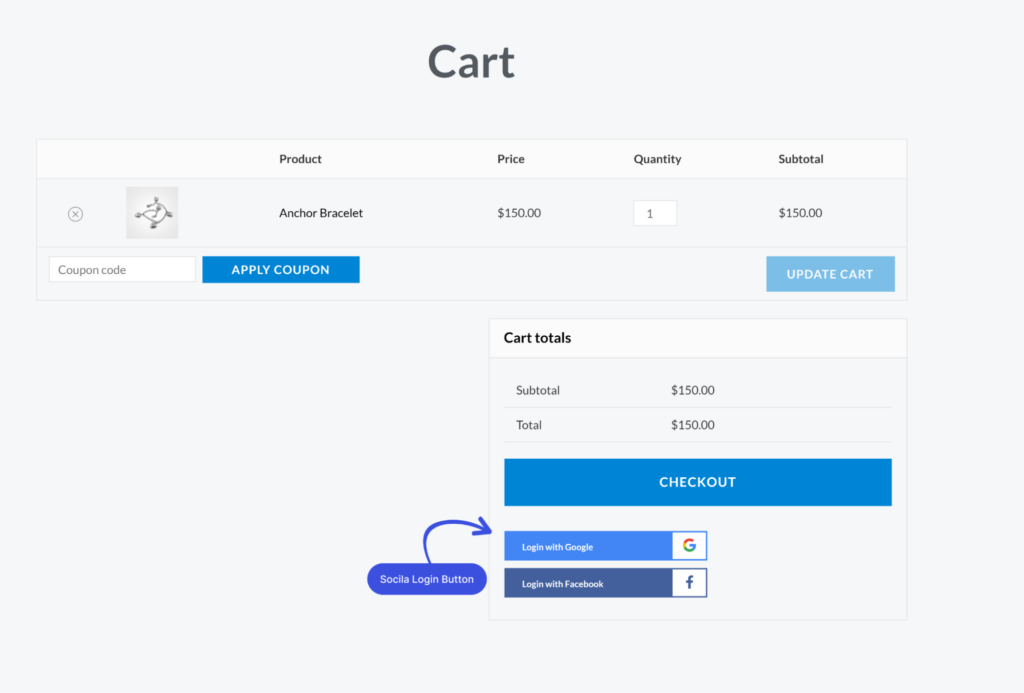
4. Social Login on the WooCommerce Cart Form
Social Login Shortcode for Checkout Form ( After Proceed to Cart Button) is used to add the Social login buttons to your WooCommerce Checkout Form.
Simply add the following shortcode to your child theme’s function.php file:
function wc_after_cart_add_social_login() {
echo do_shortcode('[loginpress_social_login]');
}
add_action( 'woocommerce_after_cart_totals,' 'wc_after_cart_add_social_login', 10, 0 );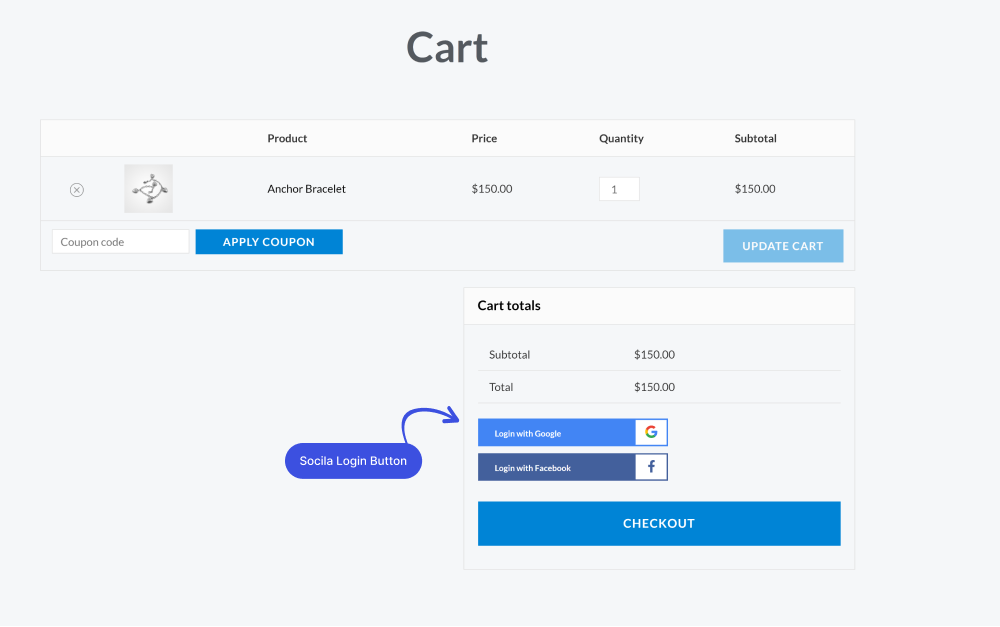
5. Social Login on the WooCommerce on the Proceed Order Form
Social Login Shortcode for Proceed Order Form is used to add the Social login buttons on your WooCommerce Proceed Order Form.
Simply add this shortcode to your child theme’s function.php file.
function wc_after_payment_add_social_login() {
echo do_shortcode('[loginpress_social_login]');
}
add_action( 'woocommerce_review_order_after_payment', 'wc_after_payment_add_social_login', 10, 0 );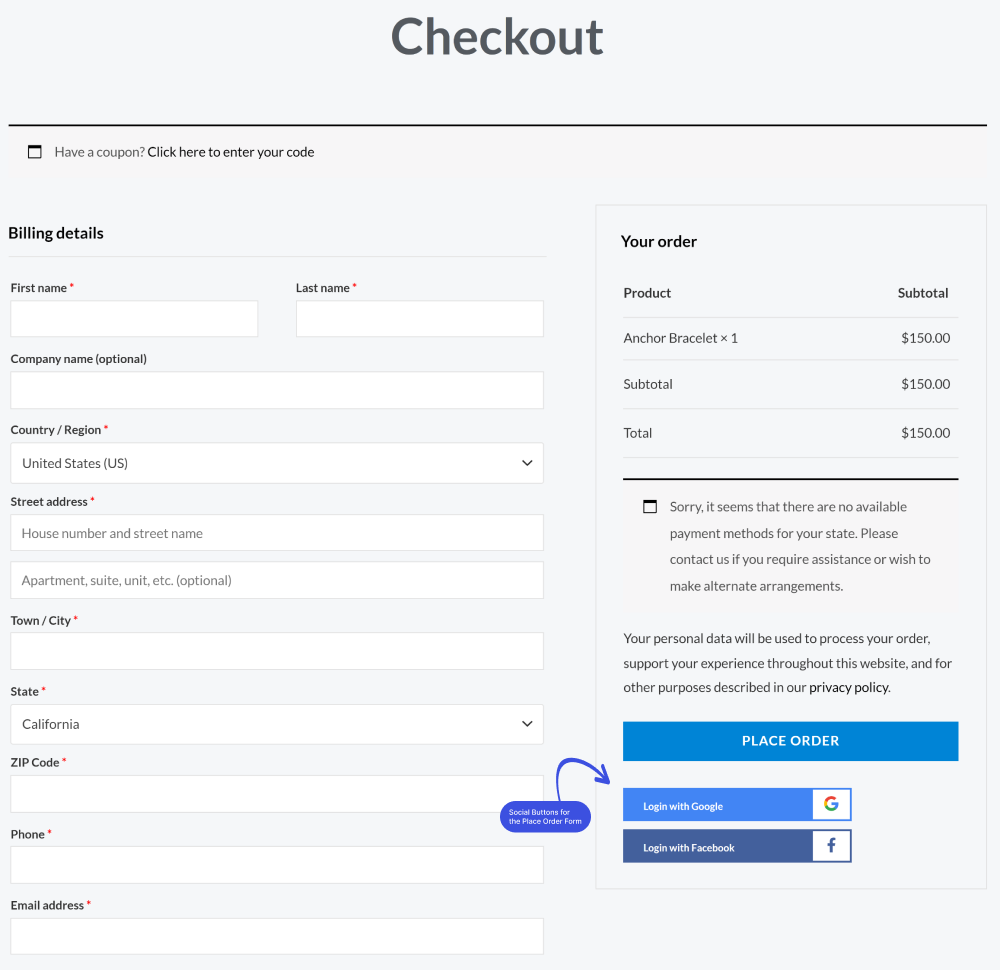
Method 3. Adding Social Login in WooCommerce on the Sidebar of Your Site with LoginPress
Suppose you want to add a social login button on your WordPress site’s sidebar. This can easily be done with LoginPress.
Simply upgrade to the LoginPress premium version. See our step-by-step guide on How To Install And Activate LoginPress PRO Version?
Step 1: Activate LoginPress Login Widget Add-on
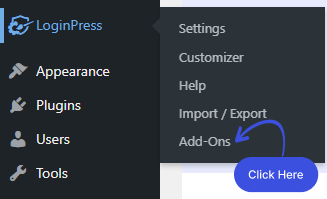
Once upgraded to the LoginPress premium version, go to the left sidebar of the WordPress admin dashboard. Navigate to LoginPress and click Add-Ons.
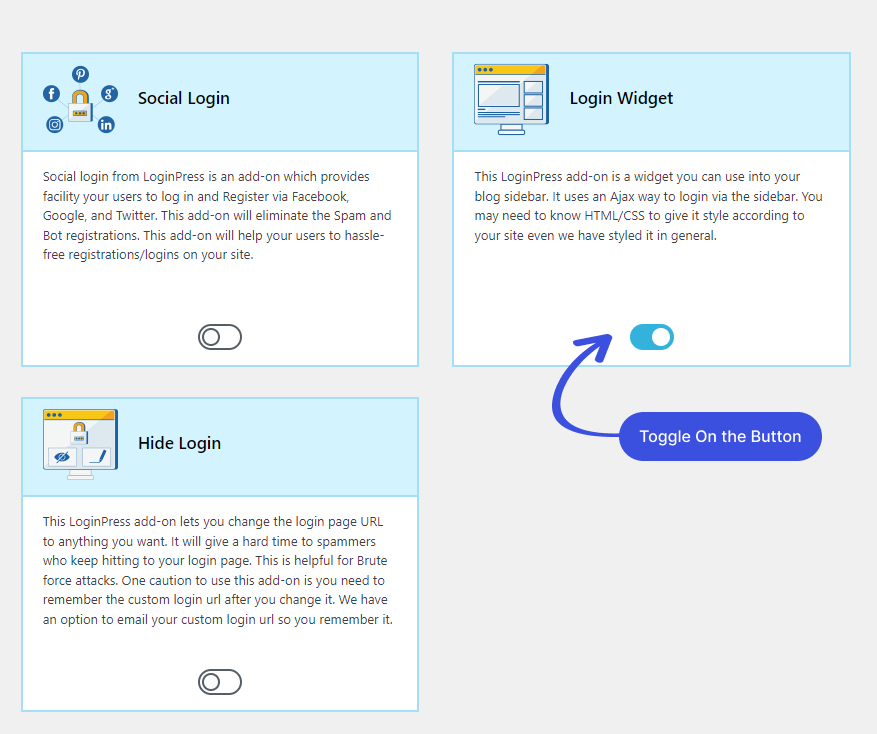
Next, you’ll see the Login Widget Add-On and Enable the toggle button to activate the Login Widget Add-on.
Step 2: Add Login Widget to the Sidebar
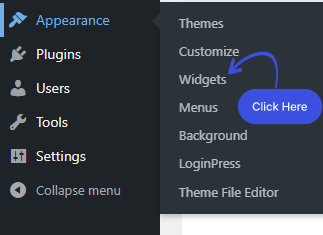
Upon activation, you will have to add it to the sidebar. For this purpose, go to the left sidebar of the admin dashboard. Navigate to Appearance and click Widgets.
Note: The Login Widget add-on isn’t compatible with block themes. So, if you’re planning to use it, you need a non-block theme such as Twenty Twenty-One.
A new screen will open up. Here you can see the Widget with a “+” sign at the top left corner of the screen.
Click on the “+” button.
Once you click on the +, you can search for the Login Widget and drag and drop it where you want to display it.
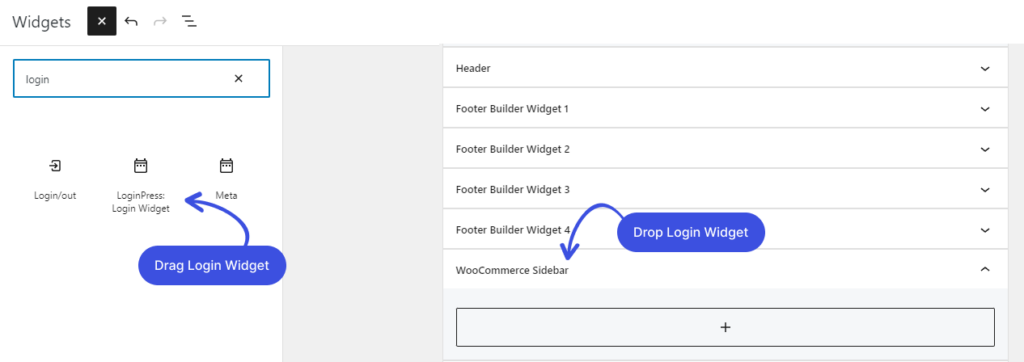
Click on the Update button in the upper right corner.
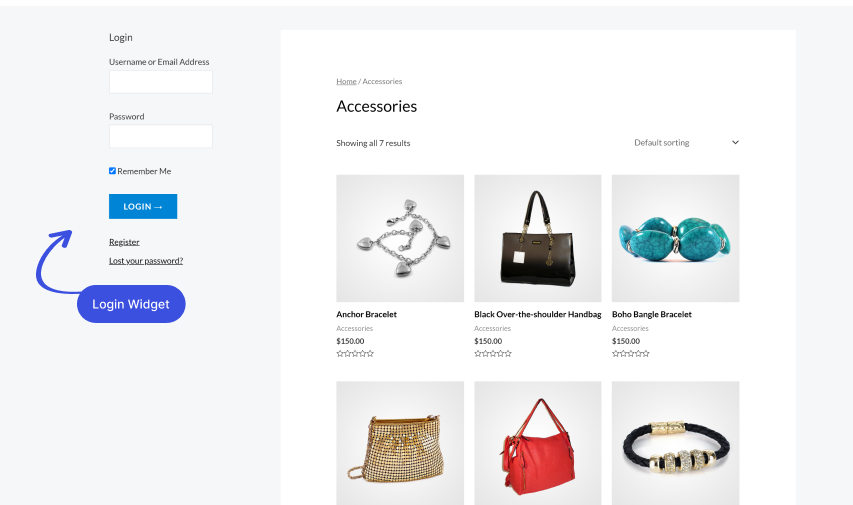
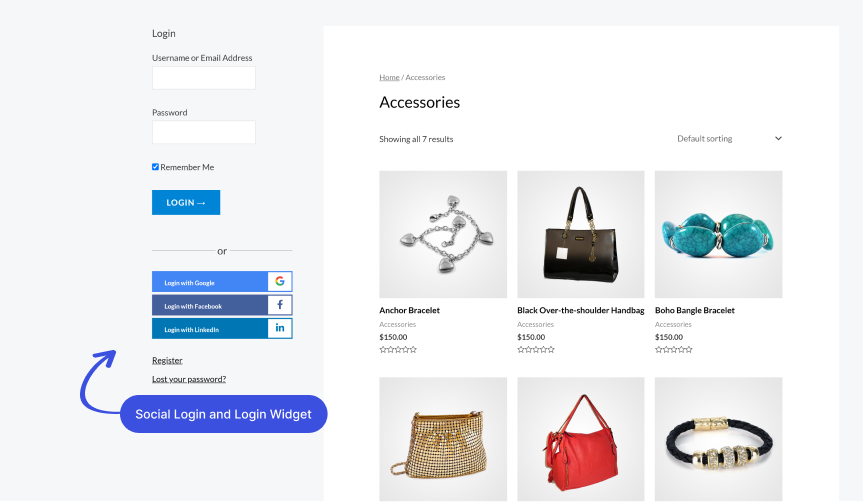
Now the Login Widget is added to the sidebar of your WordPress site.
Step 3: Activate Social Login Add-on
Next, you’ll need to activate Social Login Add-on. For this, go to the left sidebar of the WordPress admin dashboard, navigate to LoginPress, and click the Add-Ons option.
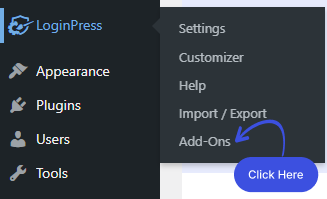
Navigate to Social Login and enable it.
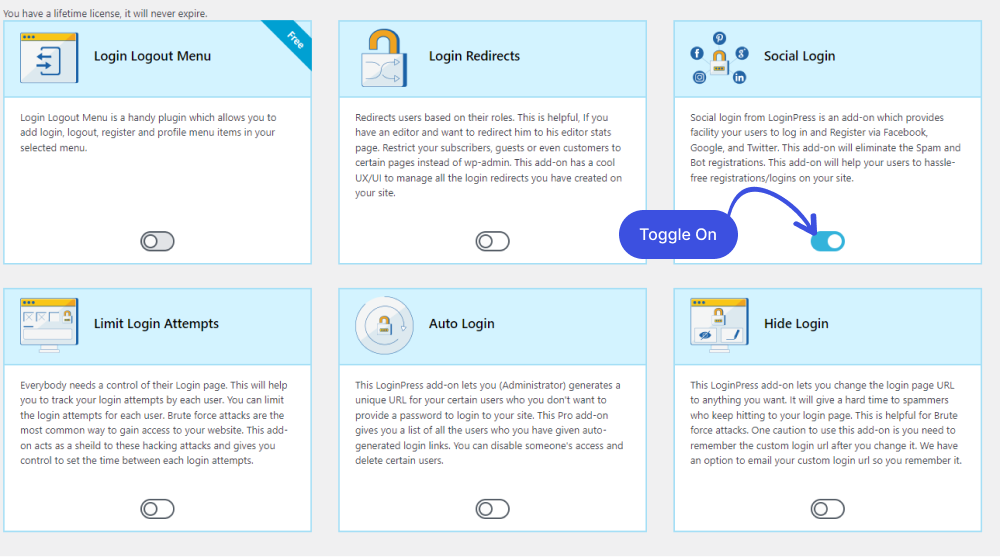
Note: We assume you’ve already integrated social login to your WordPress site using LoginPress. If not, see our complete guide on Introduction to LoginPress Social Login Add-on.
Final Thoughts
Social login is a simple yet time-saving addition to WooCommerce. It has so many benefits, the most important of which is reducing cart abandonment.
Most of the time, visitors only create a new account at checkout because the process is too long and complicated. Consequently, the carts remain abandoned. So. social login is a simple and quick solution to this problem.
We’ve shown you the best ways to add social login to your WooCommerce site to make a smoother checkout experience for your customers.
If you have questions about enabling social login on the WooCommerce site using LoginPress, let us know in the comments section below!
Frequently Asked Questions
How Does WooCommerce Social Login Work?
WooCommerce social login boosts signups to your WooCommerce site by saving users time filling out the default login or registration form to register, log in, check out, or more.
WooCommerce social login is applicable on all pages, including the login page and checkout page, to name a few examples.
Why Use WooCommerce Social Login?
WooCommerce social login is used to bring ease for WooComerce store customers for a signup, login, checkout, and more. It is done via social accounts, including Facebook, Twitter, Google, Amazon, and LinkedIn, to name a few examples.