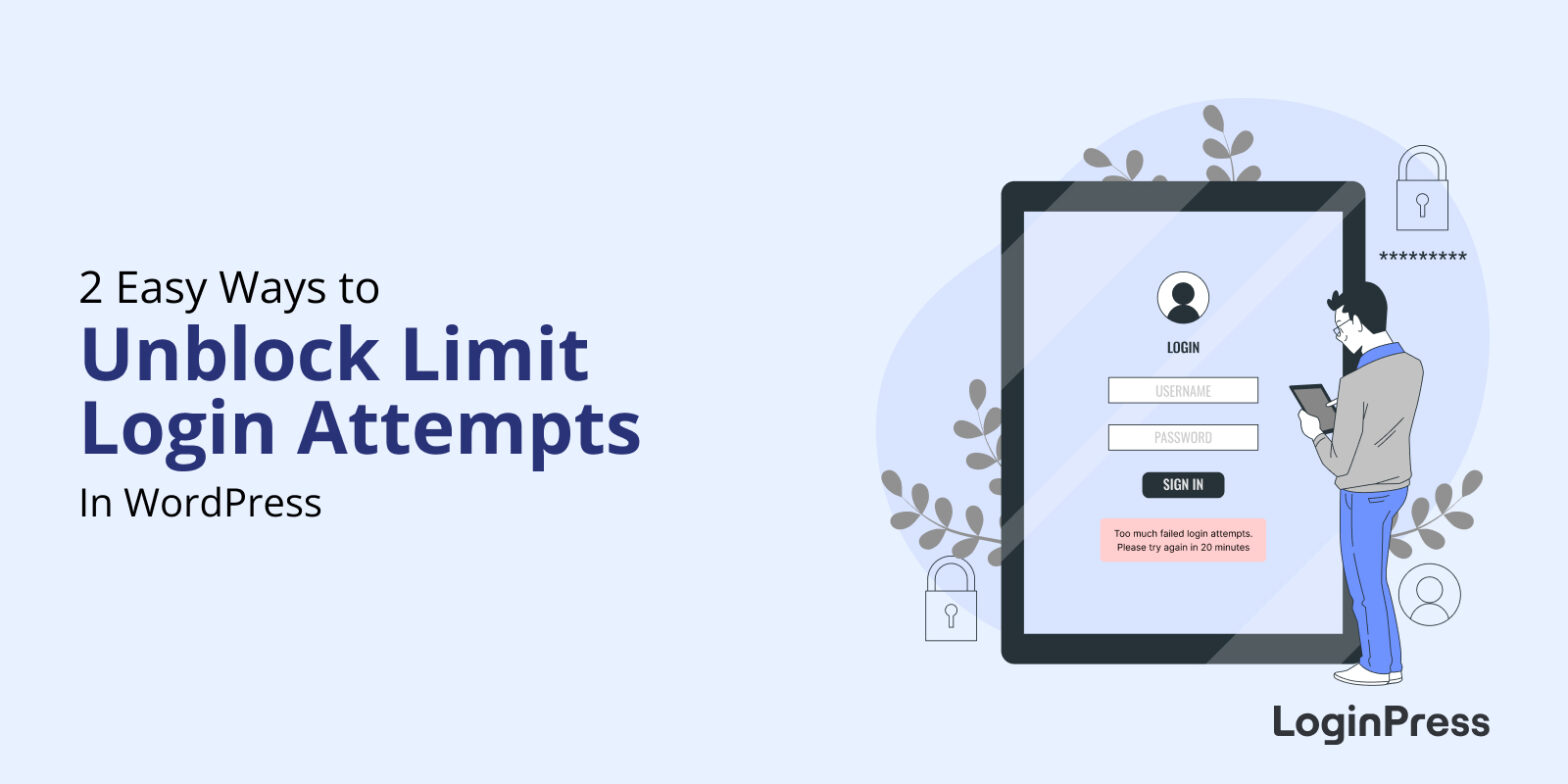
 2 Easy Ways to Unblock Limit Login Attempts in WordPress: Guide to Unblocking Login Access
2 Easy Ways to Unblock Limit Login Attempts in WordPress: Guide to Unblocking Login Access
To unblock Limit Login Attempts in WordPress, you can either disable the plugin over FTP (by renaming its folder) or clear the lockout records in your database with phpMyAdmin. Both methods get you back into wp-admin within a few minutes.
Lockouts happen because WordPress does not limit login attempts by default, so most sites add a plugin that does. That plugin protects you from bots guessing passwords, but it can also lock you out after a few typos.
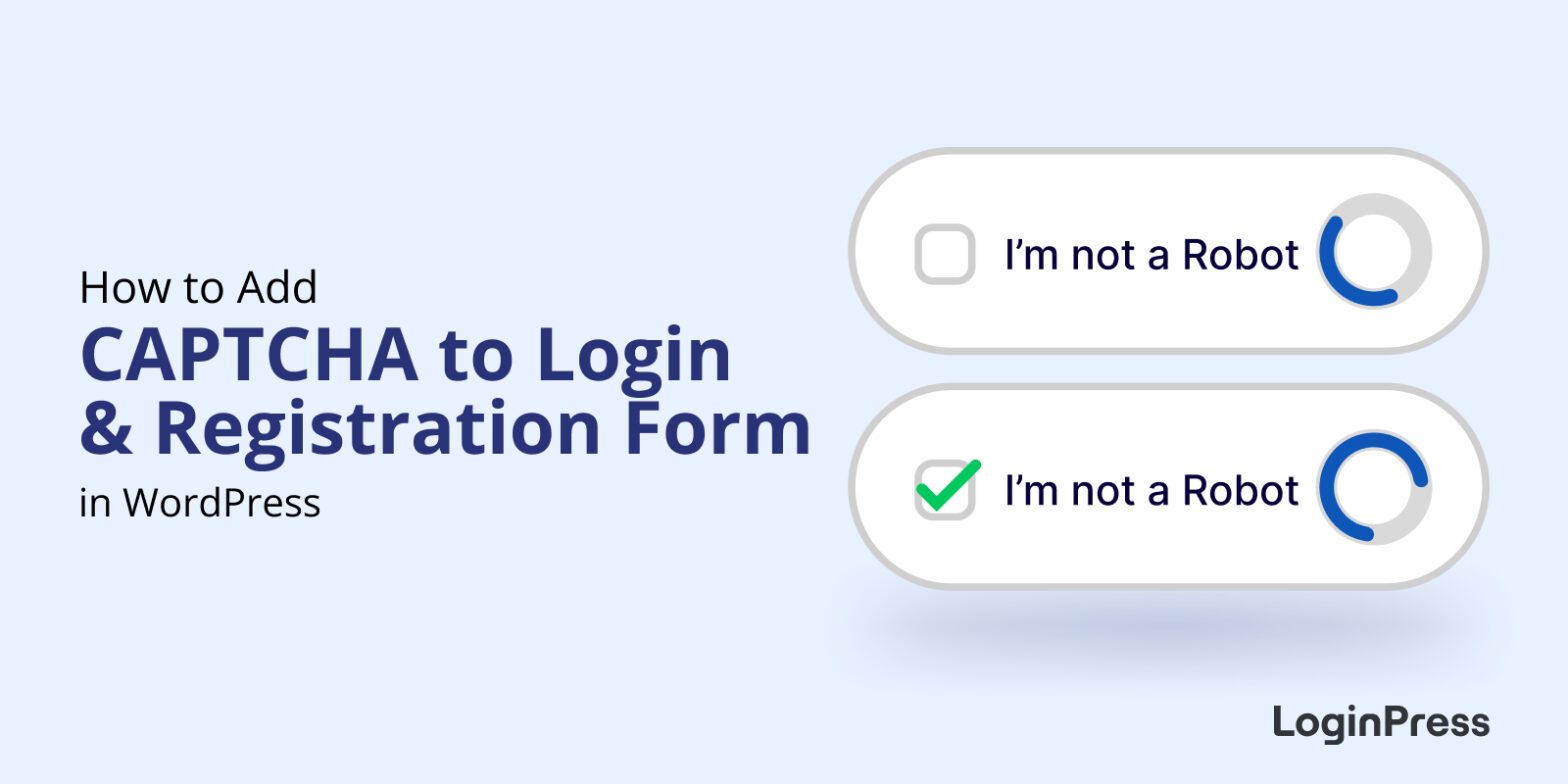 How to Add CAPTCHA to WordPress Login and Registration Form
How to Add CAPTCHA to WordPress Login and Registration Form
To add CAPTCHA to your WordPress login and registration forms, register your site with Google reCAPTCHA to get a site key and secret key, paste them into LoginPress, and choose which forms to protect. It takes about five minutes and stops most bot logins and spam sign-ups.
In this post, you will find the five steps to add CAPTCHA, with screenshots for each one.
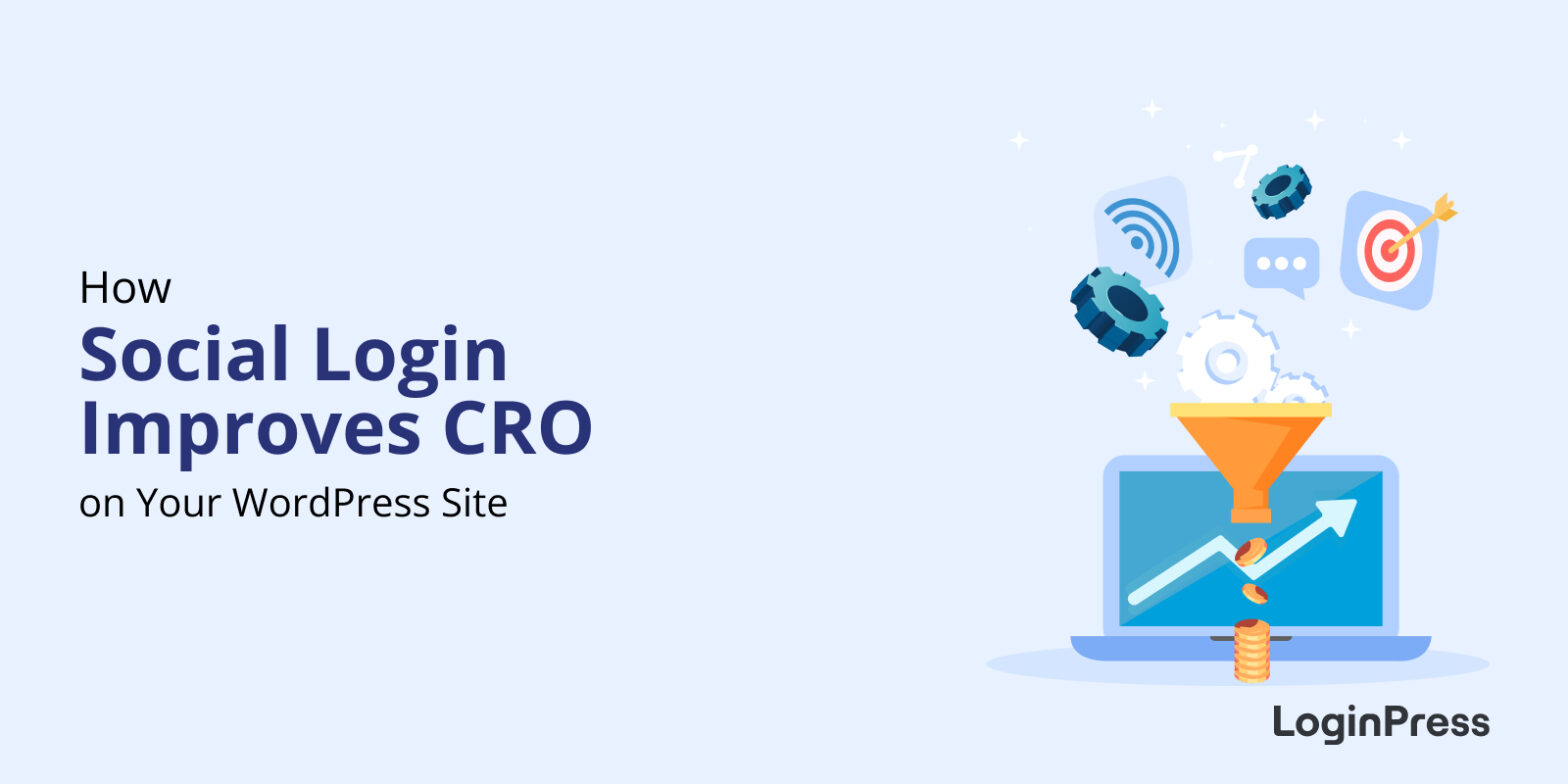 How Social Login Improves CRO on Your WordPress Site? Boost your CRO
How Social Login Improves CRO on Your WordPress Site? Boost your CRO
Social login improves conversion rate optimization (CRO) on a WordPress site by letting visitors sign up in seconds with an existing social media profile instead of filling out a registration form. That removes friction at the moment visitors decide whether to register.
This post explains what social login is and how it lifts conversions.
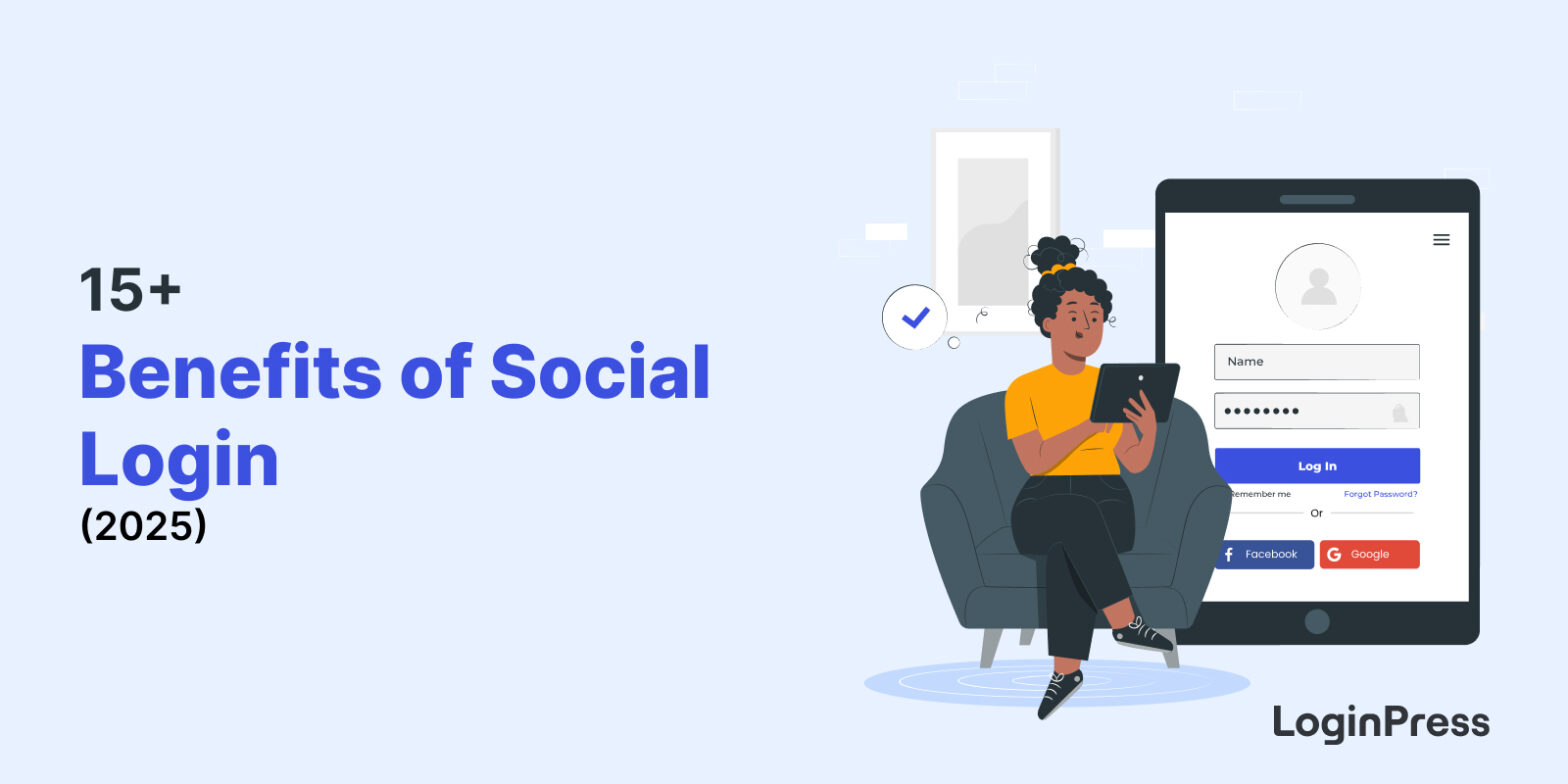 15+ Benefits of Social Login
15+ Benefits of Social Login
The main benefits of social login for a WordPress site are faster registration, no password fatigue, fewer abandoned sign-ups and cleaner user data. Social login lets users access your site with an existing social media account instead of creating a new one.
In this post, I will explain how social login works, its benefits and its limits.
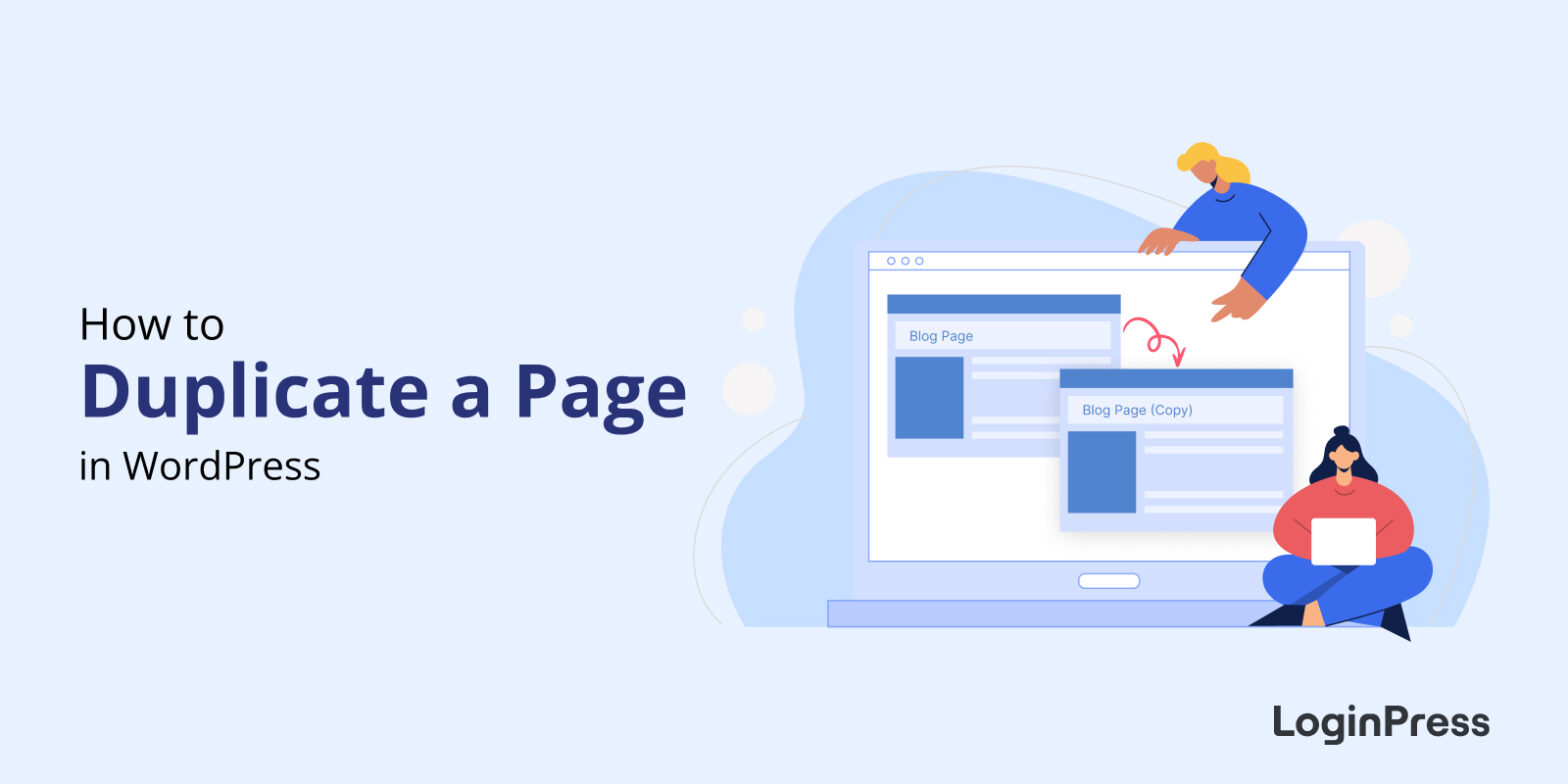 How to Duplicate a Page in WordPress
How to Duplicate a Page in WordPress
To duplicate a page in WordPress, install and activate the Duplicate Page plugin, then click Clone or New Draft below the page title.
 How to Upload a PDF to WordPress (Ultimate Guide)
How to Upload a PDF to WordPress (Ultimate Guide)
To upload a PDF to WordPress, go to Media > Add New, select your PDF, then copy its link or add it to a post or page with the File block.
In this post, I will show you both steps, plus five plugins for managing PDF files and ways to earn money from PDFs.
 9 Most Popular Social Media Login APIs for Secure WordPress Authentication
9 Most Popular Social Media Login APIs for Secure WordPress Authentication
The most popular social media login APIs for WordPress are the Google, Twitter and Facebook login APIs, plus identity services such as Firebase, OneAll, OneLogin, LoginRadius, Auth0 and Okta. Social logins use these APIs to let users authenticate with an existing account and to pass details such as name and email address to your site.
This post explains what these APIs are and compares the nine most popular ones.
 How to Hide WordPress Login Page From Hackers (4 Easy Methods)
How to Hide WordPress Login Page From Hackers (4 Easy Methods)
You hide the WordPress login page from hackers by changing its URL from /wp-login.php or /wp-admin to a custom address only you know. The simplest way is a plugin like LoginPress, but you can also do it by hand with a renamed login file, .htaccess rules or code.
Every WordPress site uses the same login address by default, so bots and hackers only need to add /wp-admin/ to your domain to reach it. A custom URL takes that easy target away.
 How to Unpublish Your WordPress Site (An Easy Guide)
How to Unpublish Your WordPress Site (An Easy Guide)
To unpublish a WordPress page or post, switch it to Draft or Private. To unpublish the whole site, use Settings > Reading to discourage search engines, or turn on Coming Soon or maintenance mode.
This guide shows you each method, plus how to republish.
 How to Change WordPress Domain Name
How to Change WordPress Domain Name
To change your WordPress domain name, buy the new domain, add it to your hosting, copy your files, update the WordPress site address, reset permalinks, redirect the old domain with 301 redirects and notify Google. Back up your site first.