
To make the plugin extra easy and functional as per the requirements, here comes the detailed documentation regarding the plugin. All about educating the things related to the plugin.

How to Hide Login with LoginPress (Easy Way)
The LoginPress Hide Login add-on makes it easy to enhance security and gives spammers a hard time by keeping them from hitting your login page.
It lets you create a secret admin login URL.
Hiding the login prevents hackers from targeting the admin login page with password-guessing attacks.
This knowledge base article will show you how to hide the login URL using the LoginPress Hide Login Add-on.
Let’s get started!
Activate Hide Login Add-on
Note: Here, we’ve assumed that you have already upgraded to LoginPress Pro and have activated the License Key.
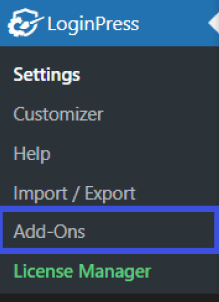
First, go to the left of the WordPress admin dashboard and navigate to LoginPress >> Add-Ons.
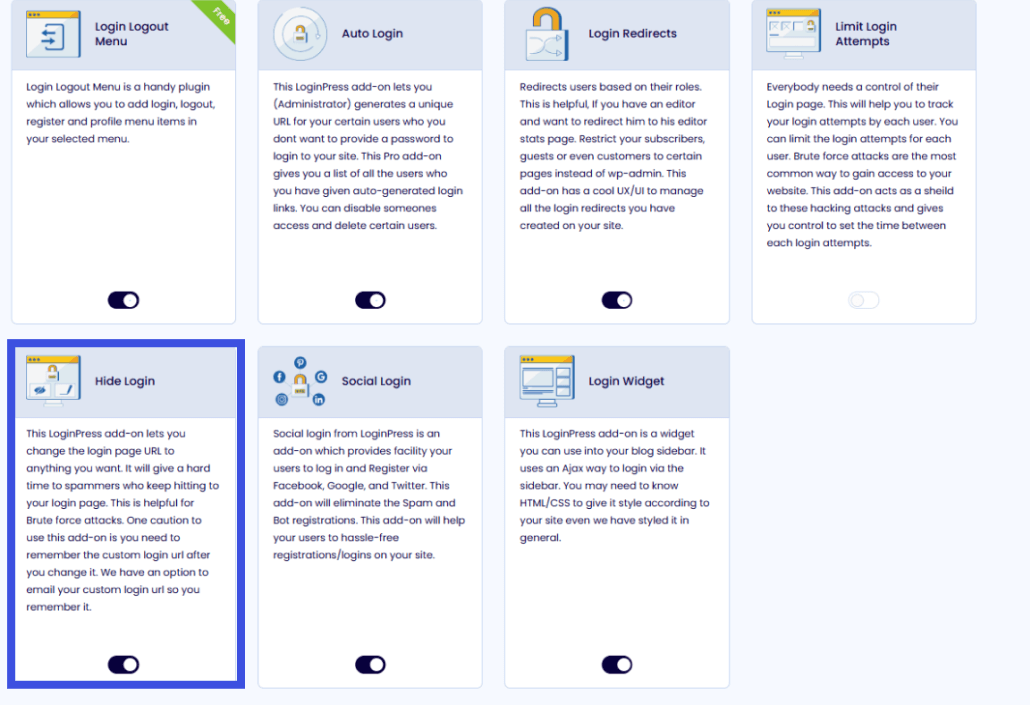
Next, you need to find the Hide Login Add-On and toggle the button on to activate the Hide Login Add-On.
Set Up Hide Login
To set up the Auto Login addon, follow these steps.
Step 1: Go to Hide Login
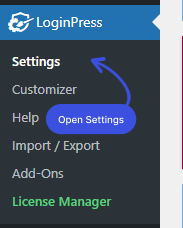
First, go to LoginPress on the left side of the admin dashboard, then click Settings.
You can see the Hide Login option in the Settings tab.
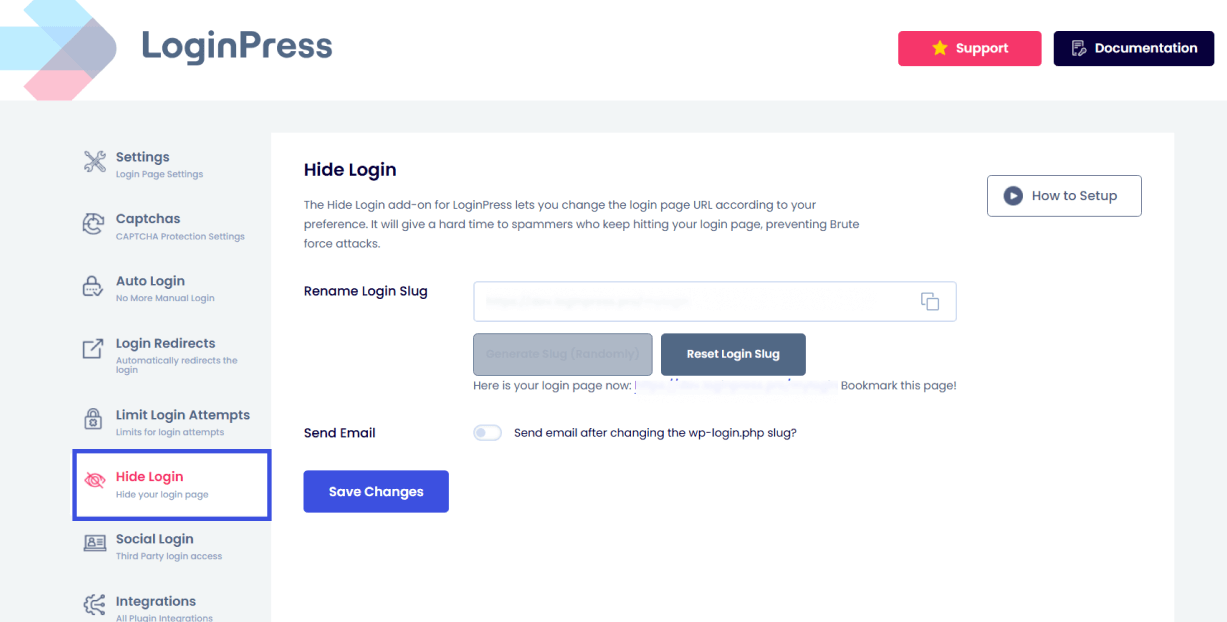
Here in the Hide Login option, you’ll find
- Rename Login Slug:
You can choose to rename the slug yourself or generate a random one.
- Send Email:
The Send Email feature is there to get a newly created login URL at your Email address.
It’s convenient as you can easily retrieve the Login URL from the Email if you forget the login URL anytime in the future.
- Email Address:
The Email Address feature helps you get the newly changed login URL at the selected Email address.
You can add more than one email account by adding a comma between the two. This will help you receive your new login URL at the email address you provided.
Step 2: Customizing the Default Login URL
The default structure of the WordPress login page is www.website.com/wp-admin/ or www.website.com/wp-login.php/.
As a general rule, changing this URL is a good practice to prevent hackers from finding it.
All you need to do is go to Hide Login.
Then, navigate to the Rename Login Slug field.
Now, either rename the login slug yourself or click Generate Slug (Random).
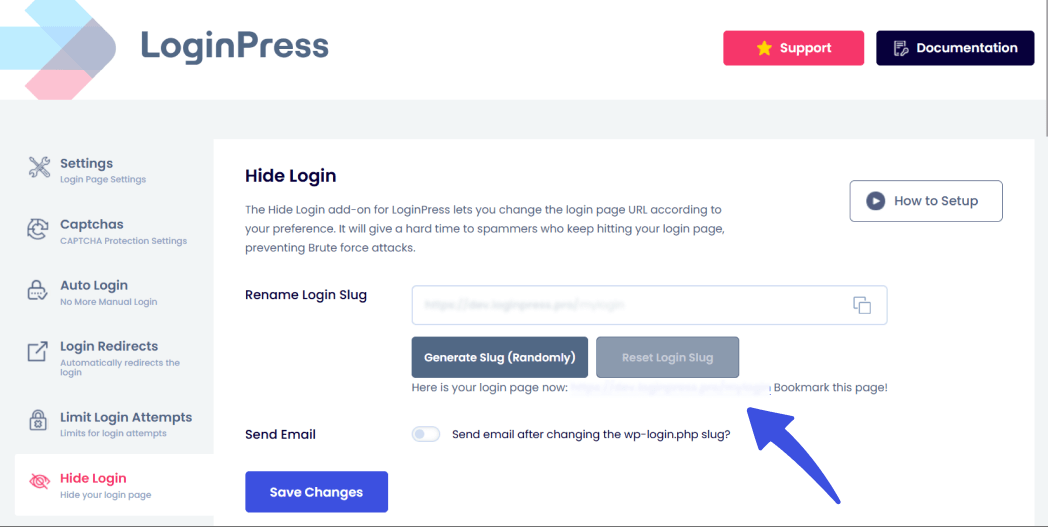
Once the renamed login slug is generated, your default WordPress login URL becomes unavailable to outsmart hackers.
Now you don’t need to care about brute-force attacks.
You’ll need to log in to your WordPress site with the newly generated slug.
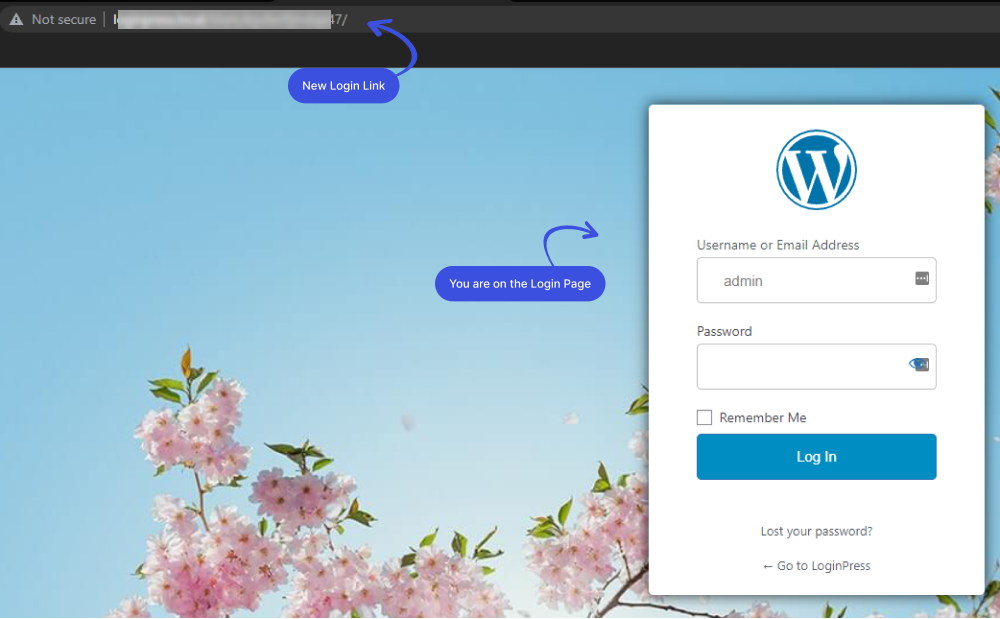
What Happened to the Default URL?
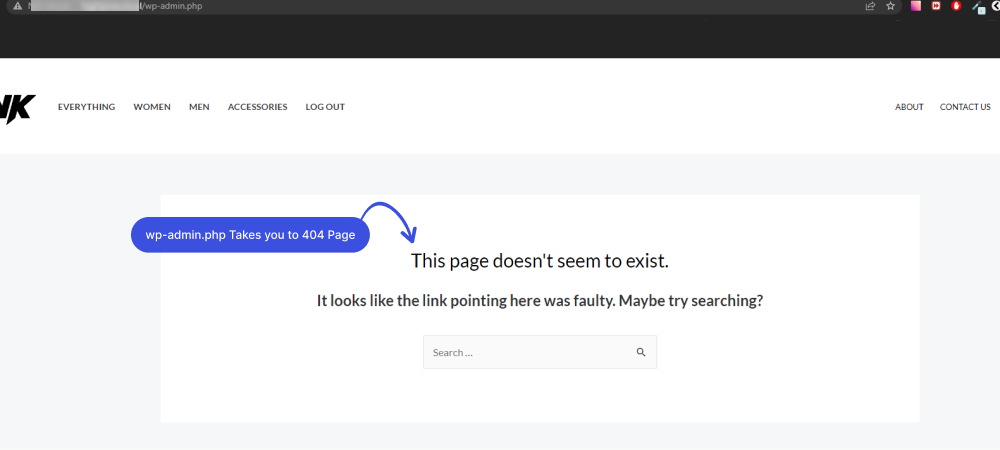
You’ve created a custom login URL and blocked all traffic to the default wp-login pages.
Let’s see what happens if you go for the default URL: www.website.com/wp-login.php/.
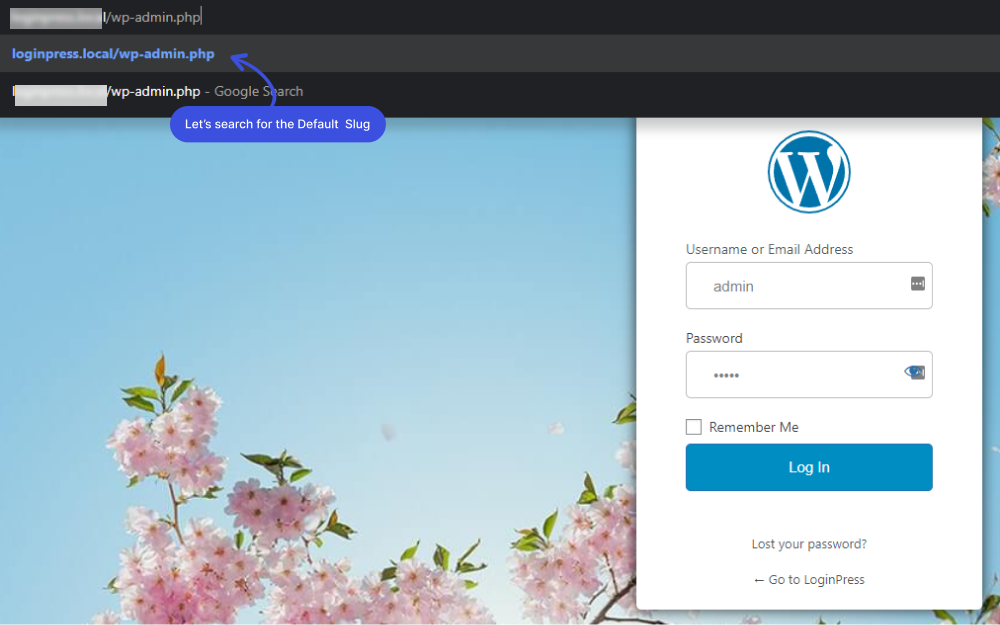
See, you are redirected to the 404 page. Now, your WordPress login page is protected against brute-force attacks.
That’s it! We’ve demonstrated how to rename the login slug for users.
Try the LoginPress Hide Login Add-on to make your site harder to crack than you think, and let us know how much it helped you!
If you have any doubts or questions related to this matter, please don’t hesitate to contact our support team.
Frequently Asked Questions (FAQs)
These FAQs answer the most common questions about our WordPress custom login page plugin.

Where can I get support for LoginPress?
If you need help with LoginPress, you can contact us here. We’ll be happy to answer any questions about the plugin.
Do you have an affiliate program?
Yes, we have an affiliate program that you can sign up for here. As an affiliate, you’ll earn a commission on every sale you refer to us.
Do you offer refunds?
Yes, we offer a 14-day money-back guarantee on all of our plans. If you’re unsatisfied with LoginPress, simply contact us within 14 days of your purchase, and we’ll process a refund.
Can I upgrade my license after my initial purchase?
Yes, you can upgrade your LoginPress license at any time. Simply log into your account and go to the My Downloads page. From here, you can upgrade your license and download the latest version of the plugin.
Will LoginPress slow down my website?
No, LoginPress will not slow down your website. The plugin is lightweight and only loads the necessary files when someone tries to access your login page.

If you Still have Questions?
Get In Touch