
To make the plugin extra easy and functional as per the requirements, here comes the detailed documentation regarding the plugin. All about educating the things related to the plugin.

How to Configure Force Login Exclusions with LoginPress Pro
The Force Login exclusions feature in LoginPress Pro provides a robust security layer for your WordPress site.
When you enable it, your entire website is locked, and visitors must log in to view any page.
This works well for private member areas, intranets, or staging sites. However, it can be tricky if you want to keep some pages public.
Table of Contents:
With version 6.2.0, we added the Exclude URLs from Force Login (exclude_force_urls) feature.
Instead of writing PHP code, you can now use a simple search-and-select interface. This makes it easy to keep certain pages public with just a few clicks.
How Force Login Exclusions Work in LoginPress 6.2?
This feature provides a granular exclusion layer to the global Force Login mandate.
It allows you to designate specific content items as Public Exceptions.
Once an item is added to the exclusion list, LoginPress will bypass the login requirement for that specific URL, while keeping the rest of the site strictly protected.
The system is highly versatile and supports:
- Static Pages: Like your Homepage, “About Us,” or “Contact” pages.
- Blog Posts: Specific articles you want to use as teaser content.
- Custom Post Types (CPTs): This includes WooCommerce Products, Portfolio items, LMS Course descriptions, and more.
The exclusion logic is applied before page rendering, helping ensure that guest visitors and search engines can access only the authorized content.
Learn more about Force Logins and How they Work here.
How to Add Force Login Exclusions (The No-Code Setup)
Previously, excluding a page required adding a filter to your functions.php. Now, it is entirely visual.
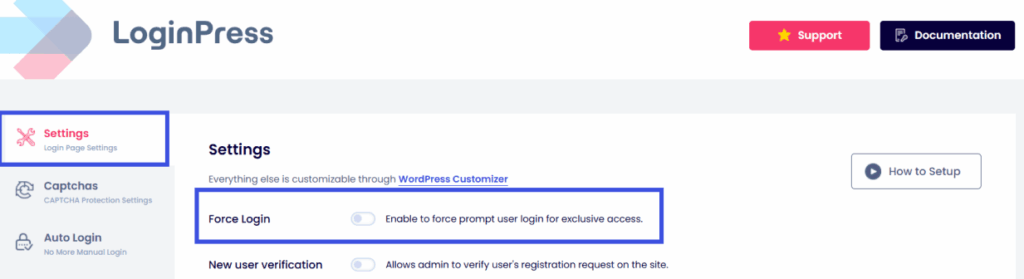
Step 1: Access the Settings
- Navigate to your WordPress Dashboard and go to LoginPress >> Settings >> Force Login.
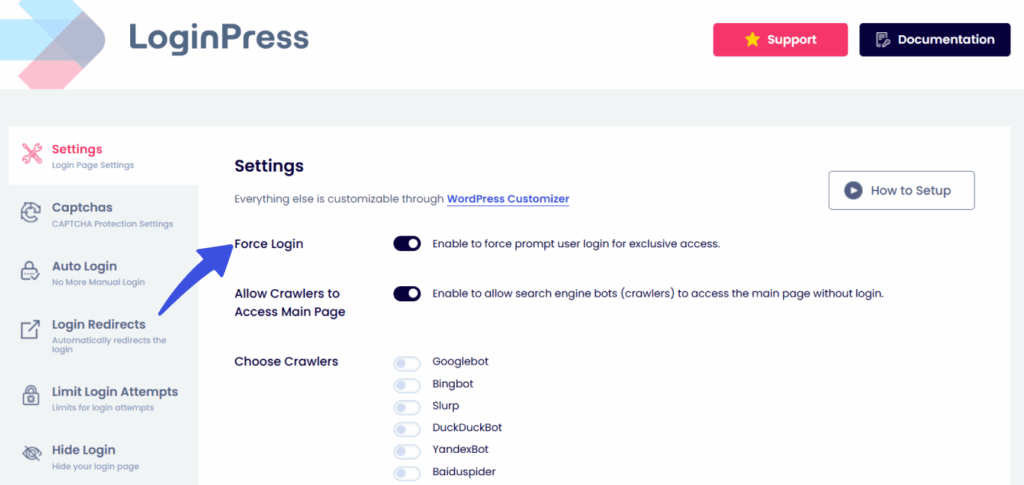
Step 2: Enable Force Login
- Ensure the main Force Login toggle is switched to ON. This activates the global site lockdown.
Step 3: Add Exclusions
- Locate the field labeled Exclude URLs from Force Login. This is a dynamic multi-select dropdown.
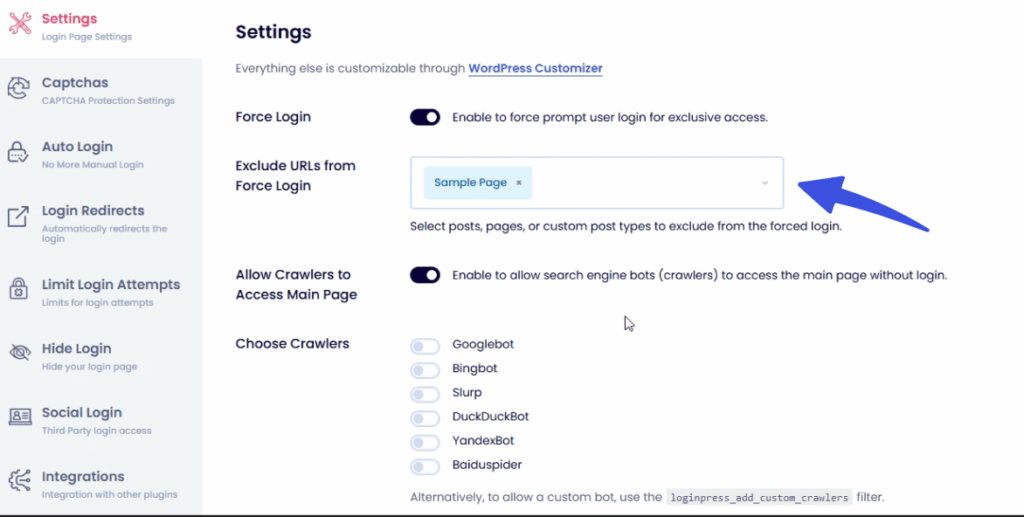
- Click inside the box and start typing the name of the page, post, or product you wish to make public.
- As you type, LoginPress will search your database and suggest matching titles.
- Click the title to add it to your exclusion list.
- You can repeat this for as many pages as you need
In order to exclude a post or page from force logins, check out our detailed guide on How To Exclude The Pages/Posts From Force Login Feature (Hook).
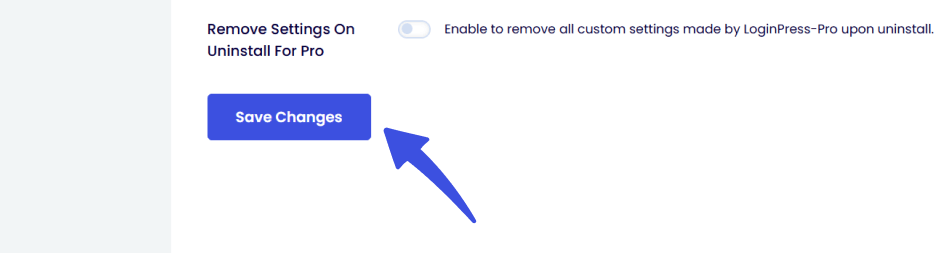
Step 4: Save and Test
- Click Save Changes.
- To test, open an “Incognito” or “Private” browser window.
Attempt to visit an excluded page; it should load normally. Then, attempt to visit a non-excluded page; you should be instantly redirected to the login screen.
How Force Exclusions Help Optimize Logins
- Marketing and Lead Generation: You likely want to keep your Sales Landing Page or Webinar Registration public so you can actually acquire new members. This feature lets you display the introductory page while keeping the exclusive content locked.
- SEO and Indexing: If your entire site requires a login, Google cannot index your content. By excluding your blog or key landing pages, you can maintain your search engine rankings while keeping your premium areas private.
- Legal and Compliance: In many jurisdictions, pages such as your Privacy Policy, Terms of Service, and GDPR Disclosure must be publicly accessible at all times. This tool makes it easy to stay compliant without exposing your entire site.
- E-Commerce Strategy: For membership sites that sell products via WooCommerce, keep your Shop Page and Product Pages public so users can browse your catalog, but require a login for any “Member Only” resource.
- Improved User Support: You can exclude your “Help Desk” or “Forgot Password Instructions” pages, ensuring that users who are having trouble logging in can still find the help they need to regain access to their accounts.
If you experience any issues while implementing the force login exclusions, please contact the LoginPress support team for assistance.
Frequently Asked Questions (FAQs)
These FAQs answer the most common questions about our WordPress custom login page plugin.

Where can I get support for LoginPress?
If you need help with LoginPress, you can contact us here. We’ll be happy to answer any questions about the plugin.
Do you have an affiliate program?
Yes, we have an affiliate program that you can sign up for here. As an affiliate, you’ll earn a commission on every sale you refer to us.
Do you offer refunds?
Yes, we offer a 14-day money-back guarantee on all of our plans. If you’re unsatisfied with LoginPress, simply contact us within 14 days of your purchase, and we’ll process a refund.
Can I upgrade my license after my initial purchase?
Yes, you can upgrade your LoginPress license at any time. Simply log into your account and go to the My Downloads page. From here, you can upgrade your license and download the latest version of the plugin.
Will LoginPress slow down my website?
No, LoginPress will not slow down your website. The plugin is lightweight and only loads the necessary files when someone tries to access your login page.

If you Still have Questions?
Get In Touch