
To make the plugin extra easy and functional as per the requirements, here comes the detailed documentation regarding the plugin. All about educating the things related to the plugin.

Compatibility between LoginPress and WPS Hide Login
LoginPress and WPS Hide Login are two popular WordPress plugins, each offering unique functionalities.
LoginPress is the best WordPress login customizer plugin, letting you customize every element of the default WordPress login, registration, and forgot password pages.
On the other hand, WPS Hide Login enhances your site’s security by changing the default login URL.
Here’s some good news for you!
With LoginPress, you can change the page link without any additional plugins.
However, you don’t need to worry if you’re using WPS Hide Login separately. Since both are fully compatible, you can also use WPS Hide Login with LoginPress.
Note: LoginPress Hide Login Add-on and WPS Hide Login Add-on serve the same functionality. Enabling them together will cause compatibility issues, so it’s better to install and activate only one at a time on your site.
Here, we’ll test the smooth working of LoginPress and WPS Hide Login when installed and activated on a WordPress site.
Let’s get started!
LoginPress and WPS Hide Login Compatibility:
Brief Overview of LoginPress
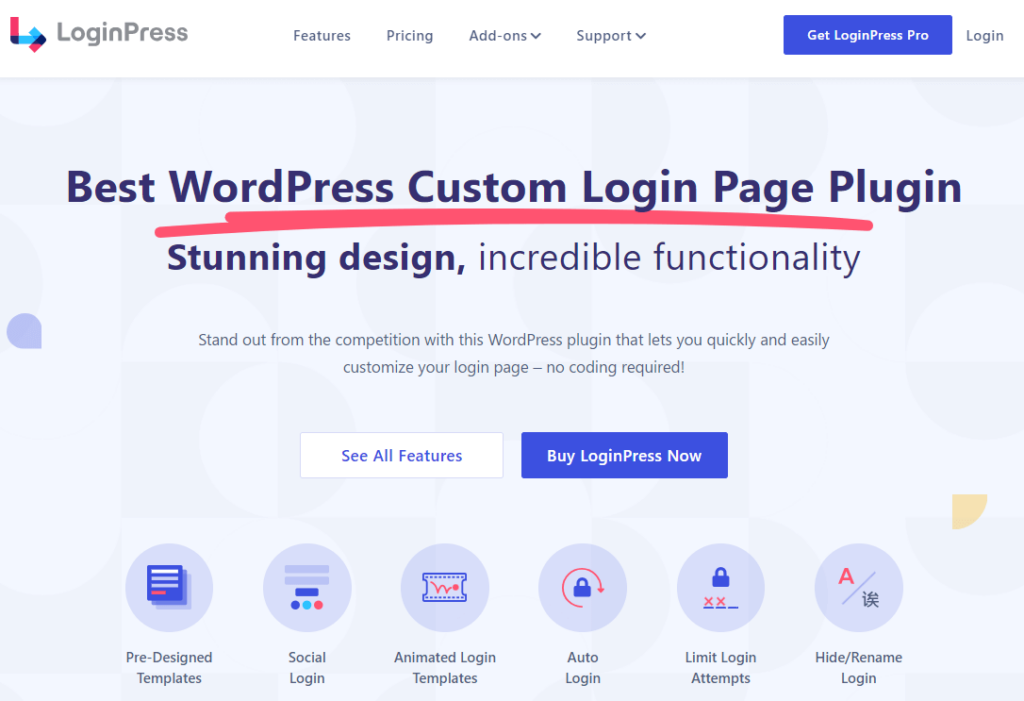
LoginPress is the best WordPress login page customizer plugin. It’s packed with features to help you customize the default WordPress Login, Register, and Forget pages.
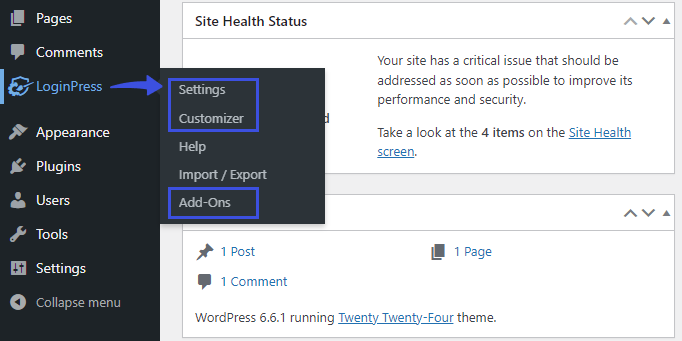
LoginPress’s main functionality resides within three main areas of the plugin, including:
- Settings (This section lets you customize the overall behavior of the default WordPress login, register, and forget pages)
- Customizer (This section allows you to customize the appearance of the default WordPress login, register, and forget pages)
- Add-Ons (It contains Pro Add-ons to help you strengthen the default WordPress login, register, and forget pages)
See the image below:
Brief Overview of WPS Hide Login
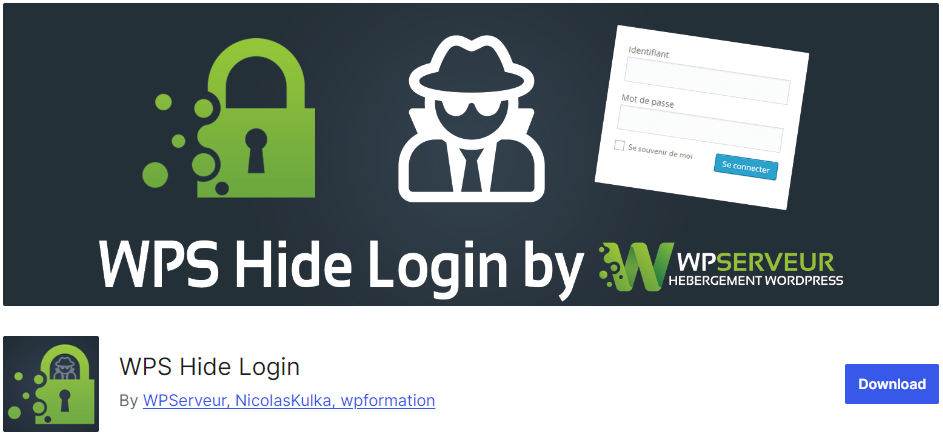
On the other hand, WPS Hide Login is a WordPress plugin that lets you customize the default login URL (e.g., /wp-admin and/wp-login.php) and set a custom login URL.
As a result, the wp-admin directory and the wp-login.php page become inaccessible. This helps you protect your site against cyber criminals.
LoginPress and WPS Hide Login: Compatibility Assurance
Let’s install and activate both plugins together.
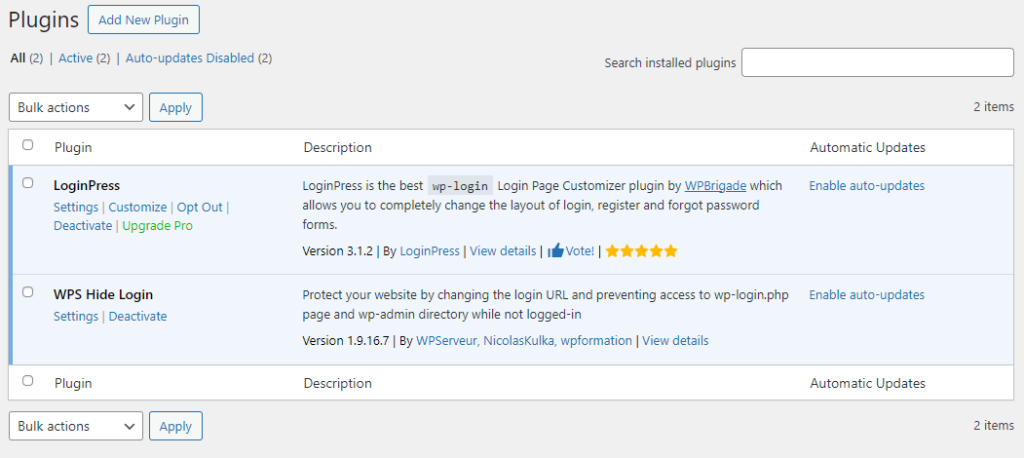
Now, change the default WordPress login URL slug and click the Save Changes button.
See the image below:
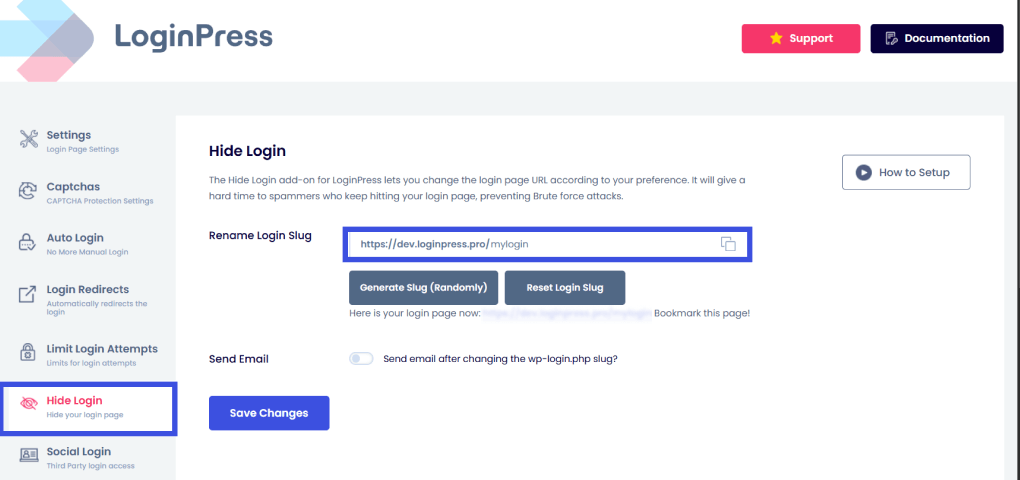
Let’s try LoginPress features now and see if LoginPress will continue to work smoothly, even with a customized login URL.
1. LoginPress Settings Compatibility with WPS Hide Login
First off, we’ll test LoginPress Settings.
To do this, go to the left sidebar of the WordPress admin dashboard, navigate to LoginPress, and select the Settings option.
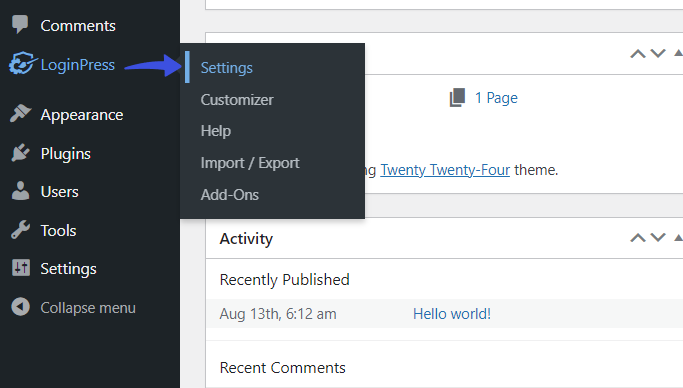
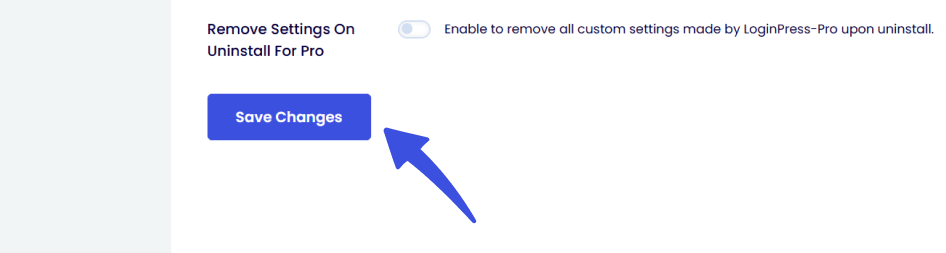
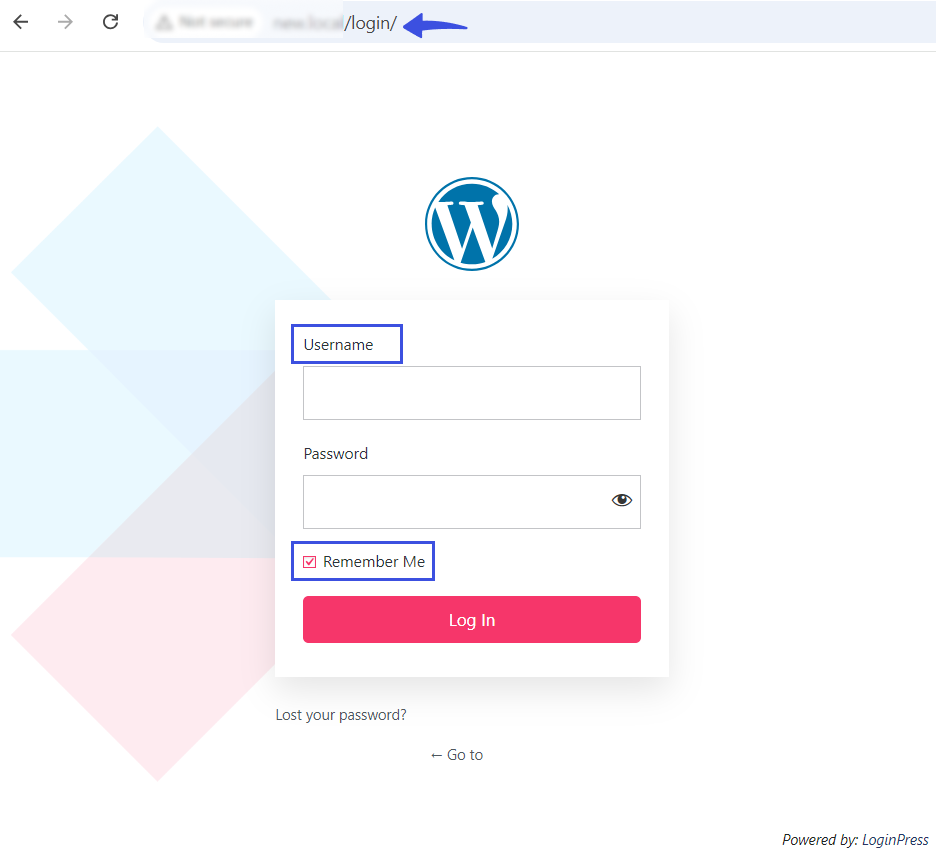
On the next screen, we’ll enable Auto Remember Me, change the Login Order, e.g., Only Username, and enable PCI Compliance.
When done, click the Save Changes button.
Now check the login page to confirm everything is working as expected.
2. LoginPress Customizer Compatibility with WPS Hide Login
Let’s move forward and test whether the LoginPress Customizer features work without compatibility issues.
To do this, go to the left sidebar of the WordPress admin dashboard, navigate to LoginPress, and select the Customizer option.
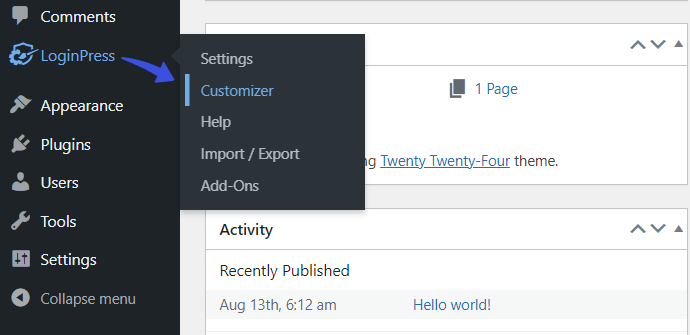
On the next screen, make changes to different elements of the login page, such as:
- Themes
- Logo
- Background
- Customize Login Form
- Customize Forget Form
- Button Beauty
- Error Messages
- Welcome Messages
- Form Footer
- Google Fonts
- Custom CSS/JS
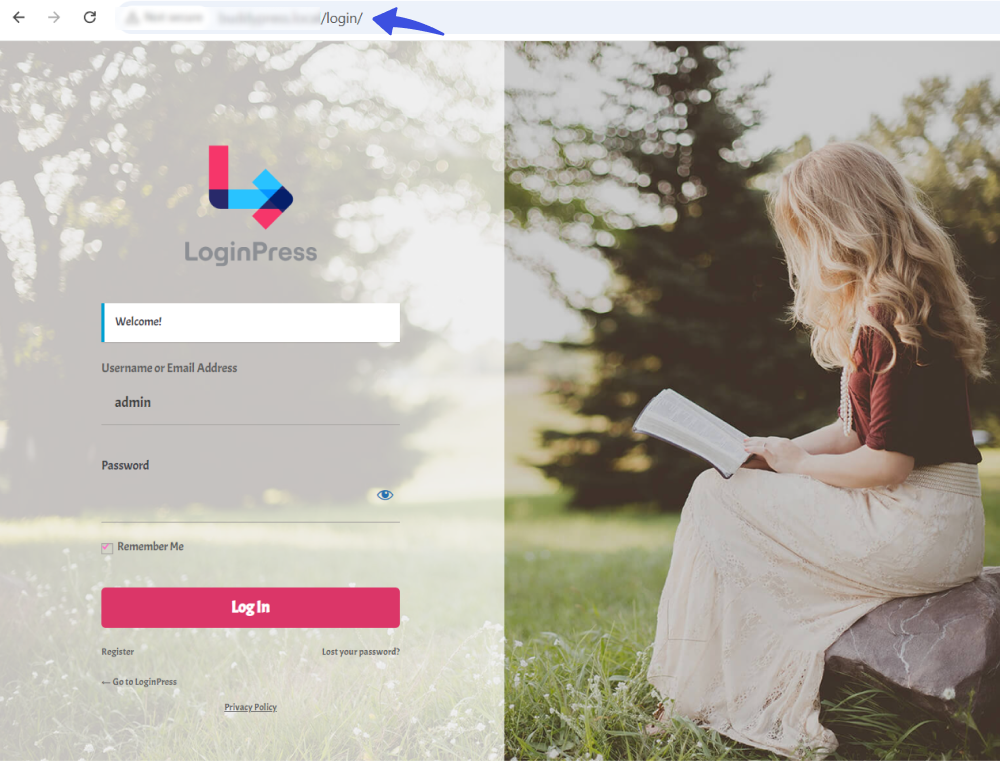
3. LoginPress Add-ons Compatibility with WPS Hide Login
LoginPress Pro offers several Add-ons. Let’s see if WPS Hide Login is fully compatible with them.
Note: We assume you’ve already installed and activated LoginPress Pro. If not, see our detailed guide on how to Install And Activate the LoginPress PRO Version.
To access the Add-Ons option, go to the left sidebar of the WordPress admin dashboard, navigate to LoginPress, and select the option.
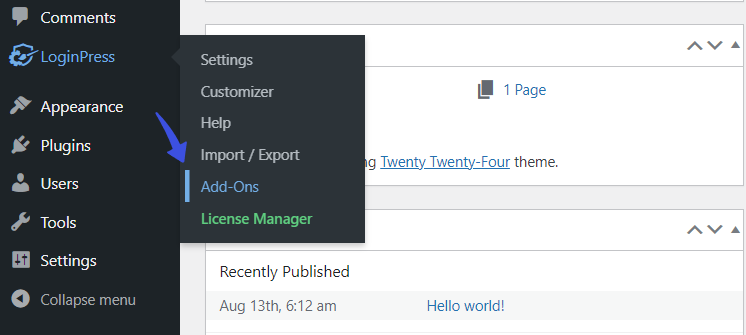
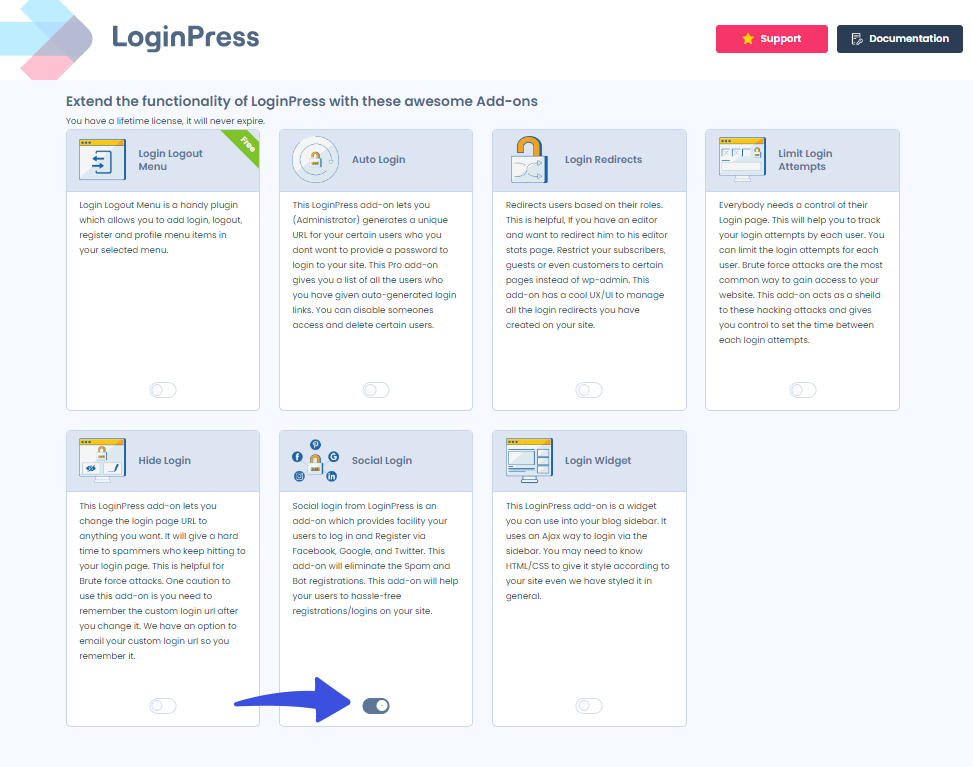
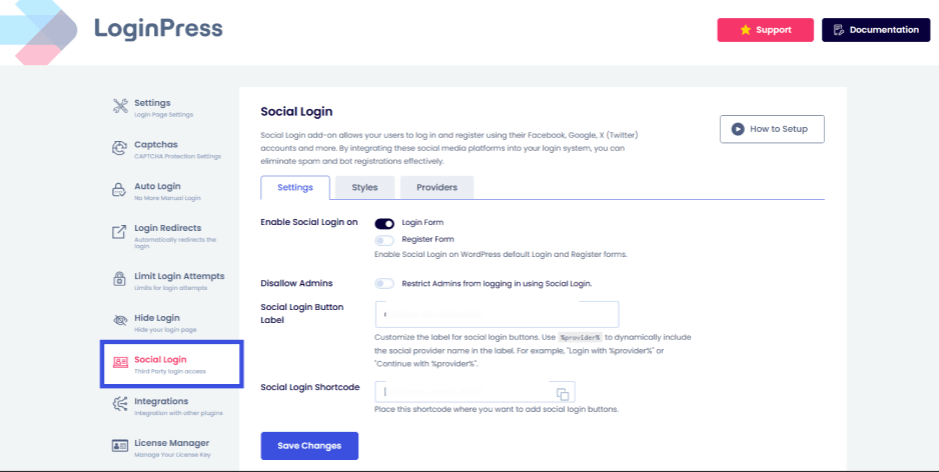
On the next screen, enable the Social Login Add-on.
Go to the left sidebar of the WordPress admin dashboard> LoginPress >> Settings >> Social Login option.
Now, enable the Social Login Add-on.
See the image below:
Next, you’re required to configure the social login, including Facebook, Twitter, Google, LinkedIn, and Microsoft, to add them to the login form.
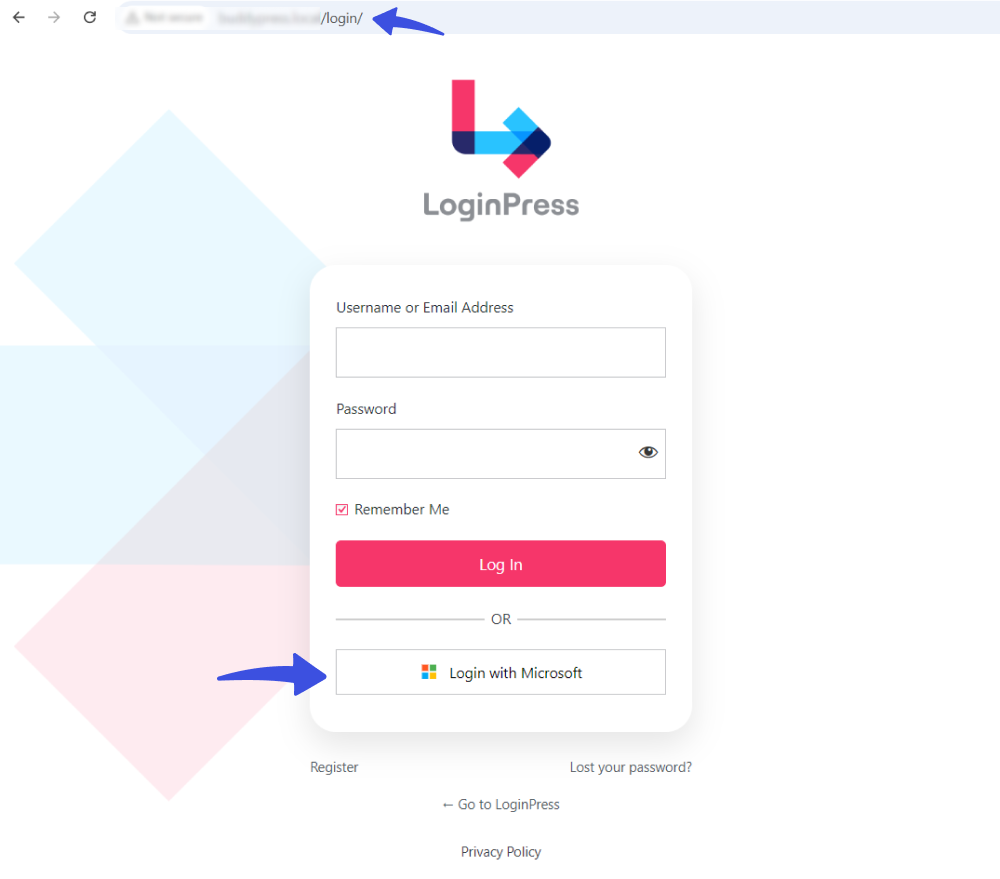
Note: Here, we’ve configured Microsoft’s social login.
See, Microsoft Social Login works fine with the newly created login slug with WPS Hide Login:
That’s great! You can enable the rest of the Add-Ons side by side, except Hide Login.
Recommendations for Maintaining LoginPress and WPS Hide Login Compatibility
To maintain compatibility between LoginPress and WPS Hide Login, follow these recommendations:
- Regular Plugin Updates: Ensure LoginPress and WPS Hide Login plugins are always updated to their latest versions.
- Regularly Clear Cache: If you use a caching plugin, clear the cache after making any updates to avoid serving old, cached versions of your login pages.
- Check for Conflicting Features: Both plugins modify the login page. So, monitor for any feature overlap.
- Monitor Plugin Logs: It is best to monitor plugin logs to track any issues that may arise when using these plugins together. It will help you detect compatibility problems early.
- Backup Regularly: Regular backups ensure you can restore a working version of your site if compatibility issues arise.
Final Thoughts
We’ve tested LoginPress and WPS Hide Login together and found that changing the login URL using WPS Hide Login does not interfere with the functionality of LoginPress.
You can customize your login form with LoginPress without worrying about URL modifications.
That’s all!
You can also check out our other compatibility docs, including:
Don’t hesitate to contact our support team with any questions or concerns; we’re here to help.
Frequently Asked Questions (FAQs)
These FAQs answer the most common questions about our WordPress custom login page plugin.

Where can I get support for LoginPress?
If you need help with LoginPress, you can contact us here. We’ll be happy to answer any questions about the plugin.
Do you have an affiliate program?
Yes, we have an affiliate program that you can sign up for here. As an affiliate, you’ll earn a commission on every sale you refer to us.
Do you offer refunds?
Yes, we offer a 14-day money-back guarantee on all of our plans. If you’re unsatisfied with LoginPress, simply contact us within 14 days of your purchase, and we’ll process a refund.
Can I upgrade my license after my initial purchase?
Yes, you can upgrade your LoginPress license at any time. Simply log into your account and go to the My Downloads page. From here, you can upgrade your license and download the latest version of the plugin.
Will LoginPress slow down my website?
No, LoginPress will not slow down your website. The plugin is lightweight and only loads the necessary files when someone tries to access your login page.

If you Still have Questions?
Get In Touch