
To make the plugin extra easy and functional as per the requirements, here comes the detailed documentation regarding the plugin. All about educating the things related to the plugin.

New User Verification Feature in LoginPress
LoginPress has introduced a New User Verification feature that lets site admins verify new user registration requests.
The LoginPress New User Verification feature introduces a simple yet powerful way for site administrators to control new user registrations.
Using this feature, the site admin can approve or deny a user registration request based on defined criteria, ensuring only verified users gain access.
Enabling the LoginPress New User Verification Feature
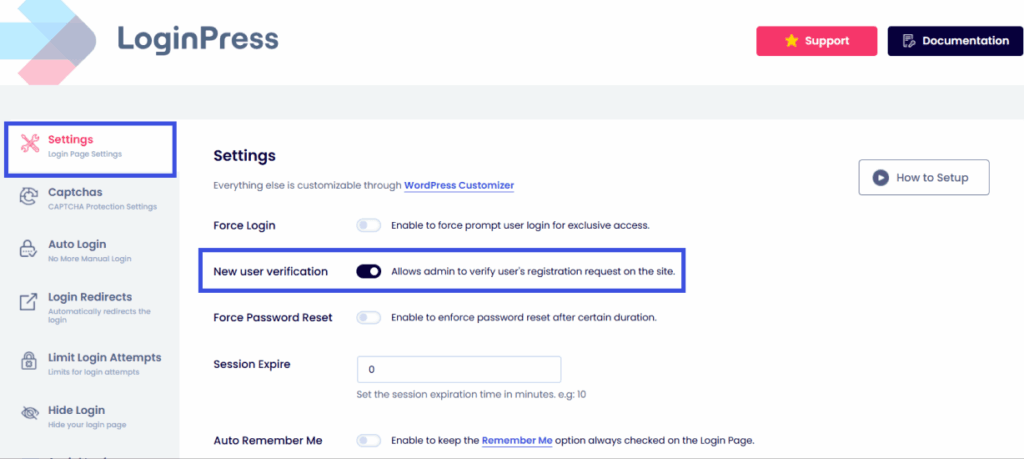
- Navigate to LoginPress >> Settings in the WordPress admin dashboard.
- Toggle the New User Verification option to enable this feature.
Registration Flow
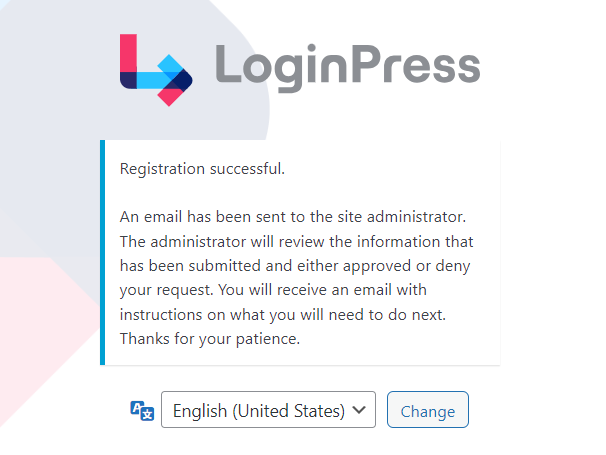
- User Registration Process:
- When a new user registers on the site, they are presented with a message:
- Managing User Status:
- A counter displays the number of pending user approvals in the Users menu of the WordPress admin dashboard.
- The All Users page has a new column, “User Status,” which shows each user’s current status: Active or Inactive.
Admin Action
Approving a User:
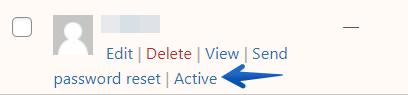
- Click Active under the user’s meta.
- The user receives an email notifying them that their registration has been approved, along with a link to set their password.
Disapproving a User:
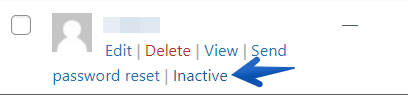
- Click Inactive under the user’s meta.
- The user receives an email informing them that their registration has been denied.
Custom Email Notifications for User Verification
The email notifications for approval or disapproval can be customized using the following filters:
Approve Email Filter
function custom_loginpress_approve_email($custom_message, $user) {
    $custom_message = "Hello, ".$user->user_nicename."\n\n";
    $custom_message .= "Your registration has been approved! You can now log in using your credentials via the following link:\n";
    $custom_message .= wp_login_url();
    return $custom_message;
}
add_filter('loginpress_approve_email', 'custom_loginpress_approve_email', 10, 2);
Disapprove Email Filter
function custom_loginpress_unapprove_email($custom_message, $user) {
    $custom_message = "Hello, ".$user->user_nicename."\n\n";
    $custom_message .= "We regret to inform you that your registration request has been denied. Please contact support for further assistance.\n";
    return $custom_message;
}
add_filter('loginpress_unapprove_email', 'custom_loginpress_unapprove_email', 10, 2);
All you need to do is update the code in your site’s functions.php file. Make sure to update the content in the $custom_message according to your preference.
Note: It’s recommended to use a child theme to edit the functions.php file. You may lose the modified code when updating your theme.
That’s it! We hope you now fully understand the user verification feature in LoginPress.
If you have any doubts or questions about this feature or any other matter, please don’t hesitate to contact our support team.
Frequently Asked Questions (FAQs)
These FAQs answer the most common questions about our WordPress custom login page plugin.

Where can I get support for LoginPress?
If you need help with LoginPress, you can contact us here. We’ll be happy to answer any questions about the plugin.
Do you have an affiliate program?
Yes, we have an affiliate program that you can sign up for here. As an affiliate, you’ll earn a commission on every sale you refer to us.
Do you offer refunds?
Yes, we offer a 14-day money-back guarantee on all of our plans. If you’re unsatisfied with LoginPress, simply contact us within 14 days of your purchase, and we’ll process a refund.
Can I upgrade my license after my initial purchase?
Yes, you can upgrade your LoginPress license at any time. Simply log into your account and go to the My Downloads page. From here, you can upgrade your license and download the latest version of the plugin.
Will LoginPress slow down my website?
No, LoginPress will not slow down your website. The plugin is lightweight and only loads the necessary files when someone tries to access your login page.

If you Still have Questions?
Get In Touch