
To make the plugin extra easy and functional as per the requirements, here comes the detailed documentation regarding the plugin. All about educating the things related to the plugin.

What is Force Login? See How It Works In LoginPress Pro
Force login forces users to log in with their existing accounts before starting their browsing sessions.
There might be several reasons you want to force users to log in with a WordPress force-login layout.
For example, you may have a blog post with content you only want registered users to see.
Whatever the reason, you can easily add this feature to your site with LoginPress Pro.
Since it uses Force Login to create a membership on your WordPress site, users must log in first to access the WordPress content.
This knowledge base article explains how Force Login works in LoginPress.
How Force Login Works in LoginPress
Let’s see in simple steps how to enable force login in LoginPress.
Step 1: Install and Activate LoginPress Pro
Note: We assume you’ve already installed and activated LoginPress. If not, see our detailed guide on the topic.
Force Login is a LoginPress premium feature. You’ll need to upgrade to the premium version first.
You can check out our guide on How to Install and Activate LoginPress PRO Version.
Step 2: Go to WordPress Admin Dashboard
Once you’ve upgraded to the LoginPress Pro, it’s time to enable Force Login on your WordPress site.
First, go to the WordPress admin dashboard, navigate to LoginPress, and click Settings.
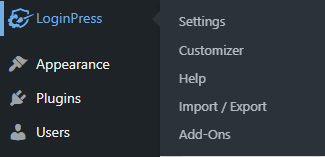
Step 3: Enable Force Login
Next, a new screen with all the LoginPress Settings will open up. Under the Settings tab, you’ll find the Force Login option. If your courses require authentication before access, creating a custom LearnDash login experience can improve usability for enrolled students.
Simply toggle on the button to enable Force Login for your WordPress site.
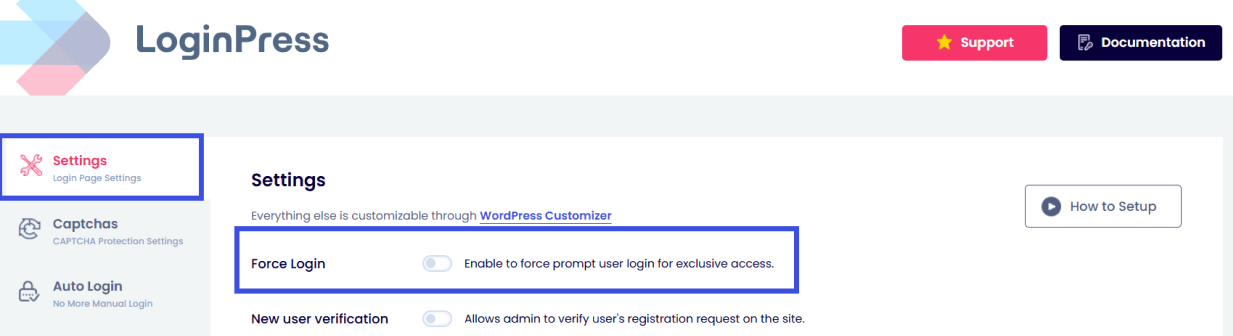
Step 4: Save Changes
Once done, click the Save Changes button to make all the changes live.
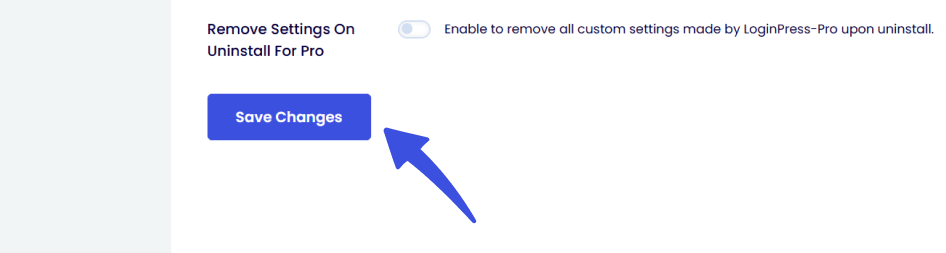
What Would be the User’s Experience?
Since Force Login is enabled on your WordPress site, users will be prompted to log in to view your content when they first browse the site.
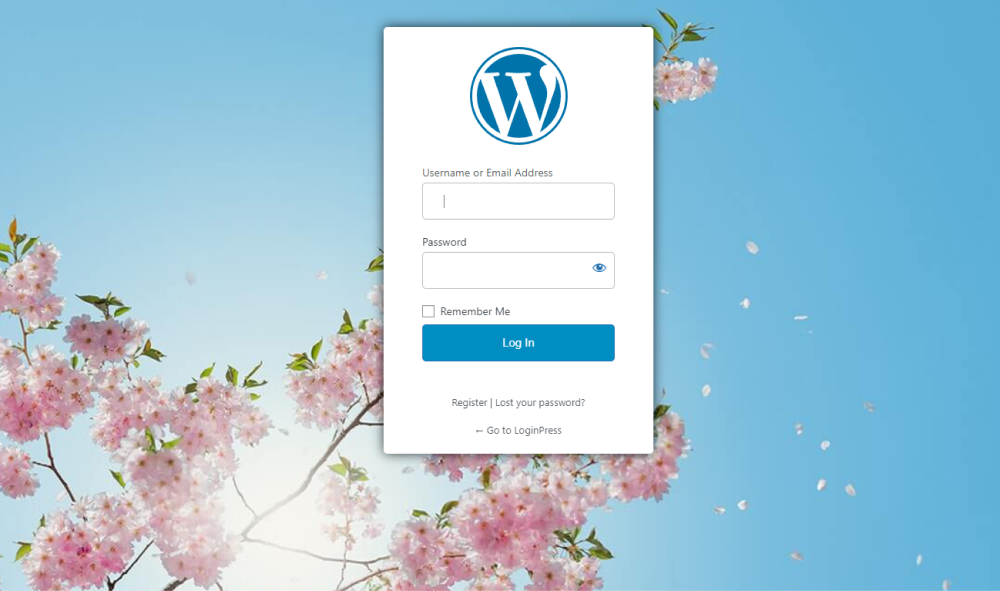
Note: You can even exclude the pages/posts from Force Login using a hook; see our detailed guide on the exclude pages and posts from force login.
That’s it! We hope you understand how to add Force Login with LoginPress to your WordPress site.
If you have questions regarding this article, ask our support team.
Frequently Asked Questions (FAQs)
These FAQs answer the most common questions about our WordPress custom login page plugin.

Where can I get support for LoginPress?
If you need help with LoginPress, you can contact us here. We’ll be happy to answer any questions about the plugin.
Do you have an affiliate program?
Yes, we have an affiliate program that you can sign up for here. As an affiliate, you’ll earn a commission on every sale you refer to us.
Do you offer refunds?
Yes, we offer a 14-day money-back guarantee on all of our plans. If you’re unsatisfied with LoginPress, simply contact us within 14 days of your purchase, and we’ll process a refund.
Can I upgrade my license after my initial purchase?
Yes, you can upgrade your LoginPress license at any time. Simply log into your account and go to the My Downloads page. From here, you can upgrade your license and download the latest version of the plugin.
Will LoginPress slow down my website?
No, LoginPress will not slow down your website. The plugin is lightweight and only loads the necessary files when someone tries to access your login page.

If you Still have Questions?
Get In Touch