
To make the plugin extra easy and functional as per the requirements, here comes the detailed documentation regarding the plugin. All about educating the things related to the plugin.

How to Configure Role-Based Redirects for WP 2FA Compatibility (Pro)
High-security sites must balance strong authentication with a smooth user experience.
On high-security WordPress sites, administrators frequently use WP 2FA to enforce two-factor authentication and, alongside LoginPress Role-Based Redirects, direct different users (e.g., Authors, Subscribers, or Shop Managers) to specific dashboards.
Table of Contents:
In previous versions, a technical conflict between these two systems could result in a Verification Loop.
Version 6.2.0 introduces a dedicated compatibility fix (wp2fa_redirect_role) that harmonizes the flow between LoginPress’s redirection engine and the WP 2FA authentication flow.
How LoginPress Ensures WP 2FA Compatibility
This feature acts as an intelligent traffic controller during the login process.
To understand what it does, we must look at the technical breakdown of the 2FA Loop bug that it resolves:
- The Conflict: When a user enters their password, LoginPress immediately identifies their role and prepares a redirect. Simultaneously, WP 2FA pauses the login process to request a security code.
- The Loop: In earlier versions, the Role-Based Redirect could trigger too early, before the 2FA code was entered. The system would attempt to redirect the user to their dashboard, but because 2FA wasn’t completed, WordPress would bounce them back to the login page to “verify,” creating an infinite loop.
- The Solution: LoginPress 6.2.0 now recognizes when WP 2FA is active. It effectively “holds” the role-based redirect in a queue. It waits for a “Success” signal from the WP 2FA plugin and executes only the redirect assigned to that user’s role.
Enabling Synchronized Login for WP 2FA Compatibility
The best part about this compatibility fix is that it is automatic.
If you have LoginPress Pro and WP 2FA installed, the fix is active by default.
However, to ensure your site is utilizing this correctly, follow these steps:
Step 1: Verify Plugin Versions
Ensure you are running LoginPress 6.2.0 (Pro) or higher and a current version of WP 2FA.
Step 2: Configure Your Role-Based Redirects
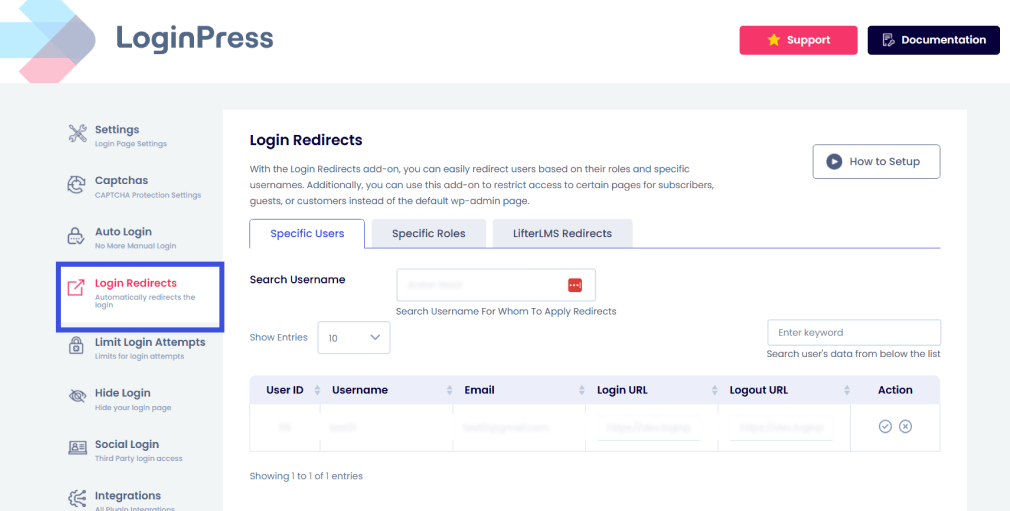
- Navigate to LoginPress >> Settings >> Login Redirects.
- Select the Specific Roles tab.
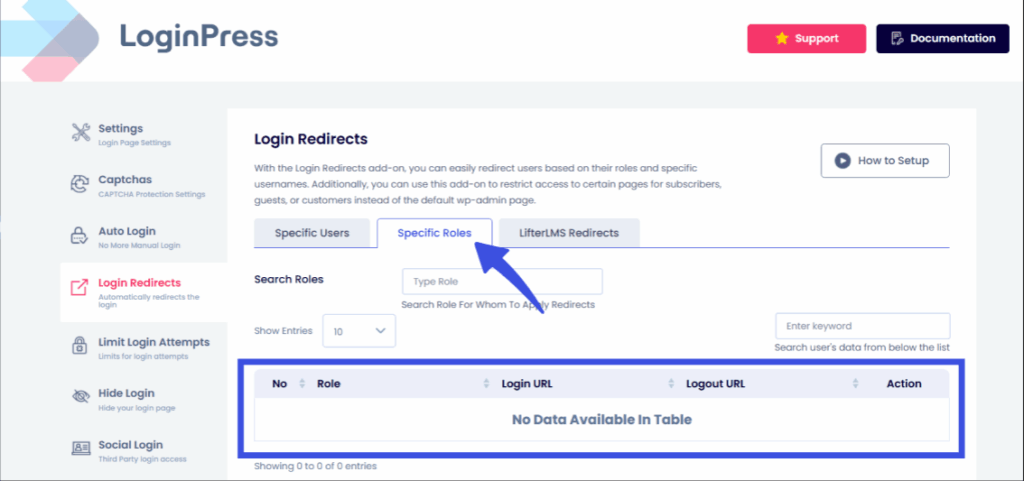
- Define your URLs. For example:
- Editor: yoursite.com/editor-dashboard
- Subscriber: yoursite.com/welcome-members
Step 3: Test the Flow
Log in with a user account that has 2FA enabled. The flow should now look like this:
- Enter Username/Password.
- Stay on the login screen for the 2FA Code.
- Enter the 2FA Code.
- Redirected immediately to the Role-Specific URL defined in Step 2.
Note: If you are a developer and need to bypass this or add custom logic, the fix utilizes the wp2fa_redirect_role hook internally, ensuring it doesn’t conflict with other custom login_redirect filters you may have in your functions.php.
Enable role-based redirects without coding, using the LoginPress login redirects add-on.
How 2FA Supports Architectural Stability and Security
- Eliminates Support Tickets: Redirect loops are among the most common causes users report “broken” sites. This fix prevents users from being locked out even when they have the correct credentials and 2FA codes.
- Professionalism at Scale: If you run a membership site or a multi-author blog, you cannot afford a “broken” login experience. This ensures that even your most secure users (those with 2FA) still benefit from the personalized navigation you’ve built for them.
- Security Architecture: Without this fix, admins often had to choose between disabling 2FA (bad for security) or disabling Role-Based Redirects (bad for UX).
- Compatibility Peace of Mind: WordPress is an ecosystem of moving parts. Using a plugin like LoginPress, which actively monitors and resolves conflicts with other major industry plugins (such as WP 2FA), helps ensure your site remains stable through future WordPress core updates.
This automated fix ensures that high-security 2FA protocols and personalized role-based redirects work in perfect synchronicity.
That is all for this post. If you have queries regarding this, feel free to reach out to the support team.
Frequently Asked Questions (FAQs)
These FAQs answer the most common questions about our WordPress custom login page plugin.

Where can I get support for LoginPress?
If you need help with LoginPress, you can contact us here. We’ll be happy to answer any questions about the plugin.
Do you have an affiliate program?
Yes, we have an affiliate program that you can sign up for here. As an affiliate, you’ll earn a commission on every sale you refer to us.
Do you offer refunds?
Yes, we offer a 14-day money-back guarantee on all of our plans. If you’re unsatisfied with LoginPress, simply contact us within 14 days of your purchase, and we’ll process a refund.
Can I upgrade my license after my initial purchase?
Yes, you can upgrade your LoginPress license at any time. Simply log into your account and go to the My Downloads page. From here, you can upgrade your license and download the latest version of the plugin.
Will LoginPress slow down my website?
No, LoginPress will not slow down your website. The plugin is lightweight and only loads the necessary files when someone tries to access your login page.

If you Still have Questions?
Get In Touch