
To make the plugin extra easy and functional as per the requirements, here comes the detailed documentation regarding the plugin. All about educating the things related to the plugin.

How to Secure REST API Endpoints with LoginPress Pro
The WordPress REST API enables external applications, mobile apps, and headless frontends to interact with your WordPress database.
However, its default open access can expose sensitive information, including user lists, site metadata, and plugin structures, to unauthenticated users or malicious bots.
Let’s explore how you can use LoginPress to secure REST API endpoints.
Table of Contents:
In LoginPress 6.2.0, we have introduced Whitelist REST API endpoints within the Limit Login Attempts module.
This feature allows you to adopt a “Zero Trust” security posture: you can disable public access to the REST API entirely while Whitelisting only the endpoints required for your essential services (such as contact forms, payment gateways, or mobile apps) to function.
Protecting JSON Data with API Whitelisting
Whitelisting Endpoints feature in LoginPress serves as a specialized firewall for your site’s JSON data.
Instead of choosing between a completely open API (insecure) or a completely closed API (which breaks many plugins), you can now curate an “Allowed List.”
- Endpoint Lockdown: Enabling the Disable App Login Endpoints or Disable User Endpoints settings blocks unauthenticated requests to those areas.
- Granular Whitelisting: The Whitelist Endpoints field lets you specify exact paths that bypass these restrictions.
- Wildcard Support: Using the asterisk (*) symbol, you can whitelist entire groups of endpoints. For example, whitelisting /wp-json/loginpress/* ensures that all LoginPress-related API functions remain accessible while other endpoints are blocked.
How to Whitelist API Access Endpoints (Step by Step)
To secure your API and maintain plugin functionality, follow these steps for enabling API whitelisting:
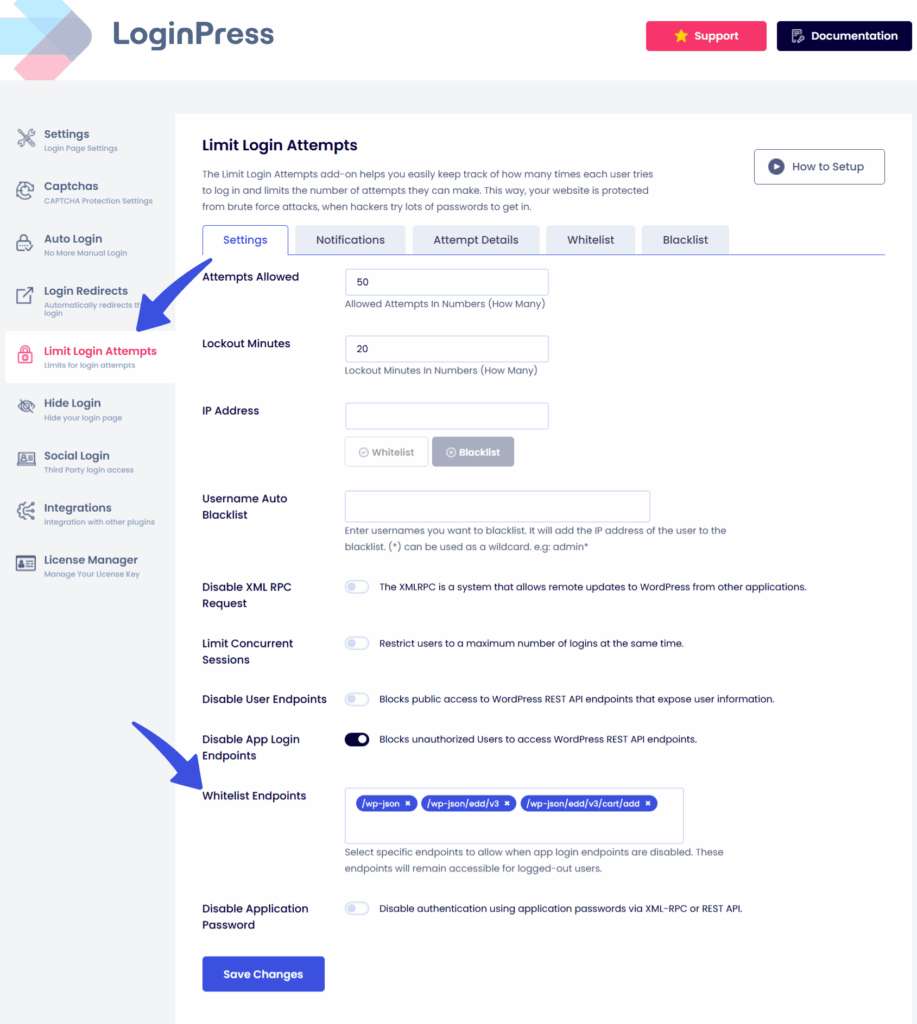
Step 1: Access the settings
- Go to LoginPress >> Limit Login Attempts >> Whitelist Endpoints.
Step 2: Identify Necessary Endpoints
Before blocking access, determine which plugins on your site require the REST API. Common examples include:
- Contact Form 7: Uses /wp-json/contact-form-7/v1/*
- Yoast SEO: Uses /wp-json/yoast/v1/*
- LoginPress: Uses /wp-json/loginpress/v1/*
Step 3: Add to Whitelist
- In the Whitelist Endpoints text area, enter each endpoint you want to remain public, one per line.
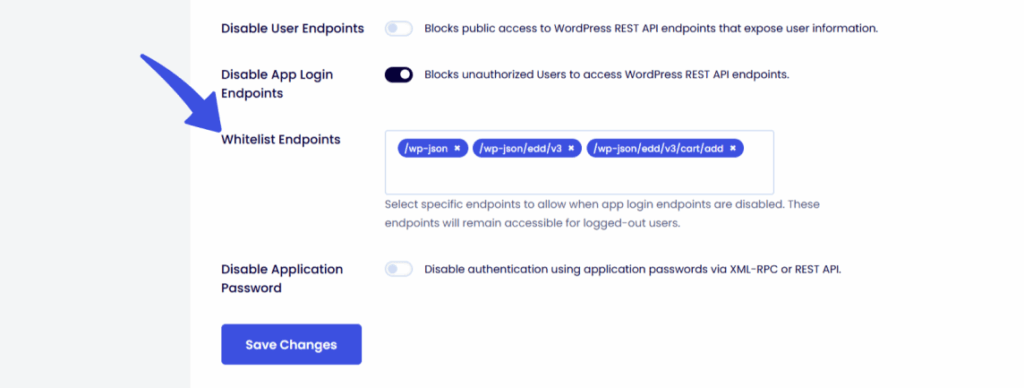
- Example: To allow your mobile app to access posts while blocking other endpoints, add /wp-json/wp/v2/posts.
- Example: To ensure a specific plugin works, add its namespace, such as /wp-json/my-plugin-namespace/.
Step 4: Enable the Restriction
- In the Settings tab of the Limit Login Attempts module, ensure that Disable App Login Endpoints is set to On.
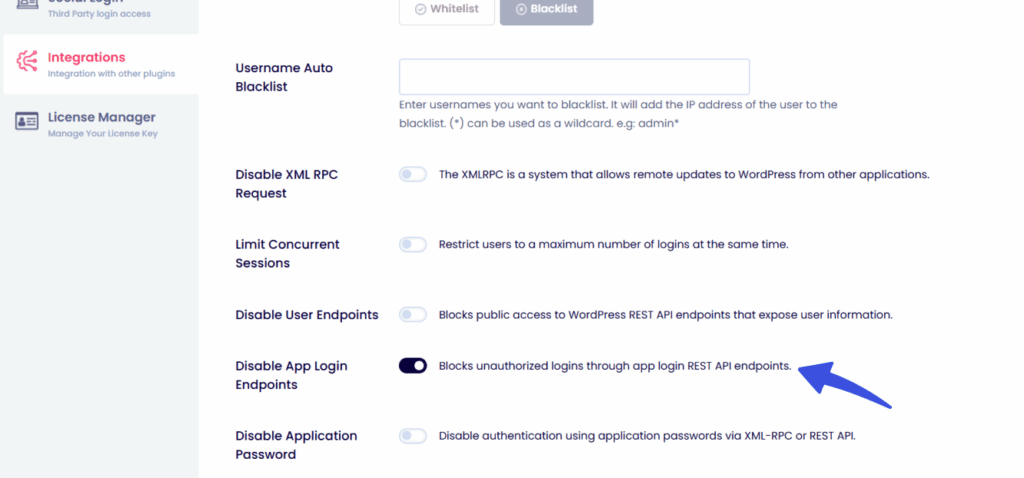
This activates the firewall, at which point only your whitelisted paths will respond to public requests.
Step 5: Verify configuration
- Log out and visit yourdomain.com/wp-json/wp/v2/users. If configured correctly, you should see a “403 Forbidden” or “Restricted” error, confirming that your user data is protected.
Learn tips and methods for the WordPress Login Hardening Checklist (2026 Updated Guide) for codeless security management.
How Whitelisting Endpoints Secures the API Attack Surface
- Preventing User Enumeration: Attackers often use REST APIs to enumerate all usernames before launching brute-force attacks. By whitelisting only essential endpoints and blocking /wp/v2/users, you prevent exposure of usernames.
- Plugin Compatibility: Many security plugins offer a “Disable REST API” button, but clicking it often breaks your contact forms, search bars, or block editor. LoginPress’s whitelisting approach enables strong security without breaking your site’s functionality.
- Reduced Attack Surface: Each active API endpoint can be a potential entry point for SQL injection or Cross-Site Scripting (XSS) attacks. Limiting public endpoints reduces the risk of successful exploits.
- Performance Optimization: Blocking unwanted traffic from scrapers and bots conserves server and database resources, keeping your site fast for legitimate visitors.
- Mobile app and Headless Support: If you use WordPress as a backend for a mobile app, you need the API open only for the app’s specific needs. Whitelisting enables your app to access required data while keeping other API endpoints secure.
Adopt a Zero-Trust posture by locking down your REST API while whitelisting only the specific endpoints your essential services require.
Feel free to reach out to the support team for any queries or information.
Frequently Asked Questions (FAQs)
These FAQs answer the most common questions about our WordPress custom login page plugin.

Where can I get support for LoginPress?
If you need help with LoginPress, you can contact us here. We’ll be happy to answer any questions about the plugin.
Do you have an affiliate program?
Yes, we have an affiliate program that you can sign up for here. As an affiliate, you’ll earn a commission on every sale you refer to us.
Do you offer refunds?
Yes, we offer a 14-day money-back guarantee on all of our plans. If you’re unsatisfied with LoginPress, simply contact us within 14 days of your purchase, and we’ll process a refund.
Can I upgrade my license after my initial purchase?
Yes, you can upgrade your LoginPress license at any time. Simply log into your account and go to the My Downloads page. From here, you can upgrade your license and download the latest version of the plugin.
Will LoginPress slow down my website?
No, LoginPress will not slow down your website. The plugin is lightweight and only loads the necessary files when someone tries to access your login page.

If you Still have Questions?
Get In Touch