
To make the plugin extra easy and functional as per the requirements, here comes the detailed documentation regarding the plugin. All about educating the things related to the plugin.

How to Configure Increased Lockout Time with LoginPress Pro
Brute-force attacks are rarely a one-time event. Modern malicious scripts are designed to be “persistent yet patient.”
They attempt a few passwords, hit a standard 15-minute lockout, wait for the timer to expire, and then resume their attack immediately.
This cycle can continue for weeks until a password is finally guessed. So let’s find out how LoginPress Pro can help you increase lockout time easily.
Table of Contents
To combat this, LoginPress 6.2.0 introduces the Increased Lockout Reaction (part of the Limit Login Attempts Pro module).
This feature moves beyond static security by implementing an Escalating Penalty System.
It allows the software to “learn” from an IP address’s history to Increase Lockout Time.
If an attacker repeatedly triggers lockouts, the system recognizes the malicious intent and exponentially increases the ban duration, effectively “freezing” the attack in its tracks.
Multi-Layered Defense Against Brute Force Attacks
The increased lockout time functions as a layered defense strategy.
Instead of treating each failed login attempt as an isolated incident, it considers the “cumulative bad behavior” of an IP address. It introduces three critical layers of logic:
- The Strike Threshold: Tracks how many standard lockouts a user has already incurred. You define the threshold at which the system stops being lenient.
- The Extended Penalty: Once the threshold is crossed, the system switches from minutes to hours for the lockout duration. This makes it mathematically impossible for a bot to test a significant number of passwords within a reasonable timeframe.
- The Forgiveness Window: It provides a “Reset Time” that clears the history for legitimate users who may have forgotten their password on a few occasions over several days.
Learn How to Restrict User Login Time in WordPress (2026).
How to Configure Increased Lockout Time (Step-By-Step)
To set up your escalating defense system in WordPress, follow these configuration steps:
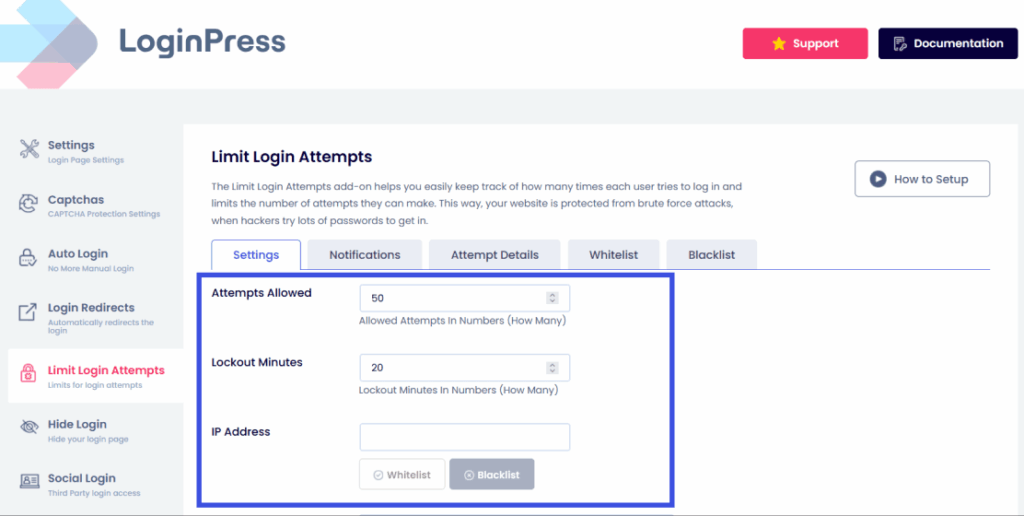
Step 1: Access the Settings
- Navigate to LoginPress >> Limit Login Attempts. Ensure the main module is active.
Step 2: Set the Lockout Threshold (Lockouts Before Time Increase)
Input the number of initial lockouts allowed before the penalty kicks in.
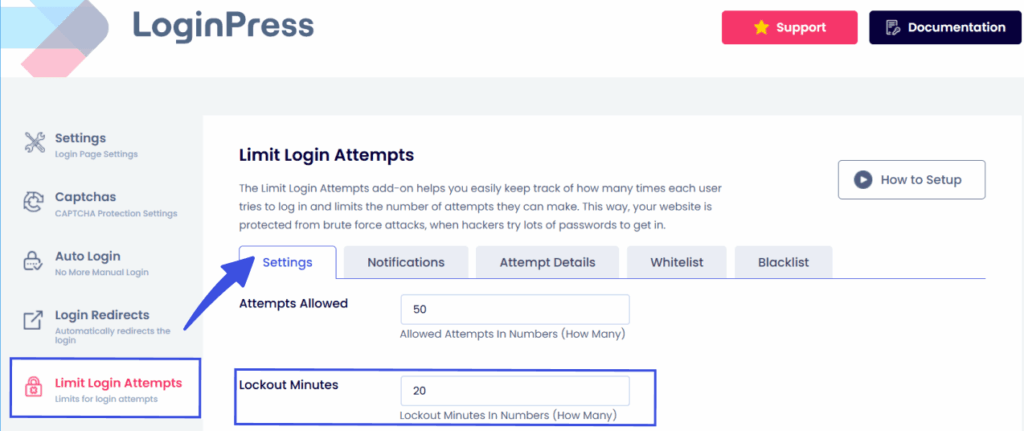
- Recommended Setting: 3.
- Logic: This allows a genuine user to be locked out 3 times (on their phone, laptop, and tablet) before the system deems the behavior suspicious.
Step 3: Define the Extended Ban (Increased Lockout Time)
Specify the number of hours the user should be banned for when they exceed the threshold.
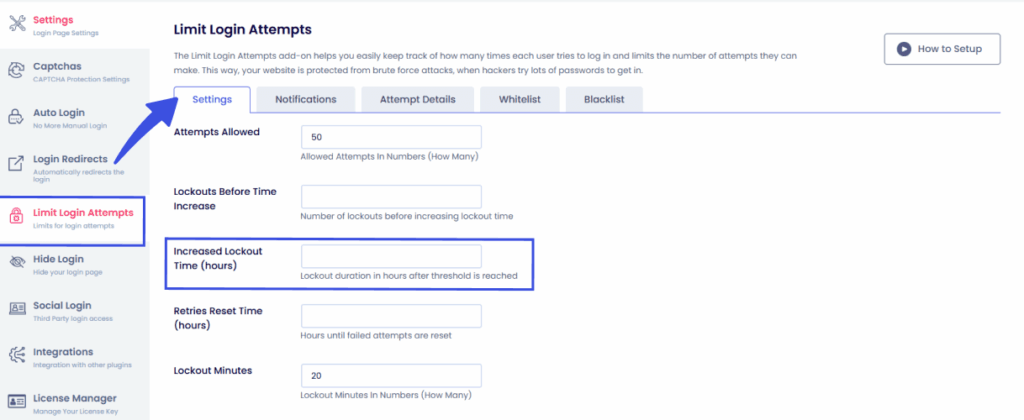
- Recommended Setting: 24 Hours.
- Logic: If a bot hits its 4th lockout, a 24-hour ban effectively kills the momentum of the attack and often causes the botnet to move on to a “softer” target.
Step 4: Configure the Clean Slate (Retries Reset Time)
Specify the number of hours after which the failed attempt counter returns to zero.
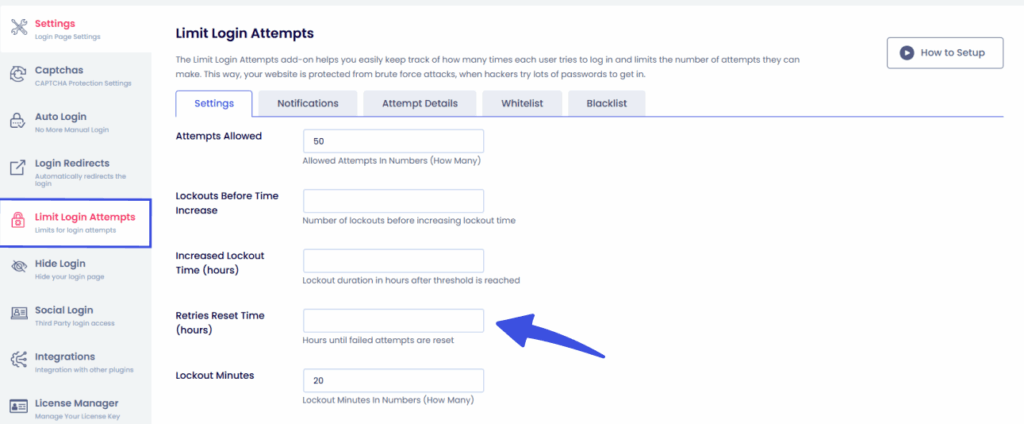
- Recommended Setting: 48 Hours.
- Logic: If a user was locked out on Monday but doesn’t try again until Thursday, the system treats them as a new user, preventing old mistakes from triggering an accidental 24-hour ban for a loyal customer.
Step 5: Save and Monitor
Click Save Changes. You can monitor the effectiveness of these settings by checking the “Logs” tab in the Limit Login Attempts module to see which IPs are being locked out for longer.
Defense Against Automated Attacks and Resource Protection
- Neutralizes Attacks: Attackers often configure bots to try only 2 or 3 passwords per hour to avoid triggering traditional security plugins. This feature catches them by reviewing their history over a 48-hour window and closes the loophole they rely on.
- Server Resource Protection: During a sustained brute-force attack, your server allocates valuable CPU cycles to process failed login attempts and verify them against the database. A 24-hour lockout stops those requests from reaching your database and keeps your site fast for real visitors.
- Reduced False Positives: By setting a high reset time, you don’t have to worry about permanently banning a legitimate user who had a bad week. The system is self-cleansing; it punishes the persistent but forgives the occasional mistake.
- Deterrence: Most botnets seek the path of least resistance. When they realize a site is using an escalating lockout policy, the cost of attacking it (in terms of time and IP resources) becomes prohibitive. They will typically abandon the attack in favor of a site with only basic, static lockouts.
- Hands-Off Security Management: Once these parameters are set, the system runs itself. You don’t need to manually monitor IP logs or manually block addresses in your .htaccess file. LoginPress acts as an automated security guard that becomes tougher only when needed.
Stop persistent brute-force attempts by implementing an escalating penalty system that becomes more severe as an attacker’s history grows.
Tip: You can also temporarily disable login access to users for a more temporary solution for accessing, here is a complete guide to learn How to Temporarily Disable WordPress Login Access (Explained)
Feel free to reach out to our support team if you need further assistance with setup or have any questions.
Frequently Asked Questions (FAQs)
These FAQs answer the most common questions about our WordPress custom login page plugin.

Where can I get support for LoginPress?
If you need help with LoginPress, you can contact us here. We’ll be happy to answer any questions about the plugin.
Do you have an affiliate program?
Yes, we have an affiliate program that you can sign up for here. As an affiliate, you’ll earn a commission on every sale you refer to us.
Do you offer refunds?
Yes, we offer a 14-day money-back guarantee on all of our plans. If you’re unsatisfied with LoginPress, simply contact us within 14 days of your purchase, and we’ll process a refund.
Can I upgrade my license after my initial purchase?
Yes, you can upgrade your LoginPress license at any time. Simply log into your account and go to the My Downloads page. From here, you can upgrade your license and download the latest version of the plugin.
Will LoginPress slow down my website?
No, LoginPress will not slow down your website. The plugin is lightweight and only loads the necessary files when someone tries to access your login page.

If you Still have Questions?
Get In Touch