

To make the plugin extra easy and functional as per the requirements, here comes the detailed documentation regarding the plugin. All about educating the things related to the plugin.

How to Customize Error Messages with LoginPress
By default, WordPress displays an error message that provides hints to users when they enter incorrect login credentials on your website's Login Page.
It makes hackers guess the correct details and gain access to your WordPress website.
But if you want to elevate your security by changing the default login Error Messages in WordPress, you are at the right place!
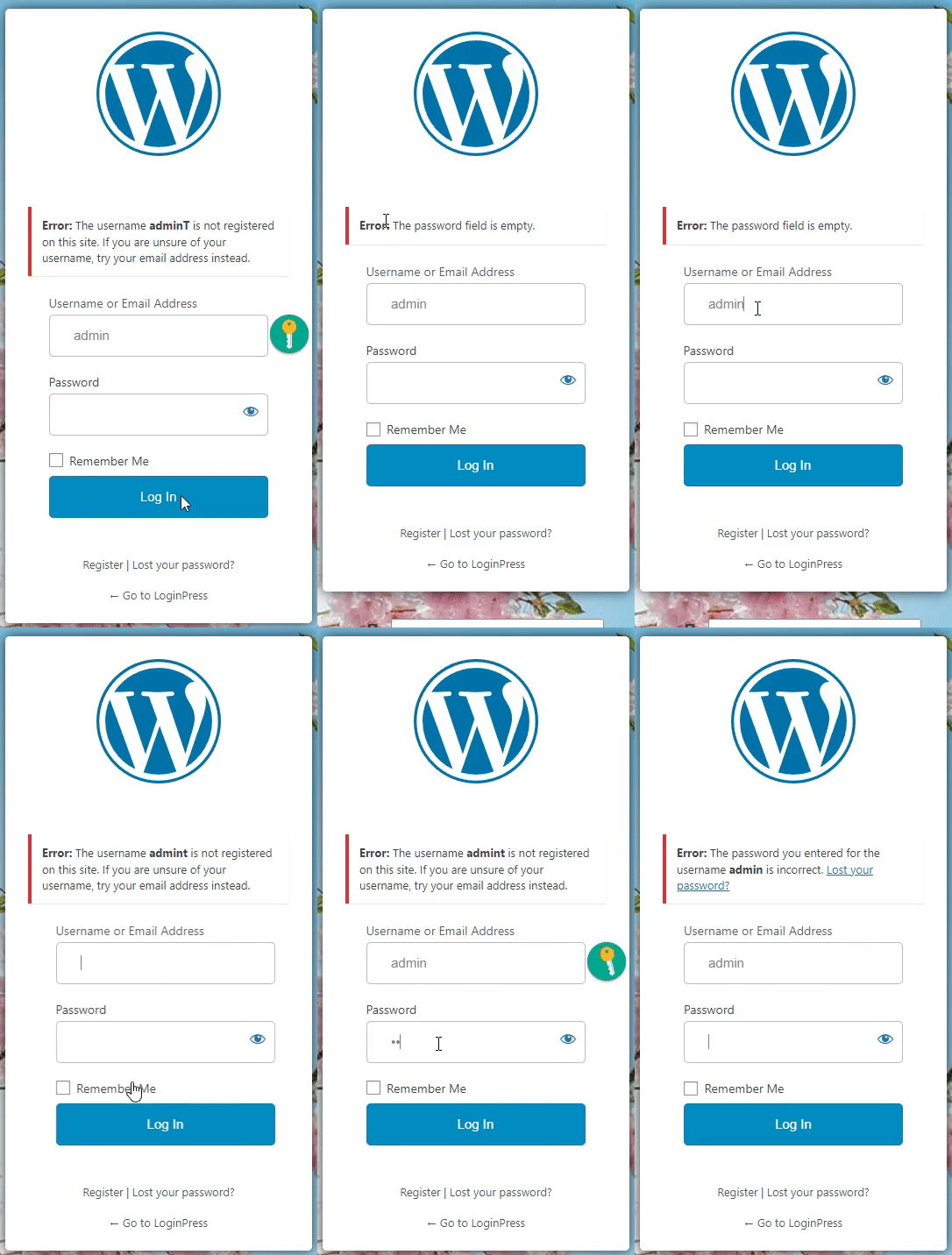
LoginPress lets you customize the error messages users receive based on the outcome of their unsuccessful login, registration, or password reset attempts. Let it be the wrong Email Address, Username, or Password.
This feature is available in both Free and Premium LoginPress.
This knowledge base article explains how to easily customize the Error Message on the Login, Registration, and Forget Forms.
Note: We assume that you’ve already Downloaded and Installed LoginPress. If not, you can check out our guide on How to Install And Activate LoginPress (Free).
Let’s get started!
Customize Error Messages with the LoginPress Error Messages Feature (Step by Step)
Below are simple steps to customize your error messages with LoginPress.
Step 1. Get Started with the Error Messages Feature
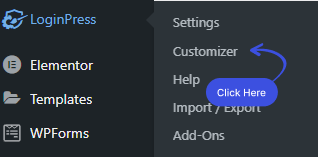
First, go to the left-hand side of your WordPress admin dashboard. Navigate to LoginPress and click on the Customizer option.
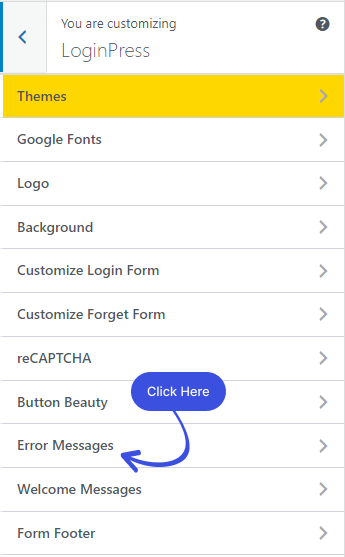
A new screen with all Customization Options will open. Select the Error Messages option.
After clicking on the Error Messages option, a new window will open where you’ll get different fields of Error Messages that can be customized exactly the way you want.
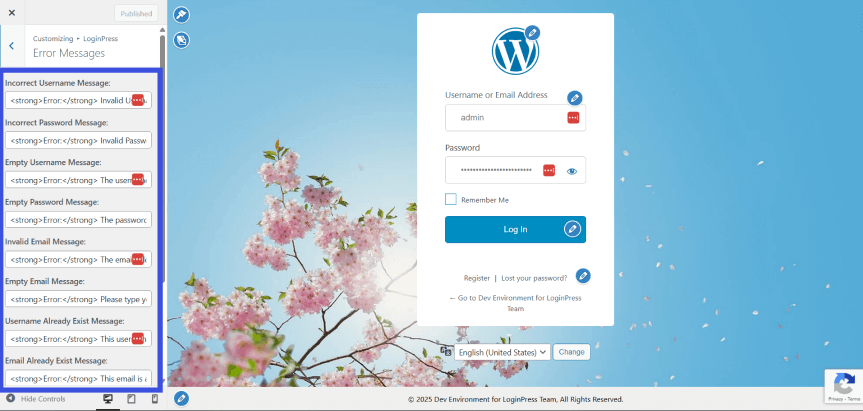
Note: Once you are done, don’t forget to click the Publish button to make all the changes LIVE.
So, without much ado, let's dive deep into the Error Messages feature.
Step 2. Customize the Error Messages
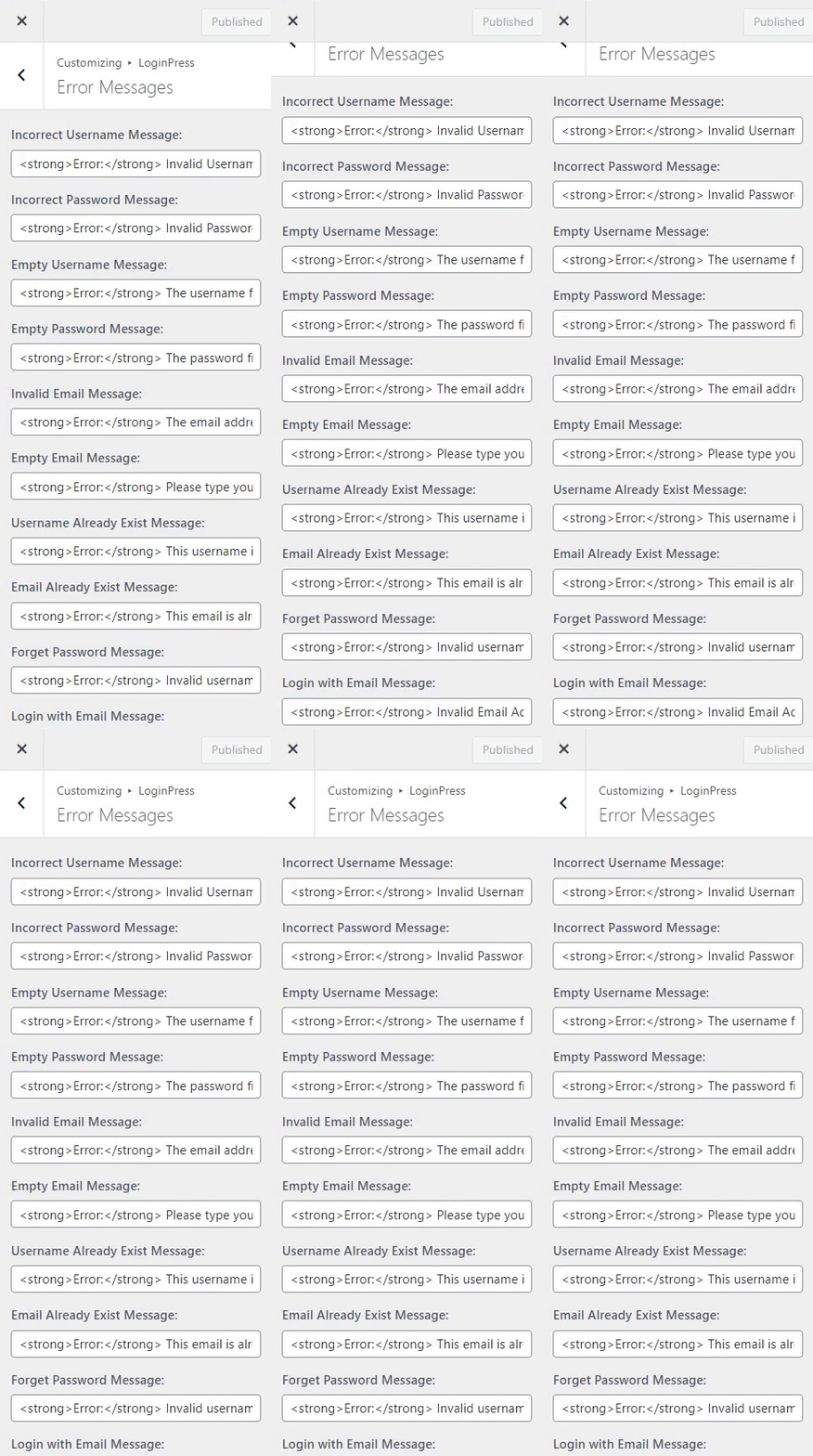
In the customizer editor of Error Messages, you’ll get multiple options to customize the Error Messages on multiple forms.
You’ll need to fill in the fields to change the Error Messages.
Note: Write customized Error Messages after <strong>Error:</strong>.
Let’s dive deep into the Error Messages features.
1. Incorrect Username Message
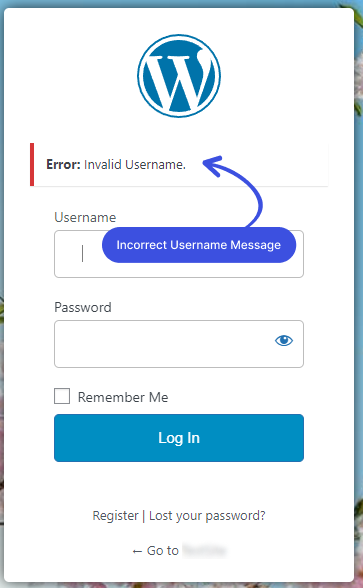
The incorrect username error message appears on the Login Form. It appears immediately when the user enters an incorrect username.
Note: The Incorrect Username Errorwill be shown if you’ve selected Only Username from the Login Order.
You can customize these Incorrect Username Error Messages to anything you want, e.g., "Invalid Username."
2. Incorrect Password Message:
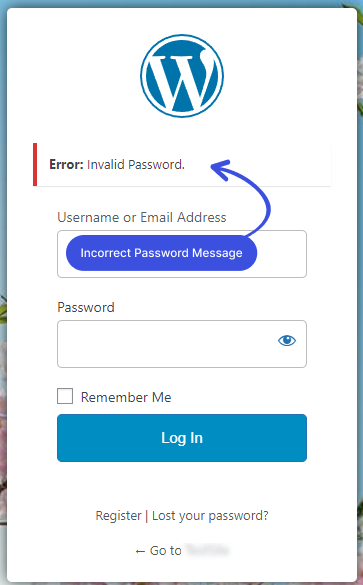
You’ll find the Incorrect Password Error Message on the Login Form. It immediately displays when the user clicks the Login Button with the incorrect password.
LoginPress lets you customize these Incorrect Password Error Messages to anything you want, e.g., "Invalid Password."
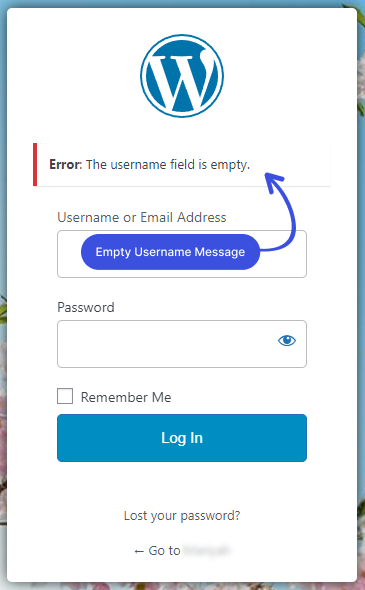
3. Empty Username Message
An Empty Username Error Message is found on the Login Form. It occurs when the user tries to log in without providing a username.
You can customize these Empty Username Error Messages to anything you want, e.g., "The username field is empty."
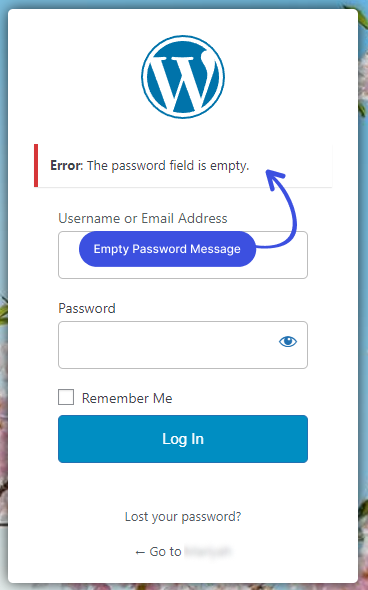
4. Empty Password Message
An empty Password Error Message emerges on the Login Form. It occurs when a login attempt is made without providing the Password.
You can customize these Empty Password Error Messages to anything you want, i.e., The password field is empty.
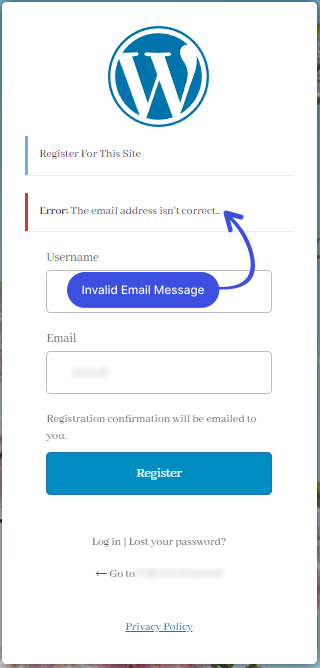
5. Invalid Email Message
An invalid Email Error Message pops up on the Login Form immediately after the user clicks the Log In Button with an incorrect Email Address.
Note: The Invalid Email Message will be shown if you’ve selected Only Email from the Login Order.
LoginPress lets you customize these Invalid Email Error Messages to anything you want, e.g., "The email address isn’t correct."
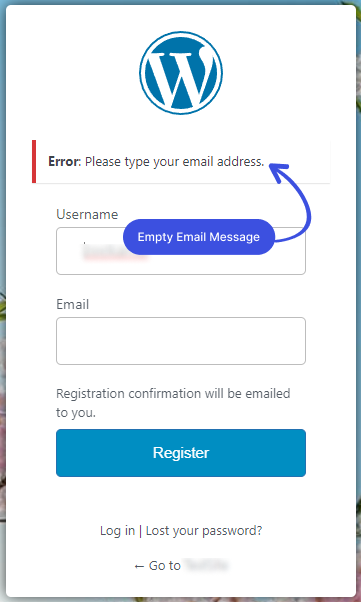
6. Empty Email Message
An Empty Email Error Message appears on the Login Form if the user tries to log in to the WordPress site without filling in the Email Address field on the Login Form.
Note: The Invalid Email Error Message arises when you’ve selected Only Email from the Login Order.
LoginPress lets you customize these Empty Email Error Messages to anything you want, e.g., "Please type Empty Email Field."
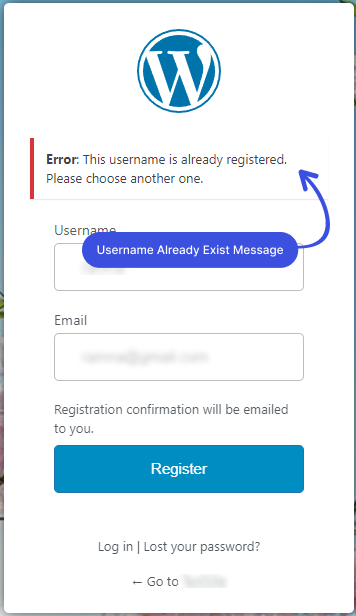
7. Username Already Exists Message
The "Username Already Exists" error message appears on the Registration Form when a user attempts to register with a username already registered on your site.
LoginPress lets you customize the Username Already Exist Error Message to anything you want, e.g., Try Another Username.
8. Email Already Exist Message
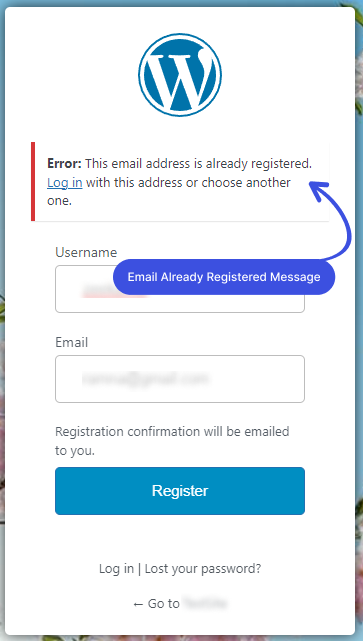
The "Email Already Exists" error message emerges on the Registration Form.
This error message appears when the user attempts to register for the site with an email address that is already associated with an account.
LoginPress lets you customize the Email Already Exist Error Messages to anything you want, i.e., Try Another Email.
9. Forget Password Message
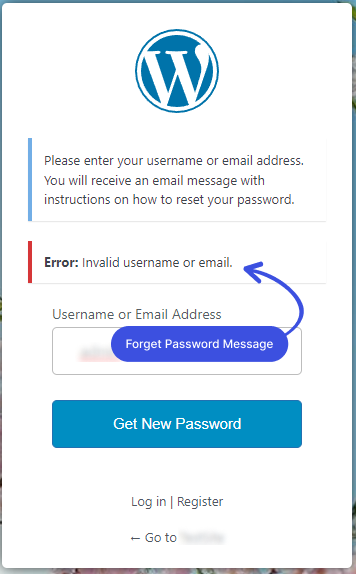
The "Forget Password" error message appears on the Forget Form.
This error message will appear if the user provides the wrong Username or Email address when recovering a forgotten password.
You can customize the Forget Password Error Message to anything you want, e.g., "Invalid username or email."
10. Log in with an Email Message
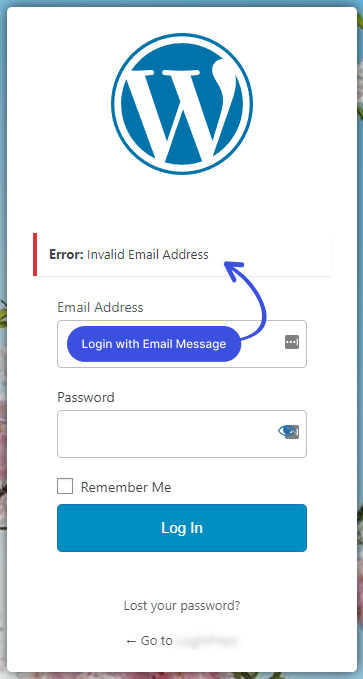
A Login Form error message will be displayed when the user attempts to log in with a Username, but you’ve selected the Email Address in the Login Order.
You can customize this Error Message to anything you want, e.g., "Invalid Email Address."
That’s it! Easy right? Now you can easily get started with LoginPress Error Messages.
Now it’s your turn! Try out the LoginPress custom Error Messages, and let us know how much it helped you!
If you have any doubts or questions related to this matter, please don’t hesitate to contact our support team.
See our video below:
Frequently Asked Questions (FAQs)
These FAQs answer the most common questions about our WordPress custom login page plugin.

Where can I get support for LoginPress?
If you need help with LoginPress, you can contact us here. We’ll be happy to answer any questions about the plugin.
Do you have an affiliate program?
Yes, we have an affiliate program that you can sign up for here. As an affiliate, you’ll earn a commission on every sale you refer to us.
Do you offer refunds?
Yes, we offer a 14-day money-back guarantee on all of our plans. If you’re unsatisfied with LoginPress, simply contact us within 14 days of your purchase, and we’ll process a refund.
Can I upgrade my license after my initial purchase?
Yes, you can upgrade your LoginPress license at any time. Simply log into your account and go to the My Downloads page. From here, you can upgrade your license and download the latest version of the plugin.
Will LoginPress slow down my website?
No, LoginPress will not slow down your website. The plugin is lightweight and only loads the necessary files when someone tries to access your login page.

If you Still have Questions?
Get In Touch